Windows: virtual device and filter driver problems
UPDD uses kernel components to post touch data to Windows. They create virtual devices: a virtual HID touch device, so that touch data is posted on the HID interface, and a virtual mouse and keyboard device, so that it can be posted on the mouse interface. A filter driver attaches to the touch screen itself so that UPDD receives its data. These devices are listed in Device Manager. The components themselves are described in What UPDD installs on Windows.
This document describes the problems that can occur with these devices in UPDD 7 and how to resolve them.
The UPDD entries in Device Manager
| Device Manager entry | Category | What it is |
| UPDD Pen & Touch | Human Interface Devices | UPDD's virtual HID touch device (upddvhid) |
| UPDD Mouse & Keyboard | Human Interface Devices | UPDD's virtual mouse and keyboard device (upddvhmk) |
| UPDD Mouse | Mice and other pointing devices | UPDD's mouse function (upddmf) |
| UPDD Filter | Human Interface Devices | UPDD's filter on the touch screen's HID interface (upddhx) |
| The touch screen's own name | UPDD Devices | A USB (non-HID) touch device handled by UPDD (upddusb) |
Virtual device shows '!' in Device Manager
For the driver to use these interfaces, the virtual devices must be installed and working. A device error shows as a '!' on the device's entry in Device Manager, as in this example:
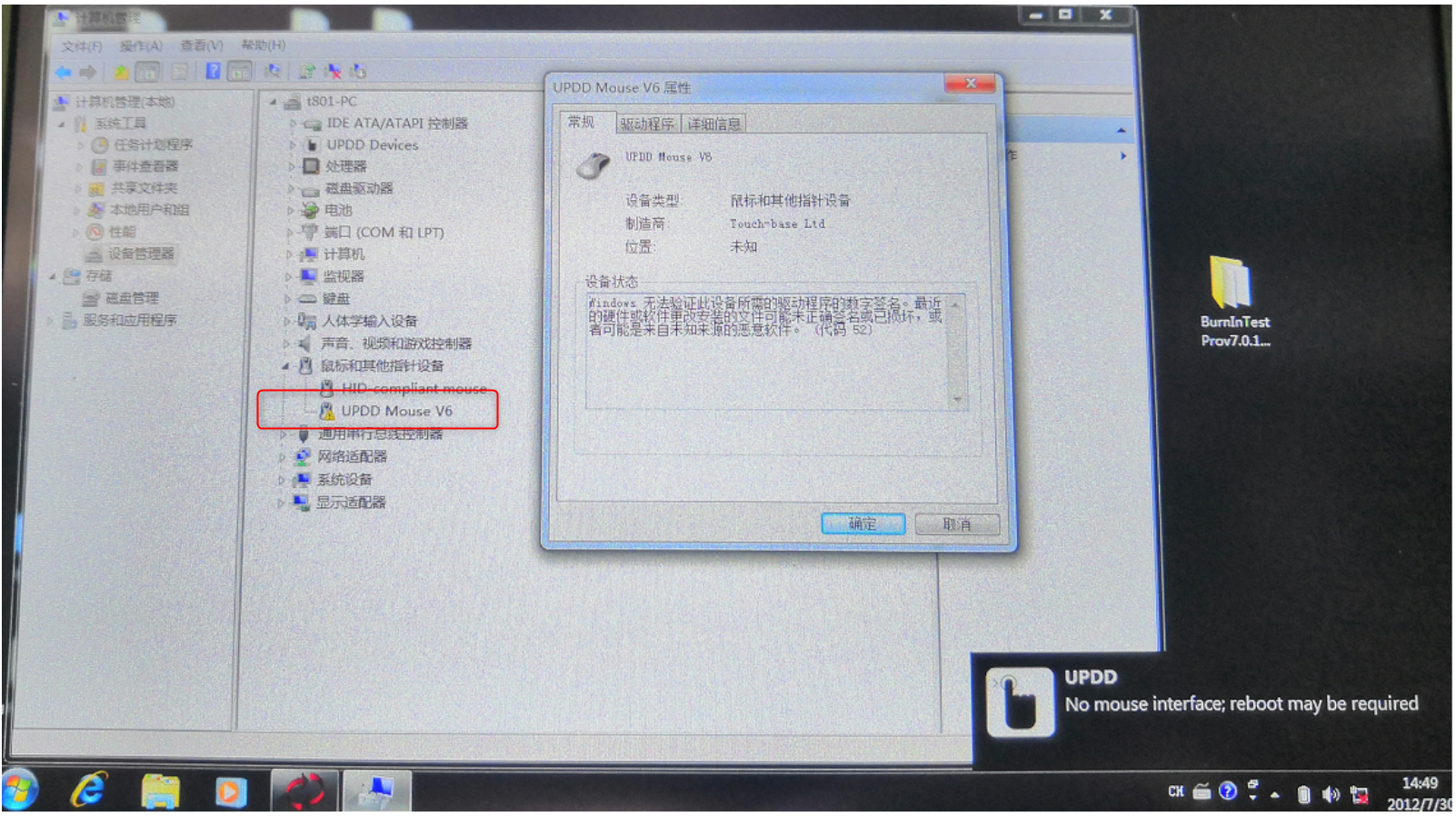
In this case the driver shows a notification such as 'No mouse interface; reboot may be required' or 'No touch interface; reboot may be required': the driver cannot open the interface.
Typically a restart resolves it. The issue usually corresponds to Device Manager showing that the device is installed but needs a restart; after the first installation of the driver, Windows kernel drivers sometimes need a restart before they work.
How the touch screen is listed
A HID touch screen handled by UPDD stays listed under Human Interface Devices (as an HID-compliant touch screen, for example) with UPDD's filter attached. This is not two drivers competing for it: UPDD's filter passes the touch data to UPDD and blanks it on its way to the Windows HID driver, so UPDD's virtual touch device is the only path to Windows. A no-touch or wrong-monitor symptom on such a device is a mapping problem: see Touch on the wrong screen, or none.
A USB (non-HID) touch device handled by UPDD is listed under UPDD Devices, with the name of the device in use:

Right-click it and select Properties to see:
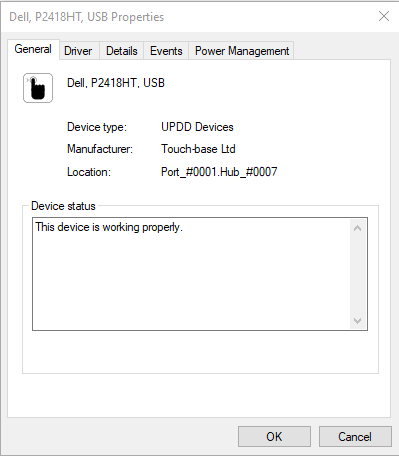
Windows lists many HID devices with the same name, and the UPDD virtual devices do not relate to the USB connection. To see the vendor and product ID of a device, select Properties > Details > Hardware Ids, or see Identifying a touch device.
Rebuilding UPDD's device layer
When UPDD's virtual device layer is not working (stale or duplicate UPDD virtual devices, or Windows not accepting the touch UPDD injects), it can be rebuilt without reinstalling the product. The -v7_uninstall action of UPDD Install.exe, in the UPDD folder, removes every UPDD touch, virtual and filter device and their driver files; it does not change UPDD's settings, so calibration, bindings and the licence stay. Restarting the UPDD service then recreates the virtual devices, reinstalls the filter and maps the monitors again.
- Open an administrator command prompt.
- Run:
"C:\Program Files\UPDD\UPDD Install.exe" -v7_uninstall - Run:
net stop upddthennet start updd(or restart the computer). - Wait about 30 seconds, then test the touch.
If touch is still not delivered after this, UPDD's device layer has been rebuilt, so the fault lies in Windows' touch and pointer handling rather than in UPDD's setup: raise a ticket at https://www.touch-base.com/contact; a remote session may be the next step.
For review
- Device Manager names and categories are from the INF files of the local 7.1 install (C:\Program Files\UPDD\inf). The 50724 statement 'if the device is listed under Human Interface Devices as a USB Input device, UPDD will not be able to access the device' is V6 behaviour (libusb/WinUSB) and is replaced by the upddhx filter description (upddhx/filter.cpp:641). The two UPDD Devices screenshots are from V6: confirm they still match a UPDD 7 USB-class device, or replace them.
- The -v7_uninstall procedure is from the updd-diagnostic skill (#720076), checked against install/main.cpp:169-171 and install/win32/v7_w32.cpp:459-519. No stock response carries it yet; confirm it is suitable for customers rather than staff only.
- 50729 (Windows 7, hidusb.sys in place of winusb.sys, libusbK workaround) is retired and nothing is taken from it; 50734's Windows 7 certificate line is dropped (D14).