Logs and driver debugging
There can be many reasons why touch is not working, and it is often necessary to gather information from the system to analyse the problem. This document describes the logs UPDD V7 writes on Windows, macOS and Linux, how to turn on more detailed logging, and what to do when the driver does not load. In most cases the diagnostics package collects all of this for you; the steps below are for when we ask for something specific.
Log file locations
The driver's log, updd.log, and the logs of the other UPDD programs are written to the UPDD log folder:
| OS | Log folder |
| Windows | C:\ProgramData\updd\log |
| macOS | /Library/Preferences/updd/log (the driver)~/Library/Preferences/updd/log (UPDD programs run by the user, such as UPDD Test) |
| Linux | /opt/updd/data/updd/log |
By default the driver keeps two files: updd.log, the log of the current session, and updd@startup.log. A new updd.log is started each time the driver starts. When it reaches its size limit, the first part of the session is kept as updd@startup.log and updd.log starts again, so the start of the session and its most recent part are both kept. Setting logheadtail=n in the bootstrap file reverts to the older policy of keeping timestamped copies (updd@date-time.log), which are deleted after logretentiondays days (4 by default).
By default updd.log omits data that might impact performance, such as the data for each touch packet. To see full debugging information, enable boot logging, run diagnostics or use session logging.
Files produced by some of the troubleshooting commands, such as upddutils recordraw, upddutils diag dumphid and the diagnostics package, are written to the desktop. On some systems, Linux in particular, a user desktop may not exist and the files will not immediately be seen.
Driver not loading
In rare cases the driver fails to load. The installer configures the driver to load automatically, so loading is normally a silent background process hidden from view. If the driver does not load, its API is unavailable and all client applications fail to connect to it: the UPDD Console shows 'No driver connection' and the upddutils command line utility fails with 'Unable to open connection to driver'.
In this situation you can run the driver manually in a command or terminal window and observe any error message it issues:
| OS | Command |
| Windows | C:\Program Files\UPDD>updd -e |
| macOS | sudo /Library/Application\ Support/UPDD/updd.app/Contents/MacOS/updd -e |
| Linux | sudo /opt/updd/upddenv /opt/updd/updd -e |
If it fails to load, the error should be seen in the command window.
Session logging
If the driver is loading but touch is still failing, it is important to understand what the driver is doing when the issue occurs. To log in detail for the current driver session, use the command upddutils filedebug n, where n is:
| Value | Meaning |
| 0 | Disable logging |
| 1 | Errors only |
| 2 | Commands, debug, trace and errors |
| 3 | As 2 plus high-level debug (the level we normally ask for) |
The debug data is written to updd.log in the log folder. Unless otherwise informed we normally want a log taken with upddutils filedebug 3: run the command, wait 5 seconds and then touch the screen.
In some operating systems you may need to turn logging off (upddutils filedebug 0) to be able to open the log. Session logging ends when the session ends, for example when the driver is stopped or the system is rebooted.
Alternative log path on Android
On Android, if the default log location is unavailable, set the environment variable UPDDLOGPATH to the target folder before enabling logging, e.g.
export UPDDLOGPATH=/data/alternatelogpath/
./upddenv ./upddutils filedebug 3
Do not omit the trailing slash.
Boot logging
For logging to be enabled over all driver sessions, including the start of the driver, and to log API activity and additional operational information, enable boot logging with the command line utility:
| Command | Effect |
upddutils bootlog or upddutils bootlog on | Turns on error, trace, debug and high-level debug logging now and for every later session. |
upddutils bootlog off | Turns boot logging off. |
upddutils bootlog default | Restores the logging configuration the installed package shipped with, if it shipped one (restart the driver to apply); otherwise the same as off. |
Boot logging is held in the driver's bootstrap file, updd.ini, which you can also edit by hand. The command above sets these entries:
[updd]
logerrors=y
logdebug=y
logdebughigh=y
logtrace=y
Optionally we may also ask you to set logsql=y or logconsole=y. The bootstrap file is in the following folder; the logs are written to the log sub-folder:
| OS | Bootstrap file folder |
| Windows | C:\ProgramData\updd |
| macOS | /Library/Preferences/updd/ |
| Linux | /opt/updd/data/updd |
Remember to turn boot logging off when you have finished.
API client programs
Starting with build 7.1.155 the log files of API based programs take the name of the program, e.g. updd test.log. On macOS they are written to ~/Library/Preferences/updd/log. These files are captured in a standard UPDD diagnostic.
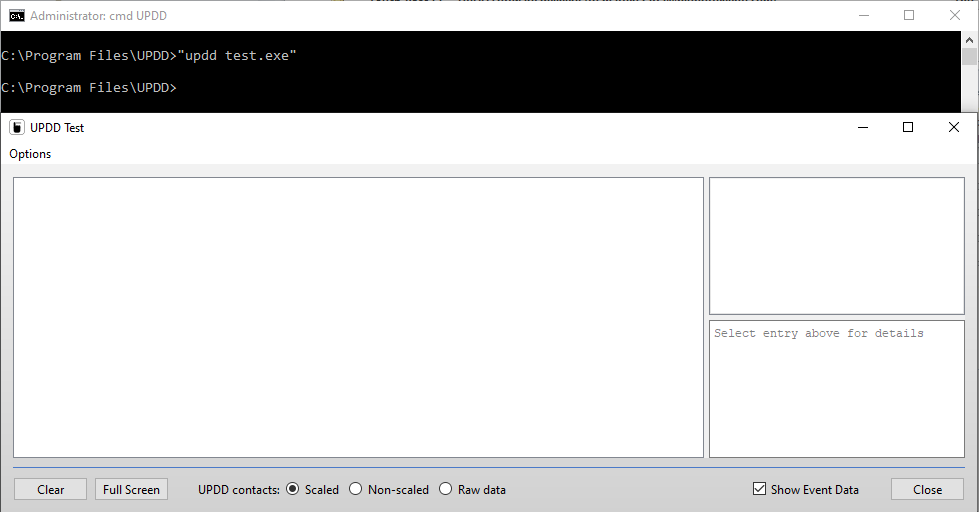
After enabling logging, restart the client program(s) to be logged. On Windows the client program must be run as administrator so that it has the access needed to write its log: either locate the program in C:\Program Files\UPDD, right click and select Run as administrator, or run it from an administrator command window as in this example:
Listing settings
To view the driver settings use the command line interface get command. This lists the settings of each device and the global (nodevice) settings:
upddutils [device n] get "*"
upddutils nodevice get "*"
These commands list the settings that have been explicitly set (during installation, with the command line interface set command or through the UPDD API). Settings not listed use their default values. See How UPDD settings work.
The driver's network port
The driver handles the hardware connection and receives the touch data sent by the device. Depending on the operating system and interface configuration it posts the data into the operating system through virtual touch, pen or mouse devices, and it always makes the data available on its API so that UPDD client applications, such as the Console, Test, Commander and Annotate, or your own programs, can receive it. When UPDD Commander is configured to post touch data into the operating system, it instructs the driver not to post the data itself.
The driver uses TCP/IP port 4146 to communicate with client applications, for processing within the computer only. This port can be changed if required in the UPDD bootstrap file. For the driver's API to function it must have TCP/IP access to this port.
One user reported that creating a secure ad hoc network in macOS (where UPDD Commander handles gestures and touch) stopped touch working:
sudo networksetup -createnetworkservice AdHoc lo0
sudo networksetup -setmanual AdHoc 192.168.1.88 255.255.255.255
To restore API communication they created an alias for the loopback address:
sudo ifconfig lo0 alias 127.0.0.1
UPDD Daemon CPU usage with several monitors
Some customers, so far only on Windows, reported that in a multi-monitor system there could be a system performance issue with UPDD installed: mouse movement was delayed or erratic, and became worse the more monitors were connected.
In addition to reacting to the system's notifications of monitor changes, the UPDD Daemon checks the monitor configuration periodically. In most cases this check takes milliseconds, but on some systems, likely due to specific video drivers, it can take a second, so that it runs almost continuously. For systems with a fixed monitor configuration this periodic check is not needed in practice, as it is a fail-safe.
The global setting periodic_monitor_watcher (introduced in 6.0.758 and 7.0.32) can be set to y (enabled) or n (disabled), e.g.
upddutils nodevice set periodic_monitor_watcher n
If the setting is not set the periodic check is enabled, in UPDD V6 and V7. The UPDD Daemon must be restarted for a change to take effect.
For review
- 50792 said 'For UPDD V7 the default is disabled'. Corrected to enabled: the Daemon stops the watcher only when the setting is
n(daemon/mymainwindow.cpp:600-604) and the setting's own description and default in the TBA settings data say enabled ('y') (E:\d_drive\config\v6\temp\000\tbaitems\bootstrap\dbms\updd\020_settings.sqlite:6936-6948). Confirm no shipping bundle presets it to n. - Added from source: the headtail log policy,
logheadtailandlogretentiondays(../amf3/amfcommon/amflog.cpp:165-215, 330-345),bootlog on|off|defaultand the four keys it writes (utils/main.cpp:5110, updd/upddmessagedispatcher.cpp:2131-2178),logconsole(amflog.cpp:296). - Left out: the 2017 filedebug example log (V6 libusb messages and updd-gestures/updd-tuio lines) and the 'Status = -9' libusb error link; the pre-675 desktop log column (V6 history); the downloadable updd.ini zip on v6download.touch-base.com (a static download); the Windows bootstrap screenshot (WinBootLog.PNG shows the V6 layout with updd.log beside updd.ini) and the settings listing screenshot (listsettings.PNG: V6
(x86)folder, an internal licence and a 300-touch evaluation limit). Replacement screenshots welcome. - UPDDLOGPATH is only read on Android (utils/main.cpp:3480-3486) and the driver ignores the filedebug log path (updd/upddmessagedispatcher.cpp:986-990), so the section is marked Android/UPDD 6. Confirm.
- The bootstrap setting that changes port 4146 is not named in the original; check it and name it here or in how-settings-work.