What UPDD is and how touch reaches your applications
UPDD (Universal Pointer Device Driver) is a cross-platform touch screen, pen, digitizer and whiteboard driver that can be used as an alternative to native or third-party drivers in cases where these drivers do not meet the required functionality or where no driver exists. It is used when the native touch support in current operating systems does not offer the functionality required, does not support older legacy devices, or where you have a custom requirement that can be achieved with our driver.
This document describes what UPDD is, the versions and platforms available, and the system interfaces the driver uses to deliver touch into the desktop and applications, including what multi-touch and multi-user use depend on. It applies to UPDD 6 and UPDD 7 on all platforms.
UPDD versions and platforms
The drivers support HID, non-HID (legacy) USB and serial devices. Under Windows UPDD 7 also supports I2C HID devices.
| Version | Platforms |
| UPDD 7 | Windows 7 to Windows 11, 64 bit only. macOS 10.14 and above, native on Intel and Apple silicon. Modern 64 bit Linux distributions. |
| UPDD 6 | Windows desktop, XP to Windows 11, 32 and 64 bit. macOS 10.8 to 10.13, Intel (Rosetta on Apple silicon). Linux, 32 and 64 bit. Android, x86 and ARM (see UPDD for Android). |
It supports any number of system monitors, in any layout, in native or extended desktop modes, running in landscape or portrait orientation.
Which installer to request for your system is described in Downloading UPDD.
UPDD 7 compared with UPDD 6
When the latest development tools are used, compatibility with older versions of the target operating system is often lost. For this reason the UPDD 6 development environment has not been upgraded, so that UPDD 6 retains support for older versions of Windows x86/x64, Linux 32/64 bit and macOS 64 bit. Instead, a new version of the driver was created, UPDD 7.
Early UPDD 7 versions support Windows 10 (1809) and above and macOS 10.14 and above, both 64 bit only. As of 7.1.88 UPDD 7 also supports Windows 7 x64 and 7.1.116 supports Linux 64 bit.
Alongside the new development tools, UPDD 7 makes the following technical changes and adds the following features:
| Change | Description |
| Qt 6 | Qt is a popular development tool. UPDD 7 is built with Qt version 6. |
| macOS universal binaries | All modules are universal binaries (Intel and Apple silicon native). There is no need for Rosetta 2 on Apple silicon systems. |
| macOS display mode support | Supports standard and Dark Mode display configurations. |
| New USB interfaces | UPDD 6 uses a third-party USB interface library, libusb. Due to various USB support issues that are difficult to identify and address within a third-party library, UPDD 7 uses our own USB interfaces. Under Windows there are two: one that interfaces with the native HID driver to support HID touch, pen and tablet devices, and one for older, non-HID USB devices. Under macOS the USB interface is written using IOKit. |
| I2C hardware | Adds support for Windows I2C devices. |
| Native pen support | UPDD 7 adds a virtual HID pen device in the Device Manager so that Windows native pen functionality is enabled. Touch or pen data from any hardware interface (HID, USB, serial) can be posted into the OS as pen data, as well as touch or mouse data. |
| Keyboard interface | UPDD 7 implements a virtual HID keyboard device in Windows. This allows UPDD Commander to post keystroke actions into the OS. |
| Driver reset | Offers the ability to fully reset the driver in situations where a fault may have locked up touch functionality. This can be invoked on the command line or from the UPDD Console. |
| New commands | Two new upddutils commands:hiddevices: lists all HID devices and shows the topology of a device and its interfaces.hardreset: removes and reinstates all drivers. |
The UPDD software suite
The UPDD software suite consists of the driver and a number of related utilities. The driver's main role is to handle the hardware interface, receive all incoming stylus touch data and related information, and make it available to other processes via its Application Programming Interface (API). Our own utility programs use the API.
Thereafter, there are a number of standard system interfaces available to post touch data into the desktop and applications. By default the driver automatically selects the most appropriate interface based on the operating system and the software components installed, and therefore touch should work after installation.
| Component | Description |
| Driver | Reads all touch data from the touch device, makes it available on the API and, by default, posts it into the operating system. Common settings are adjusted in the UPDD Console; all user controlled settings can be adjusted with the command line interface, upddutils. |
| UPDD Daemon | The driver's background task, with a system tray (Windows) or menu bar (macOS) item offering a number of functions relating to the driver and its user interface. Its About option shows the version in use. See UPDD Daemon. |
| UPDD Commander | Windows and macOS. Receives touch data from the driver API, performs the action associated with each gesture and posts touch into the OS. It also acts as a TUIO server. See What UPDD Commander is. |
| UPDD Test | Tests the touch mouse interface and the UPDD API and TUIO data input. See UPDD Test. |
| UPDD Calibrate | Calibrates the touch screen with the video area. See Calibration. |
| UPDD Annotate | Live annotation over the desktop. See UPDD Annotate. |
For review
The original introduction (50324) carried a schematic of the driver and utilities, /Uploads/Images/V6/General/schematic.png. It shows UPDD Gestures and the standalone UPDD TUIO server, which are withdrawn, so it is dropped here. A new schematic showing UPDD Commander in their place is needed.
Where UPDD is installed
The main UPDD application folder for each operating system is as follows. The installation also places files in sub-folders and in specific system folders, as listed in each platform's topic.
| OS | Application folder | Details |
| Windows | C:\Program Files\UPDD (UPDD 6: C:\Program Files (x86)\UPDD) | What UPDD installs on Windows |
| macOS | /Library/Application Support/UPDD | What UPDD installs on macOS |
| Linux | /opt/updd | Linux: what is installed, start-up and processes |
Communication between components
UPDD uses TCP/IP for inter-process communication. The user mode driver component listens on port 4146 and other programs (including custom programs using the UPDD API) communicate with this port. The driver requires access to TCP/IP port 4146 for internal computer processing only: it is bound to the loopback adapter only, i.e. it is available only to processes running on the local machine. The port can be changed if required in the UPDD bootstrap file (see How UPDD settings work).
When the specialist Touch over IP features are used to provide distributed touch, all addresses are bound, allowing the port to be opened from any network node with the appropriate access, and this access should be managed using firewall rules. See Virtual devices, Touch over IP and Touch Split.
System interfaces
The driver is responsible for interfacing with the pointer device hardware (touch screens, pens, digitizers etc) to receive incoming co-ordinate data. Thereafter, this data can be posted by the driver into the operating system in various ways, to control the system pointer or to interface with the underlying input subsystem and interact with any native touch features built into the OS.
Applications can also register to receive co-ordinate data via the driver's API and implement their own system interface as required, as is the case with UPDD Commander under macOS and optionally under Windows.
Where the driver is configured to post touch data into the OS, this is generally referred to as 'mouse emulation', and there is a setting to disable this emulation if another application is receiving touch data from the driver via the API and dealing with the touches.
If the driver is posting touches into the OS, a device setting indicates which interface to use: for UPDD 6 it is active_touch_interface and for UPDD 7 it is active_pointer_interface. These settings are referenced by the driver if mouse emulation is enabled. They are set in the UPDD Console, Touch interface dropdown. For macOS there is only one driver interface, hence this setting is not shown in macOS.
You can also set it with the command line utility, using upddutils device n set active_pointer_interface [interface type] (UPDD 6: active_touch_interface), where n is the device handle (default 1 if 'device n' is not included) and the interface type is one of the values listed below.
Default interface
If the setting is not defined or is blank, the driver selects an appropriate default interface for the operating system as follows:
| OS | Default system interface |
| Windows | Virtual HID interface (if it is present and the Windows 'tablet' component also exists), otherwise the single touch mouse interface. UPDD 7 treats a blank setting as Touch. XP: no virtual HID or tablet components exist. For WES7 note that only WS7P contains the tablet component; WS7E and WS7C do not appear to contain it. All other Windows editions should have both the virtual HID and tablet components present. The tablet component is deemed to exist if the registry branch HKLM\SYSTEM\CurrentControlSet\services\TabletInputService exists. If it does not, you may need to enable it in the system. |
| Linux | uinput single touch events. See Linux touch delivery: uinput and X. |
| macOS | The simple touch interface is used, unless UPDD Commander is loaded, in which case Commander has its own interface. |
Notes
- Most UPDD macOS installers install the driver plus UPDD Commander, so it is likely that Commander is in control of posting the touch data. Commander is not bound by this setting. The driver references this setting only when Commander is not in control of posting the touch data, either because Commander is configured not to post data or because it has been stopped (see Running Commander).
- If you switch interfaces there is a possibility that calibration may be lost, especially in a complex multi-monitor system in Linux, where the internal kernel video mapping using uinput can differ from X.
Interface values
UPDD components implement the following system interfaces:
| UPDD 6 value | UPDD 7 value | Console | OS | Description |
| tbupddsu | mouse | Mouse | Windows | A basic single touch, mouse type interface. |
| upddvh | touch | Touch | Windows | A multi-touch virtual HID interface for Windows systems running Pen Services (native touch support). |
| pen | Pen | Windows | Posts data as Windows native pen input through the virtual HID pen device. | |
| auto | Auto | Windows | Posts data on the most appropriate interface based on the device characteristics. | |
| w32_events | Windows | An experimental method of posting touch data directly into an application, bypassing the OS mouse and touch processing. See What UPDD installs on Windows. | ||
| simpletouch_cg | simpletouch_cg | N/A | macOS | A basic single touch interface that works only when a user is logged in (Core Graphics). |
| xtouch | mouse | Mouse | Linux | Linux XTest interface. |
| uinput | touch | Touch | Linux | Linux event system interface; requires the uinput component to be present. See Linux touch delivery: uinput and X. |
| N/A | N/A | N/A | macOS, Windows | UPDD Commander processes touch events and gestures. |
Given that client applications can also interface with the system pointer or input subsystem, the active interface setting is used to aid synchronisation between these applications and the core driver interfaces by indicating which interface is currently enabled. The setting is passive, in that it does not in itself invoke the described functionality, but it indicates the interface in use, against which tests can be performed by any component that implements a system interface.
If another process wishes to control the touch interface with the OS, or if the current interface is to be disabled, the setting should be changed to a custom name or set to a dummy value. Specifying the name hands control to the custom interface. Such an interface implementation should also check the value of this setting and only deliver touches into the system if the value matches its custom name, as described in Settings API.
Example usage
If under Windows you want to disable the virtual HID interface and revert to the single touch mouse interface, set the setting to the mouse interface. The driver will then only post to this interface, irrespective of the presence of the virtual HID interface:
upddutils set active_pointer_interface mouse(UPDD 6: upddutils set active_touch_interface tbupddsu)
If a third-party UPDD client application wants to process incoming data and post it to a specific application only, for example to satisfy the native touch event API only within that application, set this setting to a non-standard value and data will no longer be posted via one of the standard interfaces.
How touch reaches an application
There are various interfaces that receive the touch data from the driver and, although they are implemented differently in the different operating systems, broadly speaking they perform similar functions.
UPDD API
In all cases the driver posts the touch data on its own Application Programming Interface. The API passes over touch position, touch status, pressure and gesture information. Any application that uses the UPDD API functions (known as a UPDD client program) receives the touch data directly into the application.
UPDD Test is a UPDD client application and shows the touches being received from the API interface:
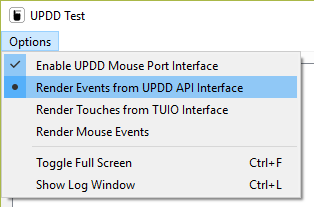
In this instance the touch data path from the physical touch screen to the application is touch hardware > driver > UPDD client application. It does not use any operating system interfaces, functions or APIs to receive touch data. It is a multi-touch application purely because it is processing all touches coming directly from the driver. The system pointer is not affected because the data comes directly from the driver.
Applications using the UPDD API operate independently of the system mouse movements and clicks, and can be written to control all aspects of the touch interface, be it multi-touch or multi-user.
Mouse emulation
All operating systems offer an interface for posting 'mouse' type data. Mouse data is, by its very nature, a single entity, in that it relates to the system mouse device that controls the system pointer. When a touch screen is used to move the system mouse pointer and generate a click this is commonly known as 'mouse emulation'. The main difference between a real mouse and a touch screen is that a mouse or trackpad moves the cursor relative to its movement, whereas a touch screen moves the cursor to the absolute point of touch.
Any application written to be driven by mouse movement and clicks will work via this interface. UPDD Test reacts to mouse events and shows the touches being received via this interface:
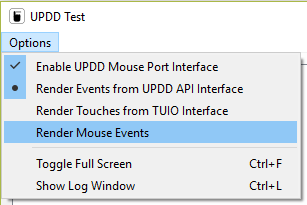
If the driver is configured to post touch data on the system's mouse interface, the first or only data stream is used to control the mouse pointer. In this instance the touch data path is touch hardware > driver > mouse emulation interface > desktop / application.
Changing the active interface setting to a non-mouse interface effectively disables the mouse interface.
Native multi-touch
Some operating systems offer an interface for posting multi-touch data; some have open interfaces, others closed, proprietary interfaces.
Windows: offers a HID interface to post multi-touch data into the OS. The UPDD driver posts touch data via a virtual HID device so that the desktop and applications receive multi-touch data as native touch events. Windows caters for both gesture and positional touch data.
Linux: offers an input subsystem for posting multi-touch data into the OS. The UPDD driver posts touch data via the uinput interface so that the desktop and applications receive multi-touch data as native touch events. uinput is a user mode bridge to the Linux input subsystem and allows both single and multi-touch data events to be posted. This interface requires uinput support in the Linux kernel and should be available in most modern distributions.
In these cases the touch data path is touch hardware > driver > multi-touch interface > desktop / application.
macOS: because this operating system does not natively support touch screens, the desktop and applications have mainly been designed for multi-touch gesture control, not multi-touch positional data. Apple offers multi-touch trackpads and Magic Mice on which gestures are performed; multiple touches on these devices are converted into gestures that are then processed by Apple's proprietary device drivers. Therefore desktop control and most 'multi-touch' applications are designed to support gestures and not positional touch data. Controlling a Mac using multi-touch and UPDD can be seen in this video.
Drawing applications do support positional data and these work with Apple's own hardware, but positional data posted to the OS from our software is ineffective since macOS 10.10.2, as described in Positional touch events on macOS.
To implement gesture support we have created UPDD Commander. It is a UPDD API and TUIO client application, in that it can receive touch data from either interface, calculate the gesture being performed and post it into the OS in exactly the same manner as the native Apple gesture interface used by Apple's multi-touch trackpads and Magic Mice. In this instance the touch data path is touch hardware > driver > gesture interface > desktop / application.
Calculated gestures are also posted to the UPDD driver, which makes them available on the driver's API. UPDD Test uses the gesture API to receive and display gesture information:

TUIO
TUIO is an industry standard protocol for 2D and 3D objects, used across all operating systems to allow cross-platform touch based client applications to receive touch data in a standard way. The two-dimensional specification caters for X and Y co-ordinates, so it lends itself very well to touch data. Applications written to use the TUIO interface to receive touch data are referred to as TUIO client applications.
UPDD Test is a TUIO client application and shows the touches being received from a TUIO server:
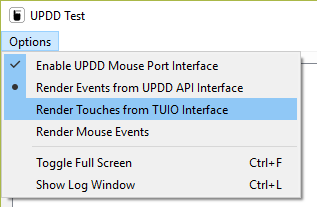
UPDD Commander includes a TUIO server (see TUIO in Commander). When enabled, the TUIO server uses the UPDD API to receive touch data, which is then broadcast over IP to waiting TUIO client applications.
In this instance the touch data path is touch hardware > driver > TUIO server > TUIO client application. It does not use any operating system interfaces, functions or APIs to receive touch data, and the system pointer is not affected. Applications using the TUIO interface operate independently of the system mouse movements and clicks, and can be written to control all aspects of the touch interface, be it multi-touch or multi-user.
Multi-touch
One of the most often asked questions is 'does your driver support multi-touch?'. The simple answer is yes. However, this does not answer the question fully, as often the real question is:
- "Will my application work with multiple touches?"
- "I have multi-touch when I run my application in Windows but not macOS. Why?"
- "Can I move more than one fader at a time on my DAW system?"
- "Can I get multi-touch in a browser under macOS?"
These are the multi-touch issues to consider.
Hardware
The most obvious requirement for multi-touch is that the touch device physically supports multi-touch and is capable of transmitting independent touch data per stylus to the driver.
Broadly speaking, touch devices offer single, dual or multi-touch functionality. Dual touch systems are often advertised as 'multi-touch' but are of no use if your usage requires more than two touches. Dual touch systems can support many of the widely used gestures, such as pinch, zoom, rotate and two-finger scroll, but cannot be used for gestures requiring more than two touches. For example, UPDD Commander on macOS supports the 2 to 5 finger gesture range implemented in macOS, so you cannot invoke 3, 4 or 5 finger gestures with a dual touch device.
True multi-touch devices tend to offer 5 to 10 touch support, but some technologies offer much greater multi-touch capabilities. For the purposes of this document multi-touch refers to any device that supports more than one touch.
Some multi-touch devices are aimed solely at multi-touch aware operating systems (e.g. Windows 7 and above) and always operate in multi-touch mode; they are not aimed at operating systems that are not multi-touch aware, such as macOS and some Linux distributions. Other multi-touch devices operate in single touch mode unless they receive a request from the OS to enter multi-touch mode, so although they are multi-touch devices they can in some cases default to single touch mode. In single touch mode the touch screen has a better chance of functioning correctly in systems that are not multi-touch aware, hence the dual mode capability. The native touch drivers in Windows 7 and above determine that a device is multi-touch capable and send USB requests to establish the maximum number of contacts it supports and to enter multi-touch mode. Most multi-touch devices, on receiving these requests, switch into multi-touch mode if they have defaulted to single touch mode.
Our driver also determines whether a device is multi-touch capable and sends the same USB multi-touch requests, irrespective of operating system, so multi-touch functionality can be induced in all the operating systems we support. However, this does rely on the device switching into multi-touch mode when these requests are received. It is very rare that we cannot get a multi-touch capable device to switch into multi-touch mode with our driver. See also Multi-touch device stuck in single-touch mode and Touch hardware and device notes.
Driver
When two or more styluses are in contact with the device, the driver receives touch data relating to the individual touch points. Each data stream contains a unique contact id, its X and Y co-ordinates and various other related data, such as pressure if the device supports it. The driver is also informed of the number of current stylus contacts.
The driver's function is to interface with the hardware to receive touch data and then post it to the various interfaces described above. The interface(s) defined to receive this touch data are configured in the driver's settings and are dictated by the system and/or application touch requirements.
Desktop control
If a desktop has been written to support multi-touch, most likely it is controlled by various gestures. It could be that the desktop 'application' itself calculates the gesture from the received touches or, as in the case of macOS, the touch software calculates the gesture and invokes the system function associated with it. Windows, macOS and Linux (via various utilities) all have some form of desktop gesture control.
Application considerations
Multi-touch applications can be written to receive touch data via the operating system's native touch interface, as a TUIO client, or as a UPDD client using the UPDD API. When using the native touch interface, touch data is received via the native multi-touch interface described above and is subject to any restrictions imposed by this interface, such as single user usage. TUIO and UPDD client applications are in full control of the touch interface with no imposed restrictions. TUIO servers are available for many multi-touch devices, and for any device supported by our driver by using the TUIO server in UPDD Commander. TUIO and the UPDD API tend to be used in cross-platform applications, written to function across many operating systems so that an application's multi-touch functionality works the same in each.
Applications that use native touch interfaces tend to be written for one operating system only, or differ in their multi-touch support in different operating systems.
A good example of this is Digital Audio Workstations (DAW) and mixer type applications used in music production, which graphically create virtual systems that use knobs and sliders. A DAW that uses native touch events receives positional touch data when used in Windows so, for example, you can move multiple sliders at once. However, in macOS native touch events only give single touch or gesture information, so only a single slider can be used. A multi-touch application that works as expected in Windows may therefore not be multi-touch in macOS.
When dealing with a third-party application that you believe to be multi-touch, you need to determine how multi-touch has been implemented so you can determine whether it will work in your OS. It is always worth asking whether it is a TUIO or UPDD client application.
Positional touch events on macOS
Under macOS 10.10.2 and above applications no longer receive the positional touch events created by our gesture software, only the gesture events.
Our investigations revealed that positional touch events are not passed to applications unless they come from a genuine Apple trackpad. When force click events were introduced in 10.10.2, our attempts to send force click events (from touch screens that support pressure) were also blocked. It appears that the 10.10.2 update blocks both force click and positional events unless they come from a trackpad, and ignores any generated from a different source.
There are not many macOS applications, with the exception of drawing applications, that use the position of individual touches. Further, macOS positional touch events were always meant to represent a relative 'touch' from a trackpad, not an absolute touch from a touch screen, and are therefore not related to an absolute position on the desktop or within an application. Many applications rely on macOS gesture events and these are still processed, which satisfies gesture events such as trackSwipeEventWithOptions, rotateWithEvent and magnifyWithEvent to receive gesture information like rotation direction, swipe direction and zoom amount. Applications that respond to the low level multi-touch events, such as touchesBegan, touchesMoved and touchesEnded, are not satisfied.
This limitation also affects other features, such as creating a signature using the trackpad in Preview (available when clicking "Create Signature" from the Markup toolbar).
Programming multi-touch
Given the limitations on multi-touch, either at an application or OS level, it is often possible to add specific multi-touch support with some additional custom functionality or application programming.
Applications can interface with the driver using the driver's API to receive touches directly into the application. An application can also receive touch data via the TUIO protocol, using the TUIO server built into UPDD Commander (see TUIO in Commander).
In cases of very specific multi-touch support, targeted support has been added to UPDD Commander, such as moving multiple sliders in Logic Pro and Pro Tools mixing desks via Apple's accessibility API (see DAW applications).
To satisfy touch events in Qt touch aware client applications that use the QTouchEvent API, we have created a Qt plugin to satisfy the API touch function in macOS. The Qt touch functions work natively in Windows but not in macOS.
The choices are described further in Adding multi-touch to an application, and example programs, including a multi-touch slider application, are in API example programs.
Browsers on macOS
macOS does not pass its system-level touch events to web browsers as HTML5 / JavaScript touches. So while touch-enabled web pages work in Windows and iOS, by default they do not work in macOS, even when using Apple's Magic Trackpad. We have created browser extensions for Firefox and Chrome that cater for multi-touch input, as described in Browser TUIO bridge extension.
Summary
The answer to the question 'does your software support multi-touch?' is a straightforward yes. The answer to the question 'will my application work with multi-touch?' is not so straightforward and needs to consider:
- Is the touch device capable of multi-touch?
- Is the driver that supports the device able to handle multi-touch data?
- Is the application a multi-touch application?
- Was it written using a multi-touch interface in use or available on the operating system in question (Qt touch events, TUIO, UPDD API etc)?
If the answer is yes to all of the above then it should work with multi-touch.
Multi-user
For a touch system to be multi-user, that is, more than one touch can be processed at a time such that there is no direct relationship between the various touches and the touches do not interfere with each other, you need to use a touch interface that caters for this requirement.
For example, Windows 10 allows independent touches on each touch monitor, so this caters for multi-user at a monitor level when using the standard HID driver to support the touch screen.
For most other operating systems, if the desktop or application touch control is via an operating system interface (mouse or HID), it is restricted to single user use, as all touches have a direct relationship. To achieve multi-user functionality you normally need to bypass the OS touch interfaces and implement another form of touch control, as described below.
Independent touch interface
If you use a method of direct control over the touch interface, bypassing the OS interface, you can create true multi-user touch applications. Instead of using native touch events in your application you could, for example, use the UPDD API or the TUIO interface to receive touch data into your application via the touch driver or, in the case of TUIO, via a TUIO server. The application receives all raw touches and can handle them as appropriate.
UPDD Test is a UPDD API and TUIO client program, so you can run as many copies as needed and draw simultaneously in each copy. This shows multi-touch / multi-user in action, albeit in a relatively simple use.
Multi-seat
This term refers to a configuration in which individual users all use the resources of a single PC. Each user can have their own monitor, keyboard, mouse and other hardware, such as a touch screen, and they all operate independently of each other.
Linux multi-seat is discussed here. Our current Linux driver and touch configuration methods should in theory support Linux multi-seat configurations. Using the above methods or system extensions you should, in theory, be able to configure a touch screen as a multi-seat device with full independence from other touch devices.