Gestures and actions
A gesture and its related action is defined in UPDD Commander thus:

This document describes how a gesture definition is made up, how gestures are added and changed for an application, the gestures UPDD Commander supports, the gesture settings and the actions that can be assigned to a gesture. It applies to UPDD Commander on macOS and Windows; the actions available differ between the two.
The basic entry caters for the gesture performed without a modifier trigger. Modifiers are described in Modifiers. Gesture definitions cater for 1 to 5 finger gestures; under Windows, gestures of 6 or more fingers can be set to pass all touches through to Windows.
Gesture definition
A gesture definition is made up of the following components:
| Component | Description |
| Gesture ID | Shows the name of the associated gesture, e.g. One Finger Drag. |
| Gesture setting | If shown, indicates there are settings associated with the gesture, as per the One Finger Drag setting dialog: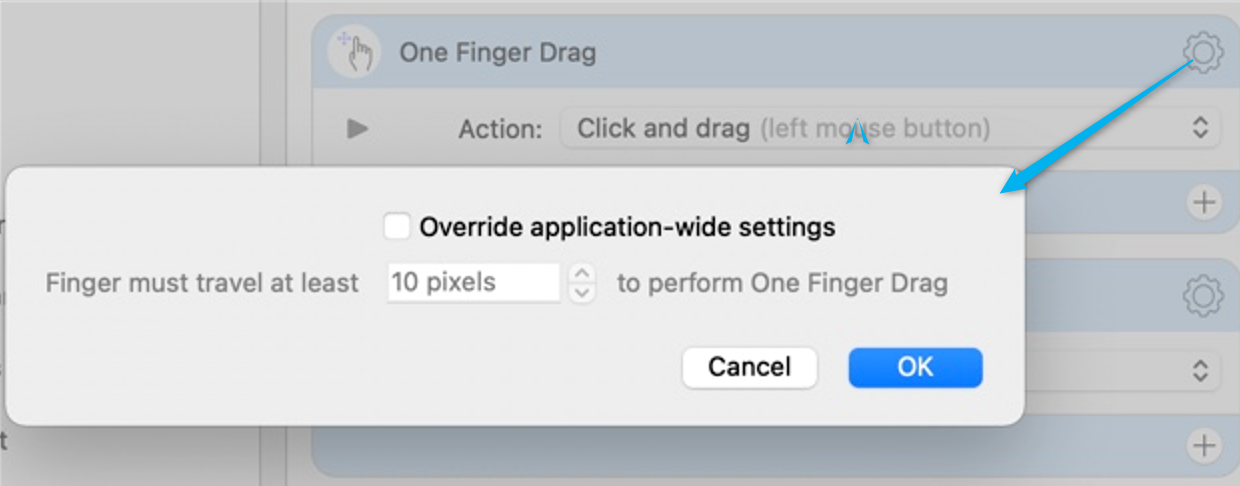 |
| Action name | Indicates the action to be performed when the gesture is detected, in this example Click and drag (with the left mouse button). |
| Action setting | Expands the action entry to show the action settings: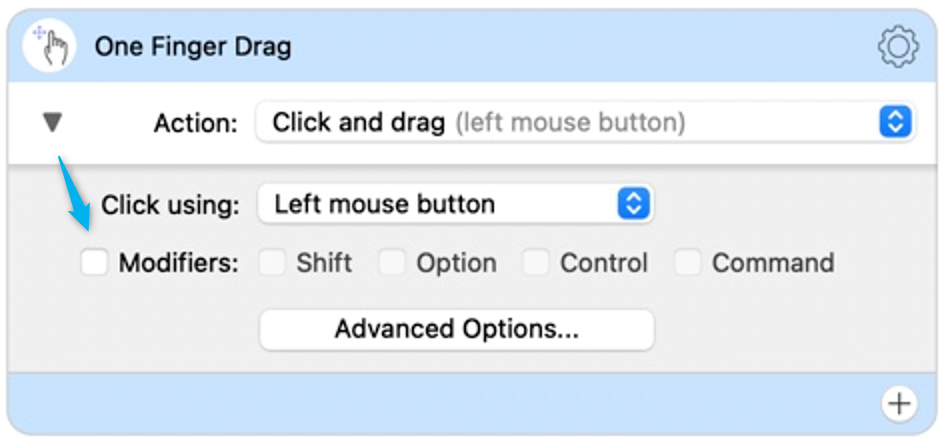 Click based actions can indicate the mouse button to use, and also emulate keyboard modifiers if required. Some action settings also have additional Advanced options. |
| Modifiers | Introduced in UPDD Commander 1.3.0, this section allows you to add additional copies of the same gesture that are associated with modifier triggers. In this example a keyboard modifier has been added so that holding down the Control key while performing One Finger Press generates a left click and drag instead of the right click set as the default: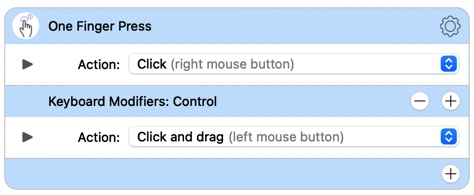 See Modifiers. |
Default Gestures and inherited gestures
A default set of gestures and the associated actions to be performed is defined at the highest application level against the "Default Gestures" entry in the application list (named "All Applications" in earlier versions and in some screenshots).
Selecting the Default Gestures entry in the application list displays the default set of gestures. They can be changed if required, but represent the most likely used set of gestures and related actions, so change them with caution.
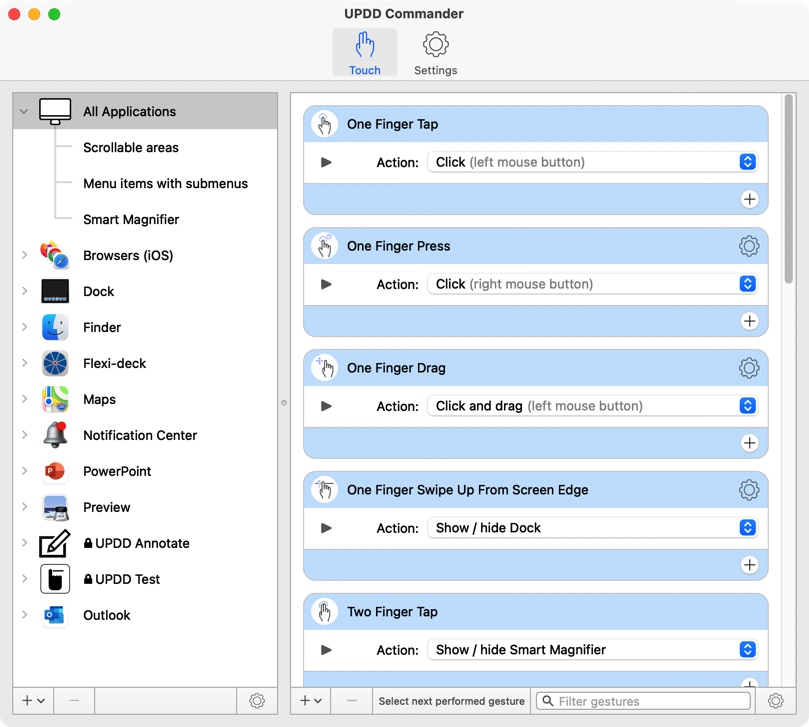
The applications and groups defined below the Default Gestures entry will, by default, inherit the default set of gestures, but they can be removed or changed as required for the selected application or group. If an application does not want to inherit the default set of gestures, inheritance can be disabled in the application related settings.
Any inherited gestures are listed, view only, if View > Show Inherited Gestures is enabled. Gestures and actions that have been added or updated for the specific application or group are listed at the top of the gesture list:
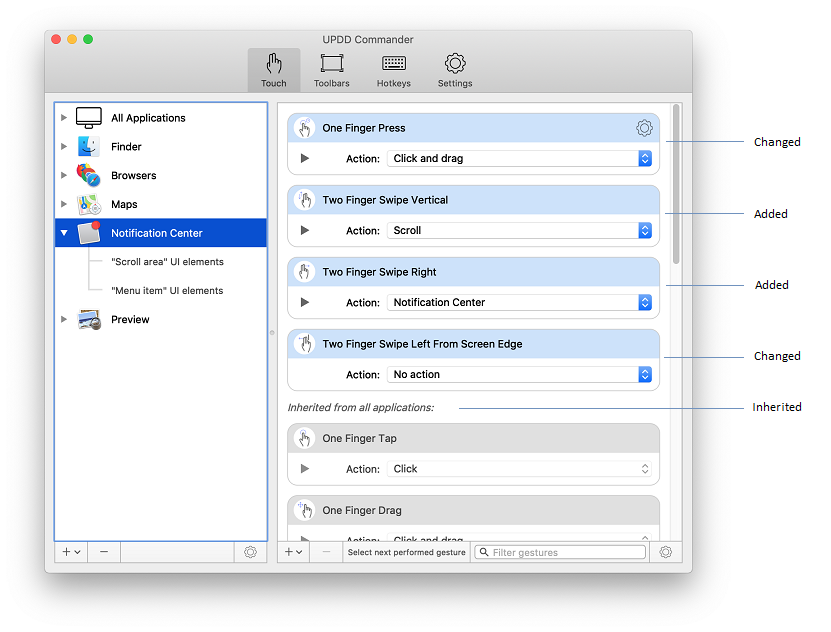
In the above example you can see the gestures inherited from Default Gestures and the changes that have been made to accommodate the different control needed by the Notification Center.
Updating gestures
Gesture definitions within the Default Gestures entry can be considered the system-wide default gestures and actions used to control the desktop and applications, and therefore should be changed with caution.
Additional applications or application groups are created to define the gestures and related actions required by the application or group for two specific reasons:
- Because the default gesture set does not offer the full functionality required by the application or application group.
- To protect against changes that may be made to the Default Gestures gestures and actions that might have a detrimental effect on the application's gesture usage.
A newly created application in the application list initially lists the inherited gesture set, unless it is set not to inherit gestures in the application related settings:
| Newly added, showing inherited gestures | Modified with an added application related gesture |
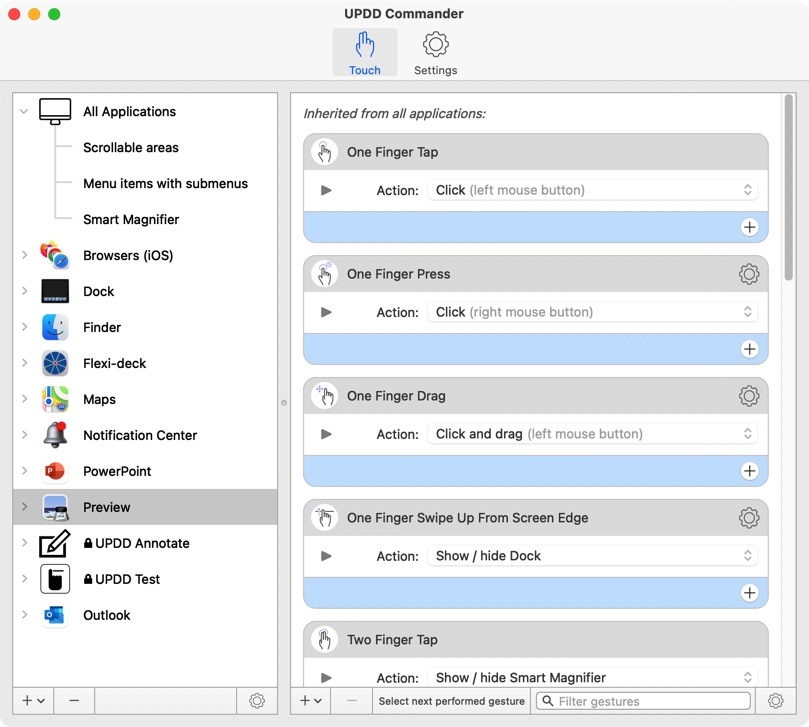 | 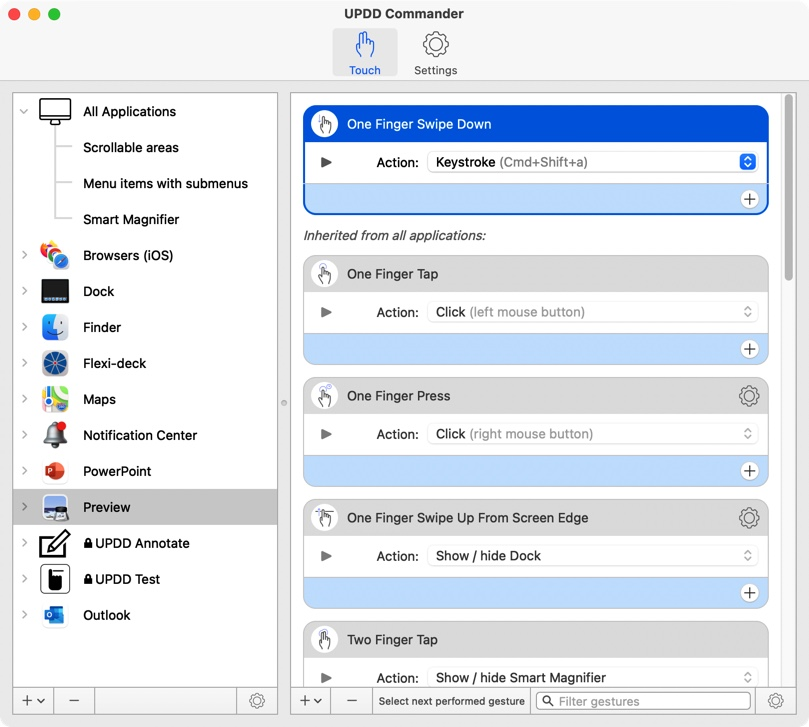 |
If you want to modify one of the inherited gestures, simply double-click the gesture, and it will be positioned above the inherited list and enabled for change. To add one that is not in the inherited list, use the Add control in the gesture control bar.
In the above example, One Finger Swipe Down has been added and set to keystroke Cmd+Shift+A, to toggle the Markup toolbar on and off in the Preview window.
The gesture control bar is used to configure the gesture set as required:

| Control | Description |
 | Add a gesture definition specific to this application or group.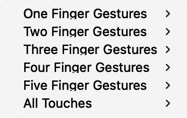 The "All Touches" options apply to all touches performed on the application rather than to a gesture. On macOS they are Convert Touches to TUIO (the application is a TUIO client), Convert Pen to TUIO (when enabled with setting enable_pen_to_tuio), Pass All Touches to UPDD Client App, Pass All Touches to UPDD Client App Alongside Gestures (see API applications alongside UPDD Commander) and Adjust DAW Sliders (see DAW applications). On Windows they are Pass 6+ Finger Gestures to Windows, Pass All Touches to Windows and Convert Touches to TUIO. |
 | Remove a gesture definition specific to this application or group. |
| Select next performed gesture | Jumps to the gesture definition that matches the next gesture performed on the touch screen, as described in Diagnosing gesture selection. |
| Visualise Gestures | Annotates the performed gesture on screen, as described in Diagnosing gesture selection. |
| Filter gestures | Used to filter the gesture list, e.g. "One" in this field lists all one finger gestures. |
 | Application related settings, described below. |
Application related settings
These settings are specific to the application selected in the application list:
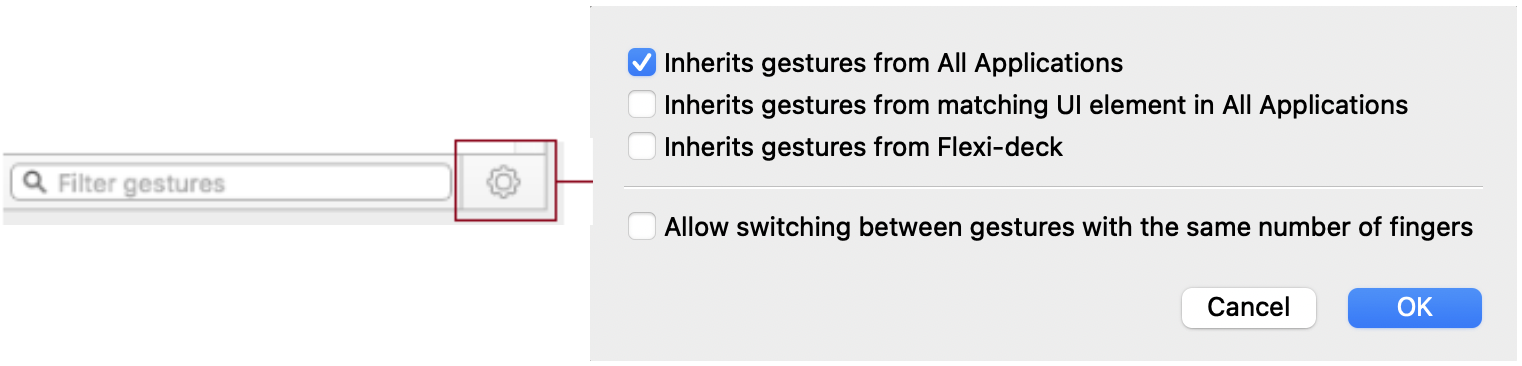
Inherits gestures from Default Gestures
Indicates if an application inherits the default set of gestures and actions. Enabled by default. Related options control inheritance from a matching UI element in Default Gestures and, for a UI element, from its owner application, as described in Applications, groups and UI elements.
Allow switching between gestures with the same number of fingers
Allows switching between different gestures that involve the same number of fingers without lifting off. For example, with this setting enabled you can switch between the two finger drag, rotate, swipe and pinch / expand gestures without having to remove your fingers from the touch device after each gesture. This is enabled in Maps as this application supports this feature. It could be useful in other applications but is disabled by default.
Supported gestures
The individual supported gestures are as follows:
| One | Two | Three, Four, Five |
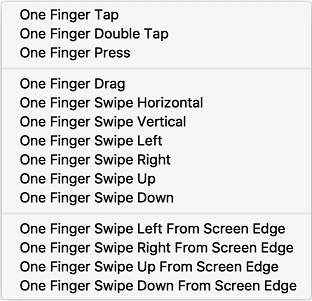 | 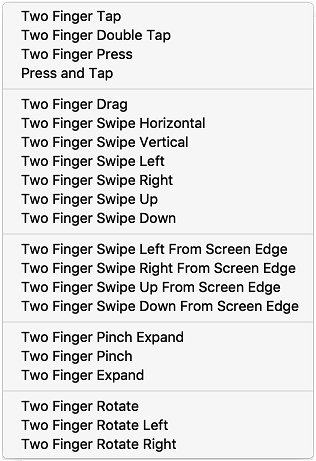 | 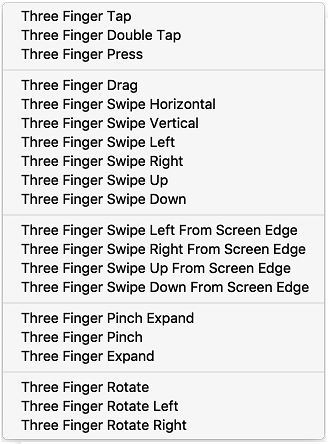 |
For each number of fingers there are tap, double tap and press gestures; drag; swipe horizontal, vertical, left, right, up and down; and swipe left, right, up and down from the screen edge. Gestures of two to five fingers add pinch / expand, pinch, expand, rotate, rotate left, rotate right and movement. Press and Tap is a two finger gesture.
Gesture settings
Some gestures have associated settings defined behind a gear icon in the upper right corner of the gesture. Selecting the gear icon reveals the gesture settings dialog, as in this example for the One Finger Press gesture:
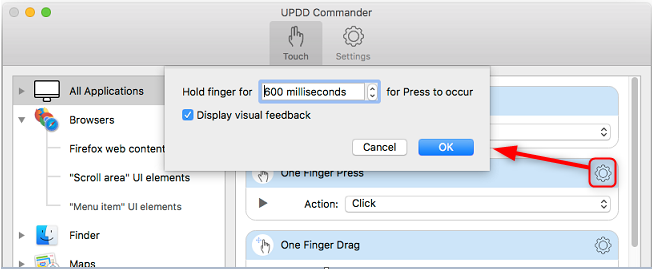
Here are examples of some gesture settings:
| Settings | Description |
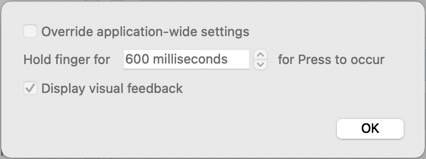 | Indicates the press duration for the click to occur. The time period can be visually annotated by drawing a circle; the click occurs when the circle is complete. |
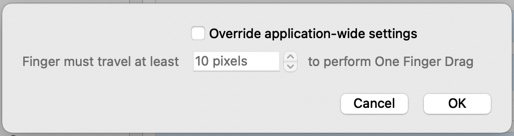 | Indicates the distance the finger must move before the drag is invoked. |
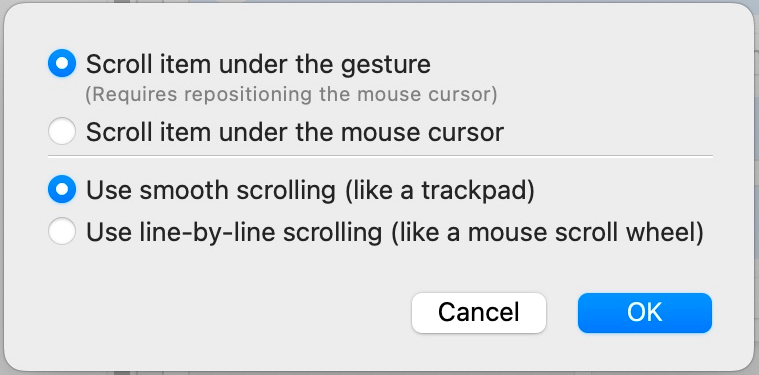 | Offers smooth or line-by-line scrolling for cases where smooth scrolling scrolls faster than expected, see Scroll behaviour. |
Each of these overrides the matching global setting on the Touch Gestures tab for this gesture only.
Press gestures
Press gestures are normally configured to generate a right click action, but can be set to invoke any action.
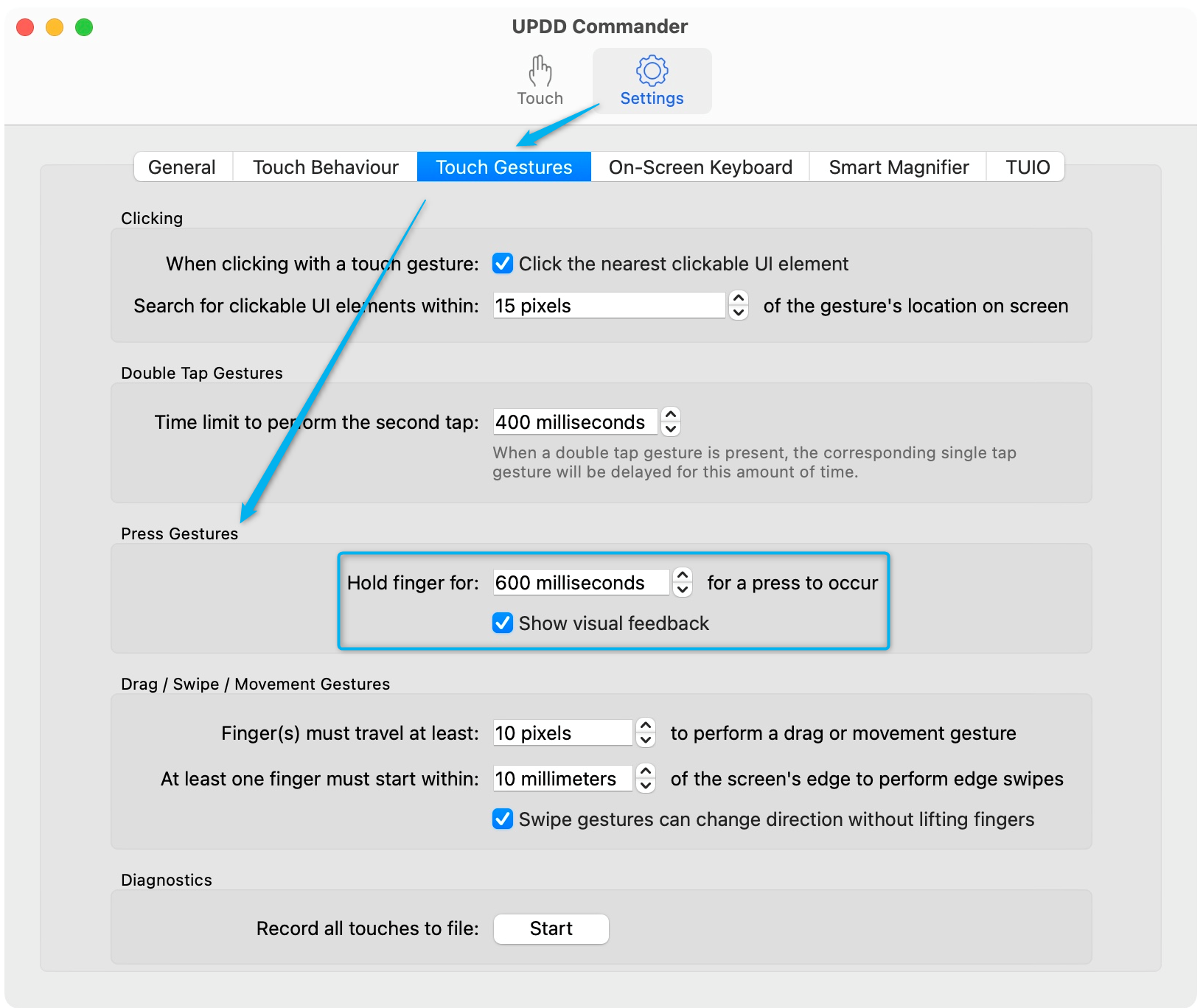
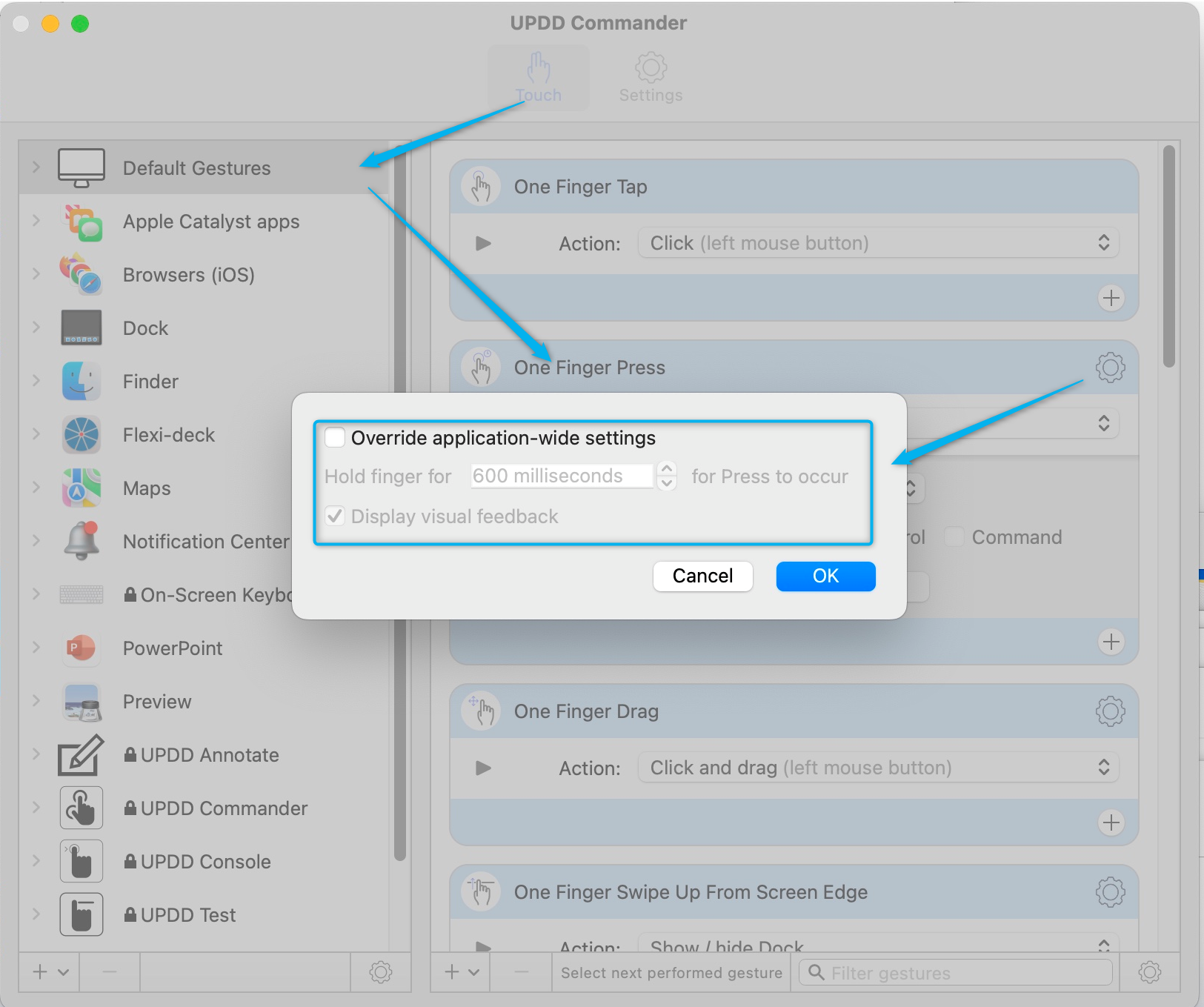
When holding a press, the gesture is activated on a time threshold, which is initially set to 600 ms. By default, during the press, the time period is visually annotated with an on-screen circle drawn at the point of touch, and the action is triggered when the circle is completely drawn.

The threshold time and the visual annotation setting can be adjusted at the global level, on the Touch Gestures tab, and in the press gesture's settings at the application level:
| Global | Application |
 |  |
Tap, double tap and press timing
- When using a "double tap" gesture with any number of fingers, it delays the detection of the corresponding "single tap" gesture with the same number of fingers by the amount of time specified in the "time limit to perform the second tap" setting (or by the same "local" setting for a specific gesture, if it is configured to override the global setting). This is required for UPDD Commander to be able to detect both of these gestures. Without the delay, the action for a single tap gesture would trigger before you had finished performing a double tap. If you do not want such a delay, consider removing the "double tap" gesture and using a different gesture.
- A "double tap" gesture is not necessary in order to perform a double click, and is inadvisable because of the delay. If you have a "single tap" gesture assigned to the "click" action without a corresponding "double tap" gesture, quickly tapping twice in the same location performs a double click, just as if you clicked that location twice with a normal mouse.
- If there is a "pending" tap (because Commander is waiting to see if a second tap is going to happen) with any number of fingers and you perform any gesture other than the second tap, the action bound to the original single tap triggers immediately. This matches the behaviour of iOS. For example, if one finger single tap is assigned to "click", one finger drag to "scroll" and one finger double tap to something else, tapping a button and then quickly performing a drag on a scrollable area (within the time limit for a double tap) causes the button to be clicked and the scroll area to be scrolled.
- With press gestures, selecting a very small amount of time for the "hold finger for" setting impacts the detection of other gestures, possibly making it very hard if not nearly impossible for them to be detected. For example, setting it to 30 milliseconds or less means that only that short span of time needs to elapse after your finger touches the device before UPDD Commander decides that a touch is a "press" rather than any other gesture.
- There is one situation where this can be useful: if you want an application, or even the entire system, to have a "simple touch" interface in which touching with one finger always immediately performs a click and drag, and you have no need for any other gestures, you can use a "one finger press" gesture with its "hold finger for" setting at the smallest possible value. There will then be no discernible delay between when you start touching the screen and when a mouse click begins. See also Presentation and single-purpose touch screens.
Actions
An action is associated with a gesture so that when the gesture is performed the action is triggered. Use the Action drop-down to select the desired action.
Note: the action list differs depending on the gesture in use, e.g. it makes no sense to offer a multi-touch action such as rotate or zoom on a single finger gesture. An action like "Swipe between full-screen apps" is only available for gestures like swipe horizontal, swipe vertical, rotate, pinch and expand, because that action requires a gesture that can proceed in either direction along a single axis. Therefore it is not listed for gestures like tap, swipe left, swipe right or rotate left. This particular action is the default action for the Three Finger Swipe Horizontal gesture in Default Gestures.
Hover over the action name and a tool tip opens to describe the action:

The actions available in UPDD Commander on macOS are listed below. The actions available on Windows are listed in What UPDD Commander is.
| Action | Description |
| No action | Performs no action. Can be used to override and block an inherited gesture's action. |
| Click, Double click, Triple click | Performs a mouse click, double click or triple click. |
| Click and drag | Performs a mouse click and drag for the duration of the gesture. |
| Move mouse cursor | Moves the mouse cursor without pressing or releasing any mouse buttons. |
| Keystroke | Types a keyboard key with any number of modifier keys held down. |
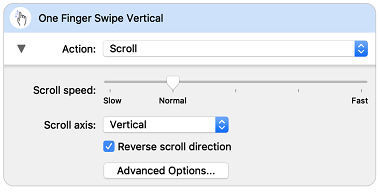
| Scroll | Scrolls the content under the gesture, see Scroll behaviour. |
| Smart-zoom window contents | Performs a "Smart Zoom" of the window contents, in the same manner as double tapping two fingers on a trackpad. |
| Look up in dictionary | Looks up the word underneath the mouse cursor. |
| Minimize window, Enlarge window, Close window, Toggle full screen | Window commands applied to the touched window. Enlarge window is equivalent to double clicking a window's title bar. |
| Focus window | Focuses a window, bringing it to the front and making it active. |
| Move window, Resize window | Moves the touched window, or resizes it from the corner or side originally touched, see Window actions and multi-monitor limits. |
| Hide application, Quit application | Hides an application's windows, or quits the application normally. |
| Open application or file, Execute shell command, Run Shortcut | Opens an application or file, runs a command as though it were run in a Terminal window, or runs a shortcut from the Shortcuts app. |
| Send command to UI element | Sends a command directly to a UI element, see below. |
| Rotate window contents | Performs a rotate gesture in the same manner as rotating two fingers on a trackpad. |
| Zoom window contents | Zooms the contents of a window, in the same manner as pinching or expanding with two fingers on a trackpad. |
| Swipe between full-screen apps | Switches between Desktops and full screen applications in the same manner as dragging with three fingers on a trackpad. |
| Navigate between pages | Moves forward or backwards in the navigation history for the current window. |
| Pass Two Finger Gesture to iOS Simulator | Controls the iOS Simulator with two finger gestures, see iOS Simulator. |
| Mission Control, Show application windows, Show desktop | Toggles Mission Control, shows all windows for the current application (as swiping down with three fingers on a trackpad) or shows the desktop. |
| Show Launchpad, Launchpad / Show desktop | Named Show Spotlight and Spotlight / Show desktop on macOS 26. |
| Show Dashboard | Switches the current desktop to Dashboard (macOS versions before 10.15 only). |
| Notification Center, Application switcher | Toggles the Notification Center, or shows the application switcher in the same manner as holding the command key and pressing tab. |
| Show / hide on-screen keyboard | See On-screen keyboard. |
| Show / hide Dock | Shows, hides or toggles the Dock, see Dock, Notification Centre and widgets. |
| Flexi-deck action | Invokes a menu or macro from Flexi-deck. |
| Set global setting | Sets a global (UPDD) setting, for example one used as a setting modifier. |
| Show / hide Smart Magnifier, Adjust Smart Magnifier zoom, Move Smart Magnifier | Controls the Smart Magnifier. |
| Zoom whole screen, Adjust screen zoom, Move zoomed screen | Controls screen zoom. |
| Pass Touches to UPDD client app | Passes touches to a UPDD client application so that it can process them directly, see API applications alongside UPDD Commander. |
Send command to UI element
"Send command to UI element" triggers an action in the UI element directly underneath the gesture without involving the mouse or keyboard. The commands are:
| Command | Effect |
| Press | Causes the element to be pressed as though it was clicked with the mouse. |
| Show menu | Shows the element's context menu (if it has one) as though it was right-clicked. |
| Raise | Causes a window to become frontmost. |
| Pick | Selects a menu item. |
| Confirm | Simulates pressing the return key. |
| Cancel | Simulates pressing a cancel button. |
| Increment | Increments the value of the UI element. |
| Decrement | Decreases the value of the UI element. |
| Show alternate UI | Shows alternate or hidden UI. This is often used to trigger the same change that would occur on a mouse hover. |
| Show default UI | Often used to trigger the same change that would occur when a mouse hover ends. |
| Show Exposé (Dock only) | Invokes Exposé for the application under the cursor (on a Dock application icon). |
Not every UI element supports each command, and most only support one or two. If the command is not supported by the UI element (for example sending a "press" command to a text label) the gesture action has no effect.
Action settings
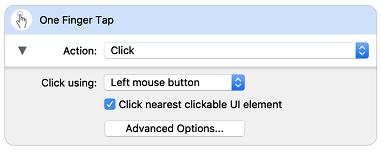
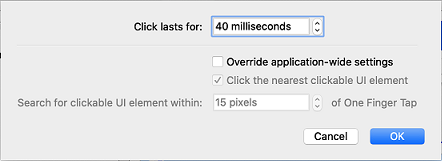
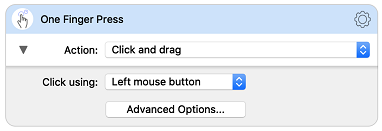
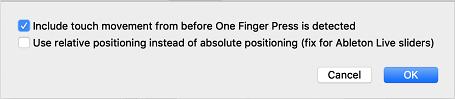
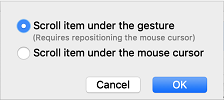
Each action has standard and advanced settings to tailor its behaviour, as per these examples:
| Standard | Advanced |
 |  |
 |  |
 |  |
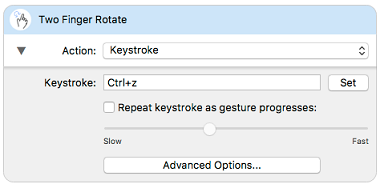 | 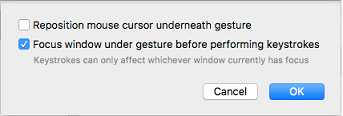 |
The advanced options of the click and keystroke actions include:
| Option | Description |
| Click item under the gesture / under the mouse cursor | Where the click is made. Since UPDD Commander 1.15.0, Click, Click and drag and Move mouse cursor can also operate relative to the position of the mouse cursor, with speed and acceleration settings, for touchpad-like interaction. |
| Click lasts for | How long the mouse button is held down for a click. |
| Click the nearest clickable UI element (macOS) | With "Override application-wide settings" checked, sets the click nearest option and radius for this action only, see Clickable UI element (click nearest). |
| Include touch movement from before drag is detected | Click and drag: includes the movement made before the drag threshold was reached (enabled by default). |
| Focus window under gesture before performing click / click and drag / keystrokes | Focuses the touched window first, see the keystroke note below. |
| Use legacy method for creating mouse clicks (macOS) | See the click actions note below. |
| Insert delay between changing keyboard modifiers and pressing key of | Keystroke: delay in milliseconds (default 15). |
Action settings notes
Clickable UI element
Some macOS controls are small and can be difficult to accurately select with a touch screen, especially when using a finger, so there is a "Click the nearest clickable UI element" option for each click action to locate the nearest clickable UI element within a defined pixel radius of the point of touch and direct the click to that control. This alters the touch position if a clickable UI element is near the point of touch, and can be disabled for an individual gesture or system-wide, as described in Clickable UI element (click nearest).
Keystroke playback
In most cases, gestures associated with a keystroke action require the window on which the gesture is performed to be focused and on top, hence in the Advanced options for the gesture "Focus window under gesture before performing keystrokes" is set by default. This can sometimes cause a delay before the keystroke is played back. If the keystroke being played back is a system-wide keystroke this focus is not required and can be disabled, so that the keystroke is always actioned immediately.
Click actions
Click based actions generate a mouse click via software using a recommended method. However, an updated release of a specific application (UA LUNA) no longer processed these clicks, and using an older, previous method reinstated click processing for that application. It may be useful in other applications. In the Advanced options of the click actions select "Use legacy method for creating mouse clicks" to invoke the alternative method (macOS, UPDD Commander 1.9.7 and later).
Zooming nomenclature
With UPDD Commander 1.14.0 a clear distinction is made between zooming something in a window, such as in Safari or Maps, and zooming the entire screen in and out using Commander's own screen zooming feature. The names of some of the gesture actions were changed to make them clearer, rather than relying on the names Apple uses in its settings and documentation:
| Previous name | Name since 1.14.0 | Description |
| Zoom | Zoom window contents | Equivalent to a pinch / expand gesture on an Apple trackpad. |
| Rotate | Rotate window contents | Equivalent to rotating with two fingers on an Apple trackpad. |
| Smart Zoom | Smart-zoom window contents | Equivalent to double tapping with two fingers on an Apple trackpad. |
| Zoom window | Enlarge window | Equivalent to double clicking a window's title bar, or Option-clicking the green button in the upper left corner of a window. |
| Zoom screen | Adjust screen zoom | Commander's own screen zoom, see Screen zoom. |
Version 1.14.0 also added the "Zoom whole screen" and "Move zoomed screen" actions, described in Screen zoom.
For review
The macOS action list screenshot (ActionListMac.png) was dropped: it shows the pre-1.14.0 names ("Smart zoom", "Zoom window", "Zoom screen") and lacks later actions. The table above is built from released Commander 1.15.0 gesture-metadata.json (_systems.macOS."action menu" and the action display names / tool tips). Descriptions for Minimize, Close, Toggle full screen, Show desktop and Scroll, which have no tool tip, were written for this table. A fresh screenshot of the action menu could be added.
The 1.14.0 change history says "Smart Zoom" became "Auto-zoom window contents"; the shipped name is "Smart-zoom window contents" (gesture-metadata.json). The table uses the shipped name.
The two press-setting screenshots (PressSettingsG.png / PressSettingsA.png, from 50804) live in the /V6/Gestures/ upload folder but show the Commander window (with the pre-1.9.6 "Touch" label).
The advanced-options table and the "All Touches" option names were added from 1.15.0 (widgets/actionSettings/*.ui, gesture-metadata.json "gesture menu").