Click behaviour
This document describes how UPDD V6 and V7 generate mouse clicks from touch on Windows, macOS and Linux: click modes, single and multi-touch modes, right click and double click.
A number of different system interfaces are used to post touch data into the operating system (see What UPDD is and how touch reaches your applications), and the click function is handled by different processes depending on the interface in use. The settings named here are explained in context; the full list of settings is in the Driver settings reference.
Click modes
A click consists of two parts, a pen down and a pen up. When using a touch screen you may require the click to be performed in various ways depending on your requirements.
In standard usage the driver generates a left pen down on touch, movement with the pen down if the stylus moves and a left pen up on lift off. This click mode is referred to as Click and Drag.
However, in some cases you may wish to use a click mode that ignores movement and generates the pen down and up in the same place, or have a complete pen down / up sequence generated on touch down.
The device setting click_mode indicates what click action the driver takes in response to a physical touch. Valid values are 0, 1, 2 and 3. It can be set in the UPDD Console, Touch tab (Click mode), or with the command line interface, e.g. upddutils set click_mode 2.
| Value | Click mode |
| 0 | Click and Drag: the standard behaviour. On touch a pen down event occurs. At the end of touch a pen up event occurs. |
| 1 | Move then click: the mouse is moved in response to movements of the touch. A click is generated at the end of the touch. |
| 2 | Point and click: a click is generated at the start of touch. Movement is ignored. |
| 3 | No click: movement only. |
Modes 1 and 2 are intended for use in single touch environments. In a multi-touch environment the same logic will apply to all concurrent touches, which is unlikely to be useful.
To generate clicks the driver sets the tip switch to on in the touch data packet to set the pen down, and off to set the pen up. For Click and Drag the pen down is set on the first data packet and off on the last data packet. For Move then click the pen down and up are both performed on the last data packet. For Point and click the pen down and up are performed on the first and only packet.
The system interface in use dictates how this actually functions. For example, when using the Windows native HID (touch) interface, via the UPDD virtual HID device, a single pen down will be delayed as the native interface waits to see if a second stylus is following and it will need to process a gesture. This delay is not seen if using a click mode where both pen down and up (a click) are passed at the same time.
Click modes and system interfaces
Operation of the click modes is dependent on the operating system and system interface in use as follows:
| OS | Core driver interface | Extended touch interface |
| Windows | All click modes | Virtual HID: all click modes |
| macOS | All click modes | UPDD Commander: Click and Drag (as implemented by UPDD Commander) |
| Linux | All click modes | uinput: all click modes |
Single touch and multi-touch modes
Touch screens come in various technologies and capabilities and offer single touch, dual touch and multi-touch functionality. Most operating systems offer single and multi-touch interfaces.
With single touch you can interface with the OS as a 'mouse' type device or a 'touch' device. Standard touch drivers generally try to support the complete range of touches supported by the touch hardware, often via the native HID interface.
With UPDD you can configure the manner in which the driver posts touch data into the operating system. This can be useful in cases where only single touch is desired, even with multi-touch hardware. Further, some old legacy applications work with touch screens running as 'mouse' devices but have issues with the HID touch interface. For example, an HID interface will generate a right click when the finger is held steady, and some applications may be using a steady touch for other purposes and do not want the touch to convert to a right click.
UPDD can be configured to support most desired modes of operation:
| OS | Single touch mode | Multi-touch mode |
| Windows | Driver posts data via the mouse interface | |
| Driver posts single touch to the HID (touch) interface | Driver posts all touch data to the HID (touch) interface | |
| Linux | Driver posts data via the X interface | |
| Driver posts single touch to the uinput interface | Driver posts all touch data to the uinput interface | |
| macOS | Driver posts data as mouse events | |
| UPDD Commander processes single touch only | UPDD Commander processes all touch data |
The interface is selected per device. In UPDD V7 the device setting is active_pointer_interface (Pointer interface in the UPDD Console, Touch tab): mouse, touch, pen or auto. UPDD V6 used active_touch_interface (for example tbupddsu for the Windows mouse interface), and the macOS driver still reads active_touch_interface for its mouse interface. The Linux interfaces are described in Linux touch delivery: uinput and X.
The device setting ignore_multi_touch (0 or 1, default 0) restricts a multi-touch interface to a single touch: with it set to 1, multi-touch events are discarded when posting events to the OS, which disables multi-touch gestures such as pinch and zoom. Such events are still passed to the UPDD API.
Right click
In the majority of cases touching a touch screen is the equivalent of generating a mouse left click when used in single touch operation. However, in some cases, it is also desirable to be able to generate a right click via touch. This is usually generated when a touch is held steady for a short period of time and depends on the system interface in use.
Driver interface: interactive touch
When the core driver 'mouse' interface is posting touch data it, by default, generates a right click when the stylus is held steady for a period of time. This mode of operation is called 'Interactive Touch' and is a combination of click and drag plus right click processing.
In UPDD V7 on Windows interactive touch applies only when the device's Pointer interface is mouse. With the touch interface, Windows generates the right click itself (see below).
These settings can be adjusted in the UPDD Console, Touch tab:
| Setting | Value, default | Description |
| interactive_touch | off, immediate, drag, latched | With interactive_touch not off, a long press on a touch device results in a right click. off: no right click processing immediate: the right click is generated when the time period expires drag: a right button down event is generated when the time period expires; right button up occurs at the end of the touch latched: the right click is generated at the end of the touch when the time period has previously expired For compatibility the values 0 (off) and 1 (immediate) are also accepted. Not applicable to pen devices. |
| interactive_touch.time_ms | Numeric, 500 | The time in milliseconds that must elapse with a steady press held before the interactive touch feature generates a right click. |
| interactive_touch.visual | 0 or 1, 0 | With 1 a circle is drawn on the screen during a long press to indicate the time before a right click is made (see Visual feedback below). Interactive touch must not be off, and the UPDD Daemon must be running. |
Windows touch interface
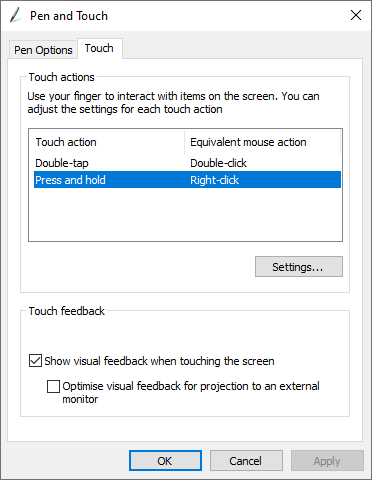
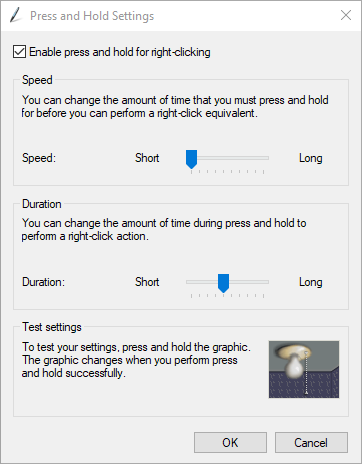
If, under Windows, the UPDD Virtual HID (touch) interface is used then Windows will generate a right click when a single touch is held steady for a period of time.
For delta mode and slow data rate controllers the driver can inject touch packets to satisfy the data rate expected by Windows.
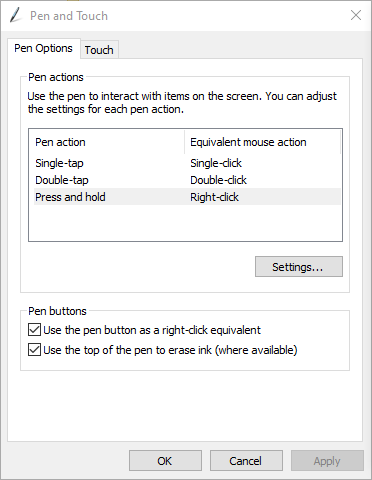
This setting can be changed and tested via the Windows Control Panel, Pen and Touch:
 |
 |
 |
macOS: UPDD Commander
If, under macOS, UPDD Commander is handling touches then an appropriate gesture needs to be set for right click processing as required.
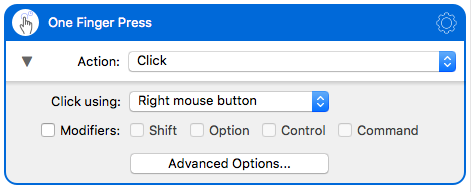
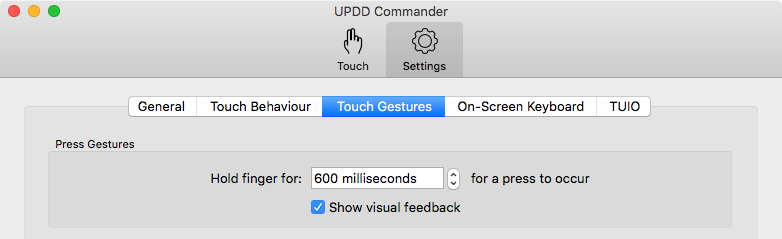
This is normally achieved by setting a Press gesture to generate a right click within the application settings (see Applications, groups and UI elements), either at the highest All Applications level or within the individual application entry, as per this One Finger Press gesture definition. There are also some global settings that relate to the Press function that can be overridden at the gesture definition level (see Commander settings reference).
| Press gesture definition example | Global Press settings |
 |  |
Linux uinput interface
For uinput, the driver creates a virtual device to pass right click requests (see Linux touch delivery: uinput and X).
Visual feedback
When using driver mouse emulation (in all OS), a Press gesture (in macOS) or uinput (in Linux) to generate a right click, each has an option to enable visual feedback, so that you are given a 'visual countdown' leading up to the right click, which occurs when the circle drawing is complete:
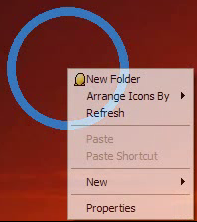
Under Linux the success of the visual feedback is dependent on the distribution in use. It has been seen to work as expected, to draw with a black background and also to fail to draw.
At driver level, this visual feedback is controlled by the setting interactive_touch.visual (0 to disable). In macOS with UPDD Commander it is set in the Commander global settings for touch gestures (see Commander settings reference).
Right click summary
The table below indicates what is handling the right click in the various OS.
| OS | Core driver interface | Extended touch interface |
| Windows | Interactive Touch | Windows function |
| macOS | Interactive Touch | UPDD Commander |
| Linux | Interactive Touch | Interactive Touch |
Disabling right click
In some cases it may be desirable to disable right click processing, especially with applications that need a press and hold to activate a certain function. This can be achieved as follows:
| OS / interface | Method |
| Windows, driver mouse interface | Set the pointer interface to mouse and disable UPDD's right click processing:upddutils set active_pointer_interface mouse (V7) or upddutils set active_touch_interface tbupddsu (V6): set simple mouse touchupddutils nodevice set interactive_touch 0: disable the right click function |
| Windows, driver Virtual HID interface | In the Windows dialog for right click processing shown above, uncheck the checkbox to disable the right click function.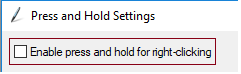 |
| macOS, driver interface | Set the touch interface to simpletouch (or simpletouch_cg) and disable UPDD's right click processing:upddutils set active_touch_interface simpletouch: set simple mouse touchupddutils nodevice set interactive_touch 0: disable the right click function |
| macOS, UPDD Commander | If UPDD Commander is handling touches, the Press gestures should not be defined or should not be set to generate a right click. |
| Linux, X and uinput interfaces | Disable UPDD's right click processing:upddutils nodevice set interactive_touch 0 |
Double click
Double clicking on a touch screen relies on double click related settings set to a tolerance that allows a touch screen to be used to generate the double click.
The UPDD Console allows you to test double click in the Touch tab, Click tests:
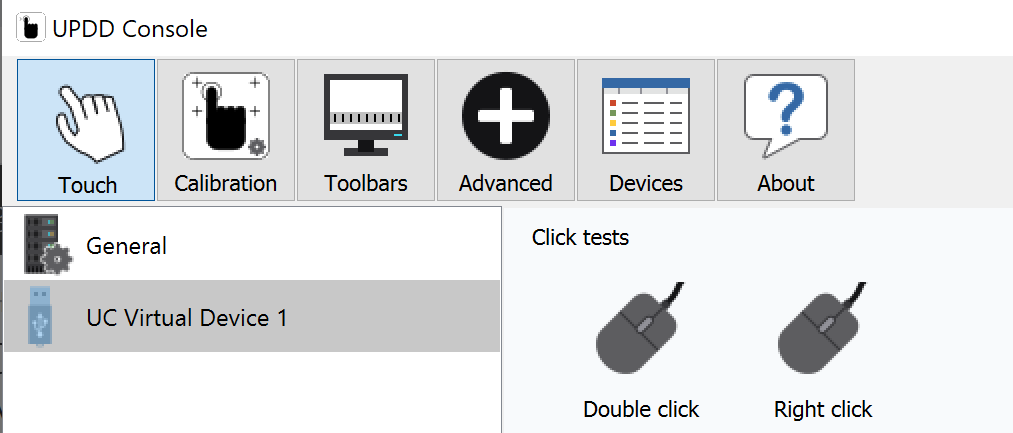
In most cases the double click function will work as expected with the standard driver or gesture settings, but with large touch screens, especially infra-red or optical, it may be more difficult and some of the settings below may help.
Assisted double click
It is sometimes more difficult to double click elements with a touch screen than with a device such as a mouse, due to the difficulty of touching the same location with adequate accuracy twice and of avoiding movement of the touch during each of the clicks. UPDD supports an "assisted double click" feature that assists double clicking by generating a second touch at the same location as the previous one.
These settings can be set in the UPDD Console, Touch tab:

| Setting | Description |
| assisted_double_click.time_ms | A time in milliseconds. |
| assisted_double_click.width_pixels | A screen measurement in pixels. |
The actual values chosen for the settings will vary according to the screen resolution and the nature of the touch input, but in tests 500 to 750 ms and 75 to 100 pixels worked well.
An assisted double click will be performed when:
- The time since the end of the previous touch is less than assisted_double_click.time_ms, and
- The distance between the previous point of touch and the actual position of the second touch is less than assisted_double_click.width_pixels in either direction (X or Y).
This means that two touches landing in approximately the same location within a short time interval are treated as being at exactly the same spot, making double clicking much easier.
Bear in mind that this introduces a small deviation in the input in cases where movement immediately follows touch, e.g. in drawing, and in such cases this feature might not be desirable; in most cases the effect will not be noticeable.
Windows double click settings
The system mouse settings can be changed in Mouse properties as seen below:
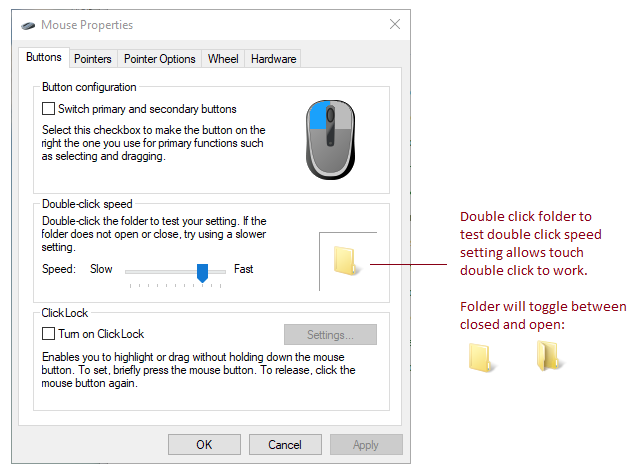
Most of these mouse dialogs allow the double click speed setting to be changed, and this must be a slow(ish) setting to allow for touch double clicks. Too fast a setting will prevent double clicks (if not using UPDD's assisted double click feature).
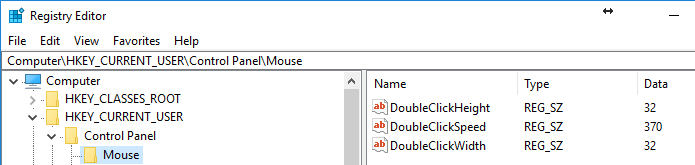
There are other related mouse settings in Windows: DoubleClickWidth and DoubleClickHeight (along with DoubleClickSpeed). These settings establish the rectangle that Windows uses to detect double clicks. If sequential clicks are positioned within the rectangle defined by DoubleClickHeight and DoubleClickWidth and occur within the time specified by DoubleClickSpeed they are interpreted as double clicks. Otherwise, they are interpreted as sequential single clicks.
UPDD does not change these settings, in preference to the assisted double click feature described above, because values that suit finger double clicks could prevent a real mouse selecting items close to each other. Should you want to change them, the settings can be found in the registry at HKCU\Control Panel\Mouse using the RegEdit utility. The default width and height settings are 4 pixels and the speed is 500 milliseconds. Earlier UPDD versions set these to 32 (width and height) and 370 (speed).
New user issue
If a new user logs in they will get the default Windows double click settings, which again may make it difficult to double click.
Settings changed by third-party software
There have been cases of double click difficulties following the installation of mouse drivers that have reset these settings to values that prevent touch double clicks, requiring the settings to be reset to 'touch' values.
Registry settings
Should you need to manually set the registry for the double click settings, these lines can be copied to a .reg file and double clicked to update the registry settings:
Windows Registry Editor Version 5.00

[HKEY_CURRENT_USER\Control Panel\Mouse]
"DoubleClickHeight"="32"
"DoubleClickSpeed"="370"
"DoubleClickWidth"="32"
OS double click options
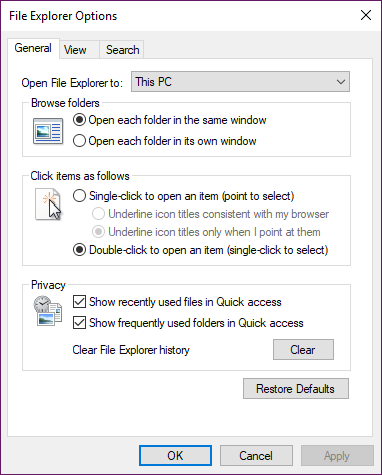
One potentially useful setting in Windows, when using the desktop via touch, is to open icons, folders and files with a single click rather than a double click. This setting is located in the folder options as shown below:
macOS double click
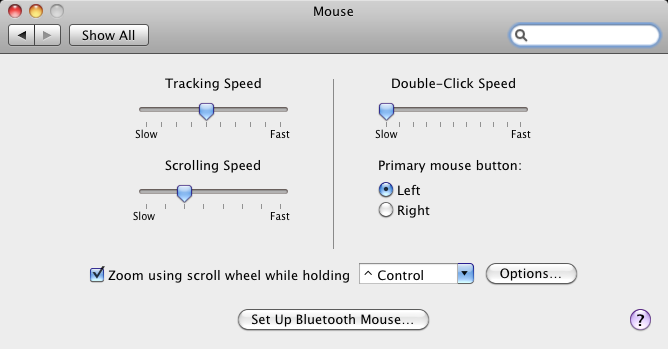
Under macOS the Mouse dialog is as follows:
Under macOS the UPDD Commander One Finger Tap gesture will normally be set to Left click:
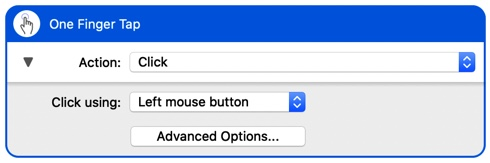
Performing two One Finger Taps should be sufficient to generate a double click, just like two single clicks on a mouse in quick succession.
You do not need to define the One Finger Double Tap gesture, as this is used to allow a double tap to perform a totally different action. In fact, if this is set, it will likely stop double clicks occurring, as it has to delay processing the initial single click to see if a second click is following. If this gesture is enabled you will see a warning in the One Finger Tap gesture that there will be a delay: 'Gesture will be delayed by double tap'.
Disabling double click
System level
If touch double click is to be disabled, set the system settings such that it is almost impossible to achieve a double click with touch, such as a fast double click speed. Under Windows you can try height and width = 1, speed = 200.
Driver level
You can set the driver to ignore pen up notifications and delay the pen up processing to be outside the double click speed. If you set ignore_tip_switch and set liftoff_time_ms to a value greater than that needed for the OS to see the two touches as a double click, then it will be difficult to generate a double click:
upddutils set ignore_tip_switch 1
upddutils set liftoff_time_ms 500
Experiment with the lowest liftoff_time_ms value that prevents double click. Pen ups on all touches will be delayed by the value you set. These settings are described in Touch data filtering.
Drag threshold on macOS (UPDD V6)
When the driver is operating in 'Click and Drag' mode it sends a left click down, followed by a stream of events reporting the current touch position, followed by a left click up. This occurs even for a tap. Some applications reject a pen click request if events occur between the click down and up (this was seen with Quartz Composer). To cater for this UPDD V6 has a setting, minimumDrag, which specifies the minimum number of pixels of movement that must occur before the driver starts sending co-ordinate data. This is not defined by default. With it defined there will be a slight delay in drag operations until the touch co-ordinates have moved beyond the pixel threshold.
This can be set with the upddutils command, e.g. upddutils nodevice set minimumDrag A sets 10 pixels.
UPDD V7 does not read the minimumDrag setting.