Touch data filtering
This document describes the UPDD V6 and V7 settings that filter or alter touch data before it is posted into the operating system and the UPDD API: deglitch, low-pass filtering, lift-off detection, contact timeout, sample rate, the Windows keep-alive and edge adjust.
The driver receives stylus touch data from the hardware interface and posts the co-ordinates and other information, such as pen state (down / up), into the operating system. The data is dispatched into the system as dictated by the speed of the data sent by the touch device. In most cases this process is transparent and the data does not need to be manipulated. However, the data can be manipulated or altered by various driver settings and configurations, as described below.
The settings named here are explained in context; the full list of settings is in the Driver settings reference. Settings can be set and viewed in the UPDD Console (Touch tab, and Advanced, Settings) or with the command line interface (see the upddutils command line reference). Most of these are device settings: upddutils device N set setting_name value, where N is the UPDD device handle; device 1 is used if 'device N' is omitted.
How the interface affects the data
| Interface / configuration | Effect on the data |
| Mouse interface | Only data from the first stylus is posted into the mouse interface. |
| Multi-touch interface (HID / uinput / UPDD Commander) | Data from all styluses is posted into the interface. |
| macOS, UPDD Commander | If 'Click nearest UI element' is enabled, UPDD Commander will adjust the touch to the nearest UI element if the actual touch is close to a UI element (see Clickable UI element (click nearest)). |
| Assisted double click | A second touch close in time and position to the previous one is moved to the same location (see Click behaviour, Assisted double click). |
Filtering settings
| Setting | Description |
| contact_timeout_secs | If set to a non-zero value, any contact (touch) longer than the specified number of seconds is cancelled (forced lift) and ignored until the contact ends. Other contacts are unaffected. Depending on circumstances this can be useful to filter out ghost touches. It will only be effective where the ghost touches are more or less constant. |
| deglitch.cal_points deglitch.packets | If enabled (both settings greater than 0) then, if the co-ordinates within a touch packet differ from the previous packet by more than cal_points, the touch is considered a glitch and ignored, based on a range of 0-65535 in X and Y. The number of packets defines how many packets must be received with the 'glitch' co-ordinates before they are accepted. For example, if a touch device occasionally sends out a single packet of incorrect co-ordinate data, setting cal_points to 6000 and packets to 2 will ensure that any single packet with co-ordinates that differ by more than 6000 and only last for one data packet will be ignored. |
| filter.low_pass.gain | When set to a non-zero value low pass filtering is enabled. Low pass filtering provides smoothing of input, removing jitter from inputs subject to noise or similar distortion. It will introduce some lag, especially at higher values, but at low values it provides smoothing with minimal loss of fidelity and lag. The appropriate value will have to be determined by experiment, but typically values of around 5 will give good results. Values over about 20 will tend to give extreme lag. The feature is multi-touch aware, operating on all contacts independently. Shown as Low pass filter in the UPDD Console, Touch tab. |
| ignore_multi_touch | If 1, multi-touch events are discarded when posting events to the OS: only the first touch stream is processed. Such events are still passed to the API. |
| sample_rate | Specifies the percentage of position report packets that are passed to the OS and the UPDD API. Useful if it is considered that the OS is being overwhelmed with too much touch data. If not set, all packets are passed. The algorithm works on blocks of 10 packets, so for example a setting of 20 means that 2 of every 10 packets are processed. Consequently only multiples of 10 are useful; other values are rounded down to the next multiple of 10. |
| synthesize.delta_mode | If set to on (1) a device will work in synthesized delta mode. Only touch packets that represent movement or a change in a contact state are delivered to the operating system and the UPDD API. |
| touchdown_filter touchdown_filter_mode | Some old touch screens generate a pen down packet and then take a few touch packets to zero in on the correct X and Y co-ordinates, which can have negative results. If touchdown_filter is set to a non-zero value N, the first N packets in any touch that represent a touching state are filtered: discarded, or treated as no contact (motion only), as determined by touchdown_filter_mode. |
Lift-off detection
The driver relies on the device to report a pen up at stylus lift off. Two device settings handle devices that do not do so reliably:
| Setting | Value, default | Description |
| liftoff_time_ms | Numeric, 0 | Stream mode controllers (touch data is always sent, even when styluses are held stationary): when set to a non-zero value a lift off event will be injected in the case that a touch event is not seen within this threshold (in milliseconds) following a previous touch event. This is only required for devices that do not generate a pen up event at stylus lift off. Delta mode controllers (touch data is only sent on touch in, touch off and movement; data is not sent if the stylus is held stationary): this setting should be set to 0 to prevent pen ups being generated by the driver. However, if a delta mode device did not, for whatever reason, generate a lift off packet at stylus lift off, this would result in a 'stuck' pen down. In that case you could set this to a high value, say 5000, so a pen up event would be generated after 5 seconds of touch inactivity. See also contact_timeout_secs. Shown as Liftoff time in the UPDD Console, Touch tab. |
| ignore_tip_switch | 0 or 1, 0 | When enabled, any lift off notification from the device (the tip switch or lift bit) is ignored. This can be useful to ignore erroneous lift off notifications. |
If ignore_tip_switch is set it is important that liftoff_time_ms is also set, otherwise the driver will never generate a pen up.
Windows keep-alive
Windows will reject, or not fully process, incoming touch data that falls below a certain packet rate threshold. Delta mode controllers (no data sent when the stylus is held stationary) or slow controllers (slow data packet rate) can result in Windows generating a pen up in these cases, thus preventing a long touch, for example to generate a right click.
For such devices the driver can be configured to inject touch packets into the data stream to satisfy this Windows requirement. For any stylus that is in contact, if the interval elapses without a packet being seen, the driver injects a dummy packet. The function is cancelled at the end of a stylus contact. Two global settings control the keep-alive function:
| Setting | Value, default | Description |
| upddvh.keep_alive | 0 or 1, 1 | 0 = off, 1 = on. |
| upddvh.keep_alive_interval_ms | Numeric, 15 | The interval in milliseconds after which keep-alive packets are injected: if the gap between data packets is greater than 15 ms, dummy packets are injected. |
A driver reload is needed for any change to these settings to take effect (see Touch not working: first steps).
For review
In the 7.1 source the keep-alive settings are read (updd/win32/osconnectorw32.cpp:65-76, defaults 1 and 15 ms, which the page now states), but the timer that would inject the packets is never connected or started: the connect(...OnVHDeltaModeTimeout) line and the timer start() are commented out (1693-1702). Please confirm whether keep-alive is active in UPDD V7 (perhaps done elsewhere, e.g. in the virtual HID driver) or V6 only; if V6 only, give this section version_max: 6 and correct the matching sentence in Click behaviour, Windows touch interface.
Edge adjust
In some cases it is difficult or impossible to touch on-screen elements at the edges of a touch screen.
Edge adjust (previously referred to as Edge Acceleration) is a feature to deal with such cases. It works by "learning" where the touchable extremities lie and treating this as the input edge. This is especially useful to invoke system features that are associated with edge activation.
UPDD uses a device setting, edge_adjust_margin, that defines the size in % of a margin around the controlled on-screen area (monitor or segment) used by the edge adjust feature. By default this setting is 2. It can be adjusted as required in the UPDD Console, Advanced, General (Edge acceleration margin):
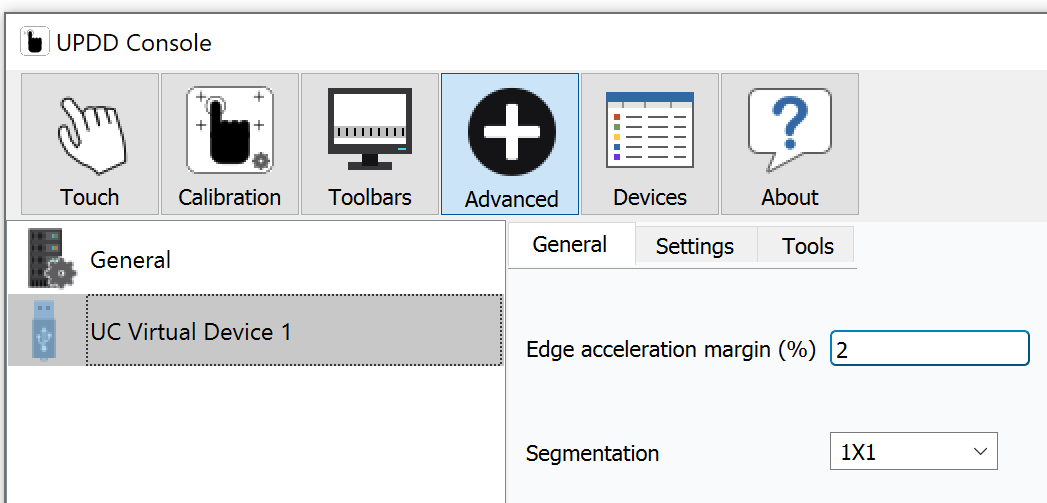
Any touch that falls within edge_adjust_margin % of any edge of a touchable area (monitor, desktop or segment) will be adjusted towards the real edge. The degree of adjustment takes account of the outer bounding rectangle of previous touches since the last calibration.
In normal use this makes it possible for a user to touch on-screen elements at the edges. Until an extreme edge has been touched there will be a degree of inaccuracy; this reduces the closer to the edge that the user touches, and becomes zero once the edge can be and is touched.
This feature can be disabled by setting the edge acceleration margin to 0. You can also use the command line interface to set the setting, i.e. upddutils set edge_adjust_margin 0 to set it for UPDD device 1.