macOS: Accessibility, Input Monitoring and background items
Since macOS 10.13, and more so since 10.14, macOS asks for permission for any application that uses system interfaces to control the computer. Some UPDD components need these permissions before touch works. For security and safety reasons they cannot be set by the UPDD installer: they have to be given by the user (or, on managed Macs, by an MDM profile).
This document is the single reference for these permissions in UPDD 6, UPDD 7 and UPDD Commander: which component needs which permission, where to find them on each macOS version, and what to do when a permission is set but touch still does not work. Allowing the UPDD system extension is a separate step, described in macOS: allowing the UPDD driver extension.
Which component needs which permission
| Component | Permission | Needed for |
| UPDD Commander /Library/Application Support/UPDD/UPDD Commander.app | Accessibility | Always. Commander handles touch events, gestures and its TUIO server, and will not run without this permission. When it starts without it, a window asks you to grant it. |
| UPDD Commander | Screen Recording | The Smart Magnifier and screen zoom only. See Screen Recording for the Smart Magnifier. |
| UPDD Commander | Input Monitoring | Only when macOS has added Commander to the Input Monitoring list. See Commander on macOS: permissions and start-up problems. |
| UPDD Commander | Automation (one entry per web browser) | Gestures for specific web pages in Chrome- and Safari-based browsers. See Automation permission for web browsers. |
| UPDD (the driver) /Library/Application Support/UPDD/updd.app | Accessibility | Touch on the login screen, and single-touch mouse emulation when Commander is not handling the touch, for example while UPDD Test is open (UPDD 6.0.591 and above). Without it there is no touch on the login screen, nor on the desktop when mouse emulation is needed. |
| UPDD (the driver) | Input Monitoring | UPDD 7.1.230 and above, for a touch device that also presents itself to macOS as a keyboard, mouse or touch pad. A plain touch screen does not need it. See Input Monitoring. |
| UPDD Annotate | Accessibility | Inspecting on-screen elements, mouse clicks and keystrokes in UPDD Annotate. |
| UPDD Daemon | None | Not required since UPDD 6.0.591. |
| Touch-Base (UPDD Daemon and UPDD Commander) | Allow in the Background | macOS 13 and above. See Background items. |
During installation the driver asks for its permissions and macOS shows its own request dialog; Commander asks when it first starts. In most cases UPDD Commander is the only component that must have permission, because most users do not need touch at the login screen or single-touch mouse emulation. How the driver, Commander, the UPDD API and TUIO each deliver touch to applications is described in What UPDD is and how touch reaches your applications.
Where the settings are
| Permission | macOS 10.14 - 12 | macOS 13 and above |
| Accessibility | System Preferences > Security & Privacy > Privacy > Accessibility | System Settings > Privacy & Security > Accessibility. On macOS 27 this list is named Device Control and Data Access. |
| Input Monitoring (10.15 and above) | System Preferences > Security & Privacy > Privacy > Input Monitoring | System Settings > Privacy & Security > Input Monitoring |
| Screen Recording (10.15 and above) | System Preferences > Security & Privacy > Privacy > Screen Recording | System Settings > Privacy & Security > Screen Recording (Screen & System Audio Recording on macOS 15 and above) |
| Background items | n/a | System Settings > General > Login Items (Login Items & Extensions on macOS 15 and above) > Allow in the Background |
Selecting the 'Open ...' option in the request dialog opens the right list. To add a component yourself, use the '+' control and locate it: UPDD and UPDD Commander are in /Library/Application Support/UPDD. Then switch the entry on.
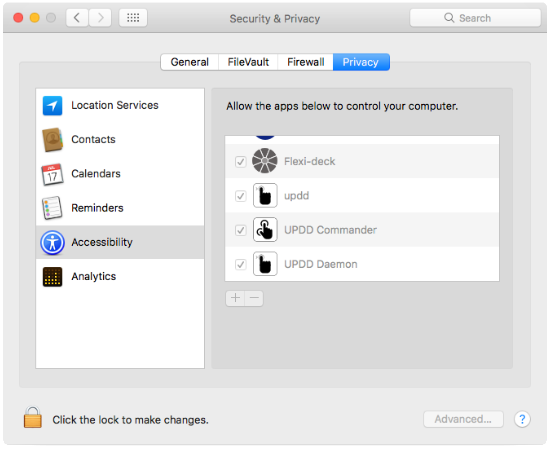
When a permission takes effect
A permission takes effect as soon as it is switched on: you do not need to restart the Mac.
Once UPDD Commander has permission, its request window changes to read 'UPDD Commander is now ready to run', with a Start UPDD Commander button. If permission was given while Commander was already running, quit and relaunch Commander: macOS does not let an application monitor keystrokes unless it was launched after it was given permission.
After giving UPDD Input Monitoring, stop and start the driver so that it opens the touch device again: sudo upddprocesses stop -d then sudo upddprocesses start -d.
Symptoms of a missing permission
UPDD Test shows touch data received directly from the driver through the UPDD API. While it is open, UPDD Commander's touch handling is suspended and the driver's single-touch mouse emulation is enabled instead (see UPDD Test). This makes it a useful check:
| What you see | What it indicates |
| Touch works while UPDD Test is open but stops once it is closed | UPDD Commander does not have Accessibility permission, or the listed entry is for an older copy of Commander (see below). |
| With UPDD Test open, you can only draw in the drawing area; touch does not work on the desktop | UPDD (the driver) does not have Accessibility permission. |
| No touch on the login screen | UPDD (the driver) does not have Accessibility permission. |
| UPDD Commander reports '...failed to set up keyboard event filtering and cannot run' | The enabled 'UPDD Commander' entry relates to an old version. Remove it and add it again (see below). |
updd.log shows device open failed rc:0xe00002e2 (7.1.230 and above) | UPDD does not have Input Monitoring permission. |
| Calibration and other settings issues on macOS 13 and above, UPDD Daemon not running | The Touch-Base background item is not allowed to run. |
Permission granted but still no touch
When each component loads it asks macOS whether permission has been granted and, if not, shows the 'Accessibility Access' dialog asking you to enable the component's entry:
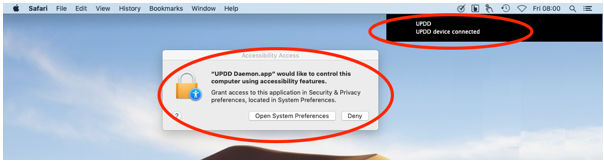
In some cases macOS reports that permission is not granted although it has been granted in the dialog:
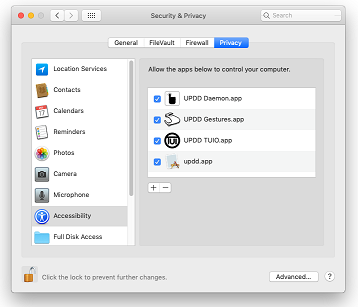
This happens when an application is updated. macOS records the permission against the signed copy of the application that was listed, and when a new version (with a new digital signature) is installed it keeps showing the old entry as granted. The installed copy does not actually have permission, and the installer has no way to remove the old entry. The fix is to uncheck the box and check it again or, if that does not work, remove the entry from the list and add it again, so that the current copy is registered:
- Open the Accessibility list (see Where the settings are). On macOS 10.14 - 12, click the padlock and enter your administrator password to unlock the settings.
- Select UPDD Commander (or UPDD) in the list.
- Remove it using the '-' button.
- Select the '+' button.
- In the Finder window, locate UPDD Commander (or UPDD) in /Library/Application Support/UPDD.
- UPDD Commander reappears in the list. Switch it on.
Then quit and relaunch UPDD Commander.
No applications listed
A user reported that touch did not work, no applications were listed in the Accessibility list and the '+' option would not add any:
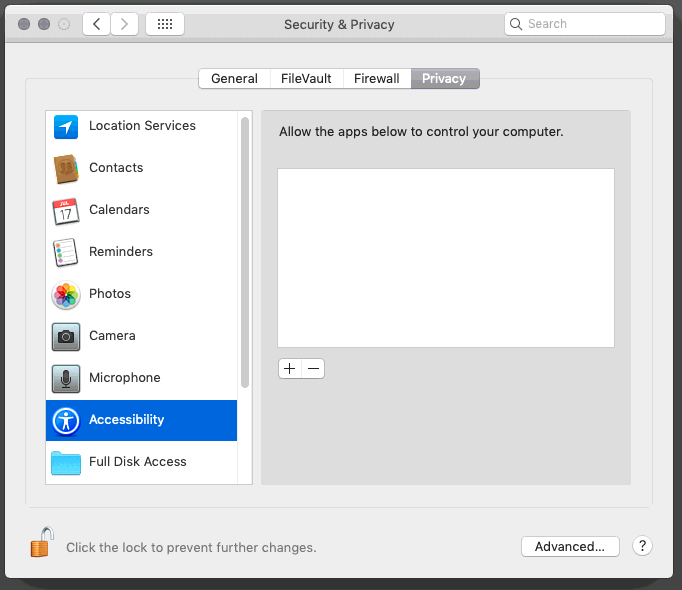
In this case run the following command in a terminal window and enter your administrator password when prompted:
sudo tccutil reset Accessibility
This resets every application's Accessibility permission, so each application, UPDD included, has to be given permission again. If that does not work, this command resets all privacy permissions:
tccutil reset All
Other users with the same problem found that these commands did not resolve it; in the case reported to us, macOS had to be reinstalled.
Input Monitoring
From UPDD 7.1.230 the driver reads HID touch devices through macOS's native HID interface. macOS lets an application read a device that presents itself as a keyboard, mouse or touch pad only if the application has Input Monitoring permission. A touch screen that presents itself only as a touch screen does not need it.
During installation the driver asks for Input Monitoring at the same time as Accessibility, and macOS adds UPDD to the Input Monitoring list, switched off. If the device needs it and it has not been given, the device is not opened and updd.log shows an error such as:
MacHidReader: device open failed rc:0xe00002e2
Switch UPDD on in the Input Monitoring list, then stop and start the driver (see When a permission takes effect).
Background items
Starting in macOS 13, the user controls which background items are allowed to run. With UPDD installed there is an entry for Touch-Base, enabled by default:
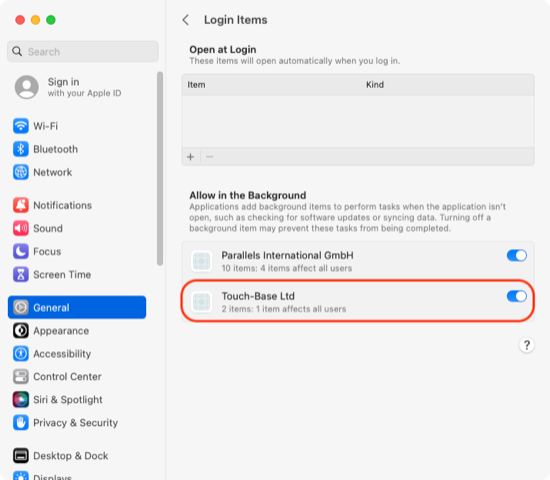
The background items are UPDD Daemon and UPDD Commander, which run as the current user (launch agents). The driver itself runs as the root user (a launch daemon) and is not affected. UPDD Daemon sets up various settings used by the driver, and when it is not running a number of issues can occur, including calibration issues.
In every case reported to us where the entry was shown as enabled but the processes did not run, turning the setting off and on again resolved it. If the UPDD processes are not running for another reason, see macOS: UPDD processes not running.
Touch on the login screen
Touch on the login screen is handled by the driver (UPDD), which must have Accessibility permission (see above).
To log on you will usually need to select the user account and enter a password. Up to macOS 10.13 a physical keyboard is needed for any data input on the login screen; we have not been able to use any virtual keyboard there. Starting with 10.14 you can enable the Accessibility Keyboard on the login screen as described here.
UPDD Daemon permission prompt (UPDD 6)
In UPDD 6, UPDD Daemon only needs permission if it is controlling the system pointer; when UPDD Commander is running, Commander handles the pointer. The global setting macos.prompt_for_daemon_permission controls when UPDD Daemon checks whether permission is granted and prompts if it is not:
| Value | Meaning |
| 0 | Never |
| 1 | On the first touch processed by UPDD Daemon (meaning that UPDD Commander is not in use, has crashed or has been stopped) |
| 2 | On installation and each startup (default) |
To change the value run upddutils nodevice set macos.prompt_for_daemon_permission n, where n is 0, 1 or 2. UPDD 7 does not read this setting.
Managed Macs and MDM
On managed Macs, administrators can pre-approve the permissions with a Privacy Preferences Policy Control (PPPC) profile payload so that users are not prompted. In your MDM solution (Jamf Pro, Apple Configurator, Kandji, Mosyle, Microsoft Intune and so on), create or update a PPPC configuration profile with these settings:
| Application | Bundle ID | Permission | Value |
| UPDD (driver) | com.touch-base.updd | Accessibility | Allow |
| UPDD Annotate | com.touch-base.updd-annotate | Accessibility | Allow |
| UPDD Commander | com.touch-base.upddcommander | Accessibility | Allow |
| UPDD Commander | com.touch-base.upddcommander | Screen Capture | Allow |
Code requirements: most MDM platforms look up the Designated Requirement (Code Requirement) automatically when you upload the .app bundle. If your MDM needs it entered by hand, run this command in Terminal to extract it:
codesign -dr - /path/to/Application.app
Screen Capture: macOS does not let an MDM profile switch Screen Capture on without a prompt. Deploying the profile does let standard (non-administrator) users approve the prompt themselves without administrator credentials.
Approving the UPDD system extension with MDM is described in macOS: allowing the UPDD driver extension.
For review
- macOS 27: only the Accessibility rename ('Device Control and Data Access') is confirmed (#528689). Confirm the names of Input Monitoring, Screen Recording and Login Items on 27, and the labels 'Screen & System Audio Recording' (15+) and 'Login Items' (13/14).
- Mouse emulation while UPDD Test is open: 50676 said UPDD Daemon handles it (so 'only draws in the test area' meant the Daemon lacked permission); 50245 (since 6.0.591) and the V7 source (driver posts the events, updd/macosx/osxtouch.cpp; daemon prompt code commented out in daemon/main.cpp:131-139 and daemon/simpletouch.cpp:162-172) say the driver. The draft says the driver.
- Input Monitoring: after the grant, does unplugging and reconnecting the device suffice, or is the driver restart required? The draft gives the driver restart (docs/hid-devices/device-register.md leaves this open).
- PPPC table: the Annotate bundle id in 50903 was com.touch-base.upddannotate; touchbase-apps updd-annotate/macos/Info.plist:18 says com.touch-base.updd-annotate, which the draft uses. Should UPDD (driver) also be listed for Input Monitoring in the PPPC profile (ListenEvent) for 7.1.230+?
- The screenshots (Permission.png, Privacy.PNG, MacPermissions.png, EmptyAccessibility.png) show the macOS 10.14 - 12 System Preferences; a macOS 15/26 screenshot of the Accessibility list would help.