Commander on macOS: permissions and start-up problems
This document covers problems specific to UPDD Commander on macOS: the permissions it needs, and what to do when it will not load or keeps relaunching. With UPDD V7, UPDD Commander is installed as /Library/Application Support/UPDD/UPDD Commander.app, with a shortcut in the Applications/Utilities folder.
Which permissions each UPDD component needs (see Which component needs which permission), how to grant a permission, remove and re-add an entry, reset the permission lists with tccutil, and the name of each permission list in your macOS version, are described once for all UPDD components in macOS: Accessibility, Input Monitoring and background items. This page only adds what is particular to UPDD Commander: Accessibility, Input Monitoring, Screen Recording for the Smart Magnifier and Automation for web browsers.
Accessibility
UPDD Commander must have permission to control the computer and will not load unless this is set:
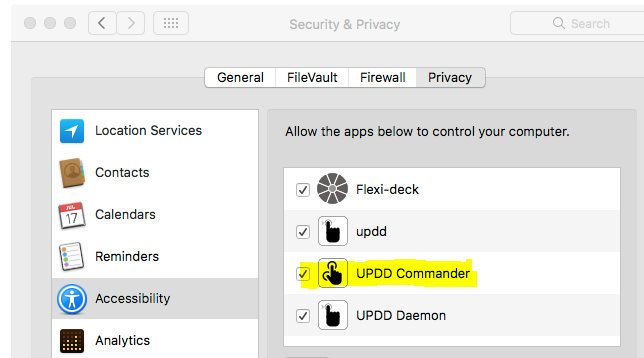
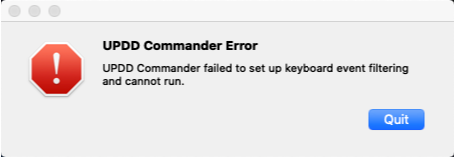
If the permission appears to be set but is not effective, UPDD Commander reports that it failed to set up keyboard event filtering and cannot run:
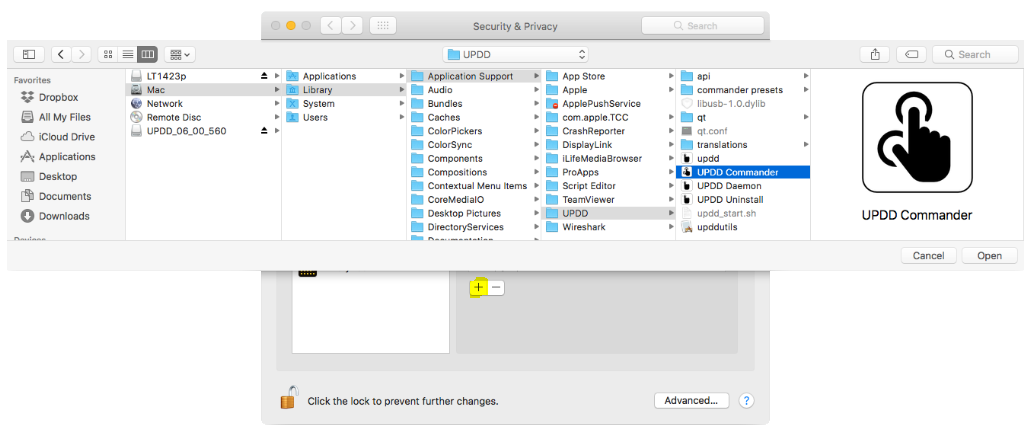
Uncheck and recheck the UPDD Commander entry; if that does not resolve it, remove the entry with '-' and add it again with '+' (see macOS permissions). When adding it, UPDD Commander is in /Library/Application Support/UPDD:
Input Monitoring
UPDD Commander is sometimes listed in the Input Monitoring list as well (we are not sure what triggers it). If this happens, it is necessary to grant it Input Monitoring permission, otherwise it cannot monitor keystrokes, and it produces the keyboard event filtering error shown above.
When UPDD Commander is granted Accessibility permission (given permission to control the computer), that covers both using the Accessibility features and monitoring keystrokes. However, if Commander gets added to the Input Monitoring list, it then requires that permission as well as Accessibility permission in order to run.
Ad hoc re-signing
This should never be required, but one user could only use UPDD Commander if the system was connected to the internet; otherwise they saw the keyboard event filtering error shown above.
UPDD Commander is a signed and notarised application, but in this case we think something very subtle was wrong with the signature that made this one system reject the signing credentials, so that it needed to connect to the internet to verify them. The user re-signed the application using an "ad hoc" signature that does not require a certificate, and that was enough to get things working on that system:
- Remove UPDD Commander from the list of applications in the Accessibility list.
- Connect the computer to the internet.
- Run this Terminal command:
sudo codesign -s - --force --timestamp "/Library/Application Support/UPDD/UPDD Commander.app"
A later installation might show the same issue and need ad hoc signing again.
Screen Recording for the Smart Magnifier
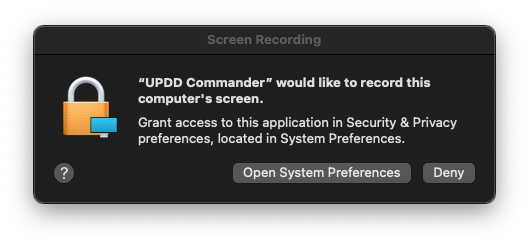
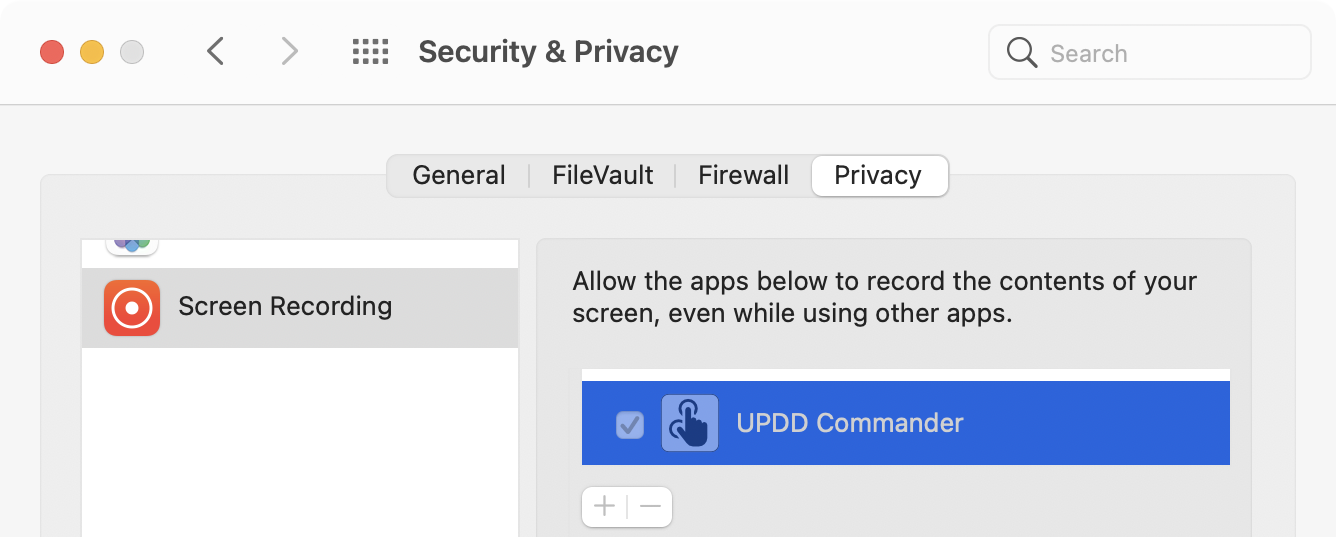
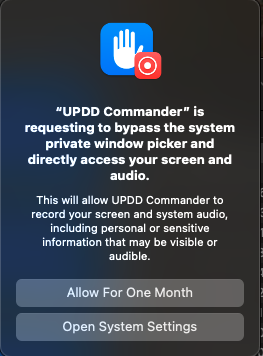
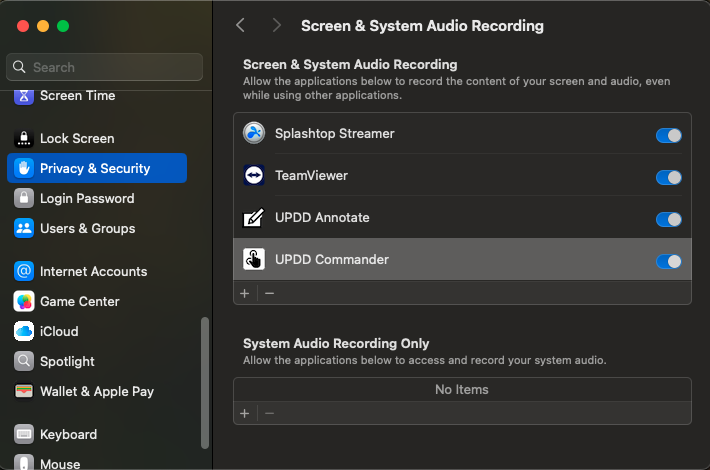
For the Smart Magnifier to work in macOS you must give UPDD Commander permission in the Screen Recording list. Without this permission you see just the desktop within the magnified area. Since macOS Sonoma, a menu bar icon  is shown when the Smart Magnifier is in use, to indicate the screen is being recorded.
| Warning issued if permission not set when invoking the magnifier | Screen Recording permission set |
 |  |
| macOS 15 | |
 |  |
Automation permission for web browsers
The first time you gesture over any Chrome- or Safari-based web browser (that is, all of the supported browsers except Firefox and LibreWolf, or any other Firefox-based browser), UPDD Commander asks for permission to automate that browser, so that it can ask the browser directly for its current URL. This is needed for gestures defined for specific web pages, and only needs to be done once per web browser. Commander's own dialog explains the steps and has an Open Automation Settings button; it closes by itself once the permission has been granted. Firefox and its derivatives do not support the automation features Commander uses, so Commander uses a less reliable method for them, albeit one that does not require extra permissions.
If this prompt does not appear, this command will likely suffice:
tccutil reset AppleEvents com.touch-base.upddcommander
UPDD Commander will not load
Very occasionally, UPDD Commander will not load. Check the Accessibility permission first (above). Otherwise this could be caused by a corrupt component or bad installation, in which case a reinstallation may resolve it.
It can also be useful to run UPDD Commander from a Terminal window to see if any errors are issued that are preventing it from loading. This command, including the quotes, can be used to invoke UPDD Commander:
"/Library/Application Support/UPDD/UPDD Commander.app/Contents/MacOS/UPDD Commander"
UPDD Commander keeps relaunching
Problem: the UPDD Commander window keeps relaunching and popping up repeatedly, with no apparent way to stop it.
Reason: this happens when UPDD Commander is launched as a normal application, even though it has been set up as an always-on background application that the system keeps running. If a new instance of UPDD Commander is launched while it is already running, the new instance makes the first one open its settings window, and then quits. But since it is an always-on background application, the system keeps launching it every ten seconds.
Solution: select Quit UPDD Commander in its menu bar icon. Afterwards, the system will relaunch UPDD Commander again, but this time that will be the only running instance and it will remain open normally. (The menu of the copy that the system runs shows Restart UPDD Commander in place of Quit.)
For review
Screenshots Permission, PermissionFail and UClocation date from macOS 10.14/10.15 (System Preferences); check whether newer ones are wanted. The 10.15 Catalina anecdote from the original is dropped as history; its remedy (uncheck/recheck, remove/re-add) is kept by link to macos-permissions.
Reconciled: this topic holds "will not load" and "keeps relaunching" (50881, 50776, which redirect to running-commander), the Screen Recording section with the 50778 screenshots, and the Automation permission with its tccutil reset; running-commander, smart-magnifier and applications-and-ui-elements link here. The Commander permissions table was removed in favour of the one table in macos-permissions, which gained an Automation row.