How UPDD settings work
UPDD holds its configuration in settings. This document describes where the settings are held, where their values come from, how they apply to the driver as a whole or to an individual device, the bootstrap file, the automatic backups of the settings file, and how to export and import settings. It applies to UPDD 6 and UPDD 7 on Windows, macOS and Linux.
The individual settings are listed in the Driver settings reference.
Where settings are held
UPDD uses two settings files, the main settings file (updd.db, an SQLite database) and the bootstrap file (updd.ini).
These files are located in the driver's data folder for a given OS. These folders will exist if UPDD is installed.
| Operating system | Data folder |
| Windows | %ALLUSERSPROFILE%\updd\. Typically this means c:\programdata\updd\ |
| macOS | /Library/Preferences/updd/ |
| Linux | /opt/updd/data/updd/ |
The settings file is held in the db folder of the data folder, e.g. c:\programdata\updd\db\updd.db on Windows. On Windows the data folder may be hidden.
Where setting values come from
Many settings are used to hold information about the driver, hardware and utility programs. The values of these settings come from various sources:
| Source | Description |
| Pre-configured | Pre-configured in the driver production system. These typically set up usability settings, such as names used to identify the touch device, and are held in the UPDD settings file updd.db. |
| Hard coded | Defines the default values at a code level and are, as the term suggests, defined in the code. These typically set up the default, base line, settings for a specific function. |
| Run-time | Defines the values in real-time and relate to any values deduced whilst the driver is running. These typically relate to hardware configuration values extracted directly from the touch hardware. |
| User defined | Set by the user as required. An end user can adjust pre-configured settings or override hard-coded or run-time default settings as required. |
Each setting in the settings file carries a default value defined in the driver production system. Where a setting has no value of its own, its default value is used.
The settings are set and updated by the driver and utility programs. It is unlikely that the vast majority of the driver settings need to be adjusted, as the default settings are set to the optimal value or are used for internal purposes only. Those that may warrant adjustment are described in the Driver settings reference.
Global and device settings
Settings are either related to a specific device or to the driver as a whole (non-device, known as global or system wide settings).
All devices inherit a default set of settings for a particular device type when first discovered by the driver. A device setting can then be changed for that device alone.
When using the command line interface to set or get a setting the command line is different for global and device settings:
Global: upddutils nodevice set setting_name value (global can be used in place of nodevice)
Device: upddutils device N set setting_name value (N = UPDD device handle as listed by upddutils devices; defaults to device 1 if 'device N' is not given)
In the UPDD Console the General entry in the device list shows and changes the global settings, an individual device entry shows and changes that device's settings, and the All devices entry changes a setting on every device at once.
Settings can be viewed and changed:
- in the UPDD Console, Advanced, Settings tab, which lists the user settings for the selected entry with a description of each;
- with the upddutils get, set, setall and remove commands;
upddutils help <setting>prints the description of a setting; - from a client application through the UPDD API (see Settings API).
Bootstrap file updd.ini
updd.ini is a bootstrap settings file that is used to alter the default behaviour of UPDD components. By default it does not exist. You should create and edit it using an appropriate ASCII text editor in the data folder listed above.
On macOS you will need root access to create or edit this file.
Possible values for this file are:
[updd]
| Entry | Description |
| toip.client=1 | A value of 1 indicates that this computer is acting as a Touch over IP client. |
| logerrors=y | Indicates that error level messages are logged (in the debug log over a reboot). |
| logdebug=y | Indicates that debug level messages are logged. |
| logdebughigh=y | Enables additional debug logging of operations that occur during interrupt processing that could impact touch performance. Log information is directed to memory and written in a single write to the log file every 5 seconds, except when there are active touches in which case the write occurs 5 seconds after the end of touch activity. This allows debugging that shows touch data to be enabled with minimal if any impact on touch performance, so in practice logdebughigh can be enabled during normal use. |
| logtrace=y | Indicates that trace level messages are logged. |
| logsql=y | Indicates that executed SQL statements are logged. |
| logconsole=y | Directs the UPDD process to redirect logging to stdout. |
| logretentiondays | Specifies the nominal number of days log files will be retained for. The default if not specified is 4. |
| maxlogsize | Specifies the maximum size of a UPDD boot log in MB. The default if not specified is 10. If set to 0 no start-up boot log (used for support purposes) is taken. |
| listeningport=[port] | TCP/IP port used by the driver to listen for API requests - default 4146. See UPDD API overview. |
| backupinterval | Sets the interval of the automatic settings file backups, as described in Settings backups. |
[server]
| Entry | Description |
| host=[ip address] | Specifies the IP address of the computer running the driver process in a Touch over IP configuration. |
| port=[port] | TCP/IP port used by the API to communicate with the driver - default 4146. |
For review
The 50233 bootstrap table also listed dumphid=y (dump the HID report descriptors to the data folder when the driver rejects a descriptor). No code in C:\devl\07_01 or amf3 reads a dumphid entry from updd.ini, so the row is left out here. Please confirm whether it was UPDD 6 only.
The [server] port row originally added "or with the TCP/IP bridge" and linked to a Driver Features page; the bridge is not described anywhere in the new set, so the clause is dropped.
Settings backups
UPDD stores its settings in an SQLite database file, updd.db. By default automatic backups are taken of this file hourly, daily and weekly.
The database file is stored as <data folder>/db/updd.db
The backups are held as <data folder>/db/bkup/<type>/<number>/db.bkp
<type> is one of
h: Hourly
d: Daily
w: Weekly
<number> is
the hour of the day in 24 hour format for hourly (0-23)
the day of the week for daily (0 = Monday, 6 = Sunday)
the week number, modulo 4, for weekly (0-3)
Windows example: c:\ProgramData\updd\db\bkup\d\0\db.bkp holds the daily backup taken on a Monday.
As the backups are limited to 24 hours / 7 days / 4 weeks and reside in separate folders, if all backups are enabled there are a maximum of 35 backups. There are some minor variations in the above, such as when the driver is not running at a specific backup trigger time; the information here is intended as an overview.
It might be appropriate in some situations to change or disable these backups. However, bear in mind they typically take very little space and might be useful in some diagnostic cases. This can be achieved with the following setting in the [updd] section of the bootstrap file:
backupinterval=weekly
The setting can have the following values:
hourly (the default)
daily
weekly
never
Any of these values can be abbreviated to one character and sets a backup cycle as appropriate.
Exporting and importing settings
In some cases it may be desirable to export UPDD settings for later use, especially in situations where you have different hardware and environments to set up.
You could in theory make copies of the settings file at a given check point, stop the driver, copy in the desired updd.db file and restart the driver. However, this is not recommended as UPDD holds hardware binding information that might not always be the same, even in a similar hardware configuration. This option is only available where the software licensing method is not system dependent.
To cater for the requirement to create 'UPDD profiles' you can use the UPDD command line interface to export and import complete or partial UPDD data sets, such as calibration data, and this is the recommended method. The UPDD Console, Advanced, Tools tab, offers the same export and import of all settings.
Export
The syntax for an export command is upddutils export <devices> <names> <target file name>
| Item | Description |
| Devices | A comma separated list of device handles to export OR * for all real (non zero) devices OR ** for all devices + global (non device) settings. A device handle of 0 indicates the global, non-device settings. |
| Names | Settings to export; * = all settings, name* = settings beginning with name, e.g. cal* - all settings beginning with cal (the calibration settings). |
| File | Target settings file |
The export command will fail if the target file already exists.
Example - Export named data sets for specific devices (via device handles)
macOS example - export all the UPDD Commander settings held in the global (nodevice) settings:
upddutils export 0 upddcommander* CommanderGlobal.exp
Linux example - export the calibration settings for device 1 to a file in the user's home directory:
./upddenv ./upddutils export 1 "cal*" ~/temp.exp
(When working in a Unix shell wildcards such as * must be enclosed in quotes)
Example - Export all settings for all devices
In this example all settings for all devices are exported. This will include global (nodevice) settings.
upddutils export ** * mysettings.exp
(with Linux / macOS this would be upddutils export "**" "*" mysettings.exp)
When the settings name "*" is passed, internal names are excluded from the export, namely:
- Names starting "private."
- The device specific name "connection_key"
- Global settings "cryptographic_check", "installation_info", or starting "license." or "registration."
In the unlikely event of needing to export an excluded setting the required setting can be requested explicitly, e.g. *,connection_key
The export file will hold device and optionally global settings that may be imported into a different system with a different UPDD installation (e.g. it could support a totally different number of touch devices or a different monitor layout). For this reason you need to bear in mind how the settings are going to be imported when setting up systems using exported settings.
Import
In its simplest use the import can be used to apply saved settings to restore active devices back to a known set of settings. This is fine if the system configuration is the same as when the settings were exported: the same active UPDD devices with the same device handles and the same device / monitor binding.
However, if this is not the case, the driver needs to be told whether it should recreate missing devices and what device to create before applying the settings. To do this a change must be made to the export file with a text editor.
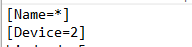
In this example the exported file shows that the exported device had a device handle of 2.
When importing this device on a different system, or where the active device list is different, the device handle has no significance and should be changed. By using the syntax below the import is directed to create (+) a specific device (of type 1) and apply the exported settings to the newly created device.
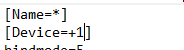
The device type can be obtained using the upddutils supported command on the target system. Being able to specify the device type allows the settings to be imported on systems that may support a different list of touch devices, albeit one of them should be the same as the device whose settings are held in the import file.
Once you are ready to import, the import command is used to import the previously exported settings:
Export and import support multi-line values, which is significant for macros in particular. The import features above can be used to prepare serial or USB devices.
When working with multiple monitors and/or multiple devices the monitor / device binding is not retained, as the information used to identify USB devices is specific to a computer. Run Identify after importing, or use monitor name binding, to address this.
For review
Left out deliberately: the V5 tbupdd.ini paragraph of 50578; the build numbers (6.0.460, 6.0.533, 6.0.553, 516, 543, 675); the 50292 page, which described the basic UPDD 6 settings program that was replaced by the UPDD Console in 6.0.567, with its screenshots (adding a serial device in the Console is in UPDD Console and Serial (RS232) devices); and the 50233 sentences pointing to the withdrawn Gestures and TUIO settings dialogs and promising a "future" settings dialog.
Changed from the source articles after checking amf3/amf/backupagent.cpp: the hourly folders are numbered 0-23 (not 1-23), the weekly folders by week number modulo 4, giving 35 backups (the article said 34); the bootstrap entries are read from the [updd] section.