Language support
The UPDD driver programs (UPDD Console, UPDD Daemon, calibration, UPDD Test, upddutils and the installer helpers) and UPDD Commander can show their text in a number of languages. This document describes how the language is chosen, for UPDD 6 and UPDD 7, and how translations are reviewed. If a language you need is not available, please contact us and we will create it as required.
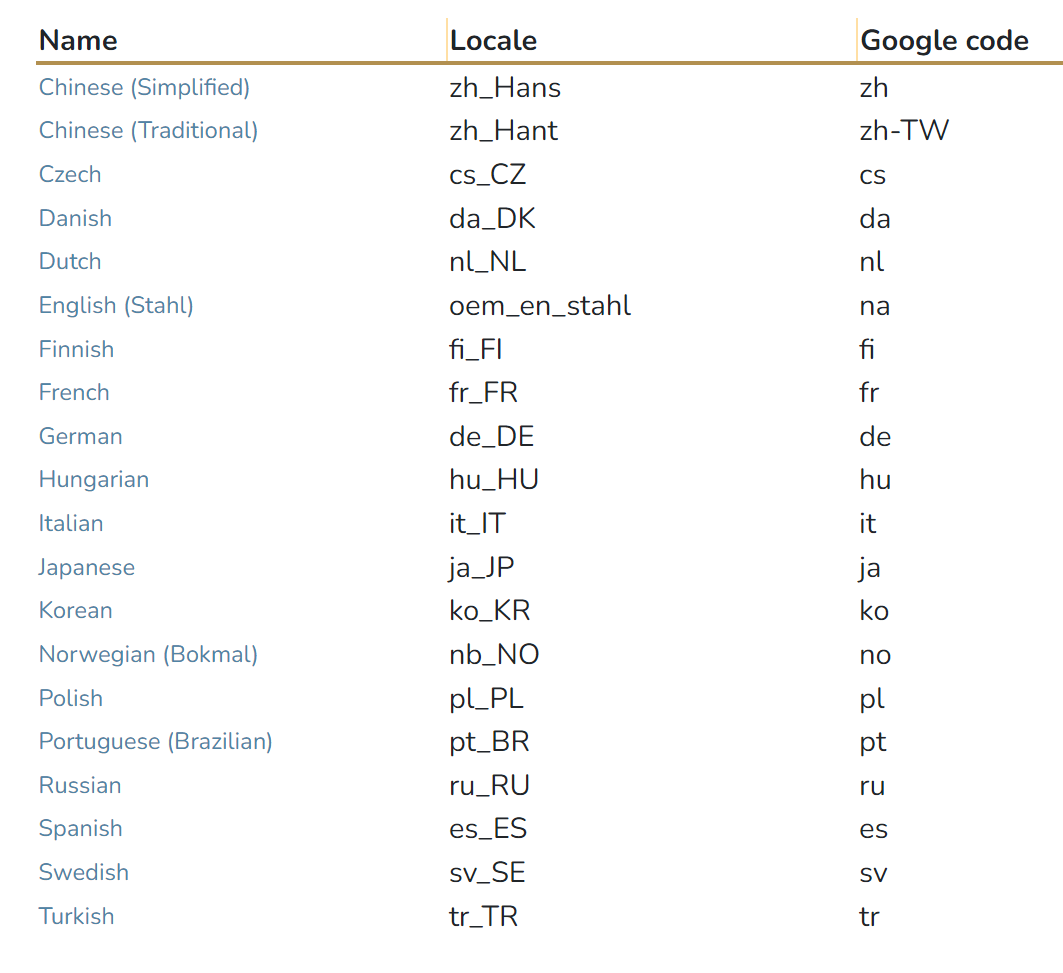
UPDD 7 includes translations for Czech, Danish, Dutch, Finnish, French, German, Hungarian, Italian, Japanese, Korean, Norwegian, Polish, Portuguese (Brazil), Russian, Spanish, Swedish, Turkish and Chinese (Simplified and Traditional). English is the default text used in the programs and dialogs.
The installers used to install the software are not part of this translation, as the installers are unique to each OS. The Mac installers are English and German and the Linux installers are English only. The UPDD Windows installer utilises a 3rd party installation tool that comes with its own translation files, which we include in our Windows software, so depending on the system's language locale the install may be in the native language.
Language selection
Where a language code is specified it can be in the format 'xx' or 'xx_XX', where xx is the base language and XX is the variant, such as de_CH representing Swiss (CH) German (de). A useful list of the possible locale codes is available here.
Where xx_XX is defined and a translation cannot be located for the full code, a search for a match on the first two characters is made, e.g. if a translation file is available for de_DE (German) but de_CH (Swiss) is requested, then after checking for a Swiss translation the software will go on to use the German.
At any time you can return to English by setting the language code to 'en'; there is no language file for English as it is the default text.
The default_locale setting
The global setting default_locale specifies the language to use. It is initially set when the software is delivered, and can be one of:
| Setting | Value | Meaning |
| System locale | <system> | Use the language defined by the system language setting (if a matching language file exists). |
| Language code | xx[_XX] | A specific language. The variant XX is optional, e.g. cs_CZ, da_DK, fi. Can be useful for testing without the need to launch programs with a specific environment or argument (see below). To see the available languages list the .qm files in the 'translations' sub-folder of the UPDD application folder, as per this Windows example: 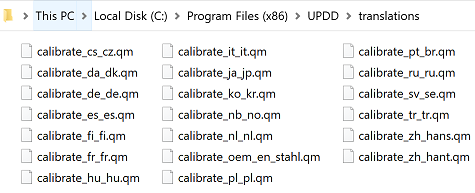 |
To change this setting either:
- use the command line interface:
upddutils nodevice set default_locale [value], or - in the UPDD Console, select the required language on the General tab.
Any components already loaded, such as the UPDD Console, only show the new language when they restart. If the command line is used to change the language, UPDD Test needs the driver to be reloaded before it displays the new language.
Language for one program
All core and extension components, where translations exist, accept a run time option in the following two ways. In the absence of either, the value set in default_locale is used.
Environment variable
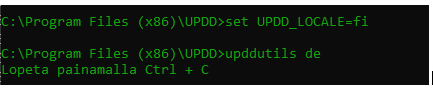
Set the environment variable UPDD_LOCALE before launching a program, as in this example launching upddutils in Finnish. Note that in this example 'de' is the upddutils command digitizer_events, not the German language code. (The folder is C:\Program Files (x86)\UPDD for UPDD 6 and C:\Program Files\UPDD for UPDD 7.)
Command line option
Pass the command line option locale=xx, as in this French example:

UPDD Commander
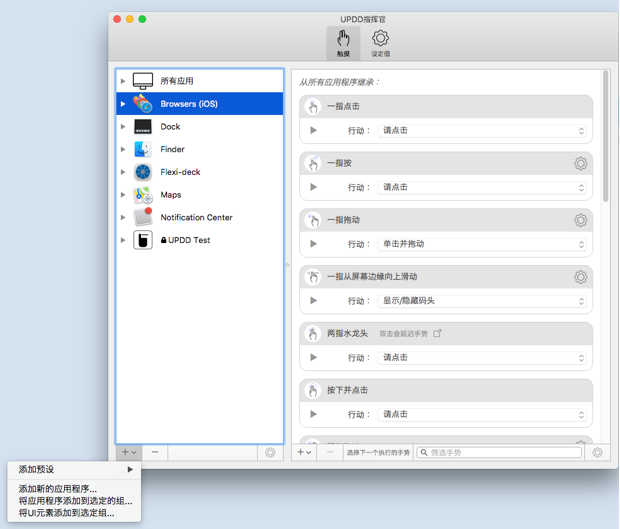
UPDD Commander uses the same UPDD language setting. Change it in the UPDD Console General tab, then select 'Restart UPDD Commander' from the Commander menu bar or system tray menu. This is from a system switched to Chinese:
Translation editor
For the complete set of UPDD components we hold the English text, which is used to generate a language file using the Google Translate API. This means the initial translation is computer generated and it is likely that some changes will be needed by a native speaker of the language. To this end there is an edit facility for manual adjustments.
During the translation process it is highly recommended that you have the software installed, so that you can see the dialogs where the text is displayed and the context in which it is used.
Use a browser to visit the UPDD Language Server and log in with the credentials supplied by Touch-Base. To log out of the language server use the URL http://language.touch-base.com/user/logout.
After logging in you are presented with a list of available languages:
Click on the desired language to view or edit its translations in the translation editor page. From the language function bar you can select the UPDD software component and one of three views of the translations: Incomplete, Complete or All.
| View | Shows |
| Incomplete | The English and the machine translation, waiting to be reviewed and updated by a native speaker. |
| Complete | The English, the machine translation and the real translation entered by a native speaker. |
By default the system selects the 'calibrate' component and shows the Incomplete list of translations.
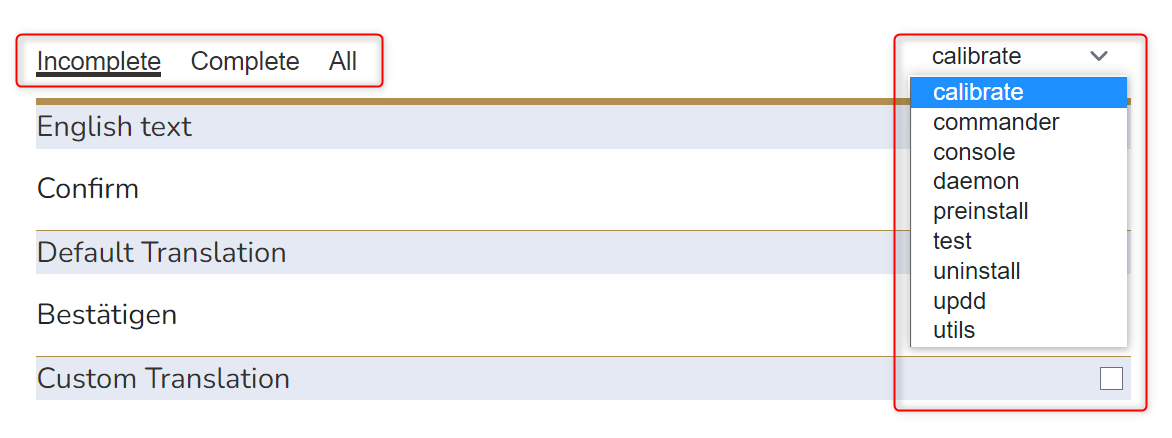
In the above example (which only shows the top incomplete translation) the English word 'Confirm' has not been reviewed. Once reviewed and approved you can either just tick the checkbox (if the default translation is acceptable) or enter an updated translation in the custom edit field, which can be expanded if needed. The English and default translations are fixed; only the custom field can be edited. Values entered are saved automatically (there is no save button).
Once the translation is reviewed and approved, tick the checkbox. The translation then moves to the Complete list, where the custom text is read only.
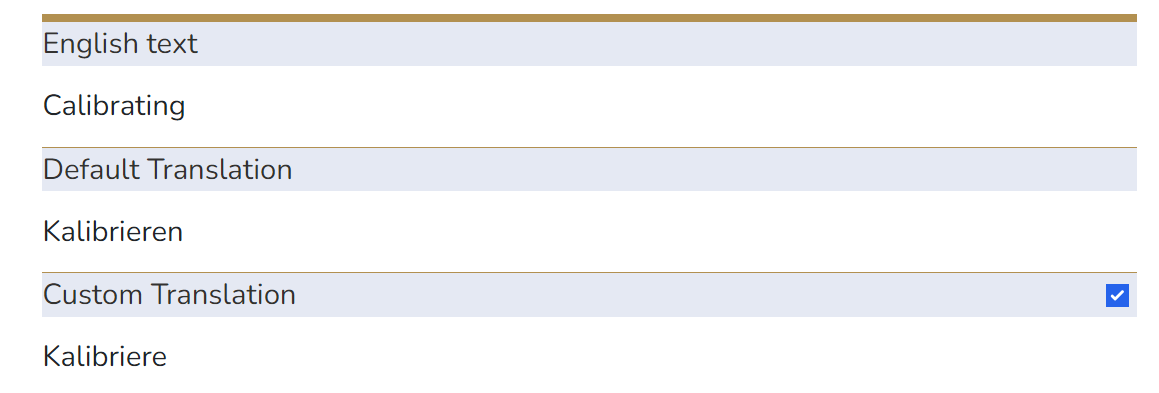
All entries for a selected component and completeness are listed on a single page, which can be searched using the browser's find option. Once translations have been updated, future driver builds contain the new translations.
Notes for translators
Machine translation
The initial pass using machine translation will give some strange or incorrect translations, especially when translating technical text, as in these German examples: Port -> Hafen -> Harbour, or ID -> Ich würde -> I would. Using the language server editor these can be easily identified (by a technically aware native speaker) and updated as appropriate.
Testing
The language strings as they appear in the language server may be difficult to place into context until they are seen in a new build of the software. Translation is therefore an iterative process: new translations need to be reviewed in a new build and adjusted where required, both in meaning and in length. It may be that a shorter translation works better when displayed in the dialog, or the dialog needs to be adjusted to cater for longer text.
Hotkeys
A hotkey is represented by a & symbol and indicates the keyboard hotkey that can be used to select the control. If XXXX translates to YYYY and &XXXX is the English, then generally the translation is YYYY (&X). This scheme works well with non-Latin based languages, and when supporting software in many languages it makes the various fields easier to identify.
However, you could enter &YYYY as the translated text so long as this approach is consistent across all items in a language and care is taken to avoid clashes (the same hotkey used more than once on a page). Certain languages may be better suited to &YYYY, as was the case for the German translation. This needs to be assessed language by language.
For the UPDD Daemon menu the machine translation creates some trailing hotkeys, which do not look good in the menu display. Where possible use inline hotkeys, as in this example:
| English | Default | Custom |
| &About | Di (&A) | &Info |
| &Configure | &Configurazione | Edit |
| &Enabled | Abilitato (&E) | &Abilitato |
Once translations have been completed, review each dialog for hotkey duplicates and amend accordingly to identify a suitable letter for each hotkey.
Text not to update
Some texts hold a copyright notice such as "Touch-Base Ltd 2022" where the year is a %n placeholder substituted at run time (e.g. %2 becomes the current year), so there is no need to change the year shown.
Unfamiliar terms
The English text may contain terms that are not directly translatable or familiar in the native language. For example we refer to touch device(s) instead of touch screen(s). In German this is translated to Touch-Gerät(e), which is the correct 1:1 translation, but the term is unfamiliar in German. We use 'touch device(s)' because the driver supports a range of what would more accurately be described as pointer devices: pens, tablets, whiteboards, trackballs, mice and touch screens. If there is a native term that encompasses these devices then use it; otherwise touch screen is acceptable, as it may be the only term available for a touchable device.
General notes
The automatic translation process may remove new lines (CR/LF) and concatenate multiple lines into one line. It may be necessary to re-add missing new lines in formatted multi-line texts.
The automatic translation process may add some additional blanks, especially around %x placeholders. These should be removed to replicate how they are seen in the English texts.
Texts with HTML tags, though shown wrongly in the translation columns of the table, do in fact have the correct HTML tags.
For review
The UPDD Language Server (http://language.touch-base.com) did not respond from this network on 2026-10-20 (connection timed out). Please confirm the server is still in service before this section is published; if not, the Translation editor and Notes for translators sections should be removed. Changes from the source articles: the "6.0.550" introduction and the link to a V6 test installer (UPDD_06_00_624.dmg) were dropped; the hotkey example that used the withdrawn "Check for Updates" menu item was dropped; "contact support" mail links now go to the contact page. The language list is taken from the .qm files installed with UPDD 07.01.235 (C:\Program Files\UPDD\translations); the reg_510 test database's default_locale choice list omits Korean, so please confirm Korean is offered in the Console.