UPDD Annotate
This document describes UPDD Annotate, the utility supplied with UPDD V6 and V7 on Windows and macOS for annotating on top of a 'live' desktop.
This can be useful any time you need to annotate over a desktop, such as during conferences, lectures, classrooms, exhibitions and TV studios (with live video).
When Annotate drawing is active, UPDD Commander gestures are suspended. Gestures are reactivated when drawing is disabled (the red X described below) or Annotate is closed.
Starting Annotate
UPDD Annotate, if installed, can be invoked from the UPDD Daemon menu by selecting the Annotate option (see UPDD Daemon (tray and menu bar)), or directly from the Utilities folder under macOS or the UPDD application folder under Windows. If the Annotate option is missing, the utility is not installed.
Annotate is disabled while UPDD Test is open.
On macOS, UPDD Annotate needs Accessibility permission for its touch functions (requested when the app is launched). The permission names for each macOS version are listed in macOS: Accessibility, Input Monitoring and background items.
The control dialog
When invoked, the main control dialog is shown (vertically or horizontally):
 Control dialog with all controls | 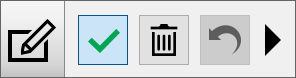 Control dialog with minimal controls |
The function of the controls is as follows:
| Control | Function |
 | Use this area to click and drag the control dialog to the required position. Double click toggles the layout between vertical and horizontal. |
| The following entry has three icons to show the three possible annotate states: annotate off, annotate inking only, and annotate inking and touch. Click the icon to cycle through the three states. | |
 | Inking only is enabled. In this mode only pen inking on the desktop is possible. Single point touches will result in a small dot being drawn at the point of touch. |
 | Inking and touch is enabled. In this mode stylus movement results in inking. Single tap and press actions control the mouse: a tap generates a click and a press results in a pen down to allow a drag. Drag is possible once the blue circle drawing is complete. Note: the touches are being handled by the Annotate application, not the driver or UPDD Commander, so it implements very basic touch functions, click or drag, whilst annotating on the desktop. On macOS this needs UPDD Annotate's Accessibility permission (see above). |
 | Annotation is disabled. The Annotate dialog remains on the desktop and any previous touch support is reactivated. |
 | Indicates the current pen colour, or the rubber size, small or large. Select to change the colour and drawing transparency, or the rubber size. The multicolour options give a different colour per stroke.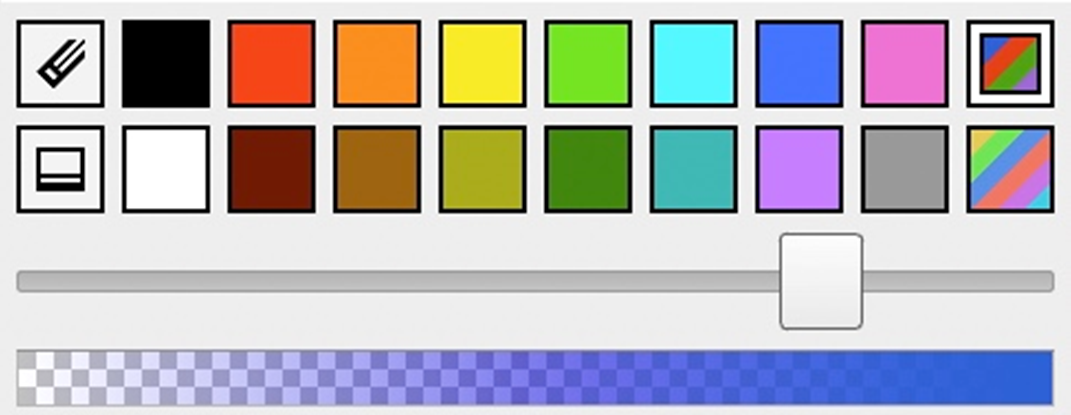 |
 | Select to change the pen width. Move the slider or click on the line to adjust the width.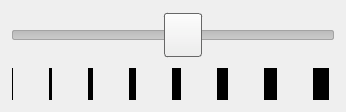 |
 | Select to change the control dialog transparency. Move the slider or click on the slider to adjust the transparency.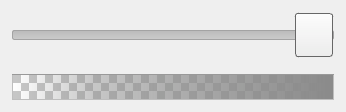 |
 | Clear the on-screen drawing. |
 | Screen capture of all monitors. In this example the screens of a dual monitor system are captured. Path and file names are briefly displayed during the capture: |
 | Undo the previous drawing. Individual drawings are held in a cyclic array storing the last 50 drawings. This option removes the previous drawing in the array. |
 | Redo the previous drawing. This option redraws the next drawing in the array. |
 | Create a new control dialog. Useful if you have a large whiteboard / touch screen and would like more than one control dialog, say on either side. |
 | Close Annotate and remove the control dialog from the desktop. Current desktop inking is erased. |
 | Toggle between the full and minimal dialog format. The small format can be used, once pen colour and width have been established, to minimise desktop real estate. |
Annotate settings
The following global settings are held in the UPDD settings file (see How UPDD settings work) and can be accessed using the command line interface if required (see the upddutils command line reference). annotate_enabled and annotate_mouse_enabled can be changed while Annotate is running, e.g. upddutils nodevice set annotate_enabled 0.
| Setting | Description |
| annotate_enabled | Indicates if drawing is enabled or disabled. |
| annotate_mouse_enabled | When true, tap and press gestures control the mouse. When false, all touches cause paint strokes, regardless of what kind of gesture they are. |
| annotate_current_color | Holds the current colour in the format #rrggbb, e.g. #ff806c. |
| annotate_current_alpha | Current line transparency. |
| annotate_current_line_width | Current line width. |
| annotate_palette_ids | Contains a comma separated list of ids for the control dialogs that are on the screen. |
| annotate_window_alpha_N | Dialog transparency, where N is the id of the dialog. |
| annotate_window_position_N | Dialog position, where N is the id of the dialog. |
| annotate_window_orientation_N | Vertical or horizontal, where N is the id of the dialog. |
| annotate_window_collapsed_N | 1 small dialog or 0 large dialog, where N is the id of the dialog. |
| annotate_capture_path | Path where screenshots are saved. Defaults to the user's default image folder. |
For review
The macOS permission screenshot (/Uploads/Images/V6/Annotate/Annotate%20permssion.PNG, showing Security & Privacy, Accessibility) was dropped: the pane is named differently on current macOS versions. A new capture could be added, or the link to the macOS permissions topic is enough.