Install UPDD on macOS
This document describes how to install UPDD on macOS. UPDD 7 supports macOS 10.14 and above and is a universal build that runs natively on Intel and Apple silicon Macs; UPDD 6 supports Mac OS X 10.8 to 10.13. The software is installed from an installer contained in the supplied .dmg file.
The key steps of the installation are as follows:
- Open the .dmg file and follow the instructions.
- If the package includes the UPDD system extension, you must 'Allow' it when macOS asks (see Approving the system extension).
- You must grant permission in the Accessibility settings for some of the driver's processes to access the system, specifically UPDD Commander and optionally UPDD (see Granting permissions).
- In multi-monitor environments, if the touch registers on the wrong monitor, run Identify to form the association between the touch screen and the correct display (see Monitors: identify, bind, metrics and segments).
- To use the Smart Magnifier, give UPDD Commander Screen Recording permission.
The rest of this document covers the installation procedure in greater detail.
Requirements
| Component | Requirement |
| Supported touch device | A supported USB pointer device. |
| Processor | UPDD 7: Intel and Apple silicon (a universal build). UPDD 6: Intel 64 bit (Rosetta 2 on Apple silicon). |
| macOS | UPDD 7: macOS 10.14 and above. UPDD 6: Mac OS X 10.8 to 10.13. |
| Access to TCP/IP port 4146 | The driver requires access to TCP/IP port 4146 for internal computer processing only; see What UPDD is. |
If your system is controlled by remote management (MDM) software it is likely that restrictions are placed on driver installations that block system extensions. If this is the case, see the MDM notes in macOS: allowing the UPDD driver extension, which also describe how to extract the .pkg file embedded in the installer.
Installation procedure
If you do not follow the installation steps in full there is a good chance touch will not work. It is very important that you allow the UPDD system extension to be installed, when asked, and give Accessibility permission to our applications.
The software is delivered as a download from a My Touch-base link (see Downloading UPDD): a disk image file UPDD_nn_nn_nnn.dmg, whose name reflects the version of the driver being installed, e.g. UPDD_07_01_260.dmg.

The .dmg file either opens an Install UPDD application or expands directly to the package file (this step may be invoked automatically when downloading the .dmg file). Install UPDD checks whether the installer is being used to update an existing driver and whether the update is within the driver's maintenance period (see Licensing: keys, seats, maintenance and evaluation). If it is outside the maintenance period the install is blocked; otherwise the .pkg file is presented to continue with the installation.

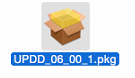
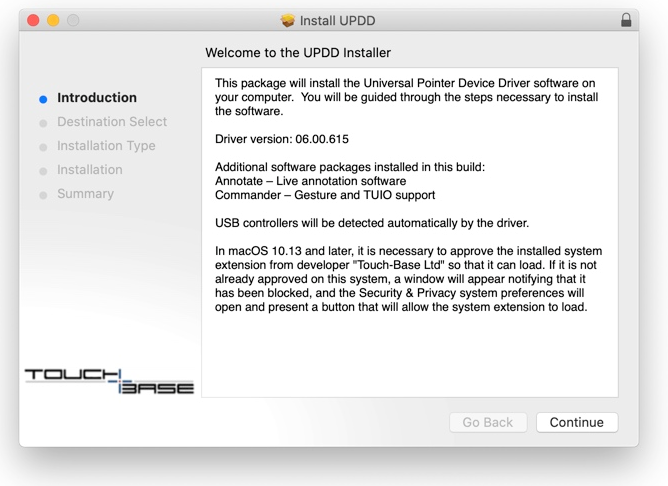
To install the software double click on the package file and follow the instructions on the install dialog until the 'Installation has completed' screen is seen. During the installation you are prompted to enter your password. The install dialog also lists any additional software packages included in the driver install:
In very rare cases the installer fails, and if this failure is detected you see the following dialog:
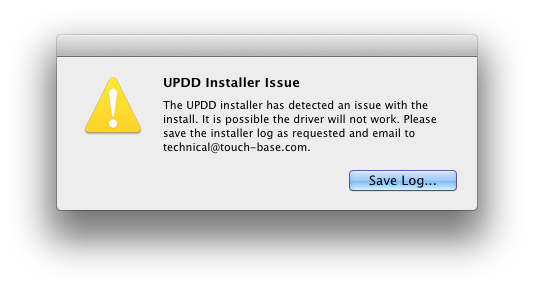
Further information on install failures is in Installation problems on macOS.
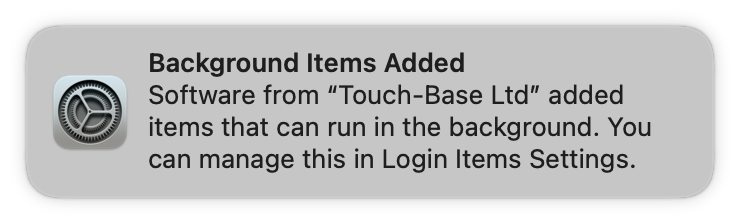
When installing on macOS 13 and above you see this notification, which can be safely dismissed:
For review
Review item E15 is open. The Install UPDD maintenance check described here comes from the UPDD 6 article; its source is not in the 7.1 tree (install/ holds only the Windows kernel driver helper), and the Windows installer's equivalent check is disabled (inno/updd.iss:228-246, ticket 378787). Confirm whether current macOS UPDD 7 disk images still open Install UPDD and what it checks. The screenshot /Uploads/Images/V6/Install/WarrantyExpired.png (the "warranty has expired" message) is dropped: the wording is no longer used.
Approving the system extension
Where the package includes the UPDD system extension, the first time you install the driver you are told that you will need to approve the extension during the installation, and macOS then shows a notification that it has been blocked. The installer opens the settings where you approve it: on macOS 15 and above this is System Settings > General > Login Items & Extensions > Driver Extensions; on earlier versions it is Privacy & Security (Security & Privacy before macOS 13), where you select Allow.
From UPDD 7.1.230, a package that supports only HID touch devices does not include a system extension, so there is nothing to approve. Packages that support non-HID USB devices, and earlier versions, include one.
The dialogs for each macOS version, what to do if Allow does not work (some customers have reported this, especially with keyboard-only access), and the MDM configuration are described in macOS: allowing the UPDD driver extension.
Granting permissions
macOS asks for permission for applications that use system interfaces to control the system. At some point during the installation you are asked to grant permission for some of the driver's processes, UPDD Commander and optionally UPDD, as in these examples:
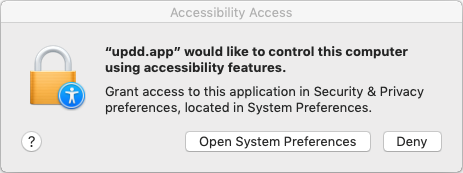 | 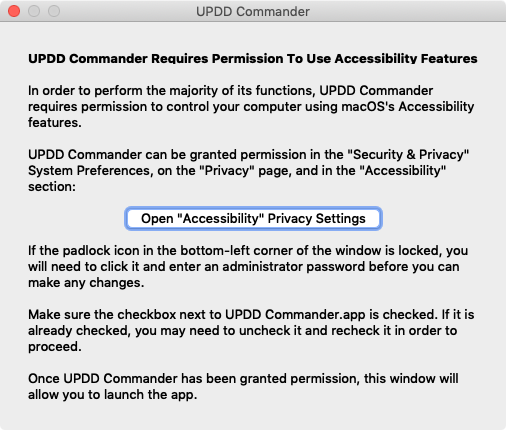 |
Selecting the 'Open ...' option opens the privacy settings, where the component is enabled. UPDD and UPDD Commander reside in the UPDD application folder, /Library/Application Support/UPDD, and the '+' control can be used to add a component. On macOS 27 the Accessibility pane is named Device Control and Data Access. Which component needs which permission on each macOS version, and how to remove and re-add a permission, is described in macOS: Accessibility, Input Monitoring and background items.
UPDD Commander does not launch until it has permission. Once permission is set the following dialog is seen:
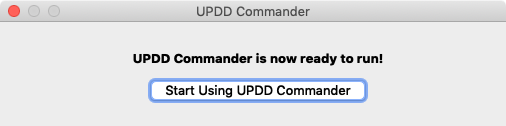
In most cases UPDD Commander is the only component processing the touch, and therefore it is the main UPDD component requiring permission. Where UPDD Test shows touch is OK but there is no cursor movement or gesture support outside Test, it is likely to be a permission issue: remove UPDD Commander from the permission list and add it again. If Commander issues a warning at start-up, such as '...failed to set up keyboard event filtering and cannot run', see Commander on macOS: permissions and start-up problems.
Completing the installation
All being well you then see the installation complete dialog:
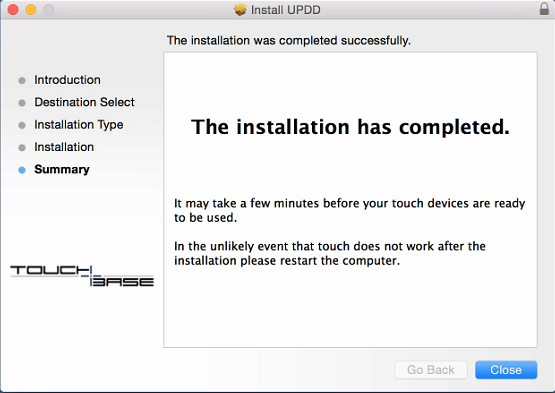
Following installation the touch screen should be working and the point of touch activated under the stylus. If touch is working but the point of touch is not calibrated, or touch controls the wrong screen, run the Configure option from the UPDD Daemon menu (see Calibration).
If touch is not working you may see a notification to reboot the system. A reboot is necessary in the following cases:
- When installing in Big Sur for the first time.
- If the driver fails to get exclusive access to a newly discovered device; the notification is repeated at 1 minute intervals for 5 minutes.
If there is no touch response after a reboot, refer to Touch not working: first steps. Should you need to contact Touch-Base, take a diagnostics package and attach it to a ticket raised at https://www.touch-base.com/contact. The touch hardware and UPDD software can initially be tested with UPDD Test.
If the touch device is a HID compatible device: after installation there can be a considerable delay (1 to 4 minutes) before UPDD is in control, as it waits for the native HID driver to relinquish control. This only occurs at the initial install. In some extreme cases a reboot may be required.
On macOS 10.12 and 10.13, installing UPDD 6 on top of an existing UPDD 6 installation often results in the native HID driver staying in control of the touch device (albeit unlikely to be working correctly), with the UPDD Console showing no device connected. If this occurs a reboot is required.
Installing over an existing installation
UPDD Commander, part of the driver installation, is responsible for processing gestures and triggering the actions when a gesture is performed on the touch device. It comes with a default set of gestures and actions and a list of predefined applications, all of which can be modified as required. Installing over an existing installation therefore retains the current gesture and action settings and application list. These can be removed before installing if required, as described in Commander settings reference.
Menu bar items
There is a menu bar item for each UPDD component installed (in some OEM installs these may be disabled):

Selecting the menu bar icon lists the menu options:
| UPDD Daemon | UPDD Commander |
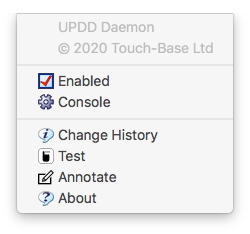 | 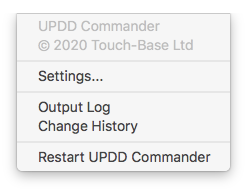 |
Applications that connect to the driver via the driver's API, such as those above, are notified if the connection to the API drops, implying the driver is not available. In this instance the menu bar icons show an exclamation mark and touch is unlikely to be active:
 - driver disconnected / connected notification
If you have installed an evaluation version of the driver, a Register option is shown in the UPDD Daemon menu; the evaluation limits and registration are described in Licensing: keys, seats, maintenance and evaluation.
The UPDD utility programs are placed in the Mac's Utilities folder or the UPDD application folder: UPDD Annotate, UPDD Calibrate, UPDD Test, UPDD Commander and UPDD Uninstall, the last being used to uninstall the software. The UPDD application folder contains:
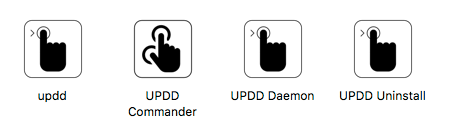
The full list of installed components is in What UPDD installs on macOS.