macOS: /usr/local permissions
Installing and running the UPDD software requires that the ownership and permissions of certain system folders are set appropriately. The installer places links to upddprocesses, upddutils and the UPDD API library (libupddapi) in these folders:
/usr/local
/usr/local/bin
/usr/local/lib
For installation the root account needs read, write and execute permissions. For the software to run, user accounts need read and execute permissions.
This is a list of the folders and permissions from a typical system with the correct permissions set, as seen in a Terminal window running the command 'ls -ltr':
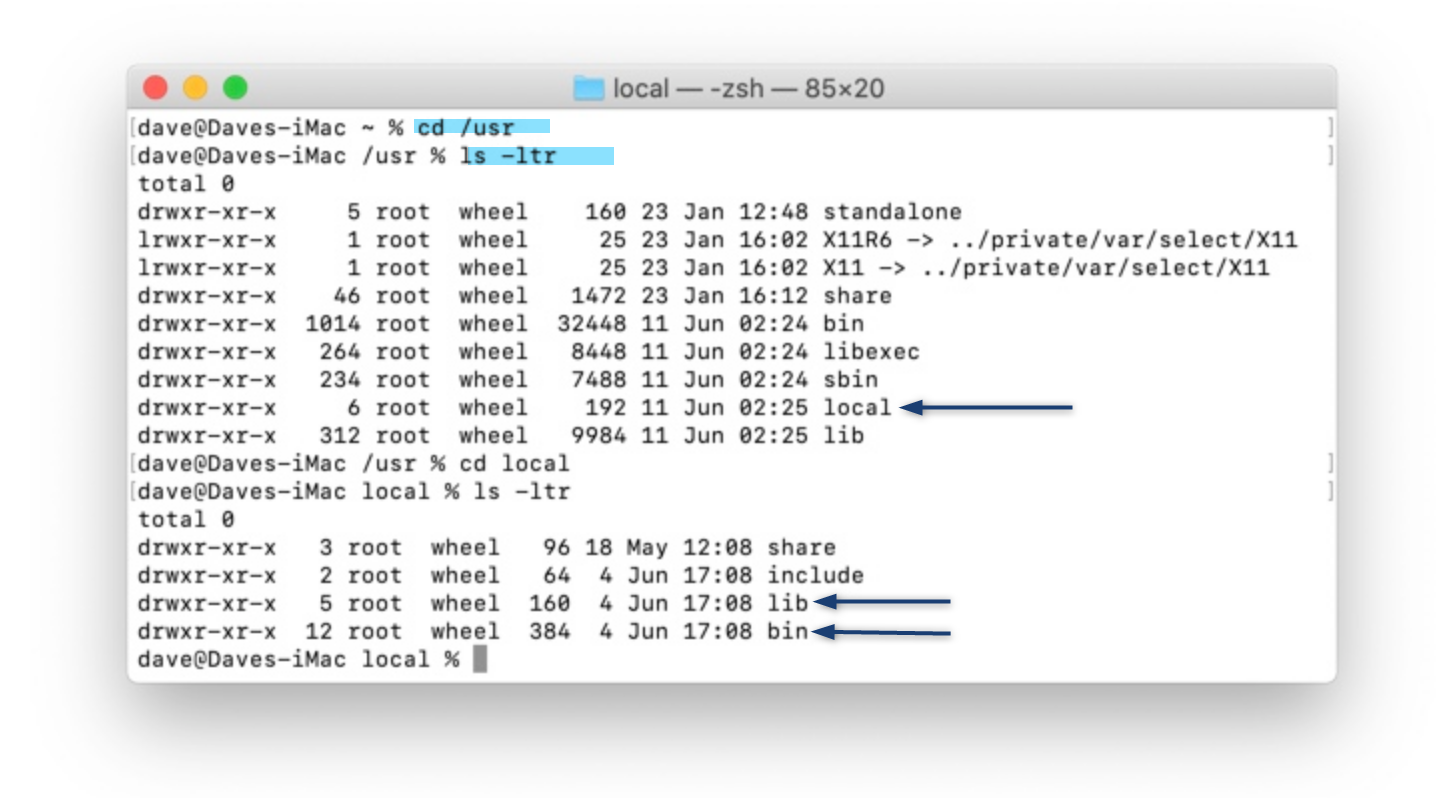
If these permissions are not set appropriately, the issues below are reported. Fixing them is described below.
Software installation
The installation fails and the UPDD install log contains entries similar to this example:
2020-06-04 02:38:30-07 MacBooks-MacBook-Pro-2 shove[1514]: [source=file] failed _RelinkFile(/var/folders/zz/zyxvpxvq6csfxvn_n0000000000000/C/PKInstallSandboxManager/5B31BBDE-BFE9-4851-8728-683A1312BA2C.activeSandbox/Root/usr/local/bin/qt.conf, /usr/local/bin/qt.conf): Operation not permitted
.
.
2020-06-04 02:38:30-07 MacBooks-MacBook-Pro-2 shove[1514]: dstParentPath = /usr/local/bin NSFileOwnerAccountID=502 NSFileSystemFileNumber=8598607120 NSFileExtensionHidden=0 NSFileSystemNumber=16777220 NSFileSize=5152 NSFileGroupOwnerAccountID=80 NSFilePosixPermissions=511 NSFileCreationDate=2019-03-13 18:30:33 +0000 NSFileExtendedAttributes={
In this example the permissions are reported in the log as '511', which means no write access. How to view the install log is described in Installation problems on macOS.
UPDD commands do not run
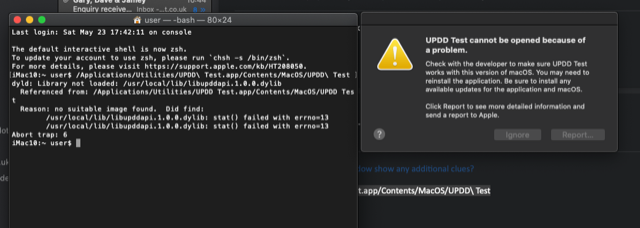
UPDD commands are not found: in a terminal they are reported as 'upddutils: command not found'. Or UPDD commands fail to open, showing various errors when invoked from a Terminal window, as in this example invoking the UPDD Test program:
UPDD Commander does not run
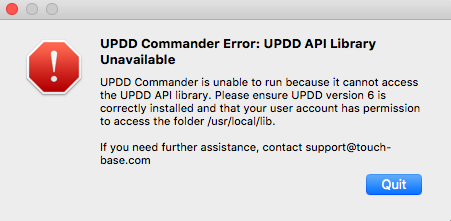
UPDD Commander reports a UPDD API error:
Fixing the folder permissions
Set the required permissions by running the following command in Terminal (in the Utilities folder) for each folder that needs them:
sudo chmod -R 755 [folder path]
as in this example, which sets the permissions on the /usr/local/bin folder:
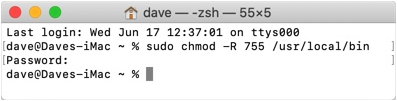
Repeat the command for each folder as required. For any folder not owned by the root account, also run sudo chown root [folder].
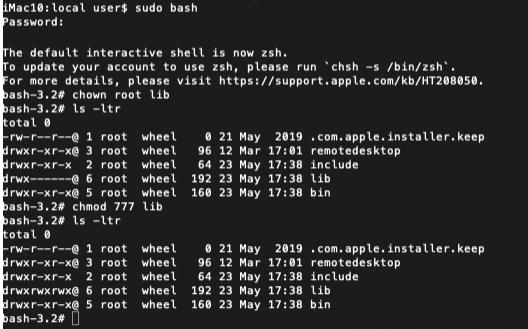
In one instance the /usr/local/bin folder was owned by a non-existent user account and could not be accessed by regular user accounts. We suspect some other software made this change.

We set it back to the root account with the command 'chown root lib', as in the example below, along with the correct permissions (the example uses the value 777, but 755 is more correct):
If UPDD client applications still cannot load the API library, also set the permissions on the library files: sudo chmod 755 /usr/local/lib/libupddapi.*
Disabling System Integrity Protection
One user (on macOS 10.13.6) could not overcome the permission issues until they temporarily disabled System Integrity Protection, installed UPDD and then re-enabled the protection: restart the Mac holding Command+R, select the language, choose Utilities > Terminal, run csrutil disable and restart. Remember to re-enable System Integrity Protection, by repeating these steps with csrutil enable, so that the system is not left vulnerable.