Sleep, wake and touch after resume
Computer systems can be configured to save power when not in use, which also has the benefit of prolonging the life of the hardware. To this end systems can be set to turn off video output and place the system into various sleep states. This document describes how touch devices handled by UPDD 6 and UPDD 7 wake a system, the settings that control remote wakeup and power saving, and what to do if touch does not work after the system resumes from sleep.
How touch wakes a system
Sleep states are often determined by configuration settings, inactivity duration or system type, mainly differentiating between desktop and notebook. In the case of notebooks sleep states can also be adjusted based on battery reserves or whether the system is connected to the mains. Sleep states can be light, with the minimum of resources asleep, or deep, where nearly everything is asleep bar the lowest level system functions.
Systems can be woken up by manual actions or automatically, such as network activity to wake up remote systems. Manual actions are typically pressing the start button, pressing a key on the keyboard, moving the mouse or opening the lid on a laptop.
When hardware devices are used to wake up a sleeping system the hardware sends out a signal on the bus to wake up the system. This is needed to wake up systems that are in deep sleep or standby mode, as in these states all programs are suspended. Not all touch screens send out these signals and therefore they cannot be used to wake up a system from deep sleep.
However, in systems that are in light sleep, with drivers and applications still loaded, the UPDD software invokes a system function that fully wakes up the system. This means that touch screens that do not send out the wake-up signal will still wake up a system from light sleep.
Touches received when a monitor or system is sleeping are discarded, to avoid the unintended consequences of touching a blank screen.
Waking a Windows system
Windows fully embraces the notion of touch devices being used to wake up systems. Windows sleep modes are discussed in this article.
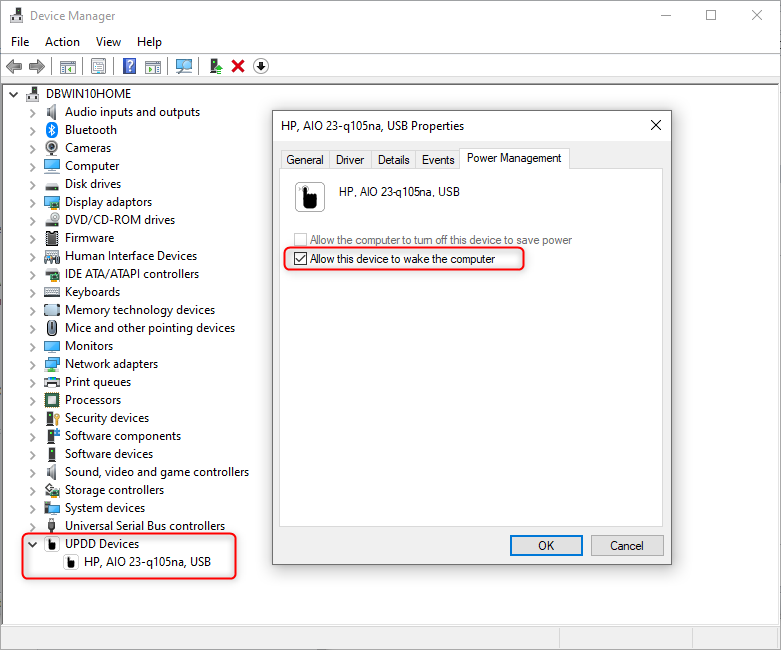
Under Windows, devices handled by UPDD that can be used to wake a system from deep sleep have the Power Management tab option 'Allow this device to wake the computer' in the Device Manager. If this checkbox is not shown, the device does not have the ability to wake up a system from deep sleep.
UPDD 7
UPDD 7 supports HID USB and I2C devices using a UPDD HID filter driver, so the core HID entries are retained in the Device Manager, and it is these entries that contain the Power Management tab. The driver also supports legacy, non-HID USB devices, resulting in a UPDD device entry in the Device Manager that can be used to enable the Wake on Touch feature.
Non-HID USB devices
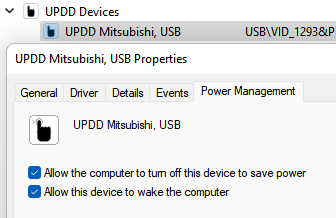
Since UPDD 7.1.73, for devices of this type there is an entry in the Device Manager under 'UPDD Devices' which carries the appropriate option:
HID devices
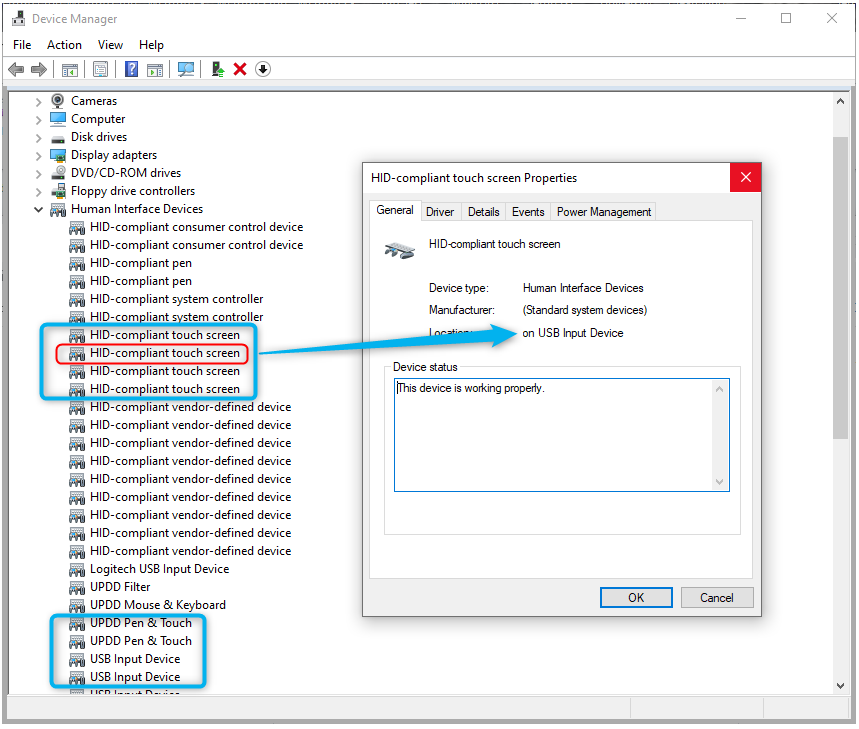
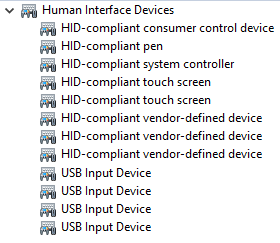
In this example, taken from a dual touch screen system, there are various related listings in the Human Interface Devices entry. The lower four entries relate to the two USB input devices and the two UPDD virtual devices created to post touch or pen data into the OS. The top four entries show the proxy HID-compliant touch screen devices associated with the four actual devices, two of which relate to the 'USB Input Device' entries and two of which relate to the 'UPDD Pen & Touch' devices.
Select the HID-compliant touch screen entry that is associated with the 'USB Input Device' as shown, by right-clicking on the entry and viewing the association:
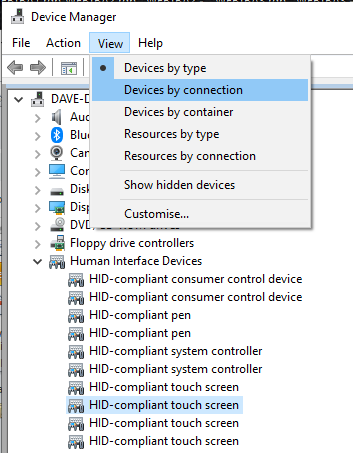
With the correct entry selected, switch to viewing the devices by connection type:
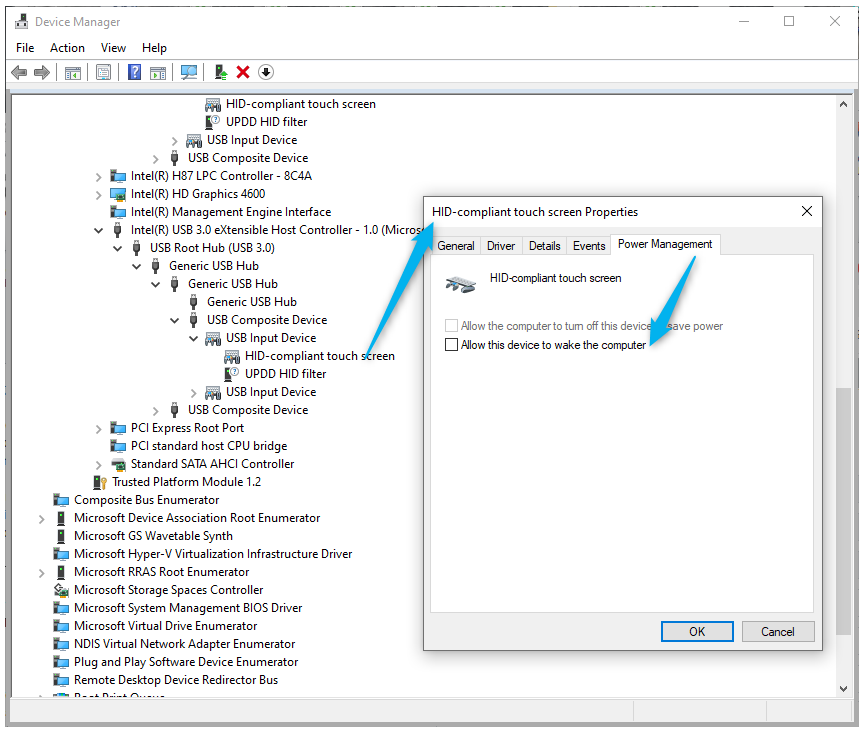
This allows you to see the device in the connection tree. Right-click on the entry, select Properties and enable the Wake on Touch checkbox if it is not enabled:
UPDD 6
If a UPDD supported touch device is capable of waking up the system then the Device Manager, UPDD Devices, device entry will contain the 'Power Management' tab:
Selective suspend
From UPDD 7.1.197. Windows can set devices to go into a low power state (selective suspend) to conserve power when they have not been touched for a while:
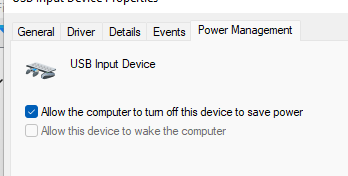
This option can be found in the Device Manager: look for the HID-compliant touch screen or USB Input Device entries under Human Interface Devices.
Usually the return to a normal state is so quick as to not be noticeable. However, in some cases the touch device does not recover, resulting in total touch failure, or it recovers after a period during which touch does not work (a customer reported 5 seconds). This might be due to a fault in the controller or in the Windows implementation of selective suspend. Turning off the option for the USB touch device has addressed this issue.
There can be more than one of these settings to locate in the Device Manager, and it is not always clear which of the listed USB HID devices is the touch screen, so upddutils has a function to change the setting on Windows 10/11 systems. You need to know the USB vendor and product id of the touch device:
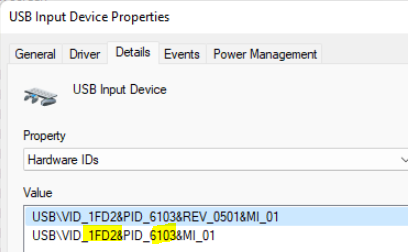
upddutils devtool selectivesuspend <vid;pid> off|on
off disables selective suspend for the device, on enables it. For example, to turn off selective suspend for a device with a vendor id of 424f and product id 9301 you would enter:
upddutils devtool selectivesuspend 424f;9301 off
In this case two devices are found and changed:

One customer reported that the command did not change the setting on their system, although it has worked on our test systems; if it does not, change the setting in the Device Manager as above.
Waking a macOS system
Under macOS, waking systems with non-Apple devices and methods is less well documented, especially by Apple. macOS sleep modes are described in this article.
The official line is that keyboard and mouse activity and opening the lid on a MacBook will wake up a system, but it is possible for touch and pen devices to wake up a macOS system if they perform the correct sequence of events on the USB bus. However, the macOS wake-on-touch protocol differs from the Windows sequence and not all Windows wake-on-touch capable devices can wake up a macOS system.
Further, we have found that some touch devices can fail to function correctly on macOS if the remote wakeup feature is enabled in the device. For this reason the macOS UPDD driver 'clears' the remote wakeup feature by issuing the 'Clear Remote Wakeup' USB feature request by default. For devices known to support remote wakeup, the driver needs to be configured not to issue the request to the device.
Remote wakeup settings
These device settings control remote wakeup (value in bold = default). You can set them with the command line interface, e.g. upddutils set remote_wakeup_mode partial.
| Setting | Value | Description |
| remote_wakeup_mode from 7.1.43 | none partial full | Enables standard management of the USB remote wakeup facility to put unused devices into a low power state. It is none by default, as some non-compliant devices malfunction when this is on. Implemented on macOS; on Windows, HID devices use the Windows built-in functionality. partial - UPDD sets the UPDD managed device to a low power state when the OS notifies the driver it is going to sleep full - UPDD sets the UPDD managed device to a low power state when there has been no touch activity for 60 seconds |
| clear_remote_wakeup from 7.1.41 | 0, 1 | 0 - do nothing, 1 - issue the Clear Remote Wakeup USB feature request when the device is enumerated. Defaults to 1 on macOS, as some devices fail on macOS when interacting with macOS remote wakeup; for devices known to be compatible it can be set to 0, allowing remote wakeup on Mac models that support a hibernate power state. On Windows it defaults to 0 for non-HID (usbclass) devices and has no effect for HID devices. |
| set_remote_wakeup from 7.1.41 | 0, 1 | 0 - do nothing, 1 - issue the Set Remote Wakeup USB feature request when the device is enumerated. Has no effect on Windows for HID devices. |
| disable_remote_wakeup | 0, 1 | The UPDD 6 name for clear_remote_wakeup. Not used by UPDD 7.1: use clear_remote_wakeup instead. |
What the macOS driver logs
When the system enters sleep the driver is notified and records this in the driver log:
OSXWillSleep() - notification
Thereafter, when a touch is processed whilst the system is sleeping, the driver enters a wake display routine, issues a resume from sleep API call and logs:
Touch event while sleeping...
OSXWokeFromSleep()
APIOperationCmdResumeFromSleep
This API appears to be the trigger to resume the system from sleep and turn on the peripherals, monitors etc. Often, during this sequence, the pending read on the device fails, logged as:
Error from async read: device not responding (IOReturn = 0xe00002ed)
at which point the read is reissued, eventually recovers and returns touch data. (See also macOS: device not responding.) This sequence of events only happens once the software is running and receiving a touch notification.
If the system is in a deep sleep, where all applications are dormant, the system must be woken at the hardware level with a device that is capable of waking a Mac system and where remote wakeup is enabled.
If the system is woken from a deep sleep by the hardware, we are unsure if the software plays any role in the system returning from sleep, as the hardware signal may be sufficient to initiate the full system resume sequence.
Touch not working after resume from sleep
We have had reports of touch not working after resume from sleep, or operating in a different mode, such as single touch rather than the multi-touch it had before sleep.
Typically this can be resolved by stopping and restarting the driver or unplugging and replugging the device. This forces the driver to perform a full initialisation of the device, and normally this recovers touch.
To cater for this issue there is a Replug option in the UPDD Daemon menu on macOS (and the command upddutils replug), and two device settings to automate the process:
| Setting | Platform | Description |
| power.reenumerate_after_wake | macOS | The function behind the Replug option: re-enumerates the USB devices and reinitialises the device after a power management "wake" event, simulating unplugging and replugging the USB lead. |
| power.stop_after_wake | macOS and Windows | If set (1), the driver process is terminated after a power management "wake" event. The driver is then restarted by the OS specific launcher, allowing for a full software reset. |
One of these settings is set by default in the driver package for devices that are known to suffer from this issue, including: G-Story GS156FT, MageDok T156C, WIMAXIT M1560CT2 ultra slim 15.6, Desklab Portable Monitor, Vissles-M 15.6-inch Touch Monitor and SZi Board Electronics IBoard (all USB).
They can also be set in the UPDD Console, [Device], Advanced, Settings tab, as per the example below:
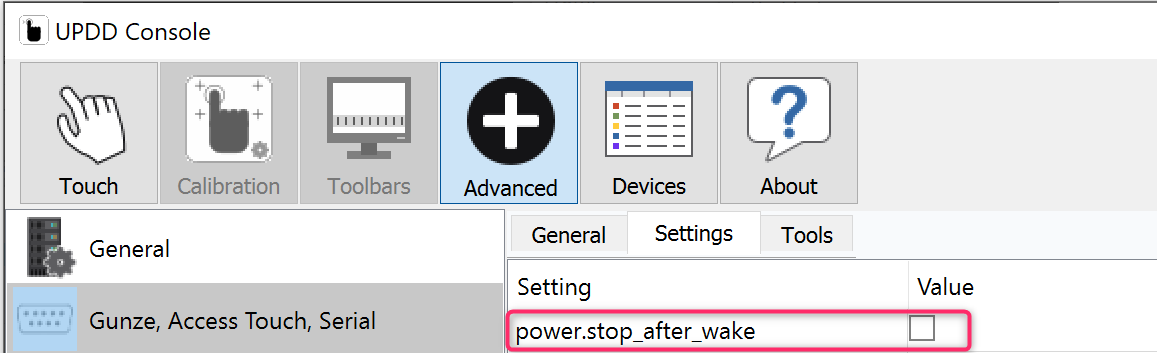
or with the command upddutils [device n] set power.stop_after_wake 1.
For review
Two corrections to the source articles, from the 7.1 source. (1) disable_remote_wakeup: 50745 (after the first correction pass) says it is "still honoured by the macOS USB reader in UPDD V7". updd/macos/macusbreader.cpp:1184 reads it into a local variable that is never used, and the setting's own description says "removed in version 7.1, use clear_remote_wakeup instead", so the draft says it is not used. (2) 50745 marked clear_remote_wakeup and set_remote_wakeup as "superseded by remote_wakeup_mode"; they are still read (macusbreader.cpp:359-366, win32/upddusbreader.cpp:360-361) and do a different job, so the draft describes them as current. Also: on Windows the driver code exits the process after wake for either power.* setting (updd/upddmessagedispatcher.cpp:2328-2357), although the reenumerate setting is described as macOS only; the draft follows the description.