Remote access
In some cases it is desirable for us to connect remotely to a failing touch system to help investigate the problem. This document describes the remote access products we use, Splashtop SOS and TeamViewer, on Windows, macOS and Linux. There are others, such as Remotix.
We will tell you in the ticket if we would like a remote session. You may need to be available to assist, and the technician will let you know at the time; or you may simply wish to observe proceedings.
Splashtop SOS
Visit https://sos.splashtop.com/en/sos-download to download the latest version of Splashtop SOS. The download should begin automatically and give you the correct variant for your operating system in your downloads folder; if it does not, there are direct links on the page to the various versions. Once you have the installer, install it.
After the installation completes, the client displays a unique session code as shown below.
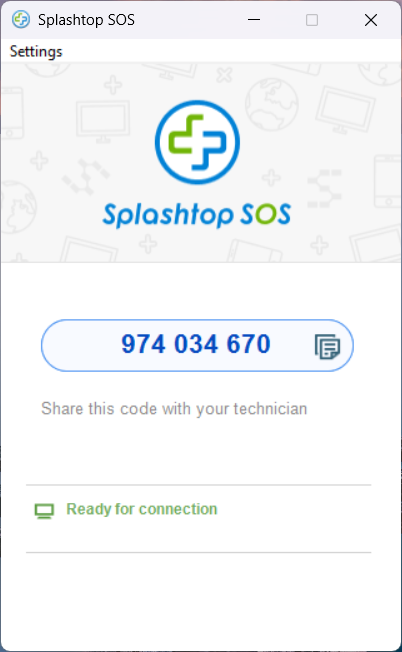
Give this code to your Touch-Base support technician in the ticket or by phone. They can then gain access to your system immediately; no further prompt is given.
You can end the session at any time by closing the SOS dialog or clicking the red Disconnect button.
TeamViewer
TeamViewer is available from https://www.teamviewer.com/en-us/download/. We may ask you to use a specific version of the software; if so, previous versions are available here. You can install the full TeamViewer or the QuickSupport version, which offers very basic external connection capabilities.
To make the system available for remote control, make sure it is connected to the internet, then install and run TeamViewer. It shows a unique session id, which you pass on to the Touch-Base technician in the ticket.
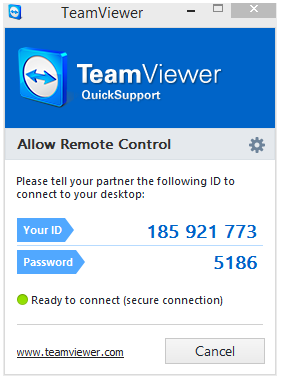
Using this id the technician can connect to and take control of the system. When the connection is established you are asked to allow it to proceed.
macOS considerations
From macOS 10.14 (Mojave) remote control applications like TeamViewer need special access to be granted, and macOS 10.15 (Catalina) requires further permissions. These permissions must be granted locally on the Mac, and some need admin rights, as described here. On macOS 27 the Accessibility pane of System Settings is named Device Control and Data Access.
Without this access:
- users connecting to macOS 10.14 or higher can only view the screen, not control it with their mouse or keyboard;
- users connecting to macOS 10.15 or higher can only view the desktop background and the TeamViewer app, and cannot control it with their mouse or keyboard.
Linux considerations
Installing applications is not always as straightforward on Linux as on Windows and macOS. These two links may help with a Linux installation:
https://www.teamviewer.com/en/download/linux/
https://community.teamviewer.com/t5/Knowledge-Base/How-to-install-TeamViewer-for-Linux/ta-p/6318
For review
- Replaced 'via email, phone or a support ticket' and 'via email, Skype etc.' with 'in the ticket or by phone'. Confirm phone is still offered.
- Check the Remotix link and the TeamViewer 'previous version 14x' link still work, and whether we still use both Splashtop SOS and TeamViewer.