Releasing and moving a licence
A licence key is associated with a specific system. Normally a licence key is associated with one system (one seat), but the same key can be associated with more than one in some circumstances. Once a licence key has used all its seats it cannot be used on any other system until a seat is released (unregistered) from an existing system.
Should you need to replace or re-image a system that uses the licence, it is important that you first release it so that it can be reused. This document describes how to release a licence on the computer itself and in the My Touch-base licence manager, for UPDD 7, and how to move a licence to another computer.
Release limit
By default a seat can be released 4 times in any 12-month period. This can be increased if required: contact us to discuss your requirements.
Unregistering on the computer
Run the command upddutils unregister in a command prompt or terminal window. Under Windows run it from the UPDD installation folder:
| Platform | Command |
| Windows | "C:\Program Files\UPDD\upddutils.exe" unregister |
| macOS | "/Library/Application Support/UPDD/upddutils" unregister |
| Linux | /opt/updd/upddutils unregister |
The UPDD Console also has an Unregister button in the License section of its General tab.
The command contacts the licensing service and releases the seat. If the release is successful you see:
Unregistered
License nnnnnnnnnnnnn is available for reuse
Otherwise it reports one of the following:
| Message | Meaning |
| This computer has NOT been unregistered and nothing has been changed. To go ahead, use the UPDD Licence tool: https://portal.touch-base.com/licence/tool | The licensing service can release the seat but cannot send you the replacement for an old-format key. upddutils cannot ask you to confirm this, so it stops; the UPDD Licence tool can. |
| The allowed unlock limit has been reached for this licence (nnnnnnnnnnnnn). | The seat has been released too many times; see Release limit. |
| Error contacting registration server | A network error. |
| Invalid response from registration server | The server's response was not as expected. |
| computer_key is not registered | The seat has already been released on the licence server, so this computer is not registered. |
If the release fails, upddutils writes the file updd_unregister.txt to your desktop and leaves the computer registered. Please raise a ticket and attach the file, or the information shown, and we will contact you.
With the UPDD Licence tool
Windows and macOS: open the UPDD Licence tool and choose Unregister.
Linux: the tool is a command-line program, so unregister with:
./upddlicence unregister UPDD-XXXXX-XXXXX-XXXXX-XXXXX
The tool is described in Registering UPDD.
The My Touch-base licence manager
In cases where the system is unavailable you can release a seat in the licence manager at My Touch-base. The licence manager shows every UPDD licence you own and where each one is registered, lets you release a licence from a computer so it can be used on another, and lets you record the name and email address of the person who uses each seat. Most licence keys are associated with 1 seat (system), but some are associated with more than 1 seat.
Opening the licence manager
Go to my.touch-base.com and enter the email address your licences are registered to. We email you a management link; there is no password to set up and no account to create. The link stays valid for one hour after it was last used, so it can be used for several changes in that time; if it has expired, just request another. If nothing arrives, check your spam folder.
If you have a My Touch-base account you do not need the email link: sign in with the Login link at the top right. It opens the same manager and shows every licence owned by your address and by your company account, so a colleague's licences appear there too.
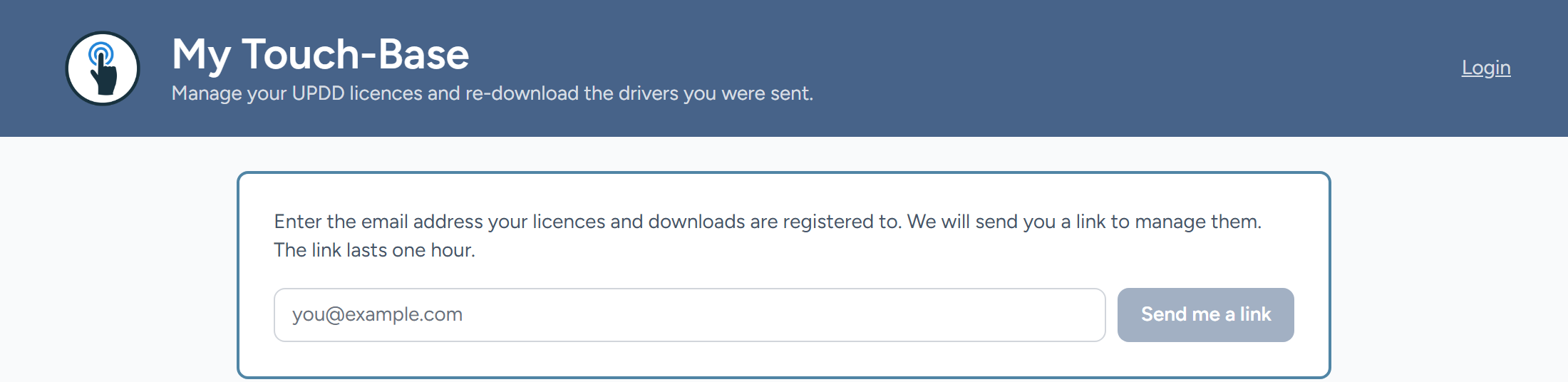
my.touch-base.com: request a management link, or sign in with Login, top right.
If you are a company and do not know the email address your licences are registered to, we can link your company's account to your company email domain, so that anyone with an address at that domain can see and manage the company's licences. If your licences were bought under a different email address, contact us and we will help.
My Touch-base also keeps the driver downloads we have sent you, on a separate Downloads tab.
Your licence keys
Your licence keys are listed on the left, each showing the purchase date, the maintenance expiry date (if registered), the product, the order number, the key and, for multi-seat keys, how many of its seats are registered. Select a key to see its details and seats on the right. Click the key in the panel header to copy it.
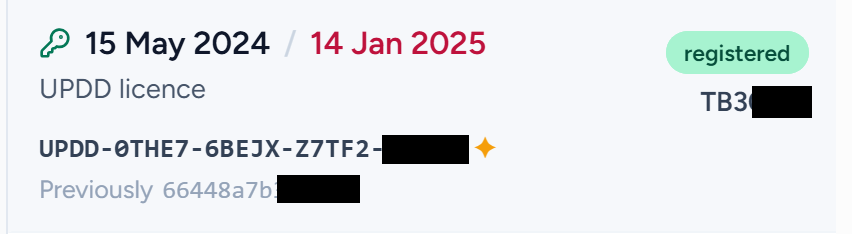
Where a key was converted to the new format in July 2026, the previous licence key is also shown, as above.
The search box filters by anything you know: part of the key, a computer name, an order number, or the name or email of the person a seat is recorded against. The list shows why each result matched.
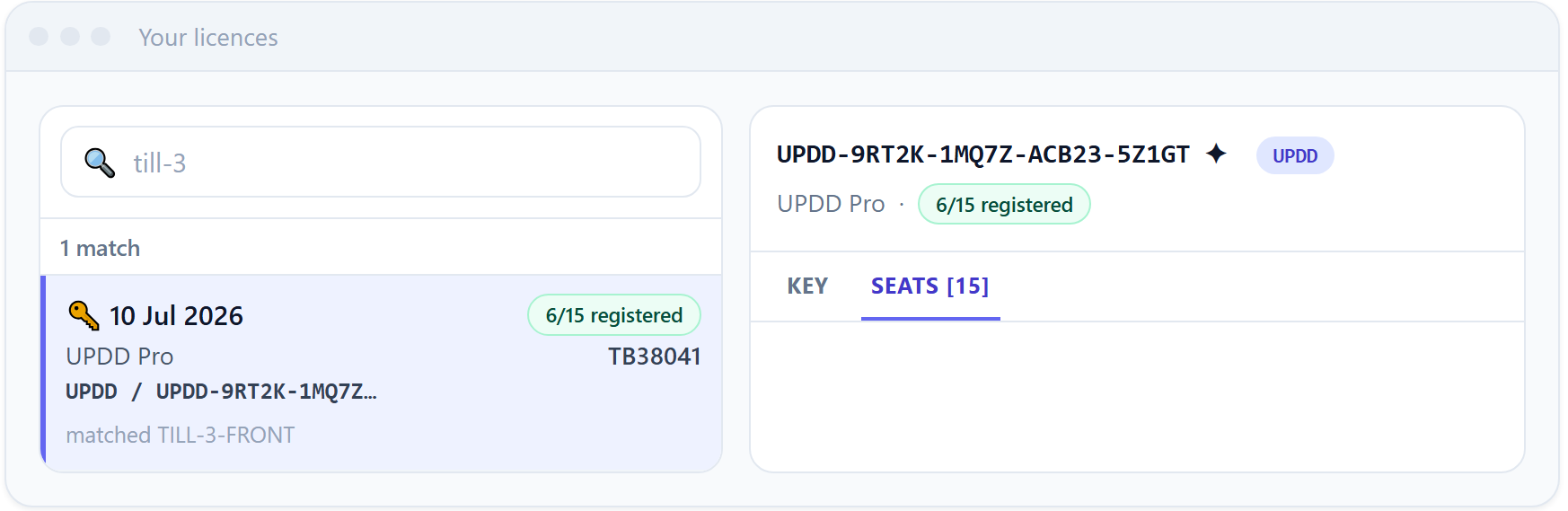
Searching for a computer name finds the key its seat is registered on.
Seats
The SEATS tab lists every seat on the selected key: its status, the computer it is registered to and its support cover. Use the filter to show only registered or only unregistered seats, which is useful on a key with many seats.
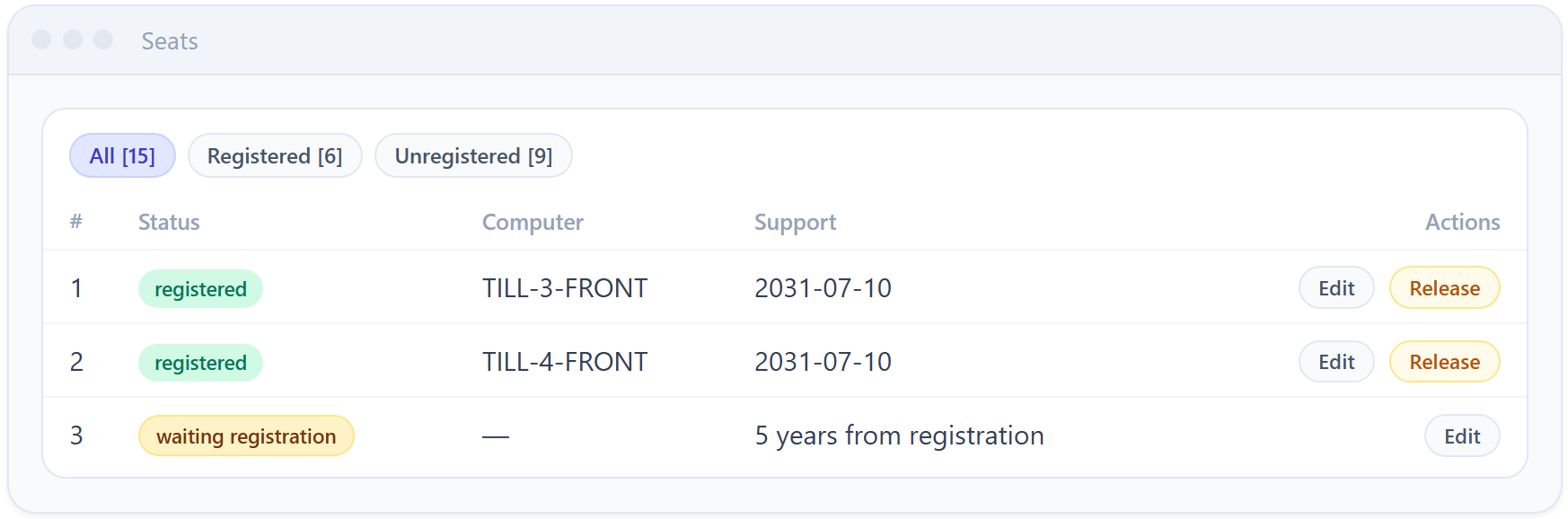
Seats on a key: registered seats can be released; unregistered seats are free for a new computer.
A seat that has never been registered shows its support as a period (for example "5 years from registration"): the support cover starts counting when the seat is first registered.
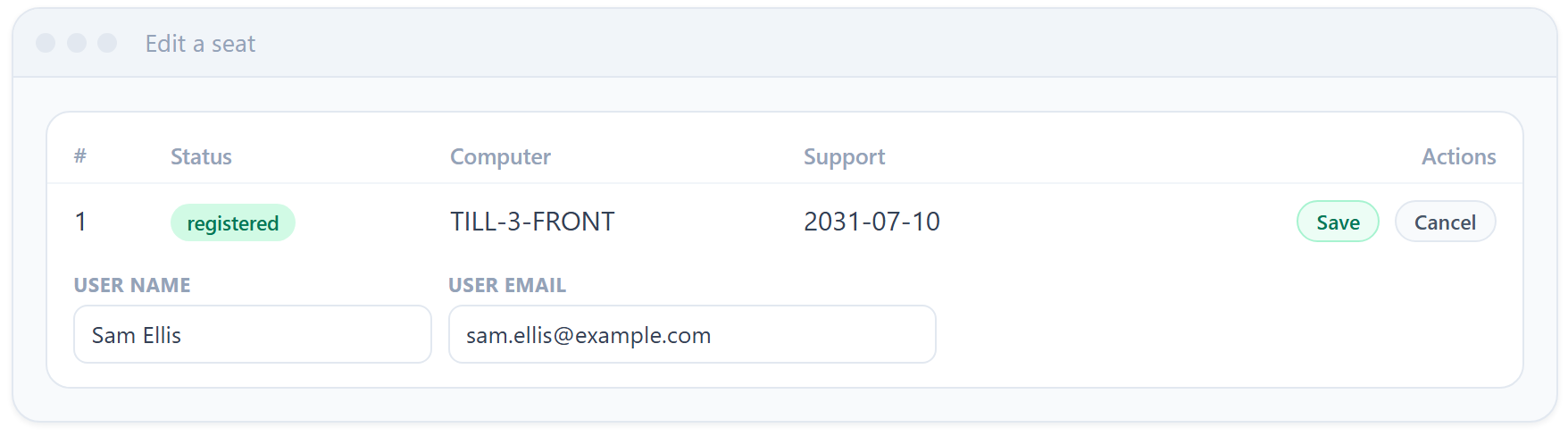
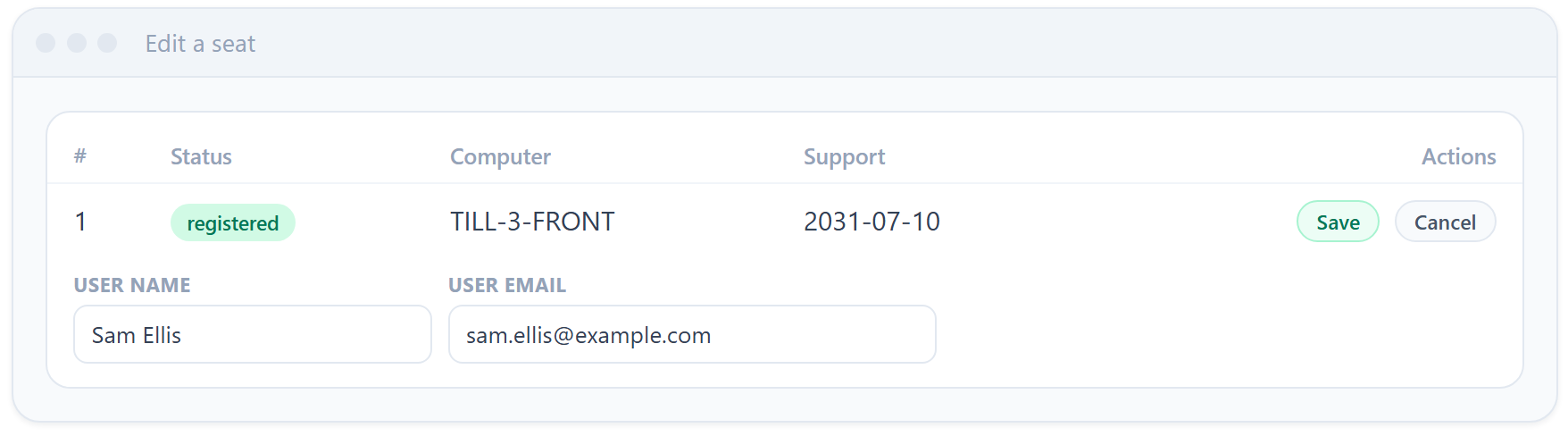
Edit lets you record, or correct, the name and email address of the person who uses that seat. This is optional, but it makes seats much easier to find later, and it is shown under the seat's row. Press Save (or Enter) to store it. Only the name and email can be changed.
Releasing a seat
Release frees a seat from the computer it is registered to. Use it when a machine is replaced, rebuilt or retired. You are asked to confirm first. Once released, the software on that computer stops being licensed and the seat becomes available to register on another machine.
Confirming a release.
Releases are limited per seat over a rolling 12 months. If a seat reaches its limit the Release button is disabled; please contact us if you need a seat freed beyond that, and include your order number or licence key.
Moving a licence to another computer
Unregister the machine you are moving away from, then register the new one with the same key, as described in Registering UPDD: from the UPDD Daemon menu, select Register and "Enter a licence key" and paste in the licence key.
On Windows, uninstalling UPDD also unregisters the licence, so that it is available for reuse.
Licence keys allow lifetime use of the software but not lifetime support and upgrades; see Maintenance and support before installing a newer release on the new computer.
For review
HELD WORDING (seat re-claim). The source articles make three statements that the 7.1 source no longer fully supports; none is in the body. (1) 50565 note 1: after upddutils unregister "if the driver is reloaded, such as a system reboot ... the licence key will be automatically picked up again ... To avoid this, you should uninstall the software." Since 2026-10-12 (07_01 e6d2bec9) every local unregister path sets registration.<B>.no_autoclaim and the daemon skips its start-up claim (common/register.cpp:110-135, daemon/main.cpp:218-232); earlier 7.1 builds claim at start-up within 30 days of installation. (2) 50565 note 2: uninstalling unregisters, and a reinstall picks the key up again. The Windows uninstaller does run upddutils unregister (inno/updd.iss:151-152); macOS and Linux uninstallers were not checked. The service re-binds a seat that the same computer released itself, but never one released in My Touch-base or by staff (portal LicensingV2Controller.php:69-80). (3) 50905: "Uninstall UPDD from the old machine before registering the new one. While UPDD is installed on the old computer it will automatically reclaim its licence". Under (1) and (2) this holds only for a seat released on the old computer by a build without the no_autoclaim change. Please decide the wording for all three.
For review
Other changes: the upddutils output screenshot from 6.0.759 (Unregister-OK.png) was dropped as it shows UPDD 6 output; a 7.1 screenshot would help. The program's failure text names a support email address, which is not quoted (utils/main.cpp:2892); the draft says to raise a ticket instead. Should the program text change? The release limit is described per seat, as the licence manager and the service count it (portal LicenceUnlockService.php:313, default 4 at OrderController.php:136); 50565 said "unlock and reuse a licence 4 times". The "if you have a login for our previous licence server" section of 50904 is folded into "Opening the licence manager" as the My Touch-base Login. The management link lasts one hour from its last use (ManageTokenAuth.php:76), where 50905 said "expires one hour after it is sent". The licensing service's "no free seat" refusal links to the old Managing Licences address (article 50904), which will land on this topic.