Dock, Notification Centre and widgets
This document describes how UPDD Commander on macOS handles the Dock, Notification Center and desktop widgets. Commander has a specific set of gestures aimed exclusively at the Dock, and a preset for Notification Center.
Showing a hidden Dock
If the Dock is hidden it can normally be shown by pushing the cursor to the extreme edge of the screen where the Dock resides. With monitors and all-in-one systems that do not have a raised bezel this can normally be achieved with touch. Even with a raised bezel it can be achieved if you have an appropriate value in the UPDD Edge Acceleration setting.
However, in some cases it may be difficult or impossible to move the cursor to the edge of the screen. For example, if you are running an application in full screen mode and the application is configured in UPDD Commander such that the display area is scrolling rather than moving the cursor, then you cannot push the cursor to the edge of the screen.
UPDD Commander caters for this with a standard single touch gesture in Default Gestures (since UPDD Commander 1.0.16) that by default temporarily shows the Dock when swiping up from the bottom of the screen with one finger. It only has any effect if the Dock is hidden. Since version 1.0.19 the Swipe From Screen Edge gesture is automatically set to match the position of the Dock; if you set it yourself and the Dock is located elsewhere, say the right-hand side, use One Finger Swipe Left from screen edge.
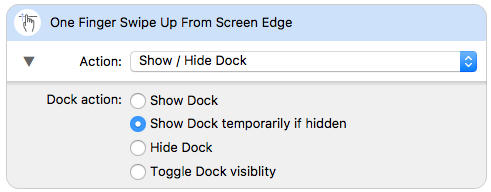
The gesture uses the Show / hide Dock action with its Show Dock temporarily if hidden option. Regarding this option there are a few points to consider:
- If the Dock is already visible then the action does not do anything.
- Otherwise, it shows the Dock until the user clicks somewhere outside of the Dock, or switches applications. Then the Dock is hidden again.
- If the Dock is already visible this setting will not cause the Dock to become hidden once the user clicks somewhere else or switches applications.
The action's other options are Show Dock, Hide Dock and Toggle Dock visibility.
Controlling the Dock
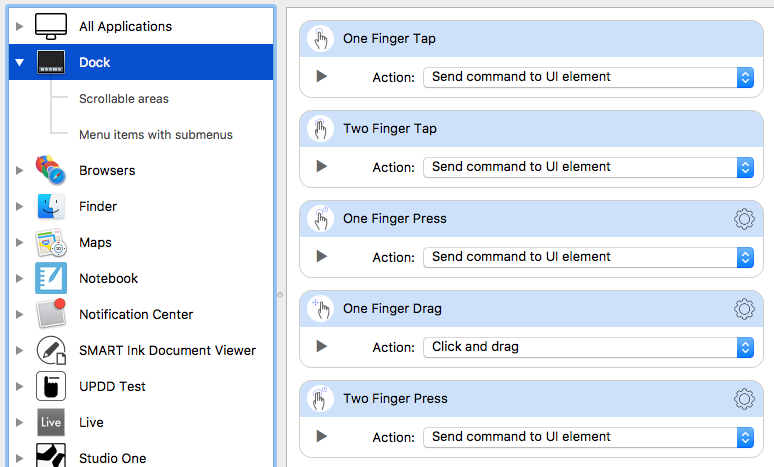
Once the Dock is on display there is a separate set of gestures, defined in the Dock application definition (the Dock preset in the Standard group of the presets), that best control the Dock and cater for Dock magnification.
This set makes use of the Send command to UI element action (see Gestures and actions) to cater for standard and magnified docks:
Notification Center and desktop widgets
Touches that fall inside a desktop widget are considered part of Notification Center, which is set up to have a One Finger Press gesture do a normal click and drag.
The intent is for users to be able to rearrange widgets, since normally in Notification Center dragging with one finger would scroll it rather than doing a click and drag, and this way it works somewhat similarly to iOS. The Notification Center preset otherwise uses vertical swipes to scroll and a swipe to the right to dismiss it.
If a right click is needed, either change the One Finger Press gesture in Notification Center to right click, or use a different gesture, such as Press and Tap, to perform the right click.
For review
Screenshots DockInvokeGesture and DockGestureList predate the rename of "All Applications" to "Default Gestures" and may show it; new screenshots wanted. The near-duplicate DockAction and DockGestureListActions screenshots from the Presets article were not carried over.