Cursor, anchor mouse and sound
This document describes how UPDD V6 and V7 affect the system pointer (cursor) when touch is used, how to return the cursor to its position before the touch (anchor mouse), and how to play a sound on touch.
When using touch screens there can be a need to manipulate the system pointer (cursor) in a number of ways. The settings named here are explained in context; the full list of settings is in the Driver settings reference.
Cursor shape during touch
Operating systems use various mouse cursors. Most familiar is the traditional mouse cursor  shown when a standard mouse device is used, especially for clicks and click and drag.
With the widespread use of the touch interface, this cursor can be considered inappropriate to touch: a cursor or visual feedback should only be shown when actually touching (to show the point of contact), or in some cases a cursor is not desirable at all when using touch.
The driver does little to affect the cursor shape and its usage, leaving it in the hands of the operating system and any related cursor configuration, except as described below:
| OS | Cursor settings |
| macOS | macOS is not a touch aware OS, so no cursor manipulation specific to touch usage has been implemented and, by default, a cursor is always present. However, UPDD Commander has an option to hide the mouse cursor during touch usage (see Commander settings reference). The cursor is re-enabled if a trackpad or mouse is subsequently used. |
| Linux | When using the Gnome window manager the cursor, by default, is hidden when touch is used. The UPDD global setting gnome_default_touch_cursor_behaviour changes this behaviour if required: 0 = change the default behaviour (the cursor is shown on touch), 1 = keep the default behaviour; if not set, the Gnome behaviour is not changed. The setting takes effect on a reboot. Tests were performed using Ubuntu 16.04 LTS; other distributions may have different defaults / behaviour. |
| Windows | Neither the driver nor UPDD Commander changes the cursor in Windows, but it can be changed manually. Windows uses a mouse cursor and touch visual feedback at the point of contact. These can be changed in the Windows settings, as described below. |
The UPDD driver can be configured to post touch data on different system interfaces (see What UPDD is and how touch reaches your applications). This will likely affect the cursor usage, as determined by the operating system.
Windows: hiding the pointer
Define a blank mouse pointer
- In Control Panel, Mouse, Pointers, select the Windows Default scheme.
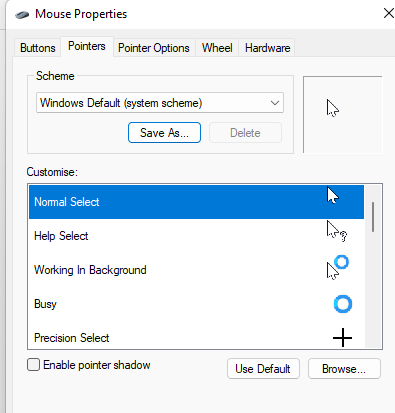
- Download and save blank.cur to a folder.
- Select each icon style in turn, select Browse and select the blank.cur file. In practice just changing the "Normal Select" cursor might be sufficient.
- Click "Save As" and give a name, e.g. blank cursor.
- Click Apply.
To revert to a standard cursor select the Windows Default scheme.
Once you have a blank cursor it is difficult to use the mouse to change any settings.
Windows: touch visual feedback
In Windows Settings enter the following into the Find a setting field and disable the setting:
| Windows version | Setting |
| Windows 10 | Touch Feedback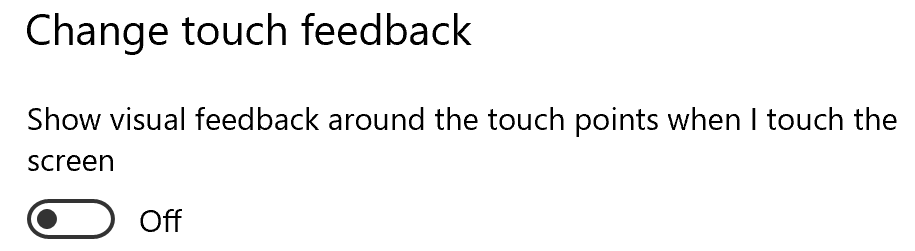 |
| Windows 11 | Touch indicator |
Returning the cursor after touch (anchor mouse)
In some cases, after a touch has been completed, it is desirable to return the cursor to its position prior to the touch or gesture, so that the cursor is not left in some random place. This is especially useful if the touch screen is on a secondary monitor and, when used, takes the cursor away from the primary monitor, so that after touch the user has to constantly return the cursor to its original position. With this feature a user can use a mouse and touch screen interchangeably.
| Component | Method |
| Driver | When the driver is handling the touch clicks, the Anchor Mouse settings described below return the cursor to its previous location once the touch sequence is complete. |
| UPDD Commander | When using UPDD Commander there is a setting to reset the mouse cursor after a gesture ends (see Commander settings reference). |
Anchor mouse settings
The anchor mouse feature is configured via global settings that affect all UPDD configured pointer devices. They are also available in the UPDD Console, General tab.
| Setting | Value, default | Description |
| anchor_mouse.enabled | 0 or 1, 0 | Returns the system mouse pointer after a touch to the position immediately prior to the touch. |
| anchor_mouse.return_time_ms | Numeric, 500 | Sets the time lapse after a touch, in milliseconds, before the system mouse pointer is returned to its previous location. |
| anchor_mouse.sample_time_ms | Numeric, 100 | Sets the time interval, in milliseconds, at which the current mouse position is sampled. |
The anchor mouse function is performed by the UPDD Daemon. The position of the pointer is restored; what is actually displayed depends on the operating system, and in some situations the mouse cursor might not be displayed until the mouse is next used.
UPDD uses two different interfaces in Windows to post touch data, mouse and HID. This feature works as expected when using the UPDD mouse interface. When using the UPDD HID touch interface the cursor is not seen at the point it is returned to its original position. Further, it has been reported that in some cases the cursor is not returned, but this has not been reproduced.
Sound on touch
Sounds can be associated with touch down and lift off to give audible feedback on touch. This feature is supported on Windows only; the sound is played by the UPDD Daemon.
The global (nodevice) setting sound.file.n defines a sound file, where n is an index number. The file can be held in the UPDD application folder or the Windows system folder by using the placeholder notation:
| Placeholder | Folder |
| <app> | The UPDD application folder |
| <win> | The Windows system folder |
e.g.
upddutils nodevice set sound.file.1 "<app>\sound\beep.wav"
upddutils nodevice set sound.file.2 "<app>\sound\boop.wav"
Once the sound files are defined, the device settings sound.touch and sound.lift associate the touch process with a specific sound file. These device settings contain the index number of the sound file to play, e.g.
upddutils set sound.touch 1
upddutils set sound.lift 2
The sound files are global (nodevice) settings, whereas the touch and lift file associations are device settings.
Example
To associate different sounds on touch and lift off for device 1:
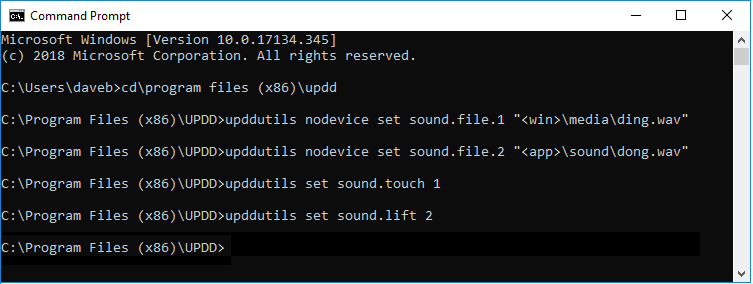
For each touch there is a request to the OS to play the associated sound file. Depending on the system speed and resource configuration there may be a short delay before the sound file loads and begins to play. There is also the duration of the sound file to take into consideration. The selected sound file should not have any silence at the beginning, as this will also delay the sound being heard. With rapid touches each sound request will cancel any currently playing sound, so rapid, fast touches can result in truncated sounds or none being heard at all.
For review
1. The <app>\sound\beep.wav example comes from the original article, but a UPDD V7 Windows installation (07.01.235, C:\Program Files\UPDD) has no sound folder. Say that the customer supplies the .wav files, or change the example to a file under <win> (e.g. <win>Media\...).
2. The blank.cur link points to v6download.touch-base.com (still served, checked 2026-10-20). Keep it or move the file to a current host.
3. The anchor_mouse.sample_time_ms default is given as 100 ms (the old article said 500 ms): upddutils help anchor_mouse.sample_time_ms and daemon/mymainwindow.cpp:798-802 both give 100.