Linux: what is installed, start-up and processes
This document describes what the UPDD installer puts on a Linux system, how the driver and the UPDD Daemon are started, and how to run UPDD programs from a terminal. It applies to UPDD 6 and UPDD 7 unless stated otherwise. How touch data is passed to the system is described in Linux touch delivery: uinput and X.
Installed components
The following components are installed under Linux:
| Component | Name | Path | Notes |
| Driver | updd | /opt/updd | |
| Settings database | updd.db | /opt/updd/data/updd/db | |
| Bootstrap settings | updd.ini | /opt/updd/data/updd | Manually created as required |
| Log files | /opt/updd/data/updd/log | ||
| Settings program | UPDD Console | /opt/updd | |
| Calibration program | UPDD Calibrate | /opt/updd | |
| Test program | UPDD Test | /opt/updd | |
| Daemon program | UPDD Daemon | /opt/updd | |
| Command line interface | upddutils | /opt/updd | |
| Environment script | upddenv | /opt/updd | |
| Qt configuration | qt.conf | /opt/updd | |
| Installer | /opt/updd/installer | ||
| Qt library files | /opt/updd/qt | ||
| UPDD API folder | /opt/updd/api | API files used for developing UPDD client applications | |
| Bootstrap | /opt/updd/bootstrap | Used by the installer | |
| User library | /opt/updd/usrlib | The UPDD API library (libupddapi.so.7 in UPDD 7); UPDD 6 also placed system library files here | |
| xdg autostart | updd_clients.desktop | /etc/xdg/autostart | A launcher file that runs updd_clients.sh |
| xdg autostart | updd_clients.sh | /opt/updd | A shell script to launch UPDD Daemon, run by the launcher above |
| Driver start-up (systemd) | updd.service, updd.env | /etc/systemd/system | |
| Driver start-up (upstart) | updd.conf | /etc/init | |
| Driver start-up (System V) | updd | /etc/init.d or /etc/rc.d/init.d | Runs /opt/updd/upddsysv.sh |
Driver start-up
The installer sets up the driver to auto start as root.
Under Linux there are three popular methods used to launch user space processes, systemd, upstart and system V. Systemd and upstart have been supported in all releases of UPDD 6 and UPDD 7; support for the older System V method was added in UPDD 6.0.552.
The installer tries to detect which launch method is available/active and installs as appropriate. For systems without any suitable launch method an alternate method to launch the updd process would need to be implemented. If you have to support such a system you should consult the documentation for that system. The objective is to execute the following command as root at system startup:
/opt/updd/upddenv /opt/updd/updd -e
Due to the more or less universal adoption of systemd (for most recent Linux distributions) or upstart (for older distributions) this is unlikely to be needed and is only mentioned here for completeness.
The architecture of the UPDD Linux software allows the user to customise scripts in this way to accommodate unusual scenarios, and the installer architecture allows for such changes to be repackaged easily for further deployment.
Note
When manually invoking the driver you may see these messages:
| Message | Meaning |
| QSqlDatabasePrivate::removeDatabase: connection 'amf_connection_0' is still in use, all queries will cease to work. | This is a warning and can safely be ignored. |
| Attempt to write a read only database ... terminate called after throwing an instance of 'AMFError' Aborted (core dumped) | You are not running as root. |
| error while loading shared libraries | You have not set the environment variables. |
Note
The updd.service file contains the WantedBy systemd setting. This is set to graphical.target, implying that the UPDD driver is loaded after the window manager loads; in our tests this setting is the only one that works correctly. One customer, using SLED 12, reported that on their system this setting resulted in a password being required when a non root user logged in. We have never seen this on any of our systems nor has it been reported by other Linux users. They updated the install script to change this setting to multi-user.target and the password was no longer required.
Starting and stopping the driver
Should you need to stop or start the driver, say to activate a setting update that is only activated at driver load, you can reboot the system or run the commands for the start-up method in use:
| Start-up method | Stop | Start |
| systemd | sudo systemctl stop updd | sudo systemctl start updd |
| upstart | sudo stop updd | sudo start updd |
| System V | sudo /etc/init.d/updd stop | sudo /etc/init.d/updd start |
Processes
The ps (process status) command is used to provide information about the currently running processes, including their process identification numbers (PIDs). Running ps -ax | grep -i updd on a default driver installation results in the following listing:

UPDD Daemon start-up
UPDD ships with one or more UPDD client modules that are launched in a user's session after login:
| Module | Installed state | Description |
| UPDD Daemon | Always | The driver's daemon process offering short cuts to driver user functions |
The client programs are launched by the desktop manager and run as background processes for each client terminal session. The installer starts UPDD Daemon itself at the end of the installation; thereafter it is started at login as follows:
- If the folder
/etc/xdg/autostartexists the installer uses xdg autostart: it copiesupdd_clients.desktopto that folder, which runs/opt/updd/updd_clients.sh. XDG based managers include Unity as implemented by default on Ubuntu. - Otherwise, if GDM is running, the installer adds the start command to
/etc/gdm/Xsession. - Otherwise the installer warns that the system does not appear to have a supported desktop manager and lists the modules that must be launched by another means, see Manual start-up.
How to remove UPDD Daemon from start-up on a locked down system is described in UPDD Daemon.
Desktop manager test results
We support modern Gnome and KDE based desktop managers as these are the main window managers in commercial use. We are aware of other window managers as shown in this chart:

With driver version 6.0.417 we undertook some specific window manager testing to determine which ones worked (auto start and tray icons), with the following results:
| Window manager | Auto start | Tray icon | Notes |
| Gnome: Compiz | Yes | Yes | |
| Gnome: Metacity | Yes | Yes | |
| Gnome: Unity | Yes | Yes | |
| KDE: Plasma | Yes | Yes | |
| Motif (MWM) | Yes | No | MWM has no concept of a system tray or notification area. |
| XFCE | No | No | Client applications are not auto-started and therefore no tray icons are seen. Contact us if support is required for this window manager. |
Other window managers that have been tested with the driver:
| Window manager | Version | Comments |
| Fvwm | v2.5.28 | Fvwm is a Motif based window manager. uinput was unable to create a touch device so we recommended the X interface: upddutils set active_touch_interface xtouch (UPDD 6; with UPDD 7 upddutils set active_pointer_interface mouse). The customer reported all was OK. |
Manual start-up
If a system with an unsupported desktop manager has to be supported you should consult the documentation for that system. The objective is to execute the following command as the logged in user at login time:
/opt/updd/upddenv "/opt/updd/UPDD Daemon" &
xdg autostart in a non-standard location
Since UPDD 6.0.397 xdg autostart is used to launch the UPDD Daemon process if the /etc/xdg/autostart folder exists. If this function is supported by your distribution but in a non standard location then the daemon will not start after a reboot (following install).
This can be resolved by copying the UPDD autostart file to the appropriate location, by modifying the install script or by running a command to perform the copy. This was first observed on the Puppy Linux distribution and required the following command:
cp /etc/xdg/autostart/updd_clients.desktop /root/.config/autostart
Notification area
Normally, the main interface to UPDD tools and settings is through the UPDD Daemon menu, and under Linux a reserved screen area known as the Notification Area can be used to show this menu icon. Under macOS this area is known as the menu bar and under Windows the system tray.
However, since UPDD 6.0.766 (Sept 2022), and with tests carried out on Ubuntu 22.04 and CentOS 8 Stream, we have concluded that the use of this area by third party (non system) applications on Linux is difficult to achieve or certainly seems to be discouraged. The installer launches the Daemon process in exactly the same way as other background processes that do run, but the Daemon process is unable to show its icon in this area. Investigation is made more complex by the various desktop managers and their different behaviours.
Therefore, our position is that Linux does not readily support the use of system tray icons for third party applications, and the UPDD system tray icon and menu are deemed to be not available in Linux.
Other methods exist to invoke all of the UPDD utilities and functions:
- All the options normally found in the system tray menu to load the GUI dialogs are supported by UPDD Daemon's own command line options, including an experimental option that shows a UPDD icon on the desktop.
- The command line interface is available under Linux, once the correct environment is set.
- All UPDD applications, such as the UPDD Console, can be launched from a terminal or from a link created on your desktop.
Enabling the notification area on older distributions
On older distributions where the notification area is available, a reboot may be required for the UPDD Daemon icon to appear following the initial installation. Not all systems have the notification area enabled by default, and some distributions do not cater for it at all, such as SLES 12. In that case consult the documentation for your distribution to determine how to install and/or enable it. On RHEL 6 (and CentOS 6) two panels are configured by default and it is left to the user to decide whether to show the notification area and if so where:
The top panel:

And the bottom panel:

- Right click on the desired panel and choose Add to Panel.
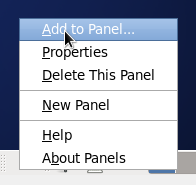
- From the dialog select Notification Area > Add > Close.
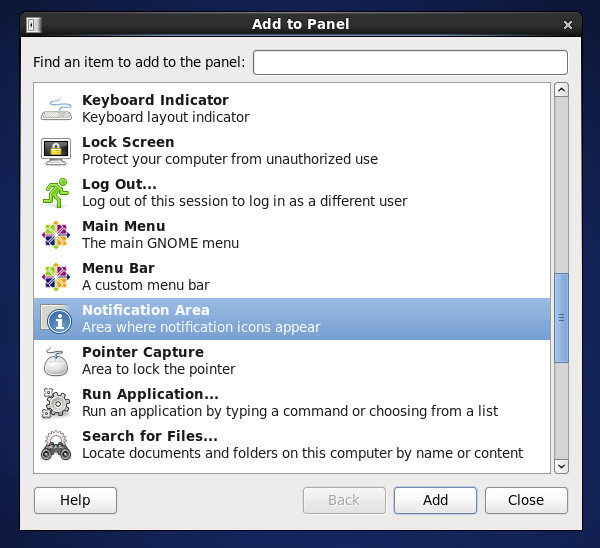
- Reboot the system. The notification area can then be seen.

Running UPDD tools from a terminal
UPDD software utilities require that the correct environment be set. If you do not set the correct environment you will likely see the error error while loading shared libraries when running the utilities, such as:
error while loading shared libraries: libupddapi.so.7 ...
Setting the correct environment is most easily achieved by entering the command:
/opt/updd/upddenv bash
This creates a bash shell with the correct environment. You can of course replace bash with your shell of choice. In this example we use the UPDD command line interface to list registered devices:
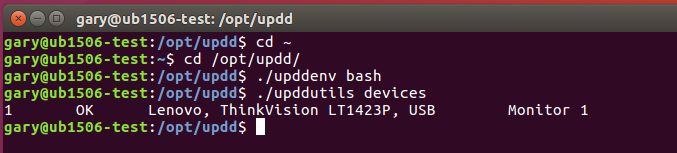
Some commands that make setting changes may require the driver to be restarted to take effect, see Starting and stopping the driver.
To see the environment settings made by upddenv you can use the cat command to view its contents as shown below:

Note
In some environments the bash shell does not work as expected, so commands need to be preceded with ./upddenv, e.g. ./upddenv ./upddutils devices. This was observed in Puppy Linux.
Running UPDD diagnostics
To help identify touch related issues we have created a diagnostics procedure that gathers appropriate information that can help as part of the investigation. The command line interface can also be used to invoke diagnostics:

On some Linux systems diagnostics fails due to a missing Desktop folder, although the diagnostic process attempts to create it. If you see a failure message try creating this folder and try again:

For review
- Components table corrected from the install script: the settings database is
/opt/updd/data/updd/db(was/opt/updd/data/db;install:307),updd_clients.shis created in/opt/updd(was/etc/xdg/autostart;install:292-299). Rows added for UPDD Console, the log folder and the start-up items. The/opt/updd/installerrow is carried from the original and not confirmed for 7.1. - Screenshots dropped:
NotificationArea.png(shows the UPDD Gestures icon) and the two CentOS notification-area shots (two menu items, the second most likely Gestures). The RHEL 6 procedure is kept as UPDD 6 only: RHEL 6 has GLIBC 2.12, below the 7.1 floor of 2.17. bash.pngandLinuxDiagDiag.PNGare UPDD 6 era terminal shots; the commands are unchanged in 7.1.