TUIO in Commander
This document describes the TUIO interface built into UPDD Commander on Windows and macOS.
UPDD Commander can function as a TUIO server, that can be enabled to direct touches to a TUIO client application, and also as a TUIO client, to receive data from an independent TUIO server used to control touches on a system monitor.
TUIO client applications are applications that have been written, or have an option, to receive touch information via the TUIO protocol.
What TUIO is
TUIO (Tangible User Interface Object) is an open protocol for the communication of data from devices like a multi-touch display, an interactive surface, or a computer vision-based motion tracker. The sorts of information it describes includes touch events and object locations. TUIO uses a client/server model for communicating this data, so any program that is a TUIO client can receive touch or object data from any TUIO server.
TUIO is based on Open Sound Control (OSC), a specification for sending messages interactively, which while originally intended for sharing music and performance data, has been increasingly used for other kinds of non-musical data.
OSC transmits information across standard IP networks and the internet using User Datagram Protocol (UDP), so it is supported by a lot of systems, including Windows, macOS and Linux. Any system that supports OSC can also support TUIO, and consequently there are many TUIO client and server programs across these platforms. Further, because TUIO uses UDP for communication, a TUIO server and client need not be running on the same computer, or even on the same local network, though both running on the same computer covers most usage cases.
The pathway schematic being:
Touch hardware > UPDD driver > UPDD API > UPDD Commander TUIO server > TUIO client application > End user interaction
UPDD Commander supports the TUIO 1.1 protocol, so any client implementation must be using this protocol version. Touches are sent as TUIO cursors (/tuio/2Dcur) and, since UPDD Commander 1.5.2, each bundle also carries the TUIO SOURCE message. Data relating to objects and blobs is not passed by the TUIO server because the UPDD driver does not support devices that recognise objects or arbitrary shapes. The main use of TUIO is to communicate multi-touch data, so most TUIO applications will be usable with UPDD in spite of this limitation.
Converting touches to TUIO
The TUIO server is added to the gesture list as the Convert Touches to TUIO gesture, found under All Touches in the add gesture menu (All Touches / 6+ Finger Gestures on Windows). It can be set to run at the system-wide level, in Default Gestures, or at the application / group level.
Select Default Gestures or the desired group or application entry in the application list and select the Add gesture control:
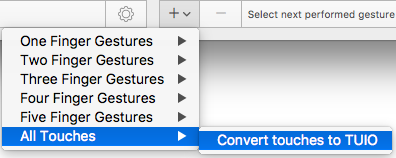
This will add the TUIO server entry into the gesture list within the selected application list entry:
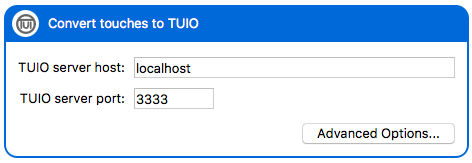
Set the TUIO server settings as required.
Mouse emulation and TUIO-only operation
The driver receives touch data from the touch hardware and posts the data on various interfaces. UPDD Commander receives the touch data on the driver's API and then, based on its configuration, will potentially perform clicks, gestures and/or post data on the TUIO server.
Depending on how the TUIO server is configured in Commander, the client application could receive touches via the TUIO interface as well as clicks (mouse emulation) and gestures.
In cases where the TUIO client only wants to receive data via TUIO you have two choices:
- Set Default Gestures to be TUIO only, so Commander is not generating any clicks or gestures within the system and the TUIO server is the only interface in use. Typically this would be used in a single application environment, say a museum kiosk running a TUIO client application, where clicks and gestures are not required by any other application. The Convert all touches to TUIO preset in the Optional group of the presets sets Default Gestures this way: all touches are converted to TUIO touches, aside from touches that occur within applications that are configured with their own gestures. Having applied it, delete any other applications listed in the application list that should not receive gestures.
- Specify the TUIO client application in the application list and stop it inheriting the Default Gestures, so that only the TUIO server interface will be active for that application, as described in Configuring a TUIO client application below.
The General tab of the settings also has the option Disable UPDD Commander (except for converting touches to TUIO), described in Commander settings.
Browsers have their own TUIO preset, used with the browser extension; see Browsers and Browser TUIO bridge extension.
Configuring a TUIO client application
When writing or utilising a touch application that receives touches via TUIO there are several things to consider when it is used with UPDD Commander. This generally involves setting up the application in Commander so that some or all gestures do not trigger their normal actions when touches are performed on the application, so as not to interfere with the application's own touch functionality, on top of converting touches to TUIO.
Specifying a TUIO client application in UPDD Commander is very straightforward:
- Add the TUIO client application in the application list.
- Add the Convert Touches to TUIO gesture to the application.
- Set the host and port. The defaults are likely to be correct if the client application is running on the same computer.
- Stop the application inheriting gestures, or override them, if gestures are not required to be posted to the TUIO client application, as described below.
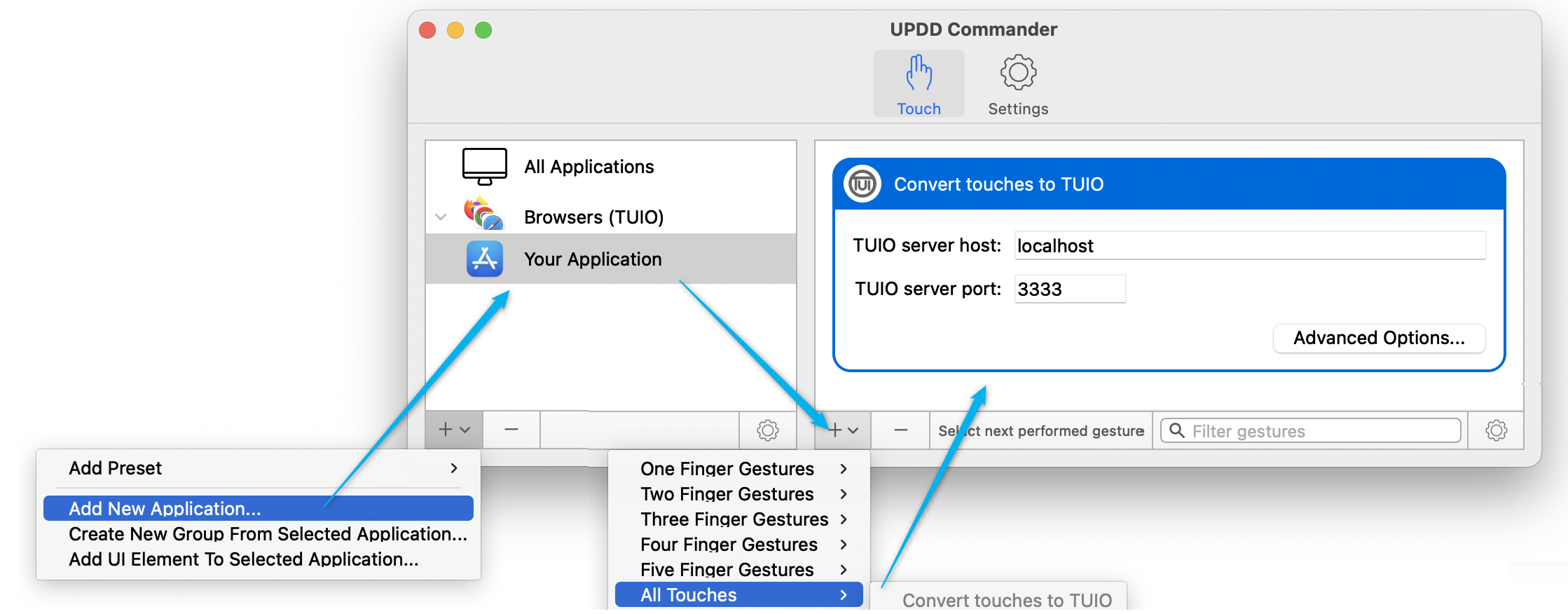
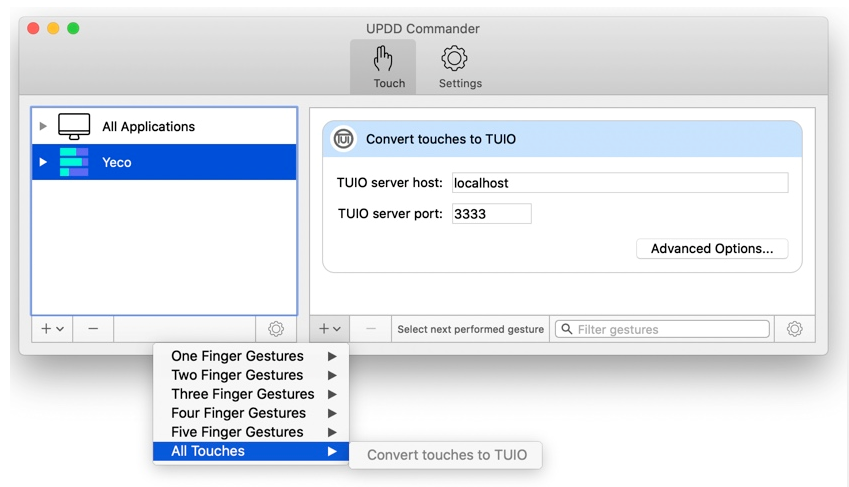
Be sure to set the host and port correctly. Usually the host should be localhost (unless your TUIO client application is running on another computer), and the usual port for TUIO is 3333, though some applications can be configured to use a different port.
Stopping gestures from interfering
Once the application is in the application list you need to either:
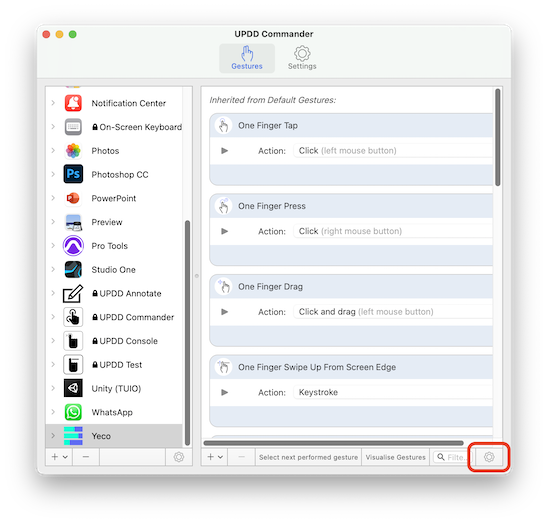
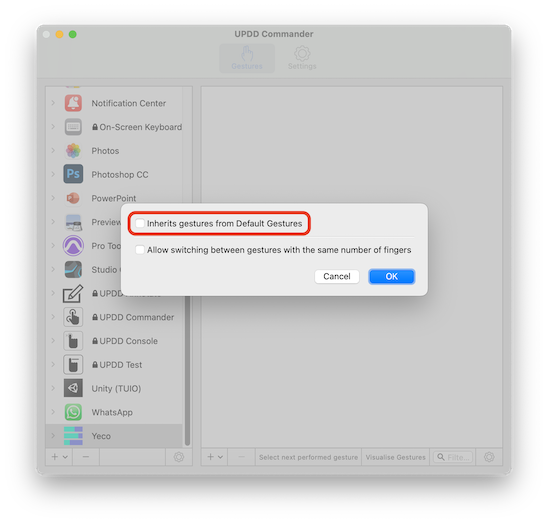
1. Remove all gestures from the application if you want it to have no touch functionality outside of its own functionality. This usually requires setting the application not to inherit gestures from Default Gestures:
Or,
2. Remove some gestures from the application, or set their action to No Action. If the gestures are inherited, then you need to add them directly to the application (a shortcut for this is to double click the inherited gesture). This way some gestures can retain their functionality, for example default gestures used for showing the Notification Center or the Smart Magnifier, but other touches will be processed by the application itself. In this case, you can either set the application not to inherit gestures from Default Gestures and then create only the set of gestures you want to apply to this application, or set it to keep inheriting gestures, but add the gestures you want to be handled only by the application and set their action to No Action. This way, the gestures defined for the application itself will override Default Gestures.
For example, if the application will handle single finger taps and drags on its own, but you want to continue using the multi-finger gestures you have configured in Default Gestures, you can add One Finger Tap and One Finger Drag and set their action to No Action.
TUIO server settings
These settings belong to each Convert Touches to TUIO entry.
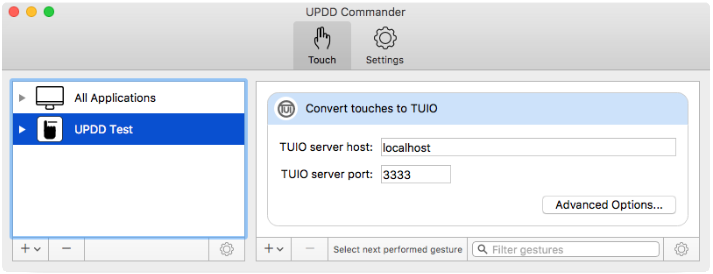
TUIO server host and TUIO server port
Define the IP address and port to which all touch data is transmitted, that is, where the TUIO client application is listening.
In most usage cases the TUIO client program will be running locally on the same computer, so a reasonable default configuration is localhost (127.0.0.1) with the default TUIO port number, 3333.
If the host and port are the same as those UPDD Commander itself is listening on as a TUIO client (see Receiving touches from a TUIO server), the entry shows a warning: change the server host or port, change the TUIO client port, or disable the TUIO client feature.
Advanced options
In the TUIO server entry select the Advanced Options... button:
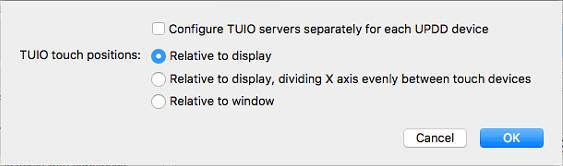
Configure TUIO servers separately for each UPDD device
If required you can configure TUIO to send touches to different hosts and ports depending on which touch device they come from, in essence running multiple TUIO servers at once. This checkbox switches between using the same TUIO host and port for all touch devices, and using different settings for each touch device. When checked, it lists each device configured in the driver and gives a field for setting its host and port; a device can also be unchecked so that its touches are not converted. Each device does not need to have a unique TUIO host and port, and multiple devices can be configured to use the same TUIO host and port if you wish.
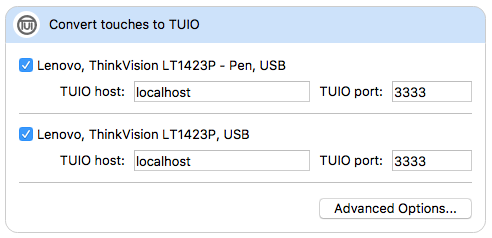
TUIO cursor positions
Relative to whole display: the positions of the TUIO cursors will be calculated using the entire area of the display, such that touches in the top-left corner of the display will have a normalised coordinate of (0,0) and touches in the bottom right corner will have normalised coordinates of (1,1).
Relative to display, dividing X axis evenly between connected devices: similar to "Relative to whole display", TUIO cursor positions are calculated using the entire area of the display, but each device that is configured to use the same TUIO host and port will be scaled and translated horizontally so that it occupies a different equally-wide portion of the X axis, using the left-to-right order of the monitors as they are arranged in the system configuration. Examples:
- If two devices are using the same host and port, then the device that occupies the leftmost region of the system's desktop will have its TUIO cursors' X coordinates range from 0.0 to 0.5, and the device that uses the rightmost region will have its TUIO cursors' X coordinates range from 0.5 to 1.0.
- If there are four UPDD devices, then all touches on the leftmost device will be converted to TUIO cursors where their minimum X value is 0 and their maximum X value is 0.25. The touches on the second device from the left will have a range of 0.25 to 0.5, the third device will have a range of 0.5 to 0.75, and so on.
Therefore, to get the proper coordinates for a TUIO device, simply define the X coordinates to a range of 0.0 to 1.0. The Y coordinates are unaffected. This allows a single TUIO client to distinguish which TUIO cursor originated from which device.
Relative to window: the positions of the TUIO cursors will be calculated relative to the frame of the window that the touches fall within, such that touches at the top-left corner of the window will have a normalised coordinate of (0,0) and touches at the bottom-right corner will have a normalised coordinate of (1,1). If you find that your touches do not correspond to where the application thinks they land, try this setting.
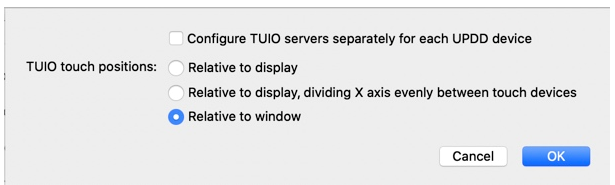
Raise touched window (macOS, since UPDD Commander 1.9.1): brings the window being touched to the front.
TUIO settings tab
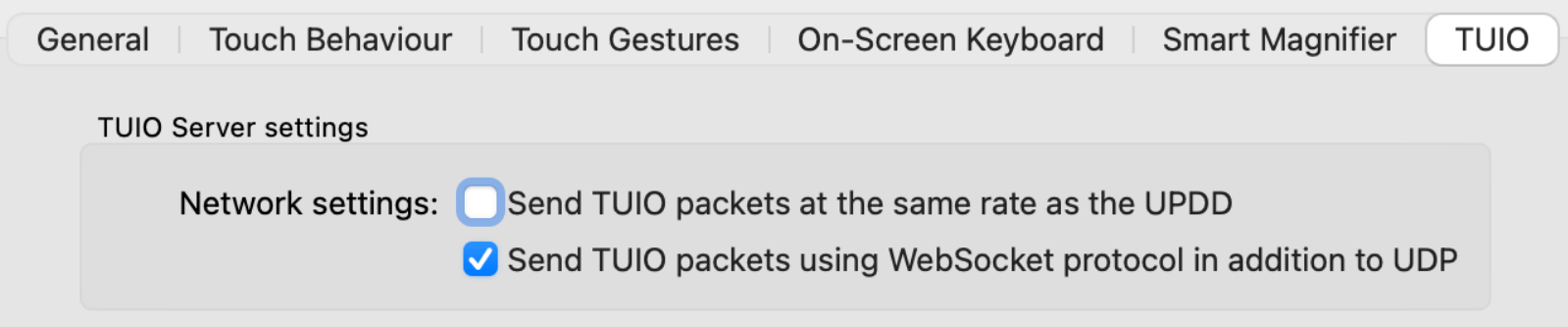
The TUIO tab of the UPDD Commander settings holds the settings that apply to all TUIO servers, and the settings for UPDD Commander acting as a TUIO client.
Send TUIO packets at the same rate as the UPDD
The TUIO server time stamps TUIO frames. By default this is as close as possible to 60 frames per second as per the TUIO specification. This setting can be used to transmit the frames at the same rate they are received from the driver, albeit this does not conform to the TUIO specification. Any application written to retrieve frame times will also receive valid timestamps. In our tests the TUIO data rate reached about 200 packets per second, although this speed will vary depending on the hardware in use.
Send TUIO packets using WebSocket protocol in addition to UDP
TUIO packets are also transmitted using the WebSocket protocol. This is on by default and is required by browsers using the browser TUIO bridge extension. The WebSocket server listens on the same port number as the TUIO server's UDP port, so no other TCP server can be using that port.
Receiving touches from a TUIO server
These settings relate to UPDD Commander running as a TUIO client application, configured to receive data from an independent TUIO server to control touch on a specified monitor:
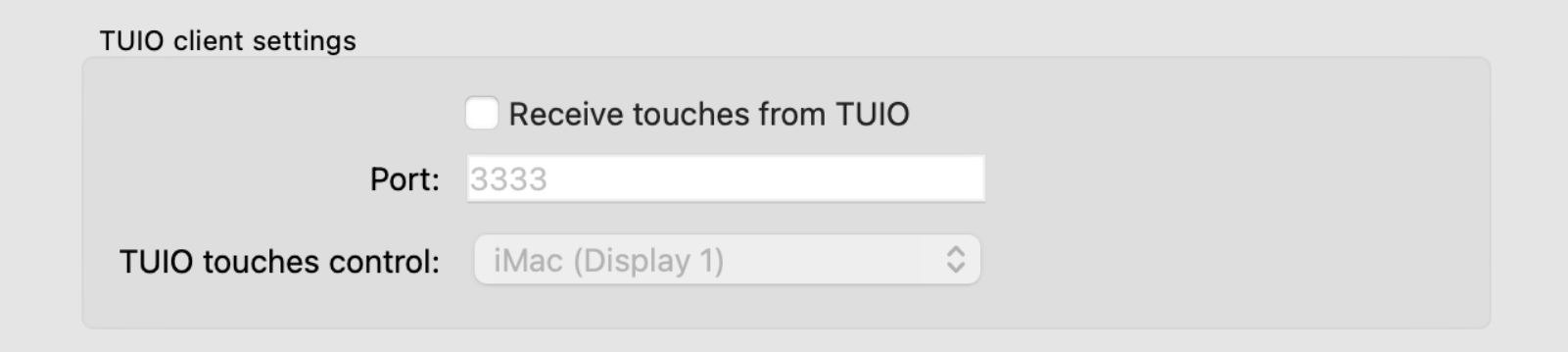
To activate this function, enable Receive touches from TUIO and specify the relevant port (3333 by default). In a multi-monitor system, select the monitor to be controlled in TUIO touches control. Gestures are processed for touches received this way in the same manner as for touches from the driver.
Pen input and extended TUIO data
On macOS UPDD Commander can also convert pen input to TUIO, and add extra data to each TUIO cursor. Both are switched on with a UPDD setting, using the upddutils command line utility:
| Setting | Effect |
upddcommander.applicationsettings.enable_pen_to_tuio | Set to 1 to make the Convert Pen to TUIO gesture available under All Touches (since UPDD Commander 1.8.1). Several pen styluses can be converted at the same time (since 1.8.4). |
upddcommander.applicationsettings.extended_tuio_data | Set to 1 to add the contact width and height, a type value and the pressure to each /tuio/2Dcur set message (pressure since 1.9.0; the type distinguishes pens from erasers since 1.9.2). This extends the TUIO 1.1 message, so the client application must be written to expect it. |
For example: upddutils nodevice set upddcommander.applicationsettings.extended_tuio_data 1
Heartbeat
As part of the TUIO specification each TUIO server (there can be more than one depending on the TUIO configuration) sends a periodic alive / fseq / source message at approximately one per second. These will stop if a touch screen associated with the server becomes disabled, such as if the touch screen is disconnected.
Applications can use this to determine if touches are active for a specific monitor or monitors.
Testing with UPDD Test
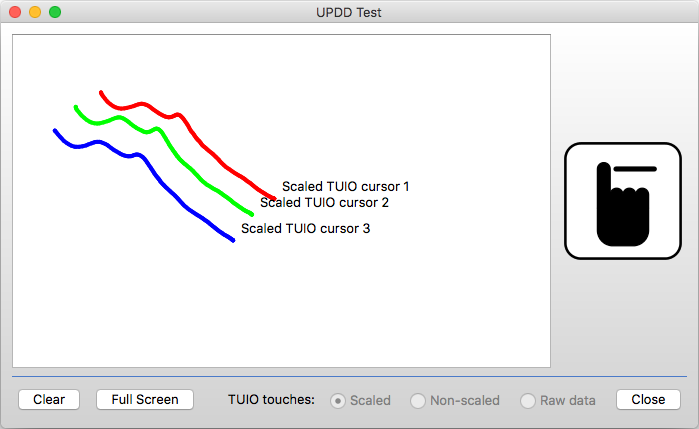
UPDD Test has an option to Render Touches from TUIO Interface and so act as a TUIO client. It is for this reason that UPDD Test is defined in the application list as a separate entry, configured as a TUIO client application (its preset allows basic touches to control UPDD Test, as well as viewing TUIO touches in it).
For review
Screenshots: TUIOAddGesture, TUIOServerComponent, TUIOAppSetting3, TUIOAppSettingsAdv, TUIOAppSettingsAdvSeparate and TUIOAppRtW date from older Commander versions (the application list entry was then "All Applications", and the advanced dialog labelled the positions "TUIO touch positions"). Released Commander 1.15.0 labels them "TUIO cursor positions:" with "Relative to whole display" and "Relative to display, dividing X axis evenly between connected devices", and adds "Raise touched window". New screenshots wanted.
Extended TUIO data: the field order (width, height, type, pressure) is from TUIOServer.cpp; the numeric values of the type field are not documented here. Confirm whether the field list should be published for developers.
The old article on testing with netcat and TuioDemo (50224) is not in the database, so nothing about it is included.