Browsers
This document describes how UPDD Commander on macOS can be configured to act differently to touch in web browsers, depending on the desired interaction with the displayed content.
You may wish to scroll the display area just as you do on a smart phone or tablet, such as iOS or Android devices, using a one finger drag.
You may wish to draw in a drawing application, as with a trackpad in macOS.
If you are using a multi-touch web application that supports multi-touch in browsers on Windows, iOS or Android, you may want to use the TUIO bridge extension, which posts multi-touch data into the browser in such a manner as to satisfy multi-touch enabled applications when run within macOS.
Browser presets
To cater for the above UPDD Commander holds three different browser definitions, each available as a preset:
| Preset | Emulation | Description |
| Browsers (iOS) (Standard, the default) | iOS | Emulate iOS (iPhone/iPad) browser function - single finger drag performs the Scroll action, so a single touch can be used to scroll browser content.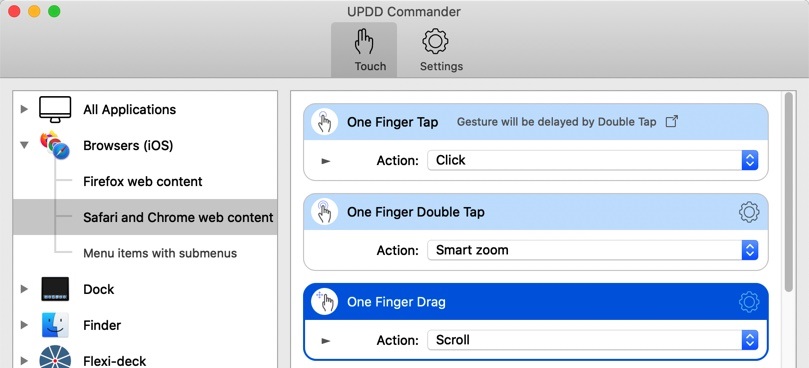 |
| Browsers (macOS) (Optional) | macOS | Interact in the same manner as a standard trackpad - single finger drag performs Click and Drag.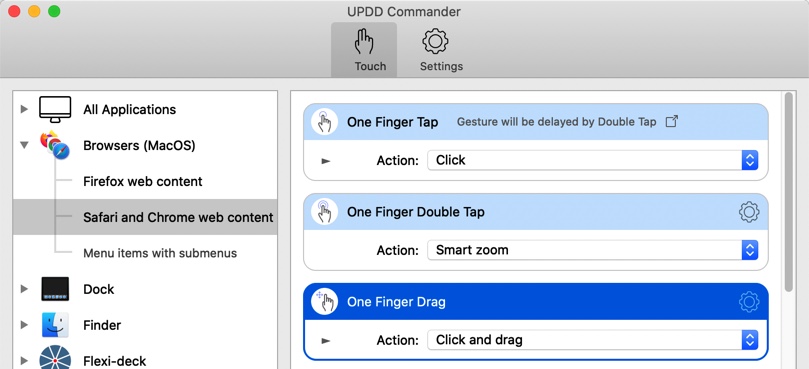 |
| Browsers (TUIO) (Optional) | TUIO | Touches in the web content are converted to TUIO, to satisfy multi-touch browser applications via the TUIO bridge extension. |
Each of these presets defines a Browsers application group that specifies all mainstream browsers. Selecting one of these browser definitions from the presets will replace the existing one in the application list.
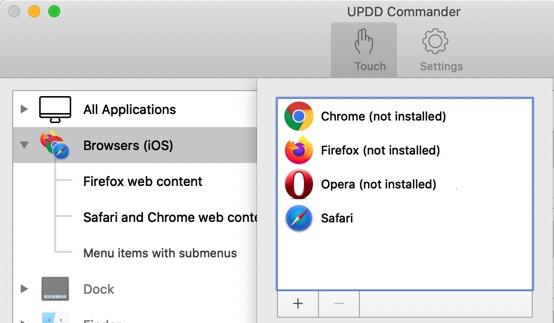
The group lists the most common browsers used in macOS, as seen in the settings option for the selected group in the application list:
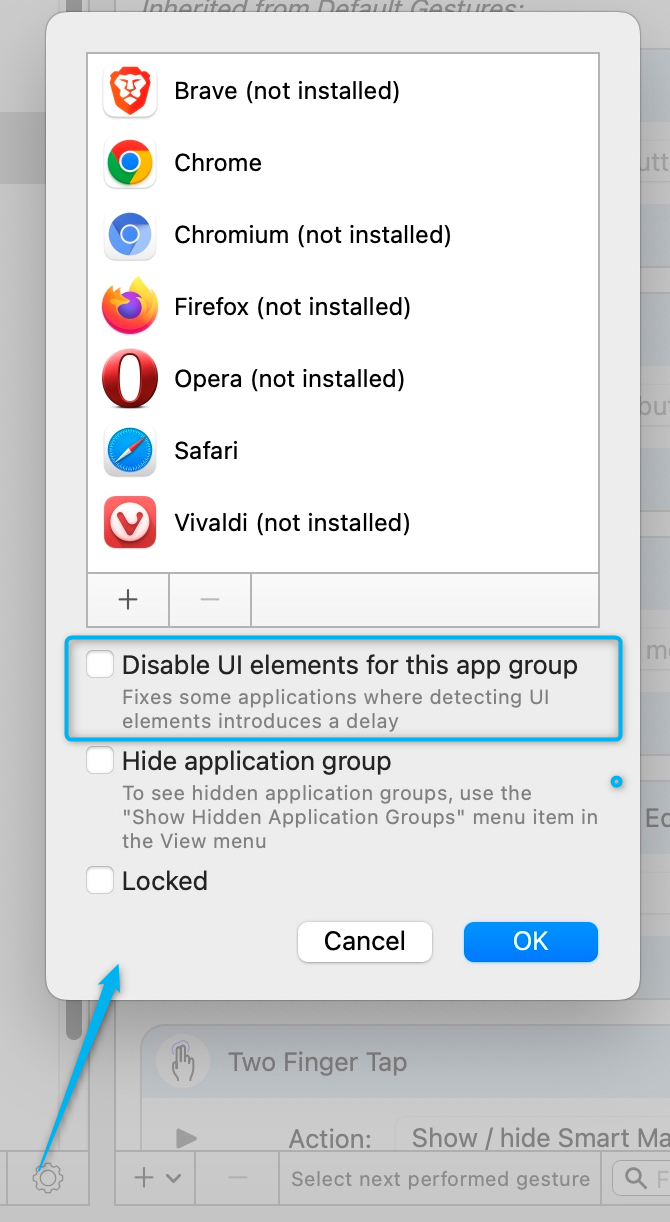
In cases where you want to adjust the browser list to run in the selected mode of operation, you can use the above dialog to tailor the list using the '+' or '-' keys.
Different settings for different browsers
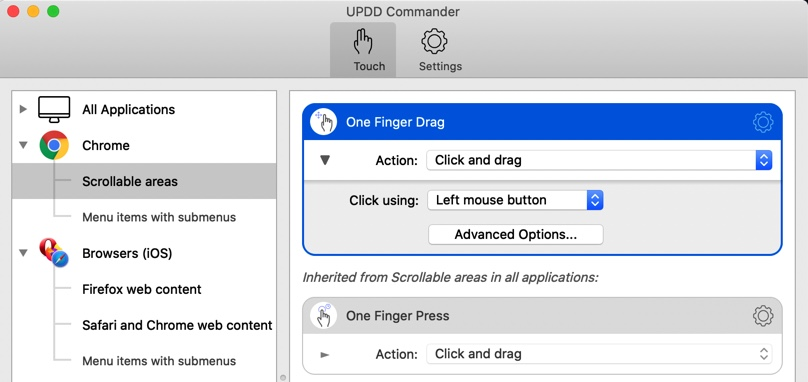
If so desired you can split the browsers out into individual applications and set each browser to perform as required. In this example Chrome has been removed from the Browsers (iOS) group, added to the application list on its own and set to operate like a macOS trackpad, where a single touch performs click and drag:
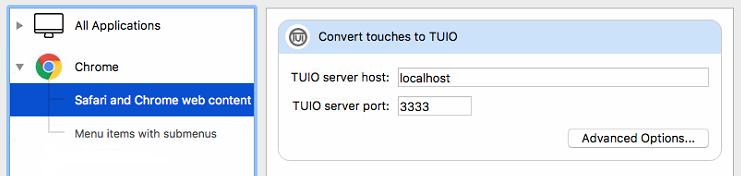
This way you could also have one browser running as a TUIO client and another emulating iOS, as per this Chrome only TUIO example:
Multi-touch web pages (TUIO)
Use the Presets option to set the Browsers group to work as a TUIO server within the web content UI element by switching to the Browsers (TUIO) configuration:
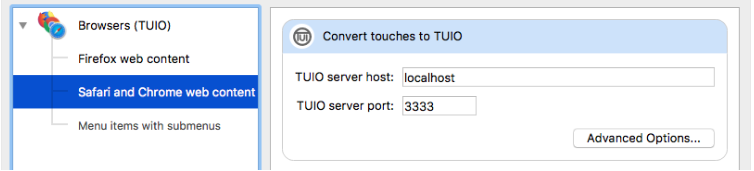
The preset converts all touches that occur within a web browser to TUIO touches that can be received by the Touch-Base TUIO Bridge browser extension. Installing and setting up the extension is described in Browser TUIO bridge extension.
Gestures for a specific web page
Since UPDD Commander 1.9.0 a UI element can be added for a specific web page, so that gestures can be customised for that page alone (for example a signature page that needs One Finger Drag to perform Click and Drag in a browser that otherwise scrolls). This, the list of supported browsers and how to add others are described in Applications, groups and UI elements. The first time you gesture over a Chrome- or Safari-based browser, UPDD Commander asks for Automation permission; see Automation permission for web browsers.
Web whiteboards
Notes on two browser-based whiteboard applications.
Jamboard
Jamboard is a browser based whiteboard app from Google.
To be able to ink in the drawing area, you need the One Finger Drag gesture to be set to the Click and Drag action, as defined by default in the Browsers (macOS) preset.
The Browsers (iOS) preset has One Finger Drag set to the Scroll action. This will prevent drawing on the whiteboard.
AWWapp whiteboard
The AWWapp web whiteboard is a touch-friendly online whiteboard app.
This app works very well in Windows browsers but does not respond well to the Mac's gesture and scroll events. It uses scroll events to zoom in and out, so two finger drag produces strange results, and using a pinch gesture causes the whole page to zoom in and out rather than just the drawing.
The website responds properly to browser touch events (which is why it works so well in Windows), so on the Mac it works correctly in Chrome or Firefox when used in conjunction with the TUIO browser extension and the Browsers (TUIO) preset.
However, the TUIO interface does not allow you to interact with the function keys along the top and either side of the drawing area, so you need to use the UI element advanced options for the scroll UI element to limit the drawing area by defining edge limiters, such that the TUIO-controlled area only functions in the main drawing area, as per the example here for the Chrome scroll area:
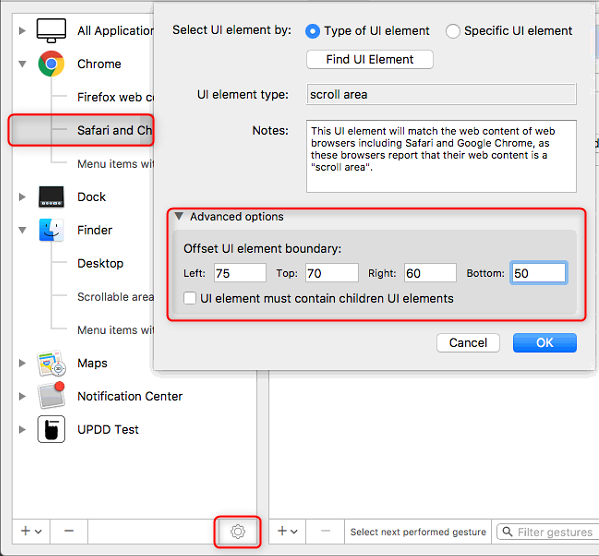
This restricts the TUIO interface to the drawing area shown in blue and allows the function buttons to be used.
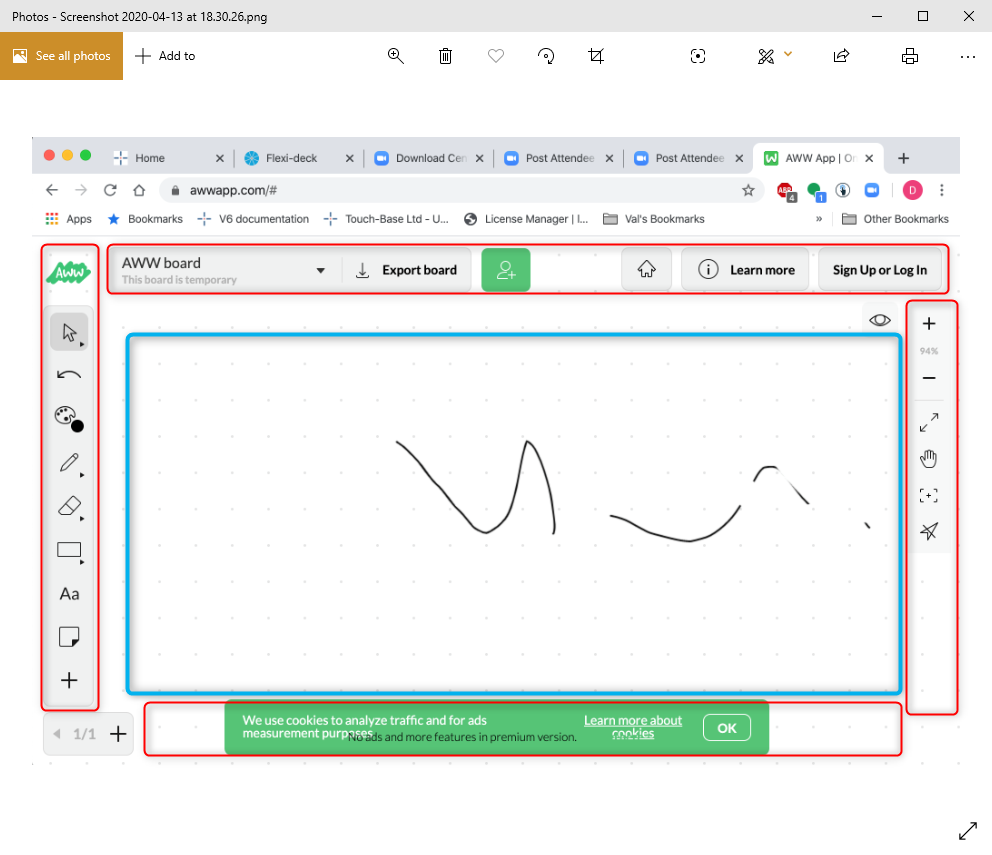
There are still some issues. For example, selecting the rectangle button makes a popup menu appear over the drawable area, which does not respond to TUIO touches. Also, using a two finger drag to scroll the drawable area causes one finger drags to no longer paint. Switching to a different tool and then back to the pencil allows you to draw again.
For review
Jamboard: Google has withdrawn the Jamboard app (not verified from our sources). Consider dropping the Jamboard section. The original said the Browsers (iOS) preset sets One Finger Drag to "Zoom"; the shipped preset (Browsers (iOS).ucapp, web content UI elements) sets it to Scroll, which is what is written here.
Screenshots BrowseriOS, BrowsermacOS, AppBrowserGroup2, BrowserGroup2, AppChrome, BrowserAppDefinition and TUIOBrowserGroup3 come from older Commander versions; check that they still match 1.15.0 (the group now holds "Safari and Chrome web content" and "Firefox web content" UI elements).