Device control from the API
This document describes the UPDD API functions that act on the driver and its devices rather than simply reading events: invoking the calibration tool, creating and configuring toolbars, issuing HID feature requests, and posting touch or HID data into the driver. It applies to UPDD V6 and V7; where they differ this is stated. Toolbar and other events are described in the API event reference.
Invoking calibration
The calibration procedure can be invoked from the API using the TBApiCalibrate function call.
The mode must be one of: calibrate, identify, configure or toolbar.
- for calibrate, a device handle is required; the toolbar index is ignored
- for identify, the device handle and toolbar index are ignored
- for configure, both are ignored
- for toolbar, both are required
Calibration itself is described in Calibration.
TBBOOL TBAPI TBApiCalibrate(HTBDEVICE aHandle, int aToolbarIndex, TBCHAR* aMode);Toolbars
The UPDD implementation of toolbars allows for the following API based operations:
- receiving event callbacks (see Toolbar events)
- adding, removing and calibrating toolbars
- setting or changing toolbar options
Prior to UPDD V7, toolbars were associated with a device. With UPDD V7, toolbars are associated with a monitor and are held in global (nodevice) settings. In UPDD V7 a toolbar is identified by a handle (HTBTOOLBAR) returned by TBApiAddToolbar or TBApiGetRelativeToolbar; the handle is immutable, so it can be used as a permanent reference to the toolbar. Its settings are read and written with TBApiGetToolbarSetting, TBApiGetToolbarSettingAsInt and TBApiSetToolbarSetting.
The example below shows device based toolbar settings in UPDD V6 and monitor based toolbar settings in UPDD V7:
| UPDD V6: device settings | UPDD V7: global (nodevice) settings |
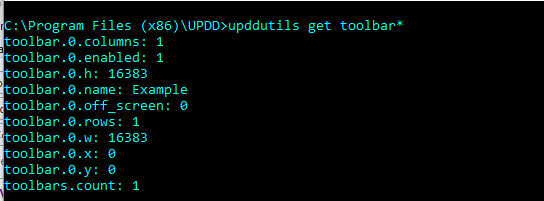 | 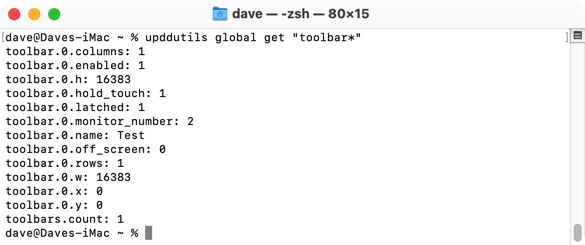 |
Setting meanings:
| Setting | Meaning |
| V6 and V7 | |
| columns | Number of columns |
| rows | Number of rows |
| x | Left |
| w | Width |
| y | Top |
| h | Height |
| name | Name |
| off_screen | 0 = on screen / 1 = off screen placement |
| enabled | 0 = disabled / 1 = enabled |
| count | Number of toolbars for this device (V6) / in total (V7, toolbars.count) |
| hold_touch | When selected, if a touch starts outside a toolbar and then moves into a toolbar area, the touch remains held. |
| UPDD V7 | |
| latched | Indicates a toolbar can be latched on rather than having to be touched to register as being touched. A latched-on toolbar is set off if tapped. Touching a latched toolbar for a period of time always sets it off, irrespective of its current state. |
| monitor_number | Associated monitor |
| active_whilst_calibrating | Whether the toolbar remains active during calibration (default 0) |
In UPDD V6, changing any of these values is simply a matter of using TBApiSetSettingFromInt or TBApiSetSetting. In UPDD V7 use TBApiSetToolbarSetting with the toolbar handle.
UPDD V7 toolbar functions
As declared in upddapi.h:
// get a toolbar based on its (zero based) index
// a return value of TB_INVALID_HANDLE_VALUE means that a toolbar does not exist at the specified index
HTBTOOLBAR TBAPI TBApiGetRelativeToolbar(int o);

// Create a new toolbar, default values are used for the required fields not found in the argument
// list, to provide values for these fields use TBApiSetToolbarSetting
// note that, unlike earlier implementations, the returned handle is immutable
// so can be used as a permanent reference to this toolbar
//
// the default values applied are
// columns=1
// rows=1
// off_screen=0
// enabled=1
// monitor_number=1
// latched=0
// hold_touch=1
// active_whilst_calibrating=0
HTBTOOLBAR TBAPI TBApiAddToolbar(const TBCHAR* aName, uint16_t x, uint16_t y, uint16_t width, uint16_t height);

// Delete a toolbar
TBBOOL TBAPI TBApiRemoveToolbar(HTBTOOLBAR aToolbarHandle);

// Get a named setting for a toolbar as a string
// the string buffer (aSZ) must be large enough to hold the returned value + a terminating null byte
// the size of this buffer must be specified in lBuff
TBBOOL TBAPI TBApiGetToolbarSetting(HTBTOOLBAR aToolbarHandle, const TBCHAR* aName, TBCHAR* aSZ, int lBuff);

// Get a named setting for a toolbar as a signed int
// note, this is a convenience function only, all settings are held internally as strings
// and can be retrieved with TBApiGetToolbarSetting
TBBOOL TBAPI TBApiGetToolbarSettingAsInt(HTBTOOLBAR aToolbarHandle, const TBCHAR* aName, int32_t* val);

// Set a named setting for a toolbar
TBBOOL TBAPI TBApiSetToolbarSetting(HTBTOOLBAR aToolbarHandle, const TBCHAR* aName, const TBCHAR* aSZ);

// Enable a toolbar based on the passed handle or pass 0 to enable all toolbars
TBBOOL TBAPI TBApiEnableToolbars(HTBTOOLBAR aToolbarHandle);

// Disable a toolbar based on the passed handle or pass 0 to disable all toolbars
TBBOOL TBAPI TBApiDisableToolbars(HTBTOOLBAR aToolbarHandle);
Toolbar cell actions
A toolbar cell can carry one or more actions, executed in order when the cell is touched. Actions are held in toolbar settings and managed with the following functions, as declared in upddapi.h:
// A cell may carry one or more actions, executed in order, held in the settings
//   toolbar.<handle>.cell.<cell>.action        (aIndex 1)
//   toolbar.<handle>.cell.<cell>.action.<n>    (aIndex 2 and up)
// Cells are numbered row major, so cell = row * columns + column.
//
// An action is a semicolon separated list of name=value fields, of which type
// is mandatory and when (on, off or both, default on) selects the cell edge:
//
//   type=program; when=on; run=%pen%; args=-print
//   type=updd;    when=on; do=right_click
//
// The type decides which component executes the action - "updd" actions run in
// the driver, the rest in the UPDD Daemon - so a cell has a single owner.
//
// Actions must be contiguous from index 1; the first missing index ends the
// list. Removing a toolbar removes its cell actions with it.
TBBOOL TBAPI TBApiGetToolbarCellAction(HTBTOOLBAR aToolbarHandle, int aCell, int aIndex, TBCHAR* aSZ, int lBuff);
TBBOOL TBAPI TBApiSetToolbarCellAction(HTBTOOLBAR aToolbarHandle, int aCell, int aIndex, const TBCHAR* aSZ);
TBBOOL TBAPI TBApiRemoveToolbarCellAction(HTBTOOLBAR aToolbarHandle, int aCell, int aIndex);

// Remove every action bound to cells that no longer exist, given the toolbar's
// current rows x columns. Call after changing either, otherwise actions for the
// removed cells linger and reappear if the grid is enlarged again.
// Returns the number of settings removed, or -1 on error.
int TBAPI TBApiPruneToolbarCellActions(HTBTOOLBAR aToolbarHandle);
UPDD V6: adding and removing toolbars
In UPDD V6, settings for toolbars are held in standard UPDD device settings of the form toolbar.<index>.value and are managed with the regular settings API functions.
To add a toolbar
- Get toolbars.count.
- Create new entries for all the above indexed values (toolbar.0.*) using toolbars.count as the new index.
- Increment and save toolbars.count.
To remove a toolbar
- Get the values of the toolbar with the highest index (toolbars.count - 1).
- Save these values against the index to be deleted.
- Decrement and save the value of toolbars.count.
- Optionally delete the values with the previous highest index.
Calibrating a toolbar
Use the TBApiCalibrate function to calibrate a toolbar: the mode must be toolbar, and both the device handle and the toolbar index are required.
TBBOOL TBAPI TBApiCalibrate(HTBDEVICE aHandle, int aToolbarIndex, TBCHAR* aMode);HID feature requests
Two API calls have been specifically created to cater for HID get and set feature requests. These are available in UPDD V7 on macOS 10.14 and above, from build 07.01.224.
These calls are intended for use by programmers familiar with direct HID API calls, as a replacement for such a call in cases where one is not possible because UPDD is in control of the device. This is the case on macOS, where UPDD opens the USB device exclusively: a direct call fails, with IOUSBDeviceOpen returning kIOReturnExclusiveAccess (0xe00002c5) and ioreg -p IOUSB -l reporting "UsbExclusiveOwner" = "pid <n>, updd". These two calls pass the request to the driver, which performs it while retaining its exclusive open.
The same restriction applies on Linux, but these calls are not implemented there, so a HID feature request cannot be issued while UPDD is in control of the device. On Windows UPDD binds using a HID filter driver and the device remains available to applications, so a direct HidD_GetFeature / HidD_SetFeature call works while UPDD is running; these APIs are neither required nor implemented there.
As such, a detailed description of the HID report format is not given here. The document here describes this in the context of the native Windows API.
TBApiHidGetFeature
This API is used to issue a HID get feature request to a UPDD controlled device.
TBBOOL TBAPI TBApiHidGetFeature(
  HTBDEVICE aDevice,
  int aInterface,
  void*  aReportBuffer,
  uint32_t  aReportBufferLength
);- aDevice: the UPDD device handle representing the device instance to be queried.
- aInterface: the interface number to be queried.
- aReportBuffer: a block of memory allocated by the caller. When calling the API the caller sets up the HID feature report data to be sent to the device. Typically this is simply the report ID of the feature in byte zero.
- aReportBufferLength: the length of the allocated block. This should be long enough to contain the expected response from the controller, including the leading report ID byte.
TBApiHidSetFeature
This API is used to issue a HID set feature request to a UPDD controlled device.
TBBOOL TBAPI TBApiHidSetFeature(
  HTBDEVICE aDevice,
  int aInterface,
  const void*  aReportBuffer,
  uint32_t  aReportBufferLength
);- aDevice: the UPDD device handle representing the device instance to be addressed.
- aInterface: the interface number to be addressed.
- aReportBuffer: a block of memory allocated by the caller. When calling the API the caller sets up the HID feature report data to be sent to the device. Typically this is simply the report ID of the feature in byte zero followed by the feature data.
- aReportBufferLength: the length of the allocated block.
In normal HID mode a programmer will use an open handle to a HID collection. Using the UPDD API, use the standard UPDD APIs to derive the device handle, and consult the hardware supplier and / or examine USB traffic in HID mode to derive the interface number. The interface number is defined in the USB report descriptors and as such is constant for a given device in most cases. In many cases this value is simply zero.
Identifying the device
Both calls take an HTBDEVICE handle identifying the UPDD device to address. Obtain it by walking UPDD's device list; there is no need for an OS-level device path. To identify which physical device each handle refers to, read its connection_key setting:
HTBDEVICE device = TBApiGetRelativeDevice(0);
for (int i = 0; device != TB_INVALID_HANDLE_VALUE; )
{
  TBBOOL connected = 0;
  TBApiIsDeviceConnected(device, &connected);
  // 'device' is the handle to pass to TBApiHidGetFeature / TBApiHidSetFeature
  device = TBApiGetRelativeDevice(++i);
}

TBCHAR conn[256];
TBApiGetSetting(device, "connection_key", conn, sizeof(conn));
// e.g. usb:337641472::vid=0x2575;pid=0xc300
The format is <location>::<hardware id>. On macOS the location is usb: followed by the IOKit LocationID in decimal, identifying the physical USB port. The hardware id carries the vid= and pid= UPDD bound to. The command upddutils connections lists the same information for every connected device.
Both calls return TBBOOL: non-zero on success, zero on failure. Call TBApiGetLastError for the error text. TBApiHidGetFeature additionally fails if the device's response is longer than aReportBufferLength. The driver applies a two second timeout to the transfer.
Testing with upddutils
The UPDD command line interface has two options which can be used to test the use of these APIs with a device under test. These are intended for use by programmers familiar with making direct API calls, and as such a detailed description of formulating a HID feature get / set request is not given here.
hidgetfeature
Syntax: upddutils hidgetfeature <interface> <report_id> <length>

In this example get feature report 0A is sent to the device. For this device, feature 0x0a is the max count HID feature. The report ID must be entered as a 2 character ASCII representation of the hex value. The report length is 2 bytes. The response indicates that feature 0x0a has a value of 0x0a.
hidsetfeature
Syntax: upddutils hidsetfeature <interface> <reportdata>

In this example set feature report 05 is sent to the device with report data of 0x02,00. For this device, feature 0x05 is the device mode feature. The data must be entered as a series of 2 character ASCII representations of the hex values, with no spaces.
Example program: hidfeature
A documented C++ example API program, hidfeature, can be downloaded here. It opens the driver, selects the device and calls TBApiHidGetFeature / TBApiHidSetFeature.
Data injection
The driver can process touches from both physical hardware and virtual devices, whereby the touch data is injected into the driver via the API, using the following functions:
| Function | Description |
| TBApiInjectTouch | Simple interface to post co-ordinate data into the driver |
| TBApiPostPacketBytes | Posts raw data in the format configured for the physical device |
| TBApiPostHIDPacket | Available from UPDD version 7.1.21. Allows data to be passed to the driver in the format of a HID data packet, i.e. a format that might be used by a physical device such as a touch screen or keyboard. Data passed to the driver can either be processed normally by the driver, as though from a connected physical device, or, on Windows only, passed directly to the operating system as though it comes from a physical device. |
These interfaces are useful to support a device where the hardware is being controlled by other software. Similarly, an application can be used to drive the system pointer without a physical device being used.
The APIs require an active device to be configured in the driver. Where UPDD is not supporting an actual physical device, and therefore no active device exists, UPDD also supports virtual devices so that an active device exists for the purposes of these APIs. To use a virtual device you first need a driver with support for a virtual device, named 'Generic, Virtual'. Then use the adddevice option of upddutils to add an instance of such a device, e.g. upddutils adddevice 1, or the API function TBApiAddDevice.
The device setting virtual_device is used in conjunction with virtual devices and by default has a value of 1 (true). The UPDD Console shows a virtual device as connected (OK) in this case. A program can set this value to 0 (false) to have the status show disconnected (NOK). This option is supported for all controller types, but only a value of 1 has an effect: it forces the device into a connected state, so that devices being used in this way are listed as working in user interfaces and to programs using the API.
TBBOOL TBAPI TBApiAddDevice(int aControllerID, const TBCHAR* aDeviceName, HTBDEVICE* aNewHandle);
TBBOOL TBAPI TBApiDeleteDevice(HTBDEVICE aDevice);
TBApiInjectTouch
TBApiInjectTouch generates a touch on the selected device. st is the stylus or contact number for multi-touch, and touching is true to start or continue a touch, false to end a touch if one is active. The API operates asynchronously.
Certain aspects of the active controller need to be considered when injecting data, one being the defined co-ordinate range, which in the case of the Generic, Virtual device is 0 - 1024 for both X and Y. These values are held in the settings calx0, calx1, caly0 and caly1. For other devices they can be viewed using the upddutils [device n] get "*" command.
TBBOOL TBAPI TBApiInjectTouch(HTBDEVICE aDevice, int x, int y, int st, TBBOOL touching);The code sample below is a test function that can either draw a circle or simulate a 4 point calibration sequence. It is a code fragment and not a complete solution.
int DoSelfTest(const vector<string>& aArgs)
{
  if (aArgs.size() != 3)
  {
    return(Usage());
  }
  if (aArgs[2] != "circle" && aArgs[2] != "calibrate")
  {
    return(Usage());
  }

  int t;
  sscanf(aArgs[1].c_str(), "%d", &t);
  Sleep(t * 1000);

  double x, y;

  if (aArgs[2] == "circle")
  {
    for (int a = 0; a < 360; a++)
    {
      double r = a * 3.141592 / 180;
      x = 512 + (cos(r) * 300);
      y = 512 + (sin(r) * 300);
      TBApiInjectTouch(gSelectedDevice, (int)x, (int)y, 0, 1);
      Sleep(20);
    }
    TBApiInjectTouch(gSelectedDevice, (int)x, (int)y, 0, 0);
    return(0);
  }

  // calib point 1
  int margin = 1023 / 10;
  for (int n = 0; n < 50; n++)
  {
    x = margin;
    y = margin;
    TBApiInjectTouch(gSelectedDevice, (int)x, (int)y, 0, 1);
    Sleep(20);
  }
  TBApiInjectTouch(gSelectedDevice, (int)x, (int)y, 0, 0);
  Sleep(1000);

  // calib point 2
  for (int n = 0; n < 50; n++)
  {
    x = 1023 - margin;
    y = margin;
    TBApiInjectTouch(gSelectedDevice, (int)x, (int)y, 0, 1);
    Sleep(20);
  }
  TBApiInjectTouch(gSelectedDevice, (int)x, (int)y, 0, 0);
  Sleep(1000);

  // calib point 3
  for (int n = 0; n < 50; n++)
  {
    x = margin;
    y = 1023 - margin;
    TBApiInjectTouch(gSelectedDevice, (int)x, (int)y, 0, 1);
    Sleep(20);
  }
  TBApiInjectTouch(gSelectedDevice, (int)x, (int)y, 0, 0);
  Sleep(1000);

  // calib point 4
  for (int n = 0; n < 50; n++)
  {
    x = 1023 - margin;
    y = 1023 - margin;
    TBApiInjectTouch(gSelectedDevice, (int)x, (int)y, 0, 1);
    Sleep(20);
  }
  TBApiInjectTouch(gSelectedDevice, (int)x, (int)y, 0, 0);
  return(0);
}
Posting raw data packets
In addition to the API to inject complete touch data, it is also possible to post raw touch data to an active touch device using the API TBApiPostPacketBytes, in the raw data format configured for the physical device. This API is used to play back data captured with upddutils recordraw to help troubleshoot reported touch issues for a given controller configuration.
TBBOOL TBAPI TBApiPostPacketBytes(HTBDEVICE aDevice, const char* aData);
TBBOOL TBAPI TBApiPostPacketBytesEx(HTBDEVICE aDevice, const char* aData, uint32_t aTimestamp);
TBApiPostHIDPacket
The API definition is as follows:

| Argument | Description |
| aHandle | A UPDD device handle. This indicates the UPDD device instance that will process the passed data.
upddutils adddevice, in the cases where a device handle is needed, but it is also possible to use this in conjunction with a UPDD device instance related to a connected physical device. |
| aDirect | A Boolean value. When true (1), data is passed without additional processing to the operating system via a virtual HID device. This is only available on Windows. |
| aPacket | The raw data of the HID packet. In the HID protocol the type of device is identified by a report ID. Five device types are available and defined by their report IDs as shown in upddapi.h: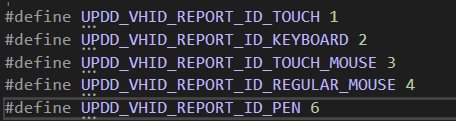 HID reports use a HID report descriptor format that can be difficult to interpret without detailed knowledge of the protocol, so to simplify this a C struct representation of the report (data packet) is used, as shown in upddapi.h: 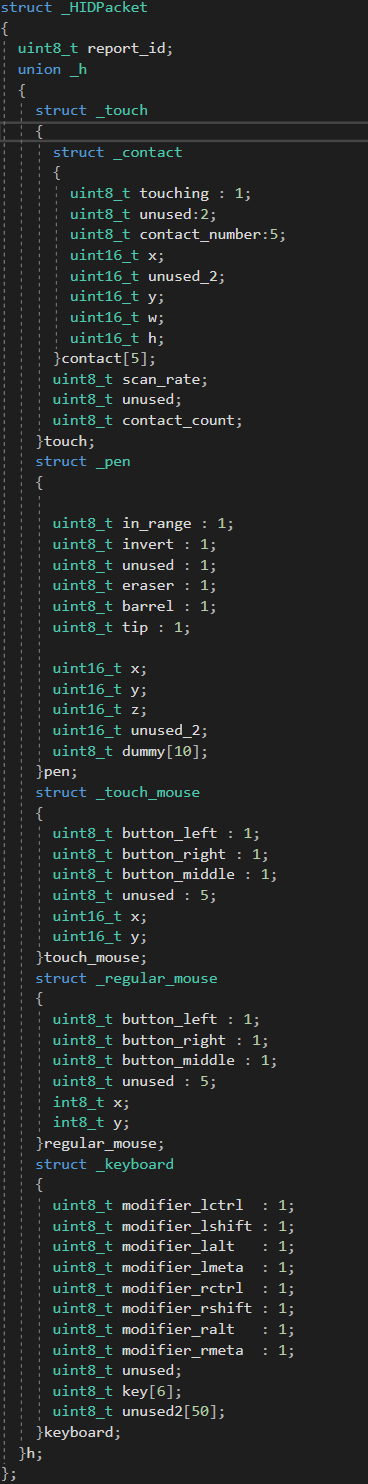 |
The function returns true (1) on success, otherwise false (0). A detailed description of the HID protocol is outside the scope of this document.
Example project: post_hid
The usage is illustrated by the source of an example Visual Studio 2019 project, post_hid, available from here. It illustrates the use of all 5 available device types; its operation is explained in the comments.
To run it, install UPDD, then build the project. The program accepts two arguments. The first specifies the mode(s) to be tested as one or more single characters, e.g. tmkp or tp, where:
- t = touch screen
- p = pen
- m = touch mouse
- r = regular mouse
- k = keyboard
The second, optional argument indicates whether direct or indirect mode is to be used. The default if not specified is direct mode.
The supplied project is set up for 64-bit support and, if used unchanged, will build and run from inside Visual Studio 2019. Opening it in a newer version of Visual Studio updates the project file and can drop the working directory setting, which should be set as follows:
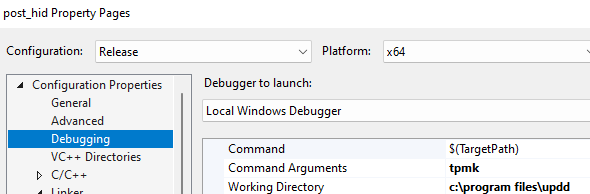
If running outside Visual Studio, set the working directory to C:\Program Files\UPDD.
Before running post_hid, either a physical or virtual device must be active in UPDD, even if the test mode does not need it, such as keyboard mode.
For review
HID feature requests: the old article said "Equivalent calls existed in UPDD V5 but were not carried forward into V6". TBApiHidGetFeature is declared in the V6 header (touchbase-apps/shared/updd/updd/v6/include/upddapi.h:624), so the sentence looked wrong; it has been dropped as UPDD V5 is out of scope. "From build 07.01.224" could not be tied to a commit and is carried as written.
Toolbars: the "count" row of the settings table now reads "per device (V6) / in total (V7, toolbars.count)", following updd/connection.cpp (ProcessToolbar reads the global toolbars.count and toolbars.last_handle). active_whilst_calibrating is added from the TBApiAddToolbar defaults in api/upddapi.h. TBApiCalibrate's second argument is still named aToolbarIndex in the V7 header; please confirm whether a V7 toolbar handle is what it expects.