Linux touch delivery: uinput and X
UPDD for Linux posts touch data into the system through one of two interfaces: uinput, the Linux kernel's user mode input interface, or the X interface (Xtest). This document describes both interfaces, how to choose between them, the Linux specific settings, multi-touch, right click and how to check that touch is reaching the system. It applies to UPDD 6 and UPDD 7; where they differ this is noted.
The two interfaces
The Xtest interface, which is an X11 extension, offers mouse button presses and mouse movement functionality, allowing for mouse emulation via touch.
Uinput offers a user mode bridge to the Linux input subsystem and allows for the posting of both single and multi-touch data events. This interface requires uinput support to be part of the Linux kernel and should be available for most modern distributions.
Both interfaces allow for a right click to be generated if required.
UPDD for Linux ships with the uinput interface selected, in single touch mode.
Selecting the interface
The interface is a device setting. It can be selected in the UPDD Console, Touch tab, or with the command line interface:
| UPDD 7 | UPDD 6 | |
| Setting | active_pointer_interface | active_touch_interface |
| UPDD Console | Pointer interface: Touch or Auto = uinput; Mouse = X interface | Touch interface: Touch = uinput; Mouse = X interface |
| Select uinput | upddutils set active_pointer_interface touch | upddutils set active_touch_interface uinput |
| Select X | upddutils set active_pointer_interface mouse | upddutils set active_touch_interface xtouch |
| Not set | uinput | uinput |
The UPDD 7 Console does not offer Pen on Linux. In UPDD 7 there is no automatic fall back from uinput to X: if the uinput device cannot be opened, touch is not posted to the system until the path is corrected or the X interface is selected (see Checking touch delivery).
Depending on your touch requirements these selections should be considered:
- If native multi-touch support is needed you must use uinput + multi-touch mode. The UPDD API's multi-touch is a separate consideration and relates to application interfaces.
- If multiple X displays are used (i.e. anything other than DISPLAY :0) the X interface must be used.
- If multiple monitors (all on DISPLAY :0) are used then uinput or X can be used (assuming that multi-touch is not required, in which case the uinput dependency takes precedence).
Important
There is no reliable support for uinput (single or multi-touch) on multiple X displays. We have seen this work on some systems but it will have to be assessed on a case by case basis.
X interface
When using X the driver needs permission to open an interface to X.
In normal operation UPDD Daemon executes the command xhost SI:localuser:root when it starts, which grants permission to processes already having root privileges on the local system to access the X session in which UPDD Daemon is running.
We consider this to be reasonably secure; but in a secure environment if you need to use a different policy then you can set the UPDD global setting xhost.enable to define an alternate policy, e.g.
upddutils nodevice set xhost.enable "+"
will execute the command xhost + when UPDD Daemon starts.
If UPDD Daemon is not running for any reason you will need to grant this permission in some other way. A quick way to do this for testing purposes is to enter the command xhost + or xhost SI:localuser:root in a terminal.
Caution
The command xhost + turns off X access control, allowing anyone on the network to connect to the system, therefore it is not recommended in situations where this might be considered a security breach. The default xhost SI:localuser:root or an equivalent is recommended where security is a concern.
uinput interface
For uinput, the driver creates a virtual touch device to post touch data and a separate virtual device to pass right click requests. Using the primary virtual touch device to post both touch data and right clicks caused issues in some distributions which were not seen when using separate devices.
The touch device is either a single touch device (the default) or a multi-touch device, depending on the value of the setting uinput.multi_touch. The single touch device is useful on systems that support uinput but do not recognise or have problems working with a multi-touch device. The multi-touch device is used to post both single and multi-touch data such that both types of system requests are satisfied. Single touch data is posted in a different manner to multi-touch data (even when a single touch is in use) so all touches result in two postings on the uinput event interface.
In practice uinput support varies even on some recent distributions, so on some distributions the multi-touch device does not work at all and some do not support standard single touches being posted on multi-touch devices. For this reason UPDD allows uinput usage to be adjusted or the X interface to be selected.
An application that needs to receive touch events should open the UPDD touch device, directly or indirectly via touch event APIs, and additionally the UPDD right mouse button device if right mouse click events are required.
You can view the UPDD virtual input devices with the lsinput command (sudo lsinput); depending on the distribution in use it may need to be installed. evtest lists them too.
Virtual devices in UPDD 7
UPDD 7 creates one virtual touch device for each monitor, so that the desktop can place each device on its own monitor (see Multi-monitor on Linux):
| Device | Name | Vendor : product |
| Touch, monitor N | UPDD single touch-N, or UPDD multi touch-N when uinput.multi_touch is enabled | 0x1 : 0x10 + N (0x11 for monitor 1) |
| Right click, monitor N | UPDD right mouse button-N | 0x1 : 0x2 |
| Keyboard | UPDD Virtual Keyboard | 0x3 : 0x4 |
| Mouse | UPDD Virtual Mouse | 0x5 : 0x6 |
The setting uinput.device_name replaces the touch device's name (the -N suffix is still added).
Virtual devices in UPDD 6
UPDD 6 creates one set of virtual devices, as listed by sudo lsinput; only one of the single touch and multi-touch devices exists, depending on the value of uinput.multi_touch:
| Virtual device for posting single touch events | Virtual device for posting multi-touch events | Virtual device for posting right click events |
| /dev/input/eventnn bustype : BUS_VIRTUAL vendor : 0x1 product : 0x1 version : 1 name : "updd single touch" bits ev : EV_SYN EV_KEY EV_ABS | /dev/input/eventnn bustype : BUS_VIRTUAL vendor : 0x1 product : 0x1 version : 1 name : "updd multi touch" bits ev : EV_SYN EV_KEY EV_ABS | /dev/input/eventnn bustype : BUS_VIRTUAL vendor : 0x1 product : 0x1 version : 1 name : "updd right mouse button" bits ev : EV_SYN EV_KEY EV_ABS |
Linux settings
There are a number of UPDD Linux specific settings, as described below. Typically, to change one you would run:
/opt/updd/upddenv bash (this creates a bash shell with the correct environment)
then the desired UPDD command, e.g./opt/updd/upddutils nodevice set uinput.single_touch 0 (to post single touch data as a multi-touch event - a global setting)/opt/updd/upddutils nodevice set uinput.multi_touch 1 (to create a multi-touch virtual device - a global setting)
then, if required, restart the driver.
| Setting | Meaning |
| uinput.virtual_input_path | On Linux systems that support touch via the virtual input method this value allows the device path for the uinput device to be set explicitly. If not set the software will try /dev/uinput, /dev/input/uinput and /dev/misc/uinput (UPDD 7 also tries /dev/input/input and /dev/misc/input).A driver restart is required to recognise a change to this value. |
| uinput.single_touch | If enabled (1 - this is the default value) the driver sends single touch events to the kernel as a 'standard' single touch event, even if multi-touch is enabled. It should not normally be necessary to change this setting, but if disabled then single touch data will be posted as a multi-touch event if multi-touch uinput is enabled. A driver restart is required to recognise a change to this value. |
| uinput.multi_touch | If enabled (1) the driver creates a multi-touch virtual device to post touch events to the kernel. This is disabled by default, due to the issues described below. It is available for cases where multi-touch events interfere with regular touch, especially on older kernels with no or incomplete support for multi-touch. Linux documentation suggests that multi-touch events should be ignored by older kernels that do not recognise them; this setting caters for cases where this is not so. A driver restart is required to recognise a change to this value. |
| uinput.sleep_us | Some implementations of the Linux touch interface are sensitive to timing and require a short pause between each passed event. This setting allows the delay to be defined in microseconds. Defaults to 200. A setting of 0 disables this feature. |
| uinput.device_name | UPDD 7: replaces the name of the virtual touch device. |
| xhost.enable | The X access policy UPDD Daemon applies, see X interface. |
| linux_display.N | The X display used for monitor N with the X interface, see Multi-monitor on Linux. |
| usb.abort_on_disconnect, usb.abort_on_nodevice | See USB hot plug. |
In normal use no setting changes should be needed. On some older systems with incomplete multi-touch support, if the uinput interface does not work correctly, try turning off one or both of uinput.single_touch and uinput.multi_touch.
Note
In various tests we have performed, and without fully understanding why, we have found that for multi-touch to work correctly via uinput with various distributions and applications you have to post touch data as single touch data as well as multi-touch data on the virtual device. Posting multi-touch data only does not always work.
Multi-touch
Given that most Linux distributions support single touch via X or uinput, the driver is initially configured to post single touch data via uinput. In most cases single touch will work. However, most modern touch devices support multi-touch and in some cases you may have a multi-touch client application that you wish to run with UPDD. For multi-touch to work the client software (including the desktop manager if required) must also support multi-touch. As this support is patchy and somewhat hardware dependent it is generally the case that this does not work "out of the box".
Verifying your hardware supports multi-touch
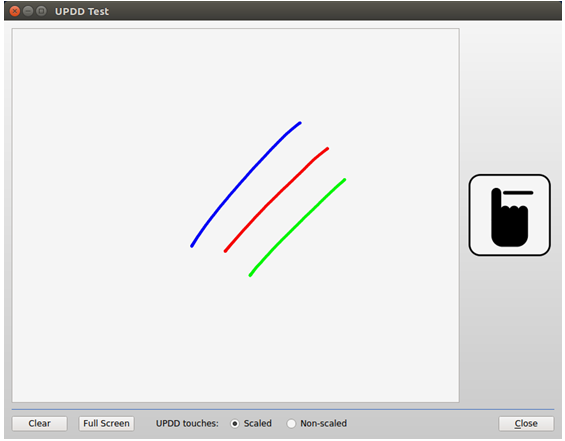
Run the UPDD Test program and draw with multiple fingers on the touch screen. You should see one line drawn for each finger, as in this example showing 3 finger drawing:
Enabling the multi-touch system interface
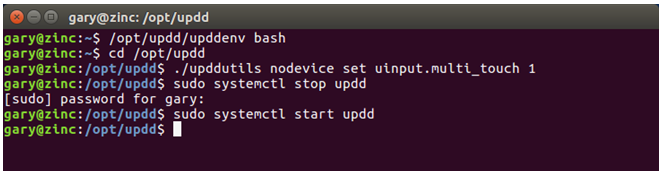
By default the multi-touch system interface is disabled as otherwise the driver will not work out of the box with some Linux kernel versions that do not support multi-touch. It is enabled with the following commands:
/opt/updd/upddenv bashcd /opt/updd./upddutils nodevice set uinput.multi_touch 1- Restart the driver, e.g.
sudo systemctl stop upddthensudo systemctl start updd.
Enabling multi-touch instructs the driver to create a multi-touch compatible virtual device and post single (the default) and multi-touch events to the event system via this device.
Checking it works
The state of out of the box support is difficult to determine for Linux distributions. In our tests with Ubuntu and the Unity desktop (Unity 7.4.0) we have not seen desktop multi-touch gestures work. Therefore, for a first test we recommend that you install Chrome or Chromium. Navigate to any web page. With the browser window focused, place 2 fingers on the screen near the centre and move them away from each other. The page should gradually zoom in:
Now move your fingers closer together and note that the page returns to its original size:

You can also tap with 2 fingers to get a context menu in Chrome.
Working with the UPDD API
If you are developing software to support multi-touch you can use the UPDD API. This is independent of the Linux event system so will work in all cases.
TUIO applications
A TUIO client application needs a TUIO server to receive touch input and post it out on the TUIO protocol; see TUIO in Commander.
Checking touch delivery
If touch is working in the UPDD Test program, proving the driver is loaded, receiving data from the touch device and the UPDD API is working, but touch is not working in the system, then the system interface is failing.
In the driver's debug log you can see if the driver has found the uinput device and, if using X, if there is any X access error.
Cannot find uinput
The driver logs each path it tries:
Attempting to open virtual device @ /dev/uinputAttempting to open virtual device @ /dev/input/uinputAttempting to open virtual device @ /dev/misc/uinput
Had it been found you would see the message Opened virtual device @: followed by the path name. If the uinput path is different from the default locations you can set it with the command:
/opt/updd/upddenv /opt/updd/upddutils nodevice set uinput.virtual_input_path [pathname]
Errors from X
When the driver cannot open a connection to X, or X refuses access, the log shows errors such as Failed to open display :0 or Cannot get root window of screen. UPDD Daemon is used to set up permission to access X such that this type of error should not occur. If, for whatever reason, UPDD Daemon is not running, or there is a possibility this permission has not been set, then it can be set manually as described in X interface. With more than one X screen, check the linux_display settings.
Defining the interface to use
Setting the interface explicitly, as shown in Selecting the interface, is useful to test if either of the interfaces is working.
Using evtest
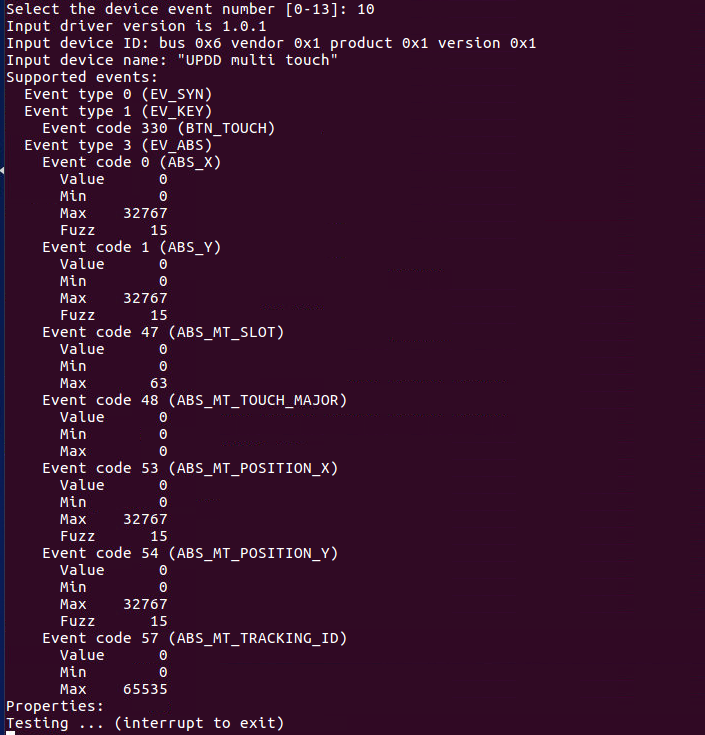
If touch or a specific application is not working when configured via uinput it can be useful to examine the status of the UPDD virtual device and the output from it with evtest. Enter sudo evtest in a bash shell to list the devices. In this example the UPDD multi-touch virtual device is device 10:
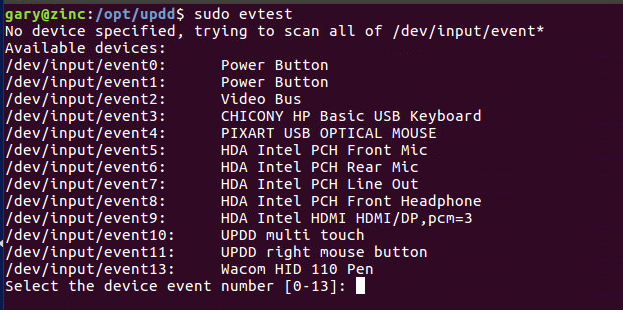
If this does not exist and no other UPDD entries are seen then UPDD is not running or is not configured correctly. If UPDD single touch is listed instead, check the setting uinput.multi_touch.
Assuming the device is listed, enter its number (10 in this example) and you will see the attributes of the device:
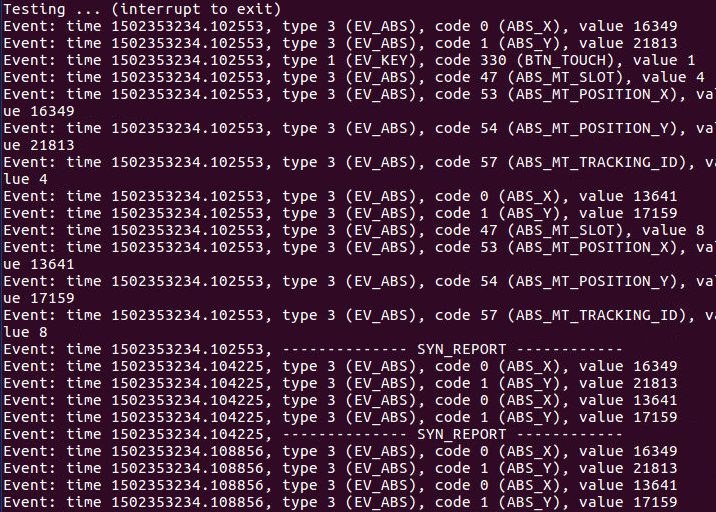
then a two finger touch gives:
and this is the end of the data when touches stop:
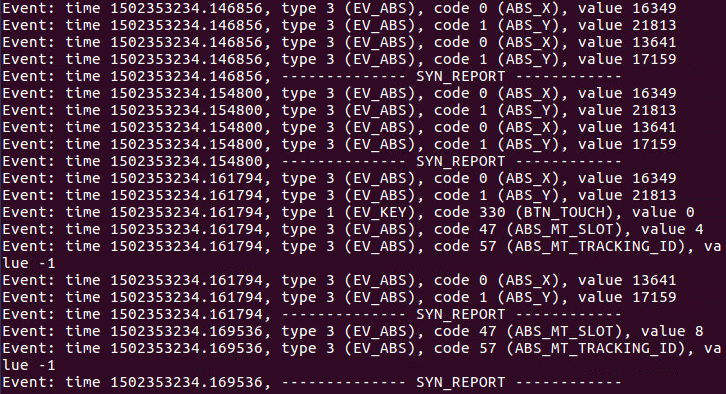
Note that the exact details in these outputs may vary; with UPDD 7 the device names carry the monitor number, as listed in Virtual devices in UPDD 7.
USB hot plug
The driver uses libusb to handle the USB interface. UPDD 7 uses the libusb-1.0 library installed on the system. (UPDD 6 shipped two builds of libusb for different C libraries, and the build for the older libraries did not support hot plugging, that is USB devices plugged in after the driver had loaded.)
On some systems a running libusb process does not receive notification of device changes, so a device is not detected after a replug unless the driver is restarted. We believe this is a bug or limitation of udev. The only thing we can do here is restart the driver, and since UPDD 6.0.557 these settings allow the driver to do so based on device status changes:
| Setting | Description |
| usb.abort_on_disconnect | If set (1), when a USB device is disconnected the driver process will terminate with an exit code of -16. This is useful in environments where device reconnects are not recognised by a running process. A wrapper script can launch the driver and restart it in the event of exit code -16. |
| usb.abort_on_nodevice | If set (1), when no supported USB device is connected the driver process will terminate with an exit code of -16. This is useful in environments where device connects are not recognised by a running process; we have seen this specifically on Puppy Linux. A wrapper script can launch the driver and restart it in the event of exit code -16. For systems using System V the UPDD install / run scripts implement this approach by default. Note: the driver will repeatedly restart if this setting is set and no supported device is connected. This is intended mainly to provide resilience to disconnects rather than a hot plug solution. |
Right click
When the driver posts touch data itself, a right click is generated by the driver's Interactive Touch function when the touch is held steady for a period of time; on Linux this applies to both interfaces. The settings for this function, and how to disable right click processing (upddutils nodevice set interactive_touch 0), are described in Click behaviour.
- uinput: the right click is passed on the separate right mouse button virtual device.
- X interface: the right click is posted as a right button press through Xtest.
The visual feedback drawn during the count down to a right click can be disabled with the setting interactive_touch.visual set to 0. Under Linux the success of the visual feedback is dependent on the distribution in use: we have seen it work as expected, draw with a black background and also fail to draw.
Note
In tests we conducted in RHEL 7.2 with the Gnome window manager the touch generated right click only took effect on the task bar and not the desktop, although a real mouse was able to generate a right click. This may be a distribution or window manager issue.
For review
- Interface selection. The articles (50457, 50508, 50769, 50382) set
active_touch_interface uinput|xtouch. The 7.1 driver readsactive_pointer_interface: touch, auto or blank post to uinput, mouse posts through Xtest (updd/connection.cpp:2800-2810,HAS_XTOUCHon viaupdd/updd.pro:12,181-185); the Console label is "Pointer interface" (console/touch.ui:495,console/touch.cpp:64). UPDD 6 readsactive_touch_interfacewith uinput/xtouch (06_00updd/connection.cpp:2407,2459). Both forms are given. - Fall back to X. 50508 and 50460 say the driver uses X when uinput is not found. 7.1 has no such fall back (blank goes to uinput only). Whether UPDD 6 fell back was not settled; the sentence is limited to UPDD 7.
- Per-monitor devices. 7.1 creates one uinput touch device per monitor with new names and product ids (
updd/linux/osconnectorlinux.cpp:70-300, #861118, Sept 2026). Which released build first carries this should be stated if customers on older 7.1 builds see the old single device. - libusb. The first correction pass changed 50413 to "UPDD 7 ships one build of libusb". 7.1 links the system library (
updd/updd.pro:259/usr/lib/x86_64-linux-gnu/libusb-1.0.so) and the install script's libusb links are commented out (scripts/unix_install/install:103-105). Written as "uses the libusb-1.0 library installed on the system"; confirm against a shipped package. - Right click on uinput. 50382 left the uinput row "To follow". The general
interactive_touch 0instruction is linked rather than a uinput-specific one; the 7.1 Linux branches inupdd/interactivetouch.cppare commented out, so how the right click reaches uinput in 7.1 should be checked. - Log strings in Checking touch delivery are taken from 7.1 source (
osconnectorlinux.cpp:111,115,508,549); the 2018 log extract was dropped. The Ubuntu 16.04 / Chrome 58 version details in the multi-touch test were dropped; the screenshots are from that test. The old statement that no Linux TUIO server exists now points to Commander's TUIO; whether Commander's TUIO is available on Linux is for the commander group to state.