What UPDD Commander is
UPDD Commander offers advanced multi-touch support along with TUIO protocol support for TUIO client applications and is available for macOS and Windows.
This document describes what UPDD Commander does, how it works alongside the UPDD driver on each operating system and where it is installed. Commander is compatible with UPDD V6 release 6.0.559 and above and UPDD V7.
UPDD Commander defines a default set of gestures and actions that apply across the board for all applications, but also offers the ability to associate a tailored set of gestures and actions with individual applications so that gesture sets can be defined at the application level. UPDD Commander replaced the earlier UPDD Gestures software on macOS in November 2019.
The vast majority of the UPDD Commander documentation was written for the macOS implementation of UPDD Commander, hence screenshots are mostly taken from macOS. In macOS UPDD Commander implements the multi-touch gesture support for touch screen devices that is normally associated with multi-touch trackpads, whereas Windows natively supports the touch interface and gestures, so UPDD Commander offers slightly modified functionality when running in Windows, as described below.
How the driver and Commander share touch
UPDD Commander receives all touches from the UPDD touch driver, determines the 1, 2, 3, 4 or 5 finger gesture being performed, invokes the action (if any) that is associated with the gesture and then, if and where appropriate, posts touch data into the operating system for further processing.
The UPDD Commander daemon (background) process interacts with the driver, receives all touches from all the touch devices, determines the touch event being performed (i.e. tap, press, gesture) and processes these touches as dictated by the Commander settings.
When Commander is handling the system pointer, the driver's own posting of touch data into the system is disabled and Commander receives all touches from the touch device via the driver's API interface. If Commander is quit, touch processing reverts to the driver's own system interfaces (on macOS, single touch).
Gestures are performed on the touch screen exactly as they are on a multi-touch trackpad. The action associated with each gesture is defined in the Gestures section of the settings window. To utilise all available gestures you will need a multi-touch touch screen that supports up to 5 touches, otherwise you will be restricted to the gestures that relate to the number of touches supported by the touch screen.
macOS
With macOS, pointer device and gesture support is predominantly provided by Apple trackpads and Magic Mice, and the operating system and applications are written for this type of device, where the gesture input is remote from the desktop and the applications and relative to the system pointer.
Under macOS, for multi-touch touch screens to work, UPDD Commander has to be loaded. UPDD Commander is part of all macOS driver software and is launched automatically: when Commander is installed as part of the driver installation, start-up items are created for all user accounts so that Commander will be running when switching users, and it is invoked at each system start-up.
Under macOS, Commander posts mouse and gesture events into the operating system. Depending on the Commander configuration, it will post all gesture and touch data as macOS native touch events, as TUIO touches and to the UPDD API interface (allowing UPDD client applications to receive gesture information), regardless of whether there is a gesture action being performed, as the gestures are more or less separate from the touches themselves.
Where individual gesture processing is not required (you do not require the gesture to trigger any action), you can set the gesture action to "No action", and the desktop and applications will still be able to receive the individual gesture and touch data.
There is also a setting to request that touch data is posted into the system as tablet events, allowing a touch device to be used with inking and other tablet-related features. It only affects mouse events produced by gestures, since in macOS a tablet event is also a mouse event. UPDD Commander also supports pen devices that present proximity, left click (via nib), right click, barrel button, pressure and eraser features as described in Pen and pressure.
Windows
With Windows, gesture support is predominantly via touch screens, so applications can be written to handle both gesture support and absolute positional touch data. Windows supports both multi-touch touch screens and multi-touch trackpads that have separate gesture processing.
Under Windows the UPDD driver handles standard multi-touch support, so native Windows multi-touch features are invoked without UPDD Commander being loaded. Under Windows only mouse and positional touch data is posted into the operating system by Commander, as Windows uses its own gesture engine to calculate the gesture being performed.
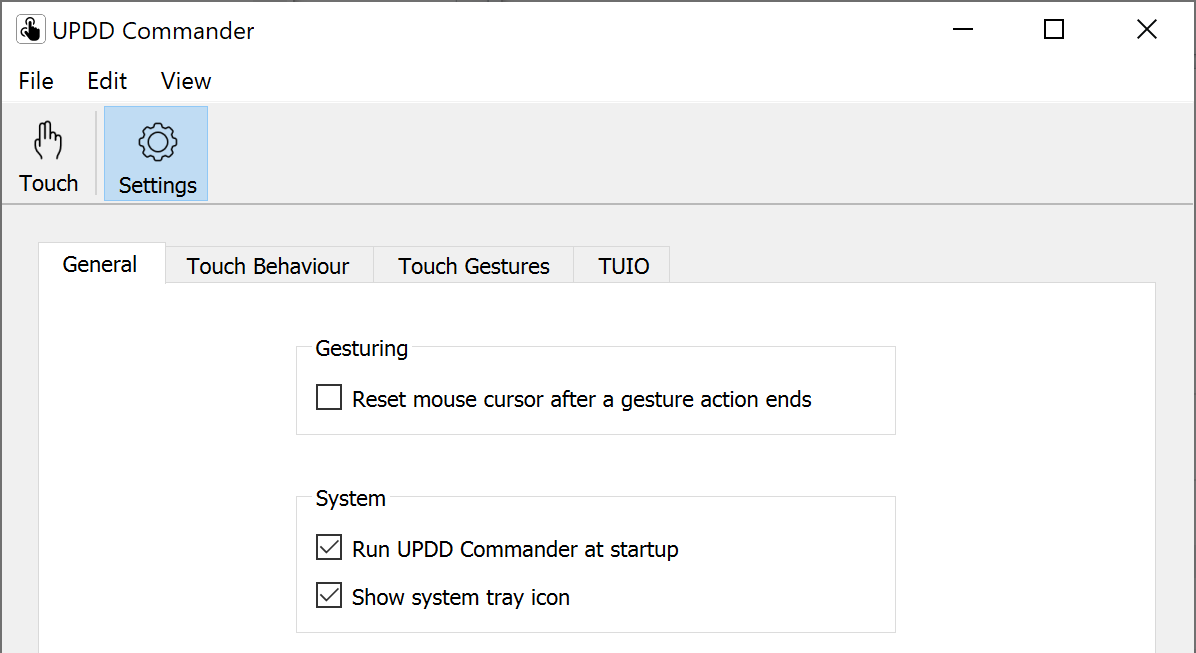
It is for this reason that UPDD Commander is part of UPDD V7 Windows builds but is not invoked automatically (UPDD V6 Windows builds do not include it unless requested). It needs to be started from the UPDD application folder, listed below. Once loaded, it can be set to run at start-up for the user with the "Run UPDD Commander at startup" setting:
Commander is only required on Windows for the following reasons:
- To support UPDD client applications that utilise the UPDD Gesture API
- To support TUIO client applications that require the TUIO server built into UPDD Commander
- To support gestures not catered for by native touch gestures and actions (such as those that mimic the Windows trackpad three finger gestures)
- To invoke the touch keyboard via a gesture
Once the gesture is determined and any related action performed, the touch data may be posted to the operating system as HID touch, pen or mouse data, as TUIO touches and to the UPDD API interface. Where individual gesture processing is not required you can set the gesture action to "Pass Touches to Windows", and the desktop applications will still receive the touch data.
Differences in the Windows implementation
- The gesture action "Pass Touches to Windows" passes touch data directly to Windows to be processed by Windows native touch processing. Since UPDD Commander 1.9.6 the data is passed at up to 120 Hz to prevent lag.
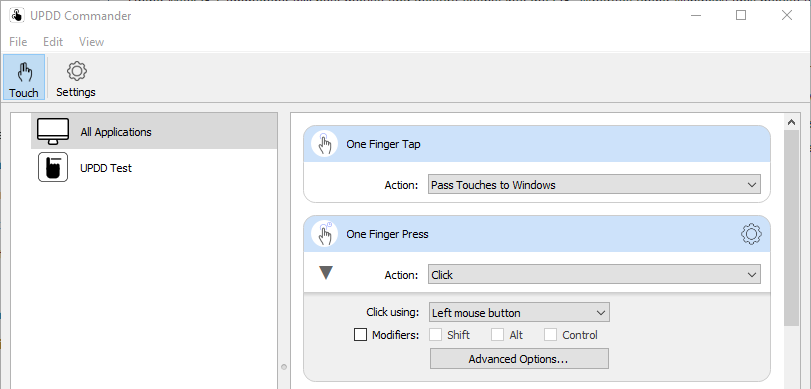
- Click actions, such as Click, Click and drag, etc. post mouse events to Windows. In this example, One Finger Tap is processed as a native HID touch and One Finger Press is posted as a mouse event:
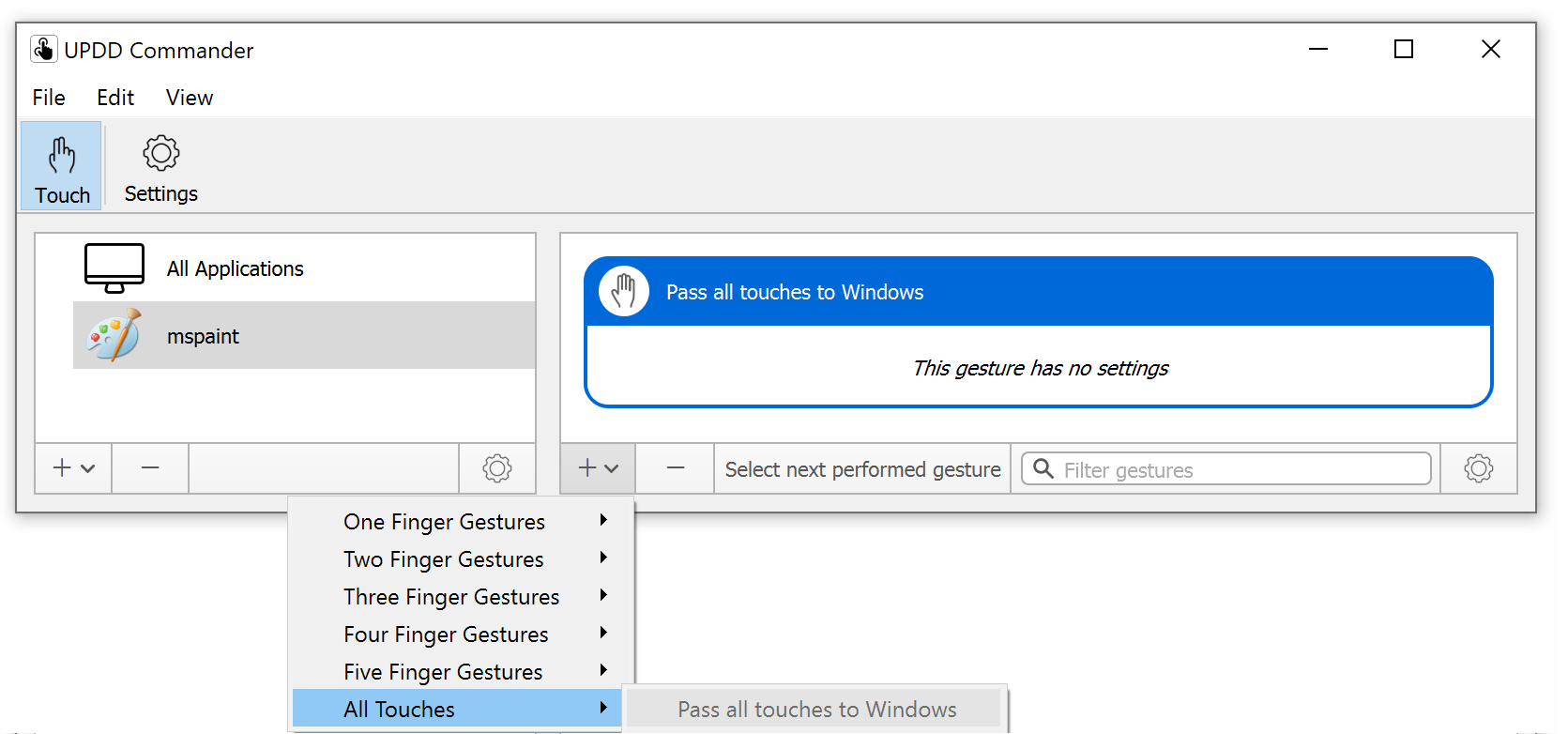
- The "All Touches / 6+ Finger Gestures" gesture options can be set against an application: "Pass All Touches to Windows" passes all touches performed on the application to Windows, "Pass 6+ Finger Gestures to Windows" passes touches of six or more fingers to Windows, and "Convert Touches to TUIO" sends them to TUIO clients:
- A smaller set of actions is available than on macOS (see the table below).
- There is no support for application UI elements (subsections of an application's user interface). The only UI elements available on Windows are the special elements for the Smart Magnifier and the four window corners, as described in Applications, groups and UI elements.
- Commander can be set to only handle touches for broadcasting to TUIO clients, leaving the driver to handle standard touch processing, with the "Disable UPDD Commander (except for converting touches to TUIO)" setting described in Commander settings reference.
The actions available in Windows are:
| Action | Description |
| No action | Performs no action. Can be used to override and block an inherited gesture's action. |
| Click, Double click, Triple click | Performs a mouse click, double click or triple click. |
| Click and drag | Performs a mouse click and drag for the duration of the gesture. |
| Move mouse cursor | Moves the mouse cursor without pressing or releasing any mouse buttons. |
| Pass Touches to Windows | Sends the touches to Windows so that they have their normal effect. |
| Keystroke | Types a keyboard key with any number of modifier keys held down. |
| Move window, Resize window | Moves the touched window, or resizes it from the corner or side originally touched. |
| Switch Between Open Windows, Task View, Show desktop | Switches between open windows using the task switcher, toggles the Windows multitasking view, or shows the desktop. |
| Snip & Sketch | Invokes the Windows screen snipping tool (named Snipping Tool on Windows 8 and earlier). |
| Show / hide touch keyboard | Shows, hides or toggles the Windows touch keyboard (Windows 8 and later), see On-screen keyboard. |
| Run executable or open file, Execute shell command | Opens a file or program, or runs a command as though it were run in a command window. |
| Set global setting | Sets a global (UPDD) setting, for example one used as a setting modifier. |
| Show / hide Smart Magnifier, Adjust Smart Magnifier zoom, Move Smart Magnifier | Controls the Smart Magnifier. |
| Zoom whole screen, Adjust screen zoom, Move zoomed screen | Controls screen zoom. |
Where Commander is installed
UPDD Commander is installed in the UPDD application folder:
| UPDD version | OS | Location |
| V6 and V7 | macOS | /Library/Application Support/UPDD/UPDD Commander.app (since UPDD 6.0.572 there is a shortcut to this location in the Applications/Utilities folder) |
| V6 | Windows | C:\Program Files (x86)\UPDD |
| V7 | Windows | C:\Program Files\UPDD |
How to open the settings window, restart Commander and use its command line is described in Running Commander.
Linux
UPDD Commander is available for macOS and Windows only.
For review
Linux: 50739 said Commander might "one day" be available on Linux (not kept: no "coming soon"). The review found only a metadata stub for Linux in Commander, but E:\d_drive\config\v6\custom holds commander-linux64 and commander_preset-*-linux64 TBA packages. Please confirm Commander is not shipped for Linux before this section is published.
The Windows action screenshot (WindowsActions.png, 2023) was dropped because the list has grown; the action table above is taken from released Commander 1.15.0 (gesture-metadata.json, _systems.windows."action menu"). The screenshot showing the old "Disable touch processing except for TUIO" checkbox (WindowsTUIOOnly.png) was dropped because the setting is now on the General tab with a different name. A new Windows screenshot of the settings window would help.
The YouTube link to an end-user video in 50592 was not carried over (2013 video of the Gestures-era software).