Clickable UI element (click nearest)
Some macOS controls are small and can be difficult to select accurately with a touch screen, especially when using a large stylus such as a finger. UPDD Commander therefore has an option for click actions to locate the nearest clickable UI element within a defined pixel radius of the point of touch and click it.
This document describes the click nearest feature of UPDD Commander on macOS, its limitations and how to disable it. It uses the macOS Accessibility API to find the UI elements (buttons, sliders etc.) of the application dialog, as described in Applications, groups and UI elements.
In some applications the Accessibility API stalls if the application does not respond with a list of UI elements, and times out after 250 ms. This causes latency with touches within the application, and click nearest has to be disabled in these cases, as described below.
Enabling click nearest
The option is defined for individual click action definitions and as a global setting on the Touch Gestures tab that sets the default value for all click actions (search radius 15 pixels by default).
Gesture defining Click action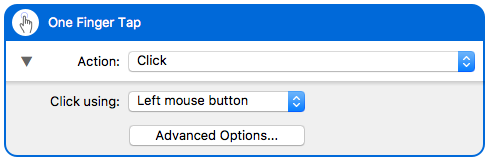 | Advanced Options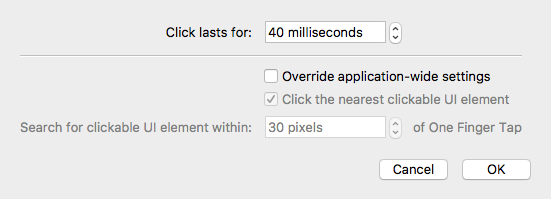 |
This feature is enabled by default, as it improves touch usability, especially when dealing with small controls not designed for a touch interface. However, with this enabled Commander deliberately redirects tap and press touch locations that occur near a UI control element.
This option is very useful for selecting small UI controls that are difficult to touch accurately, such as the window close, minimise and maximise buttons, as shown, and similar desktop and application controls:

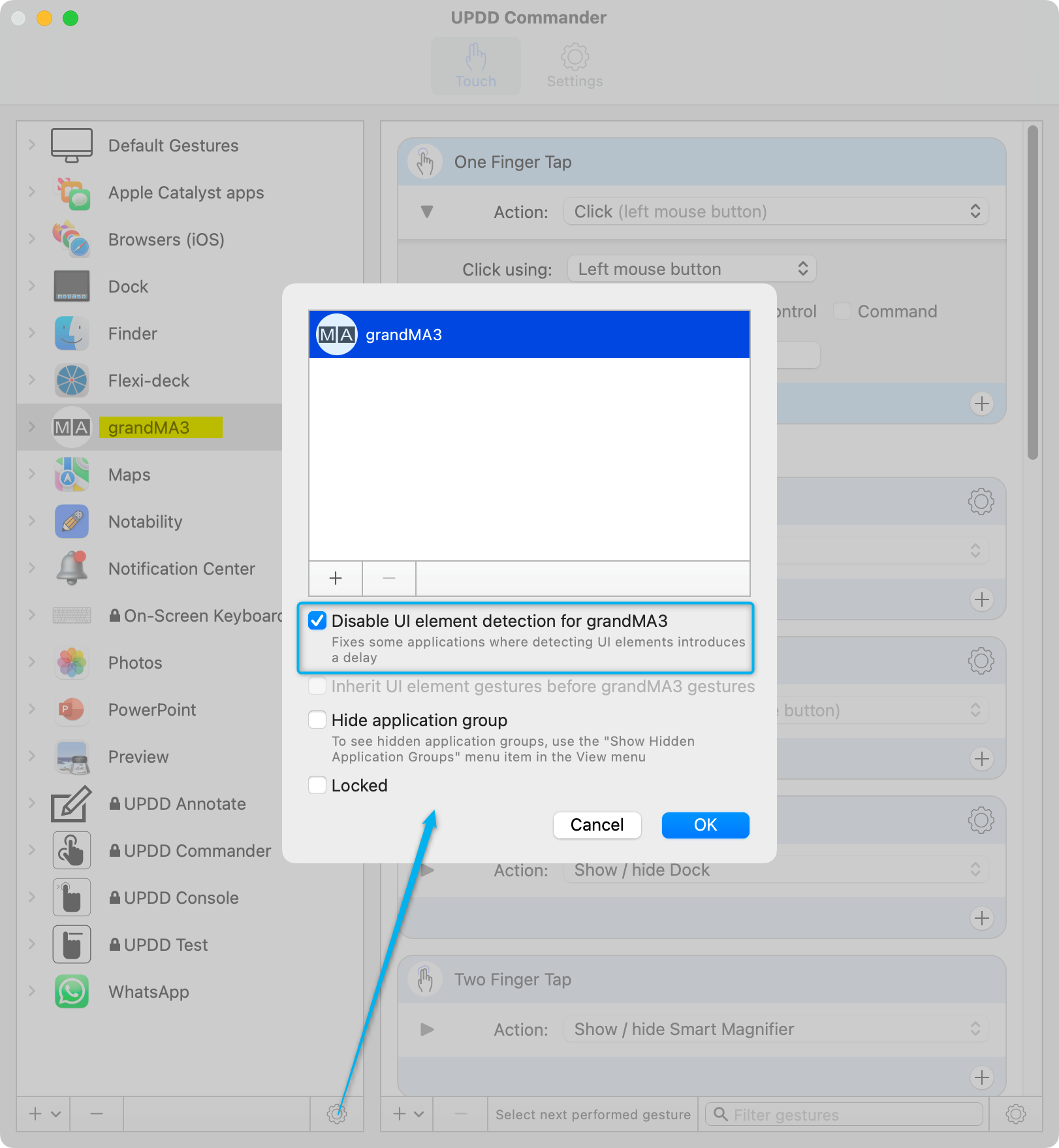
As of Commander version 1.4.1, disabling UI element detection for an application or application group prevents click nearest from being used within that application. Disabling UI element detection is generally about fixing latency caused by Commander using the Accessibility API, so it would make no sense to allow click nearest in such an application, since it makes even heavier use of the Accessibility API.
Notes when using click nearest
- This feature activates any GUI button within the search radius, even outside the window being touched, and this behaviour is by design. Click nearest considers every UI element within a radius of the touch, regardless of which window it is in and which window contains the touch. This caters for the situation where a click is required on a button near the edge of a window, such as the close or minimise buttons: if the search were restricted to the window underneath the touch, touching just slightly above the top edge would not click any of those buttons, and it is easy to miss. Not restricting the search to the touched window can sometimes yield undesirable results. GUI buttons can be enabled or disabled, and Commander restricts clicks to enabled buttons only.
- This feature does not work as well when browsing the web in Safari, as Safari reports practically every element in the browser window as being clickable, even when it is not.
- Logic Pro supports the Accessibility API but reports unusual information about some of its UI elements, similar to Safari, so click nearest only partially works in it.
- Some applications are slow to report their UI information. This has especially been observed with many games, including those created with Cocos2D-X. Commander therefore stops waiting for the information after 250 ms. For applications that are slow to respond to UI element queries, disable UI element detection as described below.
- Before UPDD Commander 1.9.0, searching for the nearest GUI element in an application that was totally unresponsive or frozen could leave Commander frozen until Apple's Accessibility API gave up after six seconds. This was fixed in 1.9.0.
- This feature does not readily work in applications that do not support Apple's Accessibility API, such as Chrome, Firefox and Qt applications built with a Qt version prior to 5.2. It only recognises a small subset of their UI elements, like the menu bar.
Disabling click nearest
Given that this setting, although very useful, can alter the point of touch, or delay the touch if the application does not respond to the UI element query, it may be desirable to disable it.
The Commander output log indicates when an application does not respond to queries about its UI elements quickly enough, causing a delay:
Warning: search for nearest clickable UI element took too long. Will simply click under touch.
or
Warning: applicable gesture search timed out
Click nearest can be disabled system-wide on the Touch Gestures tab of the Settings section, or at an individual application level. At an application level you have two options: disable it for a given gesture or, if the UI element queries are timing out, disable UI element detection for the entire application.
Disable for a specific gesture
- Add the application to UPDD Commander.
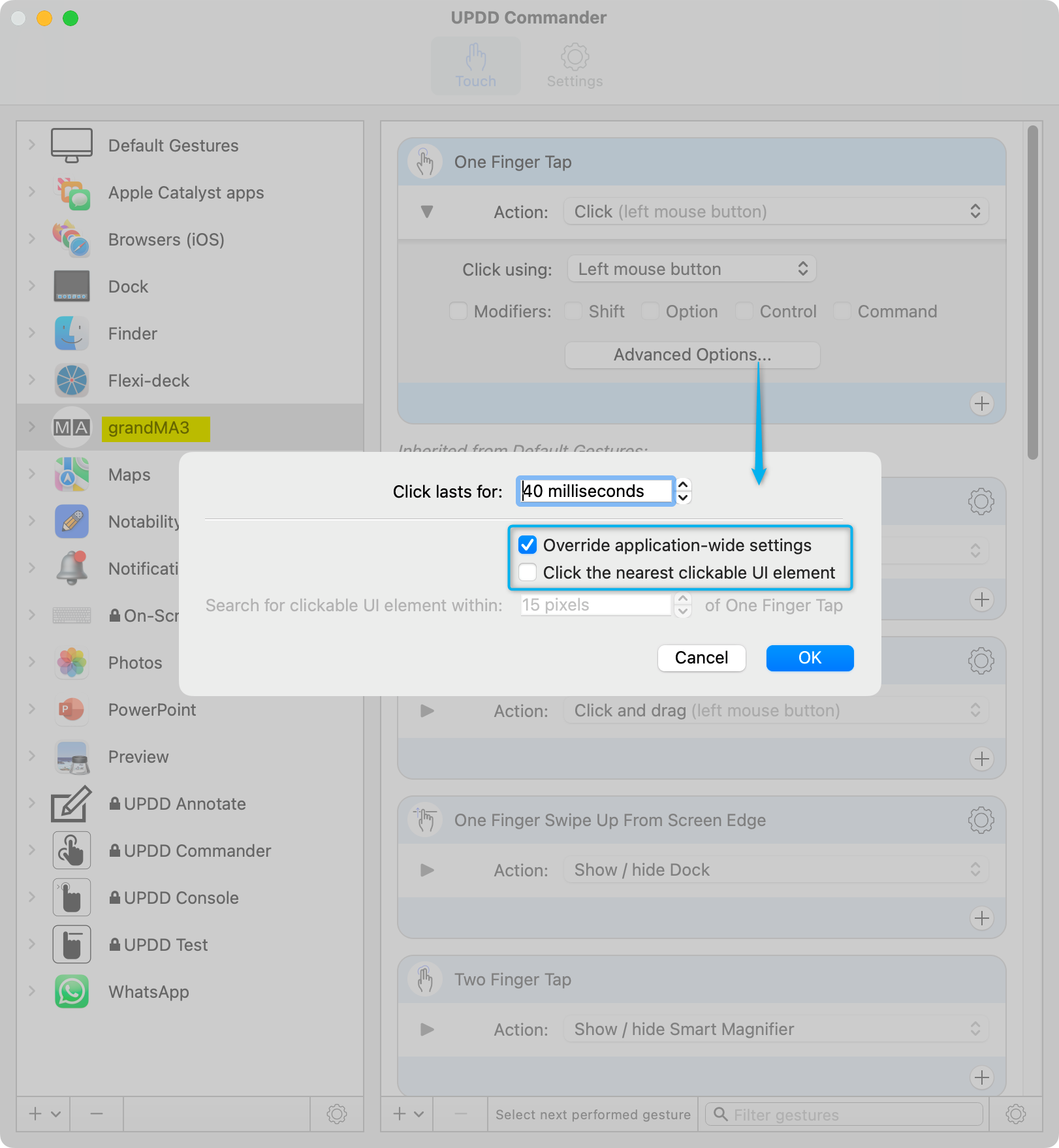
- With the application selected, find any gestures that have "Click" as their assigned action, especially One Finger Tap.
- If these gestures are inherited, double-click them to copy them into the selected application.
- Expand the gestures and click the "Advanced Options..." button.
- Check "Override application-wide settings" and then uncheck "Click the nearest clickable UI element".
Disable for the entire application
- Add the application to UPDD Commander.
- With the application selected, open the application settings and select "Disable UI element detection" for the application:
For review
Notes 2 and 3 of 50647 promised possible improvements "in future releases" for Safari and Logic Pro X; they are reworded as present limitations (no "coming soon"). Whether 1.15.0 still behaves this way in Safari and Logic Pro was not tested.
Note 5 (Commander frozen up to six seconds) is reworded as history: change history 1.9.0 "Fixed lockup that can occur when searching for nearest clickable element in an unresponsive app".
The per-action "Search for clickable UI element within ... of gesture" field and the 250 ms default "click nearest timeout" are from gesture-metadata.json and QtClickSettingsModalWidget.ui.