Applications, groups and UI elements
The Gestures section of UPDD Commander specifies a list of applications and the action to be performed when a touch event or gesture is detected within each application. The application list holds the applications and application groups with their associated gestures and actions.
This document describes the application list, applications and application groups, hidden and locked groups, and UI elements: areas within an application's window, including webpages, that can have their own gestures. It applies to UPDD Commander on macOS and Windows; UI elements are a macOS feature, apart from the special elements for the Smart Magnifier and window corners.
"Default Gestures" was previously listed as "All Applications" and some screenshots still show the old name. Some applications can be hidden (not listed); this is especially likely if the Default Gestures entry is the only one listed.
Application list
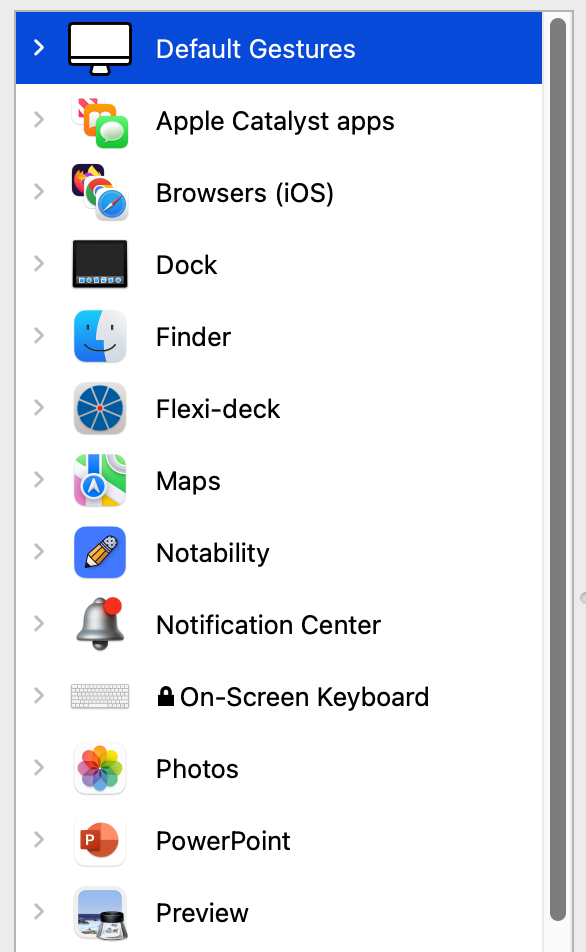
Starting Commander for the first time you are presented with the default list of pre-defined applications and group configurations. The list also includes any applications defined in the preset list and found to be installed on the system.
At the highest level is the Default Gestures entry. This is the default list of gestures and actions that will be performed unless they are overridden by a set of actions associated with an application or application group. This entry cannot be deleted, but the associated gestures and actions can be adjusted as required. There are separate Default Gestures configurations to cater for different system-wide configurations, selected from the presets, as described in Presets.
Drag and drop a selected application to reposition the entry in the list.
Configuring the application list
The application list can be configured in a number of ways:
- Add applications that reside on the system
- Add or replace applications or application groups from a preset list
- Add an application to an application group
- Delete applications or application group entries
- Rename application or group listings
- Adjust the application or application group settings
The application list function bar is used to configure the application list as follows:
| Control | Description |
 | Add a preset or new application, create or add to a group, or add a UI element to an application or group: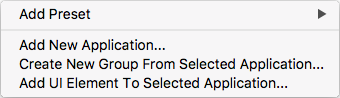 On Windows "Add Special UI Element" offers the Smart Magnifier and window corner elements instead. |
 | Remove an item from the list. |
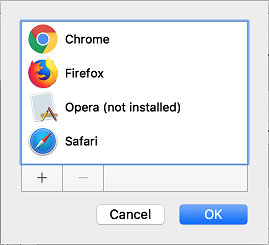
 | Application settings dialog, used to add or remove applications within a group, hide the application or group, and disable UI element detection for it: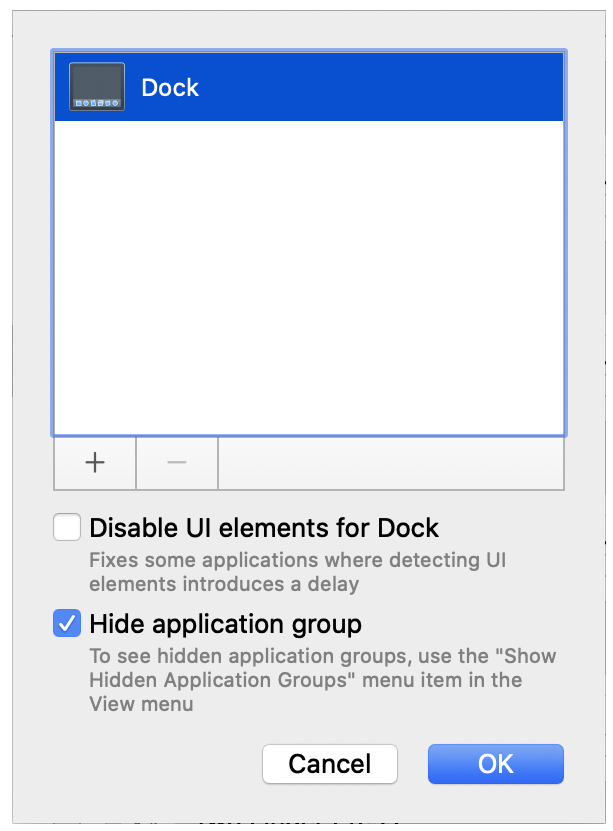 |
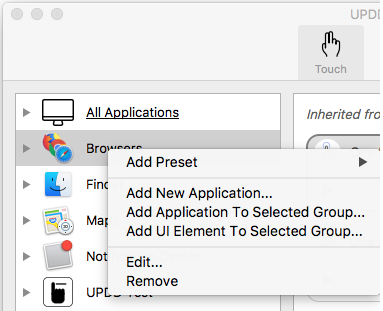
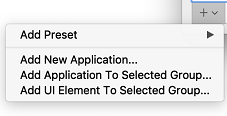
In addition, Ctrl + click or right-click in the application list invokes the list options menu, which allows you to add a preset or new application, create or add to a group, add a UI element, remove or edit the entry:
Applications
Applications can be added, removed and configured as required. It is only necessary to add an application if it requires different gestures or gesture actions to those inherited from Default Gestures. Invoke the list options menu, as above, to add an application. The application icon and name are extracted from the application when added but can be renamed if required. On macOS, standalone Unix executables can also be added (UPDD Commander 1.13.0 and later).
Applications that do not have a traditional application framework / packaging, such as Java applications, cannot be added to the application list, and any required gesture settings, such as TUIO, need to be defined at the Default Gestures level.
Important: added applications should redefine any gestures and actions that are important to their functioning, even if they are currently the same as the gesture and action inherited from Default Gestures, since the Default Gestures gestures and actions could be changed.
In this example the Notification Center has its own gestures and actions:
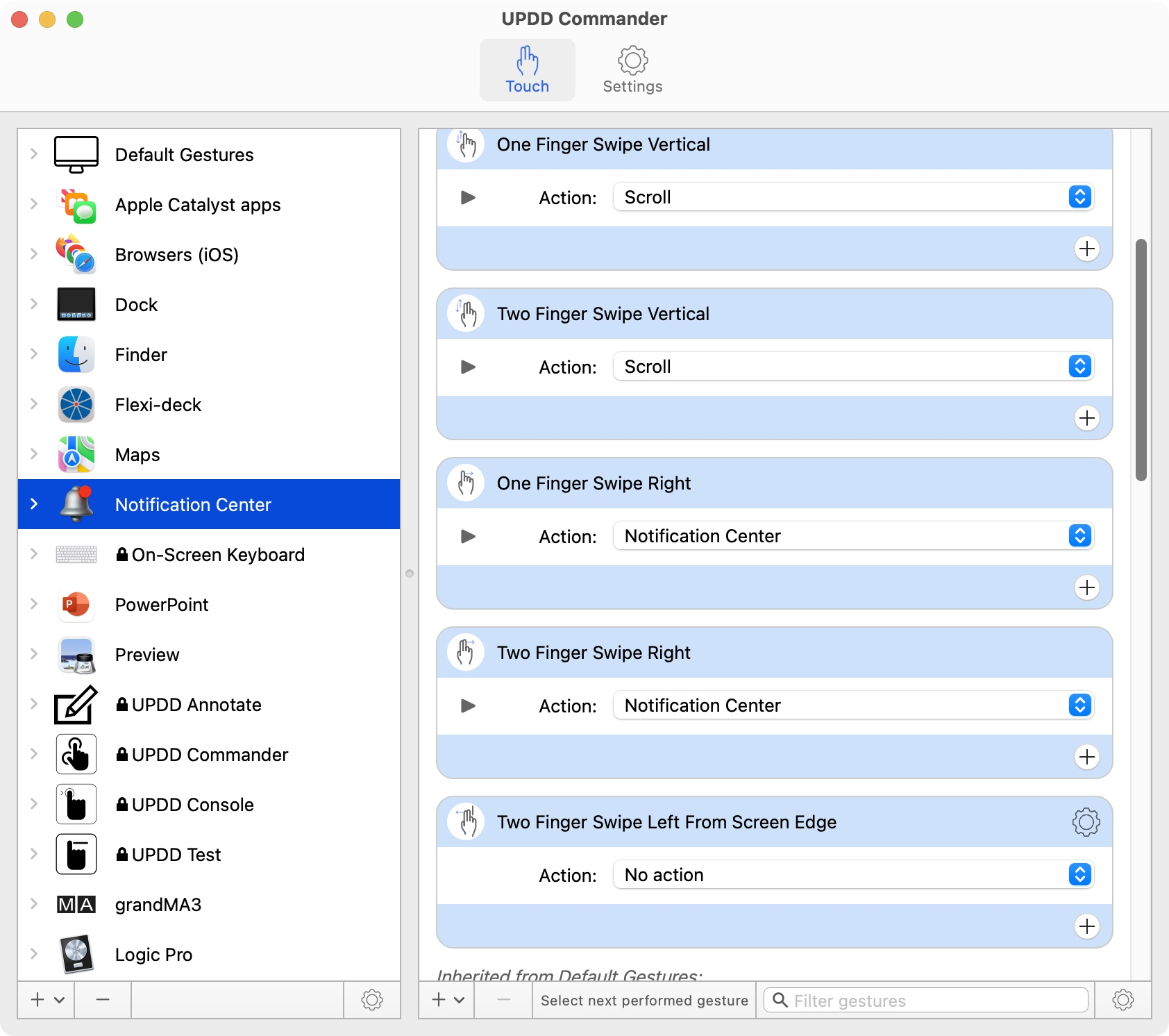
In Default Gestures, a Two Finger Swipe Left From Screen Edge is defined to invoke the Notification Center. Once the Notification Center is invoked the same gesture is set dormant (No action), one finger can be used to click and drag (doing so within the Notification Center scrolls through its entries), a Two Finger Vertical Swipe likewise scrolls the entries, and a Two Finger Swipe Right closes the Notification Center.
Application groups
An application group defines a group of applications that share the same gesture definitions and actions. Groups can be added, deleted and configured as required.
A group is indicated by the display of multiple application icons:

Double-clicking a group entry allows the entry to be renamed:

Invoke the Add options menu to add an application to the group:
Use the settings option to edit the group (the Application Group Editor):
Hidden application groups
Applications and groups that are configured, working as expected and therefore unlikely to change can be hidden from the application list if required. Some installations come with the default set of preconfigured groups hidden, so that only the Default Gestures entry is shown in the application list.
To list hidden applications select "Show Hidden Application Groups" in the View menu. They appear in the list slightly greyed out, so that they can be viewed and updated if required:
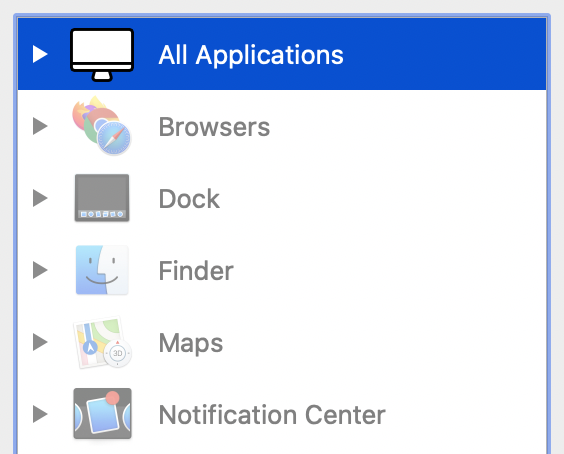
To hide or show an application or group, set the "Hide application group" checkbox as appropriate in the application settings dialog.
Locked application groups
An application group can be locked to prevent setting changes, as with the UPDD Test application:
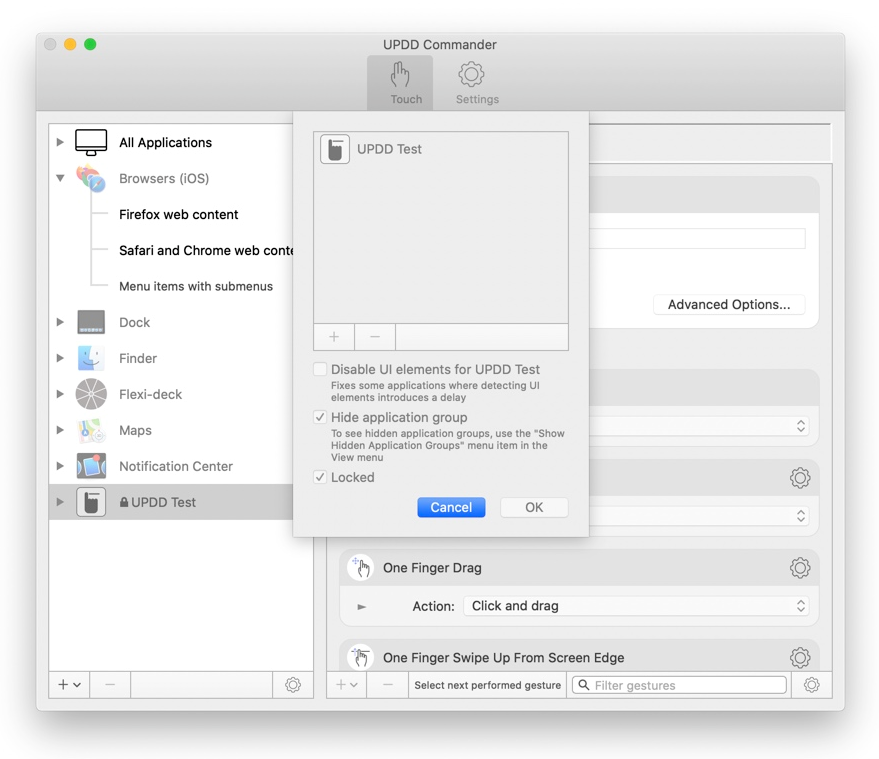
A locked application indicates that you should not change its gesture settings, as they are set to allow the intended functioning of the application. To show the extended application settings dialog with the Locked checkbox, hold down the Option (macOS) / Alt (Windows) key when selecting the settings control button .
Presets
By default the application list has a number of predefined applications and groups, and Commander also ships with a number of preset applications that can be added as required, to reset a predefined application, to switch the functionality of a predefined application, or to add an application with a custom configuration. They are described in Presets.
UI elements
Application dialogs are created with visual UI elements, such as buttons, display areas, sliders etc. If applications conform to certain Apple development guidelines, the macOS Accessibility API can be used to get a list of these UI elements, their attributes and their locations within the dialog.
Commander makes use of these UI elements in two ways:
- Directing a click gesture to the nearest clickable control, allowing for accurate selection of small controls, as described in Clickable UI element (click nearest).
- Determining if the gesture is being performed over an area within the dialog that might have specific gestures associated with it, such as a scroll area, where a drag gesture can be configured to scroll rather than perform a "click and drag" action. This usage is described here.
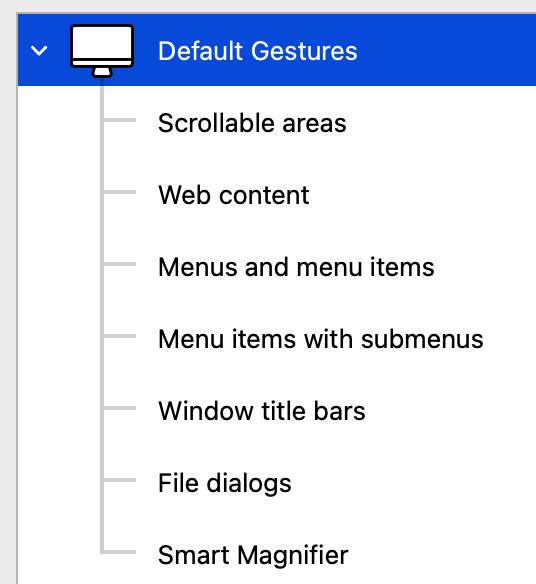
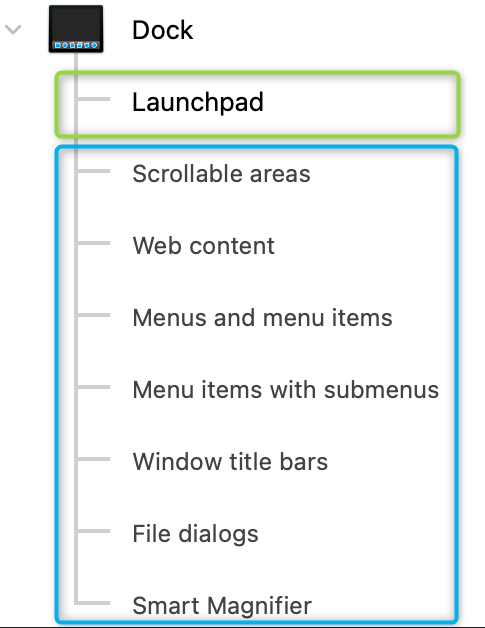
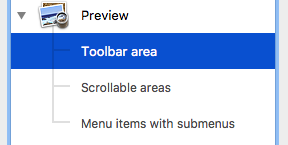
UI elements specify controls used in the application's dialog that may require a different set of gestures and actions to those defined at the general application level, and are listed as a sub-branch of the application name:
| Default UI elements | Added and inherited UI element in an application |
 |  |
In some cases gesture processing within an application can be very slow. When a gesture is performed on top of an application dialog, Commander uses accessibility function calls to perform UI element queries. With some applications these calls never respond and eventually time out, delaying the processing of the gesture. This has been observed in some third party applications, such as grandMA3 and Little DJ Touch (Reloop). In this case you need to disable UI element detection to avoid the delay. This prevents the application from having different gestures depending on the UI element, but fixes the delay. To utilise UI elements and separate gestures associated with them, applications must conform to certain UI constructs and work as expected with Apple's Accessibility API.
Since version 1.6.4, UPDD Commander notifies you when an application takes too long to respond, using the following warning dialog:
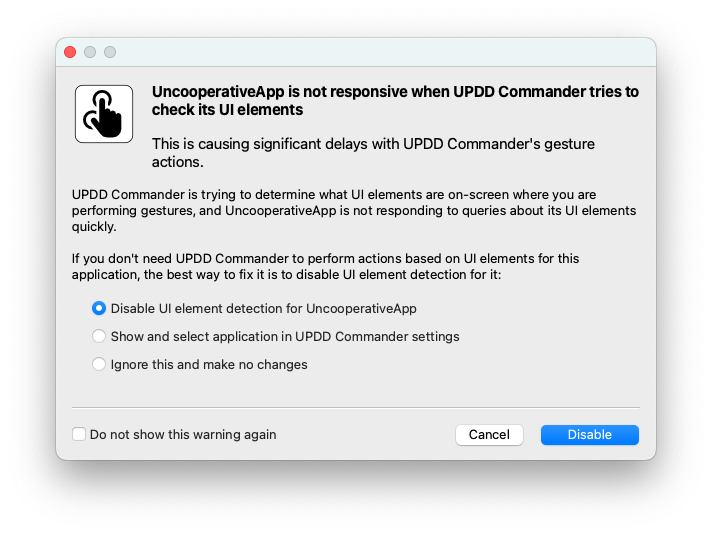
You can then choose to automatically disable UI element detection for the application, show and select the application in the Commander settings to handle it manually, or ignore the warning.
Standard UI elements
A few common UI elements likely require different settings when in use, and are set as follows:
Scrollable areas
This element is a scrollable container within the dialog and typically displays information that is larger than the visible area and therefore needs to be scrolled. On macOS a number of one finger gestures are set to work within the scrollable area, allowing these areas to work like iOS, where you can use a single finger to scroll.

In some applications it may be desirable to offer both left click and drag (for inking) and scroll in the scrolling area, in which case it is best to add the application to the application list and set One Finger Drag to left click and drag. Two Finger Drag is, by default, set to Scroll.
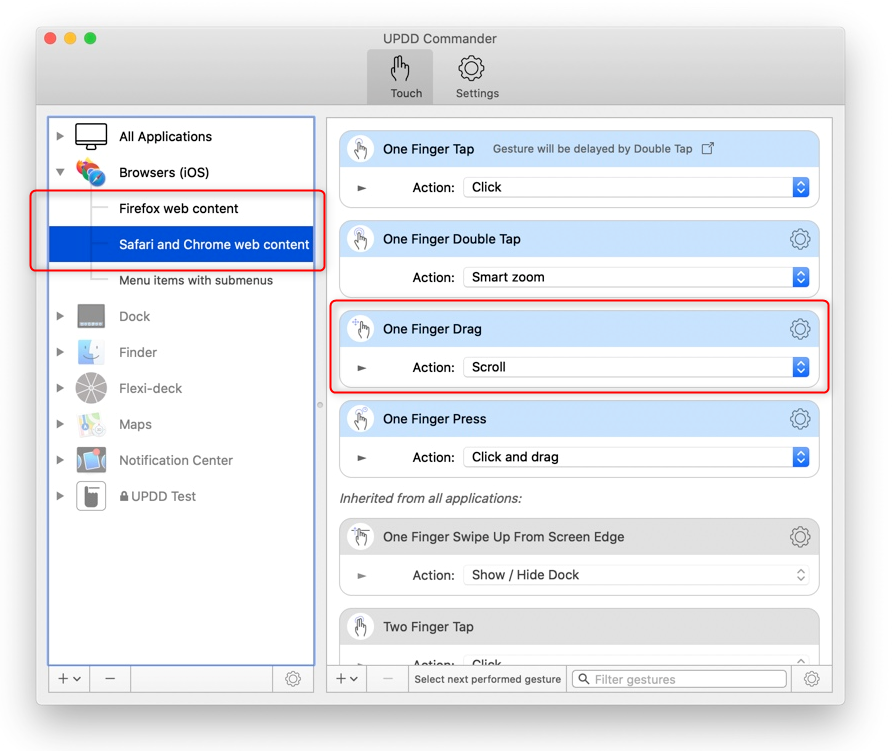
In this example for the Browsers application group, four one finger gestures have been changed to perform different actions in the scroll area, to offer iOS type usage; browsers are described in Browsers:
Menu items with submenus
This element is used to display menu selections where the menu item invokes a submenu. For this UI element the One Finger Tap gesture is set to move the mouse cursor when a tap occurs, so that the submenu is displayed. A click action on the menu item would likely close the displayed submenu, so that you could never select a submenu item.

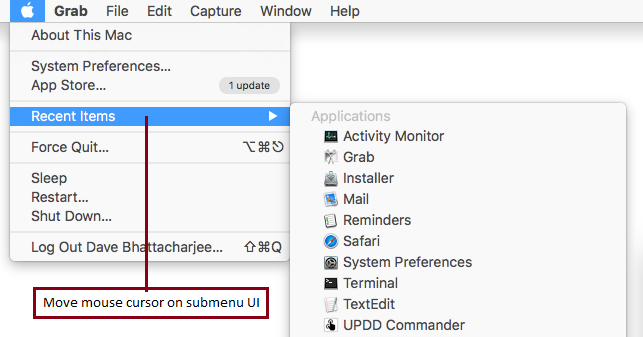
This UI element only matches menu items that contain a submenu. For example, it matches the "Recent Items" menu in the Apple menu:
Special UI elements
Some UI elements are not picked from the screen but chosen by type:
| Element | Description |
| Smart Magnifier | Gestures performed inside the Smart Magnifier. Available on macOS and Windows. |
| Window top-left / top-right / bottom-left / bottom-right corner | Gestures that start within 50 pixels of a corner of the touched window (UPDD Commander 1.12.0 and later), for example to resize windows from their corners. Available on macOS and Windows; on macOS the corners also apply when UI element detection is disabled for the application. |
| Window title bars | Gestures performed on a window's title bar (macOS). |
| File Dialogs | Gestures performed in file open and save dialogs (macOS). |
| Webpage | Gestures performed within a specific webpage, see below (macOS). |
Adding a UI element
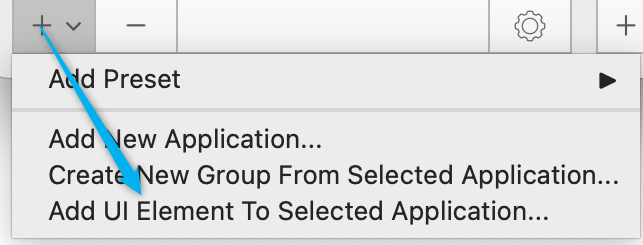
To add a UI element to the selected application or group, invoke the list options menu and select "Add UI Element":
The add UI element dialog is shown thus:
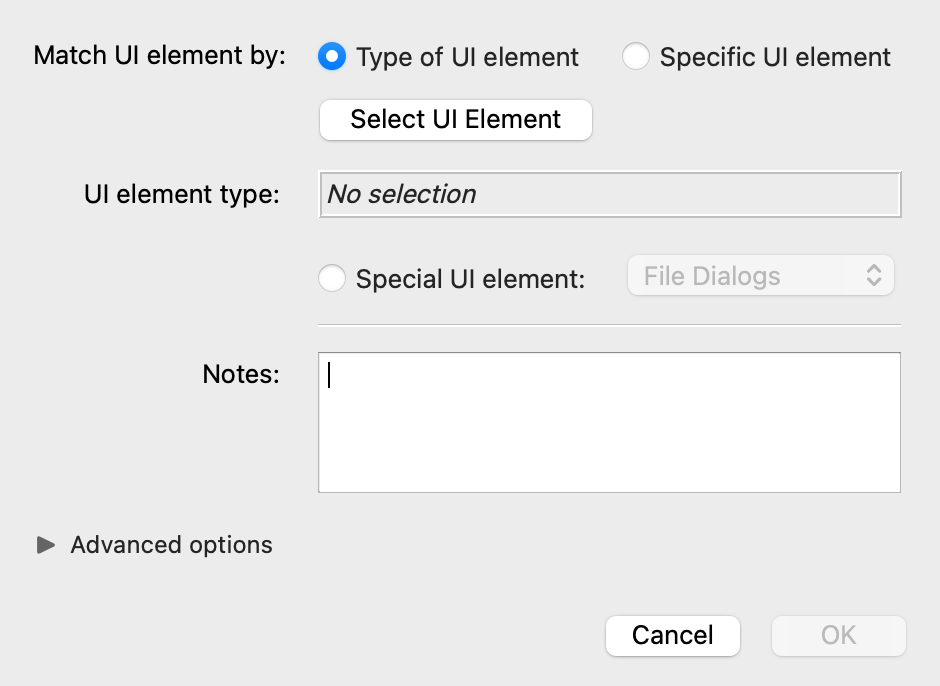
You can add either a "Type of UI element" or a "Specific UI element" to an application or group. A type of UI element covers all UI elements of the same type within the application, and a specific UI element relates to that one only.
To add the UI element select the "Select UI Element" button. The UI element selector is now enabled. Move the mouse over the application dialog and each individual UI element is highlighted with a dashed border. To see all UI elements at a given position, highlight the UI element and use the up / down arrow keys to move through the list of UI elements at that position.
This example video shows the UI element selection process. Note the dashed border switching between a subsection of the dialog (blue dashes) and the whole dialog (green dashes) as the arrow keys are used. You only need to add a UI element if different gesture actions are needed within it. In this example, adding a UI element to Default Gestures means it is inherited by all applications and applies to any "Group" UI element used within the applications' dialogs, unless it is deleted from a specific application:
When the target UI element is highlighted press the Return key to select it. It is then added to the active application or group, as per this example:
Once a UI element has been added you can rename it (double-click the name) and define its gestures and actions as required. When adding a UI element the name returned from the selection process is used. A Notes field is available to record what the UI element is for; it has no effect on Commander's behaviour.
UI element advanced options
| Option | Description |
| Offset UI element boundary | Specifies a portion of a UI element to use when detecting gestures. This is useful where an application does not define individual UI elements, so the selection process may choose a UI element that is bigger than the area required. It was introduced because Firefox does not report its UI elements to other applications: the only UI element that can be selected is the entire Firefox window, with the top boundary then offset to start at the top of the content area: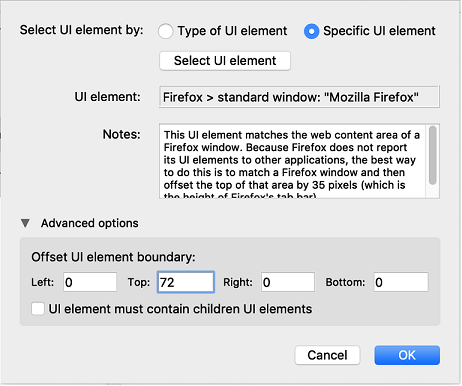 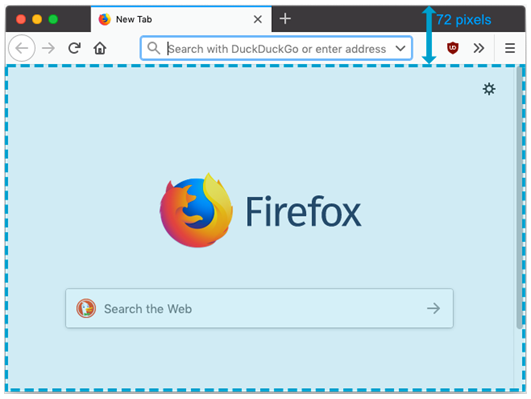 Touch behaviour is then customised for the portion of the window that contains web content and not the text field, buttons or tabs. This allows the drag gesture to scroll the web area but still perform click and drags on the tabs, allowing them to be moved around. |
| UI element must contain children UI elements | The related gestures and actions only apply to the UI element if it contains child UI elements. A good example is the "Menu items" UI element defined by default: if a menu item displays a submenu, tapping it should move the cursor to the point of the tap to show the submenu and not generate a click, which would likely close the submenu and make it impossible to select any of its items. |
Inherited gestures
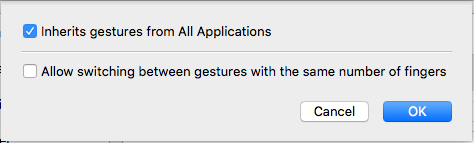
Applications and their UI elements inherit matching gesture settings from the higher level Default Gestures definition. This inheritance is not always required and can be disabled. There are separate settings for inheriting gestures from Default Gestures, from a matching UI element under Default Gestures, and from the owner application:

| Application level options | UI element options |
 | 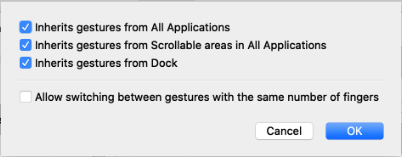 |
The Application Group Editor also has the option "Inherit UI element gestures before group gestures", which sets whether gestures inherited from a matching UI element take precedence over the group's own gestures.
Webpage UI elements
Since UPDD Commander 1.9.0, when adding a UI element to an application or application group that contains a web browser, or to Default Gestures, there is the option to add a UI element corresponding to a webpage. This allows customising the gestures that occur within a specific webpage. There are a few options for specifying the URL:
- A partial match: you can enter part of a URL like "touch-base.com" or "touch-base.com/support" and if Commander finds that in the browser's URL, it is a match. You can also use an asterisk (*) as a wildcard, such as "*.touch-base.com" or "website.com/*/info".
- A full match: if you include "https://" at the beginning, Commander only matches the full URL. Wildcards are allowed here too. In this case "https://touch-base.com" would only match the main page of the touch-base website, and not, for example, "https://touch-base.com/contact". However "https://touch-base.com/*" would match "https://touch-base.com/contact", but not "https://support.touch-base.com".
- A regular expression: if the text is between two forward slashes, such as
/pattern/, it is interpreted as a regular expression.
Where more than one webpage is defined for an application and the current page matches several, Commander decides which one to use based on its specificity. The order of precedence is:
- A regular expression
- A full match without wildcards
- A full match with wildcards
- A partial match without wildcards
- A partial match with wildcards
As standard the following web browsers are supported: Safari, Firefox, Chrome, Opera, Brave, Ungoogled Chromium, Vivaldi, LibreWolf, Orion and Safari Technology Preview.
For Chrome- and Safari-based browsers (all of the supported browsers except Firefox, LibreWolf and other Firefox-based browsers) Commander needs Automation permission, once per browser, to read the current URL: see Automation permission for web browsers.
Other browsers can be specified with UPDD global setting upddcommander.applicationsettings.extra_web_browser_ids, set with the UPDD command line utility using the syntax upddutils global set [setting name] [setting value]. The value is a comma or colon separated list of browsers. Each item is the browser application's bundle ID (e.g. com.google.Chrome) followed by an equals sign and one of the words chrome, firefox or safari, to specify which browser it is derived from, for example: com.company.browser=chrome,org.organization.OtherBrowser=firefox
There is no guarantee that Commander will work with an added browser. It allows adding a webpage to the added browser and Commander attempts to get the URL, but this may fail.
Example
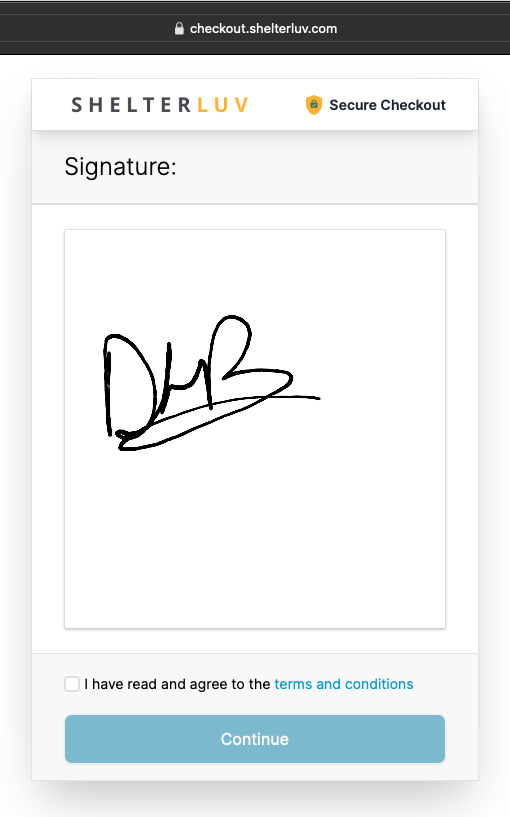
A web site uses a signature page that requires One Finger Drag to perform a click and drag action, but other pages on the site require One Finger Drag to perform the scroll action. To ensure the signature page works as expected, the URL is added to the Browsers group. The UI element inherits the standard set of gestures and actions, which can be adjusted as required:
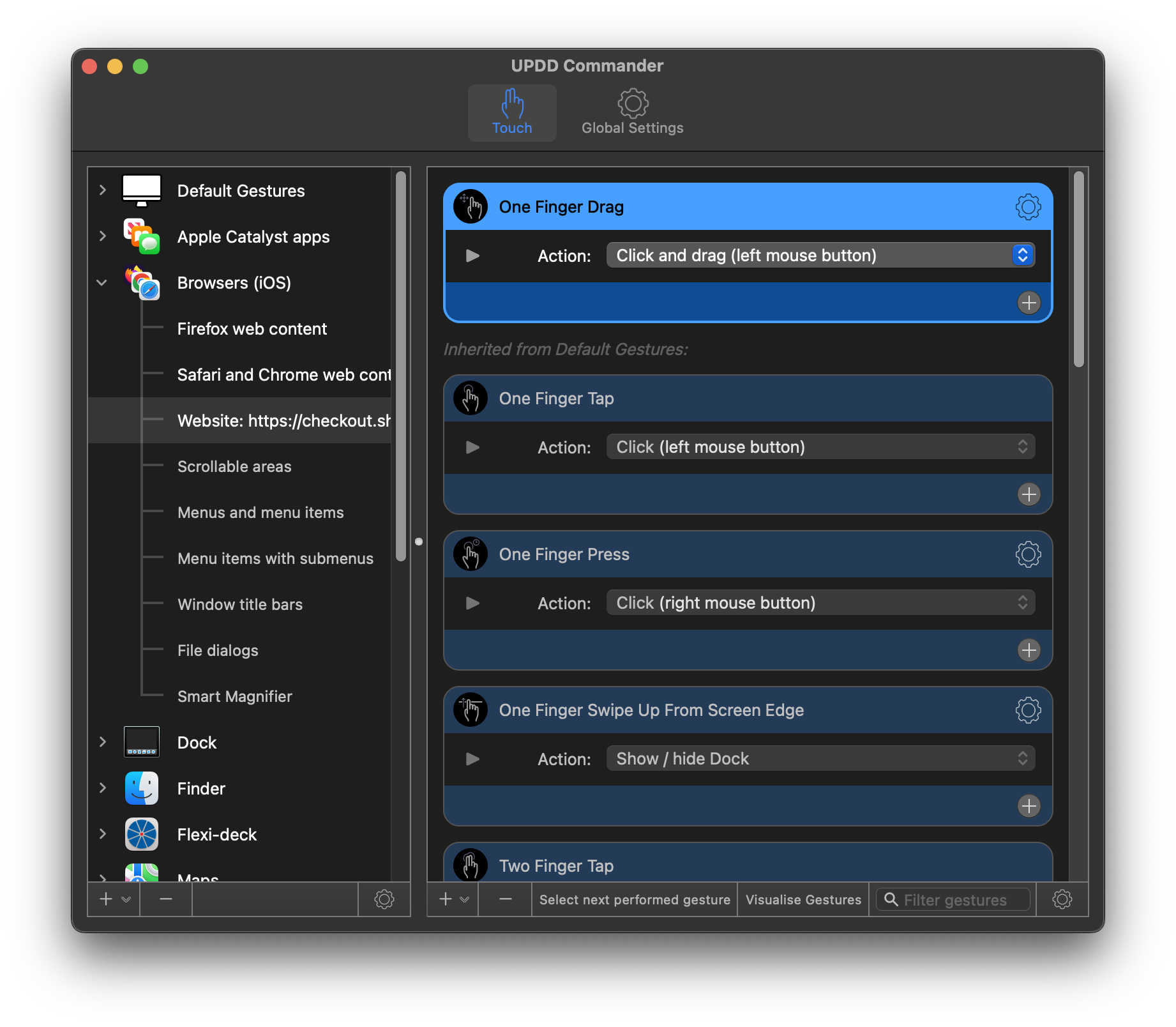
allowing the signature to be entered via touch:
Firefox UI element detection
At the time of writing (January 2025) Firefox has a bug that prevents UPDD Commander from detecting its UI elements during a gesture. The bug applies when the following conditions are met:
- The touch screen being used is not the main display of the system
- The touch screen is not a high DPI display
- The main display is a high DPI (Retina) display
These three conditions are likely to apply when a touch screen is used as an external monitor on a Mac, especially an iMac or MacBook, so in that case Firefox is not suitable where gestures need to be customised depending on which of its UI elements are being gestured over. Safari, Chrome or another Chrome-based browser are better suited for gesture use.
Disabling UI element detection
There are two reasons you may need to disable UI element detection:
- If different gesture sets apply to the listed application UI elements, say Scrollable areas, but you want the same gesture set at the application level to apply to all elements, you can disable UI element detection so that Commander does not try to determine the UI element under the gesture. Typically at the application level One Finger Drag is set to Click and drag, but within a scrollable area it is set to Scroll.
- UI element detection introduces gesture latency. In some applications the Accessibility API stalls if the application does not respond with a list of UI elements, and times out after 250 ms. This causes latency with touches within the application, and UI element detection has to be disabled in the application or group settings:
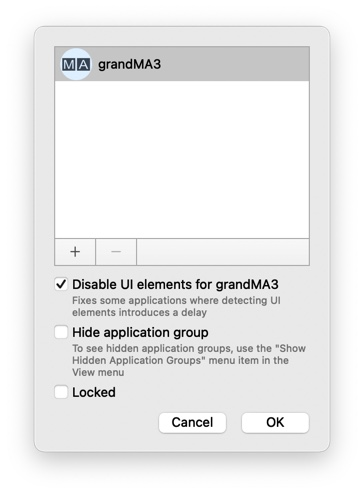
You can disable UI element detection for listed or unlisted applications. "Disable UI element detection for unlisted applications" is available in the settings for Default Gestures and affects applications that are not in the application list, to which the Default Gestures gestures apply. "Disable UI element detection for [application]" only applies to that application.
Since UPDD Commander 1.4.1, disabling UI element detection for an application or group also prevents the "click nearest" feature from being used within it, since that makes even heavier use of the Accessibility API, as described in Clickable UI element (click nearest). The effect on latency is described in Touch delay and latency in Commander.
For review
Windows UI elements: 50739 said Windows has "no support for application UI elements". In released 1.15.0 Windows offers "Add Special UI Element" with the Smart Magnifier and the four window corners (QtGestureMethodConfigurator.cpp:509-523, TBGestureContext.cpp:498-509, corner radius 50 in UIElementMatching.cpp:154), and the Windows default preset mentions "resizing windows from corners". Please confirm the corner radius is in pixels as written.
Special UI elements "Window title bars" and "File Dialogs" and the Notes field were added from 1.15.0 source (TBGestureContext.cpp:513-522, QtUIElementDialog.ui); the original articles did not describe them, and the descriptions given are from their names only.
The Firefox bug note (50887) is dated January 2025 and was not re-tested. Dashboard was removed from the list of slow applications in the kb-important box because the Dashboard action no longer exists in macOS 10.15 and later (change history 1.9.8).
The Browsers group and the per-browser split are owned by the Browsers topic; only the scroll-area example screenshot from 50593 is kept here.