Registering UPDD
The UPDD driver is licensed software. An unlicensed driver runs in evaluation mode, which comes with certain restrictions until it is licensed by a registration process. This document describes the ways to register UPDD 6 and UPDD 7: from the UPDD Daemon menu, from the command line, offline, with a registration key for pre-licensed software, and with the UPDD Licence tool for older drivers.
Registering UPDD contacts our licensing service at license.touch-base.com. If the system is behind a firewall or proxy, see Registration problems.
Which method to use
How you register a licence key depends only on the version of UPDD installed on the machine.
| Version of UPDD installed | What to do |
| 7.1.228 or later | Register the key as you normally would, from the UPDD Daemon menu or the command line. The driver talks to the licensing service itself. |
| Anything earlier, including all UPDD 6 releases | Use the UPDD Licence tool to register the machine. |
Finding your UPDD version
Run upddutils version from a command prompt or terminal. It prints the installed version, for example 07.01.228; versions are printed zero-padded, so 07.01.228 is 7.1.228. The command is in the UPDD installation folder:
| Platform | Command |
| Windows | "C:\Program Files\UPDD\upddutils.exe" version |
| macOS | "/Library/Application Support/UPDD/upddutils" version |
| Linux | /opt/updd/upddutils version |
Registering from the UPDD Daemon menu
For unlicensed drivers that include the UPDD Daemon menu, use its Register option. The UPDD Daemon icon is found in the macOS menu bar or the Windows/Linux system tray.
| Windows | macOS |
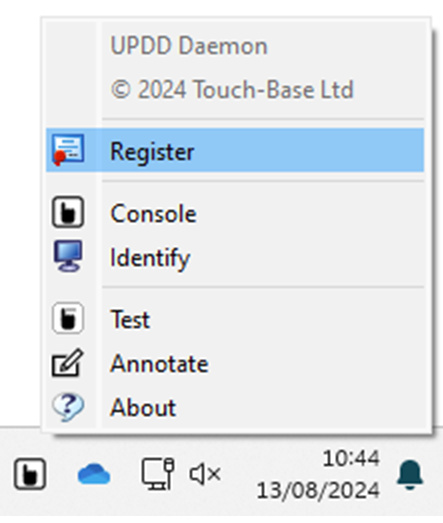 | 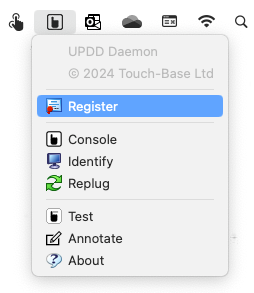 |
'Register' is not shown if the driver is licensed because:
- you have been supplied a full production, pre-licensed version of the driver;
- the supplied driver has automatically claimed a pre-allocated licence from our licence server; or
- the driver has previously been licensed on the system.
The software is pre-configured to use one of two registration methods: the standard method, which uses a licence key, or the specialised registration key method.
With a licence key
- Open the UPDD Daemon icon: the menu bar icon on macOS, the system tray icon on Windows.
- Select Register, then Enter a licence key.
- Paste in your licence key and click OK:
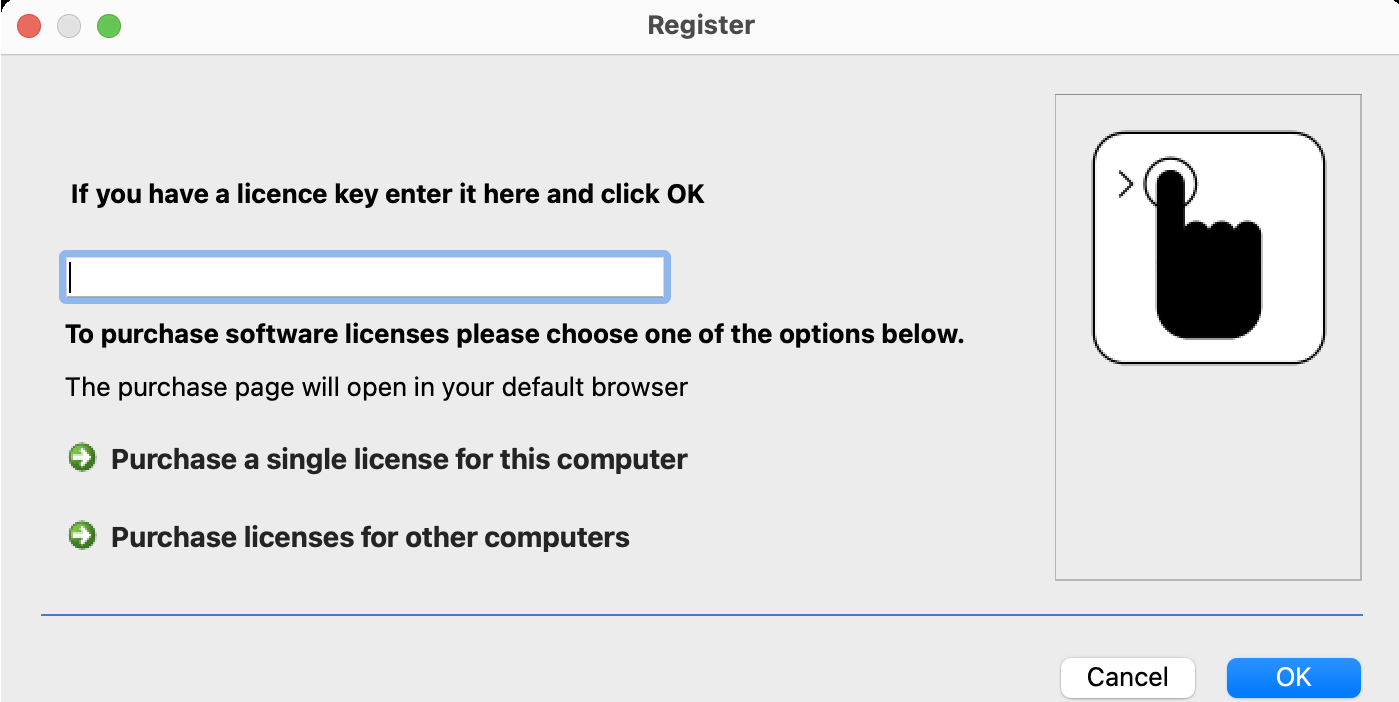
The driver contacts the licensing service and registers the machine. If the system is offline, follow the offline instructions.
Purchasing a licence
If you do not have a licence key you can use one of the purchase options in the Register dialog ('Purchase a single license for this computer' or 'Purchase licenses for other computers') to purchase one. This opens our purchase page in your browser.
Older versions of the driver use an order dialog instead:
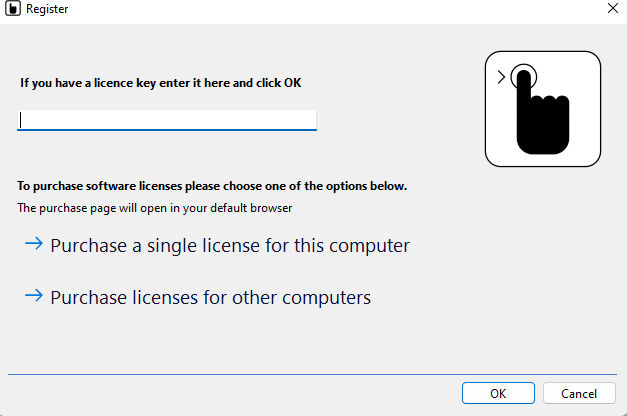
or send an email with a link to the online purchase page:
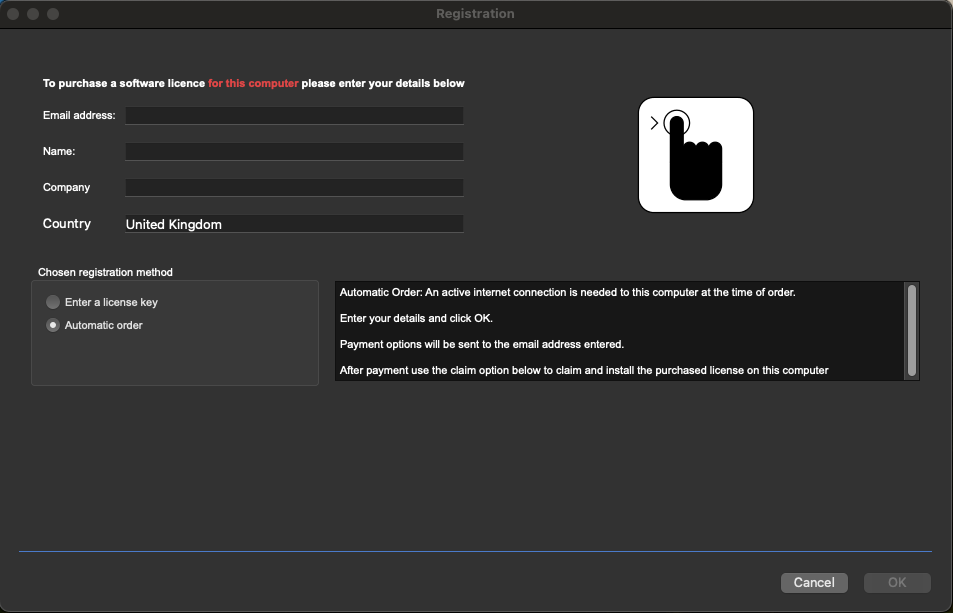
Enter your email address, name and company (if appropriate) and select OK to start the purchase process with the licensing server. Once contact has been established with the licence server you are notified thus:
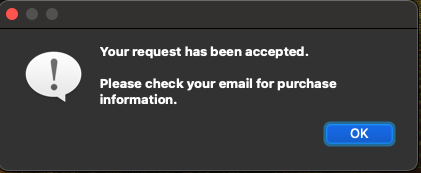
You will then be contacted by email regarding payment options. Once payment has been made a licence key is associated with your system. It is retrieved automatically the next time the UPDD Daemon starts, or if you select Register again. Once the licence key is installed the Register option is removed.
Claiming a licence
Some driver builds are associated with pre-allocated licences held in our licence server (see Licensing). The software can be set to claim one of these licences automatically, in which case the Claim option is not seen, or to claim one manually. Manual claim allows the unregistered driver to be installed on test and demo systems that do not need to be licensed, without using up a licence.
The Claim option is only shown for software builds configured to claim a waiting licence manually. Use it to claim a purchased or pre-allocated licence when required:
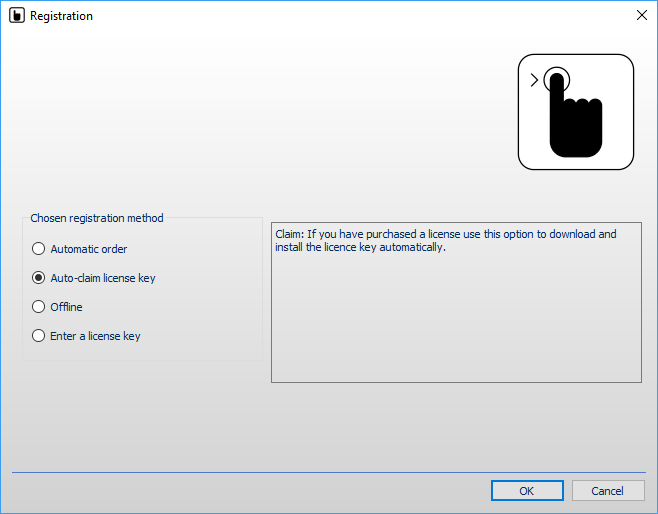
This automatically claims and installs the licence:
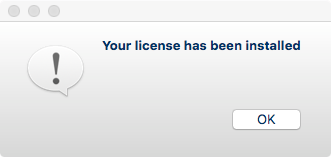
For review
HELD WORDING (seat claim). "Purchasing a licence" (from 50396, unlisted) and "Claiming a licence" (from 50397 and 50321, unlisted/live) describe the UPDD 6 licence server's order and claim flows. Under the July 2026 service the claim is matched only by the computer's identity (portal LicensingV2Controller.php:62-80), and the 7.1 daemon claims at start-up only within 30 days of installation and not after a local unregister (daemon/main.cpp:218-257, from 2026-10-12). Please confirm whether an order placed from the old dialog, or a pre-allocated 'waiting' licence, is still retrieved by claim; if not, these two sections should be cut to the purchase-page sentence. The order-dialog screenshots are UPDD 6 era.
Registering from the command line
If the UPDD Daemon menu is not available, such as on Linux or with a driver configured not to show it, register with upddutils. It works the same way on Windows and macOS if you prefer the command line. In macOS use a Terminal window; on Windows run it from the UPDD installation folder.
| Platform | Command |
| Windows | "C:\Program Files\UPDD\upddutils.exe" register licence <key> |
| macOS | "/Library/Application Support/UPDD/upddutils" register licence <key> |
| Linux | /opt/updd/upddutils register licence <key> |
On success it reports License registered ok! (the American spelling license is also accepted). For example:
/opt/updd/upddutils register licence UPDD-XXXXX-XXXXX-XXXXX-XXXXX

There are four forms of the register command:
| Command | Use |
upddutils register licence <key> | Register with a licence key. The system must be online: the licence server is contacted, the key marked as activated and applied to the software. |
upddutils register claim | Claim a licence that is waiting for this software. The system must be online. |
upddutils register licence <code> | Enter a registration (response) code obtained for an offline system from a separate online system; see Offline registration. A registration code contains dots; a licence key never does. |
upddutils register key <key> | Pre-licensed software only: see Registration key method.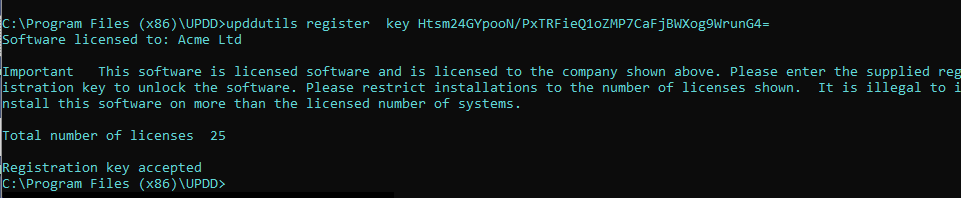 |
Offline registration
Use this method to register a system that is not connected to the internet. You use an online system through which to register the offline system.
- In the UPDD Daemon menu select Register and enter your licence key.
- When UPDD cannot reach the licensing service it says so and shows either a web address or a request code beginning
TBOFF1. If the computer should have internet access, check its firewall or proxy first (see Registration problems). - On any computer with internet access, open that address, or go to https://license.touch-base.com/licence/offline and paste the request code, then click Get response code.
- Enter the response code back into UPDD on the original computer (or with
upddutils register licence <code>).
Drivers older than 7.1.228 register offline with the UPDD Licence tool, which has its own offline mode.
Registration key method for pre-licensed software
This registration method is only available to specialist, pre-licensed versions of the software. The software is pre-configured to use it, and an internet connection is not required. For this software a master registration key is issued, which typically looks something like this: 'Pb1JCVXD+ILBNgYgaWDZjySBS0y4G7eLx4DbcNcddbZ='.
The following dialog is used to enter the registration key. It may show additional information, such as, in this example, the number of licences associated with the key:
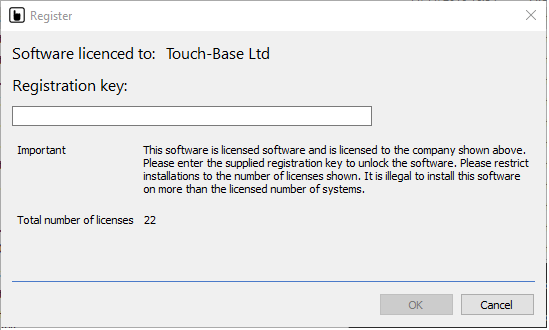
Enter the supplied registration key. If it is the expected key you are informed that the software is now registered:
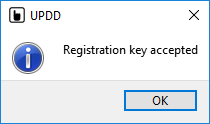
An error dialog is shown if the key is rejected.
Alternatively, you can register the key from the command line with upddutils register key <registration key>. This is useful where the UPDD Daemon system tray or menu bar icon is not available, such as on some Linux systems, or is configured not to be shown.
Older versions: the UPDD Licence tool
UPDD versions earlier than 7.1.228, including all UPDD 6 releases, cannot register themselves against the July 2026 licensing service. They can still run, but they cannot complete a registration on their own. For those machines we provide a small separate program, the UPDD Licence tool. It performs the registration on the machine's behalf; it does not stay installed, and it does not replace or upgrade your UPDD installation.
Do not type a new-format key into an older copy of UPDD. Older versions do not recognise the new key format and will reject it, typically with a message such as "That licence code was not recognised." Nothing is wrong with your key: that version simply cannot use it, and no request reaches our licensing service. Use the UPDD Licence tool instead.
1. Download the tool
Downloads for all platforms are on the tool page: https://portal.touch-base.com/licence/tool
On Windows, choose the edition by your UPDD version, not by your version of Windows.
| Platform | Edition | Notes |
| macOS | Intel and Apple silicon | Signed and notarised disk image |
| Windows | 64-bit, for UPDD 7 and later | Installer for UPDD 7 and later |
| Windows | 32-bit, for UPDD 6 | Installer for UPDD 6 (version 06.00.xxx) on any Windows, including 64-bit Windows |
| Linux | 64-bit | Command-line tool |
2. Register the machine
Windows and macOS: run the tool with UPDD installed and running, enter your licence key when prompted, and choose Register. It confirms when the machine has been registered.
Linux: unpack the download and run:
./upddlicence register UPDD-XXXXX-XXXXX-XXXXX-XXXXX
The tool's commands are register <key>, unregister <key>, claim and status. To check the current state at any time:
./upddlicence status
When UPDD is running the licence is written straight into it. When it is not, the code is printed for entry by hand. The tool is for new or replacement machines, and for freeing licences from a script.
3. Restart UPDD if touch does not resume
If the machine does not pick up the licence immediately, restart the UPDD service or reboot the machine.
Licence tool on a machine with no internet connection
The tool also supports offline registration for machines that cannot reach our licensing service. Run it on the offline machine to obtain a request code, complete the exchange from any machine that does have internet access, and enter the resulting code back into the tool. The full offline steps are shown by the tool itself.
For review
HELD WORDING (seat re-claim). 50399 says "A reinstall on the same computer needs none of this, because the daemon reclaims the licence at start-up." It is left out of the body. For a 7.1.228+ driver it holds (a reinstall has a fresh settings database, and the service re-binds a seat this computer released itself: daemon/main.cpp:218-222, portal LicensingV2Controller.php:69-80); for a driver older than 7.1.228 the daemon cannot claim against the new service at all, which is when the tool is used. Please decide the wording. Other changes: the static download address download.touch-base.com/downloads/upddlicence/Latest/upddlicence-x64.zip (50399) is replaced by the tool page; the misplaced Mac screenshot in the Windows column of 50321 (DaemonMenuMac3..png) was dropped; the Daemon menu and Register dialog screenshots should be checked against 7.1.