UPDD Daemon (tray and menu bar)
The driver uses a background, or daemon, process, UPDD Daemon, to undertake a number of driver related functions in the user's session. This document describes how UPDD Daemon is started, its menu, what it does, its command line options and the notifications it issues, for UPDD 7 (and UPDD 6) on Windows, macOS and Linux.
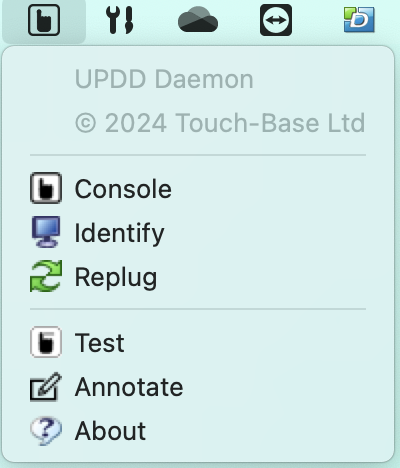
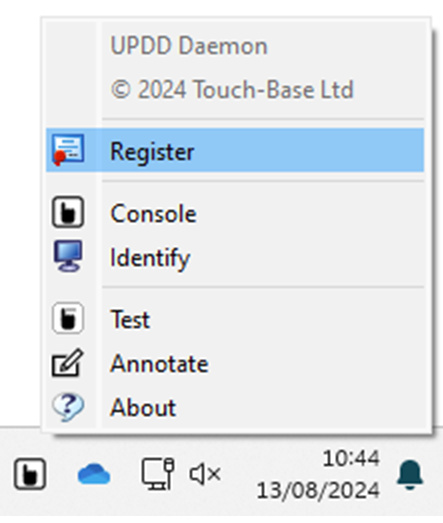
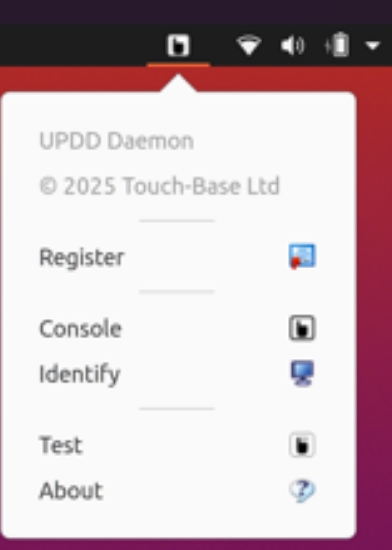
When the daemon process is running, its icon is seen in the macOS menu bar or the Windows / Linux system tray:
| macOS | Windows | Linux |
 |  |  |
Starting UPDD Daemon
The UPDD installer sets up a start-up method for the daemon process, based on the operating system, such that it is loaded on system start.
| OS | Start-up method |
| Windows | The UPDD installer launches UPDD Daemon at the completion of the installation. Thereafter, on system start the program is run automatically by a registry entry: UPDD V7: HKEY_LOCAL_MACHINE\SOFTWARE\Microsoft\Windows\CurrentVersion\Run\updd-daemon UPDD V6: HKEY_LOCAL_MACHINE\SOFTWARE\WOW6432Node\Microsoft\Windows\CurrentVersion\Run\updd-daemon |
| Linux | Immediately after the UPDD install, UPDD Daemon is launched with the command /opt/updd/upddenv /opt/updd/UPDD\ Daemon & by the install script running as root. Thereafter XDG Autostart or GDM start-up is used to start the daemon at system start-up, as defined in the Linux installation script. |
| macOS | UPDD Daemon is launched as an always-on per-user agent using launchd (/Library/LaunchAgents/com.touch-base.updddaemon.plist). |
In some locked down touch systems it may be desirable to run only the driver process and not have UPDD Daemon launched at start-up, in which case you will need to remove the daemon process from the start-up routine:
| OS | Daemon start-up removal |
| Windows | Delete the registry entry listed above for your UPDD version. |
| macOS | Run the command upddprocesses stop -asudo rm /Library/LaunchAgents/com.touch-base.updddaemon.plist |
| Linux | Edit the file /opt/updd/updd_clients.sh if it exists and remove the line: /opt/updd/UPDD Daemon & Edit the file /etc/gdm/Xsession if it exists and remove the line: /opt/updd/UPDD Daemon & You will need to be root to edit either of these files. |
In most cases it is important that this process is running. If it is not running the UPDD Console shows this warning:
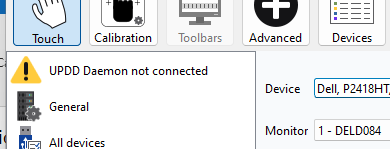
The warning can be suppressed with the global setting console.no_daemon_check on systems configured not to run UPDD Daemon. If UPDD Daemon should be running but is not, see macOS: Accessibility, Input Monitoring and background items (macOS) or Touch not working: first steps.
Daemon menu
The icon is a visual indicator that the daemon process is running and shows if there are potential issues with touch. An exclamation mark in the icon indicates there is a problem. Hovering the cursor over the icon reveals the reason, either:
- there is a failure to connect to the driver
- there are no connected devices, or
- when using a non-registered (evaluation) version of the driver, the evaluation touch count or period has expired and therefore touch will not be working.
The menu holds these options:
| Option | Description |
| Register | Only shown for non-registered versions of the driver; allows licence registration. |
| Console | Invokes the UPDD Console. |
| Identify | Used to associate a touch screen with its host monitor in a multi-monitor environment. |
| Replug | macOS only. Performs the equivalent of a hardware unplug / replug. |
| Setup Monitors | Windows only. Runs the monitor setup procedure. Shown on systems with two or more monitors when monitor_setup_mode is set to manual, or when the last automatic monitor setup did not complete. |
| Test | Invokes the UPDD Test utility. Only shown if the Test utility is installed. |
| Annotate | Invokes the UPDD Annotate utility. Only shown if the Annotate utility is installed. |
| About | Shows the UPDD driver version installed and the licence information. Evaluation indicates this is an unregistered, evaluation version of the driver.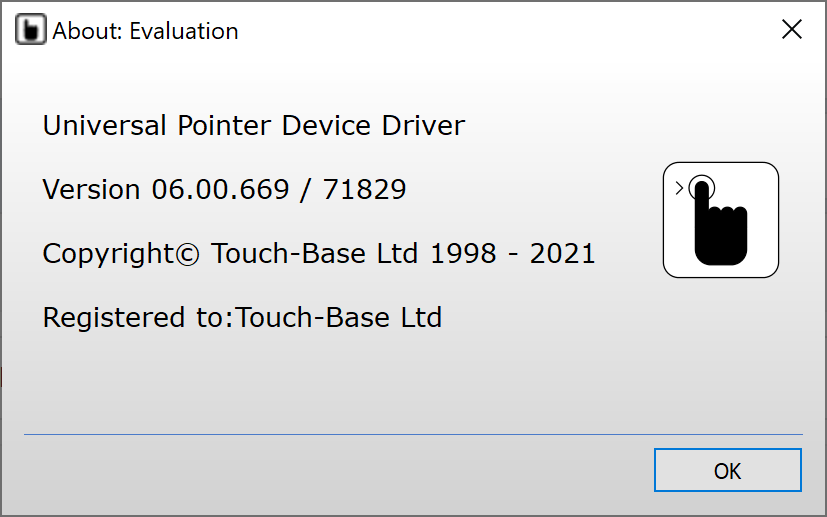 |
In some OEM installations the menu is used only to offer licence registration, in which case only the Register option is available and the icon is removed once the driver has been registered. This is controlled by the global setting systemtray_icon_registration_only.
The settings hide_systemtray_icon and systemtray_icon_registration_only dictate whether the icon is shown; if defined, both must be 0 for the icon to be seen.
Some Linux distributions do not show the icon in the notification area (see Linux: what is installed, start-up and processes). In this case the command line options can be used to invoke the daemon functions.
What the daemon does
As well as the menu and the notifications, the daemon process handles the following functions:
| Function | Description |
| Right click visualisation | Draws the right click visual feedback during the count down when using interactive touch. |
| Monitor metrics changes | Sets the initial monitor metrics and looks for changes in video resolution, rotation and monitor layout that may affect the UPDD configuration and touch screen calibration. Rotation adjustments are made automatically. Other changes may require Identify to be run, which happens automatically on the next touch if the autoconfigure setting is on; otherwise Identify needs to be invoked manually. In Windows a message is received when the monitor metrics change, so any subsequent UPDD action occurs almost instantly. On macOS and Linux a timer looks for these changes, so there may be a short delay before the change takes effect. |
| Monitor identification procedure | Windows. Associates the UPDD virtual HID devices with the Windows monitor layout; see Multi-monitor on Windows. |
| Unified pointer injection | Windows. When use_input_injection is set, UPDD Daemon delivers touch and pen to Windows; see Unified pointer injection. |
| Single touch interface | macOS. The single touch (mouse) interface only works for processes running under the logged in account. Given the driver process runs under the root account, this interface is implemented in the daemon process. |
| Anchor mouse | Monitors the system pointer position and returns it to its previous position after a touch; see Cursor, anchor mouse and sound. |
| Sounds | Generates sounds on touch down and touch up; see Cursor, anchor mouse and sound. |
| Linux X permission | In a Linux environment UPDD Daemon executes the command xhost with the value of the setting xhost.enable. This grants permission to processes already having root privileges on the local system to access the X session in which UPDD Daemon is running, which is required to allow the driver to post touch data on the X interface. In a secure environment the setting can be changed to define an alternate policy. See Linux touch delivery: uinput and X. |
Command line options
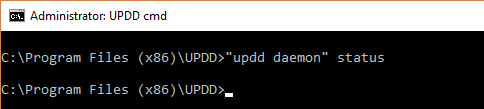
Where the system tray menu is not available, for example because the icon has been disabled or is not shown in some Linux distributions, a number of options can be passed to UPDD Daemon in a command window to show its dialogs: status, register, history, supported, icon or about. These options are case insensitive.
In the Linux example below the status screen is shown:
./upddenv ./UPDD\ Daemon [parameter]
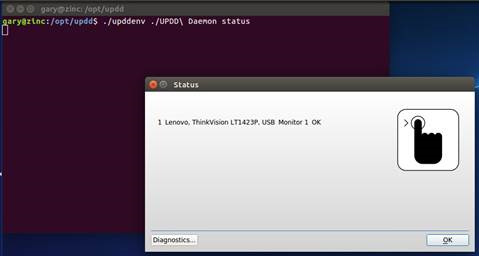
Here is the same command on macOS:
/Library/Application\ Support/UPDD/UPDD\ Daemon.app/Contents/MacOS/UPDD\ Daemon [parameter]

And Windows:
The icon option runs UPDD Daemon as an application: it shows a UPDD driver icon in the top left corner of the screen that mimics the standard system tray icon and menu. This is a basic implementation; it only supports left click, only supports the menu and menu options (no notifications) and has a fixed position.
Adding a daemon dialog to the Windows Start menu
You may wish to add one of the daemon dialogs to the Windows Start menu. In Windows 10 (other Windows releases are similar):
- Navigate to the UPDD folder in Explorer.
- Right-click UPDD Daemon and click Pin to Start.
- Right-click the UPDD Daemon entry in the Start menu, click More, then Open file location (you can rename the shortcut at this point if required).
- Right-click the UPDD Daemon shortcut and click Properties.
- Add the word status (or one of the other options above) to the end of the Target field.
- Click OK.
Notifications
The driver issues notifications during the operation of the software. They are handled by UPDD Daemon and mimic the standard system notification format for the OS, such as this notification issued on a Mac:

Notifications fall into three categories:
| Category | Description |
| General | General status messages, e.g. device connect / disconnect |
| Warning | Used to inform when user intervention might be needed for a configuration setting, e.g. Identify or a reboot required |
| Critical | Informs when evaluation limits are exceeded or there is a critical issue blocking the operation of the driver |
The notifications issued by UPDD 7.1 are:
| Notification | Description |
| <device> connected | A UPDD device has been discovered. |
| <device> disconnected | A UPDD device has been disconnected. |
| Setting up monitors; please don't use touch or mouse | Windows. The driver is setting up the monitor metrics in a multi-monitor setup (see Multi-monitor on Windows). |
| Monitor setup complete Monitor setup failed | Windows. The multi-monitor setup has finished, or could not be completed. |
| Please run Identify, click here for more information | The touch / desktop association may be incorrect (see Identify notification). |
| Change of OS version, UPDD update may be required. | The operating system has been updated, which could adversely affect touch functionality. |
| No mouse interface; reboot may be required | Windows. The mouse interface (tbupddsu) connection cannot be opened. |
| No touch interface; reboot may be required | Windows. The touch interface (upddvh) connection cannot be opened. This may be the result of a missing TabletInputService. The tablet component is deemed to exist if the registry branch HKLM\SYSTEM\CurrentControlSet\services\TabletInputService exists. If it does not, you may need to enable it in the system. |
| No devices connected | Issued by UPDD Calibrate if no devices are found. |
| Failed to connect to USB device Failed to connect to USB device, a reboot may be required | The driver could not open a supported USB touch device. |
| UPDD has been denied access to the device | The operating system has refused the driver access to the touch device. |
| A touch device has malfunctioned (not responding) | A touch device has stopped responding; see macOS: device not responding. |
| Failed to activate the UPDD System Extension. Failed to deactivate the UPDD System Extension The UPDD system extension must be activated A reboot is required to complete the UPDD System Extension activation Restart to finish removing the previous UPDD System Extension | macOS. Issued while the UPDD driver extension is being approved, activated or replaced; see macOS: allowing the UPDD driver extension. |
| Unable to register KEXT, click here for more information | macOS, packages using a kernel extension. The UPDD kernel extension (kext) cannot be loaded. |
| Config error no hidrd | Error reading the touch configuration data (HID report descriptor) from a HID touch device. |
| Evaluation: 20 touches remain until restart needed | Warning that the evaluation touch limit is nearly reached. |
| nnn touch limit expired; reboot to continue | The evaluation touch limit has been reached; touch resumes after a restart. See Licensing. |
| The evaluation period has expired | The evaluation time limit has been reached. |
| Licence support expired on <date> | The support period of the licence has ended. See Licensing. |
| The driver license does not support your connected monitor(s) | The licence is restricted to particular monitors and none of them is connected. |
| The UPDD licence has been released from this computer. Click here to register it again at my.touch-base.com | The licence was released from this computer; see Releasing and moving a licence. |
| The UPDD licence could not be verified since <date> The UPDD licence must be verified online by <date> | The driver needs to reach the licence service. Connect the computer to the internet, or click the notification to contact us. |
Some notifications need to be acknowledged before they are removed from the screen. Those carrying the text 'click here for more information' show additional support information once acknowledged; if the system is online your default browser is invoked to show the relevant support page.
Disabling notifications
General and warning notifications can be disabled if required using the global setting minimum_notify_level, in the UPDD Console, Advanced, Settings tab or with the command
upddutils nodevice set minimum_notify_level n
where n = 1 issues warning and critical notifications only, and 2 critical only. Any other value implies 0 - all notifications are issued. Evaluation and critical notifications cannot be disabled.
For review
Windows Run key: 50300 gave the WOW6432Node key. The UPDD 7 preinstall is 64-bit and writes the native key (07_01 preinstall/main.cpp:405-413); confirmed on a 7.1.235 install, where HKLM\SOFTWARE\Microsoft\Windows\CurrentVersion\Run\updd-daemon holds "C:\Program Files\updd\UPDD Daemon.exe". The WOW6432Node key is kept for UPDD 6 on the strength of the original article.
Notifications: the table is rebuilt from 07_01 daemon/notifydialog.cpp:205-239, which replaces several strings of 50493 ("Identifying monitors…" is now "Setting up monitors…", "Monitor identification complete" is now "Monitor setup complete"; "Monitor assignment requires a reboot", "The package license has expired" and "License check failed" no longer exist). The descriptions of the entries added from source are drafted from the message text and need a check, in particular the licence entries (held wording) and "The driver license does not support your connected monitor(s)". The "Big Sur UPDD installation requires a reboot" message is left out.
Linux X permission: the settings file defines xhost.enable as SI:localhost:root, while the code fallback is SI:localuser:root (daemon/mymainwindow.cpp:342-346); the page therefore names the setting rather than the value. Please confirm which is run on Linux.
Left out as no longer true: the Kext registration row (UPDD 7 macOS packages use a driver extension), "From Mountain Lion onwards", "from 6.0.271", the "settings" and "toolbars" daemon options (not accepted: daemon/main.cpp:375-416), the "UPDD Settings" Start menu screenshot and "This may be developed further".