Running Commander
When UPDD Commander is running its icon, if enabled, is shown in the macOS menu bar  or the Windows system tray. This indicates the process is active and ready to process touch events.
This document describes the menu bar / system tray menu, the settings window and its menus, importing and exporting settings, restarting and quitting Commander and the Commander command line interface. It applies to UPDD Commander on macOS and Windows; where they differ it is stated.
Menu bar and system tray menu
| macOS menu bar | Windows system tray |
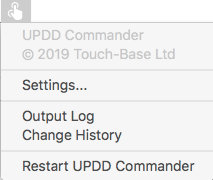 | 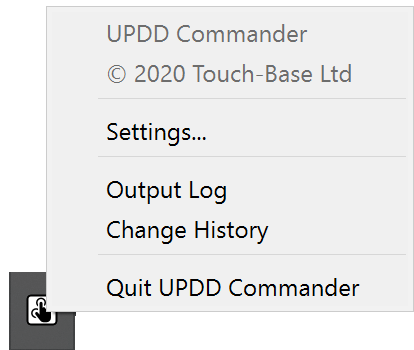 |
| Menu item | Description |
| Settings... | Opens the settings window, used to configure the Commander functions and settings. |
| Output Log | Shows output from the Commander daemon process that can be useful in analysing issues that may arise, as described in Diagnosing gesture selection. |
| Change History | Lists the Commander development history. The change log is also shown on our web site. |
| Restart UPDD Commander / Quit UPDD Commander | Restarts Commander when it is running as a daemon (the normal case); when it is not, Quit UPDD Commander is shown instead. |
On Windows a left click on the system tray icon also opens the menu.
Opening the settings window without the icon
If the menu bar / system tray icon has been disabled you can open the settings window by invoking the UPDD Commander program from the UPDD application folder (/Library/Application Support/UPDD on macOS, or the shortcut in Applications/Utilities; C:\Program Files\UPDD on Windows with UPDD V7). This opens the settings window of the Commander that is already running as a daemon process.
On macOS, double-clicking UPDD Commander's Finder icon opens the settings window unless global setting upddcommander.applicationsettings.disable_finder_icon_opens_settings is set to 1.
Settings window
The settings window is the main user dialog used to configure the Commander functions. It has two sections, selected from the toolbar at the top of the window:
| Section | Description |
| Gestures | Relates to the processing of the touch events (tap, press, gestures) performed on the touch device: the application list and the gestures and actions defined for each application. Named "Touch" before UPDD Commander 1.9.6. |
| Settings | Commander global settings, described in Commander settings reference. Named "Global Settings" before UPDD Commander 1.9.6. |
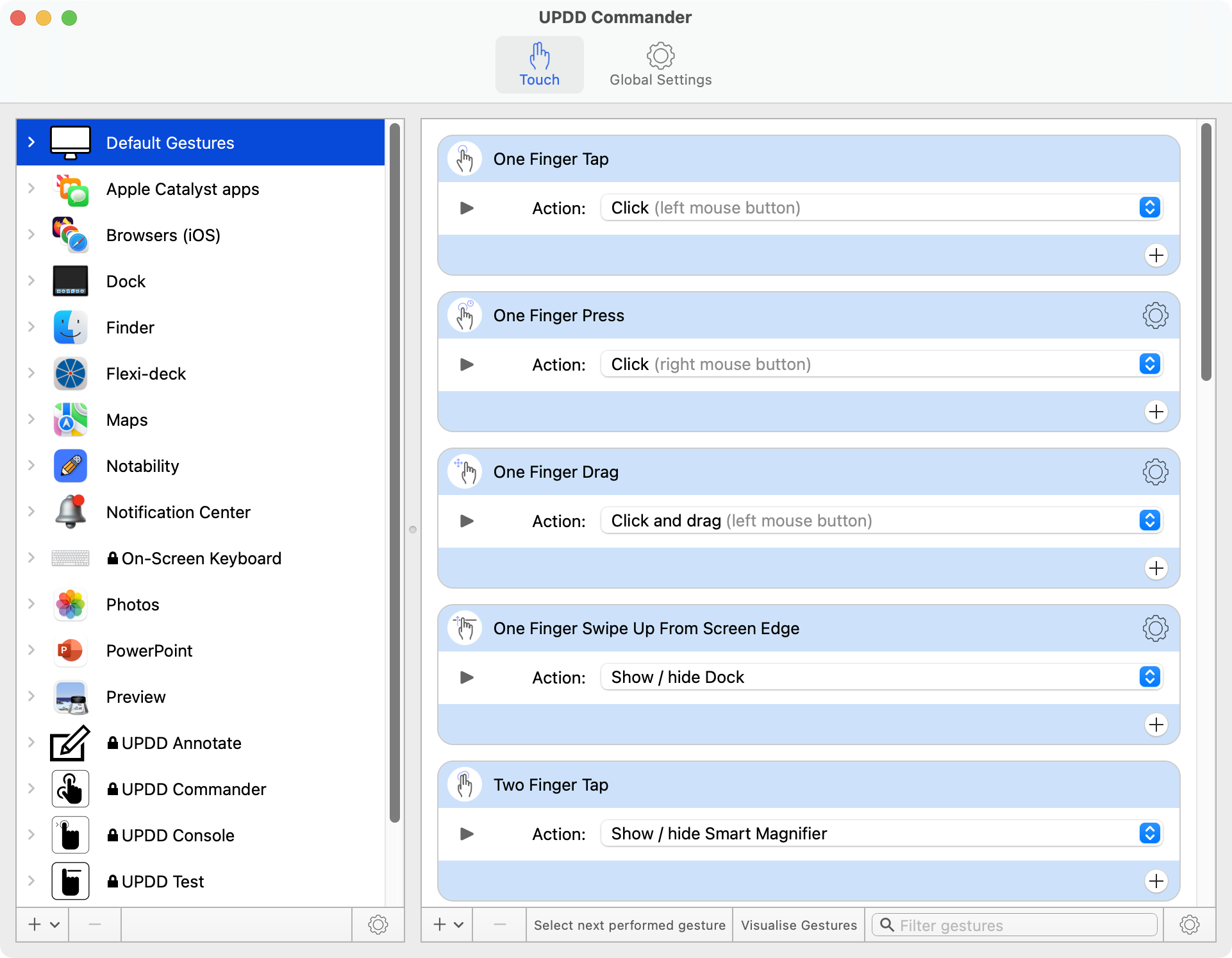
The application, gesture and action settings are stored in a persistent file that is retained over a reinstallation of the software, as described in Commander settings reference.
File, Edit and View menus
When the Commander settings window is active and focused on the desktop the UPDD Commander menus are shown:
| macOS |  |
| Windows | 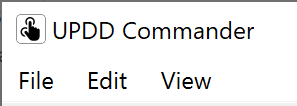 |
| Menu | Item | Description |
| UPDD Commander (macOS) | Hide UPDD Commander | Hides the settings window. |
| File | Export All Settings... | Exports all Commander settings to a .ucexp file. |
| Export All Touch Gestures... | Exports all gesture related settings to a single .ucexp file. Only enabled when the Gestures section is selected. See the note on exporting to presets below. | |
| Export Application... | Exports an application's (or application group's) gesture settings to a .ucapp file. Only enabled when an application or group is selected in the application list. | |
| Import Settings... | Imports Commander settings from a .ucexp file. | |
| Import Application Settings... | Imports an application or application group from a .ucapp file. If the application is already in the list you are asked whether to replace its existing gestures. | |
| Reset All Touch Gestures to Defaults... | Resets the application list and the gestures and actions to the defaults (as set at initial installation on a clean system). Existing application, gesture and action changes are replaced. The reset can be undone with Edit > Undo. | |
| Restore Gestures to Backup | Lists the backups of the gesture settings that Commander creates automatically when it upgrades its settings to a newer format, for example after an update of Commander, and restores the one selected. The restore can be undone. | |
| Edit | Undo / Redo | Undoes or redoes the most recent change. |
| Cut / Copy / Paste / Clear | Cut, copy, paste or clear the selected gesture. | |
| View | Show Inherited Gestures | Shows the inherited gestures within an application or group of applications. |
| Show Hidden Application Groups | Lists applications marked as hidden. | |
| Show Output Log / Show Change History | Opens the same windows as the menu bar / system tray menu. |
Importing and exporting settings
Internal UPDD Commander settings are held in the user preferences folder. The import and export options in the File menu save the referenced settings in files: .ucapp for applications and .ucexp for Commander and gesture related settings. Should there be a need to programmatically import exported settings, UPDD Commander can be invoked with the command line option --import path/to/file.ucexp.
When importing settings from a .ucexp file, if the applications do not exist on the host system the application icon will be missing and replaced with a generic application icon.
Export All Touch Gestures stores all settings in one settings file and Export Application stores an application's settings in one application file. Should it be desirable to export all currently defined applications to their individual application files (.ucapp) in one request, hold down the Option (macOS) / Alt (Windows) key when selecting the File menu and "Export All Touch Gestures..." is replaced with "Export All Touch Gestures To Presets...". How preset files are used is described in Presets.
Restarting, quitting and starting at system start
Commander normally runs as a daemon (background) process. In this case the menu shows "Restart UPDD Commander": Commander quits and is started again. When Commander has been started as a normal application rather than as the daemon, the menu shows "Quit UPDD Commander" instead.
The Commander daemon process can be stopped, started or removed from system start-up as described for macOS and Windows. On Windows the "Run UPDD Commander at startup" setting on the General tab of the Settings section controls whether Commander starts when the user signs in.
Command line interface
Commander has a command line interface to perform various functions as follows:
Command format (macOS): "/Library/Application Support/UPDD/UPDD Commander.app/Contents/MacOS/UPDD Commander" [Parameter]
e.g. "/Library/Application Support/UPDD/UPDD Commander.app/Contents/MacOS/UPDD Commander" -i /path/to/settings.ucexp
Command format (Windows, UPDD V7): "C:\Program Files\UPDD\UPDD Commander.exe" [Parameter]
| Parameter | Function | Description |
-i, --import <file path> | Import | Imports previously exported application / UPDD Commander / gesture settings from a .ucexp file. |
-m, --magnifier <amount [shape] [size]> | Magnifier | Toggles UPDD Commander's Smart Magnifier window. Takes up to three arguments separated by a space or comma:
|
-a, --adjust-magnification <amount> | Magnifier | Adjusts the magnification of UPDD Commander's magnifier window by the specified percentage. Can be positive to increase magnification or negative to decrease magnification, e.g. -25, 100% |
-v, --version | Displays UPDD Commander version information. | |
-h, --help | Displays the list of parameters. |
The import and magnifier parameters are passed to the copy of Commander that is already running.
Start-up problems on macOS
If UPDD Commander on macOS keeps relaunching and popping up its settings window, or will not load at all, see UPDD Commander keeps relaunching and UPDD Commander will not load in Commander on macOS: permissions and start-up problems.
For review
Screenshot "functions.PNG" (function strip showing Touch / Toolbars / Hotkeys / Settings) was dropped: Toolbars and Hotkeys are hidden and Touch is now Gestures (QtSettingsWindow.ui:181-229, change-history 1.9.6). The main window screenshot (Settings Dialog2.png) is kept but shows the pre-1.9.6 labels "Touch" and "Global Settings"; a new one is needed.
Added from released Commander 1.15.0 source and not in the old articles: the Windows command path (07_01 inno/updd.iss and install/win32/devicescan.cpp use "UPDD Commander.exe" in the install folder), the -h option, Edit menu items, View > Show Output Log / Show Change History, Restore Gestures to Backup, and "the reset can be undone" (QtSettingsWindow.cpp:897-900, which contradicts the old warning that changes "will be lost").
"Commander keeps relaunching" and "Commander will not load" (50776, 50881) are replaced by this topic, but their text is kept once, in commander-macos-problems (the macOS troubleshooting topic, which adds the Accessibility check); the "Start-up problems on macOS" section here links to it.