macOS: allowing the UPDD driver extension
To get access to a USB touch device, some UPDD drivers for macOS install a 'codeless' system extension. It contains no program code: it tells macOS which USB devices the driver handles, so that no other driver, including macOS's own HID driver, takes the device first.
For security reasons macOS blocks a new system extension until you allow it by hand. Until it is allowed the driver cannot get to the touch device, and touch does not work.
This document describes which UPDD drivers install an extension, how to allow it on each macOS version, how to check whether it has loaded, the errors that can occur and how to approve the extension on Macs managed by Mobile Device Management (MDM). It covers UPDD 6 and UPDD 7 on macOS 10.15 and above. The privacy permissions UPDD also needs (Accessibility and so on) are a separate subject: see macOS: Accessibility, Input Monitoring and background items.
Which drivers use an extension
Whether a driver installs an extension depends on the driver version and on the touch devices in the package:
| Driver | Extension |
| UPDD 6 from 6.0.698, and UPDD 7 below 7.1.230 (macOS 10.15 and above) | A system extension, UPDD System Extension, installed in /Applications/Utilities. It must be allowed by hand. |
| UPDD 7.1.230 and above, package for HID touch screens only | None. The driver reads the device alongside macOS through the native HID interface, so there is nothing to allow. 'dext not loaded', or 0 extension(s) from systemextensionsctl list, is normal. |
| UPDD 7.1.230 and above, package that includes a USB (non-HID) device | A system extension that names only the USB (non-HID) devices. It must be allowed by hand. |
Earlier UPDD 6 drivers, and UPDD 6 on macOS 10.14 and below, use a codeless kernel extension (kext) for the same purpose. It is allowed in the same place as the system extension on macOS 10.13 to 12 (see below).
Allowing the extension
When the driver is installed, macOS reports that the extension has been blocked. On macOS 14, when installing over a previous installation, an additional prompt is shown first:
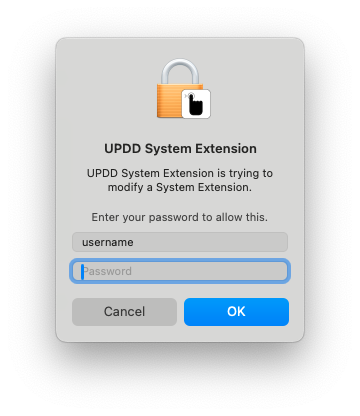
| macOS 15 and above | macOS 13 and 14 | macOS 10.13 - 12 |
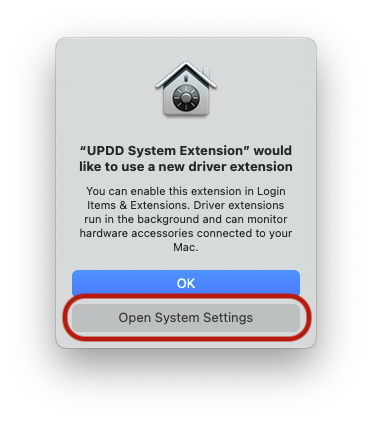 | 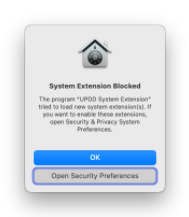 | 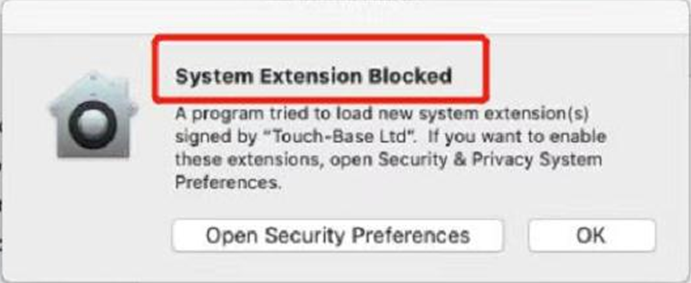 |
Select the 'Open ...' option to go to the place where the extension is allowed:
| macOS | Where to allow the extension |
| 10.13 - 12 | System Preferences > Security & Privacy > General. Click the padlock to make changes and select Allow. |
| 13 and 14 | System Settings > Privacy & Security, in the Security section: select Allow. |
| 15 and above | System Settings > General > Login Items & Extensions. Scroll to Extensions, click the Info button next to Driver Extensions, turn on the UPDD extension, authenticate and click Done. |
| macOS 10.13 - 12 | macOS 13 and 14 |
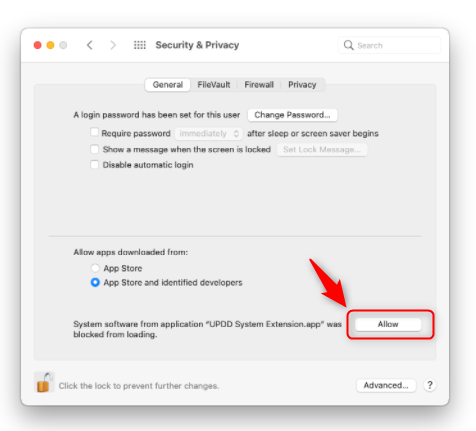 | 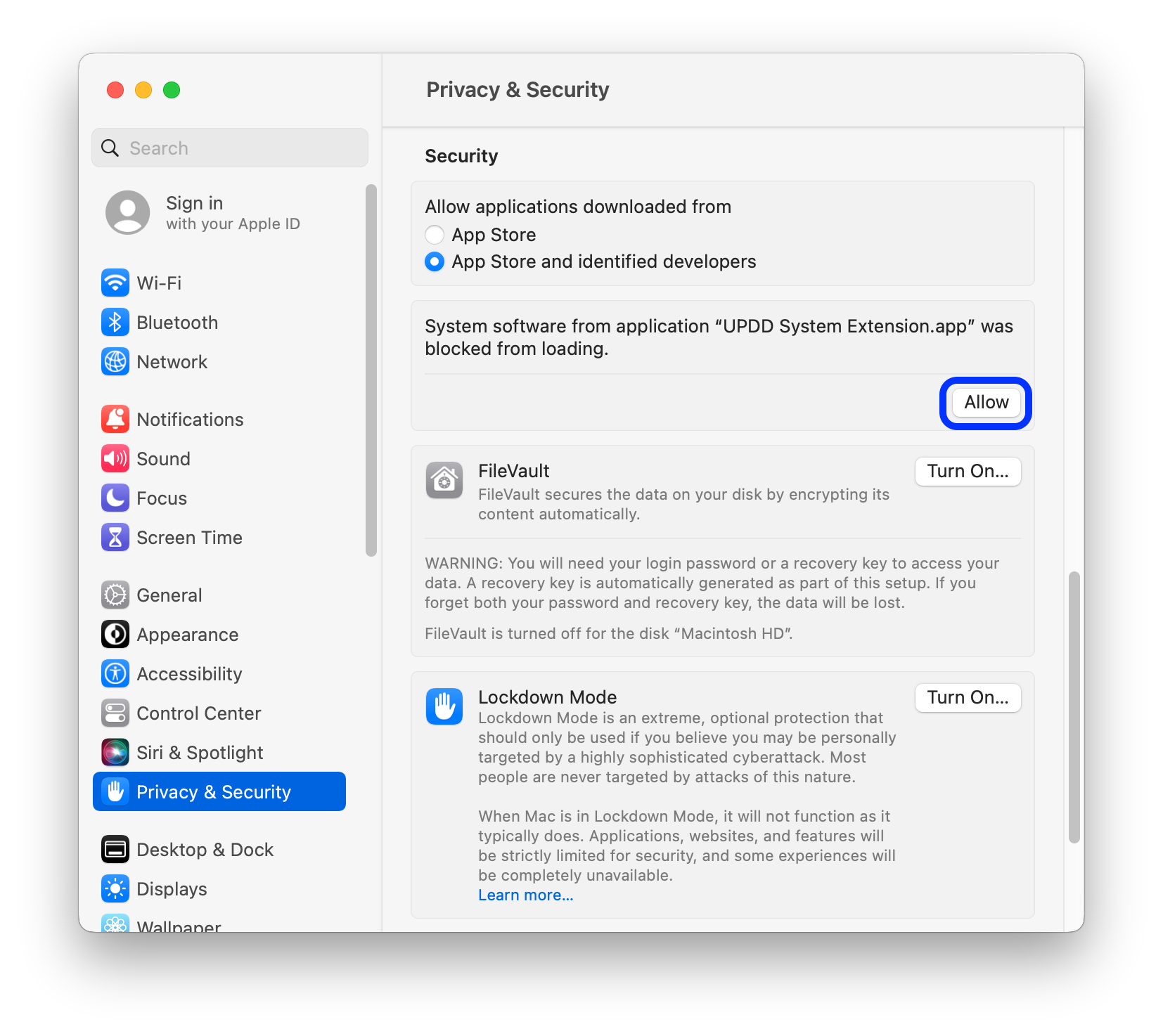 |
| macOS 15 and above | macOS 15 and above: opening the Driver Extensions dialog yourself |
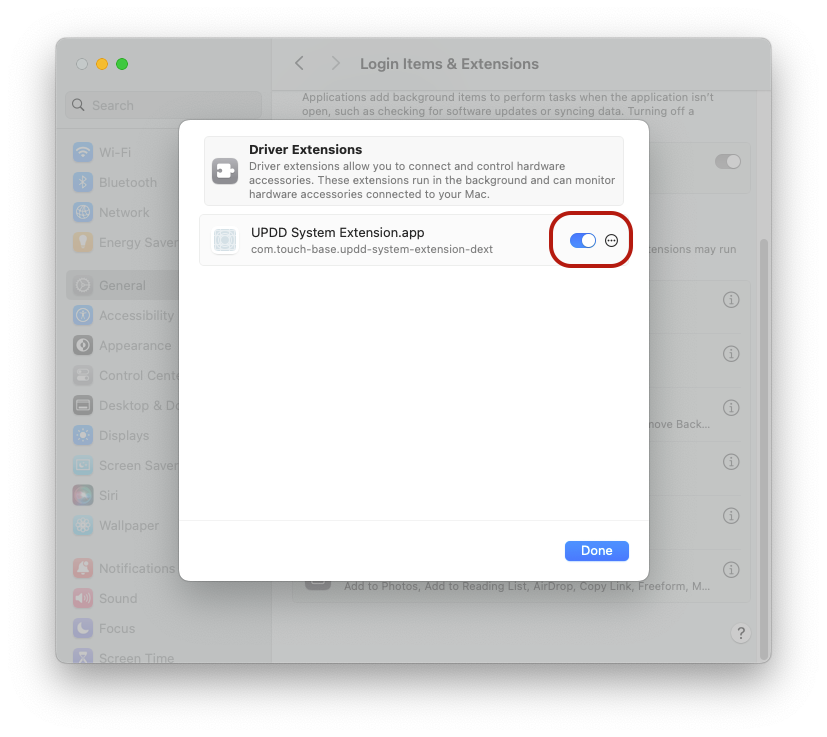 | 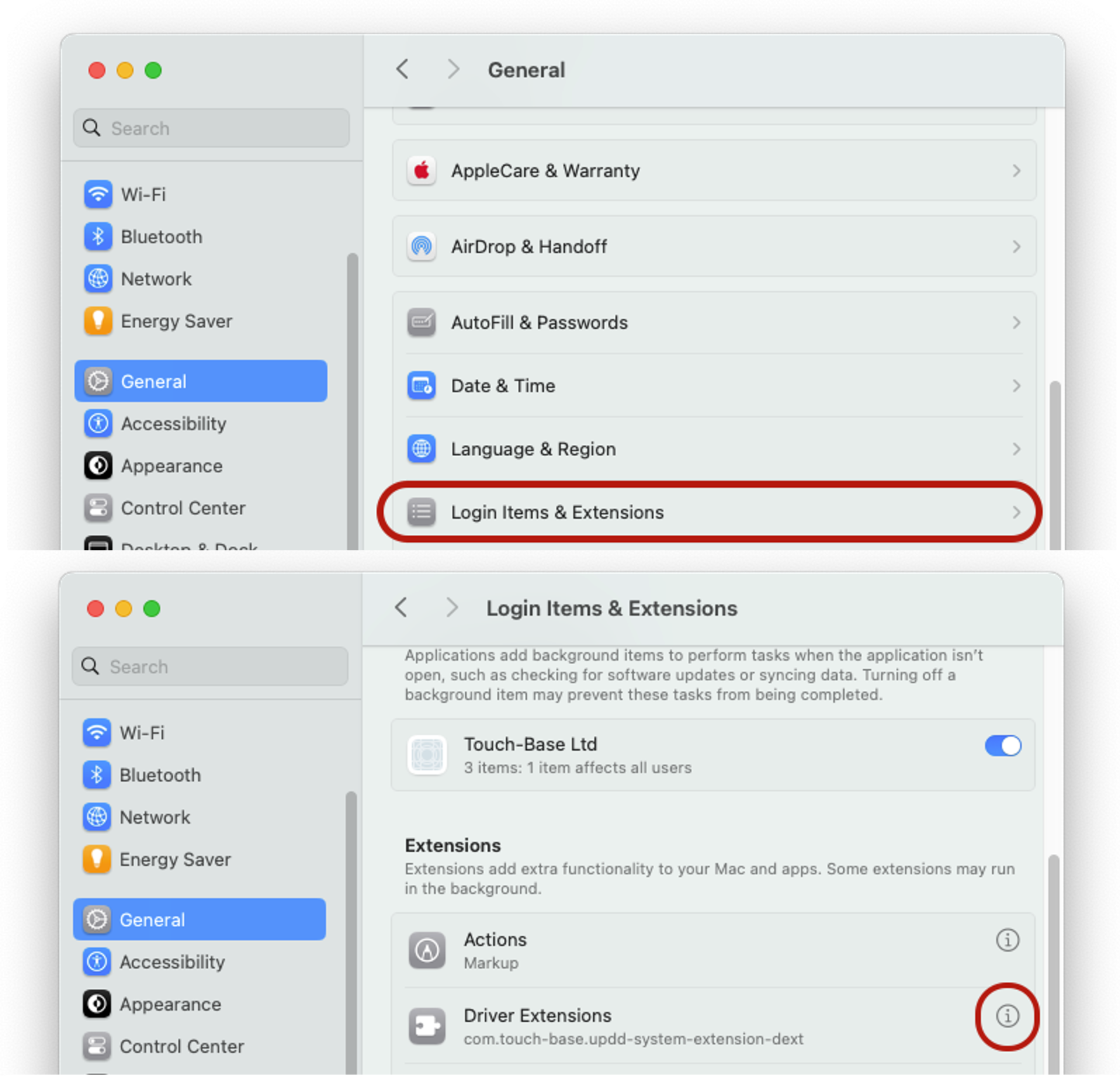 |
Installing over an earlier installation
If you install on top of an existing UPDD installation the prompts above may not be shown, because the extension was allowed before. This does not always give the driver access to the USB device, and you may see the notification 'Failed to connect to USB device'. In this case uninstall the software, restart the Mac and install again, until the prompt is shown.
Allowing is not Accessibility
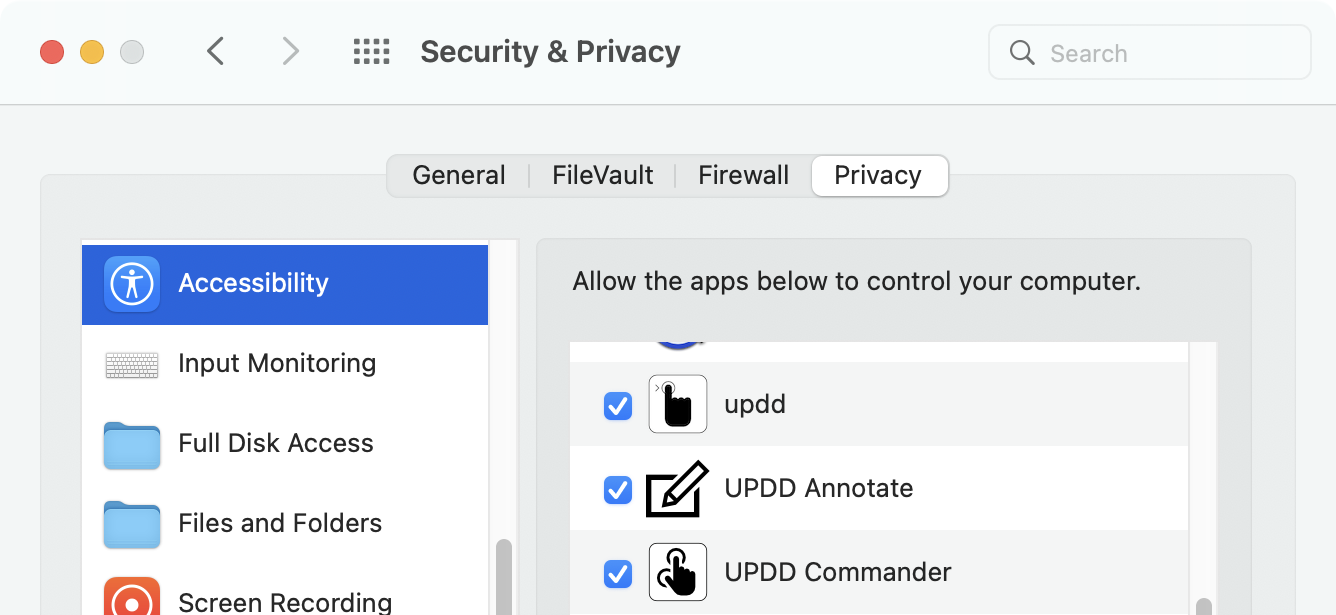
Allowing the extension is not the same as giving UPDD permission in the Accessibility list of Privacy & Security. Both may be needed; the permissions are described in macOS: Accessibility, Input Monitoring and background items.
Driver notifications
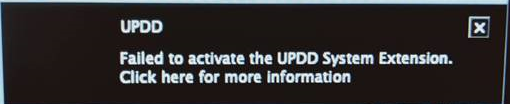
The UPDD Daemon checks whether the extension has been allowed (activated) and, unless notifications are disabled, shows a notification if it has not:
| Notification | Meaning |
| The UPDD system extension must be activated | The extension has not been allowed. Allow it as described above. |
| A reboot is required to complete the UPDD System Extension activation | The extension has been allowed; macOS completes the activation at the next restart. |
| Failed to activate the UPDD System Extension. A reboot may be required | The activation request failed. Restart the Mac; if the notification returns, see Checking the extension. |
| Failed to activate (or deactivate) the UPDD System Extension. Click here for more information | The activation or deactivation request returned an error. See Checking the extension. |
| Failed to connect to USB device (a reboot may be required) | The driver could not open the device. See Installing over an earlier installation and Another driver holds the device. |
| UPDD has been denied access to the device | See Another driver holds the device. |
| Big Sur UPDD installation requires a reboot | First installation on macOS 11: restart the Mac. |
| Restart to finish removing the previous UPDD System Extension - until then it still holds your touch device | See Removing an older extension. |
Checking the extension
To see the system extensions that have been activated, or are waiting to be activated or removed, run this command in a terminal window:
systemextensionsctl list
The UPDD extension is listed as com.touch-base.updd-system-extension-dext, with its state, for example [activated enabled], [activated waiting for user] or [terminated waiting to uninstall on reboot].
When touch is not working we will ask you to take a UPDD diagnostics package. It records the state of the extension in three places (see What is in a diagnostics package):
- A non-zero extension status in report.txt shows that the extension has not loaded:
private.dext.status: 1 - The log file 'system extension.log' shows the result of the activation request (examples below).
- updd.log shows that access to the device has been denied, for example:
UPDD V6: 2021/08/02-20:07:31: TRC: USB warning: (claiming interface) for bus:0001-usbix:0005Access denied (insufficient permissions)
UPDD V7 below 7.1.230: 2022/09/23-12:17:49: ERR: Unable to open interface: exclusive access and device already open(IOReturn = 0xe00002c5)
If the extension has not been activated the driver waits until it is; if the old kernel extension (UPDD 6) is not loaded, the driver still tries to access the device and fails with 'Access denied'. Apart from permission not being given, we do not know why an extension fails to load.
The extension has not been allowed
If the extension has not been allowed, the system extension log shows:
2021-06-09 13:04:56 +0000 - UPDD System Extension application has started
2021-06-09 13:04:56 +0000 - Activating DriverKit extension...
2021-06-09 13:04:56 +0000 - ...submitted activation request
2021-06-09 13:04:56 +0000 - Request needs user approval...
Once allowed, it shows:
2021-10-10 15:54:36 +0000 - UPDD System Extension application has started
2021-10-10 15:54:36 +0000 - Activating DriverKit extension...
2021-10-10 15:54:36 +0000 - ...submitted activation request
2021-10-10 15:54:36 +0000 - Request successfully completed with result: 0
Allowed, but still waiting for approval
A number of users have reported that they allowed the extension, so that the Allow option is no longer shown, and yet the system extension log still reports '... needs user approval' as above.
We do not know why this happens. Restart the Mac, or uninstall UPDD (Utilities > UPDD Uninstall), restart and install again. In most cases this resolves it, although it can take more than one restart.
Allowed, but an error occurs
In this situation the log often shows the System Extension header text:
2021-10-10 15:51:59 +0000 - ----------------------------------------------------
2021-10-10 15:51:59 +0000 - UPDD System Extension application has started
2021-10-10 15:51:59 +0000 - Activating DriverKit extension...
2021-10-10 15:51:59 +0000 - ...submitted activation request
normally followed by one of these:
| Log entry | Meaning |
| Indicating to system that it should replace existing System Extension... Request failed with error code: 1 An error occurred: The operation couldn't be completed. (OSSystemExtensionErrorDomain error 1.) | Unknown error. Restart the Mac and check again. |
| Indicating to system that it should replace existing System Extension... Request successfully completed with result: 1 | A restart is required to let the extension load. |
| Request failed with error code: 10 An error occurred: The operation couldn't be completed. (OSSystemExtensionErrorDomain error 10.) | The installation is 'forbidden by system policy': an MDM profile is installed that disallows unknown system extensions. Add the UPDD extension to the approved list. |
| Request failed with error code: 13 | 'Authorization required': the user cancelled the authorisation dialog that appears when the extension is deactivated. Users who see this have always managed to get the extension to load at a later attempt. |
Error codes
The error codes, as defined by Apple, are:
| Code | Name |
| 1 | OSSystemExtensionErrorUnknown |
| 2 | OSSystemExtensionErrorMissingEntitlement |
| 3 | OSSystemExtensionErrorUnsupportedParentBundleLocation |
| 4 | OSSystemExtensionErrorExtensionNotFound |
| 5 | OSSystemExtensionErrorExtensionMissingIdentifier |
| 6 | OSSystemExtensionErrorDuplicateExtensionIdentifer |
| 7 | OSSystemExtensionErrorUnknownExtensionCategory |
| 8 | OSSystemExtensionErrorCodeSignatureInvalid |
| 9 | OSSystemExtensionErrorValidationFailed |
| 10 | OSSystemExtensionErrorForbiddenBySystemPolicy |
| 11 | OSSystemExtensionErrorRequestCanceled |
| 12 | OSSystemExtensionErrorRequestSuperseded |
| 13 | OSSystemExtensionErrorAuthorizationRequired |
More details regarding these codes are here.
Another driver holds the device
With UPDD 7 below 7.1.230, updd.log can show:
2022/09/23-12:17:49: ERR: Unable to open interface: exclusive access and device already open(IOReturn = 0xe00002c5)
This can be caused in two ways: either the extension has not been activated (see above), or another driver has taken control of the device. The main cause of the second is that the macOS HID driver takes control of the device although the UPDD driver is registered as the principal driver for it. It occurs at random and intermittently, even on systems that have been working perfectly: over a restart, when the device is plugged in or during an operating system upgrade.
Drivers from 7.1.230 read the device alongside macOS using the native HID interface, so this error does not arise. The fix is to install the current driver for your touch screen from your My Touch-base download link. We do not recommend uninstalling and reinstalling, repeated restarts or reinstalling macOS for this error.
Activating and deactivating the extension by hand
Once the extension has been given permission to load, it can be activated and deactivated from a terminal window.
To activate the system extension:
/Applications/Utilities/UPDD\ System\ Extension.app/Contents/MacOS/UPDD\ System\ Extension activate
To deactivate the system extension:
/Applications/Utilities/UPDD\ System\ Extension.app/Contents/MacOS/UPDD\ System\ Extension deactivate
There are two ways of dealing with spaces in file names and paths in terminal commands: either put the entire path in quotes, or precede every space with a backslash as above.
Resetting the system extension database
If all else fails, resetting the system extension database with the command systemextensionsctl reset may resolve the issue. It requires System Integrity Protection to be turned off while the command is run.
- Start up from macOS Recovery. Determine whether you are using a Mac with Apple silicon, then:
Apple silicon: turn on your Mac and continue to press and hold the power button until you see the startup options window. Click the gear icon labelled Options, then click Continue.
Intel processor: make sure that your Mac has a connection to the internet. Then turn on your Mac and immediately press and hold Command (⌘)-R until you see an Apple logo or other image.
If you are asked to select a user you know the password for, select the user, click Next, then enter their administrator password. - In Recovery, choose Utilities > Terminal.
- In the terminal window enter:
csrutil disable - Restart the Mac.
- Once restarted, open Terminal and enter:
systemextensionsctl reset - Enter your administrator password when prompted.
- Restart into macOS Recovery again.
- In Recovery, choose Utilities > Terminal.
- In the terminal window enter:
csrutil enable - Restart normally.
We are not aware of any issues with resetting the system extension database, but this procedure is undertaken at your own risk. Always turn System Integrity Protection back on (step 9).
Removing an older extension
When a driver that needs no extension is installed over one that installed an extension, the installer stops the driver and asks macOS to remove the old extension. macOS completes the removal only at the next restart: until then systemextensionsctl list shows the old extension as [terminated waiting to uninstall on reboot], and it still holds the touch devices it was built for, so those devices do not work.
If a connected touch device is held in this way the driver shows the notification 'Restart to finish removing the previous UPDD System Extension - until then it still holds your touch device'. Restart the Mac. No restart is needed when the old extension never covered the connected device.
If the old extension cannot be removed during the installation, a restart may be needed before the devices are seen.
Managed Macs and MDM
Mobile Device Management (MDM) is commonly used to administer end-user computers and on macOS can restrict the acceptance of system extensions. When a system policy blocks the UPDD extension, the system extension log (and the output of the activate command above) shows:
2022-03-22 20:33:52.473 UPDD System Extension[1642:19421] Request failed with error code: 10
2022-03-22 20:33:52.476 UPDD System Extension[1642:19421] An error occurred: The operation couldn't be completed. (OSSystemExtensionErrorDomain error 10.)
Error 10 means that the system policy prohibits activating the system extension. The unified log also confirms that loading the extension has been denied:
2021-01-04 13:23:59.863 Df sysextd[231:b19c7] Extension with teamID teamID("<redacted>"), identifier <redacted> is not in the list of allowed extensions.
2021-01-04 13:23:59.863 Df sysextd[231:b19c7] Activation decision for extension with teamID teamID("<redacted>"), identifier <redacted> is Deny
To allow it, add the UPDD system extension to the approved list in the MDM System Extensions configuration:
Team Identifier: U86H28HG4S
Bundle Identifier: com.touch-base.updd-system-extension-dext

Once the Touch-Base Team Identifier is approved, the extension can load and you can use MDM to distribute and install the UPDD package to all of your Macs. The privacy permissions (Accessibility and Screen Recording) can be pre-approved with a PPPC profile, as described in macOS permissions.
Installing from the command line
The UPDD .pkg installer can be run from the command line, which also allows the driver to be rolled out to many Macs at once with Apple's system administration tools:
sudo installer -pkg /path/to/UPDD.pkg -target /
Where the download holds the installer as an application, the package is inside it, at UPDD_nn_nn_nnn.app/Contents/Resources/UPDD.pkg.
A package installed this way, with no one at the Mac, cannot get the extension allowed: approve the Team Identifier in MDM first, as above.
For review
- Driver Extensions sheet (macOS 15+): the row label inside the sheet is not confirmed (the host app's name is 'UPDD System Extension'); the text says 'turn on the UPDD extension'. The second macOS 15 screenshot (AccessPermissionsM.png) was captioned 'to invoke the macOS 15 Driver Extension dialog manually' in 50751; check it still shows that.
- 'Removing an older extension' describes the installer teardown and the 'Restart to finish removing' notification (07_01 commits 8f632ad1 and eed968f9, 2026-08-16; install/osx/loadjobs.cpp, daemon/notifydialog.cpp:234). Which released 7.1 build first carries them? Add the version to the text.
- 'Installing from the command line' comes from 50143, which named the V6 file (UPDD_06_xx_xx.app). Confirm the layout of a current V7 .dmg (the .pkg directly, or inside an 'Install UPDD' app) and the path to UPDD.pkg.
- The start of the system extension is given as 6.0.698 (50751 and 50245 agree); 50760 said 6.0.485 (review E4).
- The kext screenshots for macOS 10.13 - 12 are kept for UPDD 6 and for UPDD 7 below 7.1.230 on macOS 10.14 - 12; drop them if those combinations are no longer supported.