Hardware interfaces: USB, HID and I2C
UPDD supports USB touch devices, both HID compatible and legacy (non-HID), RS232 serial devices and, on Windows, I2C devices. This document describes how the driver connects to each interface in UPDD 6 and UPDD 7, how USB devices are found by the driver (USB enumeration) and the command line options that list the devices the driver can see.
Serial devices are described in Serial (RS232) devices.
HID compatible USB devices
If a device is HID compatible the driver will read all the necessary configuration data from the device's HID Report Descriptor (HIDRD). All being well the device should just work and be calibrated based on the X and Y range defined in the HIDRD. In rare cases the co-ordinate range has been incorrect and therefore manual calibration has been required after install.
Further, some HID devices determine they are plugged into a non-Windows system and set up the HIDRD to be a 'mouse' device with single stylus data, albeit the device is capable of running in multi-touch mode. In these cases we can embed the multi-touch HIDRD (as extracted from the device when plugged into a Windows system) in the driver for the specific device, so that the HIDRD is not read from the device. This reverts the device back to multi-touch operation in non-Windows systems.
The driver also supports multiple devices on the same USB vendor and product id but with different end points. This is mainly used when a touch device utilises both a touch screen and a pen with the same USB vendor and product id.
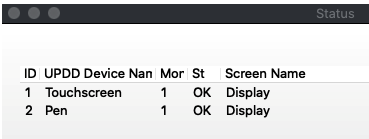
In this case a driver is configured for a single USB device but the software will list two separate devices, as in this example for a Wacom device supporting both touch and pen. This allows the driver to cater for separate device co-ordinate ranges.
Non-HID (legacy) USB devices
For old USB devices that are not HID compatible, hence no HID Report Descriptor exists in the device, we can manually set up the individual configuration settings based on the USB data packets generated from the device.
How UPDD 7 connects to USB devices
In UPDD 7 the way the driver reaches a device depends on the operating system and on whether the device is HID compatible:
| Platform | HID devices (USB and I2C) | Non-HID (legacy) USB devices |
| Windows | The UPDD HID filter driver (device setting device_class = hid). The device's own HID entries remain in the Device Manager. | A UPDD device entry, listed under UPDD Devices in the Device Manager. |
| macOS | From UPDD 7.1.230 the driver reads HID devices through macOS's own HID services; a driver package that only supports HID devices does not install a system extension. | The UPDD system extension, which must be approved: see macOS: allowing the UPDD driver extension. |
| Linux | libusb | libusb |
USB interface architecture in UPDD 6
For standardisation purposes across all supported platforms the UPDD 6 driver utilises a user mode 3rd party library, libusb, to interface with USB devices. This library will in turn interface with the system's low level USB services, as in this Windows example:

libusb is available under Windows as a kernel mode component, libusb-k, which we have experimented with but found no material difference, so all UPDD 6 platform implementations utilise the user mode version.
For review
The UPDD 7 table above is drawn from the driver source: updd/win32/upddhidreader.cpp and upddusbreader.cpp (Windows), updd/macos/machidreader.cpp (macOS native HID reader, added 2024-09) and updd/updd.pro:259 (Linux links libusb-1.0). The Windows build also links libusb-1.0.lib (updd/updd.vcxproj), so please confirm whether libusb still has a role on Windows or macOS in UPDD 7. The original article's sentence "Under Windows we also have an experimental alternative USB interface for use in very specialised cases" has been left out as it names nothing a reader can use.
I2C devices
Windows touch screens tend to be connected via USB or I2C interfaces. I2C hardware is more prevalent on Windows notebooks; a rough estimate is a 50/50 split between USB and I2C. Mac hardware does not use I2C and therefore macOS does not natively support this interface.
Windows
UPDD release 7.1.16 and above supports I2C devices in Windows 10/11.
With I2C being HID compatible the Windows HID driver natively supports the I2C touch device, so UPDD is only required if there is some functionality needed that is not supported by HID, typically to post data into the OS via the mouse port interface (mouse emulation) that will allow old Windows applications, expecting mouse type operation, to fully function.
macOS
An open source project called VoodooI2C that brings I2C device support under macOS is linked here (the location moves around, so if this is broken search for VoodooI2C).
Further development has been undertaken to inject I2C data into UPDD to accomplish full gesture support and is available here.
If you already have UPDD installed and working with a real device then the I2C data can be posted to UPDD. If your system does not have a conventional touch device normally associated with UPDD then we can supply a UPDD driver that defines a virtual device that can be used for injecting I2C data.
This solution is only useful for technically competent software developers.
USB enumeration
With USB devices the device does not need to be manually added into the system as it is automatically located by the driver. We refer to this detection process as USB enumeration. Serial devices are different: they are added by hand and there is no 'hot plug' detection of serial devices.
USB enumeration is invoked:
- At driver start up
- 5 seconds after a device change notification is issued by the OS (a device change notification is only issued in Windows and macOS)
- On a timing loop of every 10 seconds.
As part of the enumeration process the driver builds a list of connected USB devices, looks for any that are supported by UPDD that are not already connected and tries to access any new devices. If connection to the device fails, possibly because the device is not yet ready during system start-up or after hot plug, the device is 'reset' (to clear any errors) and the timing loop activation is reduced to 5 seconds, giving time for the device to become available.
This means that most newly connected devices will be activated within 5 seconds of being connected in Windows and macOS and 10 seconds in Linux. Once all devices are connected the timing loop activation is increased to 10 seconds. The polling loop is, in theory, surplus to requirements in Windows and macOS due to the other events that trigger USB enumeration, but it is left in as a fail-safe in the event of any of the other triggers failing to occur.
An earlier implementation tried to access the device immediately upon receipt of the device change notification, but in some cases, particularly under macOS, the device was not ready and issued an error when accessed. The driver then reset the device and retried after 1 second, which occasionally resulted in an enumeration deadlock: the device was not ready in 1 second, was reset again, and so on. UPDD supports thousands of touch devices and it is impossible to know how long each will take to be available at start-up or hot plug; some devices have a different initialisation sequence when plugged into a non-Windows system and will even switch HID report descriptors, which can introduce delays at both the device and OS level. For this reason the retry is set to 5 seconds.
Shortening the retry delay
The 5 second enumeration period set after a device access failure can be lowered by adjusting the global setting usb.enum_delay_after_force_claim (default 5) using the command line interface, e.g.
upddutils nodevice set usb.enum_delay_after_force_claim 4
Setting this too low could result in the enumeration deadlock described above. You will need to experiment on a case by case basis. In UPDD 7 this setting is used by the macOS driver.
Listing USB and HID devices
These upddutils options list the devices the driver can see. They are useful when identifying a device; see also Identifying a touch device.
| Option | Description |
| hiddevices | UPDD 7 only. Lists all HID devices and shows the topology of a device and its interfaces: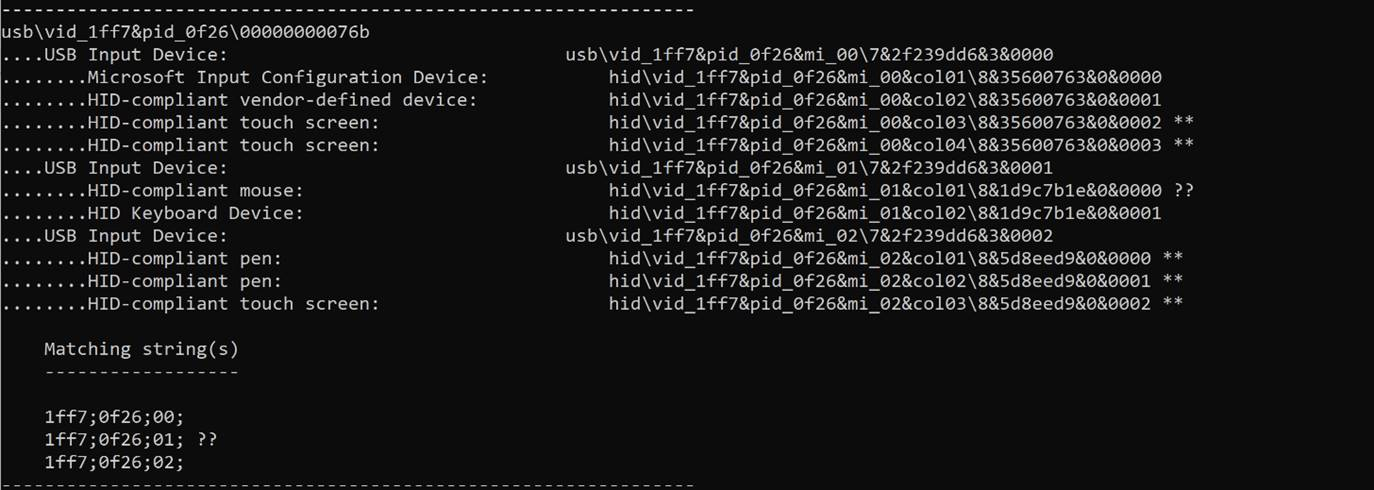 Each physical device is identified by its hardware interface, as seen in the above example: usb\vid_1ff7&pid_0f26\00000000076b Touch and pen devices are highlighted with **. Mouse devices are highlighted with ?? (to denote that 'mice' might not necessarily be controlled by UPDD). It also shows the matching strings that are needed to configure this device for UPDD 7 in our device configuration system: 1ff7;0f26;00;03 1ff7;0f26;01;01 (mouse - only if required) 1ff7;0f26;02;03 1ff7;0f26;02;04 1ff7;0f26;02;05 |
| usbdevices | Lists all discovered USB devices connected to the system (as per this Windows example). With the UPDD 7 driver and HID devices use hiddevices instead.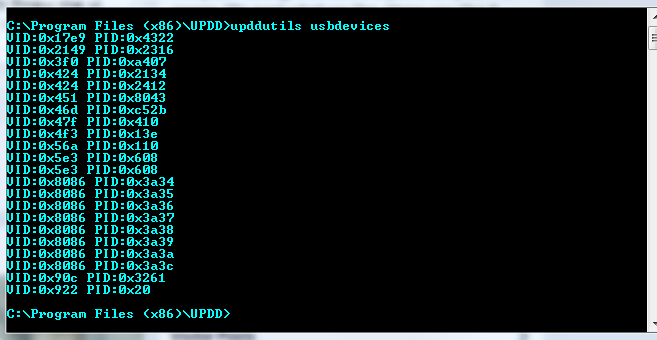 |
| pnpinfo | Lists the PnP (vendor and product id) information associated with the supported USB controllers, that is, each controller's controller_matching value. The value is formed of up to 3 parts separated by semi-colons: <vid_matching>;<pid_matching>;<interface_matching> Each of these can be expressed as a range, e.g. 4f3-4ff, or a list, e.g. 0,1. A list can in turn hold ranges, e.g. 4f3-4ff,555,600-602. 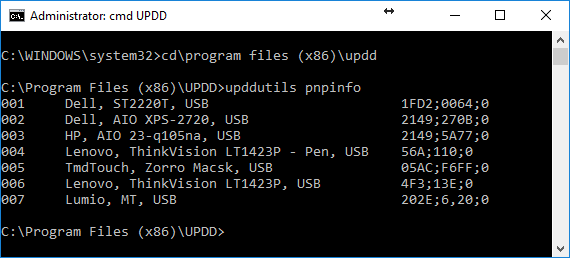 |