Presentation and single-purpose touch screens
This document describes how to set up UPDD Commander for a touch screen that is not used as a normal desktop display: a screen showing a presentation or video feed, or one where only simple touch (clicks and drags) is wanted.
Generally UPDD Commander assumes that a touch screen is acting as a normal display for the system that is running it, in that the screen is displaying the windows and desktop of that system and that any touches on the screen will correspond to a specific application and window. It then allows defining a set of multi-touch gestures that can be configured on the basis of a specific application or one of the UI elements in that application's windows.
Presentation and video control applications
Some applications, for example ProPresenter, output a video feed to an external monitor for the purposes of displaying a presentation. When using a touch screen to display and control a video feed like a presentation, it would not be desirable for UPDD Commander to associate those touches with an application on screen and perform different gestures depending on where the touches landed, as the screen is not displaying any applications. In such a case, you would want only one set of gestures that always apply and control the presentation.
To configure UPDD Commander to do this:
- Open its Settings window, and in its "Gestures" section remove all the applications listed in the left-hand list so that only "Default Gestures" remains:
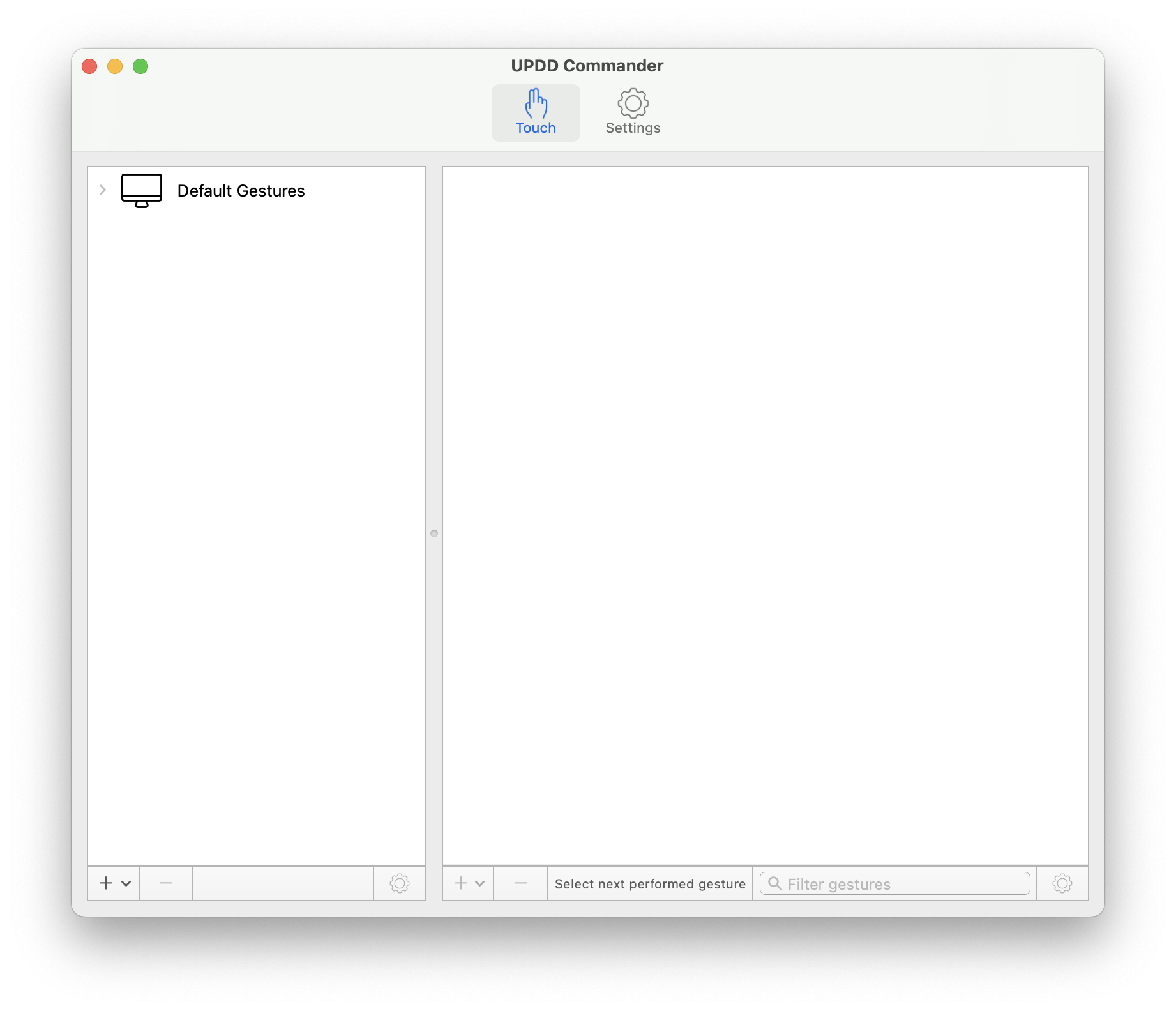
- Click the expander arrow to the left of "Default Gestures" to expand all of the UI elements that have been configured for it (e.g. Scrollable areas, Menus and menu items, Menu items with submenus, etc.):
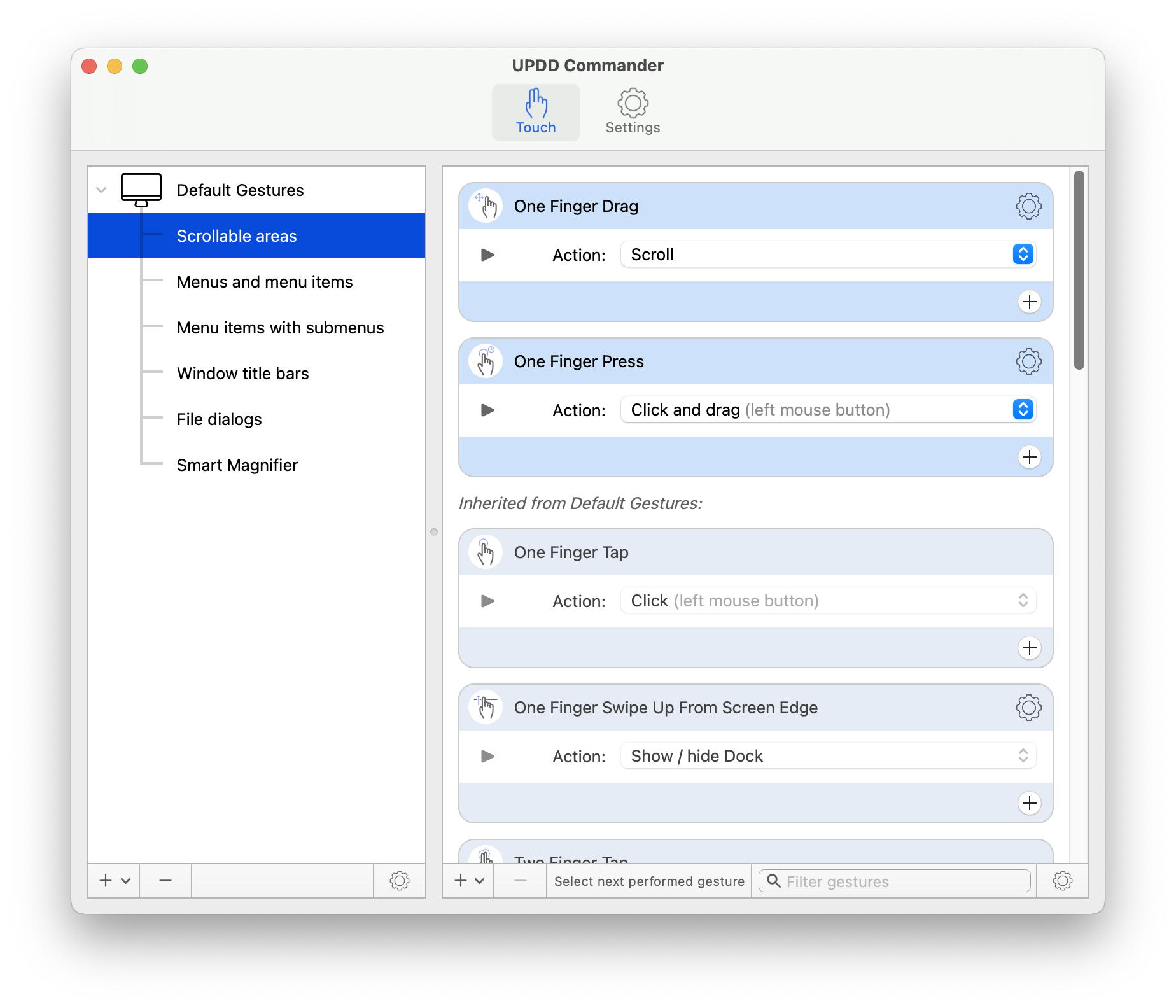
- Remove all of these UI elements so that the only item left in the left-hand list is "Default Gestures" and nothing else.
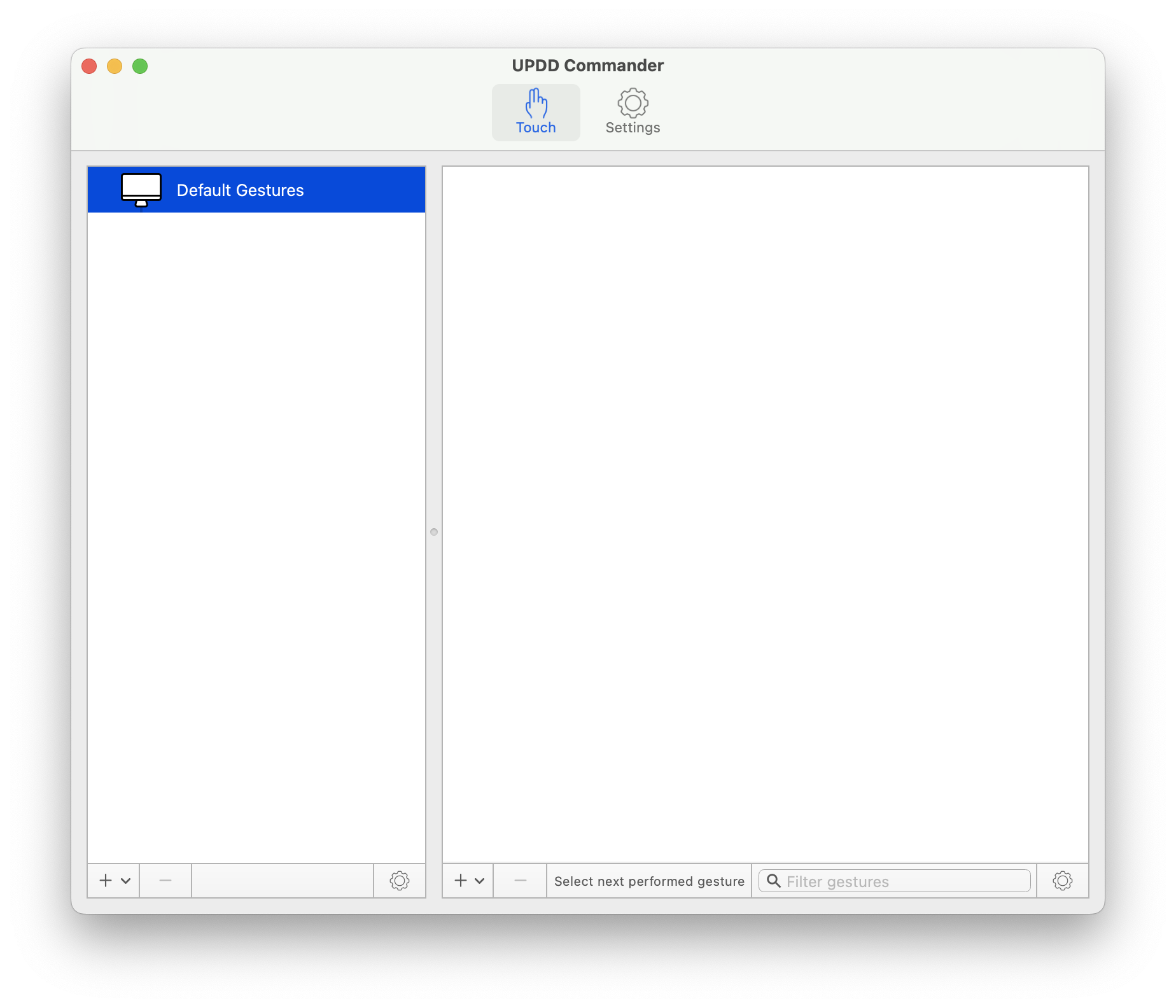
- Click "Default Gestures" to select it, and remove all of the gestures in the right-hand list, so that the right-hand list is empty. There should now be no items in UPDD Commander's "Gestures" section other than Default Gestures:
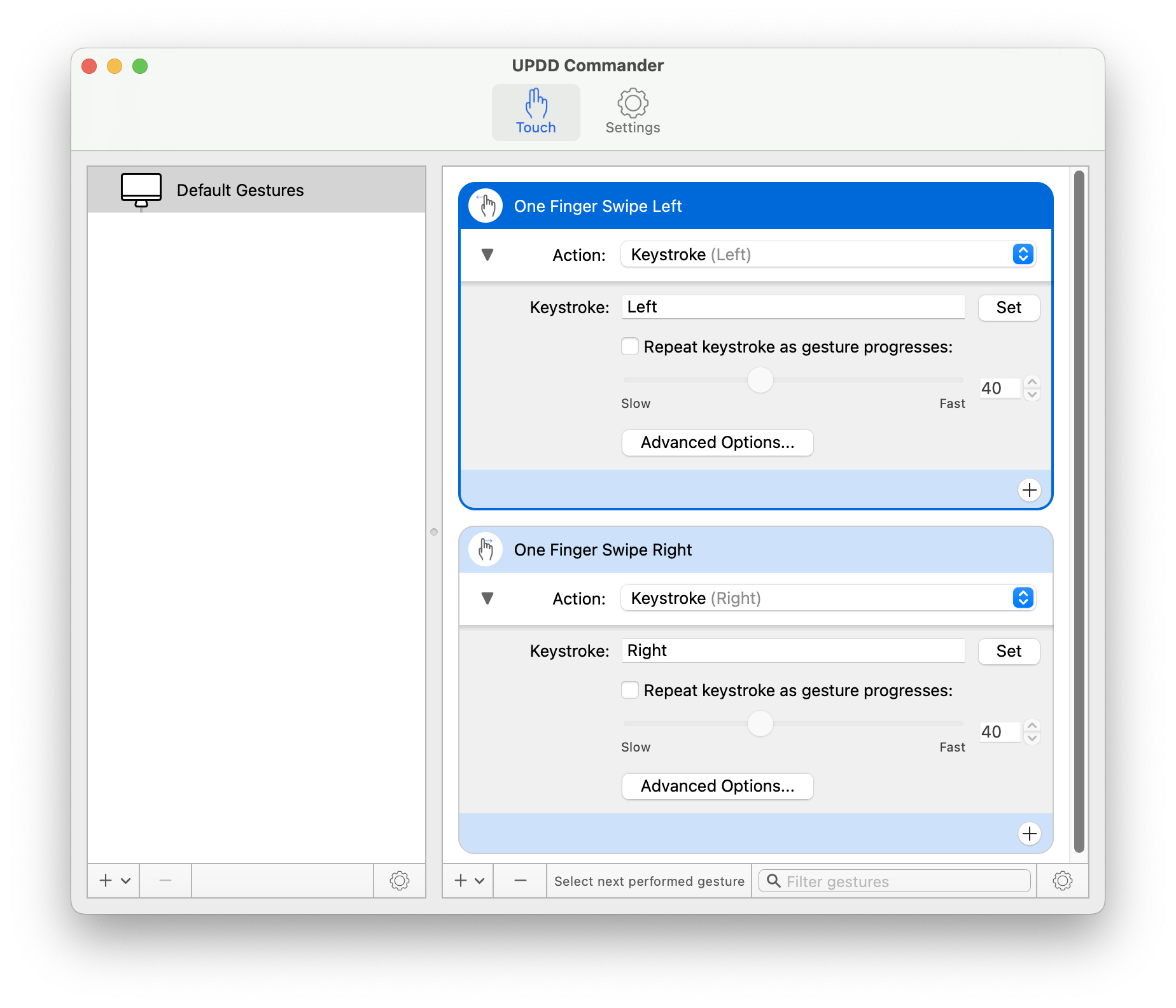
- Add gestures to "Default Gestures"; they will apply consistently no matter where on the touch screen you touch. For example, you can add gestures for "One Finger Swipe Left" and "One Finger Swipe Right" and assign them to press the left and right arrow keys respectively, so that you can use touch gestures to control your presentation:
Keystroke actions and window focus
If you use Keystroke actions to control the presentation, there is an important setting to change for those actions so that UPDD Commander will not try to switch the current application when you perform the keystrokes.
By default, Keystroke actions are configured to raise whichever window you performed the gesture over, so that the window is frontmost and has keyboard focus before typing the keystroke. This is normally desirable when a touch screen is acting as a normal display, since otherwise the keystrokes might not be received by whichever window you gestured over. However, when the touch screen is being used to display a presentation, you do not want the focused window or application to change. So to configure these keystroke actions not to try and raise any windows, click on the Advanced Options... button for each of them, and uncheck the box Focus window under gesture before performing keystrokes:
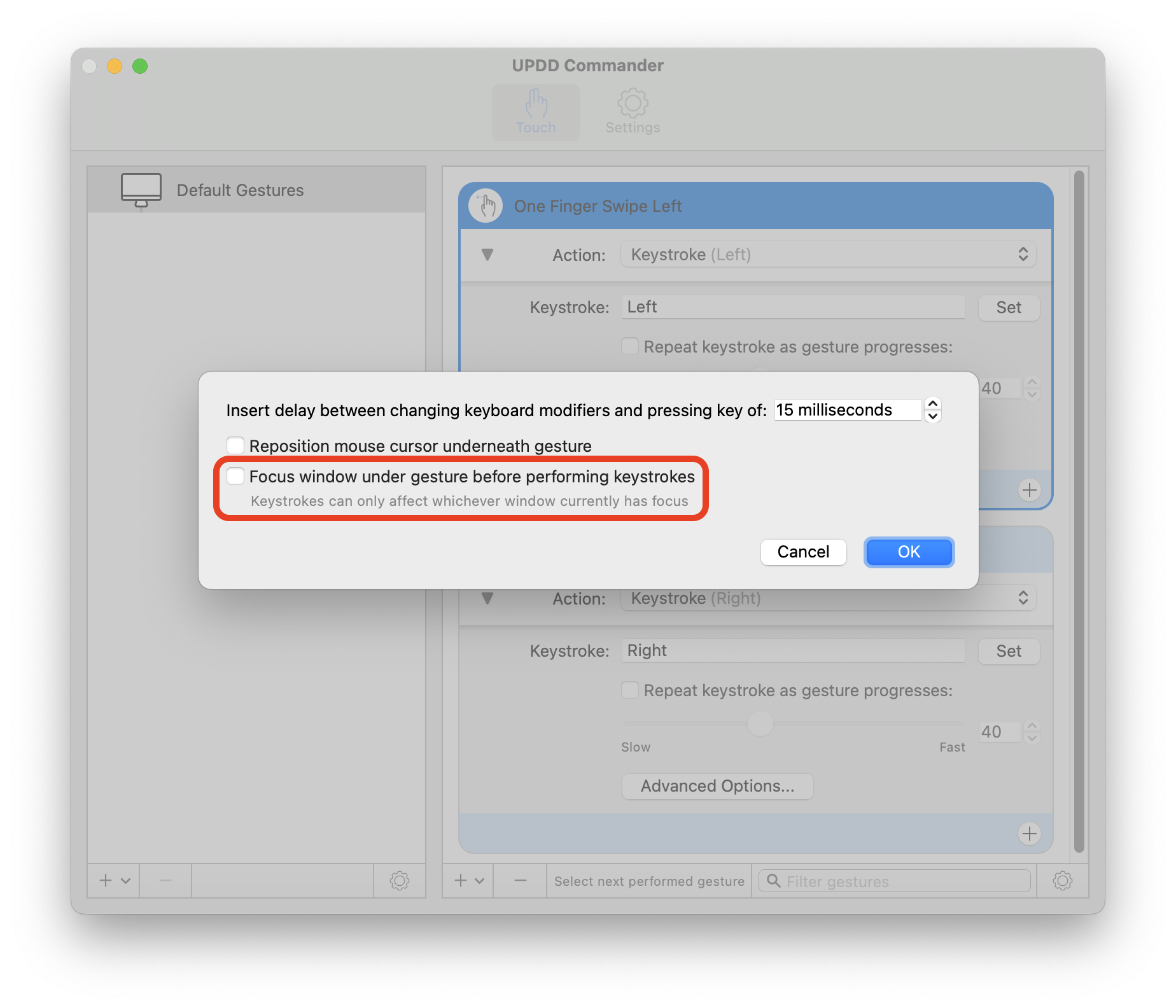
With these gestures and settings in place, you can use gestures on your touch screen to control your presentation.
For PowerPoint, the supplied PowerPoint preset sets this up for you.
Simple touch only
Where only single touch is wanted, with no multi-touch gestures, select the Simple touch mode preset (Default Simple touch, in the Optional group of the presets). It implements a system-wide single touch mode: single touches are converted to mouse clicks and drags, and multi-touch gestures have no effect.
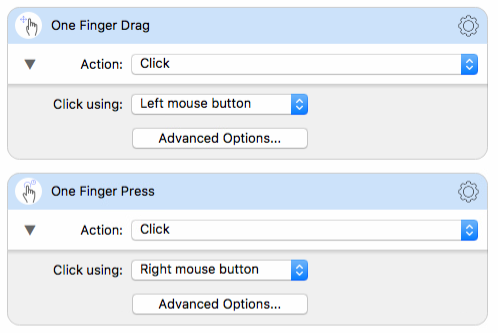
To implement click and point (ignore drag), change the One Finger Drag and One Finger Press gesture definitions to the Click action:
Another way to make one finger always click and drag immediately, using a One Finger Press gesture with a very short "hold finger for" time, is described with the Touch Gestures settings in Commander settings. For one application only, see the single touch option in Touch delay and latency in Commander.
For review
The ClickOnly screenshot comes from the Presets article and may show "All Applications".