API applications alongside UPDD Commander
When an application that handles touch itself runs on a system with other touch-based applications, conflicts can arise. In most cases, where a UPDD client application is responsible for touch control, it is the main or only client handling the touch interface. Where two or more client applications want to process touch, there must be a degree of co-operation between them to avoid touch conflicts.
With UPDD software, the clash is usually between the UPDD utility applications themselves, or between a user's client application and the UPDD utility applications. This document describes how a UPDD API client application, including one using the Qt plugin, the UPDDMultitouch framework or JUCE, co-exists with UPDD Commander, Annotate and Test. The configuration described applies to UPDD Commander 1.6.0 and later.
Client priority
To avoid clashes between the UPDD utility applications that could all be running at the same time (Commander, Annotate and Test), where only one should process touch at any given time, UPDD uses an internal priority system and the driver delivers touch data to the highest priority application. The highest priority is UPDD Test, followed by UPDD Annotate and then UPDD Commander. If none of these is loaded, touch data is delivered to all user client applications. This priority is for internal use only, but if any of these three applications is running it blocks touch events from being sent to other client applications.
In systems where UPDD Commander is used, this means there is always a UPDD client application taking priority over any user-written application, since Commander is always active and only stops processing touch while Test or Annotate is running. Given that most macOS touch systems use UPDD Commander, most conflicts occur between Commander processing touches and the user's touch client application.
In this case you need to consider whether Commander is required in your environment, or whether to configure your touch application within Commander so that touch is not processed twice while touching within your application.
Disabling UPDD Commander
If standard gesture processing is not required, you can either:
- use a software build that does not contain UPDD Commander;
- stop Commander and / or prevent it from starting automatically at system start-up;
- disable Commander processing with the setting Disable UPDD Commander (except for converting touches to TUIO) in the Commander settings dialog, available since UPDD Commander 1.7.0 (22 August 2024); or
- remove all gesture definitions within Commander and replace them with a single "Pass all touches to UPDD client app" gesture.
The settings dialog itself is described in Commander settings reference.
Passing touches to your application
If Commander is required for other system and application touch processing, configure it to pass touch events to your application. You add your UPDD client application to Commander and associate the special gesture Pass all touches to UPDD client app with it, so that all touches that fall within the application are passed to it via the UPDD API and skip gesture processing. Touches and gestures outside the application continue to be processed as normal by Commander.
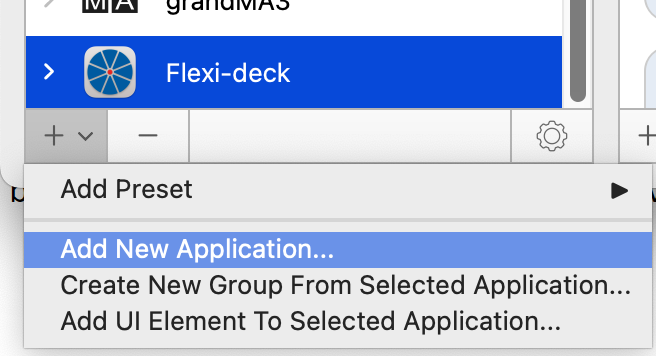
- Click the + button underneath Commander's list of applications and pick Add New Application.... Select your application to add it to the list. In this example an application called Flexi-deck is added:
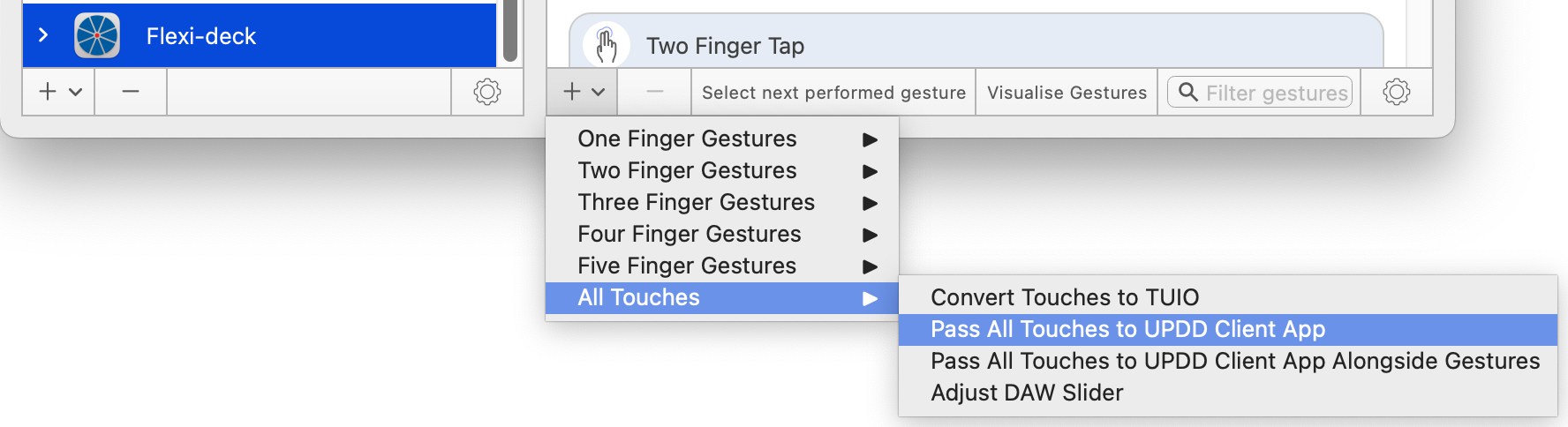
- With the application selected, click the + button under the list of gestures and select All Touches > Pass All Touches to UPDD Client App:
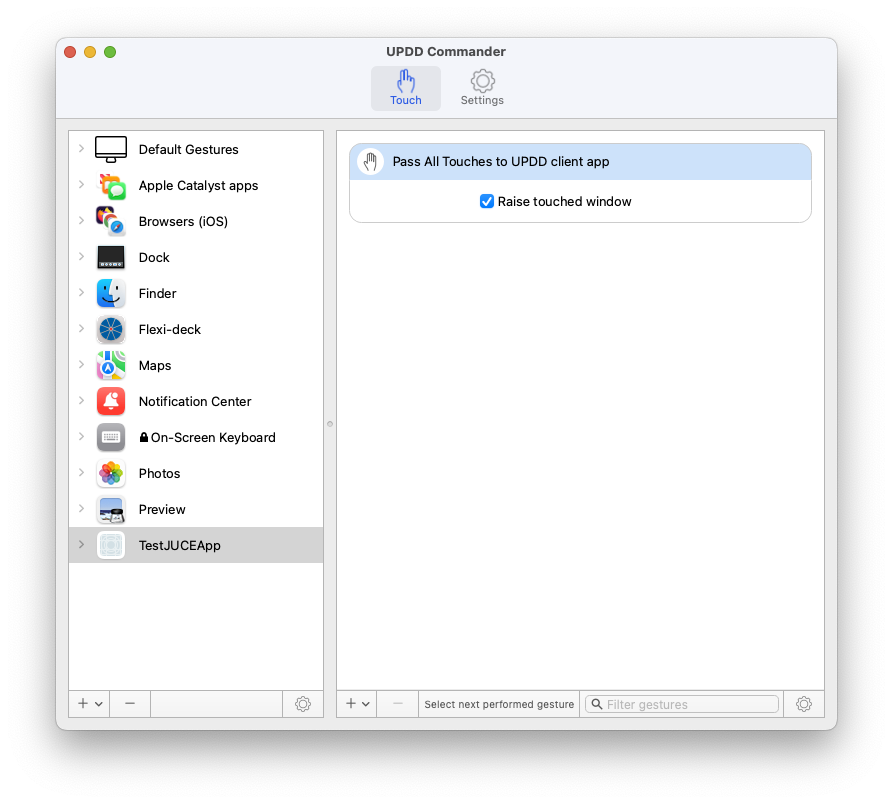
The gesture overrides all other gestures, and no further gesture configuration for the application is required:
If you would also like the standard Commander gesture and action processing to remain active within your application, select Pass All Touches to UPDD Client App Alongside Gestures instead. You can then tailor the inherited set of gestures and actions as required by your application.
At this point the client application should receive touch data.
On macOS, the "Pass all touches to UPDD client app" gesture and the "Pass touches to UPDD client app" action can be set to still pass touches when other touch or pen devices are in use (UPDD Commander 1.9.0 and later).
Inheriting UI element gestures
When configuring an application in this way, be mindful of which UI elements are configured under the application in Commander and set up gestures in those as appropriate. Touches within any UI elements configured under "Default Gestures", such as menus, window title bars and system file dialogs, should normally continue working as before, because these UI elements do not respond to the application's own touch handling: when the user touches them, UPDD Commander needs to process gestures and produce mouse clicks that can interact with them.
To allow this, select the application in the left-hand list, click the gear icon below the application list, and check the box Inherit UI element gestures before [app name] gestures:
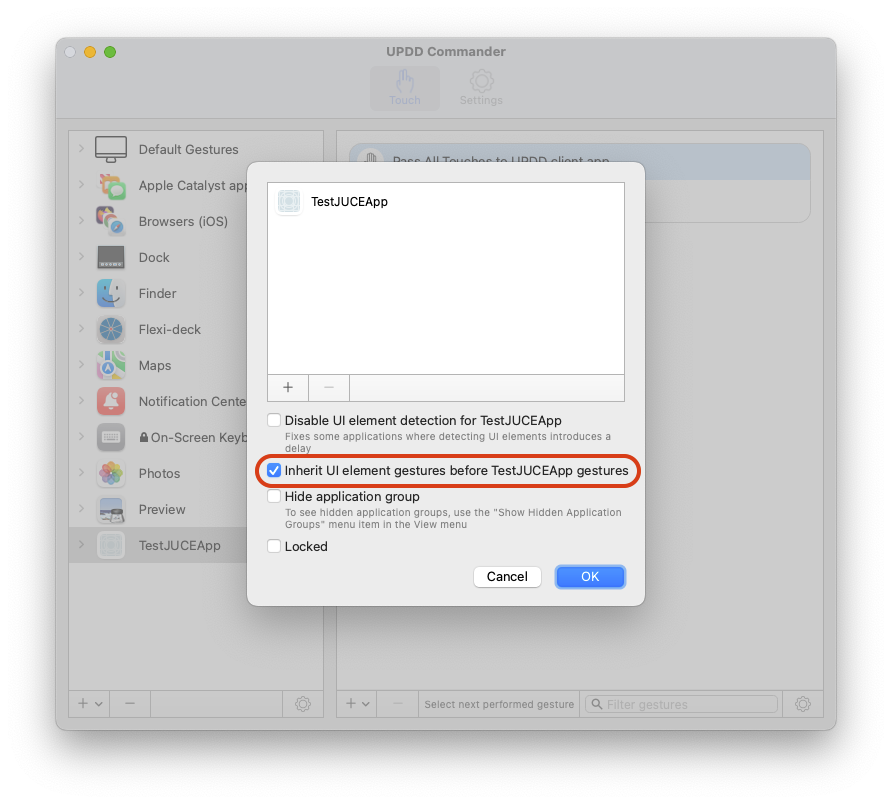
You may, for example, want to keep the default gestures so that touches scroll a scrollable area as is the default behaviour, or you may want to remove all of those gestures and assign "Pass all touches to UPDD client app" to all UI elements as well. Applications and UI elements are described in Applications, groups and UI elements.
Passing only some gestures
If you want some gesture processing with the client application, edit its gestures so that some of them are configured with the action Pass touches to UPDD client app. When gestures assigned to that action are performed, the touches are received and processed by the client application. There may be a slight delay (usually in the order of tens of milliseconds) while Commander detects the gesture before the client application receives the touches.
If the gestures are inherited, you need to add them directly to the application before you can change their action. A shortcut for this is to double click the inherited gesture.
This way some gestures retain their functionality, for example default gestures used for showing the Notification Centre or the Smart Magnifier, while other touches are processed by the application itself. You can either set the application not to inherit gestures from "Default Gestures" and then create only the set of gestures you want to apply to this application, or keep inheriting gestures but add the gestures you want handled only by the application and set their action to "Pass touches to UPDD client app". The gestures defined for the application itself override Default Gestures.
Custom touch controls
If an application, or part of an application's UI, implements custom touch controls, make sure that external generic touch mouse emulation software is not active on the custom control at the same time as the application is handling the touch. With UPDD, UPDD Commander can be used to stop touches being processed on top of specific applications or UI elements within the application, so that external touch processing does not interfere with custom touches within the application.
Saving the configuration as a preset
To avoid having to perform the above configuration with each installation, you can save the application to a preset file from the Commander File menu:
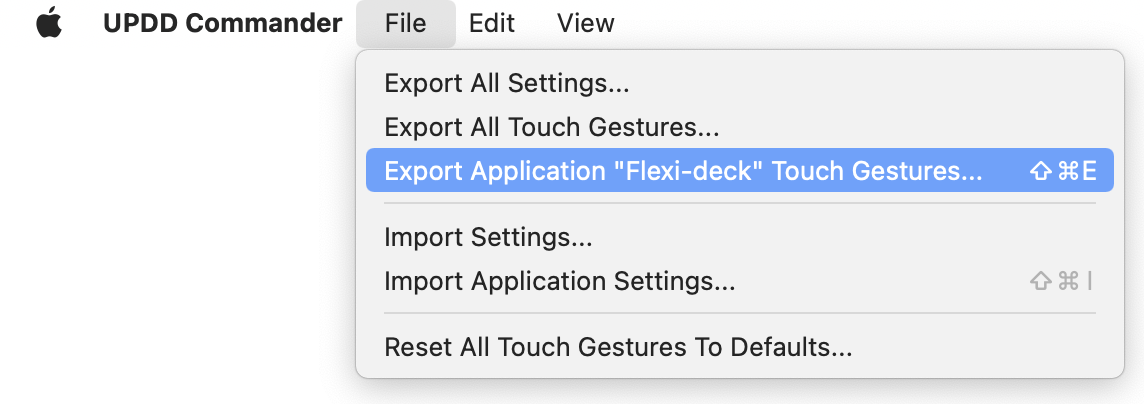
This file can then be loaded with the Commander File menu option Import Application Settings... or, if you receive a branded or tailored driver from Touch-Base, passed to us for inclusion in your software build. When included in a driver build, the preset is automatically loaded by Commander if the application is found on the system at install time, or it can be loaded manually from the Commander File menu. Presets are described in Presets.
Mixing Station
Mixing Station version 2.0.0 (422), released October 2023, integrates with the UPDD driver to handle touches directly in the application. When the Mixing Station application is found on the system, UPDD Commander loads the Mixing Station preset, which configures Commander to work correctly with the integrated touch version.
All versions of Mixing Station before V2.7.2 (released at the end of February 2026) had a bug where touch did not function correctly when using the multi-window mode of the application and pressing a button on a window in the background while another window had focus.
Versions earlier than 2.0.0 needed the Click Nearest UI Element feature disabled for Mixing Station, by disabling the settings for One Finger Tap and One Finger Press:
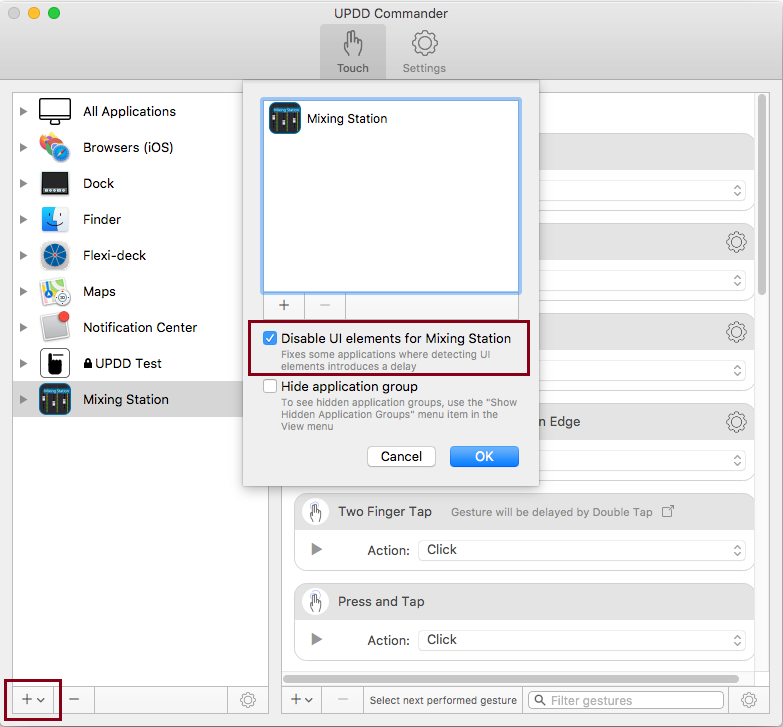
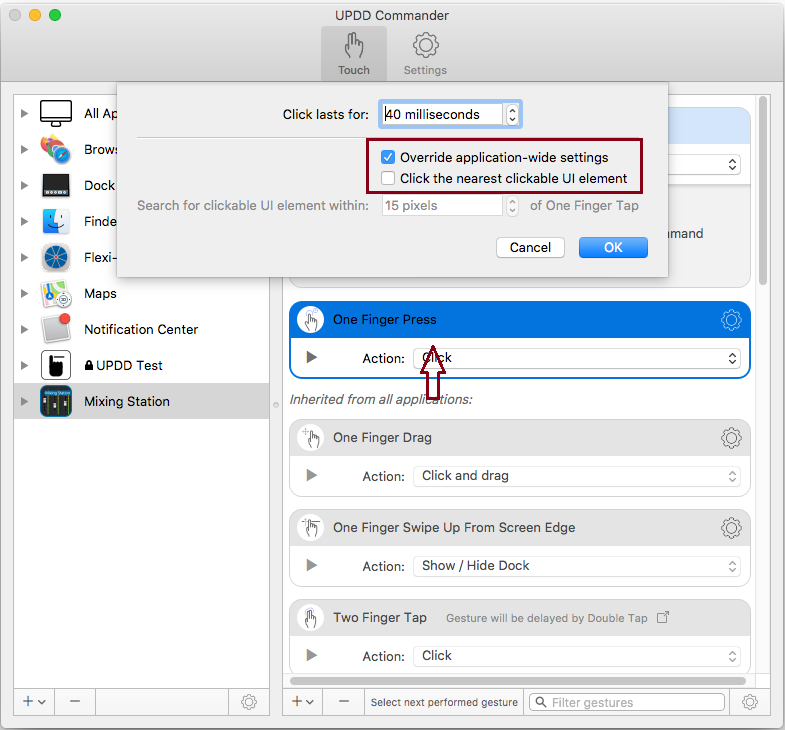
One user found that touches behaved as if the pointer was hovering over a control rather than clicking it, so that faders and buttons did not respond. Selecting "Pass touches when other touch or pen devices are in use" for the "Pass All Touches to UPDD Client App" gesture under Mixing Station resolved it.
For review
Commander's switch was called the "Master kill" global setting in the old article; the check box text in Commander 1.15.0 is "Disable UPDD Commander (except for converting touches to TUIO)" (updd-commander/widgets/QtApplicationSettingsWidget.ui:376, setting "disable commander", GestureMetadataConstants.h:479). The release date is 22 August 2024 in change-history.md (the article said 23 August).
Client priority: the shared library registers Test 10, Annotate 20, Commander 30 (shared/updd/updd/UPDDGlobal.h:26-28), the lowest number winning; the old article phrased this as "the one with the lowest priority gets exclusive access", which has been reworded.
Platforms: change-history.md records "Pass all touches to UPDD client app" and "Pass touches to UPDD client app" as added for macOS in 1.6.0. The old articles do not restrict them to macOS. Please confirm whether they are available in Commander on Windows and add an applies_platform if not.