Browser TUIO bridge extension
This document describes the Touch-Base TUIO Bridge, a browser extension for Chrome, Chrome-based browsers and Firefox that lets multi-touch web pages work on macOS with UPDD Commander, the same as when using iOS or Windows.
macOS does not have system-level touch events which it can pass to web browsers as HTML5 / JavaScript touches. So while these pages will work with touch-enabled systems like Windows or iPad (and similar) they cannot work in macOS, even when using Apple's Magic Trackpad. Consequently, when performing gestures on a web browser, the gestures are processed by macOS itself and not by the underlying web page, and therefore touches cannot be used to control the web page that the browser is displaying.
The extension uses WebSockets and TUIO to deliver touches from UPDD Commander's TUIO server to the web page.
When using this extension with UPDD Commander it is important to switch the browsers' configuration in Commander to the TUIO configuration, using the Browsers (TUIO) preset (see Browsers). UPDD Commander's TUIO interface has an option to send TUIO packets using WebSocket protocol, which is on by default.
Obtaining and configuring the extension
The extension is available for Firefox and Chrome, as well as other Chrome-based browsers that are compatible with Chrome extensions. For those that wish to install the Chrome extension manually rather than going through the Chrome store, it is available as a crx file.
The extension has a number of different settings to cater for different use cases and to work around different issues involved with delivering touches to a web page in macOS. These settings will open the first time the extension is loaded. They can also be accessed using the following methods depending on your browser:
Chrome:
- Open the Extensions tab by opening Chrome's main menu and selecting "Extensions > Manage Extensions". Then click "Details" under Touch-Base TUIO Bridge. Then finally, click "Extension Options".
- Alternatively, you can click the "puzzle piece" icon positioned to the right of Chrome's URL bar, click the three vertical dots next to Touch-Base TUIO Bridge, and then pick "Options".
Firefox:
- Open Firefox's main menu, select "Extensions and Themes", select "Extensions" on the left side of the window, click the three horizontal dots next to Touch-Base TUIO Bridge, and then select "Preferences".
The Firefox extension is not listed on the Firefox add-on site, which declined it as too specialised. Firefox add-ons can still be installed from downloaded files: after downloading the file, drag and drop it on to Firefox to install the add-on.
When requesting this extension in Chrome you may see a warning that "this extension can read and change all your data on the websites that you visit". Chrome shows this warning because the extension has permission to modify individual web pages (i.e. by injecting a script that allows touches to work). If you have concerns you can view the source code of the extension and confirm it is not malicious.
Extension settings
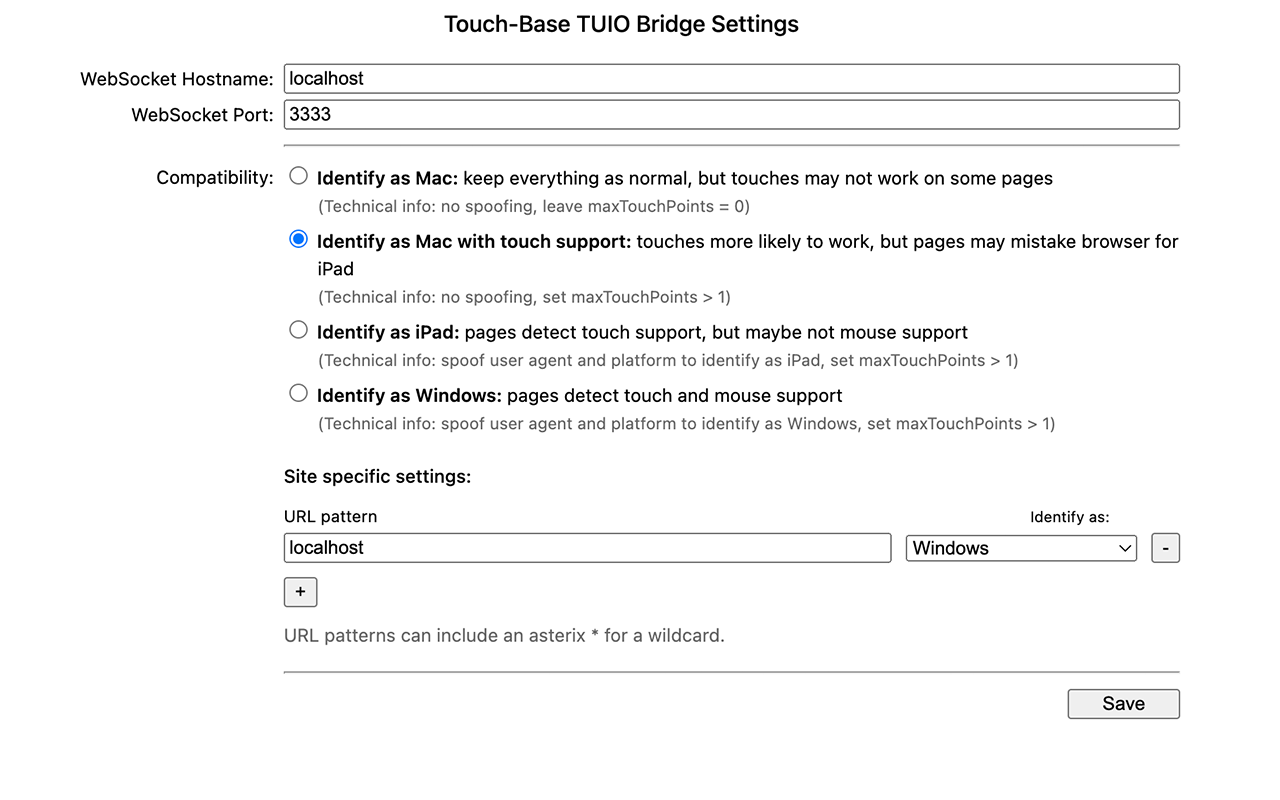
By default it uses localhost for the TUIO server host and port 3333, which matches the default settings for UPDD Commander. This means that both UPDD Commander and the extension should work together without any additional configuration, aside from using the Browsers (TUIO) preset in UPDD Commander.
The remaining settings determine how the extension will change the browser's behaviour so that web pages can recognise that they are running on a touch-enabled system. By default, both Chrome and Firefox running on macOS will report to web pages that it is not a touch-enabled system, and therefore some pages will automatically disable their touch functionality. In order to get around this issue, you can configure the extension to report the browser as running in one of four different environments:
- Identify as Mac: there are no changes to the browser's behaviour. It will report to the page that it is running on a Mac, and that there is no touch support. Some touch-enabled web pages will still work with this setting, but many will not.
- Identify as Mac with touch support: the browser will still report to web pages that they are running in macOS, but will also report that there is touch support. More touch-enabled web pages may work with this setting, and it has the advantage that pages are less likely to mistakenly think you are running on a platform other than macOS. However, many web pages will still disable their touch support because they think they are running on a Mac. Other pages are designed to detect that they are running on an iPad by checking whether the browser reports it as running in macOS with touch support. (This is because, when browsing on an iPad, setting it to request "Desktop pages" will cause it to identify itself as a Mac with touch support.) And because an iPad typically does not have a mouse, this may cause some pages to disable their mouse support.
- Identify as iPad: the browser will report to web pages that it is running on an iPad. This can allow more touch-enabled web pages to work, because an iPad is a system that normally has touch support, and so pages that are designed to disable their touch support on non-touch systems will keep their touch support enabled. However, it will have the side effect of some pages changing their look and feel because they think they are running on an iPad. It also means that some pages may disable their mouse support because an iPad does not typically have a mouse.
- Identify as Windows: the browser will report that it is running on a Windows system with a touch screen. This can often be the most compatible for touch-enabled pages, because Windows is a platform that has both mouse and touch support. But it can also have the side effect of pages mistakenly thinking you are actually running on a Windows system.
Because each of these options has trade-offs, and there is no one option that works 100% of the time, you can change it to suit your needs. Moreover, you can customise the behaviour on a per-site basis, since different pages will have different requirements. To add a site specific setting, enter a partial or full URL into one of the fields below "Site specific settings" and pick which of the four "Identify as" methods you want to use for that site. You can use the full URL of the page starting with http:// or https:// if you want it to only apply to that specific page, the portion of the URL applying just to the site (e.g. apple.com or www.google.com), or you can use an asterisk as a wildcard character, so that it can match URLs more easily. Here are some examples:
- apple.com - matches any site on apple.com, but not www.apple.com
- *apple.com - matches any site that is or ends with apple.com, including www.apple.com, support.apple.com, developer.apple.com, and so on
- https://borismus.github.io/mobile-web-samples/browser-ninja/ - matches just that specific page, and no others. Other pages on borismus.github.io will not match.
- https://www.google.com/search* - matches any URL that starts with https://www.google.com/search, but will not match other pages on www.google.com that are not search results, such as https://www.google.com/maps
Case study: Open Stage Control
One web page we tested with in particular is Open Stage Control, which is an open source OSC / MIDI controller that can be used for controlling external devices, often for stage performances. It can be used as a web page running inside the web browser that has full multi-touch support, allowing users to adjust sliders and dials with multiple touches. However, by default, it has no multi-touch support on macOS.
In order to get it running with the Touch-Base TUIO Bridge, it was necessary to have the extension change the browser's behaviour so that it identified itself as Windows. This is because, when identifying as macOS, Open Stage Control's web interface would automatically disable its multi-touch features, thinking that macOS does not have multi-touch support. And while Open Stage Control does also support iPads, having the browser identify itself as an iPad caused it to disable mouse support, since an iPad does not typically have a mouse. So having the browser identify as Windows was the key to unlocking all of its mouse and multi-touch features.
It is not necessary to change any settings in the Touch-Base TUIO Bridge to cater for Open Stage Control. The extension detects Open Stage Control's web interface automatically and has the browser identify as Windows for maximum compatibility.
Touch-enabled pages for testing
Once installed, you can test with an appropriate touch-enabled website. During testing, we tested with:
http://borismus.github.io/mobile-web-samples/browser-ninja/
http://scripty2.com/demos/touch/touchspector/
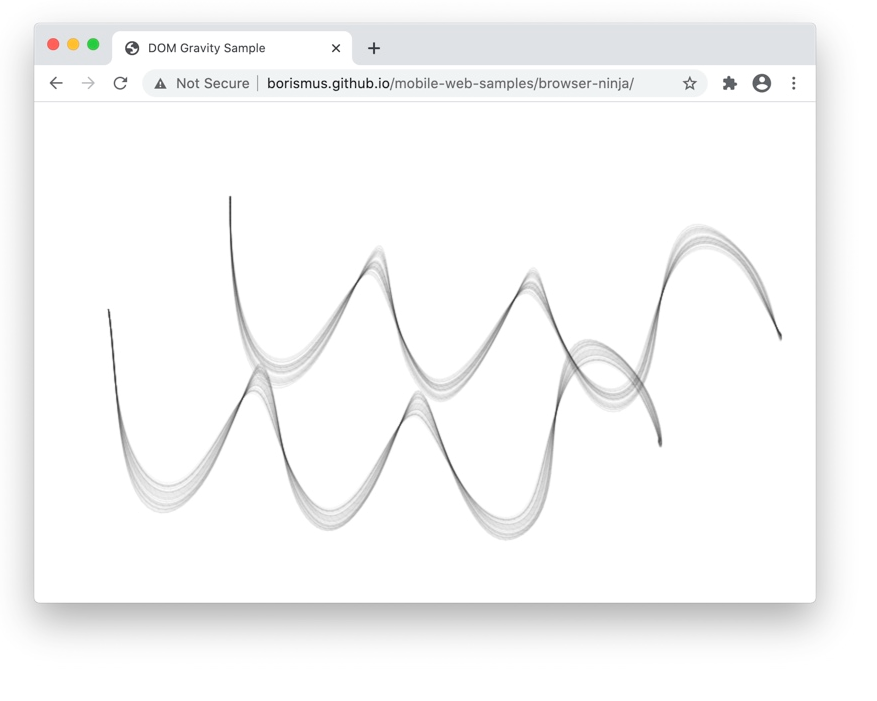
In the first link, you can touch the screen and have it paint trails that follow your touches, as seen in this dual touch demo:
UPDD Commander is configured on a per-application basis, and when using the Browsers (TUIO) preset will only convert touches that fall within the browser to TUIO, without any other gesture processing. It allows customising its precise behaviour on a per-gesture, per-application basis, so you can still configure gestures for browsers or other TUIO-enabled applications at the same time as it is converting touches to TUIO.
Limitations
The extension has a few limitations:
- It cannot distinguish between which display a touch comes from, so all touches are assumed to come from the display containing the browser window.
- It can only receive touches from one source, meaning it is not possible to have multiple browser windows receiving touches from different touch devices simultaneously (but see Two touch monitors below for using two browsers).
- There is no option to set touches to be scaled; all touches are processed as unscaled.
Two touch monitors
A customer wanted two touch monitors to use the browser TUIO extension simultaneously. They identified both touch monitors in the driver but the TUIO extension processed all touches on monitor 1. The TUIO extension can only listen for TUIO touches from a single TUIO server, so there is no way to get it to distinguish between touches on two monitors in the same web browser.
What is possible is to use two web browsers, one for each monitor. We suggest using Chromium, Opera or Brave, all of which are also Chrome-based browsers, or Firefox. All of these are already configured to work with the UPDD Commander browser presets. (Safari cannot be used since there is no TUIO extension for it.) It is also possible to run multiple instances of both Chrome and Firefox, each of which uses different extensions, using their profiles feature. (See this page for Chrome and this page for Firefox, which document how to use their profiles feature.)
- Whichever browser it is, install the relevant Touch-Base TUIO extension.
- In the TUIO extension settings configure one browser to use port 3333 and the second to use port 3334.
- In UPDD Commander, find the Convert Touches to TUIO gesture under Browsers / Safari and Chrome web content (or Firefox web content), click its Advanced Options button, and check Configure TUIO servers separately for each UPDD device. Set one device to use port 3333 and the other to use port 3334.
Touches from each monitor should now go into one browser specifically, and you can arrange the browser windows accordingly. The customer reported this worked well.
Application development with embedded browsers
In development environments where you might be using an embedded HTML interpreter, such as with Electron or a WKWebView, you may also wish to receive touch data into your application.
One possibility to receive touch events is to use the TUIO JavaScript library https://github.com/fe9lix/Tuio.js.
You could also look at the source code of the TUIO browser extension and see whether it could be adapted to work in your web page. The extension source is not published separately, but it is not protected and can be viewed from within a browser.
Extension version history
1.2.2 (22nd April 2025)
- Fixed bug where touches would sometimes stutter or lag
1.2.1 (27th August 2024)
- Fixed a bug where the button / buttons properties of the PointerEvents and MouseEvents generated by the extension did not have correct values
1.2.0 (8th July 2024)
- Added feature for changing how the browser identifies itself for better compatibility with touch-enabled pages, both for the whole browser and for specific sites
- The JavaScript method
setPointerCapturenow works with touches that originate from TUIO
1.1.0 (27th May 2024)
- The extension for Chrome now uses "Manifest v3" and therefore will continue working in later versions of Chrome
- Fixed a bug where some pages would not work with touches at all
- Fixed an issue where pages in Chrome would have touches fall within the wrong place
- Touches now work in web pages embedded within other web pages (iframes)
- Pages that expect "pointer" events will now work
- Overrides the browser's default behaviour so that queries for whether the browser supports touch will report that it does
1.0.1 (31st March 2022)
- Fixed a bug where touches would not be sent to every active tab on all windows
1.0.0 (7th May 2019)
- Initial release
For review
The extension files are linked as static URLs on v6download.touch-base.com (Firefox .xpi and Chrome .crx). The original also linked an older 1.2.0 Firefox file in its note; that second link is dropped here in favour of the 1.2.2 file. Confirm both 1.2.2 files are still served, and whether these links should stay static or move to My Touch-base.
The extension's behaviour (settings, Open Stage Control detection, limitations) could not be checked against source on this machine; the text is carried from the article. The extension settings screenshot shows version 1.2.