UPDD Console
The UPDD Console is the program used to view, update and configure the driver and the installed devices. This document describes each of its functions in UPDD 7 on Windows, macOS and Linux.
The Console is invoked from the UPDD Daemon menu icon  in the menu bar on macOS or the system tray on Windows and Linux.
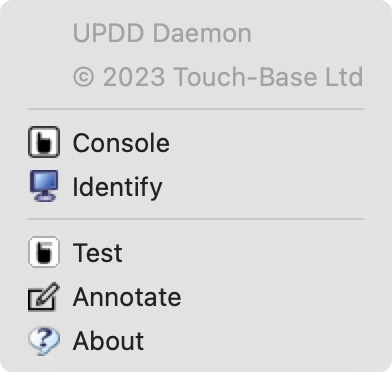
Starting the Console
As well as from the UPDD Daemon menu, the Console can be invoked via the command line:
| OS | Command |
| Windows | C:\Program Files\UPDD>"UPDD Console" |
| macOS | /Applications/Utilities/UPDD\ Console.app/Contents/MacOS/UPDD\ Console |
| Linux | /opt/updd$ ./upddenv ./UPDD\ Console |
When invoked the main dialog is displayed, showing the Touch settings of the first device.
Console window
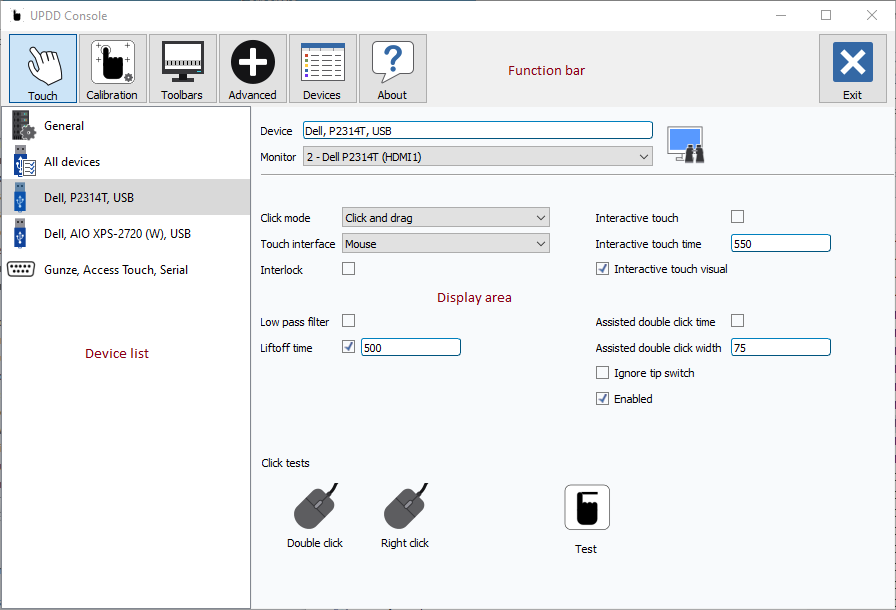
Device Touch dialog:
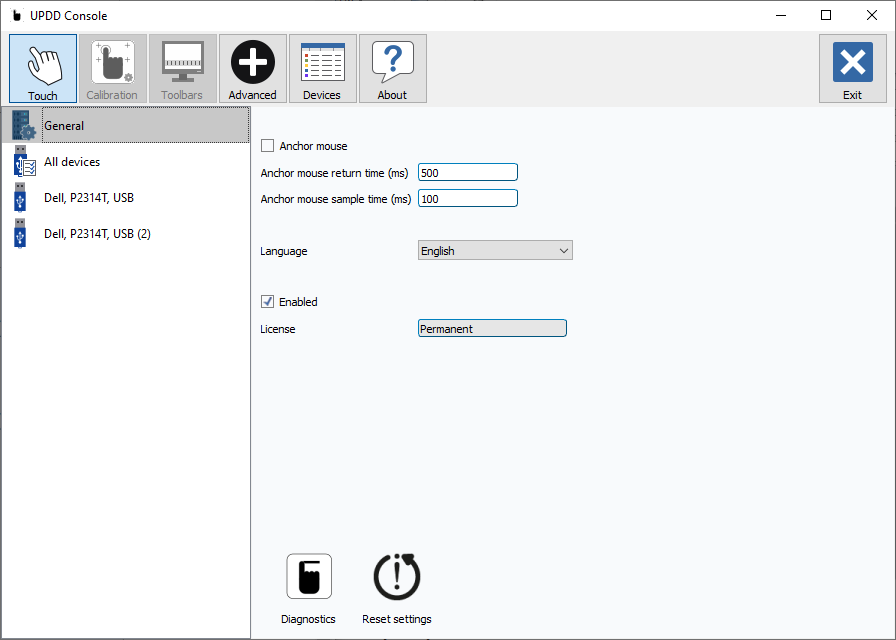
General, Touch dialog:
The Console has three areas: the device list, the function bar and the display area.
| Area | Description |
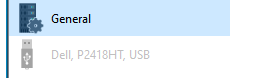
| Device list | The device list contains a General entry to list system wide settings, an All devices entry (only listed on systems with more than one device) to change settings on all devices at once, and the individual installed devices. Active devices are displayed with a coloured device icon; inactive devices (no longer seen by the driver) are greyed out as in this example:
Any issue affecting touch is shown as an entry at the top of the list, see Error displays. |
| Function bar | Shows the available functions. |
| Display area | Shows the information related to the selected device entry and function. |
The example above shows 2 USB and 1 serial touch device.
The function bar holds the driver and device functions:
| Function | Description |
| Touch | Touch settings and test options |
| Calibration | Calibration settings and invocation |
| Toolbars | Define and calibrate toolbars |
| Firmware | If enabled, indicates the driver supports device firmware functions |
| Advanced | Lists all UPDD related settings and their use; edge adjust, segmentation, export and import |
| Devices | Lists installed and supported devices |
| About | Software release information |
| Exit | Close the Console |
Touch
The Touch function shows general and device specific settings and allows certain features to be tested.
Device settings
Selecting an individual device entry in the device list shows the touch related settings of that device and allows the device to be tested.
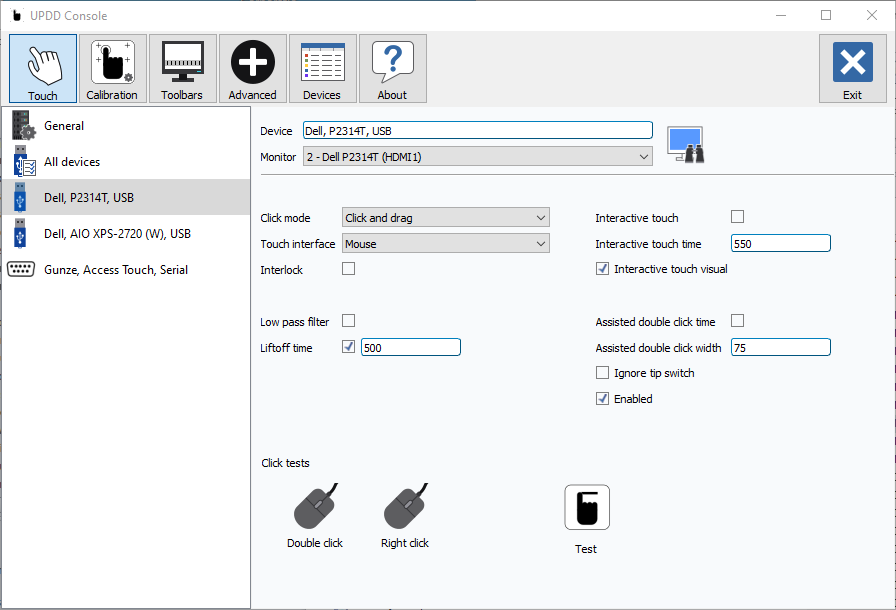
This page shows the more common touch related settings that can be used to adjust the touch screen usage and characteristics. Each setting is listed with its default in the Driver settings reference.
| Setting | Meaning |
| Device | The device name. This can be changed as desired, e.g. in a two touch monitor system you may prefer to name the devices 'Left touch monitor' and 'Right touch monitor' instead of the driver allocated names. |
| Monitor | The monitor associated with the touch screen. The field shows 'monitor no. - monitor name'; both are shown because some operating systems, such as Windows, use monitor numbers in preference to names, whereas others, such as macOS, use monitor names. Select another monitor from the drop down to change the association manually.
|
| Segment | The monitor segment associated with the device, where monitors are divided into segments. |
| Identify |  Runs Identify to associate touch devices with monitors, more commonly needed in a multi-monitor setup. See Device and monitor association. |
| Click mode | The click mode of the touch interface. |
| Pointer interface (Touch interface in earlier Consoles) | Only applicable if the core driver is handling the touch interface. Touch data is processed by UPDD Commander if it is running. The interface used to post data to the operating system (setting active_pointer_interface, see What UPDD is and how touch reaches your applications): Mouse = single touch mouse interface - Windows: mouse, Linux: XTouch, macOS: single touch interface Touch = single / multi touch interface - Windows: HID, Linux: uinput, macOS: single touch interface; multi-touch is handled by Commander Pen = pen interface - Windows: pen, Linux: not supported, macOS: single touch interface; pen data is handled by Commander Auto - based on the data type the driver posts the data to the OS on the most relevant interface. With Auto, the hid.width.map device setting allows a width element in a HID report to determine the type of the report. The map has one line per rule, which takes the form <from-width>-<to-width>=<type>,<width>. Type can be pen, touch or eraser. Width can be an integer value or * to retain the passed width. The mapped events are reported via the API and, in Windows, delivered to the OS. An example map might be 0-2=pen,* 3-7=eraser,* 7-255=touch,* The global settings touch_interface_locked (the interface cannot be changed here) and propagate.touch_interface (a change applies to all devices) control this field. |
| Interlock Interlock release time | The touch priority given to the device, and the time for which it keeps control after a touch ends. |
| Low pass filter | Low pass filtering provides smoothing of input, removing jitter from inputs subject to noise or similar distortion. |
| Liftoff time | Touch screens should indicate the end of touch with a lift off indication in the last data packet. If data stops without a lift off indication this setting defines the time to wait before automatically processing a pen up. A setting of 0 suits a device running in delta mode (no data is generated while the stylus is held stationary), where you do not want a pen up generated when touch data stops. See Touch data filtering. |
| Stabilization | Ignores small movements during a steady touch, to enable better click responses with devices exhibiting jitter. See Touch data filtering. |
| Interactive touch Interactive touch time Interactive touch visual | A press and hold will generate a right click. The length of the press is defined by Interactive touch time; visual feedback building up to the click is displayed if Interactive touch visual is enabled. Only applicable if the core driver is handling the touch interface. If UPDD Commander is handling touches on macOS then gestures need to be set for right click processing if required. In Windows HID mode Windows has its own right click processing. |
| Assisted double click time Assisted double click width | Assisted double click assists double clicking by generating a second touch at the same location as the previous one. The second click needs to be within a certain time and distance (width) of the first. |
| Ignore tip switch | When enabled the tip switch bit (AKA lift bit) is ignored. Normally used in conjunction with a non-zero Liftoff time. Can also be useful if, when dragging, the device occasionally generates unwanted pen up packets that you wish to ignore. |
| Enabled | Indicates the device is enabled. Can be used to disable this device such that its data is not processed. |

Test options
The Click tests allow you to test double click and right click, and the Test option runs UPDD Test to test touch performance.
Device and monitor association
A touch screen monitor is two totally separate devices, and in a multi-monitor environment the driver needs to associate the touch with the correct monitor so that the cursor is directed to the correct point of touch. From this page the association can be made with Identify , which you can also run from the UPDD Daemon menu, or by selecting the monitor in the Monitor drop down. The association can also be made automatically from the monitor name with the monitor_bind.display_name setting, in the Advanced, Settings tab.
These methods, and when each is appropriate, are described in Associating a touch device with a monitor.
All devices
This entry is only listed when there is more than one touch device in the device list, and can be used to change the touch settings to be the same across all devices. So, for example, if you had three touch monitors all with the pointer interface set to Touch and wanted them set to Mouse, you can change all three in one go using the Pointer interface drop down.
General entry
This entry shows system wide driver settings and allows the diagnostics procedure to be run to gather diagnostics data that can be useful when investigating any touch issues.
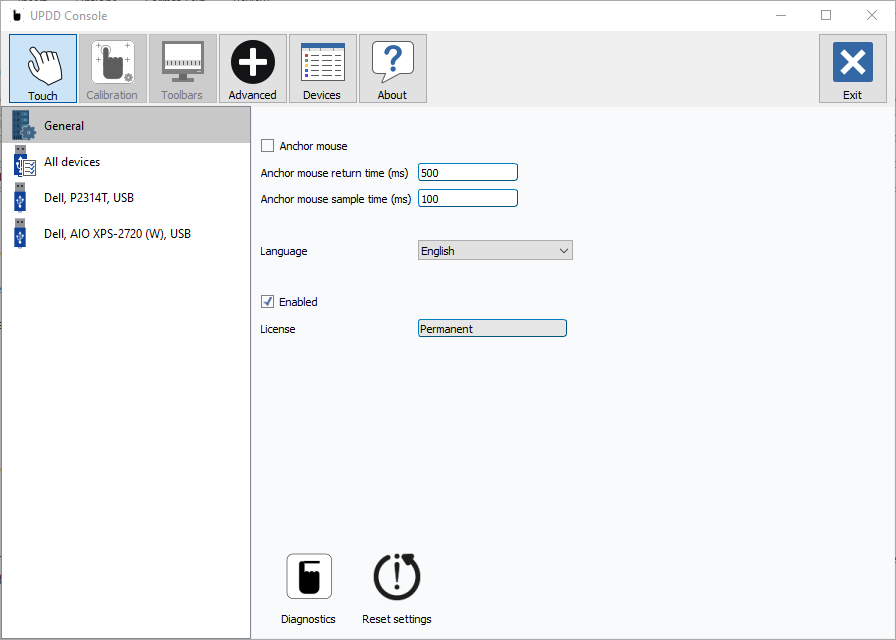
| Setting | Description |
| Anchor mouse Anchor mouse return time Anchor mouse sample time | Anchor mouse returns the system mouse pointer after a touch to the position immediately prior to the touch, so that a mouse and touch screen can be used interchangeably. The return time is the time lapse after a touch, in milliseconds, before the pointer is returned; the sample time is the interval, in milliseconds, at which the mouse position is sampled. See Cursor, anchor mouse and sound. |
| Language | Sets the language used in the driver's dialogs. |
| Enabled | Can be used to disable touch on all devices. See Disabling and prioritising touch. |
| License | Shows the licence type. |
| Unregister | Shown for a registered driver; releases the licence from this computer. See Releasing and moving a licence. |
| Warranty expires Check | Shows the end of the support period recorded for the licence; Check contacts the licence service and reports whether the support period has been extended (see Licensing). |
| Diagnostics | Runs the diagnostics procedure. |
| Reset settings | Resets the settings back to their initial defaults. |
Calibration
Holds the calibration settings used by the calibrate function:
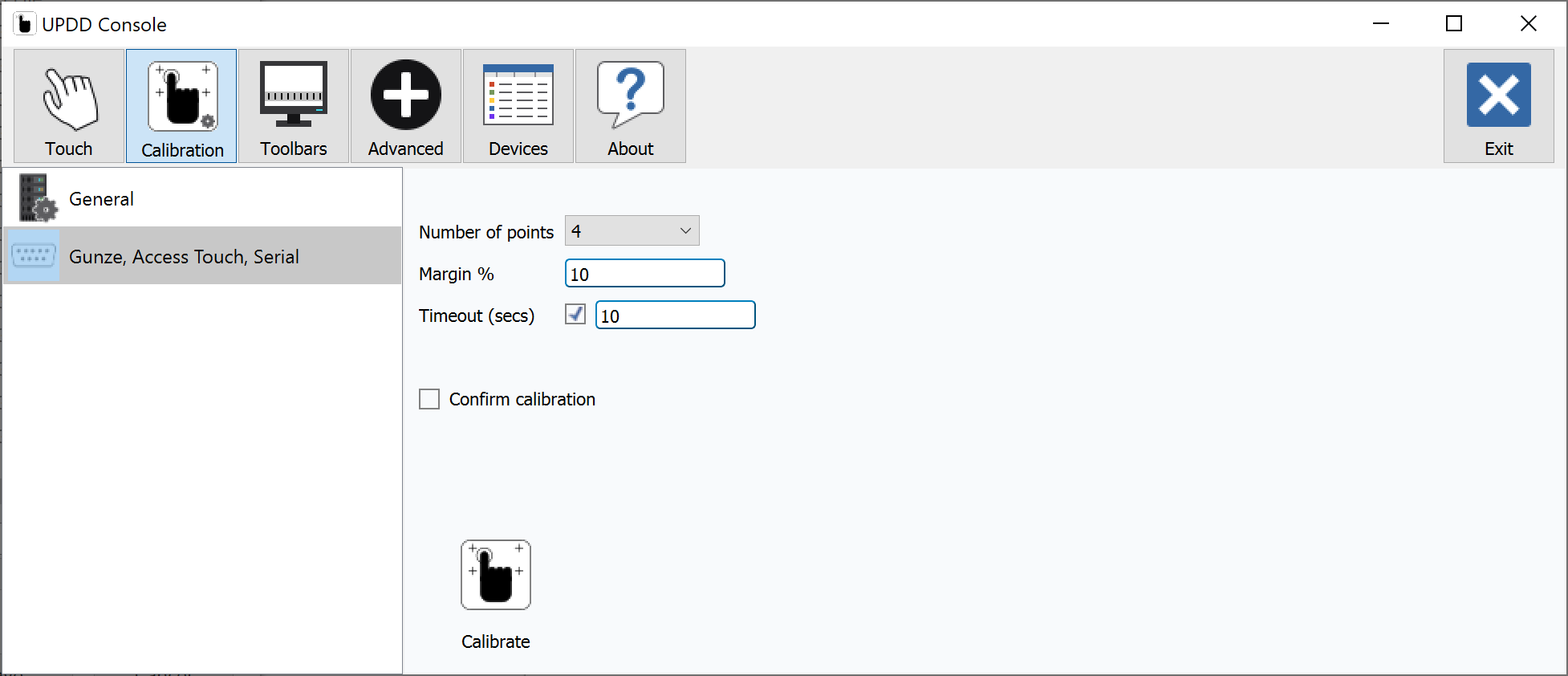
Select the Calibrate icon to invoke the calibration procedure. The following settings influence the calibration process:
| Setting | Description |
| Number of points | Number of calibration points (calibration_points.next) |
| Margin % | Percentage margin of the edge calibration points away from the edge of the screen (calibration_margin.next) |
| Timeout (secs) | Number of seconds to wait for the cross to be touched before cancelling the calibration process (calibration_timeout) |
| Confirm | Show a 'Confirm' box that must be touched to validate the new calibration. If it is not touched the previous calibration data is restored (calibration_confirm) |
Calibration data is stored in the UPDD settings file. Some touch devices can also store calibration data in the touch device memory (EEPROM). For devices that are capable of EEPROM calibration storage the EEPROM option is also shown:
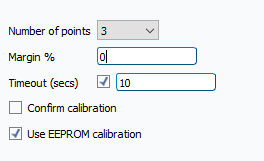
See EEPROM and controller firmware functions.
Toolbars
Used to define and calibrate toolbars, areas of the touch screen set aside for functions of their own. See Toolbars.
Firmware
Shown only in UPDD 7, and only on systems where the Console can be used to interface with the settings within the touch device or monitor, which is the case in some very specialised driver installations. The settings that enable the page and the controls it offers are described in EEPROM and controller firmware functions.
Advanced
This function holds the advanced functions, under the headings General, Settings and Tools.
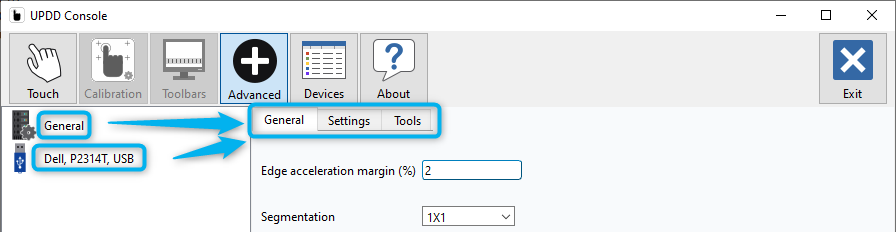
The three tabs are shown for both the General and the device entries. The main difference is that the Settings tab shows either the global settings or the selected device's settings.
General tab
Allows you to adjust the edge acceleration margin (edge adjust) and the segmentation layout.
Segmentation is a global setting, irrespective of being defined in the All devices entry or within one of the device entries - it updates the same global setting.
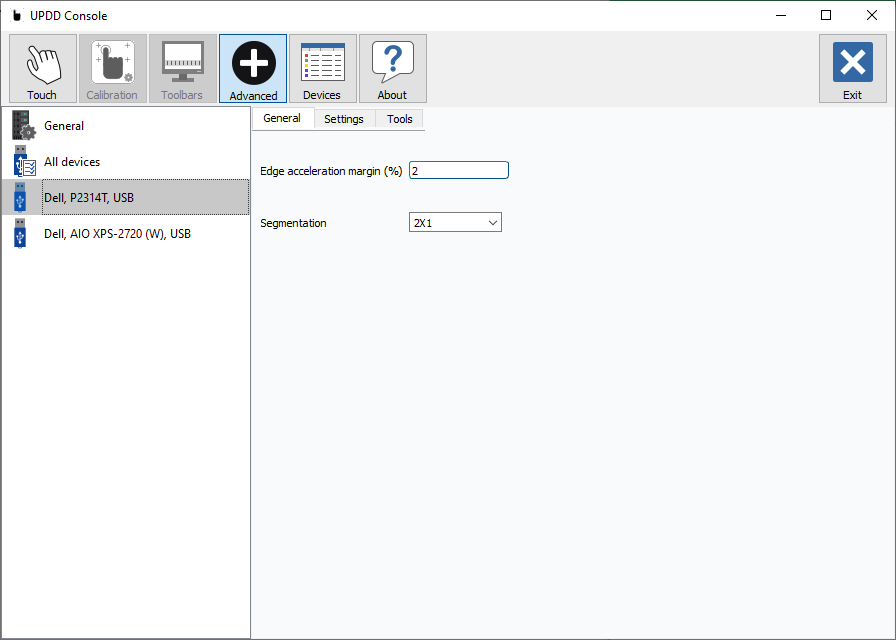
Settings tab
Shows the full list of user settings for either the individual device (device settings) or the General (global) selection, which can be changed directly if required.
Selecting the General entry in the device list shows the global (no device) settings. Selecting a device entry shows the device settings, as below.
Selecting an individual setting shows a description of the setting and its use in the lower area of the screen. See also How UPDD settings work and the Driver settings reference.
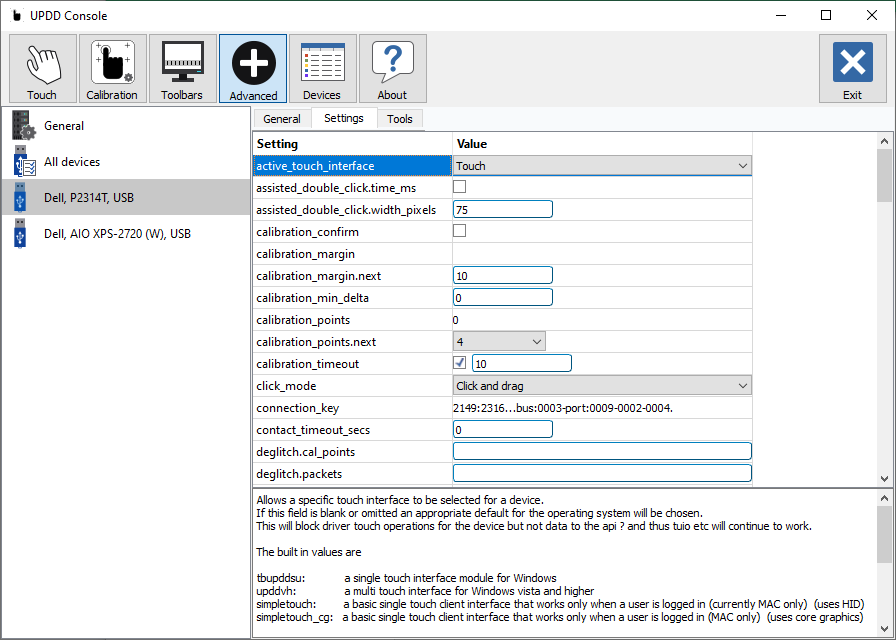
Tools tab
Offers Export all settings and Import settings, as described in Exporting and importing settings.
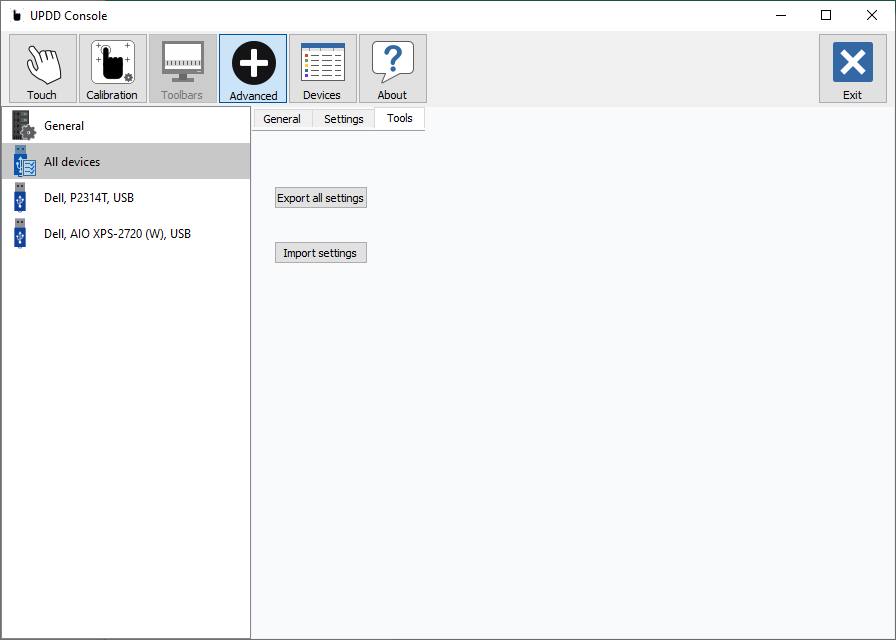
Devices
The Devices function lists the installed devices and the devices supported by the installed driver.
Installed
Lists the installed devices and shows the UPDD handle and device name.
For the selected device it lists the status (OK, NOK or Disabled) and the desktop monitor (no. and name) associated with the device. For serial devices it also shows the associated serial port, which can be changed as required.
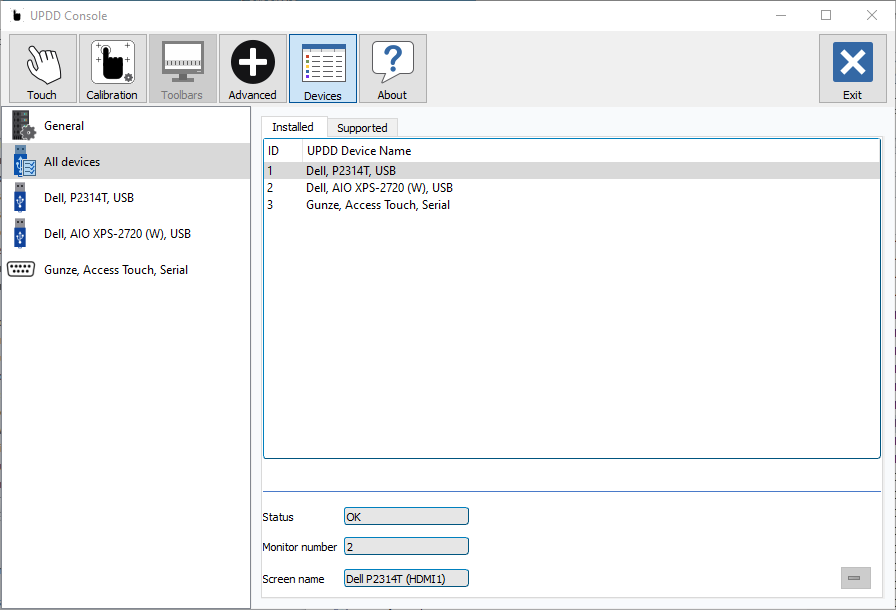
For serial devices, or any listed as NOK or Disabled, you can use the delete control '-' to delete the device.
Supported
Lists the devices supported by the driver.
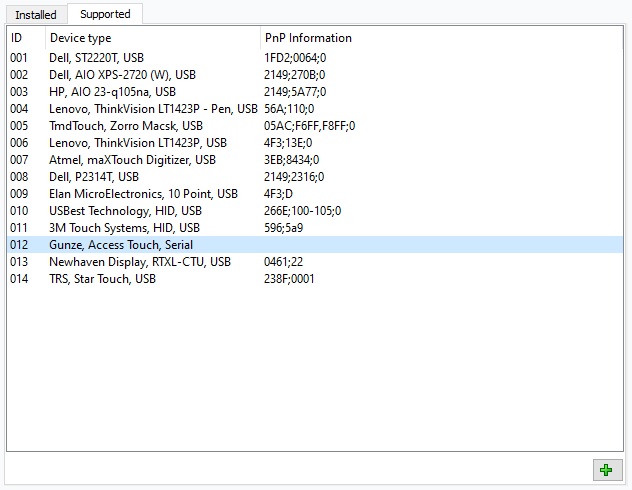
USB devices are automatically discovered when they are plugged in, so long as they are in the supported list. Serial devices can be added using the + option, see below.
Serial devices
Serial port devices are not added to the list of active devices by default, unless the installed driver only supports one serial device. To add one, select it in the Supported list, use the + option and enter its serial port name, as described in Serial (RS232) devices.
About
Shows information about the installed driver software: the version and build number, copyright, the registered licensee and a link to the End User License Agreement.
Error displays
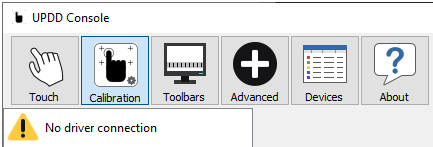
The Console displays any issue that might be affecting touch functionality as an entry at the top of the device list, as in this example:
| Entry | Meaning |
| No driver connection | This is a severe issue. The Console cannot communicate with the driver. It is likely that the driver is not loaded or has frozen. Check that the driver process is running (see Touch not working: first steps). This may require a reboot or re-installation. |
| No devices found | The driver is running but no supported touch device is connected. See Touch not working: first steps. |
| UPDD Daemon not connected | The UPDD Daemon process is not running. On systems configured not to run UPDD Daemon this entry can be suppressed with the global setting console.no_daemon_check. |
| kextload error n kextutil error n | macOS, packages using a kernel extension: the kernel extension could not be loaded; n is the error code returned. |
For review
The About screenshot (ConsoleAbout.png) has been dropped because it shows the withdrawn "Check for update" link; please supply a new screenshot of the About page.
Error displays: "No devices found", "UPDD Daemon not connected" and the kextload / kextutil entries were added from 07_01 console/mainwindow.cpp:706-822; 50710 listed only "No driver connection". Its sentence that "upddutils hidmode on" was the only legitimate case of that error in Windows is dropped (hidmode is not in UPDD 7).
Pointer interface: the per-OS mapping is carried from 50696 (needs-work in the correction pass). The setting behind it is confirmed as active_pointer_interface (console/touch.cpp:64); the Linux column (Mouse = XTouch, Touch = uinput) could not be confirmed in 07_01 and needs checking.
The device settings screenshot (CDTouchDevice.PNG) still shows the field as "Touch interface"; the current label is "Pointer interface". The General screenshot predates the Unregister, Warranty expires and Check controls (console/general.ui). New screenshots would help.
Warranty expires / Check (console/general.cpp:222-253) touch the held licensing wording; please check the description against licensing-overview.