Modifiers
When a gesture entry is defined, it is associated with the gesture performed in its basic form, that is, not associated with a modifier trigger. However, a gesture can contain any number of additional definitions that are related to a modifier, such that if the modifier is active at the time the gesture is performed, the associated modifier gesture entry is selected.
This document describes the four modifier types, how they are added and how Commander chooses between them, and how keyboard modifiers interact with gestures and actions. Modifiers were introduced in UPDD Commander 1.3.0 and apply to macOS and Windows, except the UI element modifier, which is macOS only.
Multiple different actions associated with a single gesture allow for the creation of very powerful gesture sets that can be used to expand the way touch gestures interact with and control an application's functions.
Adding a modifier
To add a modifier entry, select the modifier add option in the gesture definition:
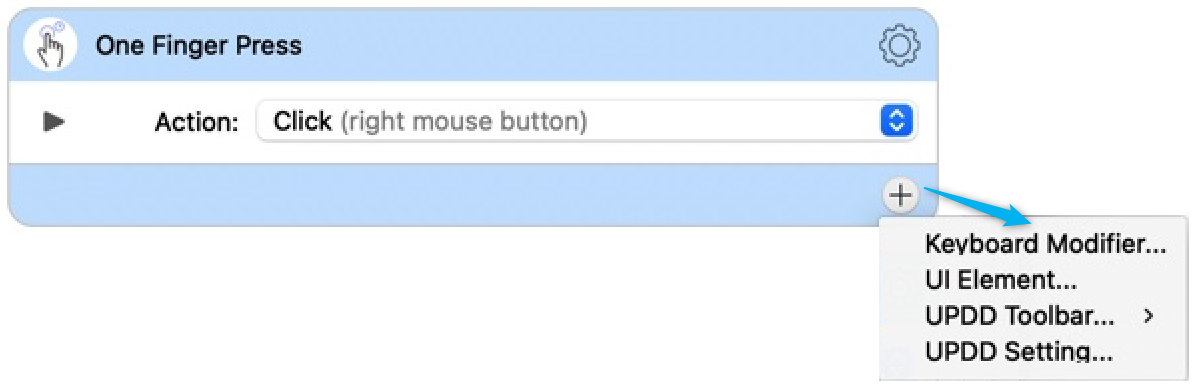
The four modifier types are as follows:
| Modifier | Description |
| Keyboard | Relates to the standard set of keyboard modifiers: Command, Option, Control and Shift on macOS; Alt, Control and Shift on Windows. |
| UI Element (macOS) | Individual areas and controls that together make up an application's visual on-screen dialog are known as UI elements. A UI element trigger can be related to the UI element being either shown or not shown. |
| UPDD Toolbar | Relates to a UPDD driver toolbar. A toolbar is an area on the touch screen that is used to filter touches from being processed, but can be identified when touched via the driver's API. Requires driver version 7.1.40 (macOS 10.14 and above). |
| UPDD Setting | An ad hoc driver setting can be created and set to different values that are used as a modifier trigger. |
A single gesture definition can have as many unique modifier definitions as required. A modifier definition is added into the gesture relative to the add control button (+) selected. In this example, a single keyboard modifier definition has been added to the One Finger Press gesture:
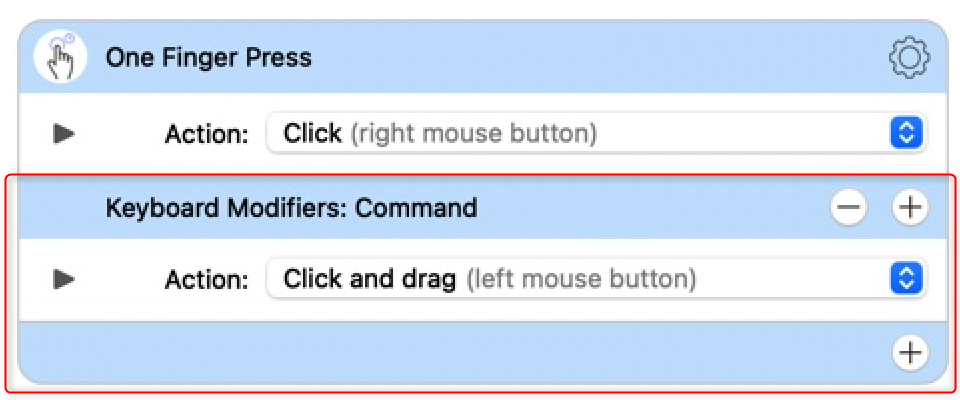
You can delete a modifier definition using the (-) control.
Modifiers are processed in the order they are defined, so if more than one modifier trigger is active, the topmost one is selected. You can reorder modifiers within the gesture by dragging the modifier by its title bar.
Keyboard
For each gesture, you can add a keyboard modifier made up of up to four keys, as selected from the keyboard selection dialog:
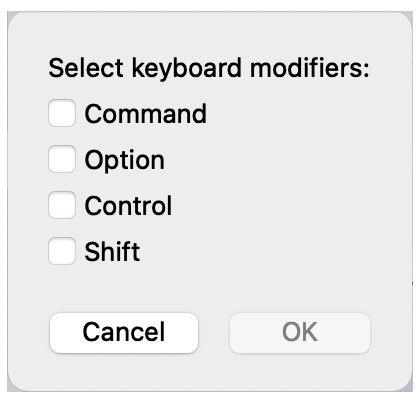
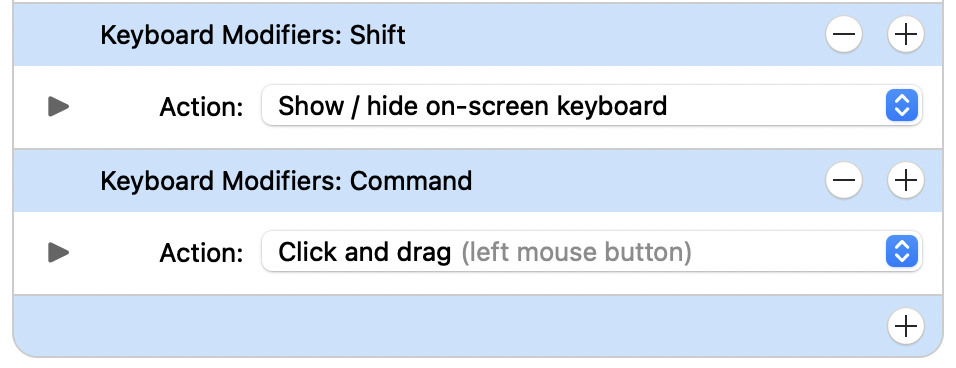
This creates a keyboard modifier entry listing the associated keyboard modifier. Set the action required when the keyboard modifier is held down on the keyboard and the gesture is performed. This example shows two keyboard modifiers defined:
UI Element
UI elements are areas and controls that make up an application's visual on-screen dialog window. Depending on an application's UI element layout, you may wish to change the actions invoked when certain gestures are performed.
When you add a UI element modifier, you are asked to select the UI element using the UI element selection dialog, and whether the modifier applies when the UI element is on screen or not on screen:
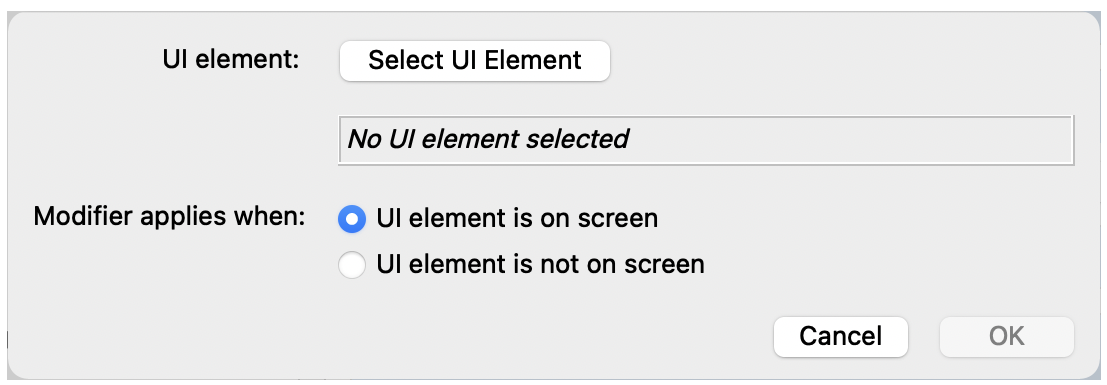
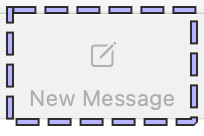
When you select "Select UI Element" the system highlights the UI element under the system pointer with a dotted line around the edge of the area covered by the UI element. You can use the mouse as normal at this point, so it can be used to load the appropriate application or dialog should the desired UI element not be on the screen. Once the desired UI element is highlighted, press the Return key to select it. Here you can see the New Message UI element highlighted in Mail:
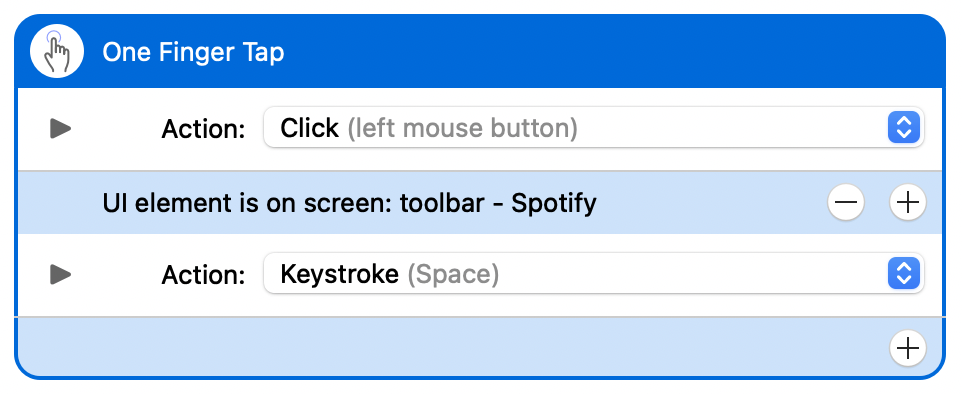
In this example, a UI element modifier has been set up to generate a Space when Spotify is focused, to start and stop play by tapping on the touch screen:
Important note: UI element processing uses the macOS Accessibility API to determine the UI elements within an application. A number of issues can arise when defining UI elements:
- Some applications can have thousands of UI elements, such as Mail with a very large mailbox, and the UI element selection can potentially take a long time to complete. To avoid this, the UI element selector uses a simple (fast) technique to extract the UI element details. In rare cases where this does not work it uses a more robust but slower technique that can make the program appear to have stalled (beachball), but it will return eventually.
- Some applications only return one or two UI elements, such as the entire dialog window and/or the top toolbar.
- Some applications do not conform to Apple application standards and the Accessibility API will not find any UI elements to select.
- Some applications do not respond to the UI element request and the function times out.
- Degenerate UI elements are ones that can be identified during the selection process (located under the cursor) but cannot be found when Commander later searches for the UI element, as applications do not always report UI elements that are contained within another. For this reason the UI element selection process prevents the use of degenerate UI elements.
UPDD Toolbar
Using toolbars as modifiers requires UPDD driver version 7.1.40 or later, which on macOS supports 10.14 and above.
A toolbar is an area of the touch screen that can be used to mask off touches. Toolbars are given unique names and can be located anywhere on the touch screen. A toolbar can have any number of cells (rows and columns). They are created and maintained in the toolbar section of UPDD Console.
When you add a toolbar modifier, you select a toolbar name from the list of toolbars created on the system:
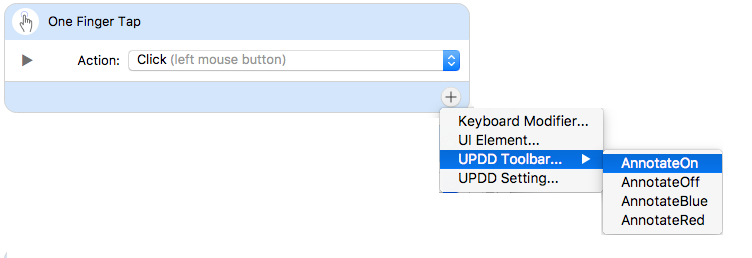
In the above example, all the toolbars shown have a single cell (1x1). If a toolbar contains more than one row or column, the cell layout is shown so the appropriate toolbar cell can be selected.
When a toolbar is touched, the touch is ignored and no cursor movement occurs, however UPDD Commander is aware that the toolbar is active. There are two different toolbar active states:
| State | Meaning |
| Touching | Indicates the toolbar is currently being touched. |
| Latched | Indicates the toolbar has been toggled on. When creating a toolbar you can specify that it is a latched toolbar, that is, it is set active once tapped. A latched toolbar's active status is toggled on and off with each tap on the toolbar. If a latched toolbar is pressed for a period of time (held) and then released, the latch status is set to off. |
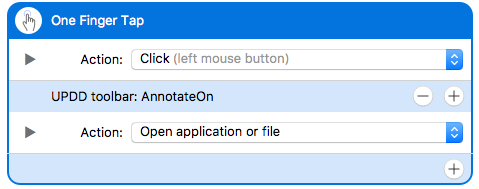
In this example, a toolbar modifier is used to invoke the UPDD Annotate utility:
UPDD Setting
The touch driver allows settings to be created via its command line interface utility program. This allows ad hoc settings to be created that can be referenced by UPDD Commander, so that settings can be used, manually or by an automated process, as modifier triggers.
You could, for example, have a general modifier setting called UCM (UPDD Commander Modifiers) used to control modifiers, or a very specific name, such as LogicPro, to define all modifiers associated with the Logic Pro DAW.
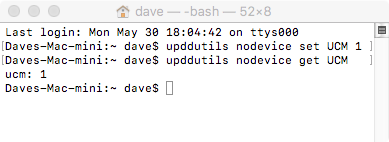
To use the setting option, first create the global (no device) driver setting using the command line utility: upddutils nodevice set [name] [value]
In this example, the setting UCM has been created and set to 1, and the "get" parameter has been used to retrieve the setting value (to see that it has been set):
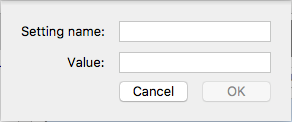
When you add a setting modifier, you are asked to specify the setting and the trigger value:
Once the name and value are entered, the setting is referenced in the gesture thus:
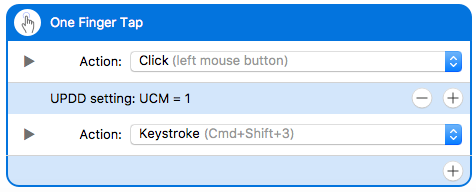
Thereafter, this setting can be set externally, using the command line interface, to whatever value is required to invoke the appropriate action. The setting modifier option is predominantly used by external processes to control the gesture actions performed. It can also be set from a gesture with the "Set global setting" action: you could, for example, use One Finger Swipe from the top, bottom and left edges to set the values 1, 2 and 3, and the right edge to set an unused value 0.
Modifier considerations
When modifiers are defined it is generally expected that only one modifier will be active at a time, but it is always possible that more than one modifier trigger is active at any one time. When more than one trigger is active for a given gesture, the topmost definition is selected at the time the gesture is performed. The sequence of modifier definitions can be viewed in the Commander settings window.
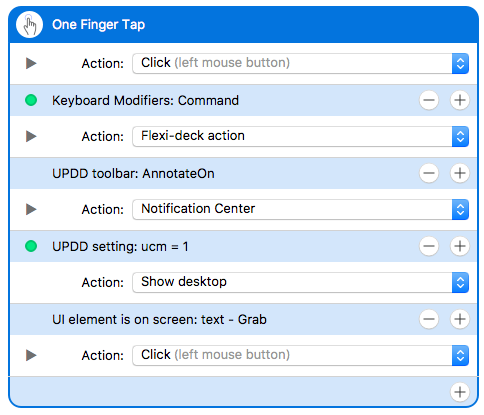
When the settings window is on display, any active modifier triggers are shown with a green dot. Further, Select next performed gesture also selects the gesture modifier being triggered, based on the modifier triggers active at the time.
In this example, a number of modifiers have been defined against the One Finger Tap gesture and at the time of the screenshot two were active: the UCM setting was set to 1 and the Command key held down. A tap gesture performed at this time would invoke the Flexi-deck action.
Modifier examples
Using modifiers allows you to enhance your interaction with the system and applications purely via touch gestures. You will need to determine the best modifier trigger to use: keyboard and toolbar triggers are selected manually, UI elements are selected automatically based on an application's display, and settings are normally set by an external process. Here are just a few examples.
Enhance single touch monitors
Single touch monitors can only be set up to handle one finger gestures, unlike multi-touch monitors that can utilise one to five finger gestures. Using modifiers, you can invoke a much higher number of gesture actions from the various one finger gestures.
Program manipulation
In some situations you may be controlling an application's functionality purely via an interactive display or whiteboard, and touch toolbars can be used to switch gesture and action functionality to suit. For example, you may be working in a browser content window and switching between One Finger Drag / Click and drag, to ink within a drawing application, and One Finger Drag / Scroll, to scroll the contents.
Switching macro automation sets
Actions can call Automator scripts, AppleScripts, shell scripts, macOS Shortcuts or Flexi-deck automation macros. Using modifiers, you can switch between different sets of these control functions.
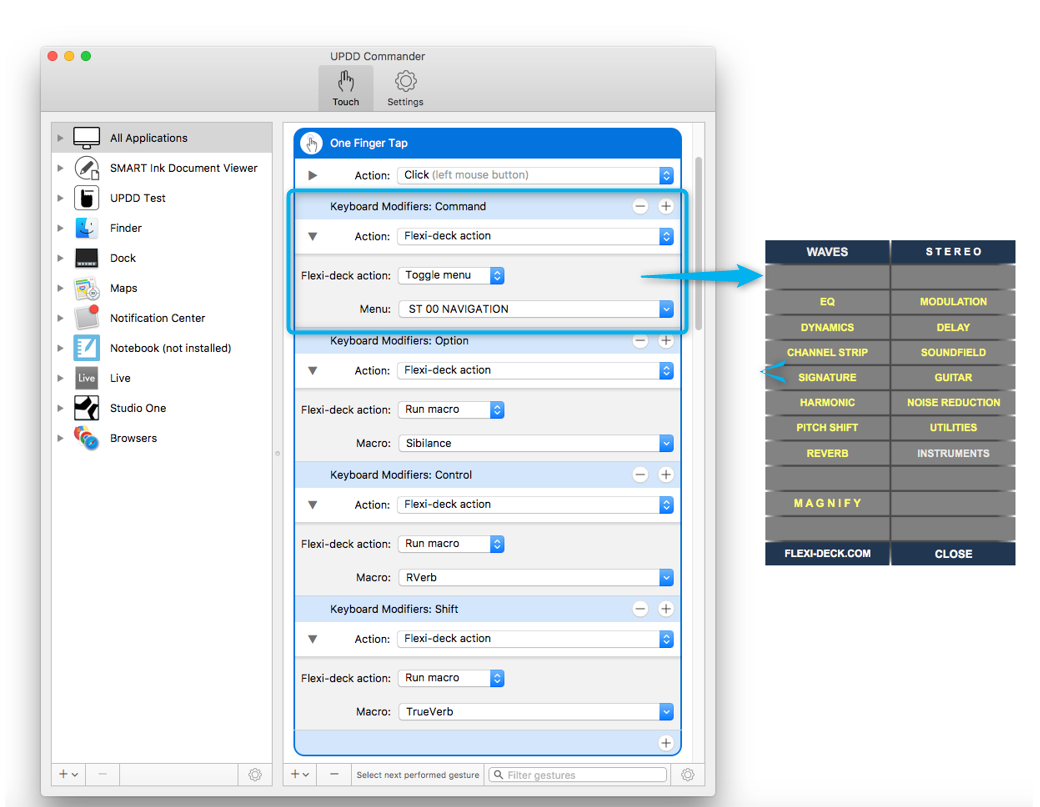
For example, Flexi-deck has thousands of macros to control Logic Pro functions, normally invoked by on-screen menu button sets displayed appropriate to the Logic Pro functions on display. Using modifiers you can create gesture sets that directly invoke the Flexi-deck macros, such as loading your popular plug-ins or invoking panning. In this example, which shows how a Flexi-deck macro is selected from the active Flexi-deck project, keyboard modifiers are used either to toggle the Waves plug-in selection menu on and off or to load some popular plug-ins:
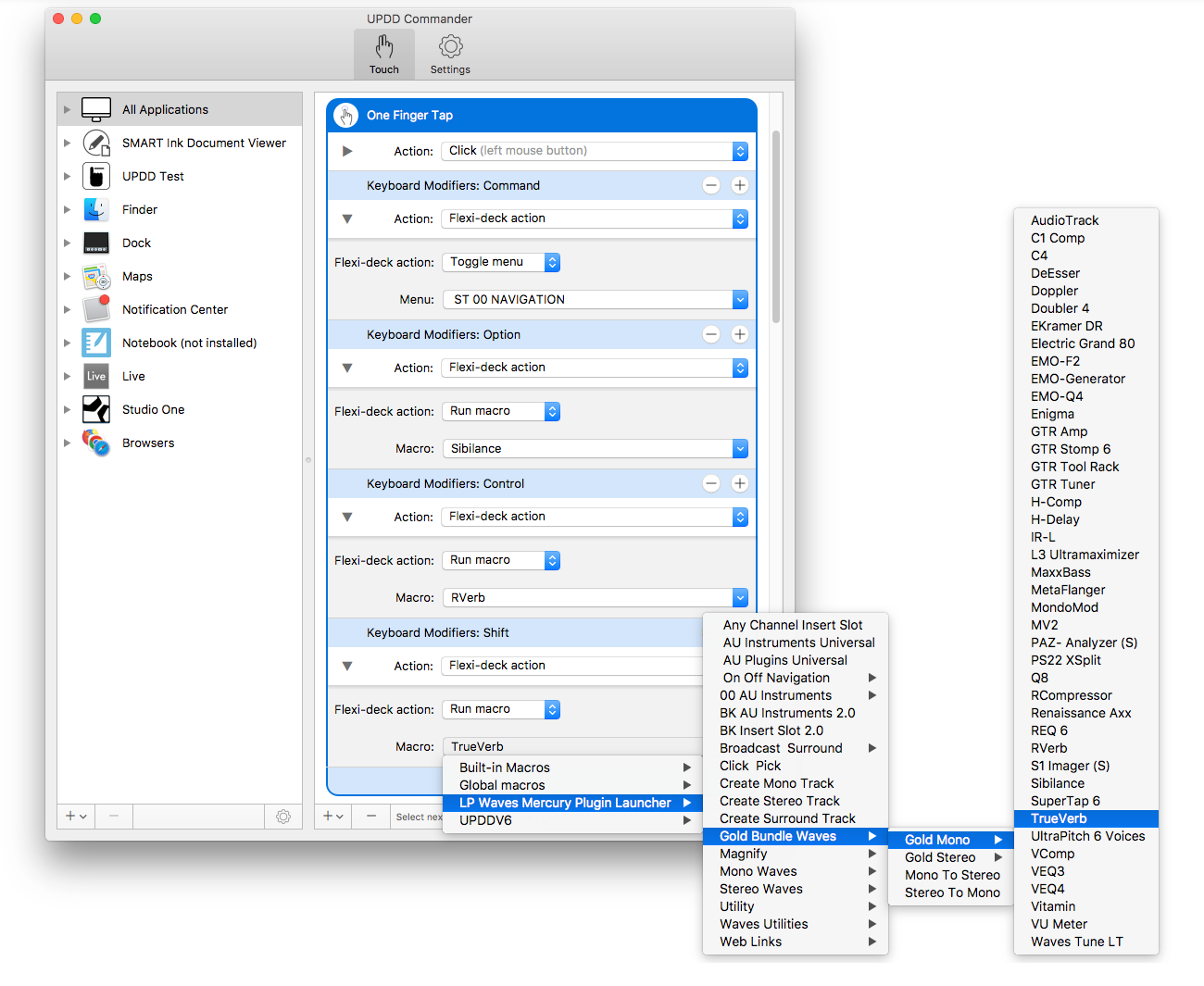
Command + One Finger Tap loads the main Waves plug-in launcher selection page:
Keyboard modifiers and gestures
There are two considerations with keyboard modifiers and gestures / actions: processing the physical keyboard modifier held down at the time the gesture is performed, or emulating the keyboard modifier when the gesture's action is performed.
Physical modifier
macOS supports "modifier keys" that can be used in conjunction with a mouse. For example, pressing the Control key on the keyboard and clicking the mouse (left button if using a multi-button mouse) invokes a context menu, and Shift + click allows multiple selections. When a gesture is used to generate clicks and presses, these modifiers perform the same actions as when used in conjunction with a mouse or trackpad. (A keyboard modifier defined as a gesture modifier, as described above, instead selects a different action.)
Emulated modifier
Click actions can be defined to set a modifier, so that the system performs the "modifier + action" function. When a click or press action is defined there is an option to define a modifier to be set, as shown below:
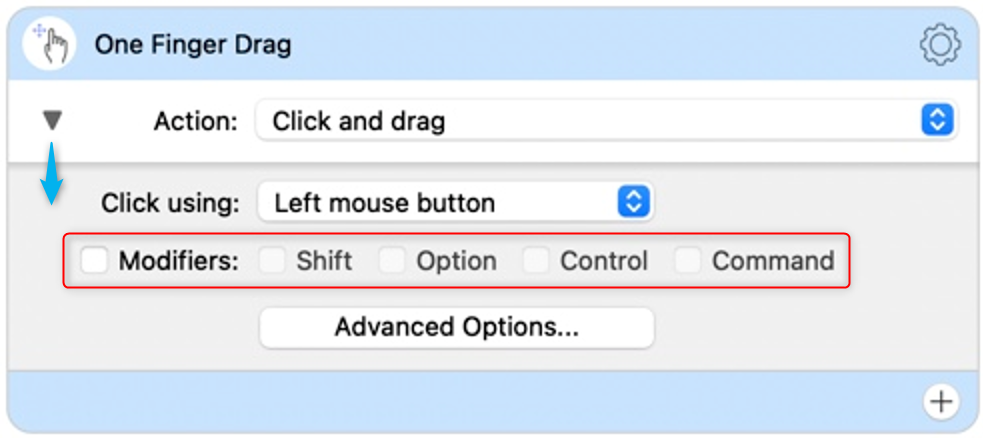
Since UPDD Commander 1.13.0 the Click and drag action can hold down any keystroke, not only a modifier key, during the drag (this allows better scrolling in photo editors).
For review
50770 said that holding Shift while zooming or panning the screen makes it zoom or pan more slowly. In released Commander 1.15.0 the only Shift check for this is in macOS/osxZoomScreen.mm:308, the earlier Accessibility-zoom implementation, which nothing in 1.15.0 calls; the current screen zoom (commonActions.cpp zoomScreen / panScreen) has no Shift handling and uses the speed settings of the actions instead. The sentence was left out; please confirm on a 1.15.0 system.
Keyboard modifier keys per platform, UI Element being macOS only and the UPDD Toolbar / UPDD Setting menu names were confirmed in GestureModifierManager.cpp:55-77 and QtGestureEditor.cpp:1531-1548. "Up to four keyboard modifiers" (50791) was reworded to "made up of up to four keys", as the dialog has four checkboxes on macOS and three on Windows.