Notes on other applications
This document collects short notes on using individual applications with UPDD Commander. Most of them come down to adding the application to the application list and changing one or two gestures, or loading a preset that does so. Applications with their own topics:
- Web browsers and web whiteboards: Browsers
- Logic Pro, Pro Tools, Ableton Live, Studio One, Yeco, Max MSP, Camelot Pro, UA LUNA: DAW applications
- ProPresenter and other presentation or video control applications: Presentation and single-purpose touch screens
- Home Assistant and on-screen keyboards: On-screen keyboard
- Unity: Unity and games; the iOS Simulator: iOS Simulator
- Qt, JUCE and other UPDD API applications: Qt applications, JUCE applications and plug-ins, API applications alongside UPDD Commander
grandMA3
The grandMA3 lighting software requires that UI element detection ('Check for UI element') be disabled, otherwise there is a delay registering touches (see Touch delay and latency in Commander).
UPDD Commander software created after 3rd July 2024 has an updated grandMA3 preset. This should be loaded automatically if you have grandMA3 installed, or it can be manually loaded from the Custom folder:
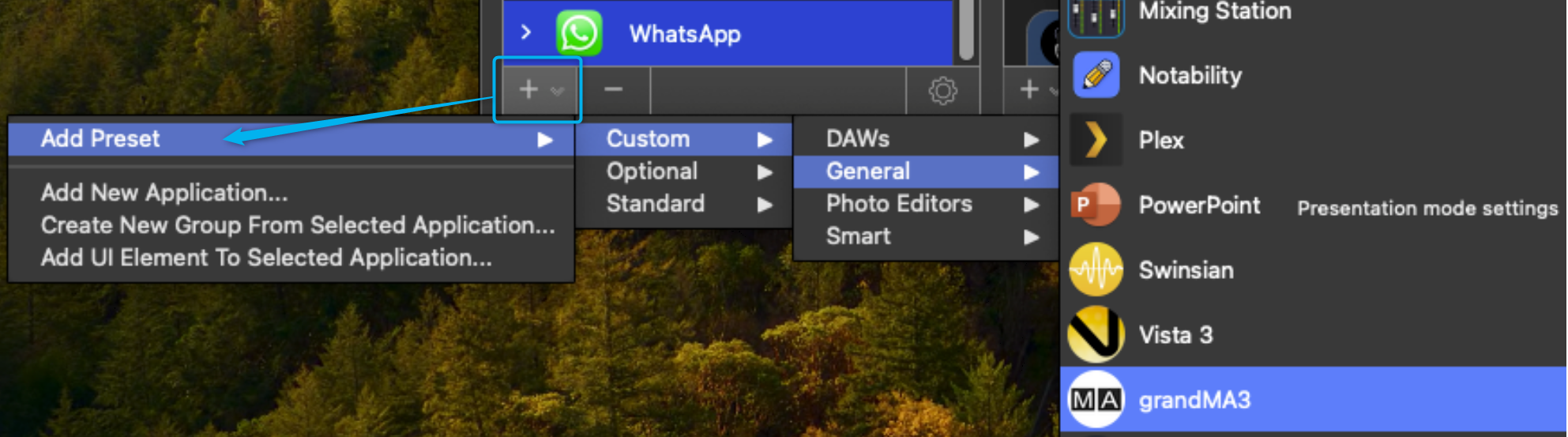
The preset applies the following customisations:
- UI element detection disabled.
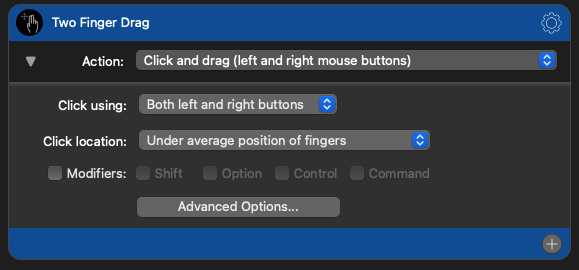
- Two Finger Drag is set to Click and Drag with both left and right mouse buttons, to drag items and views. (The both buttons option was introduced in UPDD Commander 1.6.4, released 5th April 2024.)
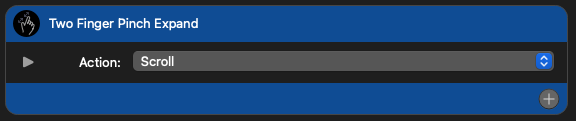
- Two Finger Pinch Expand is set to Scroll, to enable zoom in the 3D view window.
Notability
The Notability software requires that 'Check for UI element' processing be disabled, otherwise the top menu drop down options are difficult to select.
UPDD Commander software created after 6th September 2023 has a Notability preset that can be loaded from the Custom folder.
Lightkey
A customer reported that when using a single finger to move sliders they needed to move the finger in the opposite direction to get the slider movement: down for up, up for down.
UPDD Commander tries to determine the application and UI element over which the gesture is being performed. In the case of Lightkey we believe it reports parts of its application UI as being a scrollable area (even though it is not), so Commander uses a scroll action when touching in those areas rather than a click and drag. Scrolling often goes in the reverse direction of the gesture, since scrolling down moves the contents up and vice versa. If you change the gestures to always use click and drag for Lightkey it works properly, such as on sliders, so long as you are only using one touch. Multi-touch is not supported by Lightkey under macOS.
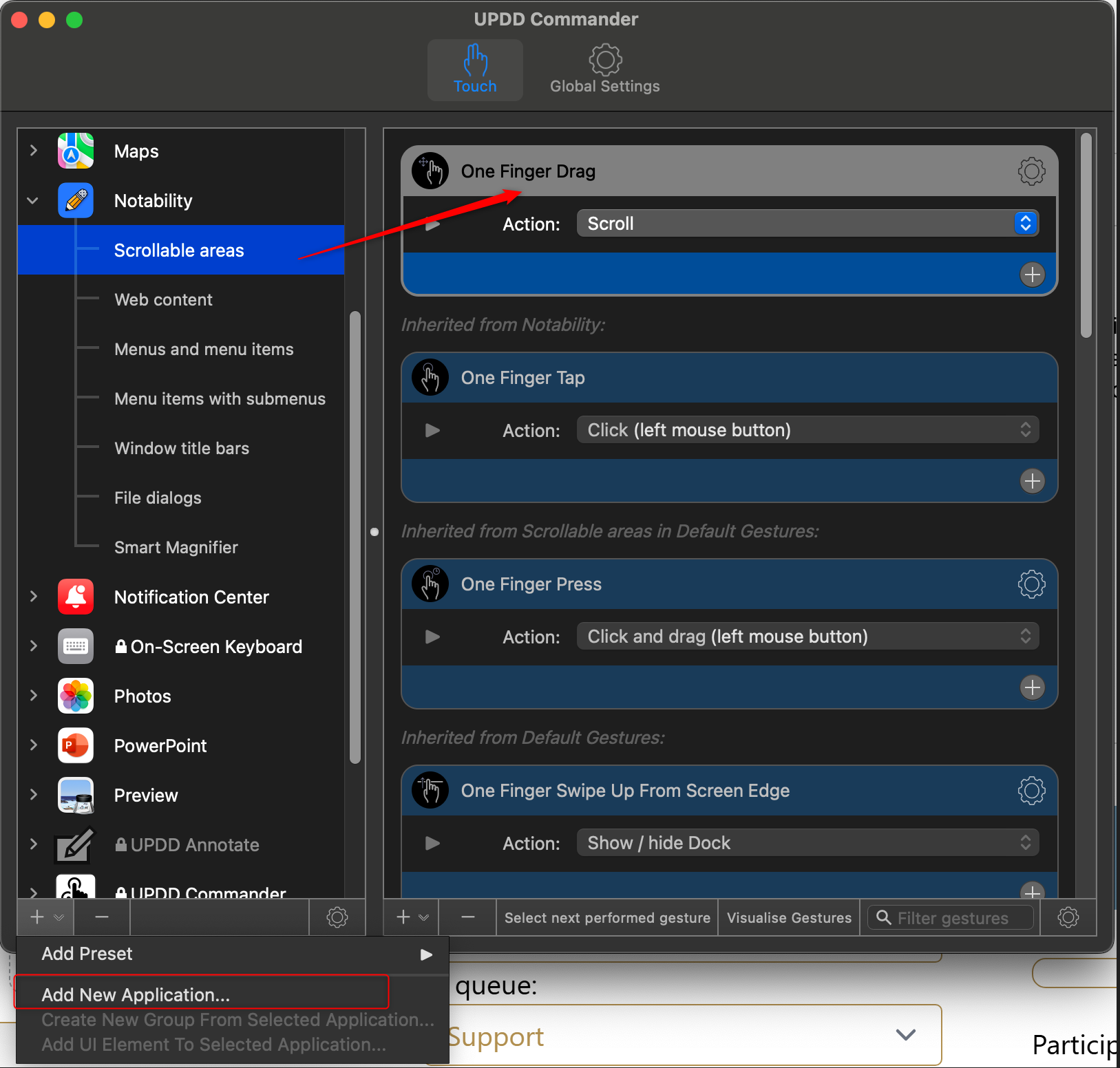
To overcome the scroll issue, add the Lightkey application to the application list and change One Finger Drag from Scroll to Click and Drag, as shown below. The user confirmed this worked.
Add New Application, expand and highlight Scrollable areas, double click on One Finger Drag and change the action:
SMART Notebook and Ink Document Viewer
SMART Notebook and Ink Document Viewer should be added as separate applications with One Finger Drag redefined in the Scrollable areas UI element to function as expected. Presets for both, which do this, are in the Custom > Smart folder of the presets.

If these utilities are not added to the list of applications then UPDD Commander will fall back on the gesture set from Default Gestures and use the gestures and associated actions listed under "Scrollable areas", where the default action for One Finger Drag is Scroll. Adding the utilities to the list of applications and adding the One Finger Drag gesture overrides that.
IPEVO Annotator
IPEVO Annotator is a whiteboard application. As best as we can tell this application just responds to mouse clicks; using an Apple trackpad does not do anything special. So it can only work with UPDD in simple touch mode (mouse emulation) and it cannot handle multiple touches. It does not support the TUIO interface.
Autodesk Sketchbook
We believe this is a single user, single stylus type application and there does not appear to be any way to get multiple strokes working in Sketchbook.
There is no option for the application to run as a TUIO client and it would appear this application is intended to be used by a single person working with a drawing tablet or mouse. In macOS (and we believe in Windows too) there can be only one tablet stroke occurring at a time.
In our tests Sketchbook does respond to Apple trackpad multi-touch gestures (albeit with very poor responsiveness), so in theory it could be configured to allow some multi-touch functionality via gestures, but not multiple strokes at once.
Unity Intercom
Unity Intercom requires a long press to activate the intercom.
After adding the application to the application list change the One Finger Press gesture to Click and Drag, left mouse button.
If you do not want to wait for the usual 600 ms for the press gesture to trigger, also click the gear icon for the press gesture and change its "hold finger for" setting to 1 millisecond.
Microsoft OneNote
In OneNote, to be able to ink in the drawing area, you need the One Finger Drag gesture for scrollable areas to be set to the Click and Drag action (overriding the default action, which is Scroll). Since December 2025 UPDD Commander has shipped with a OneNote application definition that does this.
If you have a UPDD Commander installation that predates December 2025 you will need to make this customisation yourself. You have two options: import the customisation file or configure the setting manually.
Option 1 - Import the customisation file
- Download the OneNote.ucapp file.
- Open the UPDD Commander settings from the UPDD Commander menu bar icon and, from the application menu, choose File, Import Application Settings...
- Browse for the ucapp file you just downloaded and click Open.
- If OneNote was not already in your list of applications (because you installed it after installing Commander) it will now appear in your list of applications with the correct gesture action defined. If it was already in the list you will be asked "Replace existing application?", to which you should choose Replace.
You now have the necessary gesture action set to draw within OneNote.
Option 2 - Configure the setting manually
- Open the UPDD Commander settings from the UPDD Commander menu bar icon.
- Under the list of applications on the left, if OneNote is not already listed, choose the + icon drop down and choose Add New Application (as detailed in Applications, groups and UI elements). Then pick OneNote from your Mac's list of applications and click Open. It will now be added to your application definitions list.
- Select OneNote from the list, expand its options with the > icon and select Scrollable areas.
- Change the action on One Finger Drag from Scroll to Click and Drag.
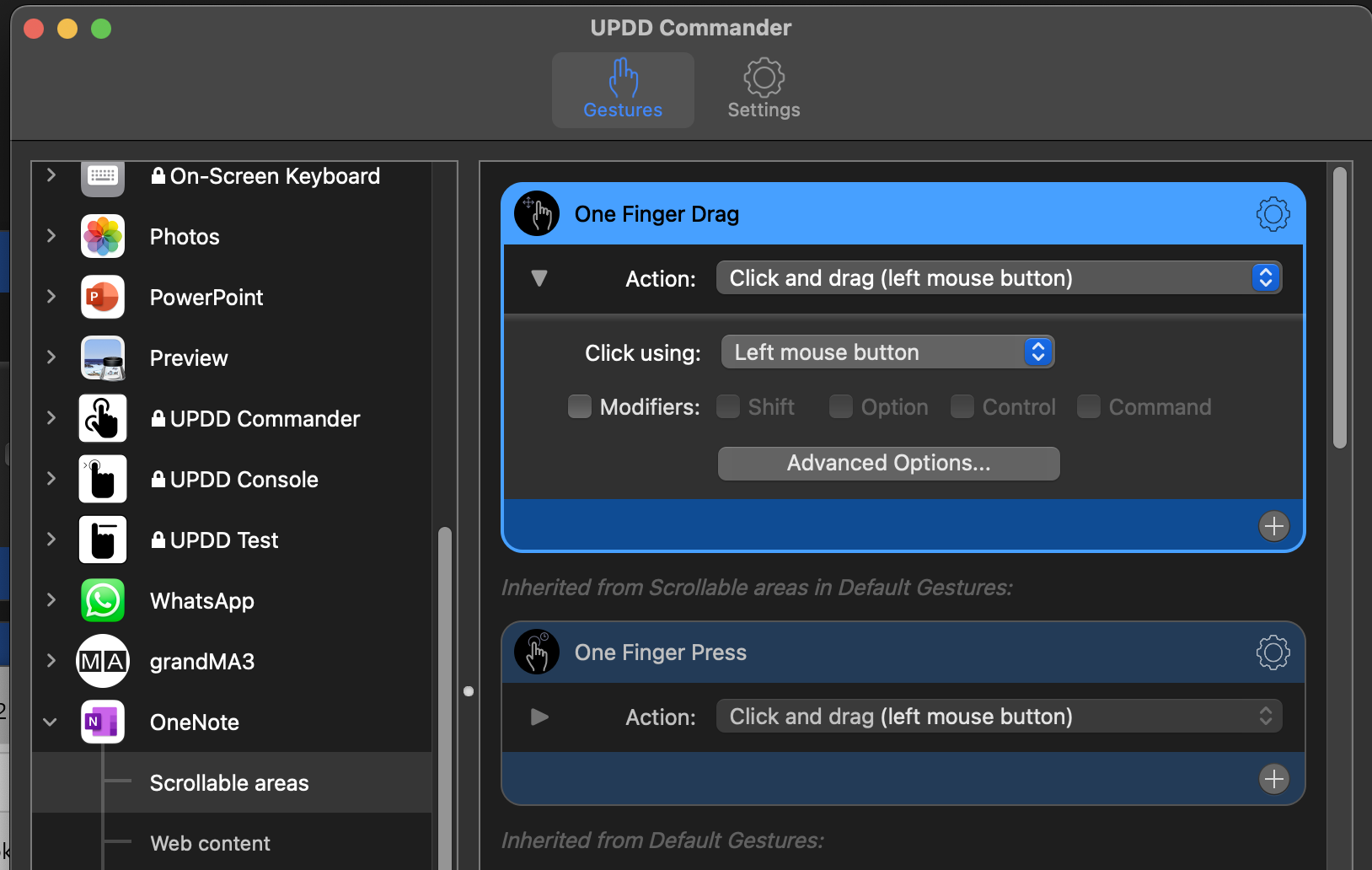
You now have the necessary gesture action set to draw within OneNote.
Electron applications
Although Electron applications are technically running inside an embedded browser, they are not treated as a browser application by Commander.
If the default set of gestures and actions needs adjusting for an Electron application, it is best to add the application to the application list and set up the required gestures and actions.
Recent versions of Commander can see UI elements inside Electron applications, so the default gestures that come with Commander work reasonably well inside them, and it is possible to customise them on a per UI element basis as required.
Photoshop, Affinity Photo and other photo editors
UPDD Commander 1.13.0 (19th February 2026) added the option to use any keystroke as a modifier for the Click and Drag action (the Other: modifier), to cater for clean scrolling of a canvas in any photo editor that uses the space bar for panning, such as Photoshop and Affinity Photo, and probably others that do the same.
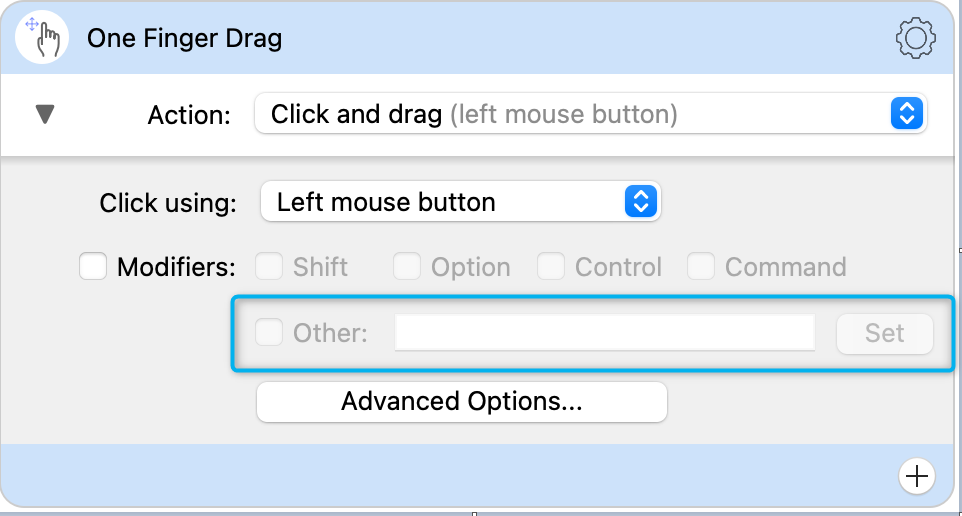
Under macOS there are presets for both applications (Custom > Photo Editors), as well as a Photoshop preset in Windows. On Windows the preset is important, because Photoshop does not respond to native Windows touches.
The Photoshop preset makes single touches perform mouse clicks so you can use Photoshop's tools with touches, and sets two finger pinch / expand and two finger drag to zoom and pan the canvas.
Other macOS and Windows photo editing applications may need to be configured the same way within Commander for them to fully function with touch.
For review
Notability: the article says its preset has 'Check for UI element' disabled, but the preset in the TBA packaging (Custom/General/Notability.ucapp) only sets One Finger Tap to Click with click nearest on, and does not disable UI element detection. The preset sentence here no longer claims it; confirm which is intended and whether the preset or the text should change. The original date read "6th Sept 20223"; 2023 is assumed.
OneNote: the .ucapp download is a static file under /Uploads/Media/UCAPP; confirm it is still wanted now the definition ships with Commander.
grandMA3 and Lightkey screenshots: the two grandMA3 gesture images are embedded (data URIs) in the original and are carried as they are; consider saving them as uploaded files.