Smart Magnifier
The Smart Magnifier, introduced in Commander version 1.2.0, is a magnified area of the desktop that allows for accurate touching and control of small desktop UI elements, and is available for both macOS and Windows. This document describes how it works, how it is invoked and controlled with gestures, and its settings.
The magnifier is in addition to the click nearest function, which also offers accurate touching of small clickable UI controls by directing touches to the nearest clickable control to the actual point of touch.
The Smart Magnifier is especially useful in applications that have many small selectable elements, such as dials or sliders, that have been designed for mouse or trackpad control or are especially small when used on small monitors, such as the portable touch monitors often used as a secondary monitor. In the example below, a digital audio plug-in is magnified to allow easy and natural control of the plug-in controls using touch. Even the smallest controls, such as the THD control shown below, can easily be selected and adjusted using touch, even on small portable touch screen monitors.
| Without magnification | With magnification |
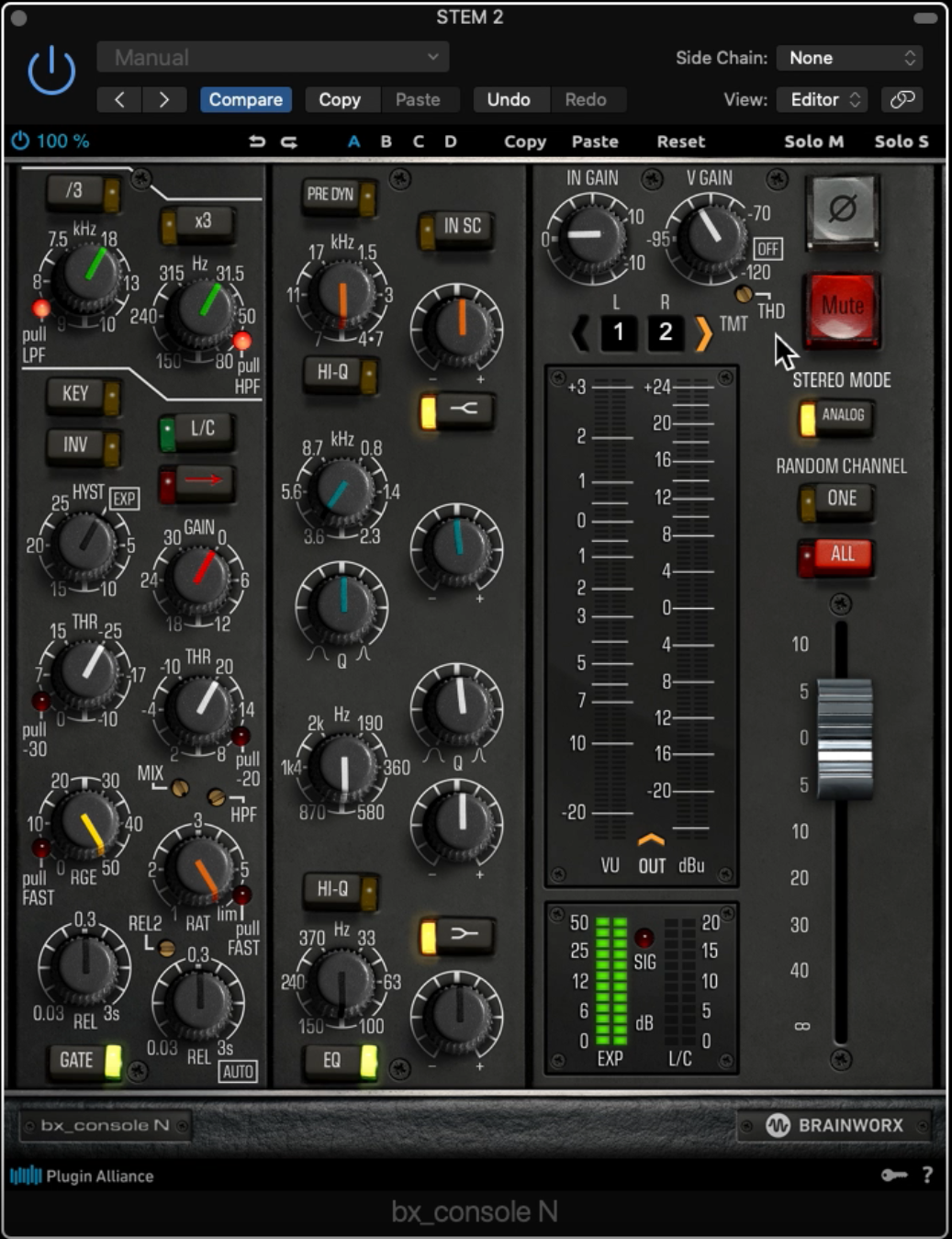 | 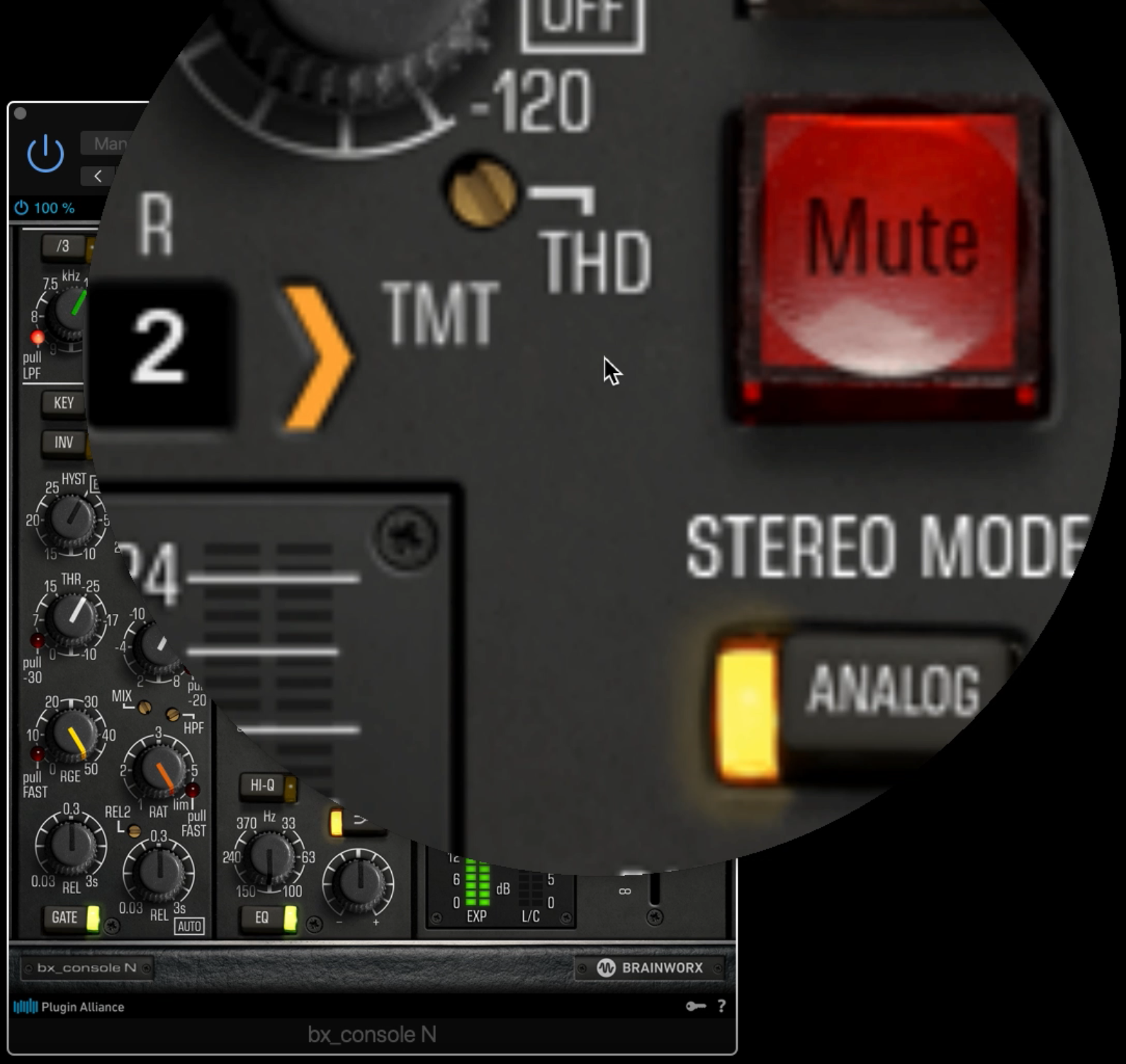 |
 | An introductory video of the Smart Magnifier can be viewed here. |
On macOS the Smart Magnifier needs UPDD Commander to have Screen Recording permission. Granting it, the warning Commander shows when it is missing and the menu bar icon macOS shows while the magnifier is in use are described in Screen Recording for the Smart Magnifier.
How it works
The Smart Magnifier can be instantly invoked with a gesture, such as a Two Finger Tap, directly under the point of touch. With the default configuration it is also possible to just perform a two finger expand where the magnifier is required, and it appears at the point of touch.
The real "smart" element of the Smart Magnifier is the way clicks and movements are passed through the magnifier to the underlying application to facilitate natural and accurate interaction. When touch within the magnifier generates a click, Commander recalculates the non-magnified co-ordinate needed to click the magnified item, so the touch click is accurate. In Commander version 1.5.1 this feature was enhanced to allow adjustment in individual applications and to process the full range of gestures within the magnified area.
Because the magnifier has been developed for touch usage, if a mouse is used within the magnifier it does not recalculate, so the actual click might be offset from the magnified location. The offset depends on the location of the click within the magnifier (central clicks are more accurate than edge clicks) and the degree of magnification.
The other "smart" element is the manner in which the magnifier can be controlled with touch once on the screen, using gestures to adjust magnification, toggle the magnifier on and off, or change its shape or size.
A default set of gestures and actions is defined against the Default Gestures entry; these apply to all applications unless overridden by specific application entries. An application entry is further subdivided into UI elements, such as menu items and scrollable areas, and a special Smart Magnifier element used to configure and control the gestures inside the magnifier. Initially the Smart Magnifier element was only defined once under Default Gestures; since Commander version 1.5.1 it is inherited by all defined applications, to allow adjustment at the application level.
Invocation
By default the Smart Magnifier is configured to be easily invoked using touch. Two gestures are defined at the system-wide Default Gestures level to invoke and control the magnifier:
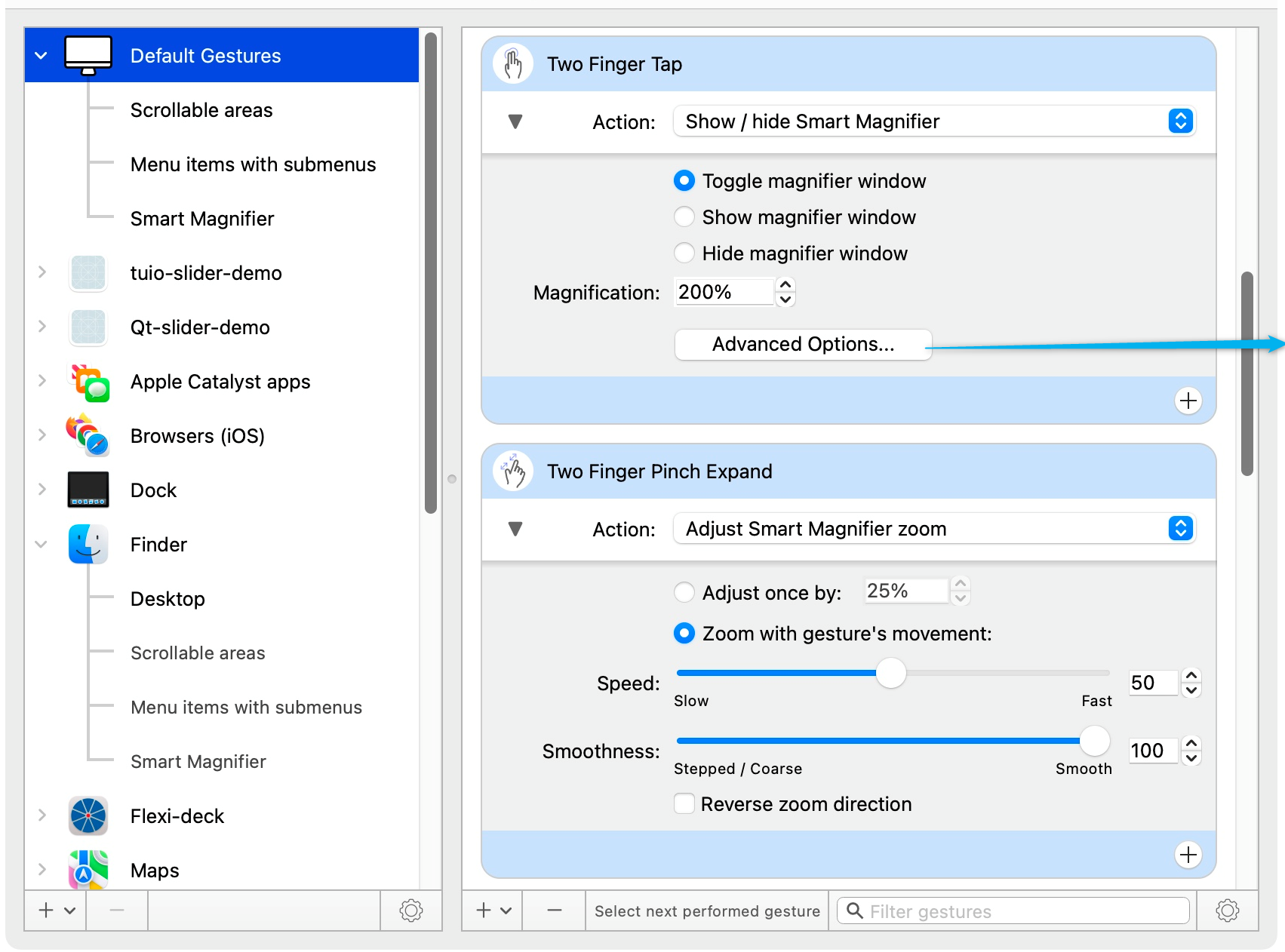 |  |
With these settings a Two Finger Tap toggles the Smart Magnifier on and off, and a Two Finger Pinch / Expand adjusts the magnification. Default action values are shown but can be adjusted as required.
If the Smart Magnifier is not required on your system you can delete these entries (right-click the gesture) or change the action as appropriate.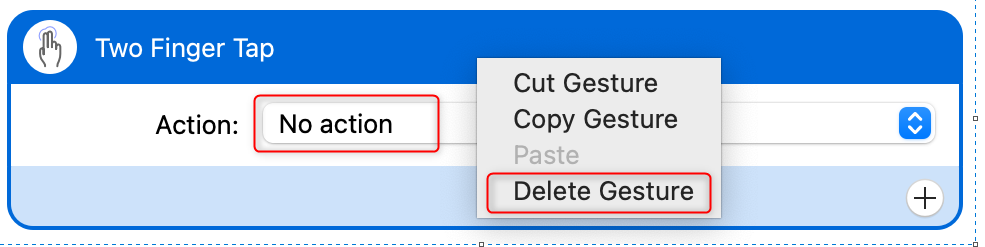
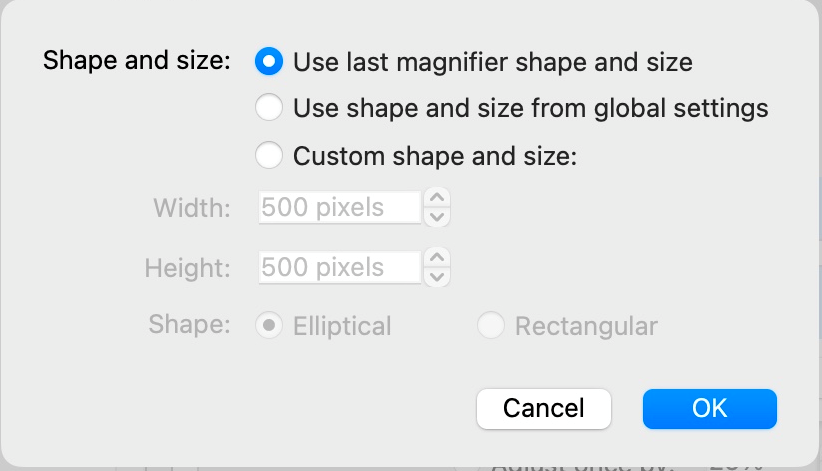
You can, if required, define different gestures to invoke magnifiers of a different size or shape. For example, Three Finger Tap can also be set to toggle the magnifier, with a different custom shape and size set in its Advanced Options. If the magnifier associated with the two finger gestures is active, a Three Finger Tap toggles to the new shape and size, and vice versa with Two Finger Tap. The toggle option therefore either toggles on / off or toggles shape / size. In most cases one magnifier shape and size suffices, but this allows a number of different magnifiers to be defined and invoked.
A Two Finger Expand gesture also invokes the magnifier if it is not currently shown. Pinching when the magnifier is at its smallest magnification closes the magnifier. In this regard the "Adjust Smart Magnifier zoom" action can also perform the show and hide actions, so the "Show / hide Smart Magnifier" action is not strictly necessary, but offers an alternative way to show and hide the magnifier, especially where Two Finger Pinch / Expand is defined at an application level with a different action.
For applications that require Two Finger Pinch / Expand to zoom, this should be defined at the application level. For some applications this is at the root application level, whereas for others it is in the Scrollable areas element, as defined in the Browsers group to pinch / expand web content, and in image applications such as Preview to pinch / expand the image. In most cases these are set by default. This example shows the definition in the Maps application, so this gesture performed on a map zooms the map rather than invoking the magnifier:

Once the magnifier is on the screen, the magnifier control gestures work within the magnifier area due to the gesture definitions for the magnifier itself, described below.
The magnifier can also be toggled and adjusted from the command line with the -m and -a parameters, described in Running Commander.
Magnifier actions
| Action | Settings |
| Show / hide Smart Magnifier | Toggle, show or hide the magnifier window; the magnification (%). Advanced Options: position (show at the gesture position or at the last position) and shape and size (use the shape and size from the global settings, use the last magnifier shape and size, or a custom shape (rectangular or elliptical) and width and height in pixels). |
| Adjust Smart Magnifier zoom | Reverse zoom direction; zoom with the gesture's movement at a given speed and smoothness, or adjust once by a set percentage. Advanced Options: position at which the magnifier is shown. |
| Move Smart Magnifier | Where the magnifier is moved to. |
Gestures inside the magnifier
The gesture definitions associated with the magnifier specify the actions triggered when a gesture is performed inside the magnified area.
| Commander version 1.2.0 and above Defined only once at the highest level. | Commander version 1.5.1 and above Defined at the highest level and inherited by each application, so it can be adjusted at the application level, e.g. disabled for a specific application. |
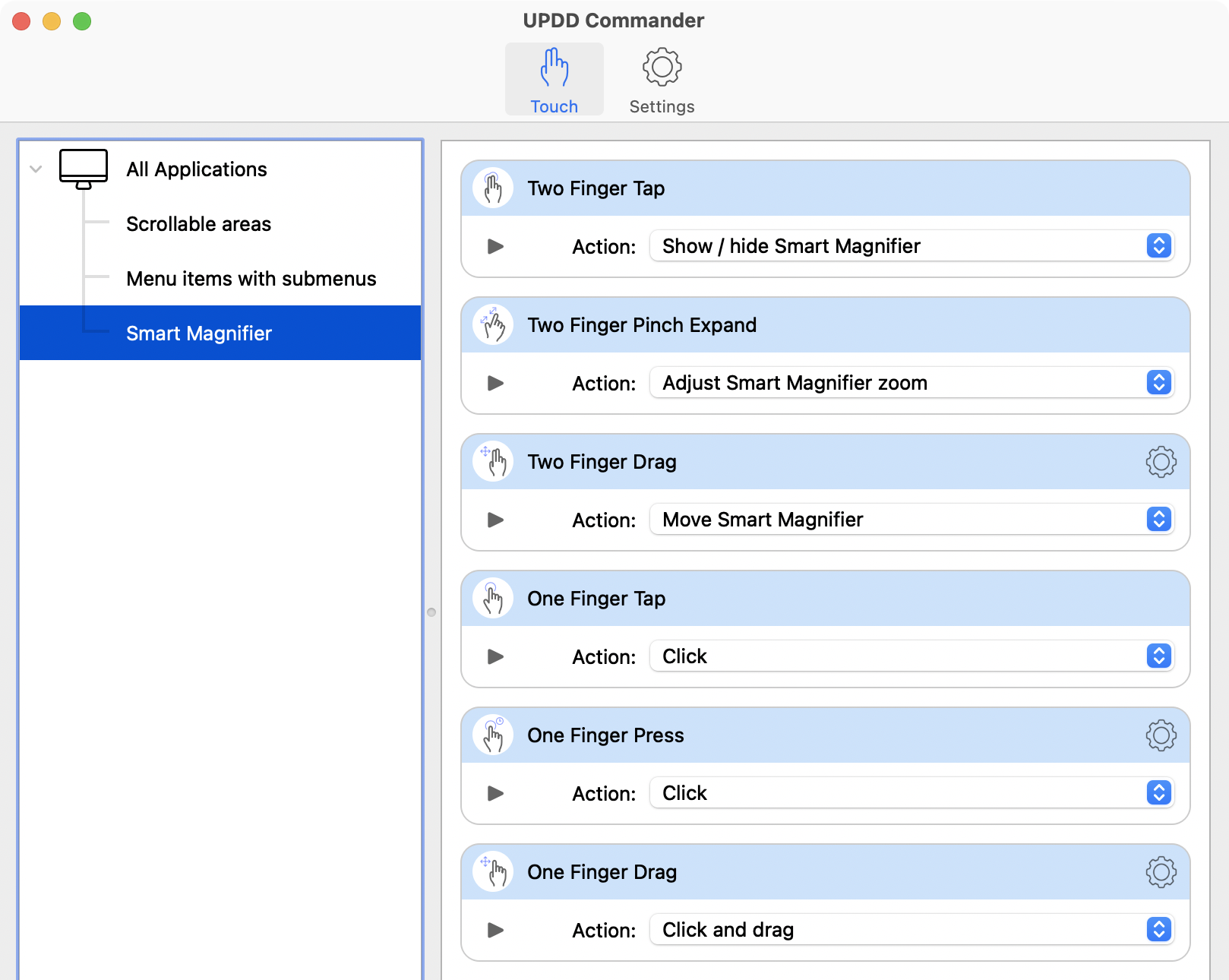 | 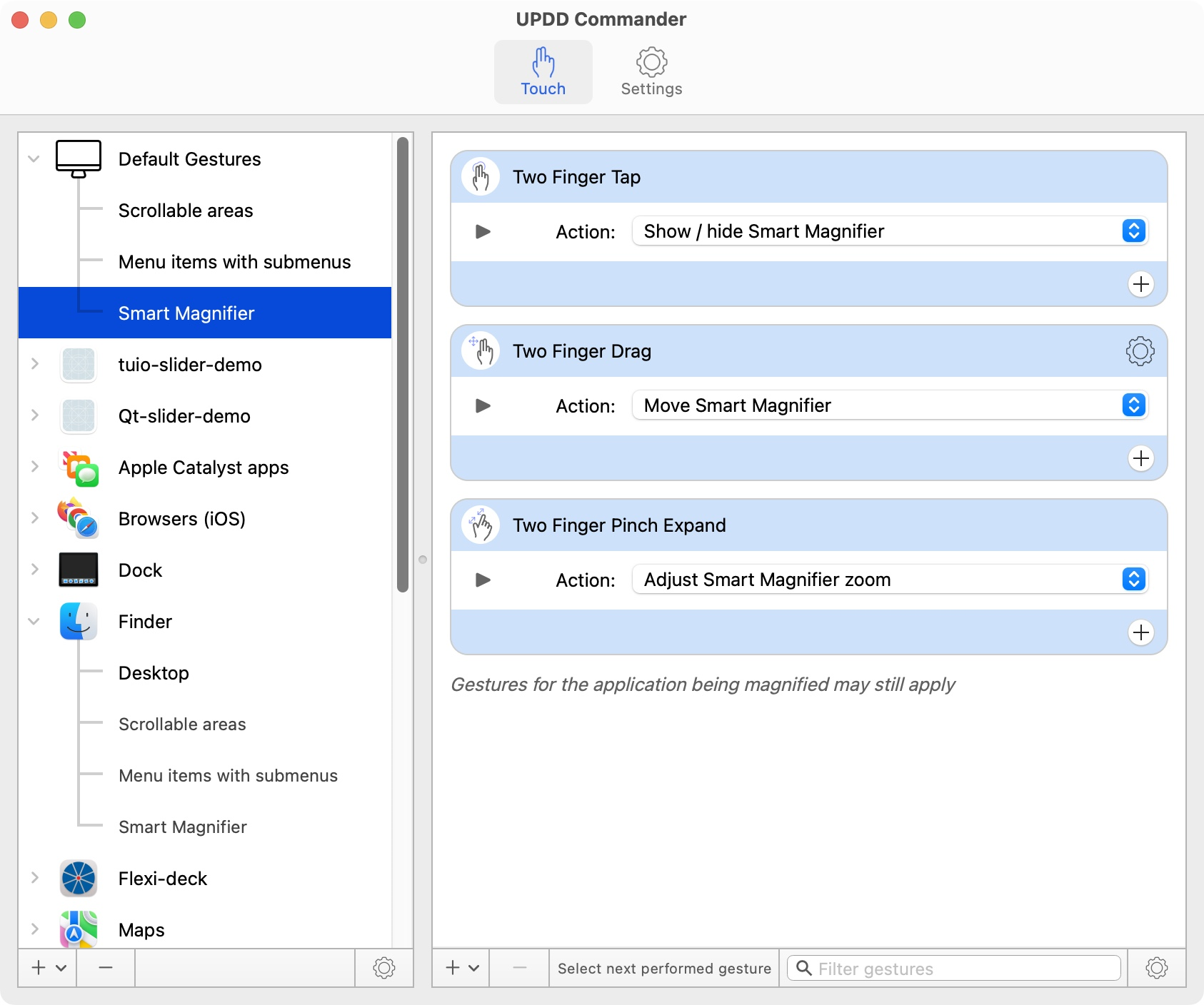 |
| The two finger gestures control the magnifier to toggle it on / off, move it and change the magnification, and the one finger actions specify Tap - left mouse click, Press - right mouse click and Drag - left mouse press and hold. These settings mean that all touches within the magnifier generate clicks, even on application UI elements that might normally be scrolled by drags. | The two finger gestures control the magnifier to toggle it on / off, move it and change the magnification. Thereafter the gestures and actions defined for the application are performed within the magnified area. |
Global settings
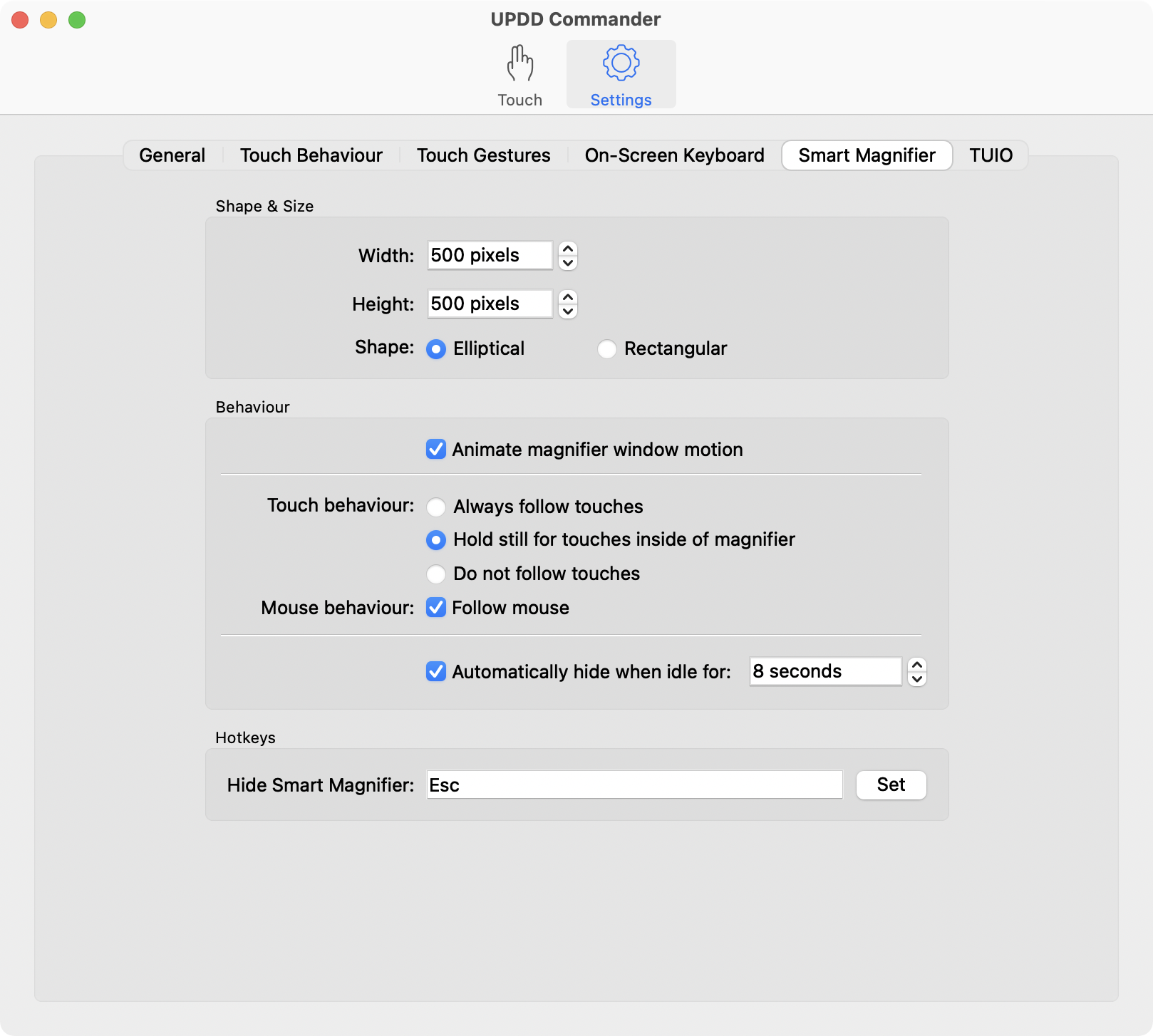
These settings, on the Smart Magnifier tab of the Settings section, define the default shape and size of the magnifier area, its behaviour relating to mouse and touch movements, and a way to close the magnifier other than the magnifier actions described above.
Shape and Size
Defines the initial shape and size of the magnifier area when it is invoked (default 500 x 500 pixels, elliptical). These defaults are used:
- when using the Adjust Smart Magnifier zoom action to invoke the magnifier
- when using the Show / hide Smart Magnifier action to show the magnifier with "Use shape and size from global settings" set in the Advanced Options
Behaviour
Indicates various characteristics of the magnifier's behaviour:
| Setting | Description |
| Animate magnifier window motion | When the "Move Smart Magnifier" action is used, the magnifier moves smoothly to the new location rather than jumping to it. |
| Touch behaviour: Always follow touches | The magnifier window follows touches. See the notes below. |
| Touch behaviour: Hold still for touches inside of magnifier | The magnifier remains stationary for touches within the magnifier window but moves with touches outside it (default). See the notes below. |
| Touch behaviour: Do not follow touches | The position of the magnifier window is not affected by touch movements. |
| Mouse behaviour: Follow mouse | The magnifier follows the mouse. Although this could be of use in some cases, the magnifier is predominantly used to allow accurate selection of small UI elements when using a touch screen, so this is disabled by default. |
| Show mouse cursor inside magnifier / Magnify mouse cursor when inside magnifier | Whether the mouse cursor is shown inside the magnifier and, on macOS, whether it is magnified. |
| Automatically hide when idle for | If set, the magnifier closes when unused for the number of seconds defined (default 8). |
Important touch movement notes
1. It is not appropriate for all touches outside the magnifier to move the magnifier, as the magnifier is likely only required when clicking or dragging as opposed to performing a gesture. Some gesture actions need to move the cursor to function correctly, even if they are not click-related. For example, the scroll, rotate, zoom and smart zoom actions all require moving the mouse cursor over whichever UI element should receive that action, since macOS sends those actions to whichever UI element contains the mouse cursor. For this reason magnifier touch movement is restricted to the actions that most likely warrant movement: click, double click, click and drag and move mouse cursor. All other actions invoked via touch, such as scroll, rotate, zoom, smart zoom, look up in dictionary, swipe between full-screen apps, navigate between pages etc. do not move the magnifier.
2. If the click action is set to "No action" the magnifier does not move, as no click is seen. If, for example, you do not want clicks on the desktop (Finder), set the action to "Move mouse cursor" rather than "No action" if you want the magnifier to follow touch.
Hotkeys
Allows a hotkey to be defined to hide the magnifier ("Hide Smart Magnifier").
For review
Added from 1.15.0: the magnifier action settings table (widgets/actionSettings/QtShowHideMagnifier*.ui, QtAdjustMagnification*.ui, QtMoveMagnifierSettingsWidget.ui) and the "Show mouse cursor inside magnifier" / "Magnify mouse cursor" settings (QtApplicationSettingsWidget.ui:1695,1755; the magnify option is hidden on Windows, QtApplicationSettingsWidget.cpp:126). The global settings screenshot predates these two options.
The introductory video links (flexi-deck.com and v6download.touch-base.com) are kept as they were; please check they still resolve.