Commander settings reference
The Settings section of the UPDD Commander settings window (named "Global Settings" before Commander 1.9.6) holds the global settings that relate to the general Commander functionality. This document describes the settings on each tab, lists all the Commander global settings, including those that can only be set from the command line, and explains where Commander keeps its settings and how to return them to the defaults. It applies to UPDD Commander on macOS and Windows.
| Tab | Description |
| General | General usage settings. |
| Touch Behaviour | Touch screen behaviour related settings. |
| Touch Gestures | Touch screen gestures "global" settings. |
| On-Screen Keyboard | Specifies if the on-screen keyboard is to be invoked, when it is to be invoked and the keyboard to use (macOS only). |
| Smart Magnifier | Settings that define the Smart Magnifier's behaviour. |
| TUIO | General settings specific to the built-in TUIO server and client. |
These settings are held in the UPDD settings database as described below and can also be set with the command line interface.
Some software configurations choose not to show all the tabs in the settings window. This document lists the full set of tabs and their settings. If the Touch Gestures tab is missing it is likely that global setting upddcommander.applicationsettings.hide_touch_gestures_settings is set to 1 (likewise hide_tuio_settings for the TUIO tab).
General
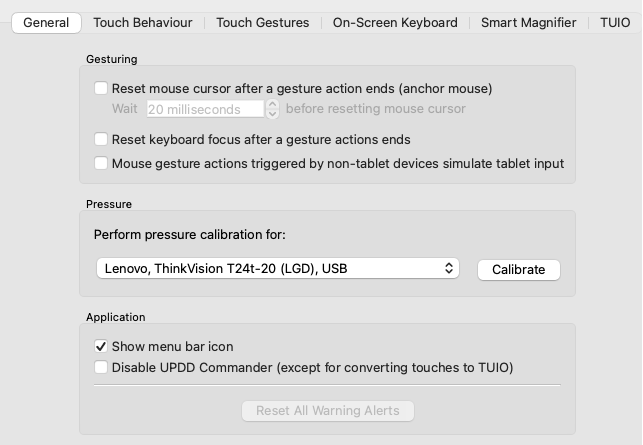 | 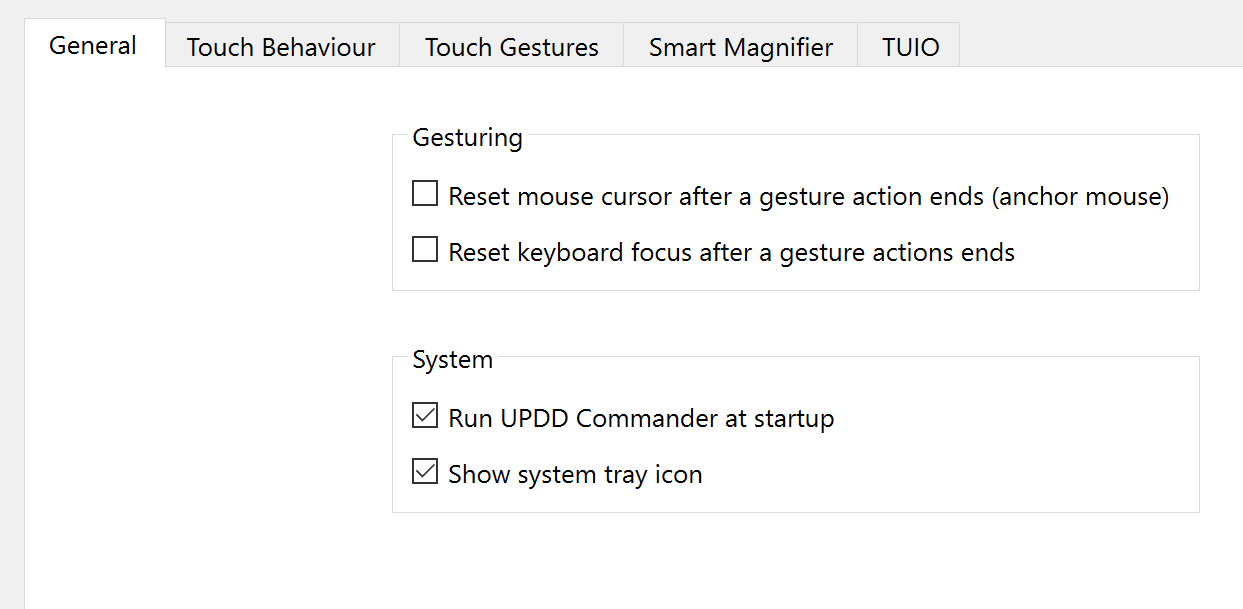 |
Reset mouse cursor after a gesture action ends (anchor mouse)
When enabled the mouse cursor is returned to its original position once the gesture action is completed, after the number of milliseconds set in "Wait ... before resetting mouse cursor" (default 20). This checkbox sets the driver's anchor mouse setting, described in Cursor, anchor mouse and sound.
Reset keyboard focus after a gesture action ends
When enabled the keyboard focus is restored after the gesture is performed.
If "UI element detection" is disabled for an application, because UI element detection does not respond correctly within the application, UPDD Commander cannot restore focus to a specific sub-window within the application (as that requires UI element detection) and instead restores focus to the whole application. Touching a sub-window takes keyboard focus from the main window to the sub-window, but the focused application remains the main application, so in this case UPDD Commander does nothing when it tries to restore focus. Therefore it is best to leave UI element detection enabled for an application but disable "click nearest UI element" if UI element detection is causing slow touch interactions within the application.
Mouse gesture actions triggered by non-tablet devices simulate tablet input (macOS)
Tablet and pen devices are processed differently to touch devices in that the incoming data is posted into the operating system as a tablet-like device. If you want a non-tablet device, such as a touch device, to emulate a tablet device, especially one with pressure data, this setting should be enabled.
Pressure
Shown once Commander has seen pressure data from a device. Used to calibrate the pressure range of a device, as described in Pen and pressure.
Show menu bar icon (macOS) / Show system tray icon (Windows)
Used to enable or disable the menu bar / system tray icon. With the icon disabled, the settings window can still be opened as described in Running Commander.
Run UPDD Commander at startup (Windows)
Starts UPDD Commander when the user signs in.
Disable UPDD Commander (except for converting touches to TUIO)
Commander does not perform any gesture processing and the driver handles touch as it does without Commander, but touches are still converted to TUIO where configured. Useful if UPDD Commander is only being used for TUIO support.
Reset All Warning Alerts
Shows again any warning dialogs that were dismissed with "Do not show this warning again".
Touch Behaviour
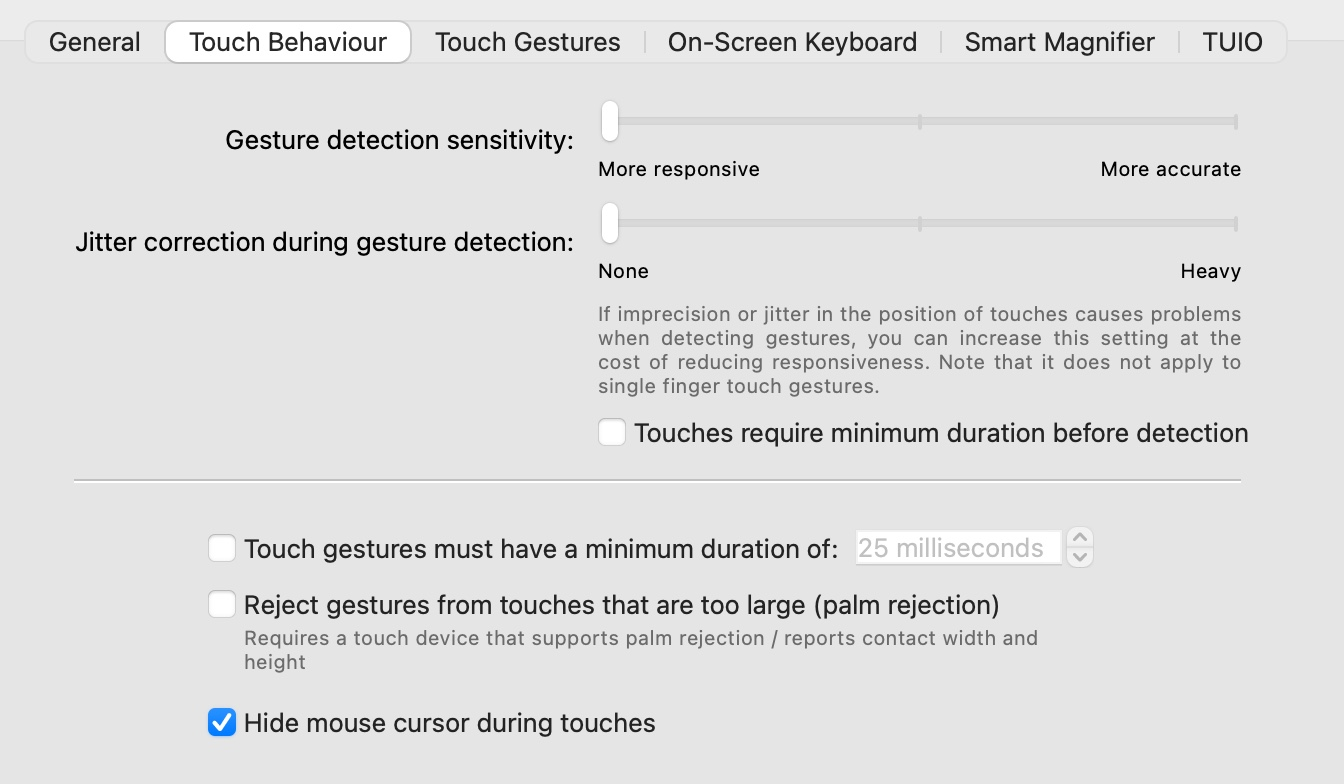
Gesture detection sensitivity
Sets the sensitivity of the gesture recognition. Gesture sensitivity determines how much movement must occur in general before UPDD Commander has decided which gesture is being performed. In general, more movement yields more accurate detection but decreases responsiveness. If gestures are being miscalculated try improving the accuracy. If recognition is too slow set for more responsiveness.
Jitter correction during gesture detection
Used to filter out touch jitter that may cause problems during gesture detection, at the cost of reducing responsiveness. It does not apply to single finger touch gestures. Most modern devices utilise their own smoothing algorithms and therefore co-ordinate filtering is unlikely to be needed either within the driver or with this setting.
Touch gestures must have a minimum duration of:
Defines the minimum time a gesture must be performed (25 milliseconds when first enabled).
Reject gestures from touches that are too large (palm rejection)
UPDD V7 feature only, shown only when the touch device reports contact width and height. Some HID compatible touch devices pass contact width and height values, so this only works with devices that support this feature. It can be used to reject touches that have an excessive width.
By default the threshold is 15 (mm), as held in global setting upddcommander.applicationsettings.palm_rejection_threshold. This can be adjusted using the command:
upddutils nodevice set upddcommander.applicationsettings.palm_rejection_threshold nn
Hide mouse cursor during touches (macOS)
Indicates that the mouse cursor should be hidden during touches. The feature uses an undocumented macOS API to hide the cursor, so there are no guarantees it works in every case. The cursor is shown again as soon as it is moved by something other than the touch screen, including a mouse or trackpad.
In some circumstances the cursor is made visible, such as when switching applications or moving over the system Dock; to counteract this the cursor is periodically hidden if it is found to be visible. The periodic check only hides the cursor if it is supposed to be hidden, so if it is being shown due to mouse or trackpad movement it stays visible until the next time a touch begins. If an application constantly forces the cursor to be visible, the cursor will stay visible.
Touches wake up display
Touches can be used to wake up a dormant display. This is enabled by default and has no checkbox in the settings window; it is controlled by global setting upddcommander.applicationsettings.touches_wake_display (0 = off, 1 = on).
Touch Gestures
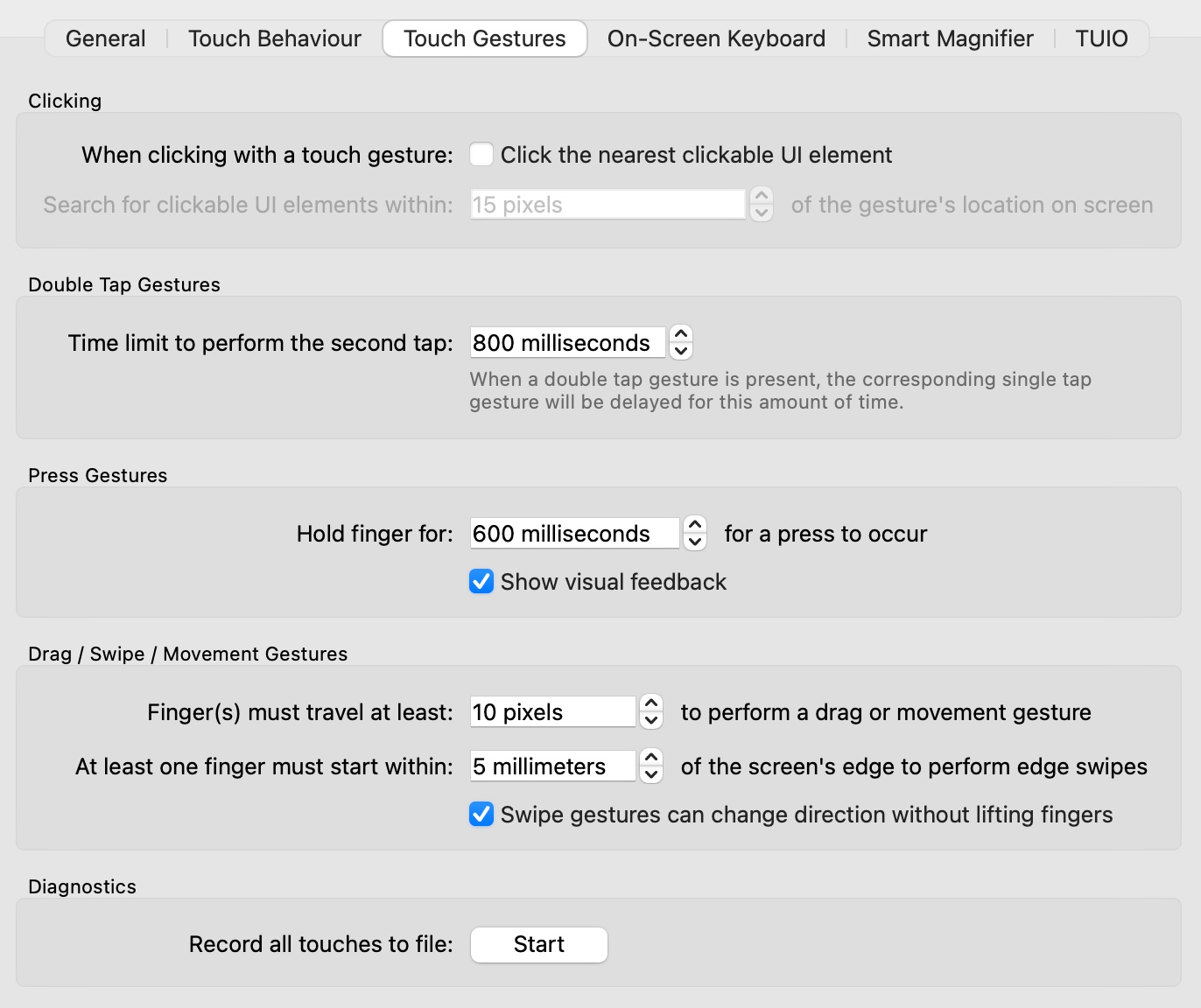
There are a number of gesture settings where it makes sense to define the setting globally and apply it to all defined instances. This avoids having to change these settings in every gesture definition where they are used. Individual instances of the setting can override the global setting.
| Setting | Description |
| Click the nearest clickable UI element / Search for clickable UI elements within: (macOS) | Directs clicks to the nearest clickable UI element within the given radius (default 15 pixels), as described in Clickable UI element (click nearest). |
| Time limit to perform the second tap: | Default 400 milliseconds. When a double tap gesture is present, the corresponding single tap gesture is delayed for this amount of time. |
| Hold finger for: ... for a press to occur / Show visual feedback | Default 600 milliseconds, with a circle drawn during the press, as described in Gestures and actions. |
| Finger(s) must travel at least: | Default 10 pixels to perform a drag or movement gesture. |
| At least one finger must start within: | Default 10 millimetres of the screen's edge to perform edge swipes. |
| Swipe gestures can change direction without lifting fingers | Enabled by default. |
| Record all touches to file: | Records touches for support, as described in Diagnosing gesture selection. |
How these timings interact (for example the delay a double tap gesture adds to a single tap) is described in Gestures and actions and Touch delay and latency in Commander.
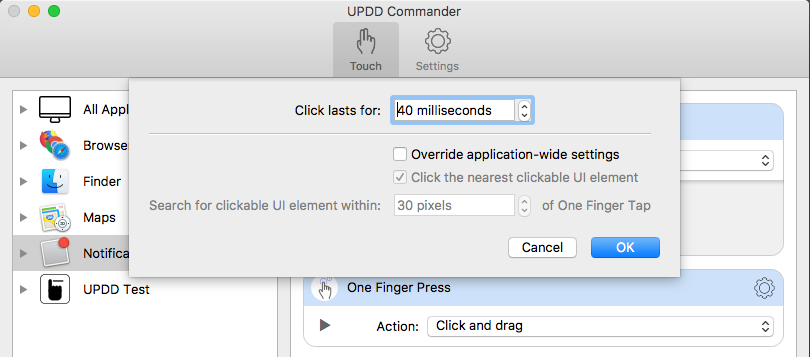
When viewing an individual definition of one of the above gesture settings there is an option to ignore the global setting and use the "local" setting, as seen in this One Finger Tap gesture associated with the Notification Center:
On-Screen Keyboard
The On-Screen Keyboard tab (macOS only) selects the on-screen keyboard to use and when it is shown automatically. It is described in On-screen keyboard.
Smart Magnifier
A number of actions can be used to invoke and control an on-screen Smart Magnifier. This feature is particularly useful to touch and control small dialogs or sliders used within some applications. These settings relate to the default shape, size and behaviour, and options to close the Smart Magnifier (apart from the gesture actions):
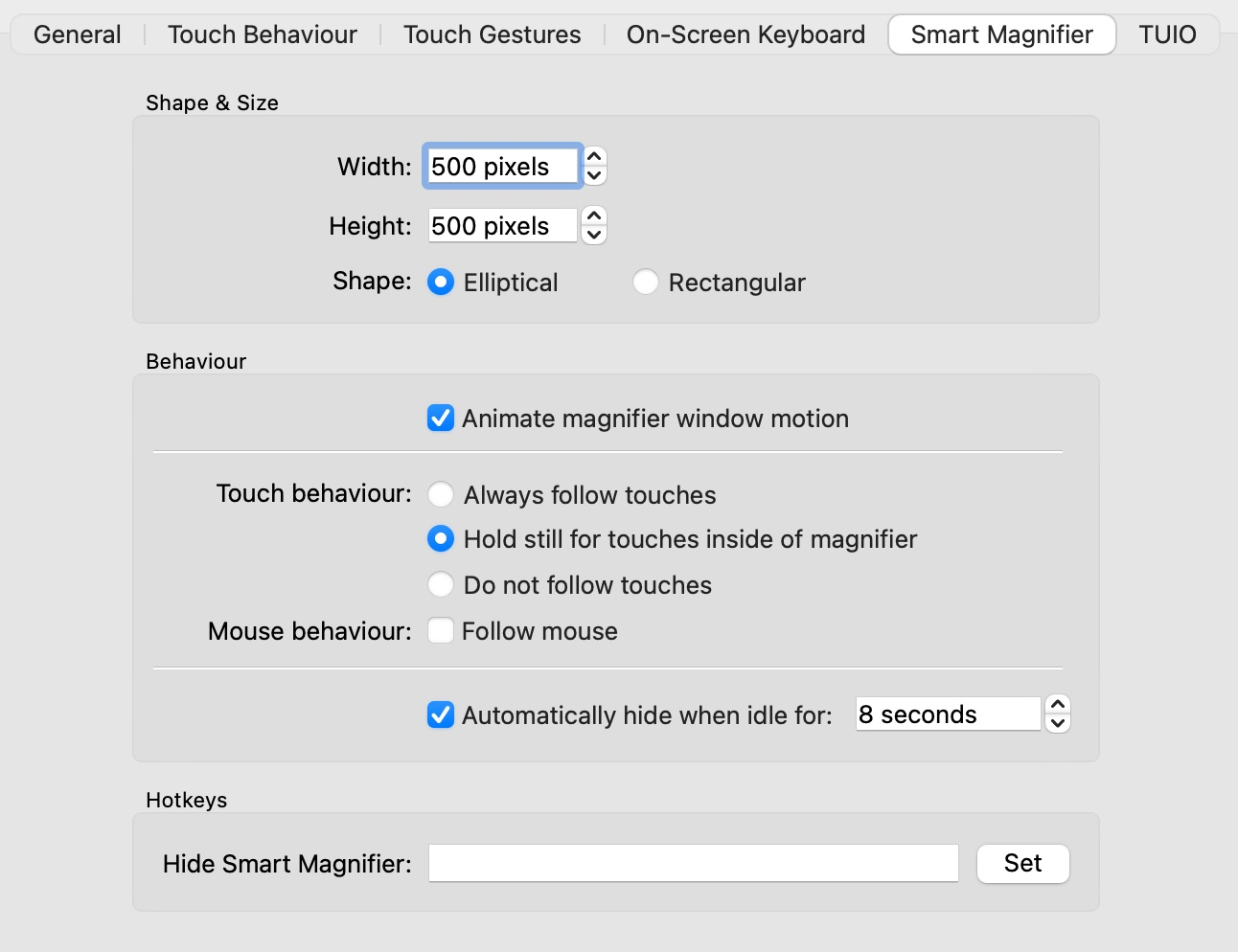
These settings are covered in greater detail in Smart Magnifier.
TUIO
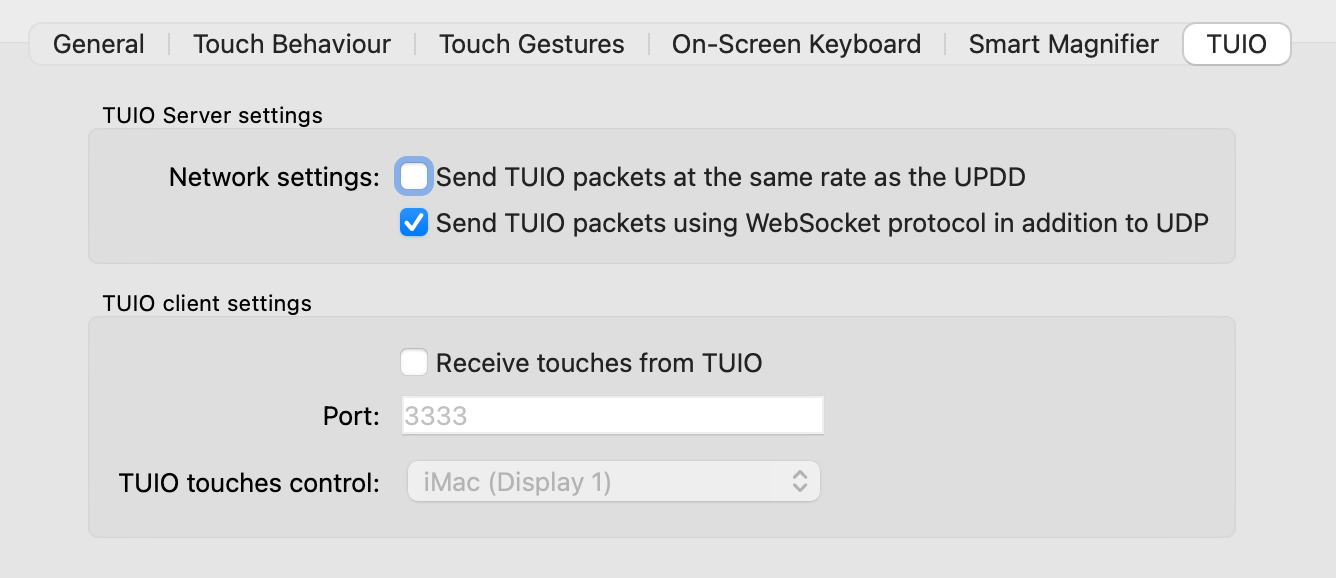
UPDD Commander can post touches via the TUIO protocol, thus performing the role of a TUIO server, and can also be configured to receive touches from an external TUIO server to control touches and gestures on a selected monitor, thus acting as a TUIO client application. These settings relate to these two modes of TUIO operation, as described in TUIO in Commander.
Global settings reference
The complete list of global Commander settings is listed below; they reside in the UPDD settings database. Application, gesture and action definitions are held in a separate file managed directly by Commander, described below.
Most of the global settings can be adjusted in the Settings section of the settings window, but all of them can be set with the command line interface, and they can also be set using the UPDD API if required. Being global settings they are set with the command upddutils nodevice set "setting name" value.
TUIO client settings (receiving touches from TUIO) are described in TUIO in Commander.
| Setting | Values (default in bold) | Description |
| On-screen keyboard (macOS) | ||
upddcommander.applicationsettings.automatically_show_keyboard | 0, 1 | Automatically show the on-screen keyboard when a text field is focused. |
upddcommander.applicationsettings.automatically_hide_keyboard | 0, 1 | Automatically hide the on-screen keyboard when no text fields are focused. |
upddcommander.applicationsettings.automatically_show_keyboard_for_private_fields | 0, 1 | Only show the on-screen keyboard automatically for secure text fields. |
upddcommander.applicationsettings.keyboard_viewer_type | 0, 1, 2 | 0: Keyboard Viewer (macOS 10.14 and earlier), 1: KeyUp, 2: Accessibility Keyboard. Default 2 on macOS 10.15 and later, 0 on earlier versions. |
upddcommander.applicationsettings.automatically_show_keyboard_during_touch_events | 0, 1 | When set, the on-screen keyboard will only appear if a text field becomes focused because the user touched it, or within the touch threshold defined below. |
upddcommander.applicationsettings.automatically_show_keyboard_during_touch_events_threshold | Integer, 3000 (milliseconds) | If the on-screen keyboard is configured to only show during touch events, defines how many milliseconds can elapse since touch was last seen. Adjust this value if the keyboard either appears at inappropriate times or does not appear when expected. |
| TUIO | ||
upddcommander.applicationsettings.tuio_use_websockets | 0, 1 | Send TUIO packets using the WebSocket protocol in addition to UDP. |
upddcommander.applicationsettings.tuio_use_updd_posting_rate | 0, 1 | Send TUIO packets at the same rate as the UPDD. |
upddcommander.applicationsettings.extended_tuio_data | 0, 1 | When set to 1, the TUIO data sent out by Commander includes three additional fields for its "cursor" bundles: two float values for the width and height of the cursor, and an integer indicating its type, where 1=touch and 2=pen. This is off spec for TUIO but, due to the way its underlying protocol (OSC) works, most TUIO clients should still be able to process this data. |
upddcommander.applicationsettings.enable_pen_to_tuio | 0, 1 | When set to 1, enables a special gesture type "Convert Pen to TUIO". It is used the same as "Convert Touches to TUIO", except any application or UI element that is configured with it will cause pen devices not to trigger mouse events, but instead convert to TUIO. |
| Touch Behaviour | ||
upddcommander.applicationsettings.gesture_detection_sensitivity | 1-25, default 8 | Gesture detection sensitivity: low values are more responsive, high values more accurate. |
upddcommander.applicationsettings.jitter_smoothing | 0-24, default 5 | Jitter correction during gesture detection. |
upddcommander.applicationsettings.touch_gesture_minimum_duration_enabledupddcommander.applicationsettings.touch_gesture_minimum_duration | 0, 1 Integer, 25 (milliseconds) | Touch gestures must have a minimum duration. |
upddcommander.applicationsettings.hide_cursor_during_touches | 0, 1 | Hide the cursor during touches (macOS) - overridden if a mouse or trackpad is used. |
upddcommander.applicationsettings.touches_wake_display | 0, 1 | Touches wake up a dormant display. |
upddcommander.applicationsettings.palm_rejection_enabled | 0, 1 | Indicates if palm rejection is enabled. See also palm_rejection_threshold. |
upddcommander.applicationsettings.palm_rejection_threshold | Integer, 15 (mm) | Defines the contact width for palm rejection. |
| Touch Gestures | ||
upddcommander.applicationsettings.touch_click_nearest | 0, 1 | Direct a click to the nearest clickable UI element (macOS). |
upddcommander.applicationsettings.touch_click_nearest_threshold | Integer, 15 (pixels) | Radius searched for the nearest clickable UI element. |
upddcommander.applicationsettings.double_tap_delay | Integer, 400 (milliseconds) | Time limit to perform the second tap. |
upddcommander.applicationsettings.drag_distance | Integer, 10 (pixels) | Distance the finger(s) must travel to perform a drag or movement gesture. |
upddcommander.applicationsettings.press_time | Integer, 600 (milliseconds) | Time the finger must be held for a press to occur. |
upddcommander.applicationsettings.press_visual_feedback | 0, 1 | Show the visual feedback circle during a press. |
upddcommander.applicationsettings.edge_swipe_threshold | Integer, 10 (millimetres) | Distance from the screen edge within which at least one finger must start to perform an edge swipe. |
upddcommander.applicationsettings.swipe_allows_changing_direction | 0, 1 | Swipe gestures can change direction without lifting fingers. |
| Smart Magnifier | ||
upddcommander.applicationsettings.magnifier_widthupddcommander.applicationsettings.magnifier_height | 500 | Integer width and height in pixels. |
upddcommander.applicationsettings.magnifier_shape | 0, 1 | 0=rectangular, 1=elliptical |
upddcommander.applicationsettings.magnifier_animated | 0, 1 | Animate magnifier window motion. |
upddcommander.applicationsettings.magnifier_movement | 0, 1, 2 | 0=always follow touches, 1=hold still for touches inside magnifier, 2=do not follow touches |
upddcommander.applicationsettings.magnifier_follow_mouse | 0, 1 | Magnifier follows the mouse. |
upddcommander.applicationsettings.magnifier_show_cursorupddcommander.applicationsettings.magnifier_magnify_cursor | 0, 1 | Show the mouse cursor inside the magnifier; magnify the mouse cursor when inside the magnifier (macOS). |
upddcommander.applicationsettings.magnifier_autohide | 0, 1 | Automatically hide the magnifier when idle. |
upddcommander.applicationsettings.magnifier_autohide_seconds | Integer, 8 (seconds) | Idle time before the magnifier is hidden. |
| General / miscellaneous | ||
upddcommander.applicationsettings.disable_commander | 0, 1 | When set to 1, Commander does not perform any gesture processing and the driver handles touch as it does without Commander, although Commander will still convert touches to TUIO. Useful if UPDD Commander is only being used for TUIO support. Replaces the earlier setting enable_mouse_emulation, which is converted automatically. |
upddcommander.applicationsettings.reset_keyboard_focus | 0, 1 | Restore the keyboard focus after a gesture action ends. |
upddcommander.applicationsettings.show_system_tray_icon | 0, 1 | 0 = hide, 1 = show the menu bar / system tray icon. |
upddcommander.applicationsettings.simulate_tablet_input | 0, 1 | All mouse events posted by UPDD Commander will be posted to the system as tablet events (macOS). |
upddcommander.applicationsettings.show_inherited_gestures | 0, 1 | When on, the settings window displays all the gestures that an application inherits from Default Gestures, or that an application's UI element inherits from the application itself or Default Gestures. |
upddcommander.applicationsettings.disable_finder_icon_opens_settings | 0, 1 | When set to 1, double-clicking UPDD Commander's Finder icon no longer opens the settings window (macOS). |
upddcommander.applicationsettings.disable_tablet_input | 0, 1 | Disable pen processing - see note 1. |
upddcommander.applicationsettings.dont_show_settings_changed_externally_warning | 0, 1 | When set to 1, Commander does not show a dialog warning the user that its settings have been changed by an external application such as upddutils. |
upddcommander.applicationsettings.disable_add_presets_for_installed_apps | 0, 1 | Indicates if applications defined in the preset list are automatically added to the application list if they are found on the system. They are added by default. |
upddcommander.applicationsettings.hide_default_presets | 0, 1 | Hide the application presets in the application list. |
upddcommander.applicationsettings.hide_tuio_settings | 0, 1 | Hide the TUIO tab in the Settings section. |
upddcommander.applicationsettings.hide_touch_gestures_settings | 0, 1 | Hide the Touch Gestures tab in the Settings section. |
upddcommander.applicationsettings.enable_reset_buttons | 0, 1 | Enable reset buttons on the General and Touch Behaviour tabs. |
upddcommander.applicationsettings.disable_gesture_api | 0, 1 | Disables gesture API processing in Commander. Introduced because, under Windows, it affected touch performance with TUIO processing. |
upddcommander.applicationsettings.extra_touch_logging | 0, 1 | Used by support to enable extra debug logging in the output log. |
upddcommander.applicationsettings.tablet_posts_mouse_events_app_ids | list of bundle IDs | macOS applications that receive mouse events rather than tablet events from a pen device - see note 2 and Pen and pressure. |
upddcommander.applicationsettings.extra_web_browser_ids | list | Additional web browsers for webpage UI elements, see Applications, groups and UI elements. |
Notes:
- Pen input bypasses Commander gesture processing, so it automatically generates clicks and click-and-drags. A touch screen was being used that generated touch data but also pen data if the finger made a small (width/height) contact. The user was using one finger swipe left and right in a presentation system to move slides back and forth, but if pen data was received it generated a click or click and drag that affected the presentation. This setting was added to instruct Commander to ignore pen data.
- Pen postings were found to cause issues in a particular version of Chrome. This setting specifies which macOS applications should receive mouse input rather than tablet input when using a pen device. The value must be a comma or space separated list of application bundle IDs (the bundle ID is the globally unique identifier for an application and is the same regardless of the system language). To prevent Google Chrome (and derived browsers) from receiving tablet input, set it to:
com.google.Chrome org.chromium.Chromium
Where settings are stored
Commander has global settings, application, gesture and action settings, and a number of application presets.
Application, gesture and action settings
These are the settings shown in the Gestures section of the settings window. Given that they can be tailored to cater for individual user requirements, they are held in their own persistent file, so that they are retained during a reinstallation of the UPDD driver and Commander software:
| OS | File |
| macOS | ~/Library/Preferences/com.touch-base.upddcommander.ini (UPDD Commander 1.4.6 and later; earlier versions used the macOS defaults domain com.touch-base.upddcommander) |
| Windows | %APPDATA%\Touch-Base Ltd\UPDD Commander\settings.ini |
To back up these settings take a copy of this file, or use File > Export All Settings as described in Running Commander.
Global settings
These are held in the Settings section of the settings window and hold configuration settings for the Commander application. They are set for optimal performance and likely default settings and are held in the standard UPDD settings database file. They are lost if the UPDD software is reinstalled, as this overwrites the UPDD settings database file.
Returning to the default settings
Should you want to revert to the default set of applications, gestures and actions, you can do the following:
- Since UPDD V7.0.48, uninstalling the UPDD software using the supplied uninstall utilities will optionally delete the Commander user settings
- Select "Reset All Touch Gestures to Defaults..." from the Commander File menu
- Manually delete the Commander settings as described below
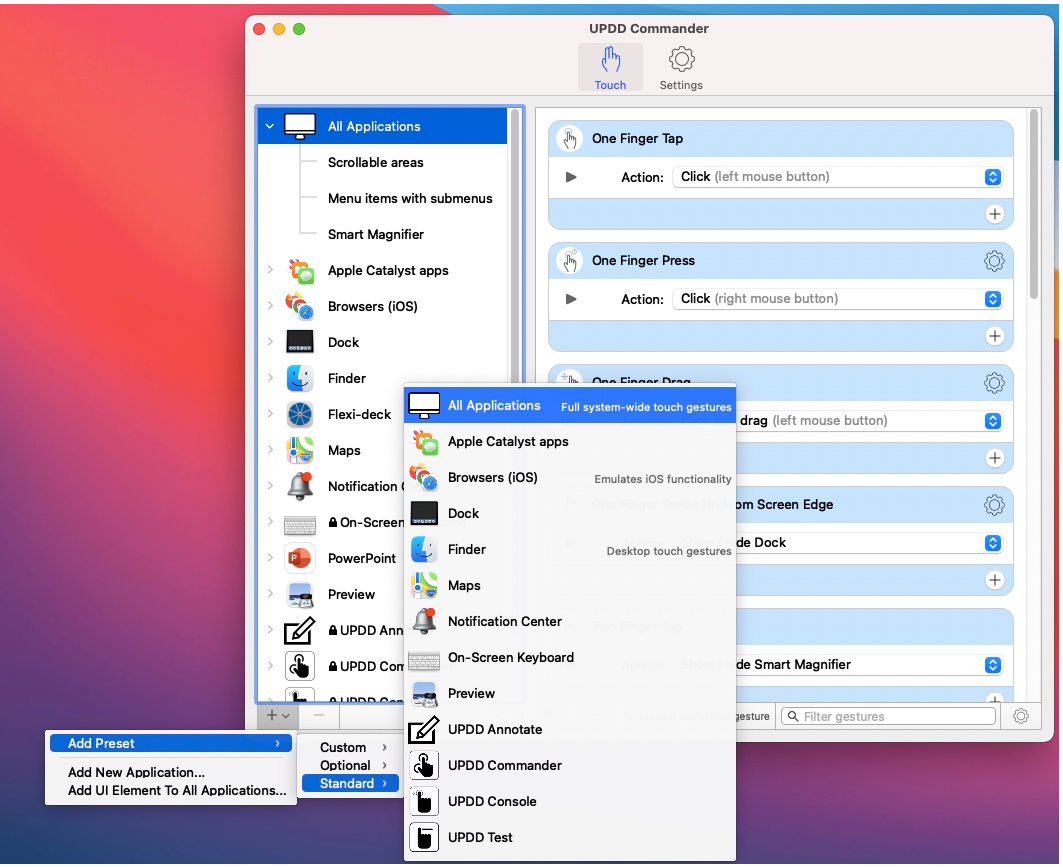
Further, should you want to return an individual application's settings to the defaults as originally supplied, you can select the application from the preset menu. The example below is resetting the Default Gestures entry (previously named All Applications) to its original settings:
Manually deleting the settings
The settings file can be removed if required, such as to take the settings back to the defaults or to remove them before installing a new version of the software, by stopping Commander and removing the file using the following commands:
macOS
In a Terminal window:
upddprocesses stop -cdefaults delete com.touch-base.upddcommander (the settings used by Commander before release 1.4.6)rm ~/Library/Preferences/com.touch-base.upddcommander.ini (the settings file used by Commander since release 1.4.6)
Then either install the UPDD software, or run upddprocesses start -c to restart Commander, which recreates the settings from the default set.
Windows
Quit UPDD Commander from the system tray icon:
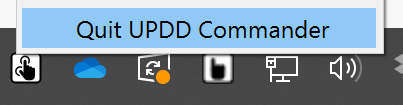
Now delete the file C:\Users\<your username here>\AppData\Roaming\Touch-Base Ltd\UPDD Commander\settings.ini. A shortcut to get there is to type %appdata%\Touch-Base Ltd\UPDD Commander\ into the address bar of an Explorer window, then right-click the file and select Delete; or, in a CMD window, run the command del "%appdata%\Touch-Base Ltd\UPDD Commander\settings.ini".
Then either install the UPDD software, or start UPDD Commander by double-clicking the program in C:\Program Files\UPDD (UPDD V7; a UPDD V6 installation uses C:\Program Files (x86)\UPDD).
Presets
The location of the application presets is listed in Presets. To remove presets, delete the sub-folders and files within the preset folder.
Uninstall
Since UPDD V7.0.48, uninstall can optionally delete the UPDD Commander application, gesture and action settings, as controlled by global setting updd_commander_uninstall_settings. This setting indicates how Commander gesture settings are handled during uninstall:
| Value | Meaning |
| 0 | Retain |
| 1 | Remove |
| 2 | Request (default) - show a dialog to confirm deletion, given that the settings may want to be retained |
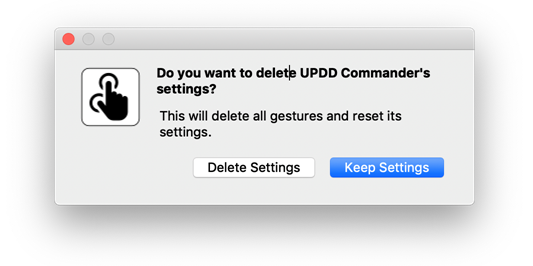
If a silent uninstall is initiated, this setting is set to 0 to avoid the dialog being shown and to play safe and retain the settings.
For review
Released Commander 1.15.0 (origin/master) still has the Touch Behaviour tab and the label wording used here; the review's E3/E4 (no Touch Behaviour tab, new labels) describe the unreleased V8 branch. Rework this page when V8 ships.
"Touches wake up display": 50596 and 50645 described a checkbox on the Touch Behaviour tab. The checkbox was removed from the settings window in an early release (commit 8e6d1973b "Removed touches wake screen button"); the setting itself is still read by Commander 1.15.0 (TouchSourceManager.cpp:2475, default true in gesture-metadata.json). Please confirm the wording.
Corrected against 1.15.0 source (gesture-metadata.json defaults, GestureMetadataConstants.h, UPDDSerializer.cpp:604): setting names tablet_posts_mouse_events_app_ids (50653 had app_id) and disable_finder_icon_opens_settings (50653 had open_settings, default shown as 1, actual 0); dont_show_settings_changed_externally_warning default is 0 (50653 showed 1); tuio_use_websockets default 1; enable_mouse_emulation is replaced by disable_commander (TBCommanderApplicationSettings.cpp:333-339); keyboard_viewer_type default 2 on macOS 10.15+; reset_cursor_after_action is now the driver setting anchor_mouse.enabled / anchor_mouse.return_time_ms (TBCommanderApplicationSettings.cpp:476-521) so that row was moved to the General tab text. Rows added: automatically_hide_keyboard, touch_gesture_minimum_duration(_enabled), swipe_allows_changing_direction, magnifier_show_cursor / magnifier_magnify_cursor, reset_keyboard_focus, extra_web_browser_ids.
disable_gesture_api: 50653 said "Disabled by default in Windows only". Commander's own default is 0 on every platform (gesture-metadata.json); the UPDD settings database description reads "Under Windows, making this call affects touch performance". Please confirm whether Windows builds ship with it set to 1.
"Disable UPDD Commander (except for converting touches to TUIO)" was documented as Windows only (enable_mouse_emulation). In 1.15.0 the checkbox is not hidden on macOS (QtApplicationSettingsWidget.cpp has no platform guard for it). Please confirm it behaves the same on macOS.
The statement that global settings are lost on reinstall (50736) is carried over unchanged and was not checked against the V7 installer.