upddutils command line reference
UPDD 6 and UPDD 7 include a command line utility called upddutils.
The utility can be used to list system and driver configurations and to view and manipulate driver and device settings. It is also used where a graphical interface is not available, or for scripted set-up of systems. This document lists the commands available in UPDD 7.1 on Windows, macOS and Linux; where a command differs in UPDD 6 this is stated.
Running upddutils without passing a parameter lists the command syntax and the commands available in the version you are running.
Running upddutils
Run upddutils from a command window as follows:
| OS | Syntax |
| Windows | Run the commands from within a Windows Command Prompt: UPDD V7 - cd c:\program files\upddUPDD V6 - cd c:\program files (x86)\upddupddutils {parameter} |
| macOS | Run upddutils {parameter} from within a macOS Terminal window. |
| Linux | Run upddutils {parameter} from within a bash shell that has the UPDD environment set up (see below). |
Parameters that contain spaces must be enclosed in quotes. When working in a macOS or Linux shell, wildcards such as * must also be enclosed in quotes, e.g. upddutils get "cal*".
Notes:
- Output is directed to the console (stderr / stdout) allowing for scripted automation.
- Success is indicated by rc=0, error is rc=-1.
- When an error occurs a meaningful message is directed to the console (stderr).
- Passed parameters are checked for correct syntax.
In Linux the correct environment must be set up to run the command line and the upddenv script is supplied to achieve this. We recommend that you use this script to invoke the Linux shell and then run the command, e.g. /opt/updd/upddenv bash followed by ./upddutils {parameter}, rather than running the command through the script (./upddenv ./upddutils {parameter}) as this does not cater for parameters that have spaces.
Command syntax
This is the syntax listing printed by upddutils in UPDD 7.1. Lines marked Windows only or macOS only are listed only on that platform.
SYNTAX: upddutils {adddevice <id> [name]                               }
                  {bootlog [on|off|default]                            }
                  {connections                                         }
                  {deldevice handle                                    }
                  {devices                                             }
                  {diag[nostics]                                       }
                  {export <devices> <names> <file>                     }
                  {filedebug {0 | 1 | 2 | 3}                           }
                  {hardreset                                           }
                  {help <setting>                                      }
                  {hiddevices                                          }
                  {import <filename>                                   }
                  {monitorbind|mb                                      }   (Windows only)
                  {monitors                                            }
                  {pnpinfo                                             }
                  {playbackraw <fn>                                    }
                  {recordraw                                           }
                  {replug                                              }   (macOS only)
                  {register  {claim}                                   }
                             {license <key>}
                  {reset                                               }
                  {setdefault <controller_handle>|* <name> <value>     }
                  {supported                                           }
                  {unload                                              }
                  {unregister                                          }
                  {usbdevices                                          }
                  {version                                             }
                  {[<device selector>]
                      {calibrate                                       }}
                      {calibreport                                     }}
                      {digitizer_events|de                             }}
                      {events|ev [types]                               }}
                      {firmware_version                                }}
                      {get <name|pattern>                              }}
                      {hidgetfeature <interface> <report_id> <length>  }}   (macOS only)
                      {hidsetfeature <interface> <data>                }}   (macOS only)
                      {readeeprom <address> <length>                   }}
                      {readeepromcal                                   }}
                      {remove <name>                                   }}
                      {selftest <waitsecs> calibrate|circle            }}
                      {set[+|-] <name> <value>                         }}
                      {setall <name> <value>                           }}
                      {toolbar_events|te                               }}
                      {writeeeprom <address> <data ...>                }}

device selector syntax: {device <handle>}
                        {connected      }
                        {global         }
Device selector
Commands that act on a device can be preceded by a device selector. A device selector is only required in a multi-device environment; if no device is specified then device related commands will be applied to the first device listed.
| Syntax | Description |
| nodevice or global | Performs the request on general (non-device specific) settings, known as global settings. |
| device <handle> | Performs the request on the specified UPDD device based on the device's UPDD handle as shown by the devices command. |
| device <location> | Performs the request on the specified UPDD device based on the device's UPDD bindkey, e.g. Port_#0005.Hub_#0007. |
| connected | Performs the request on the first USB connected device. |
The selector must come before the command, e.g. upddutils device 2 set click_mode 0 or upddutils nodevice get "*".
System and driver commands
These parameters are passed to upddutils to list system and configuration information and to act on the driver as a whole:
| Parameter | Description / Output |
| adddevice <id> [name] | Adds a device instance for a supported pointer device with the given id, as listed by the supported command. If specified the name must be quoted if it contains spaces. If not specified the standard default device naming is used. Add a SIS,10 Touch, USB as listed with device id 4 in supported devices: upddutils adddevice 4 "new usb device name"Add a SIS,10 Touch, USB keeping the same name: upddutils adddevice 4 |
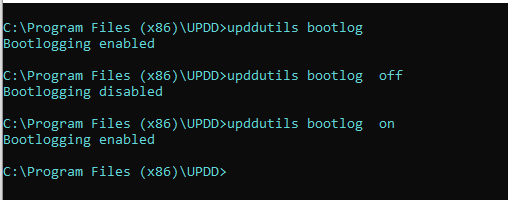
| bootlog [on|off|default] | Requests the driver to enable or disable debug logging during system start-up. Defaults to 'on' if no parameter is passed. In some situations we need to run driver debugging during system start-up, in which case the driver is flagged to enable debug logging during system restart. Remember to disable boot logging once no longer required.
Irrespective of this setting a boot log is automatically taken during system start-up to capture the driver initialisation sequence, such that it is available for debugging purposes if required. This command requests that boot logging remains enabled until it is manually disabled. The bootstrap file settings can be used to disable start-up boot logging if required. This command is not supported on Android; edit /data/data/updd/updd.ini to set the boot log options manually. |
| connections | For each USB device shows the physical port connection details: For each device instance it lists USB vendor, product id and location information. |
| deldevice handle | Deletes a supported device, associated with the device handle, from the UPDD configuration. Normally used to delete non active devices, seen as NOK in the UPDD Console Devices list. If an active device is deleted it will be automatically added on driver restart or when it is next discovered by the system.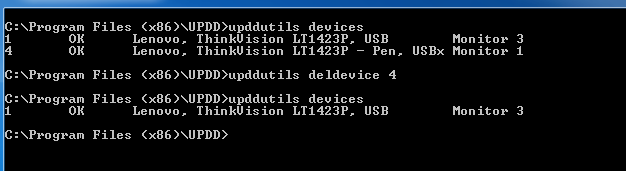 |
| devices | Lists UPDD devices being handled / monitored by the driver. For each device it lists: internal UPDD device handle / state / device name / desktop association. This example shows a system with 2 active (OK) touch devices: 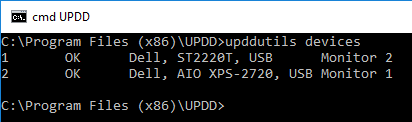 |
| devtool selectivesuspend <vid;pid> on|off | Windows, from UPDD 7.1.197. Turns the Windows selective suspend (USB power saving) option on or off for the touch device with the given USB vendor and product id, e.g. upddutils devtool selectivesuspend 424f;9301 off. When and why to use it is described in Sleep, wake and touch after resume. |
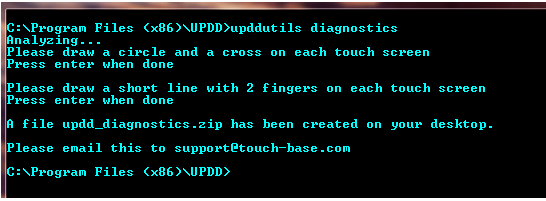
| diagnostics diag | Invokes the diagnostics procedure to capture data for support purposes. This procedure is usually invoked from the UPDD Console, General entry, but should this method not be available, such as running UPDD on a system where the graphical interface is not available, then this command can be used. See Taking a diagnostics package. Below is an example of running the command in a Windows CMD window. On a Mac it would be run in a Terminal window. |
| export <devices> <names> <file> | Exports UPDD settings to an external file, as described in Export. |
| filedebug {0 | 1 | 2 | 3} | Used to configure UPDD debug logging. The value sets the amount of information output: 0 - no debug messages Note that level 3 implements logging in time critical code and can therefore negatively affect the performance of the software. The debug setting is effective for the lifetime of the executing driver process; if the driver process is restarted the level is reset to zero. The output is written to the driver log file updd.log in the log folder of the UPDD data folder (for example C:\ProgramData\updd\log\updd.log on Windows). Typical updd.log debug content (in this case set to 2): 2016/04/12-15:40:44: DBG: Found VID:0x4f3 PID:0x13e |
| hardreset | UPDD V7 only. Removes and reinstates all drivers. Mainly available for troubleshooting purposes to aid debugging of touch issues. |
| help <setting> | Prints the help text held for the named setting; the same text is shown for the setting in the UPDD Console, Advanced, Settings tab. See also Driver settings reference. |
| hiddevices | UPDD V7 only. Lists all HID devices and shows the topology of each device and its interfaces, with the matching strings used to configure a device. Described in Hardware interfaces. |
| import <file> | Imports settings previously exported with the export command, as described in Import. |
| monitorbind mb | Windows only. Triggers the UPDD virtual HID device install and monitor identification and binding function, described in Multi-monitor on Windows. |
| monitors | Shows the system's monitor layout as seen by the UPDD software, starting at Monitor 1. UPDD uses the Qt monitor information on all operating systems to retrieve the monitor layout and for monitor handling. For successful UPDD multi-monitor operation the monitors must have either different monitor ids or different co-ordinates. |
| pnpinfo | Lists the pnp (vid/pid) information, the "controller_matching" value, associated with the supported USB controllers. Described in Hardware interfaces. |
| playbackraw <fn> | For support purposes, used to play back raw data from a file captured by the recordraw command. |
| recordraw | Captures all raw incoming touch data to a desktop file updd.raw.txt unless a full pathname is specified.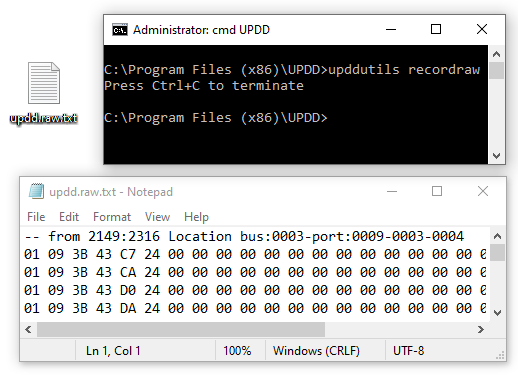 |
| register | Registers a licence for the driver. The registration process is normally invoked from the UPDD Daemon menu, but this command can be used where that is not available. The forms are upddutils register licence <key>, upddutils register claim, upddutils register licence <registration code> (a registration code contains dots; a licence key never does) and upddutils register key <key> (pre-licensed software only). Each form is described in Registering UPDD. |
| replug | macOS only. Performs the equivalent of a hardware unplug / replug of the touch devices; the same function as Replug in the UPDD Daemon menu. |
| reset | Resets settings to their original values, excluding reserved values such as registration, device binding internal values (private.*) and device counts. |
| setdefault <controller_handle>|* <name> <value> | Sets the default value of a setting for a device type (controller). The controller handle can be "*" for all controllers. Any non-default value is cleared, i.e. this value becomes effective for any device instances of this device type, including new devices that are discovered on the system. e.g. upddutils setdefault * active_pointer_interface mouse sets the default pointer interface for all device types to the single touch mouse interface. (In UPDD 6 the setting is active_touch_interface.) |
| supported | Lists the pointer devices supported by the installed UPDD driver along with a device type id 'nnn'. The device type id relates to the device's configuration id as held in the UPDD settings file.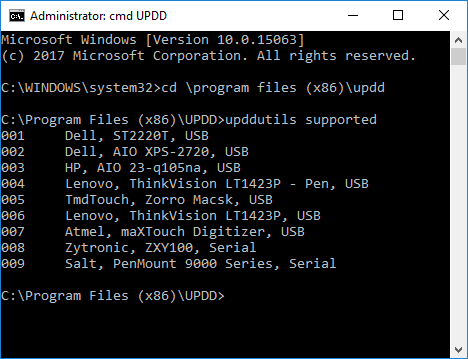 |
| unload | Instructs registered applications to terminate. |
| unregister | Unregisters the licensed driver on this computer and makes the licence available for reuse on another system. Described, with the messages it gives, in Releasing and moving a licence. |
| usbdevices | Lists all discovered USB devices connected to the system. With the UPDD V7 driver and HID devices use hiddevices instead. Described in Hardware interfaces. |
| version | Returns the driver version and build number. A = Alpha, B = Beta, R = Release build.  |
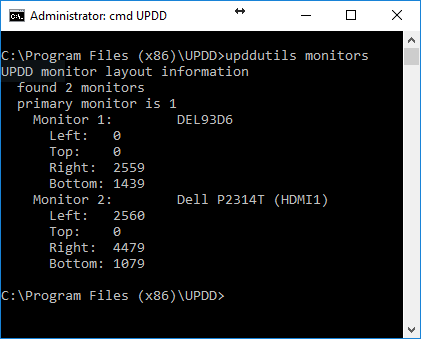
Under Windows it is possible that the monitors listing does not reflect the actual physical layout. This can be the case in a number of situations:
1. A graphics card may be supporting multiple physical monitors and will only be listed as one 'virtual' monitor (see Segments).
2. A Remote Desktop (RDP) session is active that affects the desktop layout. The driver itself retains the real monitor layout so that touch is still accurate, but the function calls to Windows used by this command may reflect the RDP adjusted layout.
Device commands
These parameters are used to handle device configurations. The syntax is upddutils [<device selector>] {command}.
| Parameter | Description |
| calibrate | Performs a basic text based 2 point corner calibration, e.g. upddutils device 1 calibrateCalibrating point 1 of 2. Please touch the top left corner of the screen |
| calibreport | Lists the calibration data for the device: number of points, rotation when calibrated, margin and the points. If using EEPROM calibration storage the report will also list EEPROM information. Number of points: 2 |
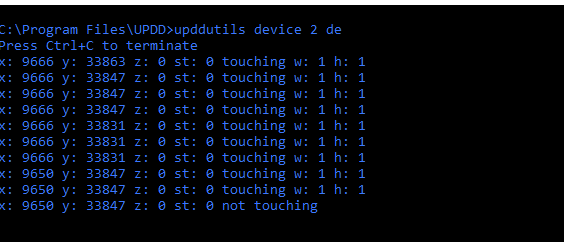
| digitizer_events or de | Lists the calibrated co-ordinate values received from the controller, stylus information and the UPDD physical events. When the W and H values are 1 it is likely the device does not support width and height. If 1,1 is returned when using a finger, then it is highly likely it is just showing the default value used when no height and width values are coming from the device. |
| events [types] or ev [types] | Prints all event types. The optional "types" field restricts the output to the specified event types and for some event types prints more detailed data. This is intended for technical users. Refer to the UPDD API header file for an understanding of the fields (see Connecting to the driver and receiving events). 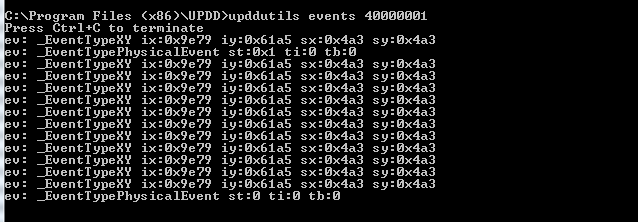 |
| get <name|pattern> | Returns the value of a setting. See Working with settings. |
| readeeprom <addr> <length> | Reads data from the specified address (hexadecimal) and length from the controller's EEPROM storage and writes it to the screen (stdout), e.g. readeeprom 70 3 would return 03 02 01 following the writeeeprom example below: EEPROM support is described in EEPROM and controller firmware functions. |
| remove <name> | Removes a setting from the settings file. See Working with settings. |
| set <name> <value> set+ / set- | Updates the value of a setting; set+ and set- manage multi line settings. See Working with settings. |
| setall <name> <value> | Creates a custom setting for a device that overrides the default setting. See Working with settings. |
| toolbar_events or te | Lists the toolbar events: device, id, name, stylus, row, column, touch state. Described in Toolbars. |
| writeeeprom <addr> <data> | Writes data to the specified address (hexadecimal) of the controller's EEPROM storage, e.g. writeeeprom 70 03 02 01 writes 3 bytes of data starting at address 70.The address must be specified in hexadecimal. |
Working with settings
User adjustable settings are held in the UPDD settings file. Settings are either global (nodevice or global) or device specific (device n), as described in How UPDD settings work. The settings themselves are listed in the Driver settings reference.
Get command
This command is used to retrieve and display the settings in the settings file for a given device or the global settings.
Global: upddutils nodevice get [setting] or upddutils nodevice get "*". "*" retrieves all global settings. Windows can use * without the quotes if preferred.
Device: upddutils [device n] get [setting] or upddutils [device n] get "*". "*" retrieves all device settings. The default is device 1 unless a device handle is specified.
A name ending in * returns all settings beginning with that name, e.g. upddutils get "cal*" returns the calibration settings of device 1.
Set command
This command is used to update a setting: upddutils [nodevice | device n] set [setting] [value].
When setting monitor_number you can also give the origin of the monitor, e.g. upddutils set monitor_number (799,0). The appropriate monitor number (with this origin) will be substituted. The origin must be in brackets, with no spaces, comma separated and in decimal.
SetAll command
This command is used to create a custom setting that overrides the default value: upddutils [nodevice | device n] setall [setting] [value].
Settings are defined in various sources and the vast majority are fixed, set to optimum values or maintained by the utility programs, and therefore are unlikely to need 'manually' changing. However, in some circumstances it may be required to override the fixed or default settings and the setall command can be used to create a setting in the settings file that will be used instead of the original setting, whatever the source.
Remove command
This command is used to remove a setting from the settings file: upddutils [nodevice | device n] remove [setting].
Multi line settings
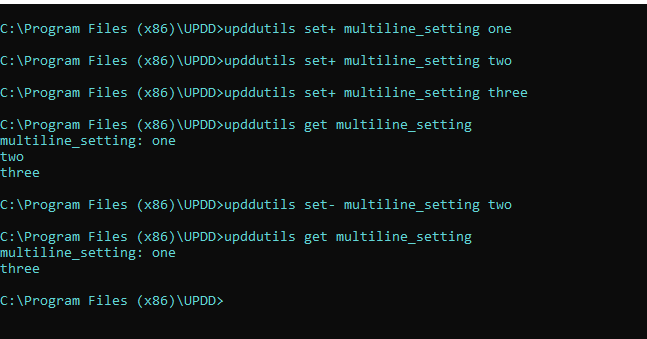
Multi line settings, such as those used by the Touch over IP function, are managed with two further commands:
set+ appends a line to a multi line setting
set- removes all occurrences of the specified value from the multi line setting
Notes
- The value test is case sensitive; set- <value> GREEN will not remove the value "green"
- A value has to define the whole line to remove; set- <value> green will not remove the line "green grass"
- Duplicate values are allowed
- set- for a non-existent value is not treated as an error.
For review
Three commands in the 7.1 syntax listing were not described in the replaced articles and are listed here without a description: firmware_version, selftest and hidgetfeature / hidsetfeature (macOS). Please supply a one-line description of each, or confirm they should stay undocumented.
Dropped from this page as no longer true for UPDD 6/7: the dumpsettings, loadsettings, hidmode and v5-v6 rows; the Windows CE clauses; the "prior to 6.0.361" unregister text. The 7.1 source also accepts commands that were never documented (e.g. enable, disable, notify); they are not added here.