macOS usage notes
This document collects notes on using touch with particular macOS features and applications: Dock magnification, screen zooming, Parallels and Hauptwerk organs. They apply to UPDD 6 and 7.
Dock magnification
When Dock magnification is turned on, the positions of the Dock icons on screen do not correspond to where you need to move the mouse to click them, as they scroll to meet the mouse faster than the mouse moves. This means that when you touch one of the items the cursor instantly moves to the touched location, but the Dock icons jump past where they are expected to be, due to the magnification. To overcome this, turn Dock magnification off. Using the Dock with UPDD Commander is described in Dock, Notification Centre and widgets.
Screen zooming
macOS screen zooming has three settings for how the zoomed portion of the screen follows the mouse cursor, listed in the Accessibility settings under Zoom. The only one that works with touch and our driver is "Only when the pointer reaches an edge", because synthetic mouse events then go to the correct position on the zoomed screen, so it can be used with the driver's mouse emulation.
The other settings, "Continuously with pointer" and "So the pointer is at or near the center of the screen", both move the screen image every time the cursor moves, so whenever the user touches the screen the image jumps chaotically; they are not suitable for touch.
macOS also supports an alternative "picture in picture" zoom, which also works with the driver.
UPDD Commander's own zoom gestures are described in Screen zoom.
For review
The Dock magnification and screen zooming notes date from earlier macOS releases (review: "still plausible on current macOS; unverified"). The original screen zooming note also said the supported zoom modes work with "UPDD Gestures"; that is replaced here by the driver's mouse emulation only. Confirm both notes on a current macOS release, and whether the zoom modes also work with UPDD Commander.
Parallels
Parallels is a program that allows you to run a virtualised Windows system on a Mac, with individual Windows dialogs displayed on the Mac desktop. When using the UPDD macOS driver, single touch is active within the Windows dialogs and is processed as mouse emulation.
However, if the Windows extended touch features are required in the Windows session (flicks, gestures, multi-touch etc), you need to allow the virtualised Windows session to connect directly to the touch device. At the point of connection the Windows HID driver (if you have a USB HID touch device), or any other Windows touch driver such as UPDD for Windows, takes control of the device, and the extended touch features work within the Windows dialogs. If the device is disconnected from the Windows session, the Mac driver gets the device back and touch processing reverts to the UPDD macOS driver.
For review
The Parallels screenshot /Uploads/Images/V6/Mac/MacParallels.PNG shows the UPDD 5 Mac Console and is dropped, with the note about it. A new screenshot of the device being given to the Windows session, with a current Parallels and UPDD 7, is needed.
Hauptwerk organs
We are occasionally contacted by users of Hauptwerk organs to help support and configure touch monitors used with these systems. Hauptwerk is developed by and is a trademark of Milan Digital Audio, LLC. A Hauptwerk user has posted a video on YouTube covering his set-up.
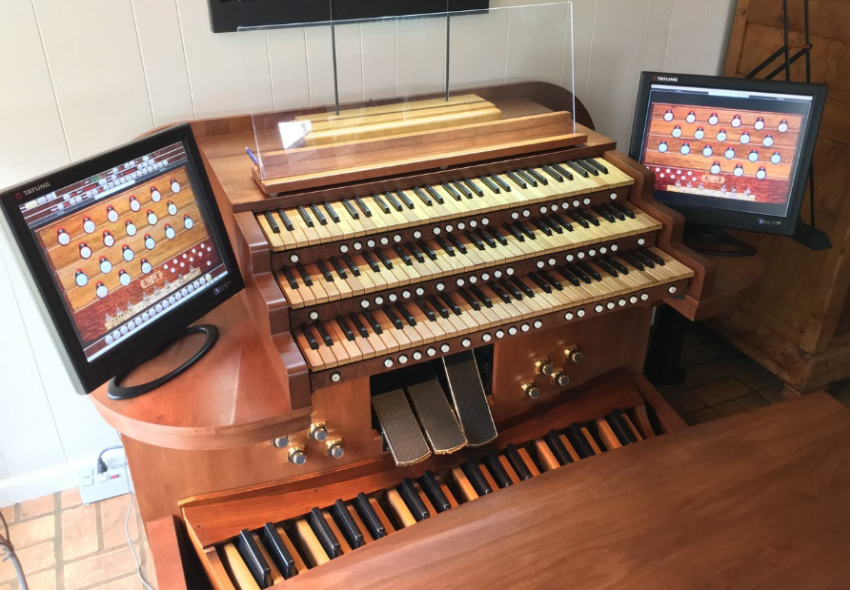
The requests have always been for systems that use two touch screen monitors, typically positioned either side of the main keyboards, as in these examples:
 |
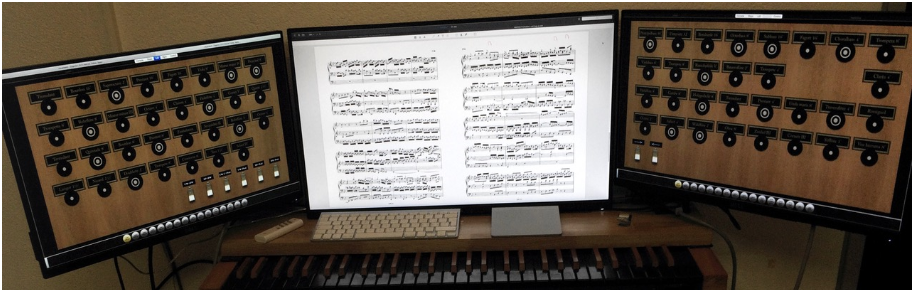 |
| In the above examples two standing monitors are working in standard landscape mode with 0 degrees rotation. |
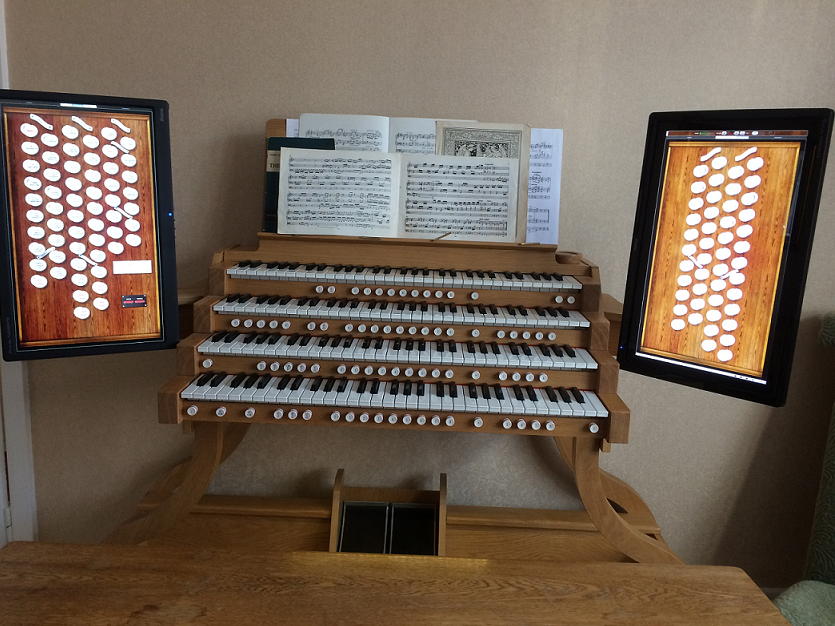 |
| In this example the two monitors are attached to side mount arms, with the left rotated 90 degrees anti-clockwise and the right rotated 90 degrees clockwise, both set to run in portrait mode. |
These systems use macOS, and not all organists are familiar with this operating system. These notes cover the main issues when using our touch screen software in these systems.
Overview
A touch screen monitor is actually two devices: the video display, and a touch screen placed over the front of the display. Nearly all touch screens on modern external touch monitors are USB devices. The video cable is just the video display; for touch to work you must also have the touch screen cable, normally USB, plugged into the Mac.
With both monitors plugged into the system you can see the monitor layout and orientation in System Settings (System Preferences before macOS 13). This shows only the video display layout and has nothing to do with the touch screens:
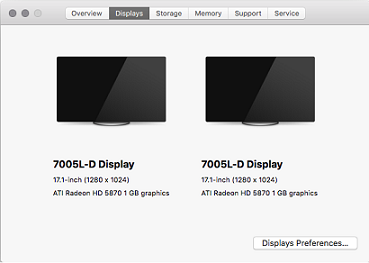 | 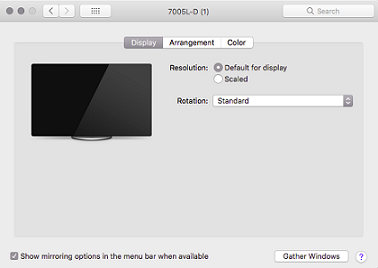 | 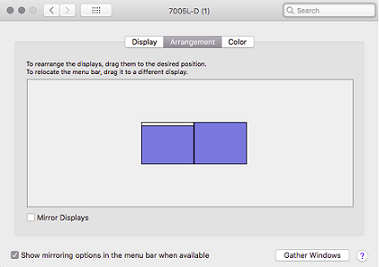 |
| Shows information about the two connected displays | For each display shows the video rotation; in this case the display is in landscape mode with 0 degree rotation | Shows the video arrangement, in this case, as expected, side by side, preferably with the left monitor on the left |
You can view the USB devices in the System Report, as described in Identifying a touch device, which also shows the USB vendor id (the unique manufacturer id of the device) and product id. With two touch screens plugged in you would expect to see two touch devices listed.
The touch software we deliver is configured to work with the vendor ids of the touch screens. If these are not the same as those listed in the System Report, our software will not find the touch devices and will not work. For this reason you cannot install UPDD supplied to another Hauptwerk user and expect it to work, as it is likely to be configured for different touch hardware.
Software delivery
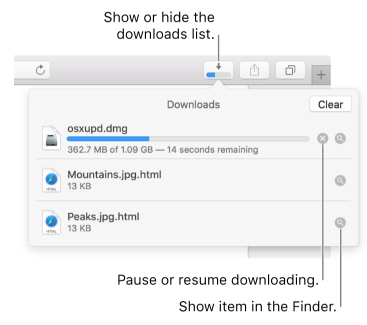
Our touch screen software, UPDD, is delivered as a My Touch-base link in an email (see Downloading UPDD). Clicking Download on the page the link opens downloads the file via your default browser: Safari, unless you have configured the system to default to another browser such as Chrome. Safari shows the download in progress; this image is taken from this Apple support article:
Once it is downloaded, open the UPDD .dmg file to install the software as described in Install UPDD on macOS. Once the software is installed you should see the UPDD Daemon icon in the menu bar (see Install UPDD on macOS).
Configuring the touch devices
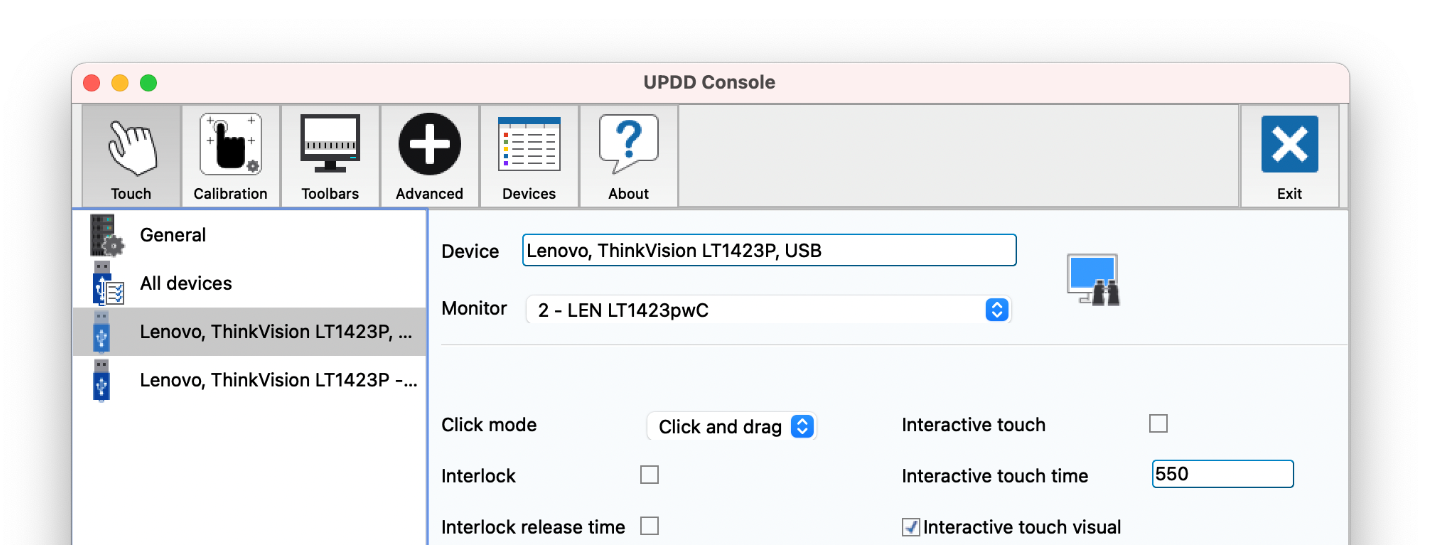
If the software is configured to support your touch devices, the UPDD Console shows that the driver has located them. Before they are configured both touch screens are associated with monitor 1; the screenshot below is after configuration, with the touch devices associated with the individual displays:
If no devices are listed, or the touch is not working, see Touch not working: first steps.
If the expected devices are listed, you need to associate each touch screen with the correct display so that the 'click' occurs on the correct display when touched. This association is made with the Identify function (see Monitors: identify, bind, metrics and segments). It places a central cross on each monitor; touch the cross on each touch monitor in turn. If you have any non-touch monitors connected, click 'Next' to move on to the next display.
The identify process may also invoke a 4 point calibration procedure if the position of the touch co-ordinates on the centre cross is not as expected. If touch accuracy is out after running Identify, you may need to run calibration for each device from the UPDD Console.
After running Identify the UPDD Console should show the correct monitor / touch screen association, and when you touch the screen the point of touch should occur on the correct monitor.
Troubleshooting
In all cases, if you have any issues, take a diagnostics package and attach it to a ticket raised at https://www.touch-base.com/contact.
These upddutils commands, run in the Terminal (in the Utilities folder), may help identify the issue:
| Command | Use |
| upddutils monitors | Lists the monitors seen by UPDD. Useful to ensure UPDD is seeing the connected monitors. |
| upddutils devices | Lists the USB devices seen by UPDD. Useful to confirm UPDD is seeing the touch screen USB devices listed in the System Report. |
| upddutils pnpinfo | Lists the USB devices supported by the delivered software. The listed vendor and product ids must match those of the touch screens shown in the System Report, USB branch. |
Links
| Company | Description |
| Milan Digital Audio, LLC | Owner and developer of the Hauptwerk brand |
| Martin Digital Organs | USA builder and supplier of digital organs |
| Romsey OrganWorks | UK supplier and builder of organ consoles |