Touch hardware and device notes
This document gives background on the pointer devices UPDD supports (HID and non-HID USB devices and serial devices), explains how HID report descriptors affect multi-touch on operating systems other than Windows, and lists notes on specific devices that we have observed or discovered along the way. It applies to UPDD 6 and 7 on all platforms.
Known issues with specific touch hardware are listed in Known hardware issues; how to identify a device and its USB vendor and product ids is described in Identifying a touch device.
Pointer devices and drivers
There are many different pointer devices; they have been around for a long time and have evolved as computing has evolved. The standard physical connection of these devices to a computer has been serial or, latterly, USB. In its simplest form, when a pointer device is used it sends the computer x and y positional co-ordinate data. For a device not overlaid on or related to the video output, such as a mouse, the co-ordinate data is relative to its current position. For a pointer device related in some way to the video output, the co-ordinate data indicates the absolute position relative to the video.
In the early days of pointer devices the manufacturers had to supply drivers with the devices, but eventually standards evolved that allowed a single driver to support a common device, such as a mouse, so that you could plug in the device and expect it to work without installing a driver. For touch screen type devices this standard took a lot longer to evolve, and you needed to install a specialised driver supplied with the device.
Although this is still the case with serial devices, the industry did eventually settle on a USB standard called HID (Human Interface Device), so that operating systems could ship a standard HID driver supporting mice, keyboards, touch screens, digitizers, pens etc. This allowed for Plug and Play: the notion that you plug in the device and it works. This is possible because a Plug and Play device exchanges information with the Plug and Play manager to help it select the correct driver. If the device indicates that it is HID compatible, the HID driver is given control of it. The HID driver then reads information from the device (held in the HID report descriptor), which passes the device characteristics to the HID driver to support as required.
Old USB devices are unlikely to be HID compatible and may still require a driver, but more modern ones, especially multi-touch hardware, are HID compatible and use the native HID driver supplied with the OS.
Microsoft, and hence Windows desktops, fully embraced touch, and the Windows HID driver supports most pointing devices and touch functions, including multi-touch and gestures. Not all other mainstream operating systems have fully embraced touch type devices, and they still require drivers to be installed to offer full functionality. This is true of macOS and Linux, although there are Linux HID drivers that handle multi-touch hardware and offer some degree of gesture support.
UPDD is typically used where older legacy pointer devices are used in modern operating systems for which manufacturers' drivers do not exist, or to implement full touch functionality in systems that do not support it with their native drivers.
How UPDD takes control of a device
UPDD 6 registers itself for a given USB device (by specifying a USB vendor and product id, or a range of them) so that, when the device is plugged in or discovered on the system, the Plug and Play manager selects UPDD to handle the device. If the device is known to be HID, UPDD reads the HID report descriptor and implements the functionality to match the capabilities of the device.
UPDD 7 uses its own USB interfaces. Under Windows there are two: one that works with the native HID driver to support HID touch, pen and tablet devices, and one for older, non-HID USB devices; the kernel drivers involved are listed in What UPDD installs on Windows. Under macOS the USB interface is written using IOKit. The interfaces are described further in Hardware interfaces: USB, HID and I2C, and serial devices in Serial (RS232) devices.
HID report descriptors
Given that Windows implements full support for touch screens, most modern devices, when plugged into a Windows system, present a HID report descriptor that describes the full functionality of the touch device, such as its multi-touch capabilities and number of styluses. However, when plugged into systems other than Windows, some devices present a different HID report descriptor, so that the device still functions, but as a single touch, mouse-like device. In these cases the HID report descriptor held in the device is of no use to the driver.
To cater for this situation we have created a tool that is run on a Windows system to read the full HID report descriptor to a file that can be shipped with the driver. When a device is handled by UPDD and the driver finds a file-based HID report descriptor relating to the device, it uses the information in the file rather than reading it from the device. Based on this information, if the device is capable of working in multi-touch mode, the driver queries the number of styluses supported and requests that the device operate in multi-touch mode. This exchange is often sufficient for the device to switch back into multi-touch mode, restoring full touch functionality that can then be supported by UPDD.
Where a multi-touch device is to be supported in an operating system that is not multi-touch aware and the device presents itself differently from when it is plugged into Windows, we would like to be supplied with the Windows HID report descriptor in a file. The file is generated as follows:
- Download the utility from here, extract the contents to a folder and run gethid.exe on a Windows system with the touch device connected.
- A dialog lists all the discovered USB devices, as in this example:
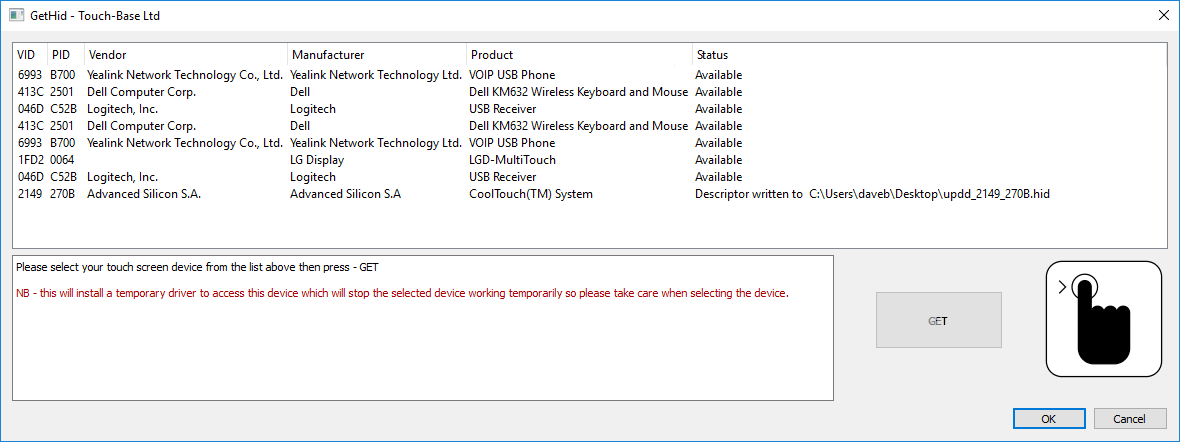
- Select the touch screen or pointer device and press GET. This passes the vendor and product id to our server, which generates a signed driver that is used to read the device. The driver is installed automatically, the HID report descriptor is written to a file on the desktop named
updd_<vid>_<pid>.hid, and the driver then unloads. Once it has unloaded, the original driver regains control. - Raise a ticket at https://www.touch-base.com/contact and attach the file.
For review
gethid (tools/gethid) still exists in the 7.1 source and writes updd_<vid>_<pid>.hid to the desktop (tools/gethid/dialog.cpp:319-320), but it obtains its signed reading driver from license.touch-base.com/signing/gethid/ (dialog.cpp:388), a UPDD 6 era service, and the download link is on the old v6download host. Confirm the utility and its signing service still work on Windows 10/11, or replace this procedure.
Device notes
Our driver works with many touch devices (controllers) and operating systems, in many different system configurations and environments. These are configuration considerations for specific devices that we have observed.
| Hardware | Description |
| USB 3.0 ports | A number of Mac customers have reported difficulties with touch devices plugged into USB 3.0 ports that do not arise when used in USB 2.0 ports or hubs. This was observed on the following controllers but could be more widespread: iNexio, HID Multi-touch, USB. |
| Delta mode devices | Controllers that operate in what we refer to as "delta mode" do not transmit touch co-ordinates when the touch is held steady in the same position. The Lift off time setting in the UPDD Console (see UPDD Console) should be set to 0 to reflect this mode of operation. Known controllers that operate in this mode include Elo Touchsystems, Smartset 2216, USB and 3M, SC3, Serial (see below); the full list is in Known hardware issues. |
| WIMAXIT, M1560CT2 | Under macOS, touch does not work after resume from sleep. This requires the global setting power.stop_after_wake to be enabled, in the UPDD Console, Advanced settings. With this set, the driver process is terminated after a power management "wake" event and is then restarted by the OS launcher, allowing a full software reset. See Sleep, wake and touch after resume. |
| Multitou.ch MultiTaction | This device is not directly supported by the driver but can be used in macOS via UPDD Commander, configured to receive co-ordinate data from TUIO (see TUIO in Commander). A 'dummy' UPDD driver needs to be installed for this to work. You have to set the incoming TUIO port to that defined by the Multitou.ch software. The incoming TUIO data is associated with a specific display, so it can only be used to control one macOS desktop. For further details raise a ticket at https://www.touch-base.com/contact. |
| Microchip mTouch | Although this is a USB device it is actually a Microchip USB to UART bridge, so it requires the Microchip USB serial port driver to create the virtual COM port. |
| iNexio | The USB device with vendor id 1870 and product id 0001 is available as a single touch device, which uses firmware 1.x, and a dual touch device, which uses firmware 2.x. Firmware 1.x outputs 5 bytes of touch data; 2.x outputs hundreds of bytes of data, caters for 2 styluses and its format is not known, hence it is not supported. The 2-stylus 0001 controller was soon replaced with 1870/010x, which is supported. To summarise: 1870/0001 - single touch - firmware 1.x - 5 bytes of data - supported 1870/0001 - dual touch - firmware 2.x - hundreds of bytes of data - not supported 1870/010x - dual touch - supported |
| OneTouch USB | The OneTouch USB controller is actually an onboard Prolific PL2303 serial to USB adaptor, so it requires an appropriate driver to create a virtual serial port. Once this driver is installed, use the OneTouch UPDD serial driver to support the device. |
| ITM Touch, FTDI, "USB" | This is a USB to serial adaptor from FTDI, and you need their driver to create the virtual serial port and access it as a serial touch screen. To create the virtual serial port download the driver from http://www.ftdichip.com/FTDrivers.htm. The driver you use must have been configured for the 0403/6001 device; see http://www.ftdichip.com/Support/Documents/TechnicalNotes/TN_100_USB_VID-PID_Guidelines.pdf. |
| 3M, SC3, Serial | In UPDD 6 this is set to expect the device to be running at 9600 baud. However, these devices can be configured to run at 2400, 9600 or 19200 baud, and you need to adjust the baud rate accordingly in the UPDD settings (see Serial (RS232) devices). Further, they can be set to output continuous touch data or a single touch point and click. If the device only outputs a single pen down/up sequence on touch it must be treated as a delta mode touch device, as described above. |