On-screen keyboard
On-screen keyboards can be used to enter text on the desktop and, on macOS 10.15 Catalina and later, on the login screen. This document describes how UPDD Commander shows and hides an on-screen keyboard: automatically when a text field is focused (macOS), or with a gesture action (macOS and Windows).
macOS keyboards
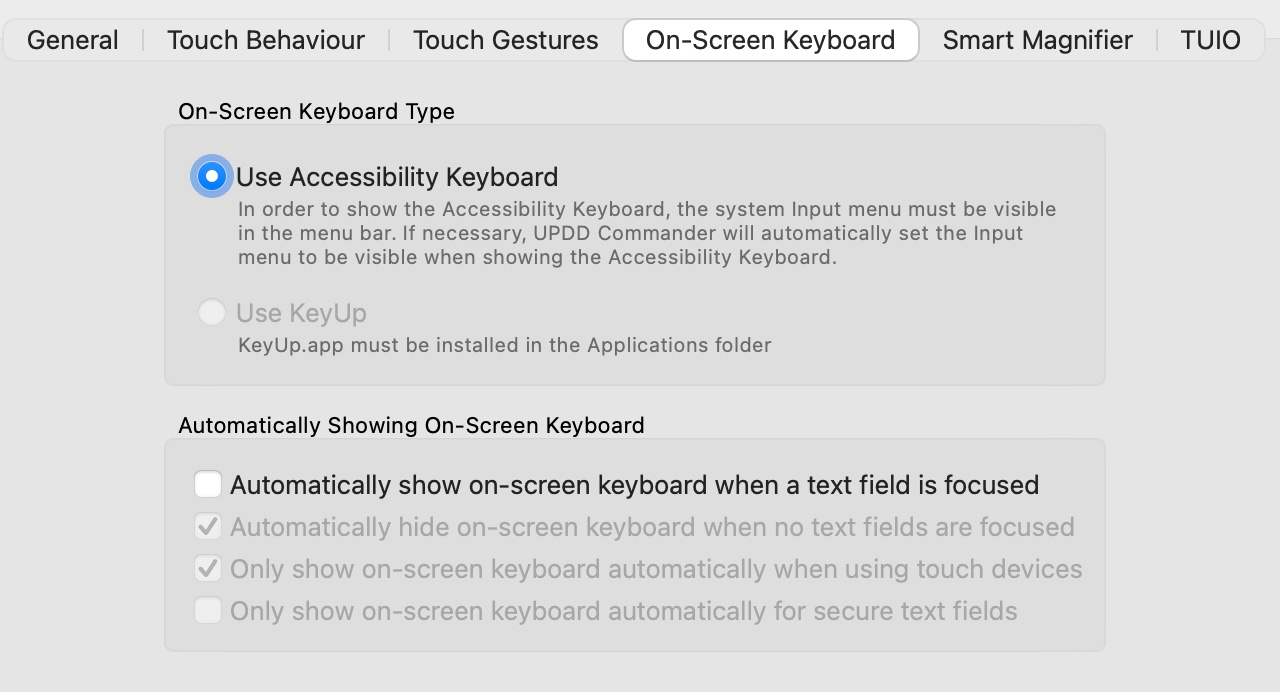
macOS offers the Accessibility Keyboard (since macOS 10.13) and, up to macOS 10.14, the Keyboard Viewer, and there are a number of third party keyboards available. Commander can be configured so that an on-screen keyboard is automatically invoked in certain circumstances on the user desktop. The keyboard to use is selected on the On-Screen Keyboard tab of the Settings section:
| Keyboard | Notes |
| Accessibility Keyboard | The default on macOS 10.15 and later. To show the Accessibility Keyboard the system Input menu must be visible in the menu bar; if necessary UPDD Commander automatically sets the Input menu to be visible when showing the keyboard. With UPDD Commander 1.0.14 and later, Commander uses a method to toggle the Accessibility Keyboard that in our tests works consistently. On macOS 10.14 it does not work reliably unless the Accessibility Keyboard is first enabled manually in System Preferences. |
| KeyUp | KeyUp, from Irradiated Software, only works with US English (qwerty) keyboard layouts, so it does not work for other languages or keyboard layouts. KeyUp.app must be installed in the Applications folder. |
| Keyboard Viewer | Only offered on macOS 10.14 and earlier. It has a bug where the keyboard shows and hides itself at arbitrary times and remains on the screen even though no input field is active, and needs to be closed manually. |
Showing the keyboard automatically
These settings dictate when the on-screen keyboard is shown:
| Setting | Meaning |
| Automatically show on-screen keyboard when a text field is focused | When enabled the on-screen keyboard is shown when a text field is focused (off by default). |
| Automatically hide on-screen keyboard when no text fields are focused | When enabled the on-screen keyboard is hidden when no text fields are in focus (on by default). |
| Only show on-screen keyboard automatically when using touch devices | When enabled (the default) the on-screen keyboard only appears if a text field becomes focused because it was touched, or the touch device has recently been used (3 seconds). The on-screen keyboard does not appear when only the keyboard and mouse are used, unless within the 3 second touch threshold. The threshold can be adjusted with global setting upddcommander.applicationsettings.automatically_show_keyboard_during_touch_events_threshold, see Commander settings reference. |
| Only show on-screen keyboard automatically for secure text fields | When enabled the on-screen keyboard is only shown when a secure (password) text field is focused. |
Notes:
- Automatic showing only works with applications that support macOS accessibility features. At the time of testing, two prominent examples of applications that do not support it were Chrome and Firefox; it works well in Safari.
- Some older Qt applications (built with Qt 5.1 or earlier) do not support macOS accessibility.
- Web apps, including applications built with Electron (e.g. Slack), do not support accessibility.
- KeyUp only supports qwerty layouts. The native keyboards reflect the system keyboard layout.
Show / hide on-screen keyboard action
The keyboard can also be shown and hidden with a gesture, using the "Show / hide on-screen keyboard" action (macOS) or "Show / hide touch keyboard" action (Windows, which shows the Windows touch keyboard in Windows 8 and later). The action can be set to toggle, show or hide the keyboard. On macOS, the option "Show on touched display" (UPDD Commander 1.14.2 and later, on by default) moves the keyboard to the display on which the gesture was performed.
The standard On-Screen Keyboard preset provides basic gestures for typing on the on-screen keyboard, see Presets. On Windows there are no automatic show and hide settings.
Login screen
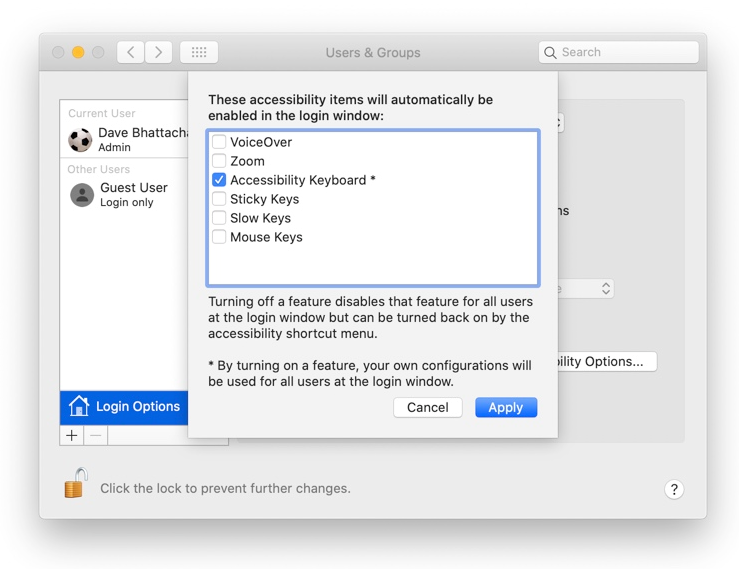
Before macOS 10.15 Catalina it was not possible to invoke the on-screen keyboard on the login screen. Since macOS 10.15 it is possible to enable accessibility features at login, including the on-screen keyboard:
Touch can work on the login screen if the driver (UPDD.app) is given Accessibility permission (on macOS 27 the pane is named "Device Control and Data Access"); see macOS: Accessibility, Input Monitoring and background items.
Home Assistant
The on-screen keyboard is not shown automatically when touching a text field in the Home Assistant application. Home Assistant does not correctly report the focused UI element using Apple's Accessibility features: when a text field in Home Assistant has keyboard focus, the Accessibility API does not report a UI element with the role "text field" or "text area" as having focus, but rather a generic group. This prevents accessibility-enabled tools from detecting when a user might need assistance typing into a text field. Use the show / hide on-screen keyboard action instead.
For review
Confirmed in 1.15.0: the On-Screen Keyboard tab is removed on Windows (QtApplicationSettingsWidget.cpp:122); Keyboard Viewer is only offered before macOS 10.15 (shared osxKeyboardViewer.mm:113-116); default keyboard type 2 (Accessibility) on 10.15+ (gesture-metadata.json); "Show on touched display" default true (change history 1.14.2).
Source finding for the developers (not for the page): in 1.15.0 QtToggleKeyboardViewerSettingsWidget.cpp:44-47, toggling the "Show on touched display" checkbox writes the keyboardViewerAction setting (toggle/show/hide) instead of showOnTouchedDisplay, so unticking it changes the action rather than the option.
The 10.14 workaround detail of 50596 (disabling SIP, enabling the keyboard in System Preferences after closing it with X, "Show keyboard and emoji viewers in menu bar" on 10.15) was condensed. "Use the show / hide action instead" for Home Assistant is a suggestion added here.