What UPDD installs on Windows
This document lists the components that UPDD 7 installs on Windows (files, the driver service, kernel drivers, registry entries and processes), how to stop and start them, and how they are signed. UPDD 6 differences are noted where relevant; UPDD 6 installs to C:\Program Files (x86)\UPDD.
Installed components
The following components are installed under Windows:
| Component | Name | Path | Notes |
| Driver | updd.exe | C:\Program Files\UPDD | Runs as the service updd |
| Settings database | updd.db | C:\ProgramData\updd\db | Not Windows XP |
| Bootstrap settings | updd.ini | C:\ProgramData\updd | Created manually as required |
| Kernel driver packages | upddhx, upddvhid, upddvhmk, upddmf, upddusb | C:\Program Files\UPDD\inf | See Kernel drivers |
| Kernel driver installer | UPDD Install.exe | C:\Program Files\UPDD | Installs and removes the kernel driver packages |
| Calibration program | UPDD Calibrate | C:\Program Files\UPDD | |
| Test program | UPDD Test | C:\Program Files\UPDD | |
| Console program | UPDD Console | C:\Program Files\UPDD | |
| Daemon program | UPDD Daemon | C:\Program Files\UPDD | |
| Commander | UPDD Commander.exe | C:\Program Files\UPDD | Gesture and action engine; also acts as a TUIO server. Installed when included in the package. |
| Commander presets | C:\Program Files\UPDD\commander presets | ||
| Annotate | UPDD Annotate.exe | C:\Program Files\UPDD | |
| Uninstall | unins000.exe | C:\Program Files\UPDD | |
| Command line interface | upddutils | C:\Program Files\UPDD | |
| Start up script | preinstall | C:\Program Files\UPDD | Install assistance |
| UPDD API dynamic lib | upddapi.dll | C:\Program Files\UPDD | |
| UPDD API folder | C:\Program Files\UPDD\API | API files to develop UPDD client applications | |
| UPDD API import lib | upddapi.lib | C:\Program Files\UPDD\API | |
| UPDD API header | upddapi.h | C:\Program Files\UPDD\API | Driver API header file |
| Qt modules | Qt6*.dll | C:\Program Files\UPDD | |
| Graphics libs used by Qt | opengl32sw.dll, d3dcompiler_47.dll | C:\Program Files\UPDD | |
| UPDD dump folder | *.dmp | C:\Program Files\UPDD\dumps | Mini dumps taken from the exception handler |
| UPDD 6 compatibility | v6 | C:\Program Files\UPDD\v6 | Qt5 libraries and the UPDD 6 upddapi.dll, .lib and .h |
For review
Two rows of the corrected table (50342) are left out because a 7.1.235 installation does not have them: libusb-1.0.dll (UPDD 7 uses its own USB interfaces; only the licence file COPYING-LIBUSB is present) and the gesture API headers TBTouchGestureConstants.h and gestures_event.inl (the API folder holds only upddapi.h and upddapi.lib). The upddusb and UPDD Install.exe rows are added from the same installation and the source (install/main.cpp). Confirm against a current standard build.
The driver service
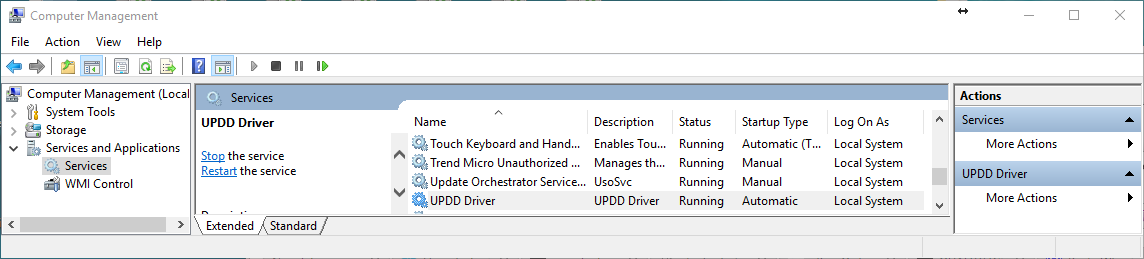
The driver, updd.exe, runs as a user mode system service named updd (display name UPDD Driver).
The driver uses TCP/IP port 4146 to communicate with the other components using the API; see What UPDD is.
Kernel drivers
UPDD 7 ships its own kernel driver packages, held in the inf folder of the installation, which the driver service installs as required:
| Package | Device Manager name | Purpose |
| upddhx | UPDD Filter | Touch filter driver, through which UPDD works with HID touch, pen and tablet devices alongside the native HID driver. |
| upddvhid | UPDD Pen & Touch | Virtual HID pen and touch device, used to post touch and pen data into Windows as native touch and pen input. Touches are directed to the virtual HID device of the monitor the touch device is associated with (see Multi-monitor on Windows). |
| upddvhmk | UPDD Mouse & Keyboard | Virtual HID mouse and keyboard device; the keyboard allows UPDD Commander to post keystroke actions into the OS. |
| upddmf | UPDD Mouse | Mouse filter driver. |
| upddusb | Listed under UPDD Devices, one entry per supported device | USB driver for non-HID (legacy) USB devices. Included only when the package supports such a device; its .inf lists the USB vendor and product ids of the supported devices. |
UPDD 6 kernel components
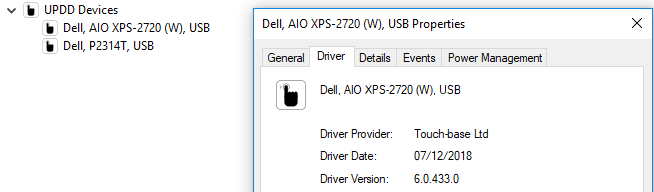
UPDD 6 uses two kernel mode components first signed with UPDD 5, tbupddsu (a mouse port interface, which creates a mouse entry in the Device Manager) and upddvh (a virtual HID interface, created only on Windows systems with Pen Services available, with one virtual HID device per configured monitor). USB devices are handled through a generic USB library (libusb) with the Windows inbox driver winusb.sys, wrapped in a package (updd.inf) that lists the supported devices. The UPDD 6 components were resigned in UPDD 6.0.474, and their Driver Version entry in the Device Manager is the identifier allocated by the WHQL process.
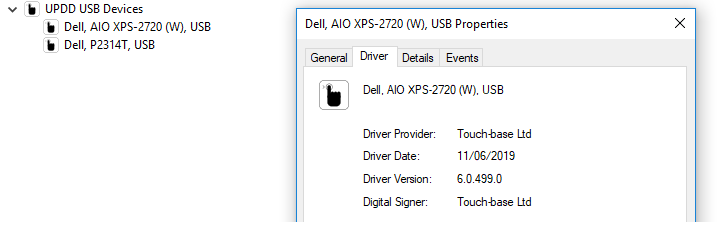
Under UPDD 6, USB devices are handled through the generic USB library by default; the tbupddsu kernel module is available to test or try in the rare cases where the library has issues with a device. The global setting usb.use_updd_kernel_driver is set to 1 in software bundles set to use tbupddsu. In this example (via the USB library) two supported USB devices are connected to the system:
In this example (via the kernel UPDD Mouse module, tbupddsu) the same two supported USB devices are connected:
Registry entries
The following main entries are created by UPDD 7 (others may be created by Windows as a result of installing a driver):
| Entry | Description |
| HKEY_LOCAL_MACHINE\SYSTEM\CurrentControlSet\Services\updd | Driver service |
| HKEY_LOCAL_MACHINE\SYSTEM\CurrentControlSet\Services\upddhx, upddvhid, upddvhmk, upddmf, upddusb | Kernel drivers |
| HKEY_LOCAL_MACHINE\SOFTWARE\Microsoft\Windows\CurrentVersion\Run, value updd-daemon | Starts the UPDD Daemon at login |
| HKEY_LOCAL_MACHINE\SOFTWARE\Microsoft\Windows\CurrentVersion\Run, value updd-commander | Starts UPDD Commander at login; created and removed by Commander itself (its start-up option) |
| HKEY_LOCAL_MACHINE\SOFTWARE\WOW6432Node\Touch-Base\updd | Driver path (MainDir) |
UPDD 6, a 32-bit program, uses HKEY_LOCAL_MACHINE\SOFTWARE\WOW6432Node\Microsoft\Windows\CurrentVersion\Run for its start-up entries, and the services upddvh and tbupddsu for its kernel components.
The client applications started at login are also listed as start-up apps in Windows:

Processes
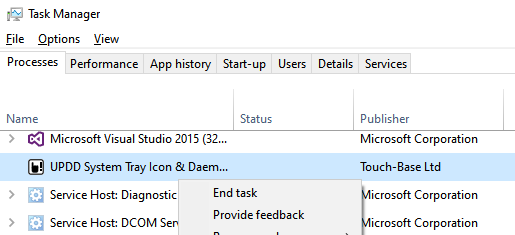
In normal circumstances, once installation has completed, a number of processes are running. The number depends on the components held in the installer. The core driver uses two processes: updd (the user mode driver service, listed as Universal Pointer Device Driver) and the UPDD Daemon (the background task, listed as UPDD System Tray Icon & Daemon). If UPDD Commander is installed it is also running. Transitional applications, like UPDD Test, Calibration and Identify, are listed in the Task Manager only while they are running.
| Process | Purpose |
| UPDD | The driver and the API interface. |
| UPDD System Tray Icon & Daemon | The driver's daemon task, offering a number of functions relating to the driver and the user interface. |
| UPDD Commander | Calculates the gesture being performed and performs its action, and makes it available on the driver's API and TUIO server. |
Stopping and starting the driver
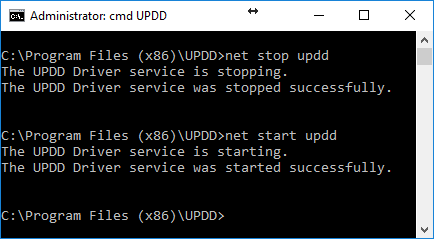
Should you need to stop and start the driver, say to activate a setting that is only read when the driver loads, you can reboot the system or use the Services dialog shown above, or the commands net stop updd and net start updd. The commands must be run in a command window with administrator privileges:
To stop and start the UPDD Daemon
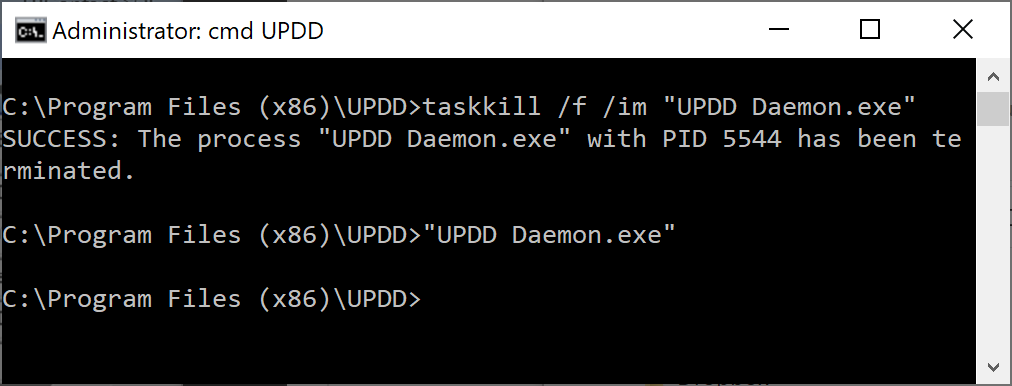
or locate the process in the Task Manager and select End task:
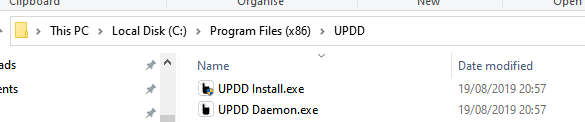
To start the process, double click the program in Explorer in the UPDD application folder:
To stop and start UPDD Commander
To stop Commander, select "Quit UPDD Commander" from the Commander system tray entry. To start it, locate UPDD Commander in Explorer in the UPDD application folder and double click it. See Running Commander.
Direct application interface: w32_events
Starting with UPDD 6 build 407 on Windows there is an experimental interface that posts touch data via w32_events directly into the application under the point of touch. This mode of operation injects mouse events directly into an application, bypassing the Windows mouse and touch processing. It should satisfy LButtonDown, LButtonUp and MouseMove events.
This is useful in a number of ways, such as:
- to allow concurrent touches in 2 or more applications, as long as the applications are on separate touch devices;
- to generate mouse clicks within an application without affecting the mouse cursor, which may be in use on a separate monitor.
This feature is not intended to provide a general touch interface, as its successful operation depends entirely on the implementation of the target application, and it cannot be used to interact with the desktop.
In this mode of operation, touches on the desktop are deliberately blocked and not posted, as this interface is aimed specifically at touching within user-written applications. The driver locates the window at the touched position on the desktop and directs mouse events directly to that window. However, Windows creates windows that cover the whole desktop, so these must be ignored: windows named 'TabletModeCoverWindow' and 'Windows.UI.Core.CoreWindow' are ignored.
Notes:
- Only a single touch per touch device is supported.
- There is no visual feedback (mouse pointer) except any provided by the target application.
- Right clicks are not supported.
- This is tested on Windows 10 only.
- Most testing has been with the Chrome browser, which works well. This interface needs to be evaluated for suitability case by case.
- This mode of operation allows concurrent touches, but note that in Windows there is the concept of keyboard focus, which indicates the window into which keyboard events (typed characters) are sent. As only one window can have the keyboard focus, an application controlled by w32_events for concurrent use of applications must either not change the keyboard focus, or not be used in conjunction with an application that relies on the keyboard focus.
- Applications that form part of the Windows shell, such as Internet Explorer, Explorer, Edge and Outlook, are not supported.
- Switching between applications (e.g. by touching the title bar) is not supported, so the target application(s) must be fully visible on the screen.
- Only one application window should exist at the point of touch, as touches could be directed to an underlying hidden window. This method deliberately does not focus the window; the touch is directed to the application at the top of the Z order at the point of touch, which is not necessarily the one on view.
- Ensure UPDD interactive touch is disabled for the device, so that a steady w32_events touch does not generate a right click at the position of the cursor.
Example
Make the settings for a specific UPDD device to use the w32_events interface:
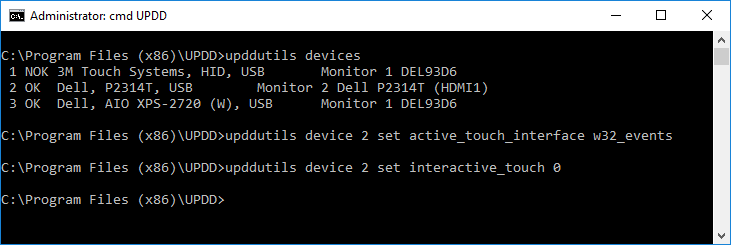
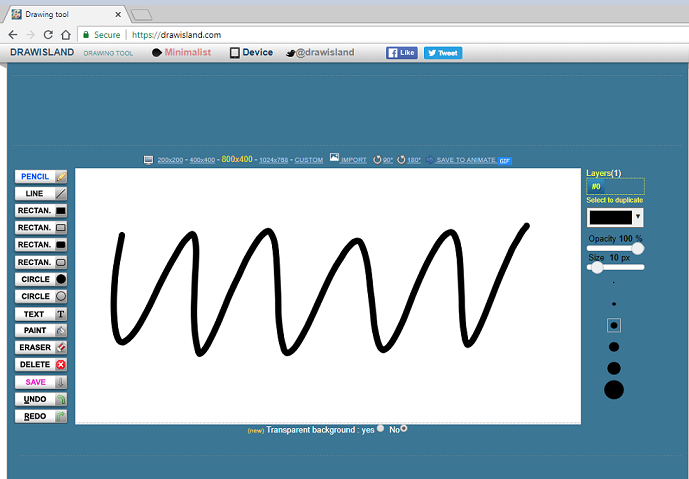
Control a browser based drawing tool using the w32_events touch interface:
Signing and certification
We are often asked whether our Windows driver is WHQL certified, signed and fully compliant.
Although UPDD is referred to as a 'driver' it is actually a number of components packaged together, and each package is unique, depending on the touch devices it supports: the .inf file reflects the devices supported. UPDD has been designed so that the kernel mode components are static and stable, with the bulk of the 'driver' functionality in user mode components, which are under constant development and release.
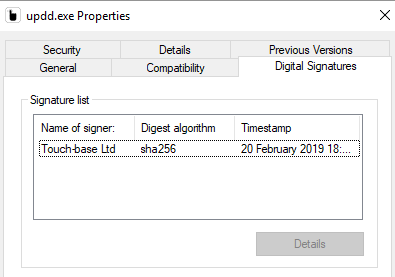
User mode programs and the installer. All UPDD user mode programs, such as the user mode function driver updd.exe, carry an embedded Authenticode signature with SHA-2 certificates, as required by Microsoft, so that they can be executed without warning. For compliance purposes this is generally enough: it shows Touch-Base as the legitimate supplier and that the software has not been tampered with. The installer also carries an Authenticode signature, so that SmartScreen does not flag it as potential malware.
Kernel mode components. WHQL signing applies only to kernel mode components. Each UPDD 7 kernel driver package (see Kernel drivers) is signed by Microsoft (Windows Hardware Compatibility Publisher). Microsoft have replaced cross-signed kernel certificates with attestation signing, which can only be used for Windows 10 and later kernel modules, so the UPDD 7 kernel drivers cannot be signed for Windows 7 or XP (see Install UPDD on Windows).
Deprecation of SHA-1 certificates was completed at the end of 2017 and the driver no longer uses them. Operating systems that rely solely on SHA-1 certificates, such as XP and unpatched Windows 7 systems, are likely to issue a warning that the software is from an unknown source; see Installation problems on Windows.
With a regular installer package, Windows asks the user on detection of a USB device whether the driver should be installed; for use where the driver is pre-approved see Install UPDD on Windows.
UPDD 6 signing
UPDD 6 uses three kernel related packages:
| Type | Name | Description | Signing status |
| Mouse interface | tbupddsu | Implements a mouse port interface | Fully signed package |
| HID interface | upddvh | Implements a virtual HID interface | Fully signed package |
| USB device interface | updd.inf | USB hardware interface | Partially signed package |
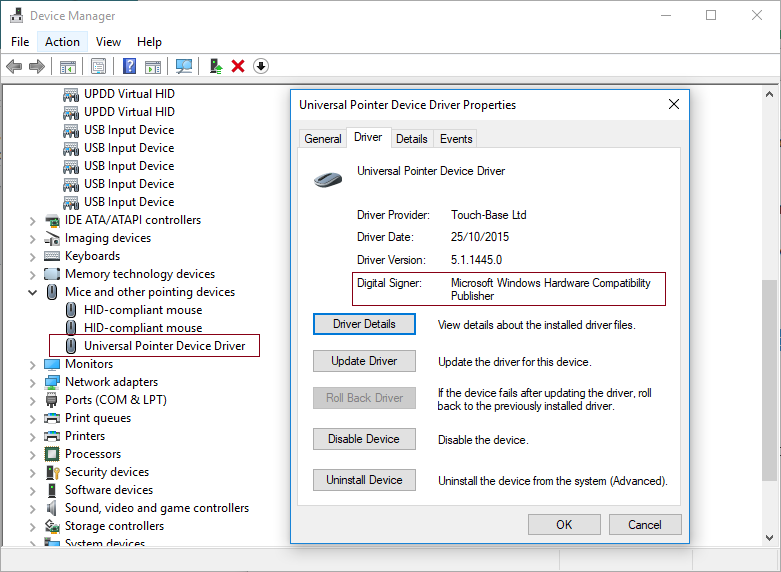
Mouse interface. This package is fully WHQL signed. It was signed with UPDD 5.1.1445 and has not changed since, hence it is used in UPDD 6 to post touch data to the operating system via a mouse port interface.
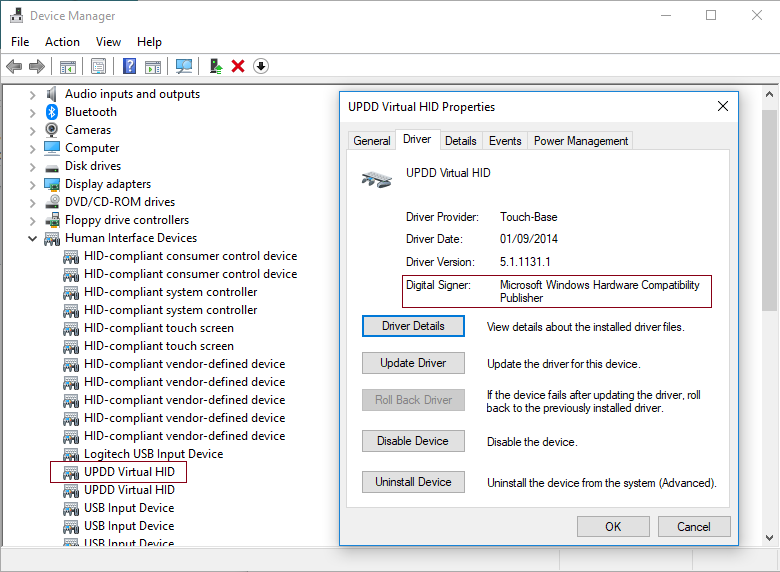
HID interface. This package is fully WHQL signed. It was signed with UPDD 5.1.1131 and has not changed since, hence it is used in UPDD 6 to post touch data to the operating system via a HID interface.
USB port interface. This package installs a USB client side driver for the specific devices defined in the .inf file, created at the time the UPDD installer is built, which includes the USB vendor and product ids of the supported devices. At its heart it uses the standard 'inbox' driver winusb.sys, signed by Microsoft Windows:
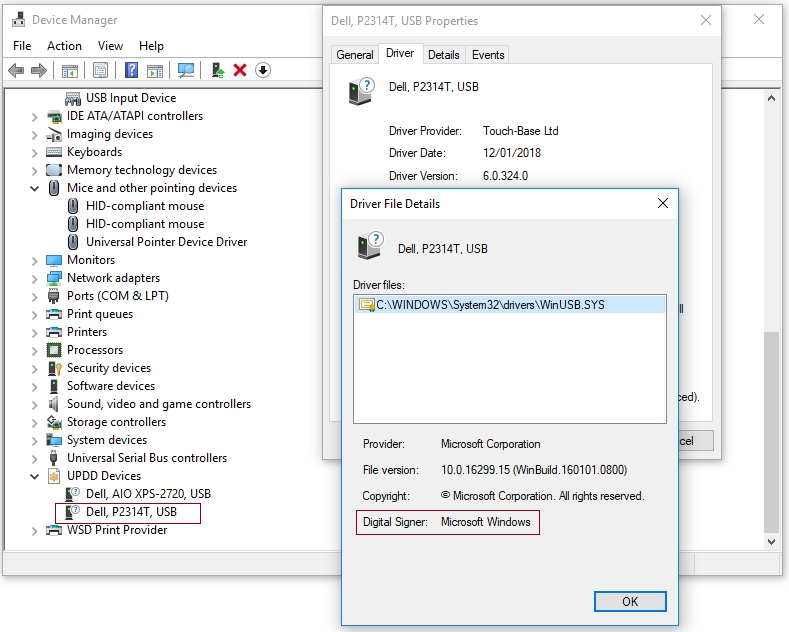
Because this has to be wrapped in a driver package to support the specific device(s), the driver package (with its catalog file updd.cat) is signed by Touch-Base with the Authenticode signature, not as a fully signed WHQL package. This does not add any driver files, and in most cases the signing status is sufficient to satisfy users' signing requirements. If a driver package requires full WHQL signing, a full signing process has to be performed in conjunction with Microsoft WHQL signing procedures; this takes approximately 2 weeks to complete and is chargeable.
In Windows 10 the Device Manager reports the updd.inf driver package as unsigned. This is a bug in Windows: the package is signed, and unsigned driver packages cannot be installed on 64-bit Windows.
Windows 10 introduced Device Guard, a set of hardware and OS technologies that, configured together, allow enterprises to lock down Windows systems. Systems can be tested for these HVCI (Hypervisor Code Integrity) standards with the Microsoft Device Guard Readiness Tool. The UPDD 6 kernel components do not meet these requirements, as they were originally signed with SHA-1 certificates.