Pen and pressure
The UPDD driver generally only needs to handle pen devices or pen data if a single composite HID device (USB VID and PID) delivers both touch and pen data. Otherwise it is best to allow the operating system to support a pen device natively, with specialist pen drivers or common active stylus protocols such as USI.
This document describes how UPDD Commander handles pen input and pressure on macOS and Windows: tablet events, pressure calibration, posting mouse events to specific applications and eraser pressure, plus a note on Force Touch.
Pen input
If the driver is handling a pen device under macOS, Commander passes pen device input into the system as tablet events. These include proximity, left click (via the nib), right click, barrel button, pressure, tilt and eraser features. The lower barrel button is mapped to right click. There is no support for the pen upper side switch (as seen on Wacom pen type devices).
Pen nib and co-ordinate information bypasses the gesture engine, i.e. it is not processed for gesture consideration; Commander simply posts the data on the tablet / pen interface. Pen input can be ignored altogether with global setting upddcommander.applicationsettings.disable_tablet_input, and converted to TUIO with the "Convert Pen to TUIO" option described in TUIO in Commander.
Under Windows, pen data is simply passed into the operating system on the relevant pen interface: Commander does not receive pen data, and it is posted by the driver on the driver's virtual HID pen interface.
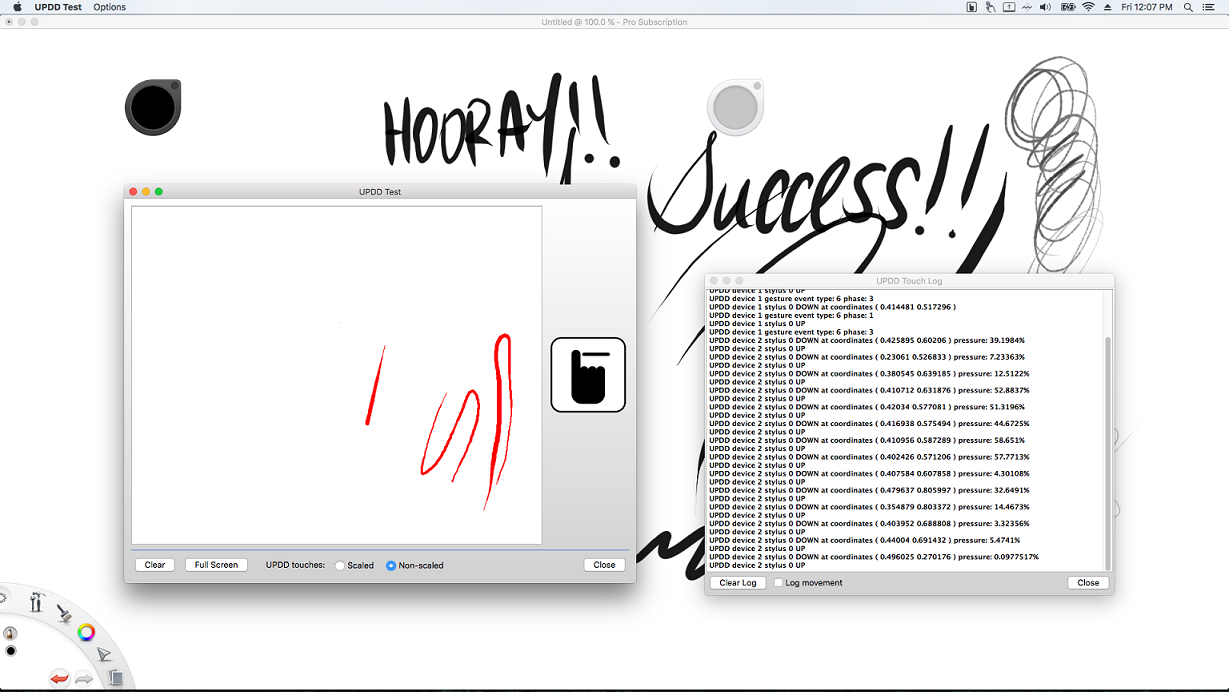
When working as expected, pen applications, including UPDD Test, reflect the pressure in the line thickness, as in this screenshot:
Touch as tablet input
Under macOS, for non-pen devices, such as touch screens that support pressure, the Commander setting "Mouse gesture actions triggered by non-tablet devices simulate tablet input" on the General tab posts data as tablet events if desired. This could be useful when interfacing with an application that responds to tablet input differently to mouse input, and allows a touch device to be used with inking and other tablet-related features. Under Windows, the touch data can instead be directed to the pen interface by the driver.
Pressure calibration
When a device that sends pressure data is detected, normally a pen device or a touch device that supports pressure, the "Pressure" section is shown on the General tab of the Settings section. It lists the UPDD devices that support pressure so that the pressure range can be calibrated (this may not be required). If the pressure range is not calibrated, UPDD Commander uses the maximum theoretical range based on the pressure definition of the device as configured in the driver (either manually or extracted from the HID descriptor): from zero to the largest number that can be represented by the bits allocated to the value in the touch data packet.
The calibration procedure tries to determine the actual maximum pressure value the device produces. This is often the same as the theoretical maximum, but sometimes it is less, and this is the situation calibration is intended for. Knowing the upper limit allows Commander to accurately rescale the pressure to a range of 0% to 100%.
- Select the device in "Perform pressure calibration for:" and select Calibrate.
- Touch the device with your finger or stylus and gradually press harder. The pressure value gradually increases until it reaches the actual maximum and no longer increases, and should then consistently report the maximum pressure value for every frame.
- Hold the maximum pressure for a few seconds. When the same pressure value has been seen for a few seconds the maximum pressure value is recorded and calibration is completed.
If pressure calibration does not complete, the device never reaches a steady maximum value and likely fluctuates at this point. Pressure still works, but is based on the theoretical range.
Eraser pressure
Since Commander version 1.8.4 a tablet device can be set to use pressure for pens but not erasers, by setting the device's "maxpressure_eraser" setting to 0 (likewise, setting "maxpressure" to 0 specifies that the pen has no pressure).
It is also possible to specify a minimum and maximum pressure for a device's eraser separately from pens or touches, using "minpressure_eraser" and "maxpressure_eraser". This is a rare requirement, as touch, pen tips and erasers on a pressure enabled device normally use the same pressure range, but it can be specified if required. These are device settings, set with upddutils.
Process pen as mouse device
Due to a bug in Chrome when using pen devices and passing data into the operating system on the tablet interface, Chrome would cease to work correctly with the pen device, such that drawing in a whiteboard browser application would intermittently stop. Other browsers were unaffected, and testing with other tablet devices and drivers also failed, so this is not a UPDD Commander bug.
To cater for this issue, UPDD Commander 1.5.2 introduced a global setting for macOS that specifies which applications should receive mouse input instead of tablet input when using pen devices: upddcommander.applicationsettings.tablet_posts_mouse_events_app_ids
It should be set to a comma or space separated list of application bundle IDs. Bundle IDs are used instead of application names because they uniquely identify a specific application and remain the same regardless of the system language. To have Google Chrome (and Chromium) receive mouse input instead of tablet input, set the setting to com.google.Chrome,org.chromium.Chromium, i.e.
upddutils global set upddcommander.applicationsettings.tablet_posts_mouse_events_app_ids com.google.Chrome,org.chromium.Chromium
If you need to use this feature for another application and cannot find its bundle ID, raise a ticket at https://www.touch-base.com/contact.
Force Touch
Force Touch features are not supported in UPDD Commander. In early 2015 Apple introduced Force Touch functionality on trackpads on certain MacBooks, allowing pressure or force clicks on trackpads to interact with "force touch" aware applications. Some touch screens support pressure, so pressure-related functionality was experimented with in 2015: force click, press and drag gestures driven by pressure, and posting the pressure data into macOS to interface with force touch aware applications in the same way as a Force Touch trackpad.
Sending pressure data into macOS, including limited experimental support for force clicks, did not work consistently; many features appear not to work unless the Mac has a real Force Touch trackpad, and even with one most force click specific features did not work when the pressure data was posted by the gesture software. Force click on a Dock application icon (to show App Exposé) was the exception that worked even without a Force Touch trackpad.
For review
Force Touch (50707) is reduced to a historical note as the review recommended (G5); the list of features seen working with a Force Touch trackpad and the "before we consider adding this support" paragraph were dropped. The tests were made with the UPDD Gestures software.
50635 linked to an external howtogeek article on stylus standards and named "APC" alongside USI; the link and "APC" were not carried over. Inking (UPDD Gestures article 50207) was not imported; only the one sentence from 50592 about tablet events and inking is used.
The calibration steps follow the dialog text in 1.15.0 (QtPressureCalibrationDialog.ui). "Under Windows the touch data can be directed to the pen interface by the driver" is carried from 50635 without a link; the driver setting that does this should be linked from the driver settings topic.