Scroll behaviour
This document describes the configuration options of the Scroll action in UPDD Commander. The options are shown wherever a Scroll action is associated with a gesture, some of them under the action's Advanced Options... button.
Direction
When using multiple pointing devices, including a mouse and touch, you may wish to configure the touch screen so that both devices scroll in the standard direction for those device types.
Scrolling in the "standard direction" means:
- For a mouse, the standard scrolling direction is where you rotate the wheel towards you and the page scrolls down. This is the way that mouse scroll wheels have worked since they were invented in the mid-1990s.
- Touch-based surfaces on the other hand generally work on a "drag" paradigm. The standard scrolling direction is where you drag the page in the direction you want the page to move (not the direction you want to scroll), so dragging upwards makes the page move upwards, which lets you view content further down the page, so you scroll down. This is the way that touch-based surfaces have worked since they first became popular in the mid-2000s.
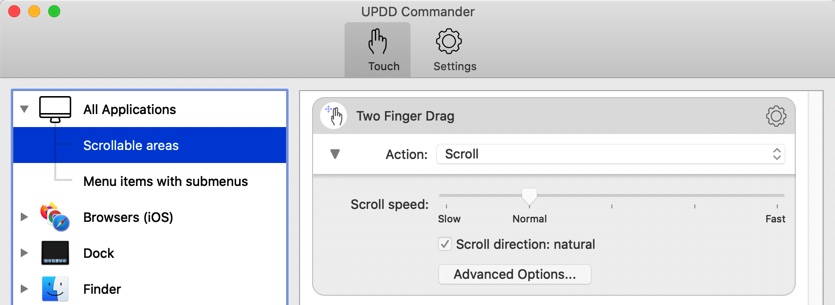
The Scroll direction: natural checkbox sets the direction, as seen in this example:
Smooth or line-by-line scrolling
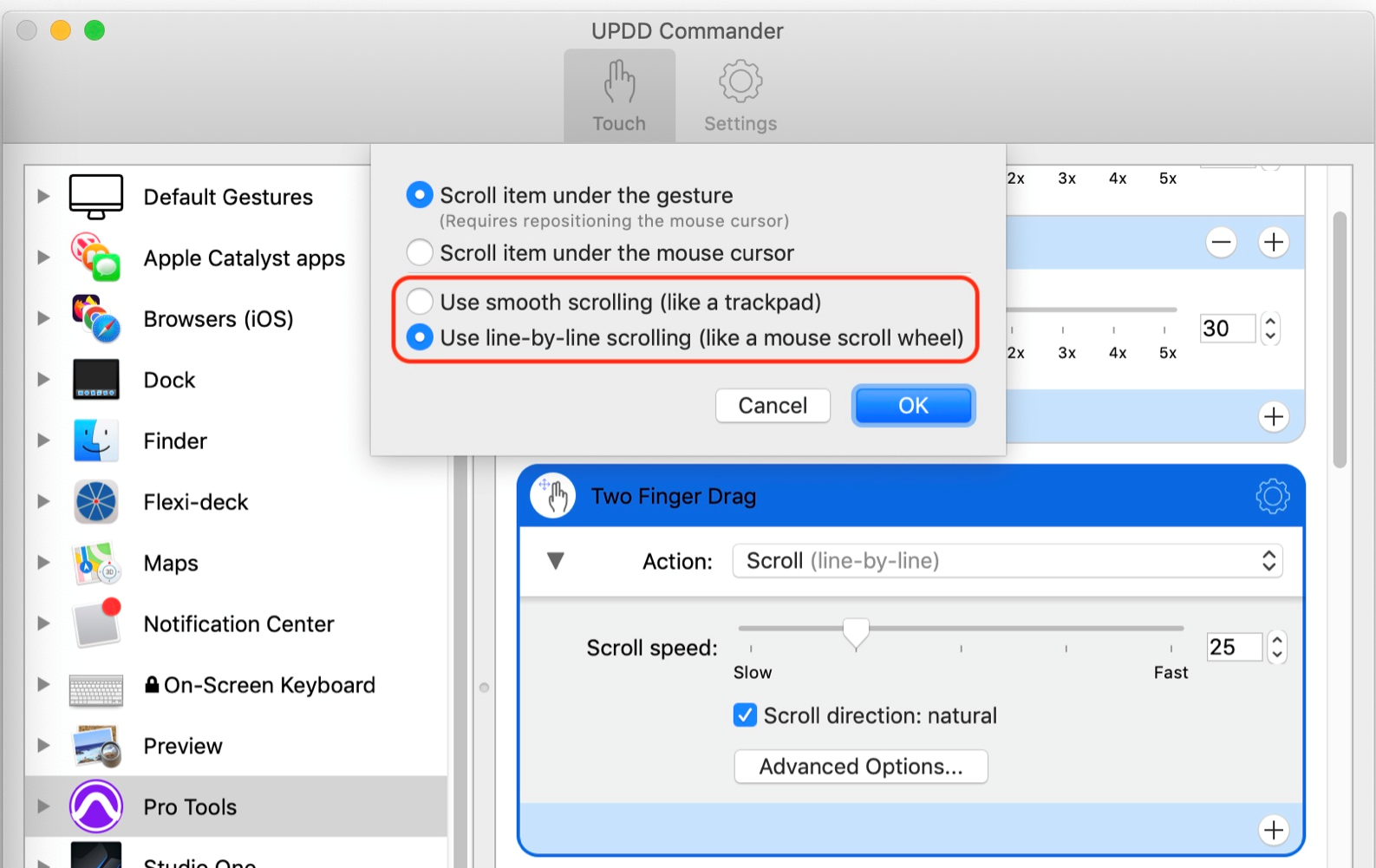
In most cases, the scroll method is set to smooth to offer scrolling similar to a trackpad (Use smooth scrolling (like a trackpad)).
However, in one case we found that in a specific application, when in a specific mode of operation, smooth scrolling produced fast scrolling with minimal movement. To cater for this case there is a line-by-line scroll method in the Advanced Options, similar to that produced by a mouse wheel (Use line-by-line scrolling (like a mouse scroll wheel)). It is set as default in the Pro Tools preset (see DAW applications):
Scroll location
The Advanced Options also choose what is scrolled: Scroll item under the gesture, or Scroll item under the mouse cursor (the latter fixed in UPDD Commander 1.15.0).
Scroll axis
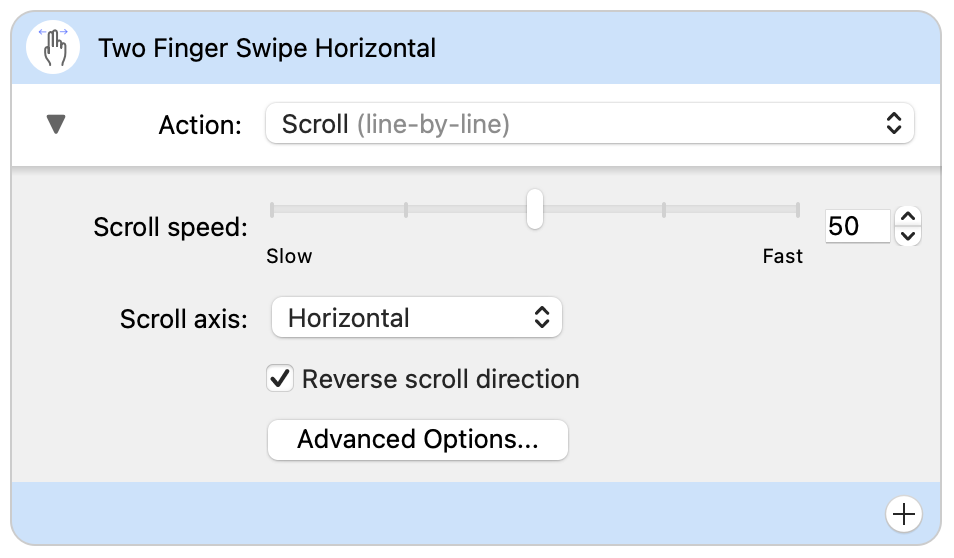
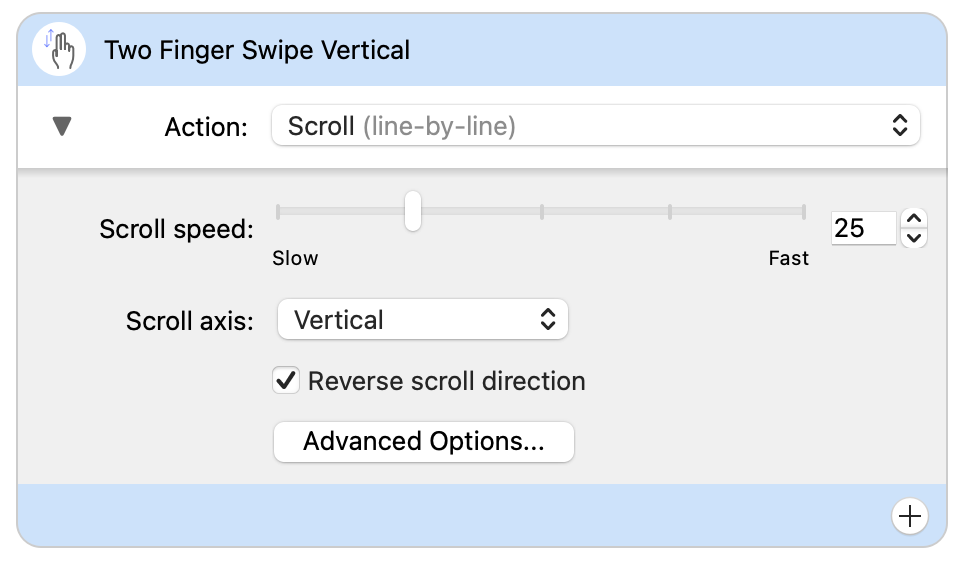
For certain gestures the Scroll action allows the axis to be defined, specifically those that are only performed in a single axis, like a horizontal, vertical or single direction swipe. This example, from the Pro Tools preset, has one gesture for dragging horizontally and one for dragging vertically, each with its own axis and speed:
 |  |
For review
ScrollDirection.jpg and UCScrollMethod.PNG are older screenshots; check them against the 1.15.0 Scroll action widget ("Scroll direction: natural", "Scroll speed", "Scroll axis") and its Advanced Options (smooth / line-by-line and the two scroll locations, QtScrollSettingsModalWidget.ui). The "Scroll location" section is new, from source; drop it if the team prefers the settings left to Gestures and actions.