DAW applications
This document describes UPDD Commander configuration for digital audio workstation (DAW) and other music applications on macOS. UPDD Commander ships presets for several of them in the Custom > DAWs folder of the presets: Live, Logic Pro X (sliders), LUNA, Pro Tools (sliders), Studio One, Studio Pro and Yeco.
Adjusting several sliders at once (Logic Pro and Pro Tools)
The Logic Pro and Pro Tools presets configure the multi-touch gesture function that allows multiple volume sliders to be adjusted at the same time.
Standard touch moves the sliders at a 'normal' speed. A keyboard modifier has been added to halve the speed if the Shift key is engaged. These can be changed as required, or additional modifiers can be added.
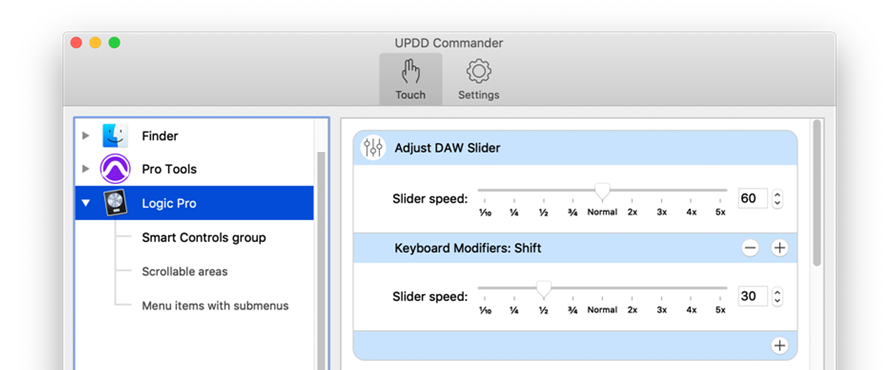
The Adjust DAW Sliders gesture, if added retrospectively, is added from the All Touches gesture set:
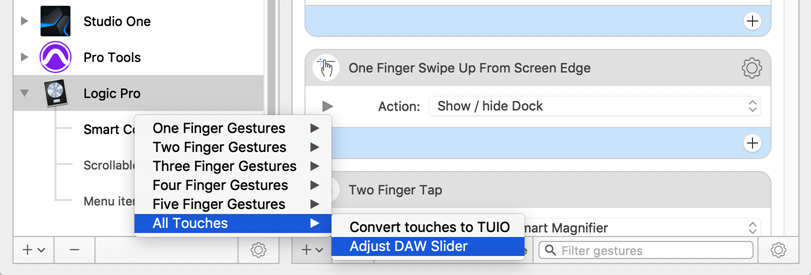
Since UPDD Commander 1.11.0 the action also works with horizontal sliders in Logic Pro.
Given that Logic reports its Smart Controls section as being scrollable, but drags there should not trigger scrolling, the Smart Controls UI element has One Finger Tap set so that a tap always clicks, and One Finger Drag always performs a click and drag. This allows manipulating the controls in this group. Without it, the "Scrollable areas" UI element gesture definitions would apply and dragging would not work properly.
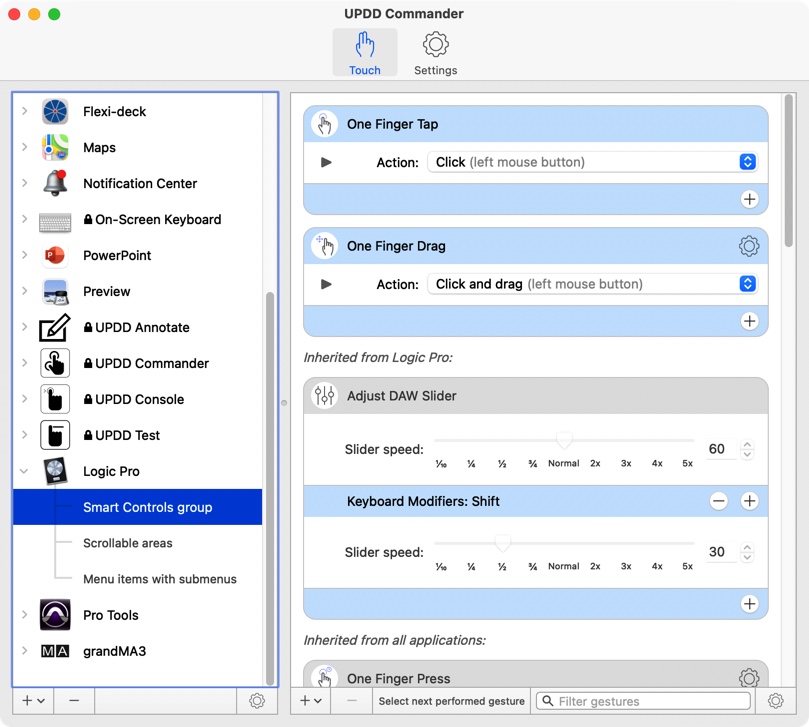
To add the Smart Controls group UI element to Logic, select "Specific UI element" in the dialog box for adding the UI element (see Applications, groups and UI elements), and then mouse over a blank area of Logic Pro's Smart Controls UI, regardless of which instrument is selected, so that the entire area is highlighted by the dashed-line box.
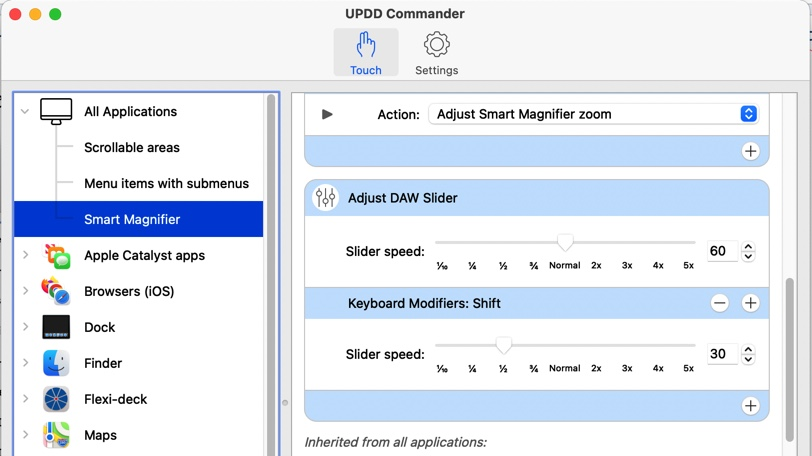
To allow the sliders to work within the Smart Magnifier, the Default Gestures Smart Magnifier UI element must also contain the Adjust DAW Sliders gesture:
Pro Tools undo
Adjustments made to the sliders using the Accessibility API are not added to the Pro Tools undo queue, and are therefore not undoable. Adjusting sliders with a mouse or trackpad is undoable. We consider this a bug in Pro Tools.
Pro Tools scrolling
It was observed that in some circumstances scrolling within Pro Tools produces fast scrolling with minimal movement on the touch screen. To cater for this, the Pro Tools preset sets the line-by-line scroll method as default:
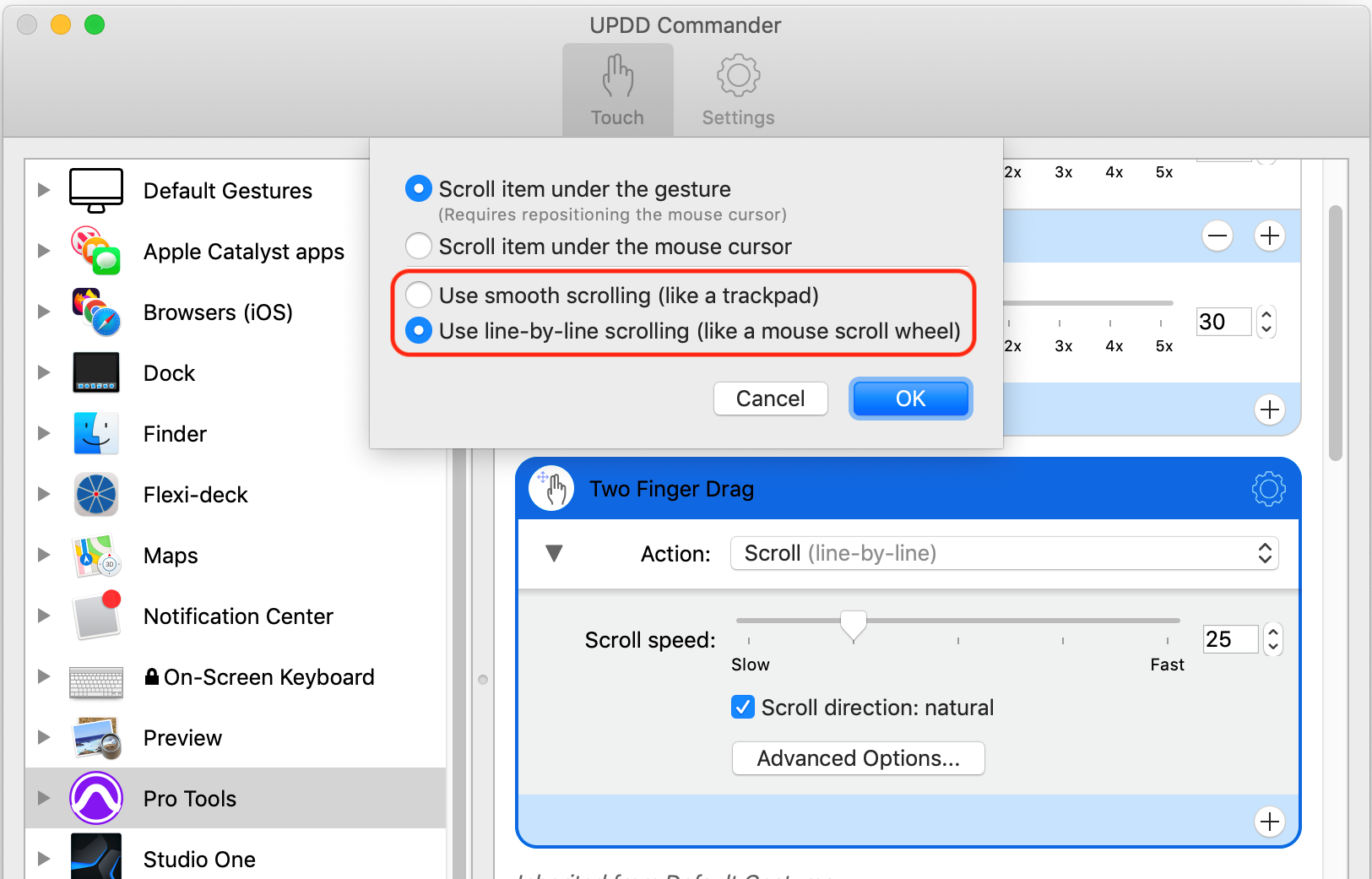
The Pro Tools preset also has a UI element, Track Group, that applies when using gestures over track strips, with two separate gestures within it, one for dragging horizontally and one for dragging vertically, both set to scroll but with two different scroll speeds (see Scroll axis).
Ableton Live
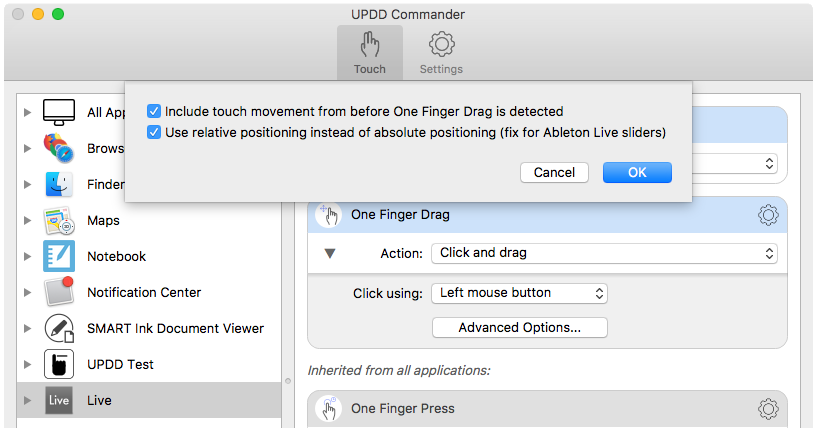
Users reported that faders in Ableton Live were moving twice as fast as the touch movement. This did not occur with a mouse. One reported the solution described here; another Mac user only had to activate pen mode in Live's preferences, which gave smooth movements in Live's native knobs and faders.
When you drag a slider or dial in Ableton Live it keeps resetting the mouse cursor position back to where it started when you first clicked (thereby allowing the user to not have to worry about the cursor hitting the edge of the screen). With a normal mouse this is not a problem as mouse movement is relative and just adjusts the cursor a small amount. With a touch screen though, the cursor is positioned under the touch, meaning the farther your finger moves from where you started, the farther the cursor moves and the faster it tries to move the slider, hence the issue.
To overcome this, the Click and Drag action has an advanced option to drag using relative positioning: in UPDD Commander 1.15.0 select Click starting under gesture and drag using relative positioning (fixes Ableton Live sliders) in its Advanced Options; earlier versions have the checkbox Use relative positioning instead of absolute positioning. This can be enabled in any definition of Click and Drag as required. The Live preset sets it for One Finger Drag.
Studio One
Studio One supports the TUIO interface and UPDD Commander ships with a Studio One preset that converts touches in Studio One to TUIO and sets the gestures Studio One handles itself to No Action. A Studio Pro preset, set up the same way, is also provided.
Performing two finger taps on certain areas of the application will cause Studio One version 6 to freeze until a right click is performed. This is repeatable on a number of systems, and has also been seen intermittently in version 5. We believe this to be a bug in Studio One and have reported it to the developers.
After you have added Studio One into the application list you need to run the following steps:
- In Studio One, open its preferences (i.e. pick the menu Studio One > Preferences).
- In Studio One's preferences, select the General section, and then the "Touch Input" tab.
- Make sure "Enable TUIO multi-touch devices" is checked, and the UDP port is set to 3333.
- Change "Connect multi-touch device with monitor number" to the correct number for your touch monitor. If in doubt, move the preferences window to the correct monitor and click "This".
- Touches should now control Studio One. If you try to pick menus in its menu bar using touches, you may see this dialog appear:
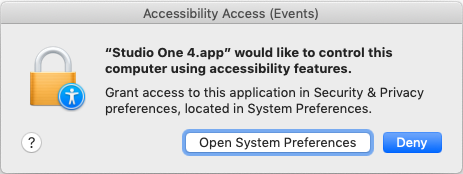
We also found that certain windows in Studio One do not work with TUIO touches, including the windows for VST plug-ins, unless accessibility access is granted.
Yeco
Yeco must have its TUIO interface enabled. The Yeco preset converts all touches inside Yeco's window to TUIO, and positions the touches relative to the window rather than relative to the display.
Max MSP
Max MSP has been tested with UPDD Commander. The Default Gestures definition works fine with this application as it uses standard clicks and drags, which is generally all that is required.
This application can interface via TUIO but it will receive all TUIO messages in the standard configuration. However, Max MSP allows you to only work with the XY messages. A TuioDemo patch is available that demonstrates how to do it.
Camelot Pro
Camelot Pro is a software instrument hosting application.
Certain parts of the application respond to scrolling, so either use two finger up / down to scroll or, if you prefer, add the application in the application list and set the One Finger Drag gesture for the entire application, or for the scroll area within the application, to the Scroll action.
UA LUNA
Click based actions stopped working in an updated version of UA LUNA, but using an older method of generating clicks reinstated click processing for this application. In the Advanced Options of the Click and Click and Drag actions, select Use legacy method for creating mouse clicks (fixes clicks in UA LUNA) (since UPDD Commander 1.9.7; see Gestures and actions). The LUNA preset sets this for One Finger Tap and One Finger Drag.
JUCE plug-ins
Plug-ins and applications built with JUCE can receive touches directly from the driver; see JUCE applications and plug-ins.
For review
The Ableton Live screenshot (AppAbletonLive) shows the pre-1.15.0 checkbox. In 1.15.0 b4 the Click and Drag Advanced Options dialog shows both the new radio button and the old checkbox, which is no longer connected to a setting (QtClickAndDragSettingsModalWidget.ui rows 3 and 9, .cpp accessors) - possibly a leftover; check with the Commander developer and take a new screenshot.
The DAW slider screenshots (DAWSliderGesture, DAWAddSliderGesture, DAWSliderGestureSMCG, DAWSMSliderGesture) may show "All Applications"; DAWSMSliderGesture illustrated the Smart Magnifier entry under it. New screenshots wanted.
The Studio Pro preset (application id com.fender.studioapp) is in the TBA packaging (commander_preset-ExtraApps-osx, dated 2026-10-12); confirm it has shipped before publishing that sentence.