Multi-monitor on Windows
Windows can be configured in a number of ways to support multiple monitors. This document describes how these set-ups affect the UPDD configuration on Windows: the UPDD virtual HID devices and their association with monitors, the Windows desktop co-ordinate system, and unified pointer injection for an application spanning several touch monitors. It applies to UPDD 7 (and, except where stated, UPDD 6).
The association of touch devices with monitors, common to all platforms, is described in Monitors: identify, bind, metrics and segments. These notes refer to single user, multiple monitor configurations; please contact Touch-Base if you are using multiple monitors in a multi-user / multi-seat environment, as further development work would be needed to support this.
Virtual HID devices
UPDD uses a number of system interfaces to post touch data into the operating system, one being a virtual HID touch device interface, which is the default on Windows. There is one UPDD virtual HID touch device (and, in UPDD 7, pen device) in the Device Manager, Human Interface Devices branch, for each monitor connected to the system, and more are added as monitors are connected. Each virtual HID device is bound to a display.
When these virtual devices are created, either at driver installation or when the display settings or monitor layout change (a monitor is added or removed), the driver needs to map each virtual device to the corresponding monitor so that it can post touches to the correct video location. To do this the driver moves the cursor to the corner of each monitor and notes the co-ordinates. While this runs a notification is issued indicating that the monitor layout is being set up and requesting that no mouse or touch is used; a further notification is issued when it is complete. It takes about 2 seconds per connected monitor.
The driver also reacts to a change of the primary monitor and binds all virtual touch devices to the correct screen with each such change, so touch continues to work after changes in screen configuration without a reboot. The techniques used are not published or supported by Microsoft, so we cannot be certain they work in all scenarios; in some cases it may still be necessary to reboot after a screen configuration change.
From UPDD 7.1.43 this procedure can be disabled and run manually as and when required, with the setting monitor_setup_mode, as described in Manually request update. The UPDD Daemon menu option Setup Monitors and the command upddutils monitorbind run it on request. To force a full remap on a system whose monitors are already set up, or to correct touch screens that are swapped after imaging or a new graphics card, see Touch on the wrong screen, or none.
Once the virtual HID devices have been recognised by Windows, touch data passed through them is directed to the correct monitor, provided the touch devices have been associated with their monitors using Identify.
Virtual HID device association
When a touch screen is configured the driver needs to know the monitor associated with it, so that, for example, in a dual monitor system the touch on each touch screen is activated on the correct monitor. As UPDD posts multi-touch data through a virtual HID device, there is both a physical touch device and a virtual HID device, and both need to be associated with the correct monitor.
The virtual HID device binding is Windows system information held in the registry (the digimon mapping). It is normally set up by Windows, but UPDD can set it up using the monitor mapping function built into the software. This function generates a touch on each monitor in turn to gather the required information. The touch is directed to a temporary invisible window, so it does nothing so long as mouse and touch are not used during this detection phase. During the process the cursor moves to the corner of each monitor, returning to its original position at the end.
If UPDD notifications are enabled you will see notifications at the start and end of the process.
In some cases this cursor movement is undesirable. The global setting monitor.mapping_event controls when the operation occurs:
0 - never (see note 1)
1 - once only at installation time
2 - as required (the default; see note 2)
Use the command line interface to set it as required: upddutils nodevice set monitor.mapping_event n
Notes
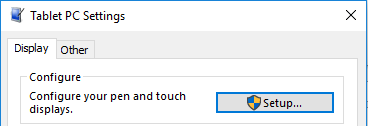
- If monitor.mapping_event is set to never and the virtual HID interface is used in a multi-monitor system, touches may not be directed to the correct monitor. In this case you will need to set up the HID / desktop association manually using the Windows Tablet PC settings utility, invoked from the Windows Control Panel, Tablet PC Settings, Setup:
- When monitor.mapping_event is set to as required the function is triggered at installation and whenever the monitor layout changes, such as adding, removing or switching monitors.
- If at any time the Windows Tablet PC settings utility is used to set up the HID / desktop associations manually, it is likely that you will need to run Identify again to re-associate and calibrate the UPDD devices.
Desktop resolution and monitor layout
We are familiar with a single monitor displaying a complete Windows desktop, and with video resolutions such as 1920 x 1080, where the first figure is the number of pixels in the X plane (left to right) and the second the number in the Y plane (top to bottom). Windows remaps these video pixel resolutions to its own internal desktop resolution of 65535 (X plane) x 65535 (Y plane).
Pointer device calibration data relates to the internal resolution. When UPDD asks the operating system to move the pointer to a specific X, Y co-ordinate it references the internal desktop resolution, hence a change of screen resolution does not affect the performance of UPDD.
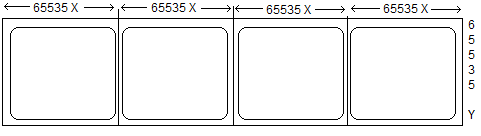
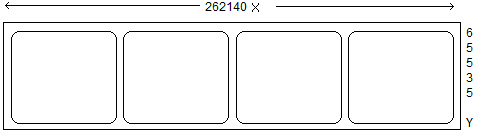
Depending on the type of multi-monitor support in the system, as discussed below, each monitor either has its own internal range of 65535 X and 65535 Y, or one internal range is shared across all monitors, each controlling a segment of it. The user sees the same result - the desktop is spread over all the monitors - but internally it is handled differently. In the two examples below the co-ordinates are spread across the monitors in a 4 x 1 configuration, configured differently in Windows.
Windows layout matches the physical monitors
The internal layout directly relates to the number of physical monitors and each desktop has its own internal range:
Windows layout does not match the physical monitors
The internal layout relates to more than one monitor, in this example 4 in the horizontal plane. The Y co-ordinates are in the range 0 to 65535 but the X co-ordinates are in the range 0 to 262140. If the monitors were stacked in a square (2x2) the range would be 0 to 131070 and 0 to 131070.
Native video support
In the standard set-up, where the number of monitors seen by Windows matches the number of physical monitors, the native video driver is used. Windows recognises that the system has more than one display output and shows each monitor in the display settings; each monitor can be enabled or disabled and can have its own settings.
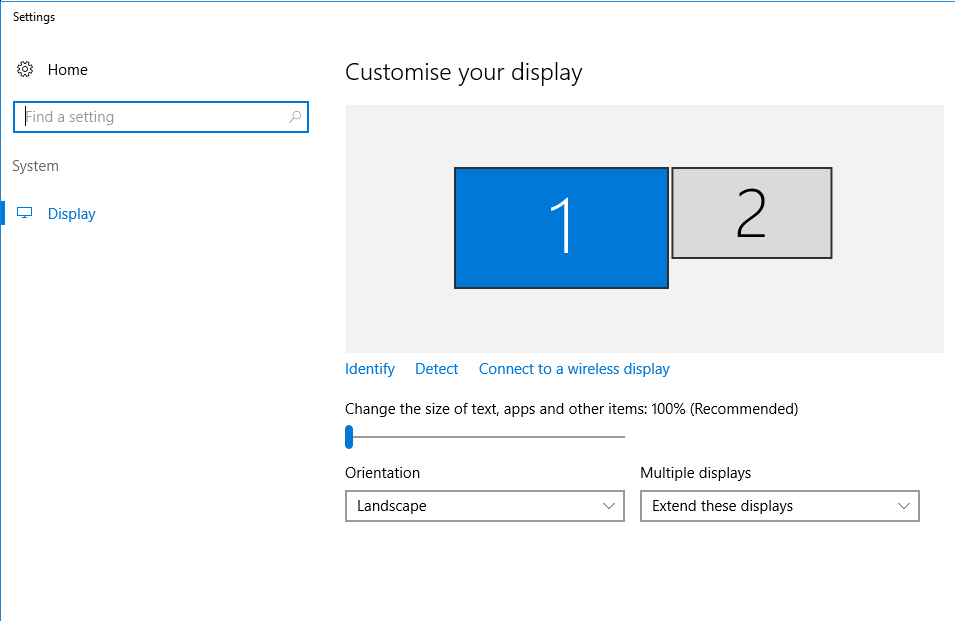
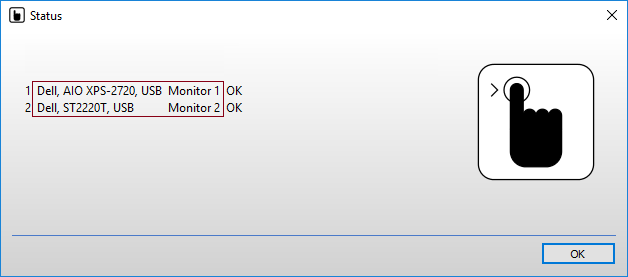
In this set-up Identify associates each touch device with a monitor: monitor 1, monitor 2 etc. UPDD shows the association between the touch device and the monitor:
Segmented and stretched video support
Where there are more physical monitors than seen by Windows, specialised video hardware and a custom video driver are in use. Individual logical desktops (the OS sees a single monitor) are stretched across, or mapped to, several physical monitors, as in this example:
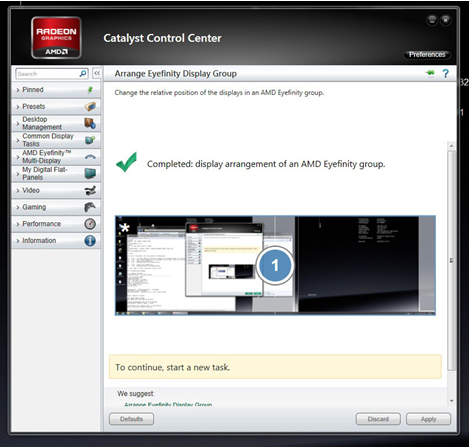
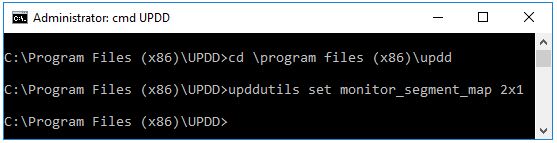
Here one logical monitor represents two physical monitors, side by side. Define the logical / physical relationship in the UPDD Console, Advanced, General tab or with the command line utility, setting monitor_segment_map accordingly, in this case a 2 x 1 layout:
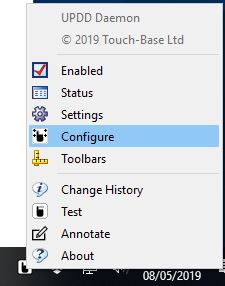
Now run Identify to associate each touch screen with the correct segment:
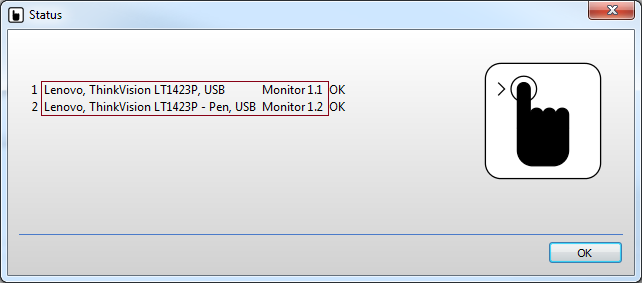
UPDD then shows the association between each touch device and its monitor segment:
Unified pointer injection
In a multi-monitor set-up, unless the application receives touch data directly through some form of API (UPDD, TUIO or the native OS touch API), touches can only be used on one monitor at a time, because of the single user limitation of the Windows HID touch interface. From UPDD 7.1.220 two settings allow simultaneous touches in an application that spans several touch monitors: merge_contact_ids, described in Multiple controllers in one application, and use_input_injection, described here.
use_input_injection is a global setting (Windows only). When enabled, UPDD delivers touch and pen from every connected controller through a single, shared Windows synthetic pointer interface (the Windows InjectSyntheticPointerInput API), created and driven by UPDD Daemon in the interactive user session. This replaces the default delivery path (the per-monitor UPDD virtual HID devices) with one unified interface:
- One synthetic touch device shared by all controllers (up to 256 simultaneous contacts).
- One synthetic pen device.
- A unified contact id space across controllers, so two controllers that each report contact "0" do not collide on the way to Windows. If a new contact arrives when every slot is in use it is dropped and logged.
Because injection happens from the user session it integrates with the Windows pointer input stack and, when UPDD Daemon has UI Access, can drive elevated (administrator) windows, which the normal delivery cannot.
Requirements
- Windows 10 version 1809 or later (InjectSyntheticPointerInput is not available on older Windows).
- To reach elevated windows: UPDD Daemon.exe must be Authenticode signed and run from a secure location (C:\Program Files\UPDD\). Without this, injection still works for normal applications but cannot reach applications running as administrator.
You can enable the setting with upddutils or a UPDD API call:
upddutils global set use_input_injection 1 - enableupddutils global set use_input_injection 0 - disable (revert to the virtual HID devices)TBApiSetSetting(0, "use_input_injection", "1", false);
Pen or touch routing per controller comes from that controller's active_pointer_interface setting while injection is on: auto - pen devices inject as pen, everything else as touch; touch - touch; pen - pen; mouse - not injected (stays on the mouse path).
Use cases
- Touch and pen on elevated (administrator) applications, which standard delivery cannot drive.
- Many controllers, one coherent touch stream: the unified contact id space keeps multi-touch coherent across all of them.
- High contact counts: one interface supporting up to 256 contacts rather than spreading them across per-monitor virtual HID devices.
- Applications that use the Windows pointer / touch stack receive real injected touch.
Notes and limitations
- Windows only.
- A touch lands on the monitor the controller is associated with (monitor_number); if it appears on the wrong screen, fix the controller's monitor association using Identify.
- Controllers set to the mouse interface are never injected.
- Overflow (more simultaneous contacts than the interface supports) is dropped and recorded in the UPDD log.
For review
The two notification screenshots of 50582 (MonitorIDS.png, MonitorIDE.png) are dropped: they show "Identifying monitors…", which UPDD 7.1 now words "Setting up monitors; please don't use touch or mouse" / "Monitor setup complete" (07_01 daemon/notifydialog.cpp:208, 211). New screenshots are needed if the notifications are to be shown.
Dropped as version archaeology: the UPDD 6.0.400 and 6.0.475 paragraphs, "Win 7, 8 and 10", and "Windows 8 is not tested"; the statement that the virtual HID interface is the default is kept without the Windows version list. Moved here from 50347 (owned by monitors): its "Virtual device and monitor setup" section, as it is Windows only.
The Status screenshots (StatusNative2.png, StatusVirtual.png) show the UPDD 6 Status dialog; new UPDD 7 screenshots would help.