Touch not working: first steps
This document describes the first checks to make when touch is not working with UPDD V7 (and V6) on Windows, macOS and Linux. It is aimed at issues relating to the driver and the touch hardware; for gestures that do not do what you expect on macOS see Diagnosing gesture selection.
UPDD supports USB and serial touch devices. USB support is based on the USB vendor and product ids of the hardware. Given there are hundreds of USB touch devices UPDD has not been tested on all of them, but as a general rule if the device works in Windows with the native HID driver there is a good chance it will work with UPDD, as the configuration data is read from the device's HID Report Descriptor. For legacy (non-HID) USB devices and serial devices, which hold no configuration data, the required settings are predefined in the driver for the device.
All being well the driver should install, discover any supported USB device that is connected and work straight away; the cursor should move to the point of touch. If it moves but not to the correct place, see The cursor moves to the wrong place. If you touch the screen and nothing happens, work through the checks below. If you are still stuck, take a diagnostics package and send it to us: it gathers everything we need to investigate.
Is the touch cable connected
In most cases the touch device is a USB device; in a few cases it is a serial device. For the device to work either the USB or the serial cable must be plugged in. Connecting just the video cable is insufficient. It is all too easy to power on the touch monitor, connect the video cable and forget, or not realise, that the USB cable also needs to be connected.
Serial devices are not discovered automatically: you add the device after installation and set the port it is connected to, as described in Serial (RS232) devices.
Is the device seen by the system
UPDD relies on the touch device being correctly recognised by the system. Until the system sees the device the driver cannot work with it. When a USB device is connected it appears in the system's hardware list: the Device Manager on Windows, the System Report (System Information) on macOS and the lsusb command on Linux, as described in Identifying a touch device. Not all touch devices list with touch or pen in their names; if you are unsure which entry is the touch device, unplug and replug it and see which entry is removed and added.
If no device is removed and added when you unplug and replug it, investigate the connection: try another cable, another USB port, a USB2 port instead of a USB3 port, or a powered hub. See USB connection problems.
Should the system indicate any error with the device it is highly unlikely that the driver will be able to handle it. In most cases the device is listed as OK and functioning, but in some cases an error is shown, such as in this Device Manager example where the device is listed with an exclamation mark:
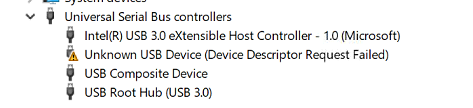
and further details reveal:
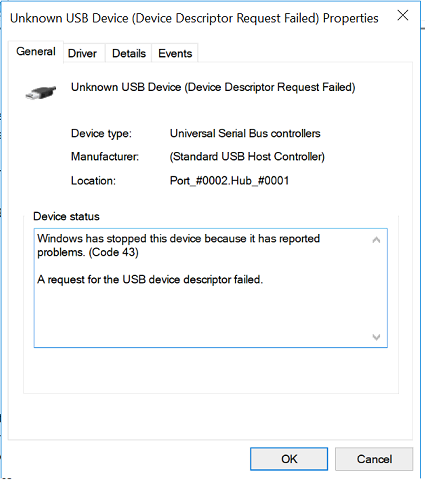
In this particular case the device was plugged into a USB3 port but was not USB3 compatible. Plugging it into a USB2 port resolved the issue.
Is the device supported by the installed driver
Any given build of UPDD can be configured for just one or many devices. For the driver to handle a USB device, the USB vendor and product id of the device as listed by the system must match those held by the driver for that device.
The UPDD Console Devices > Supported tab lists the devices supported by the installed driver, with their vendor and product ids:
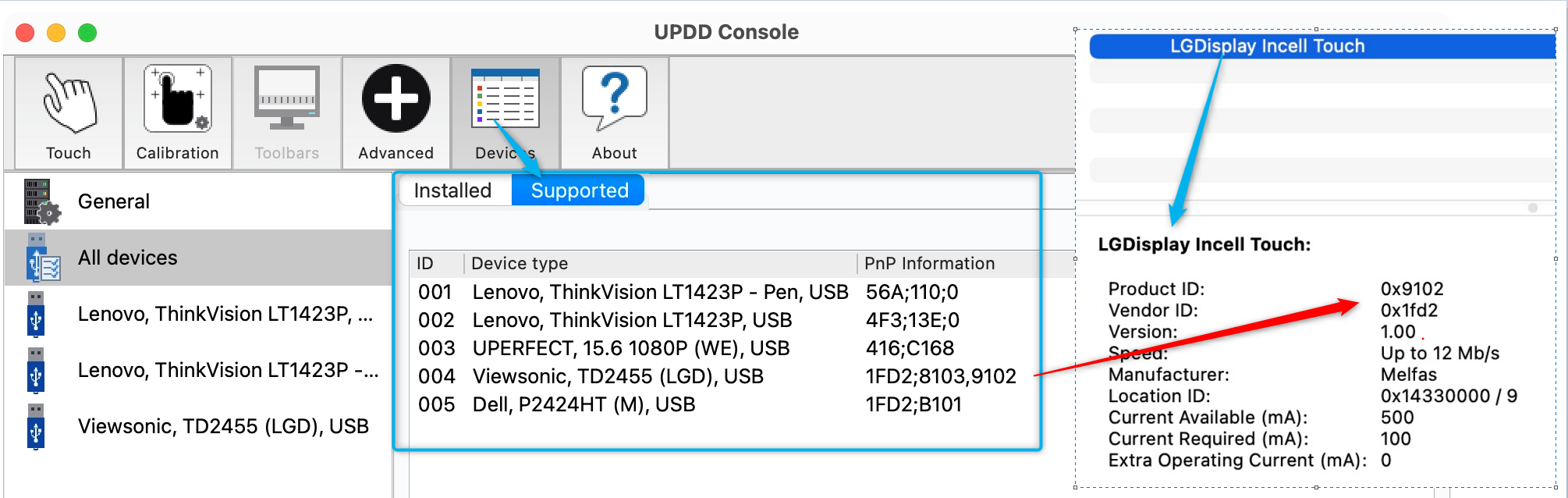
The format is <vendor id>;<product id>;<optional reserved value>. Each of these elements can be a single value, a comma separated list or a range (e.g. 1-5). So in the example above the Viewsonic TD2455 entry supports vendor id 1FD2 with product ids 8103 or 9102.
The same list is printed by the command upddutils pnpinfo, run in a command window on Windows or a terminal window on macOS and Linux. The command upddutils usbdevices lists the USB devices the driver can see, and upddutils hiddevices the HID devices it has claimed; see the upddutils command line reference.
If the vendor and product id listed by the system do not match any device supported by the driver, you need a driver that supports the device: see Downloading UPDD, or raise a ticket at https://www.touch-base.com/contact with the device details.
Is the device connected to the driver
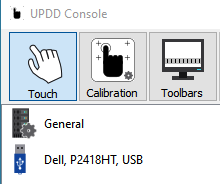
Devices being handled by the driver are listed in the UPDD Console. A connected device is listed with an active icon, as shown by the Dell P2418HT example below:
A device that is not connected is listed with an inactive icon (if it was previously connected) or not listed at all (if it has never been connected):
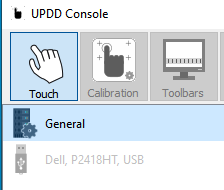
The same information is available from the command upddutils devices. A connected device is shown with status OK; a device that is not connected is shown with NOK or not listed:
upddutils devices
 1 OK  Dell, P2418HT, USB       Monitor 2 DEL4114
When the driver is loaded, the UPDD Daemon shows its system tray or menu bar icon without an exclamation mark. The icon shows an exclamation mark, and its tooltip says why, when the Daemon cannot connect to the driver (No driver connection), when no devices are connected (No devices connected) or when the evaluation has expired (Evaluation expired).
No driver connection
The UPDD Console shows No driver connection, and upddutils fails with 'Unable to open connection to driver', when the programs cannot connect to the driver through its API. This means the driver is not loaded or has locked up.
Check the driver is running (updd.exe in the Windows Task Manager, updd in the macOS Activity Monitor or the Linux process list); see What UPDD installs on Windows, What UPDD installs on macOS or Linux: what is installed, start-up and processes. If it is not running, see if there are any crash logs, and run the driver by hand to see why it fails to load, as described in Logs and driver debugging.
The driver can lock up for a variety of reasons, but the main one we have observed is the USB interface locking up when a touch device stalls when a USB device request is issued. A watchdog service is available to identify and recover from known issues.
No devices found
The driver will, where possible, automatically take control of USB devices configured in the package. If the UPDD Console shows No devices found, check the following:
- If the device is not listed in the system hardware list, investigate why not, as above: the cable, the port, a powered hub, a USB2 port. See USB connection problems.
- If the USB vendor and product id are listed in the hardware list but do not match those supported by the driver, you need a new driver that does support the device.
- If the vendor and product id do match and touch is working, albeit not being controlled by UPDD, then the native HID driver or a third party driver is likely in control. Ensure any third party drivers are uninstalled. If the native HID driver is in control, try rebooting.
- On macOS, a driver below 7.1.230 installs a driver extension that macOS blocks until you allow it, and an extension that has not been allowed looks exactly like 'No devices found'. From 7.1.230 a package for HID devices installs no extension. See macOS: allowing the UPDD driver extension.
- For Windows systems, if all the settings imply that UPDD should be in control, try manually associating UPDD with the device: locate the device in the Device Manager, right click and select Update driver; select that you want to browse your computer for the driver rather than search automatically, pick from the list of drivers, select the UPDD driver and select Finish. How UPDD devices are listed in the Device Manager is described in Windows: virtual device and filter driver problems.
Diagnostics can still be run when the Console shows 'No devices found', and the diagnostics package shows which of these is the cause: take a diagnostics package and send it to us.
Device listed but not connected
A USB device that was previously discovered and is now listed as not connected (NOK) is no longer being seen: check it is still in the system hardware list. For serial devices, check the correct COM port is associated and available.
Device connected but touch not working
Use the command upddutils de (digitizer events) to see whether the driver receives any touch data when you touch the screen; see the upddutils command line reference.
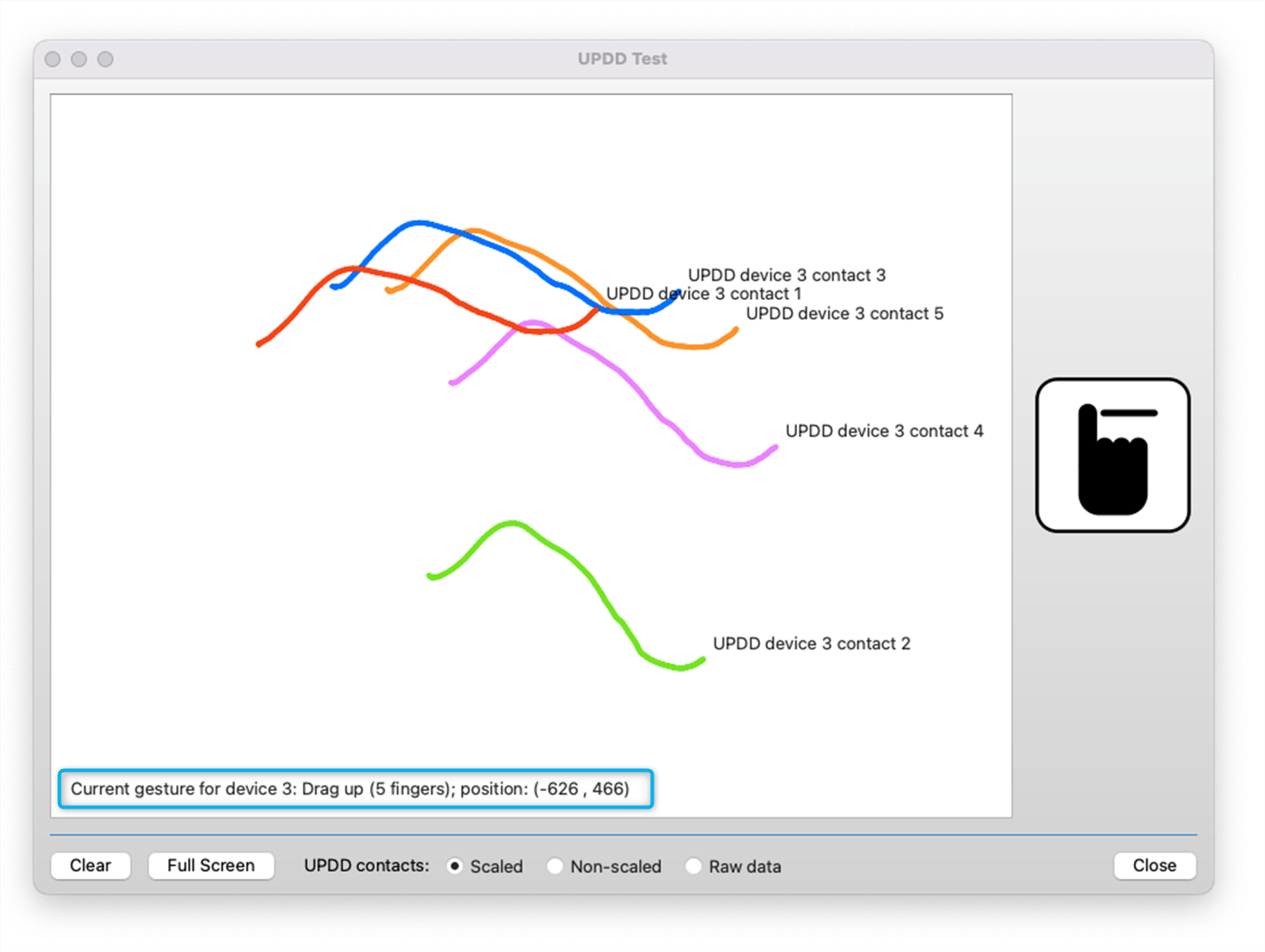
UPDD Test receives touch data directly from the driver's API. If you see line drawing in its drawing area when you touch the screen, the basic connectivity between the hardware and the driver is working. In this example the touches from the whole touch screen are scaled into the drawing area; at the bottom it shows the gesture being performed, here a five finger drag up:
Some multi-touch touch screens plugged into a system other than Windows switch to a single touch 'mouse' mode, or occasionally to some 'custom' configuration that UPDD does not support. If UPDD Test shows only single touch, see Multi-touch device stuck in single-touch mode.
If you believe the device to be Windows HID compatible, see if it works on a Windows system to prove it is not a hardware fault.
The cursor moves to the wrong place
If the device is listed and the cursor moves on the correct monitor but not to the point of touch, calibrate the device as described in Calibration.
If the cursor moves on the wrong monitor, the touch screen needs to be associated with the correct monitor: see Monitors: identify, bind, metrics and segments and Touch on the wrong screen, or none.
Disconnect notifications while the device is connected
When a supported device is discovered by the driver a notification is issued that the device has been connected:

When it is disconnected a notification is issued to that effect:

It is possible to be notified of a disconnection even though the device is connected. In this case the driver has received an error on a USB read, which can be seen in the driver's log; the device is handled again when the system next reports it as added. Repeated connect and disconnect notifications almost always point to the USB connection: see USB connection problems. Notifications can be turned off (see UPDD Daemon), but that does not resolve the underlying issue.
Missing system tray or menu bar icons
If the UPDD icons are configured to be shown but are not seen, this is a good indication that the application is failing to load correctly.
You can try running the application manually in a command or terminal window to see if any error message is issued, as this will likely give a good clue why it is failing to load. On macOS see also macOS: UPDD processes not running.
Touch on macOS
There are many factors that have to align for touch to work on a Mac:
- Working hardware components (touch screen, cable, hub, port etc.) that are macOS compatible. Some devices 'stall' when connected to a macOS system because their firmware expects the Windows USB communication sequence; see Known hardware issues and macOS: device not responding (0xe00002ed).
- The device is recognised and seen by macOS.
- The UPDD software is correctly installed (see Install UPDD on macOS) and, for drivers below 7.1.230, the driver extension has been allowed to load (see macOS: allowing the UPDD driver extension).
- The UPDD software supports the touch and pen devices connected to the system.
- UPDD Commander has the permissions it needs (see macOS: Accessibility, Input Monitoring and background items) and is configured to perform the expected actions.
In a Mac environment the touch screen is almost certainly a USB device. Depending on the connectors on the Mac and the touch monitor you may have USB-A, USB-B, USB-C and Thunderbolt connection options; one combination might cause issues where another is perfectly OK, so be prepared to try different connections. Conduct initial tests with the touch device connected directly to the Mac: see USB connection problems.
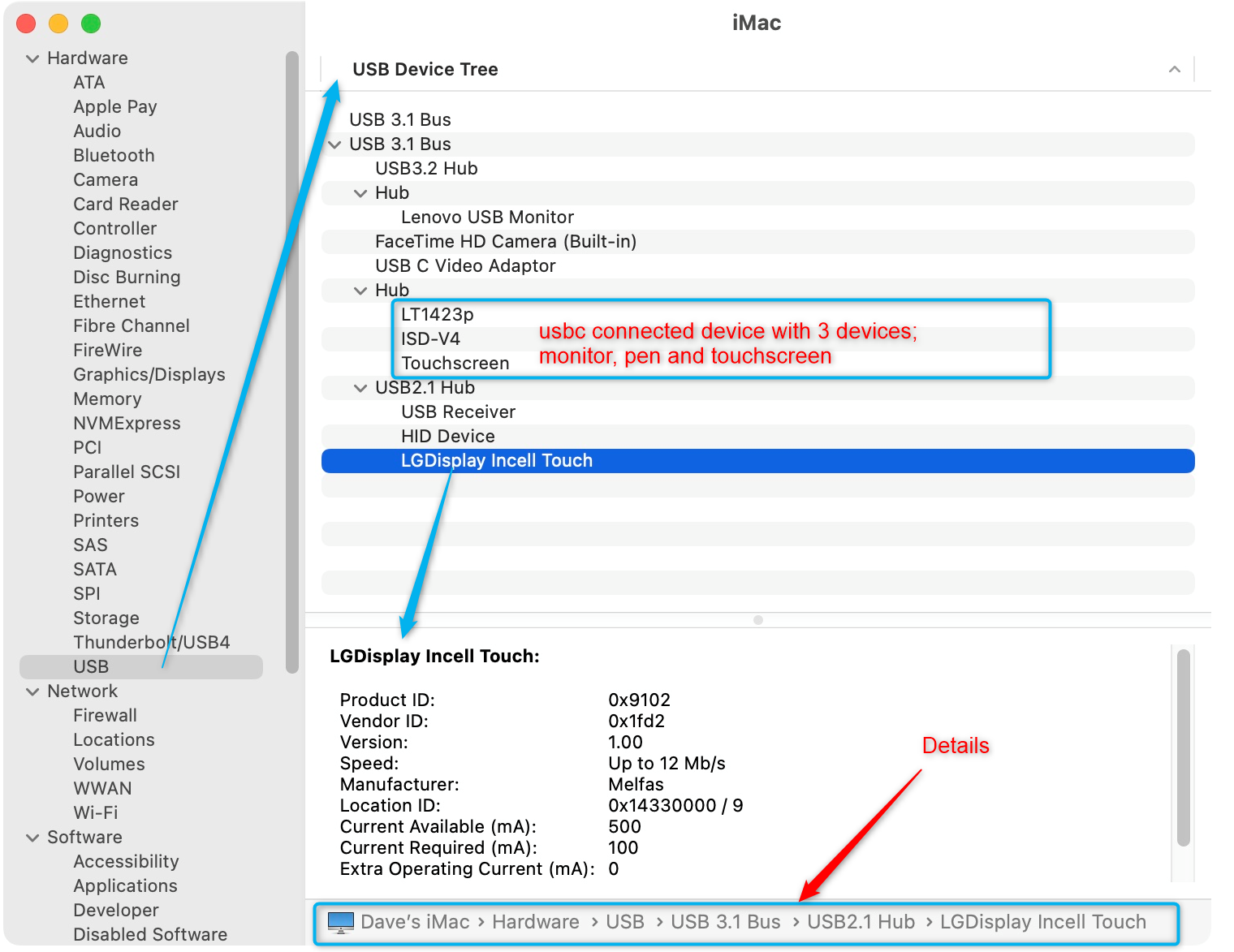
When a USB device is connected correctly it is listed in the System Report USB tree. This does not guarantee it is working, but at least it has been seen by macOS. In this example the system has two touch screens connected, one via USB-C and one via a standard USB cable; selecting the device in the tree shows its details:
Following a successful installation the driver should discover the devices and list them in the UPDD Console:
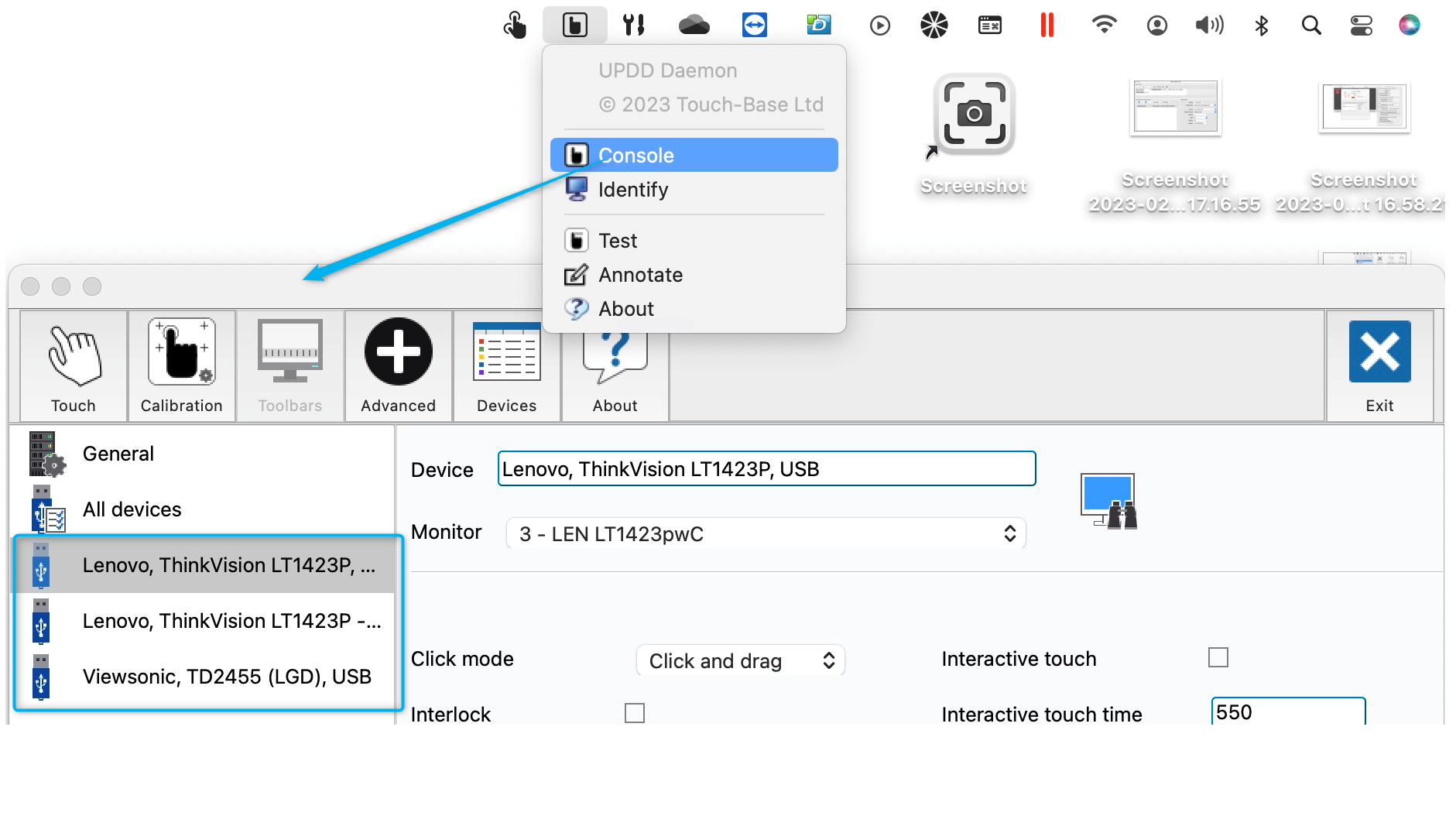
On macOS the driver connects to the touch and pen hardware, handles the monitor configuration and makes the touch data available on its API to UPDD client applications such as UPDD Test, UPDD Annotate and UPDD Commander. The driver offers a simple single touch function on macOS, but this is disabled by UPDD Commander when it loads, as Commander is responsible for posting touch and pen data into macOS. If the touches arrive (UPDD Test draws) but a gesture or action is not the one you expected, use the Commander log and gesture identifier described in Diagnosing gesture selection.
Restarting the driver
Some troubleshooting steps and setting changes need the driver to be restarted (not all setting changes do). Either reboot the system or stop and start the driver as follows:
| OS | Commands |
| Windows | In an administrator command window:net stop upddnet start upddMore information in What UPDD installs on Windows. |
| macOS | In a Terminal window:sudo upddprocesses stop -dsudo upddprocesses start -dMore information in What UPDD installs on macOS. |
| Linux | In a terminal window:sudo systemctl stop upddsudo systemctl start upddMore information in Linux: what is installed, start-up and processes. |
Sending us the information
If none of the above identifies the problem, run the UPDD diagnostics procedure and attach the resulting file to a ticket raised at https://www.touch-base.com/contact, as described in Taking a diagnostics package. The package contains everything we would otherwise ask for separately: the HID Report Descriptor, the driver's debug log, the device and global settings and a capture of the touch data.
For review
- Dropped screenshots that show V6 or something no longer true: the
upddutils pnpinfowindow (pnpinfo.PNG) and theupddutils deviceswindows (CLIOK.png, CLINOK.png) show the V6C:\Program Files (x86)\UPDDfolder (V7 installs toC:\Program Files\UPDD, inno/updd.iss); the UPDD Status dialog (status.PNG) is not in the V7 Daemon menu (its menu entry is commented out, daemon/mytrayicon.cpp:120); the macOS menu bar icon pairs (MBIDriverOK.png, MBIdrivererror.png) show the V6 menu bar with the UPDD Gestures icons; the terminal screenshot ran UPDD Gestures. The devices output is given as text instead. New V7 screenshots wanted for the Windowsupddutilsoutput and the Daemon icon with and without the exclamation mark. - Dropped from 50326 as V6/Windows 8 only: the OEM System Builder/THQA paragraph, KB3095649 and
upddutils set active_touch_interface tbupddsu(the V7 console code mapping these interface values is commented out, review E18). Confirm nothing in it still applies to V7. - 50326 said the driver retries a failing USB read and only reports a disconnect after five errors in a row. In the 7.1 macOS USB reader an unrecovered read error closes the device and reports the disconnect at once (updd/macos/macusbreader.cpp:910-990); the Windows reader was not checked. The five-retry statement is left out; confirm for Windows and Linux.
- The manual Device Manager association steps (50326) are carried as written; confirm they still apply to the V7 Windows USB driver.