Identifying a touch device
This document describes how to identify a touch screen device attached to a system running Windows, macOS or Linux. Identification may be needed to determine what device is actually connected, as part of a troubleshooting exercise to find out why touch is not working, or to configure a device to be supported by our driver.
When a USB device is connected to a system, details of the device appear in the hardware device list of the operating system. The most important information as far as the driver is concerned is the USB vendor and product id: the driver uses these values to register itself as the handling driver for the device, so the values listed must match the values held by the driver for that device. How to see the devices supported by your driver is described in Touch not working: first steps.
When a serial device is connected nothing is shown other than the serial port it is connected to; see Serial devices below.
One tip that works on every system: take a view of the device list before the touch screen is plugged in and another afterwards, and note the device that has been added.
Windows
There are many ways to identify USB devices on a Windows system. These are some of the methods we use to view the USB vendor and product ids.
Device Manager
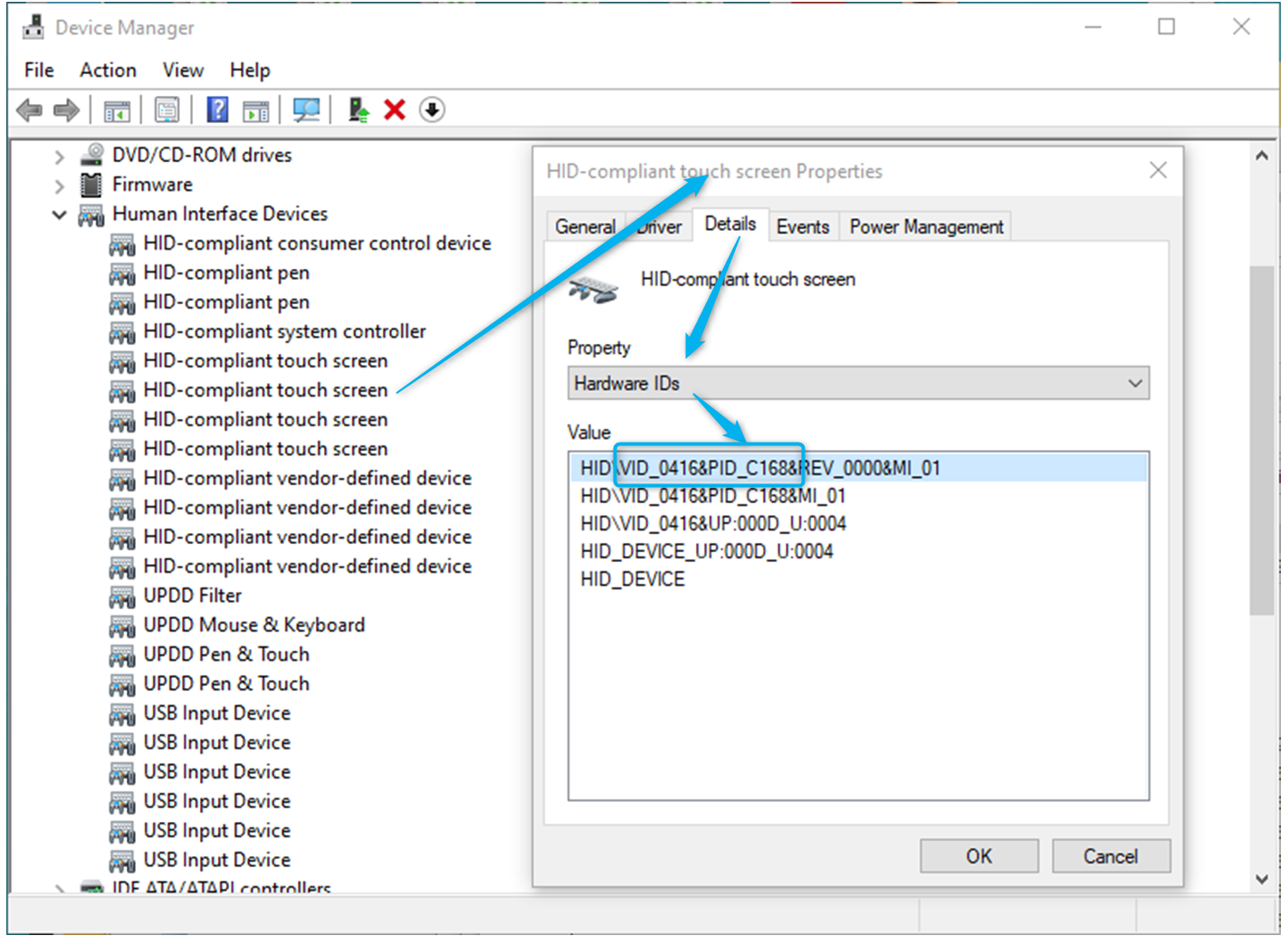
Depending on the driver loaded for it, a touch screen is likely to be listed under Mice and other pointing devices, Human Interface Devices or Universal Serial Bus devices in the Device Manager. Select the individual entries and look at the Details tab, Hardware Ids, of any touch device, as in this example:
Utilities
There are a number of free utilities that list USB devices, such as USBDeview. The vendor and product ids are shown in the last two columns of this example:
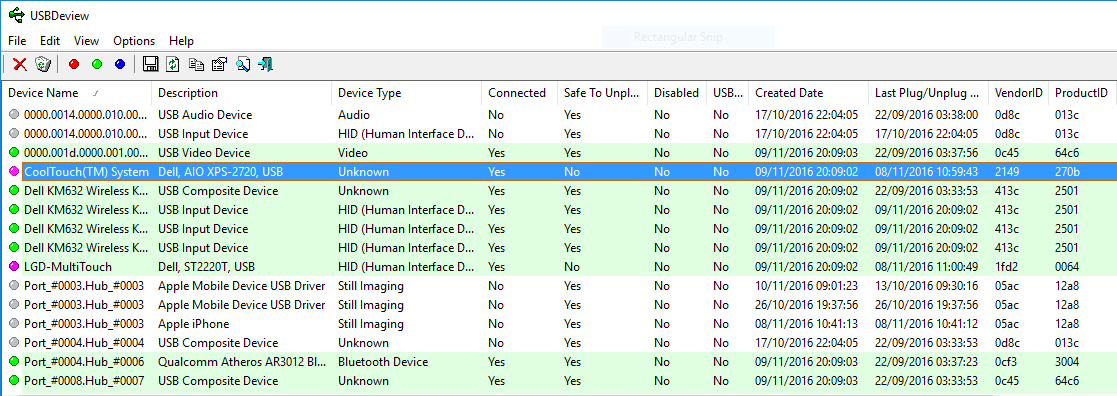
You can save the output to a text file: Edit > Select All, then File > Save Selected Items.
macOS
To view the USB vendor and product ids on macOS, use the System Report or the ioreg command.
System Report
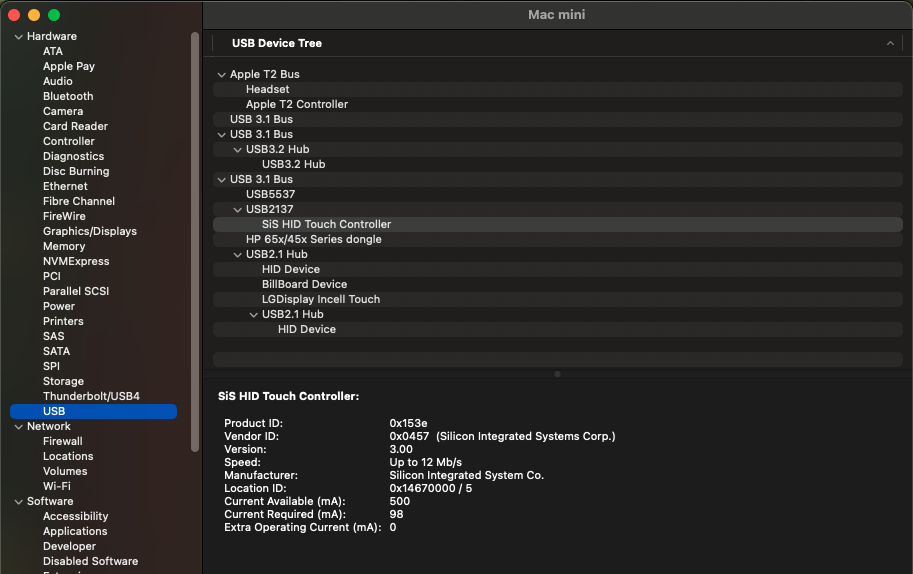
macOS 13 and later: hold the Option key, click the Apple menu and choose System Information. This takes you directly to the system report shown below.
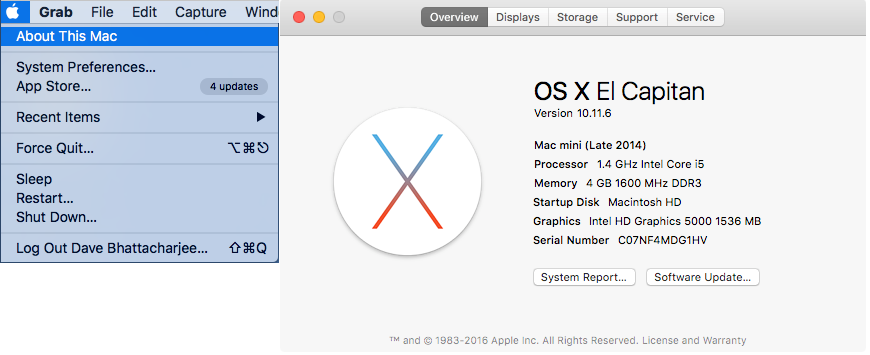
macOS 12 and earlier: choose About This Mac from the Apple menu and select System Report.
Once the system report is shown, select USB in the tree on the left and locate the touch screen among the listed USB devices. In this example we have highlighted the hub on which a Lenovo LT1423p monitor is connected. This monitor has both a touch screen and a Wacom pen, as listed in the information panel, with the vendor and product id highlighted.
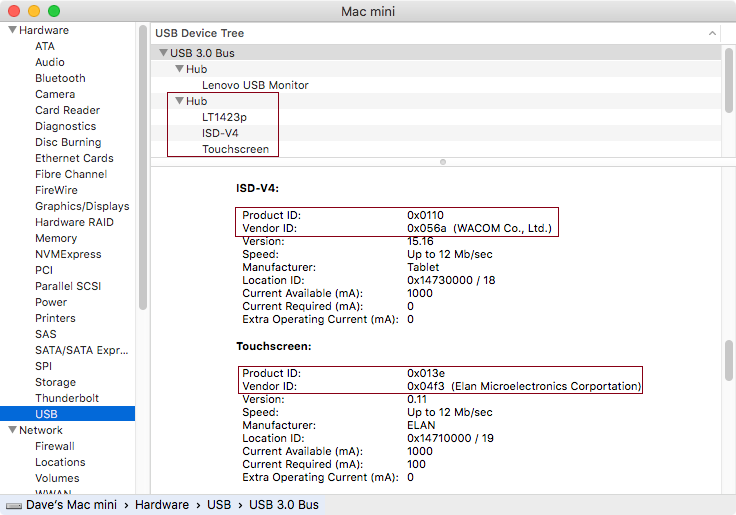
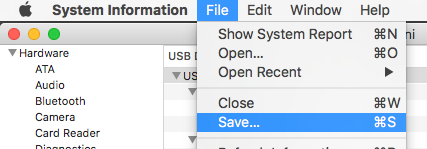
With the touch USB devices listed and expanded you can copy and paste the viewing area when sending us the information, or save the entire report to an .spx file using the Save option:
Command line
This Terminal command prints all USB devices on the system:
ioreg -p IOUSB -k "idProduct"
To help identify which USB device is being connected or disconnected, save the list before:
ioreg -p IOUSB -k "idProduct" > ~/Desktop/usb-before.txt
and then connect (or disconnect) the device and run it again:
ioreg -p IOUSB -k "idProduct" > ~/Desktop/usb-after.txt
Should you need to delay listing the devices, use the sleep command; e.g. to delay by 10 seconds:
sleep 10; ioreg -p IOUSB -k "idProduct" > ~/Desktop/xxxx.txt
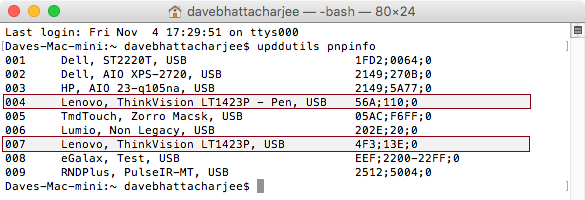
The upddutils pnpinfo command lists the devices supported by the installed driver, with their vendor and product ids, for comparison:
Linux
To view the USB vendor and product ids on Linux, use the lsusb command or a graphical viewer. There may be other methods.
lsusb command
If the usbutils package is installed on your system, the lsusb command lists the USB devices in the following format:
Bus 004 Device 001: ID 0000:0000
Bus 003 Device 001: ID 0000:0000
Bus 003 Device 002: ID 066b:2213 Linksys, Inc. WUSB12v1.1 802.11b Adapter
Bus 003 Device 003: ID 067b:2303 Prolific Technology, Inc. PL2303 Serial Port
Bus 002 Device 001: ID 0000:0000
Bus 002 Device 002: ID 0eef:0001 D-WAV Scientific Co., Ltd eGalax TouchScreen
Bus 001 Device 001: ID 0000:0000
In this example the entry 0eef:0001 … eGalax TouchScreen is a USB touch screen controller: vendor id 0EEF, product id 0001.
Graphical viewer
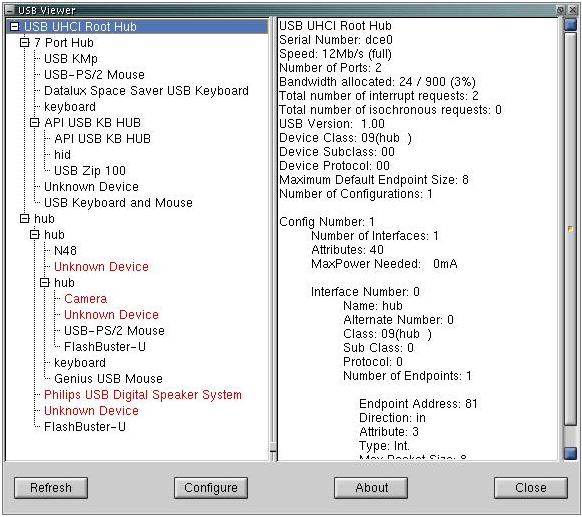
Use a graphical USB viewer, such as USBview. When run, it shows the USB devices as in this example:
Serial devices
To supply a driver for a serial device we need to identify the device manufacturer or the touch controller, or failing that, capture the serial data the device sends when the touch screen is touched.
If the touch screen is part of a monitor, it may be possible to identify the touch device from the manufacturer and model number of the monitor by referring to the supported touch monitor list on our download page.
If the monitor is not listed, other clues to the identity of the device are labels on the touch screen controller board (if accessible) or any old drivers originally supplied with the touch device.
Failing those, capture some raw touch data and send it to us in a support ticket raised at https://www.touch-base.com/contact, so that we can compare the captured data with our controller configuration database and look for a matching sequence. Before capturing data, make sure you can identify the serial port in the system and prove that data is being seen at the port, as described in the same document.
Once we have a reasonable idea of the serial device in use, we can send a test driver that has built-in diagnostic tools to help identify the device further if it does not work.
For review
- Dropped the USB Prober section of 50330 (needs-work in the correction pass): it offered Snow Leopard and Lion builds of Apple's USB Prober from v6download.touch-base.com. System Information and
ioregcover the same ground. - Dropped the
cat /proc/bus/usb/devicesmethod and the SuSE 10.1 usbfs note of 50331 (needs-work, review E20): /proc/bus/usb went with usbfs in Linux 3.5 and does not exist on current distributions. Confirm. - Dropped the Windows
upddutils pnpinfoscreenshot (V6pnpinfoWin.PNG): it shows the V6C:\Program Files (x86)\UPDDfolder. The macOS pnpinfo screenshot (2016) is kept; the output format is unchanged.